
自定义控件之 圆形 / 圆角 ImageView
一、问题在哪里?
问题来源于app开发中一个很常见的场景——用户头像要展示成圆的:


二、怎么搞?
机智的我,第一想法就是,切一张中间圆形透明、四周与底色相同、尺寸与头像相同的蒙板图片,盖在头像上不就完事了嘛,哈哈哈!
在背景纯色的前提下,这的确能简单解决问题,但是如果背景没有这么简单呢?

在这种不规则背景下,有两个问题:
1) 背景图常常是适应手机宽度缩放,而头像的尺寸又是固定宽高DP的,所以固定的蒙板图片是没法保证在不同机型上都和背景图案吻合的。
2) 在这种非纯色背景下,哪天想调整一下头像位置就得重新换图片蒙板,实在是太难维护了……
所以呢,既然头像图片肯定是方的,那就就让ImageView圆起来吧。
[转载请保留本文地址:http://www.cnblogs.com/snser/p/5159126.html]
三、开始干活
基本思路是,自定义一个ImageView,通过重写onDraw方法画出一个圆形的图片来:
 public class ImageViewPlus extends ImageView{

     private Paint mPaintBitmap = new Paint(Paint.ANTI_ALIAS_FLAG);

     private Bitmap mRawBitmap;

     private BitmapShader mShader;

     private Matrix mMatrix = new Matrix();

     public ImageViewPlus(Context context, AttributeSet attrs) {

         super(context, attrs);

     }

     @Override

     protected void onDraw(Canvas canvas) {

         Bitmap rawBitmap = getBitmap(getDrawable());

         if (rawBitmap != null){

             int viewWidth = getWidth();

             int viewHeight = getHeight();

             int viewMinSize = Math.min(viewWidth, viewHeight);

             float dstWidth = viewMinSize;

             float dstHeight = viewMinSize;

             if (mShader == null || !rawBitmap.equals(mRawBitmap)){

                 mRawBitmap = rawBitmap;

                 mShader = new BitmapShader(mRawBitmap, TileMode.CLAMP, TileMode.CLAMP);

             }

             if (mShader != null){

                 mMatrix.setScale(dstWidth / rawBitmap.getWidth(), dstHeight / rawBitmap.getHeight());

                 mShader.setLocalMatrix(mMatrix);

             }

             mPaintBitmap.setShader(mShader);

             float radius = viewMinSize / 2.0f;

             canvas.drawCircle(radius, radius, radius, mPaintBitmap);

         } else {

             super.onDraw(canvas);

         }

     }

     private Bitmap getBitmap(Drawable drawable){

         if (drawable instanceof BitmapDrawable){

             return ((BitmapDrawable)drawable).getBitmap();

         } else if (drawable instanceof ColorDrawable){

             Rect rect = drawable.getBounds();

             int width = rect.right - rect.left;

             int height = rect.bottom - rect.top;

             int color = ((ColorDrawable)drawable).getColor();

             Bitmap bitmap = Bitmap.createBitmap(width, height, Bitmap.Config.ARGB_8888);

             Canvas canvas = new Canvas(bitmap);

             canvas.drawARGB(Color.alpha(color), Color.red(color), Color.green(color), Color.blue(color));

             return bitmap;

         } else {

             return null;

         }

     }

 }
分析一下代码:
canvas.drawCircle 决定了画出来的形状是圆形,而圆形的内容则是通过 mPaintBitmap.setShader 搞定的。
其中,BitmapShader需要设置Bitmap填充ImageView的方式(CLAMP:拉伸边缘, MIRROR:镜像, REPEAT:整图重复)。
这里其实设成什么不重要,因为我们实际需要的是将Bitmap按比例缩放成跟ImageView一样大,而不是预置的三种效果。
所以,别忘了 mMatrix.setScale 和 mShader.setLocalMatrix 一起用,将图片缩放一下。
[转载请保留本文地址:http://www.cnblogs.com/snser/p/5159126.html]
四、更多玩法 —— 支持边框
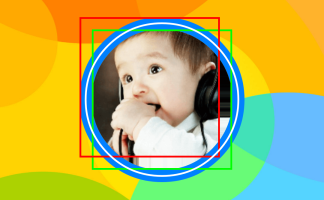
看下面的效果图,如果想给圆形的头像上加一个边框,该怎么搞呢?

 public class ImageViewPlus extends ImageView{

     private Paint mPaintBitmap = new Paint(Paint.ANTI_ALIAS_FLAG);

     private Paint mPaintBorder = new Paint(Paint.ANTI_ALIAS_FLAG);

     private Bitmap mRawBitmap;

     private BitmapShader mShader;

     private Matrix mMatrix = new Matrix();

     private float mBorderWidth = dip2px(15);

     private int mBorderColor = 0xFF0080FF;

     public ImageViewPlus(Context context, AttributeSet attrs) {

         super(context, attrs);

     }

     @Override

     protected void onDraw(Canvas canvas) {

         Bitmap rawBitmap = getBitmap(getDrawable());

         if (rawBitmap != null){

             int viewWidth = getWidth();

             int viewHeight = getHeight();

             int viewMinSize = Math.min(viewWidth, viewHeight);

             float dstWidth = viewMinSize;

             float dstHeight = viewMinSize;

             if (mShader == null || !rawBitmap.equals(mRawBitmap)){

                 mRawBitmap = rawBitmap;

                 mShader = new BitmapShader(mRawBitmap, TileMode.CLAMP, TileMode.CLAMP);

             }

             if (mShader != null){

                 mMatrix.setScale((dstWidth - mBorderWidth * 2) / rawBitmap.getWidth(), (dstHeight - mBorderWidth * 2) / rawBitmap.getHeight());

                 mShader.setLocalMatrix(mMatrix);

             }

             mPaintBitmap.setShader(mShader);

             mPaintBorder.setStyle(Paint.Style.STROKE);

             mPaintBorder.setStrokeWidth(mBorderWidth);

             mPaintBorder.setColor(mBorderColor);

             float radius = viewMinSize / 2.0f;

             canvas.drawCircle(radius, radius, radius - mBorderWidth / 2.0f, mPaintBorder);

             canvas.translate(mBorderWidth, mBorderWidth);

             canvas.drawCircle(radius - mBorderWidth, radius - mBorderWidth, radius - mBorderWidth, mPaintBitmap);

         } else {

             super.onDraw(canvas);

         }

     }

     private Bitmap getBitmap(Drawable drawable){

         if (drawable instanceof BitmapDrawable){

             return ((BitmapDrawable)drawable).getBitmap();

         } else if (drawable instanceof ColorDrawable){

             Rect rect = drawable.getBounds();

             int width = rect.right - rect.left;

             int height = rect.bottom - rect.top;

             int color = ((ColorDrawable)drawable).getColor();

             Bitmap bitmap = Bitmap.createBitmap(width, height, Bitmap.Config.ARGB_8888);

             Canvas canvas = new Canvas(bitmap);

             canvas.drawARGB(Color.alpha(color), Color.red(color), Color.green(color), Color.blue(color));

             return bitmap;

         } else {

             return null;

         }

     }

     private int dip2px(int dipVal)

     {

         float scale = getResources().getDisplayMetrics().density;

         return (int)(dipVal * scale + 0.5f);

     }

 }
看代码中,加边框实际上就是用实心纯色的 Paint 画了一个圆边,在此基础上画上原来的头像即可。
需要的注意的地方有三个:
1) 圆框的半径不是 radius ,而应该是 radius - mBorderWidth / 2.0f 。想象着拿着笔去画线,线其实是画在右图中白色圈的位置,只不过它很粗。
2) 在ImageView大小不变的基础上,头像的实际大小要比没有边框的时候小了,所以 mMatrix.setScale 的时候要把边框的宽度去掉。
3) 画头像Bitmap的时候不能直接 canvas.drawCircle(radius, radius, radius - mBorderWidth, mPaintBitmap) ,这样你会发现头像的右侧和下方边缘被拉伸了(右图)
为什么呢?因为 Paint 默认是以左上角为基准开始绘制的,此时头像的实际区域是右图中的红框,而超过红框的部分(圆形的右侧和下方),自然被 TileMode.CLAMP效果沿边缘拉伸了。
所以,需要通过挪动坐标系的位置和调整圆心,才能把头像画在正确的区域(右图绿框)中。
[转载请保留本文地址:http://www.cnblogs.com/snser/p/5159126.html]
五、更多玩法 —— 支持xml配置
既然有了边框,那如果想配置边框的宽度和颜色该如何是好呢?
基本上两个思路:
1) 给ImageViewPlus加上set接口,设置完成之后通过 invalidate(); 重绘一下即可;
2) 在xml里就支持配置一些自定义属性,这样用起来会方便很多。
这里重点说一下支持xml配置自定义属性。
自定义控件要支持xml配置自定义属性的话,首先需要在 \res\values 里去定义属性:
 <?xml version="1.0" encoding="utf-8"?>

 <resources>

     <attr name="borderColor" format="color" />

     <attr name="borderWidth" format="dimension" />

     <declare-styleable name="ImageViewPlus">

         <attr name="borderColor" />

         <attr name="borderWidth" />

     </declare-styleable>

 </resources>
View attrs_imageviewplus.xml
然后在ImageViewPlus的构造函数中去读取这些自定义属性:
     private static final int DEFAULT_BORDER_COLOR = Color.TRANSPARENT;

     private static final int DEFAULT_BORDER_WIDTH = 0;

     public ImageViewPlus(Context context, AttributeSet attrs) {

         super(context, attrs);

         //取xml文件中设定的参数

         TypedArray ta = context.obtainStyledAttributes(attrs, R.styleable.ImageViewPlus);

         mBorderColor = ta.getColor(R.styleable.ImageViewPlus_borderColor, DEFAULT_BORDER_COLOR);

         mBorderWidth = ta.getDimensionPixelSize(R.styleable.ImageViewPlus_borderWidth, dip2px(DEFAULT_BORDER_WIDTH));

         ta.recycle();

     }
在xml布局中使用自定义属性:
 <RelativeLayout xmlns:android="http://schemas.android.com/apk/res/android"

     xmlns:tools="http://schemas.android.com/tools"

     xmlns:snser="http://schemas.android.com/apk/res/cc.snser.imageviewplus"

     android:layout_width="match_parent"

     android:layout_height="match_parent"

     android:background="@drawable/wallpaper"

     android:orientation="vertical"

     tools:context="${relativePackage}.${activityClass}" >

     <cc.snser.imageviewplus.ImageViewPlus

         android:id="@+id/imgplus"

         android:layout_width="200dp"

         android:layout_height="300dp"

         android:layout_marginBottom="50dp"

         android:layout_centerHorizontal="true"

         android:layout_alignParentBottom="true"

         android:src="@drawable/img_square"

         snser:borderColor="#FF0080FF"

         snser:borderWidth="15dp" />

 </RelativeLayout>
[转载请保留本文地址:http://www.cnblogs.com/snser/p/5159126.html]
六、更多玩法 —— 圆角ImageView
搞定了圆形ImageView以及对应的边框,那如何实现下面这种圆角的ImageView呢?
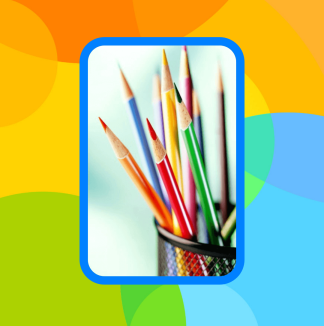
其实原理上一样,把 canvas.drawCircle 对应改成 canvas.drawRoundRect 就OK了,直接贴代码吧:
 public class ImageViewPlus extends ImageView{

     /**

      * android.widget.ImageView

      */

     public static final int TYPE_NONE = 0;

     /**

      * 圆形

      */

     public static final int TYPE_CIRCLE = 1;

     /**

      * 圆角矩形

      */

     public static final int TYPE_ROUNDED_RECT = 2;

     private static final int DEFAULT_TYPE = TYPE_NONE;

     private static final int DEFAULT_BORDER_COLOR = Color.TRANSPARENT;

     private static final int DEFAULT_BORDER_WIDTH = 0;

     private static final int DEFAULT_RECT_ROUND_RADIUS = 0;

     private int mType;

     private int mBorderColor;

     private int mBorderWidth;

     private int mRectRoundRadius;

     private Paint mPaintBitmap = new Paint(Paint.ANTI_ALIAS_FLAG);

     private Paint mPaintBorder = new Paint(Paint.ANTI_ALIAS_FLAG);

     private RectF mRectBorder = new RectF();

     private RectF mRectBitmap = new RectF();

     private Bitmap mRawBitmap;

     private BitmapShader mShader;

     private Matrix mMatrix = new Matrix();

     public ImageViewPlus(Context context, AttributeSet attrs) {

         super(context, attrs);

         //取xml文件中设定的参数

         TypedArray ta = context.obtainStyledAttributes(attrs, R.styleable.ImageViewPlus);

         mType = ta.getInt(R.styleable.ImageViewPlus_type, DEFAULT_TYPE);

         mBorderColor = ta.getColor(R.styleable.ImageViewPlus_borderColor, DEFAULT_BORDER_COLOR);

         mBorderWidth = ta.getDimensionPixelSize(R.styleable.ImageViewPlus_borderWidth, dip2px(DEFAULT_BORDER_WIDTH));

         mRectRoundRadius = ta.getDimensionPixelSize(R.styleable.ImageViewPlus_rectRoundRadius, dip2px(DEFAULT_RECT_ROUND_RADIUS));

         ta.recycle();

     }

     @Override

     protected void onDraw(Canvas canvas) {

         Bitmap rawBitmap = getBitmap(getDrawable());

         if (rawBitmap != null && mType != TYPE_NONE){

             int viewWidth = getWidth();

             int viewHeight = getHeight();

             int viewMinSize = Math.min(viewWidth, viewHeight);

             float dstWidth = mType == TYPE_CIRCLE ? viewMinSize : viewWidth;

             float dstHeight = mType == TYPE_CIRCLE ? viewMinSize : viewHeight;

             float halfBorderWidth = mBorderWidth / 2.0f;

             float doubleBorderWidth = mBorderWidth * 2;

             if (mShader == null || !rawBitmap.equals(mRawBitmap)){

                 mRawBitmap = rawBitmap;

                 mShader = new BitmapShader(mRawBitmap, TileMode.CLAMP, TileMode.CLAMP);

             }

             if (mShader != null){

                 mMatrix.setScale((dstWidth - doubleBorderWidth) / rawBitmap.getWidth(), (dstHeight - doubleBorderWidth) / rawBitmap.getHeight());

                 mShader.setLocalMatrix(mMatrix);

             }

             mPaintBitmap.setShader(mShader);

             mPaintBorder.setStyle(Paint.Style.STROKE);

             mPaintBorder.setStrokeWidth(mBorderWidth);

             mPaintBorder.setColor(mBorderWidth > 0 ? mBorderColor : Color.TRANSPARENT);

             if (mType == TYPE_CIRCLE){

                 float radius = viewMinSize / 2.0f;

                 canvas.drawCircle(radius, radius, radius - halfBorderWidth, mPaintBorder);

                 canvas.translate(mBorderWidth, mBorderWidth);

                 canvas.drawCircle(radius - mBorderWidth, radius - mBorderWidth, radius - mBorderWidth, mPaintBitmap);

             } else if (mType == TYPE_ROUNDED_RECT){

                 mRectBorder.set(halfBorderWidth, halfBorderWidth, dstWidth - halfBorderWidth, dstHeight - halfBorderWidth);

                 mRectBitmap.set(0.0f, 0.0f, dstWidth - doubleBorderWidth, dstHeight - doubleBorderWidth);

                 float borderRadius = mRectRoundRadius - halfBorderWidth > 0.0f ? mRectRoundRadius - halfBorderWidth : 0.0f;

                 float bitmapRadius = mRectRoundRadius - mBorderWidth > 0.0f ? mRectRoundRadius - mBorderWidth : 0.0f;

                 canvas.drawRoundRect(mRectBorder, borderRadius, borderRadius, mPaintBorder);

                 canvas.translate(mBorderWidth, mBorderWidth);

                 canvas.drawRoundRect(mRectBitmap, bitmapRadius, bitmapRadius, mPaintBitmap);

             }

         } else {

             super.onDraw(canvas);

         }

     }

     private int dip2px(int dipVal)

     {

         float scale = getResources().getDisplayMetrics().density;

         return (int)(dipVal * scale + 0.5f);

     }

     private Bitmap getBitmap(Drawable drawable){

         if (drawable instanceof BitmapDrawable){

             return ((BitmapDrawable)drawable).getBitmap();

         } else if (drawable instanceof ColorDrawable){

             Rect rect = drawable.getBounds();

             int width = rect.right - rect.left;

             int height = rect.bottom - rect.top;

             int color = ((ColorDrawable)drawable).getColor();

             Bitmap bitmap = Bitmap.createBitmap(width, height, Bitmap.Config.ARGB_8888);

             Canvas canvas = new Canvas(bitmap);

             canvas.drawARGB(Color.alpha(color), Color.red(color), Color.green(color), Color.blue(color));

             return bitmap;

         } else {

             return null;

         }

     }

 }
View ImageViewPlus.java
 <RelativeLayout xmlns:android="http://schemas.android.com/apk/res/android"

     xmlns:tools="http://schemas.android.com/tools"

     xmlns:snser="http://schemas.android.com/apk/res/cc.snser.imageviewplus"

     android:layout_width="match_parent"

     android:layout_height="match_parent"

     android:background="@drawable/wallpaper"

     android:orientation="vertical"

     tools:context="${relativePackage}.${activityClass}" >

     <cc.snser.imageviewplus.ImageViewPlus

         android:id="@+id/imgplus"

         android:layout_width="200dp"

         android:layout_height="300dp"

         android:layout_marginBottom="50dp"

         android:layout_centerHorizontal="true"

         android:layout_alignParentBottom="true"

         android:src="@drawable/img_rectangle"

         snser:type="rounded_rect"

         snser:borderColor="#FF0080FF"

         snser:borderWidth="10dp"

         snser:rectRoundRadius="30dp" />

 </RelativeLayout>
View layout
 <?xml version="1.0" encoding="utf-8"?>

 <resources>

     <attr name="type">

         <enum name="none" value="0" />

         <enum name="circle" value="1" />

         <enum name="rounded_rect" value="2" />

     </attr>

     <attr name="borderColor" format="color" />

     <attr name="borderWidth" format="dimension" />

     <attr name="rectRoundRadius" format="dimension" />

     <declare-styleable name="ImageViewPlus">

         <attr name="type" />

         <attr name="borderColor" />

         <attr name="borderWidth" />

         <attr name="rectRoundRadius" />

     </declare-styleable>

 </resources>
View attrs_imageviewplus.xml
[转载请保留本文地址:http://www.cnblogs.com/snser/p/5159126.html]
七、Demo源码
保存下面的图片,扩展名改成zip后解压即可。

[转载请保留本文地址:http://www.cnblogs.com/snser/p/5159126.html]
自定义控件之 圆形 / 圆角 ImageView的更多相关文章
- [Android] 给图像加入相框、圆形圆角显示图片、图像合成知识
前一篇文章讲述了Android触屏setOnTouchListener实现突破缩放.移动.绘制和加入水印,继续我的"随手拍"项目完毕给图片加入相框.圆形圆角显示图片和图像合 ...
- Android 圆形/圆角图片的方法
Android 圆形/圆角图片的方法 眼下网上有非常多圆角图片的实例,Github上也有一些成熟的项目.之前做项目,为了稳定高效都是选用Github上的项目直接用.但这样的结束也是Android开发必 ...
- 安卓图片载入之使用universalimageloader载入圆形圆角图片
前言 话说这universalimageloader载入图片对搞过2年安卓程序都是用烂了再熟悉只是了.就是安卓新手也是百度就会有一大堆东西出来,今天为什么这里还要讲使用universalimagelo ...
- Android开发之自定义圆形的ImageView的实现
android中的ImageView只能显示矩形的图片,这样一来不能满足我们其他的需求,比如要显示圆形的图片,这个时候,我们就需要自定义ImageView了,其原理就是首先获取到图片的Bitmap,然 ...
- Android自己定义圆角ImageView
我们常常看到一些app中能够显示圆角图片.比方qq的联系人图标等等,实现圆角图片一种办法是直接使用圆角图片资源,当然假设没有圆角图片资源.我们也能够自己通过程序实现的,以下介绍一个自己定义圆角Imag ...
- Android自己定义圆角ImageView 支持网络图片
先看下效果图 我们再来看一张CSDN的圆角图片 从布局能够看出csdn app 的头像也是圆角的Image,但能够看到.有明显的毛刺感.不知道是csdn 程序猿的疏忽还是 我手机的问题,本人手机(小米 ...
- 自定义控件【圆形】圆角 BitmapShader
关于缩放比例 本例中,我们会为BitmapShader设置了一个matrix,目的是按比例放大或者缩小bitmap,并移动到View控件的中心,我们不会让view的宽高大于我们bitm ...
- Android自定义控件之圆形进度条ImageView
From:http://blog.csdn.net/xiadik/article/details/41648181package com.wangran.beautiful_girl_show.vie ...
- Android实现圆形圆角图片
本文主要使用两种方法实现图形圆角图片 自定View加上使用Xfermode实现 Shader实现 自定View加上使用Xfermode实现 /** * 根据原图和变长绘制圆形图片 * * @param ...
随机推荐
- 使用TSQL查询和更新 JSON 数据
JSON是一个非常流行的,用于数据交换的文本数据(textual data)格式,主要用于Web和移动应用程序中.JSON 使用“键/值对”(Key:Value pair)存储数据,能够表示嵌套键值对 ...
- python之路 - 基础1
1.安装windows安装双版本Python2,Python3 下载Python2和Python3https://www.python.org/downloads/ 分别安装两个版本 进入Python ...
- WPF做12306验证码点击效果
一.效果 和12306是一样的,运行一张图上点击多个位置,横线以上和左边框还有有边框位置不允许点击,点击按钮输出坐标集合,也就是12306登陆的时候,需要向后台传递的参数. 二.实现思路 1.获取验证 ...
- JavaScript动画-碰撞检测
▓▓▓▓▓▓ 大致介绍 碰撞检测是指在页面中有多个元素时,拖拽一个元素会出现碰撞问题,碰撞检测是以模拟拖拽和磁性吸附中的范围限定为基础的 效果:碰撞检测 ▓▓▓▓▓▓ 碰撞检测 先来看看碰撞检测的原理 ...
- CGI与FastCGI nginx+PHP-FPM
本文转载自CGI与FastCGI 1.当我们在谈到cgi的时候,我们在讨论什么 最早的Web服务器简单地响应浏览器发来的HTTP请求,并将存储在服务器上的HTML文件返回给浏览器,也就是静态html. ...
- 使用NUnit为游戏项目编写高质量单元测试的思考
0x00 单元测试Pro & Con 最近尝试在我参与的游戏项目中引入TDD(测试驱动开发)的开发模式,因此单元测试便变得十分必要.这篇博客就来聊一聊这段时间的感悟和想法.由于游戏开发和传统软 ...
- 张高兴的 UWP 开发笔记:横向 ListView
ListView 默认的排列方向是纵向 ( Orientation="Vertical" ) ,但如果我们需要横向显示的 ListView 怎么办? Blend for Visua ...
- ubuntu 下安装scrapy
1.把Scrapy签名的GPG密钥添加到APT的钥匙环中: sudo apt-key adv --keyserver hkp://keyserver.ubuntu.com:80 --recv 6272 ...
- ES6之let命令详解
let与块级作用域 { var foo='foo'; let bar='bar'; } console.log(foo,'var'); //foo varconsole.log(bar ,'bar') ...
- 用C++实现Linux中shell的ls功能
实现输出当前目录下的文件名 ls功能: 方法一: #include <iostream> #include <algorithm> #include <stdio.h&g ...