
零代码教你安装部署Stable Diffusion 3,一键生成高质量图像
本文分享自华为云社区《重磅!【支持中文】stable-diffusion-3安装部署教程-SD3 来了》,作者:码上开花_Lancer。
正如承诺的那样,Stability AI在6月12日正式开源了Stable Diffusion 3(Medium版本)!不愧是AI生图领域的“开源英雄”。最近一段时间,正当所有人都在为OpenAI发布Sora狂欢时,Stability AI更是推出了Stable Diffusion 3的技术报告。这两项技术不约而同都采用了Diffusion Transformer的架构设计。

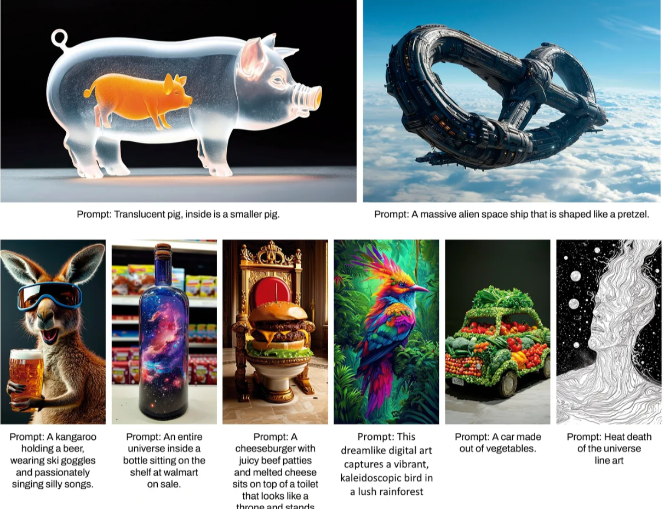
值得注意的是,Stable Diffusion 3的强大性能其实并不仅限于Diffusion Transformer在架构上所带来的增益,其在提示词、图像质量、文字拼写方面的能力都得到了极大的提升。那么究竟是什么让Stable Diffusion 3如此强大?今天我们就从Stable Diffusion 3的技术报告中解读stable diffusion 3强大背后的技术原理。
接下来就讲讲,怎么在本地部署最新的Stable Diffusion 3,大致分为以下几步(开始操作前,请确保你有“畅通”的网络):
一、前期准备
1.登录华为云官方账号:

点击右上角“控制台”,搜索栏输入“ModelArts”
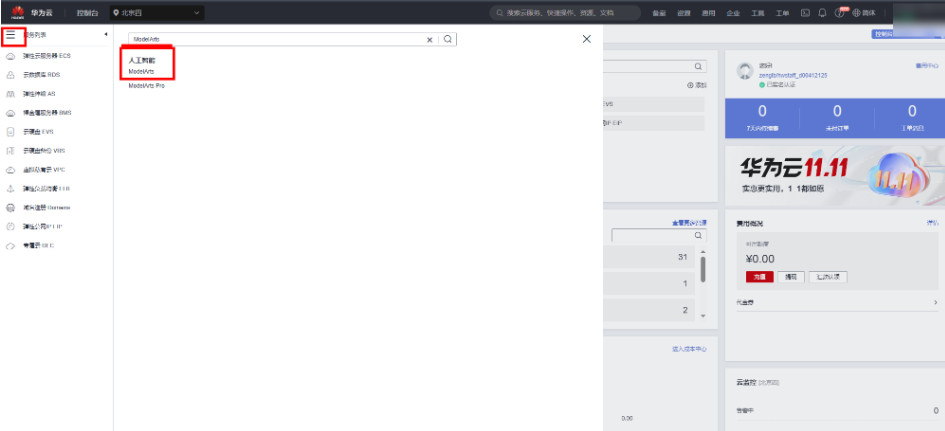
点击“开发环境”-“notebook”,“创建”:

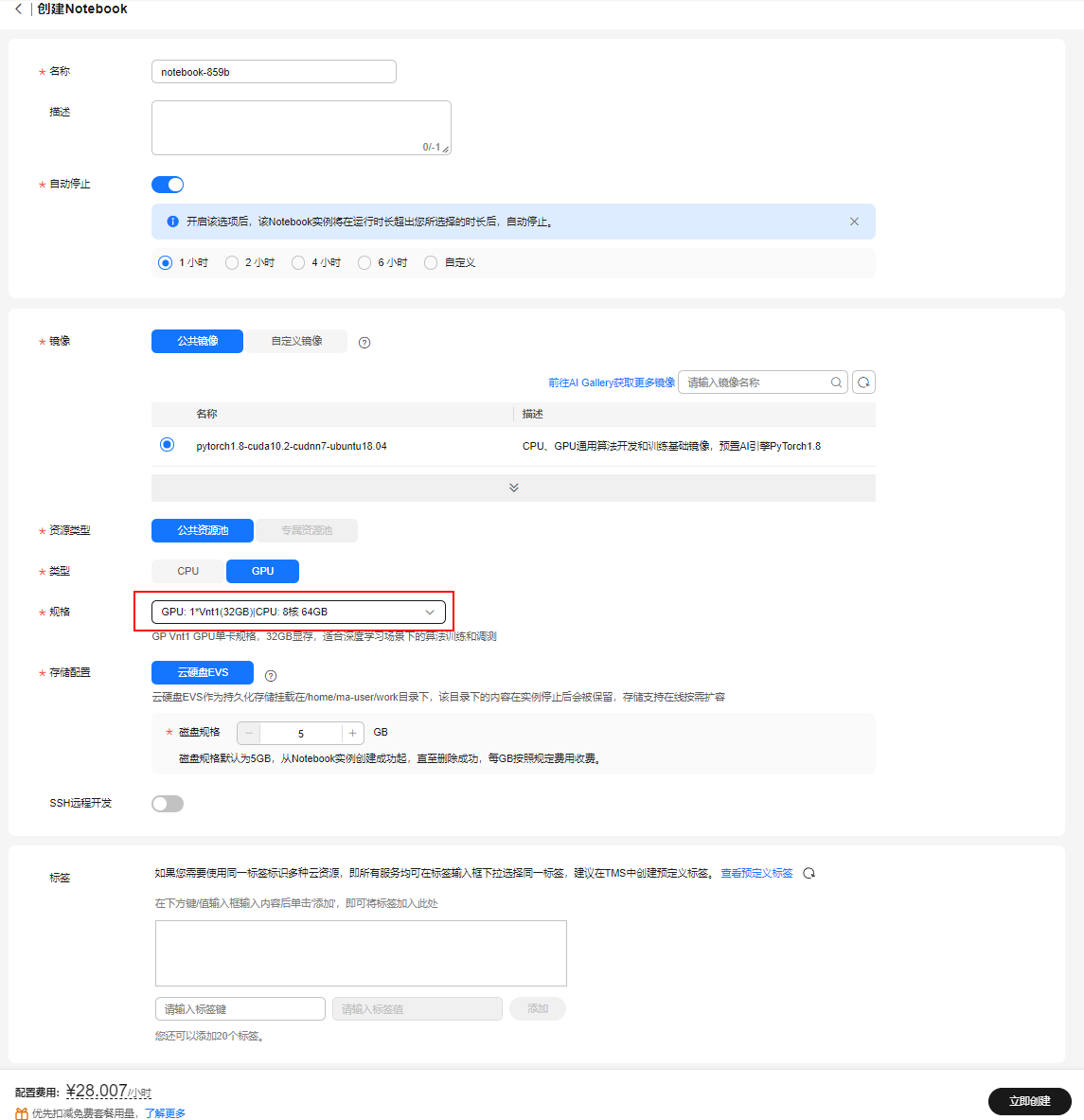
进入创建notebook,名称“notebook-LangChain”,选择GPU规格,“GPU: 1*T4(16GB)|CPU: 8核 32GB”,点击“立即创建”,磁盘规格选择“50G”,点击“创建”
点击返回“任务中心”,点击notebook进入
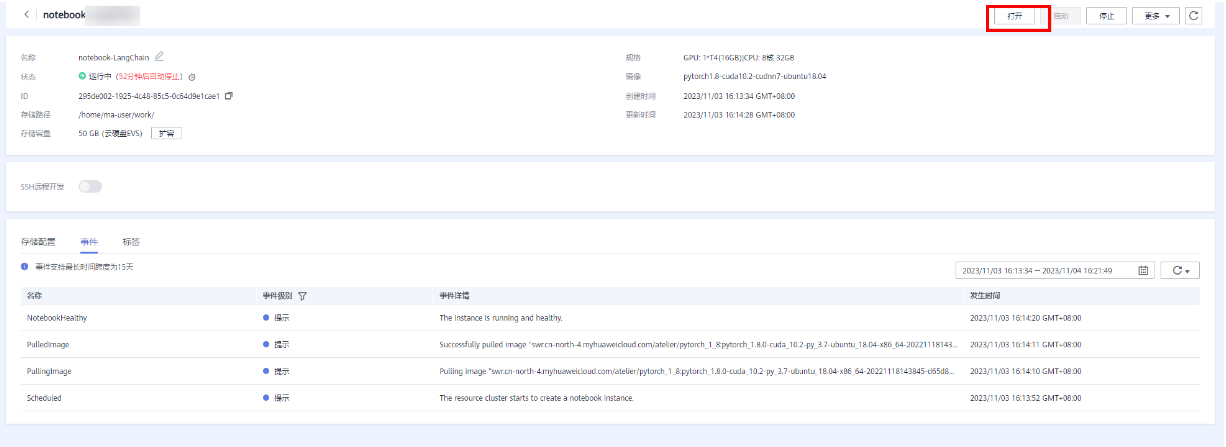
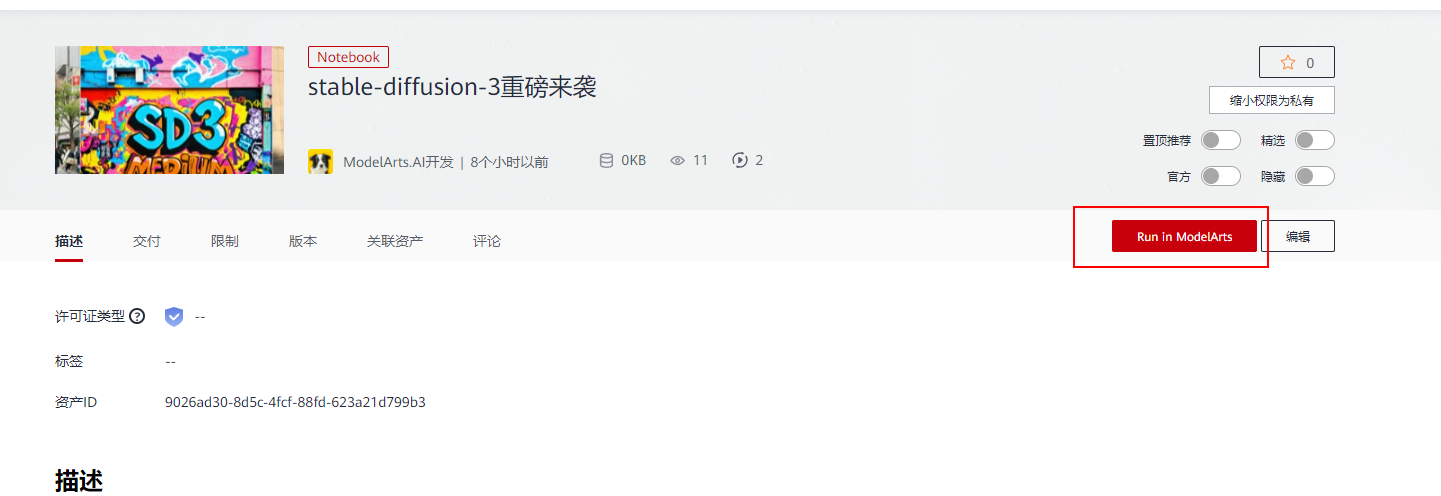
以上步骤是从ModelArts上自己创建notebook,也可以直接点击案例进入体验--stable-diffusion-3重磅来袭。
二、下载模型
[Stable Diffusion 3 Medium](https://stability.ai/news/stable-diffusion-3-medium) 是一种多模态扩散转换器 (MMDiT) 文本到图像模型,其特点是在图像质量、排版、复杂提示理解和资源效率方面大大提高了性能。有关更多技术细节,请参阅[研究报告](https://stability.ai/news/stable-diffusion-3-research-paper)。

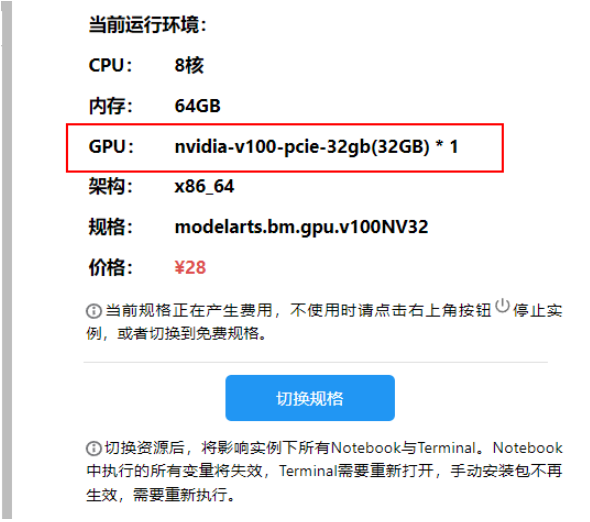
本案例需使用 Pytorch-2.0.1 GPU-V100 及以上规格运行
点击Run in ModelArts,将会进入到ModelArts CodeLab中,这时需要你登录华为云账号,如果没有账号,则需要注册一个,且要进行实名认证,参考[《如何创建华为云账号并且实名认证》](https://bbs.huaweicloud.com/blogs/427460) 即可完成账号注册和实名认证。 登录之后,等待片刻,即可进入到CodeLab的运行环境
出现 Out Of Memory ,请检查是否为您的参数配置过高导致,修改参数配置,重启kernel或更换更高规格资源进行规避
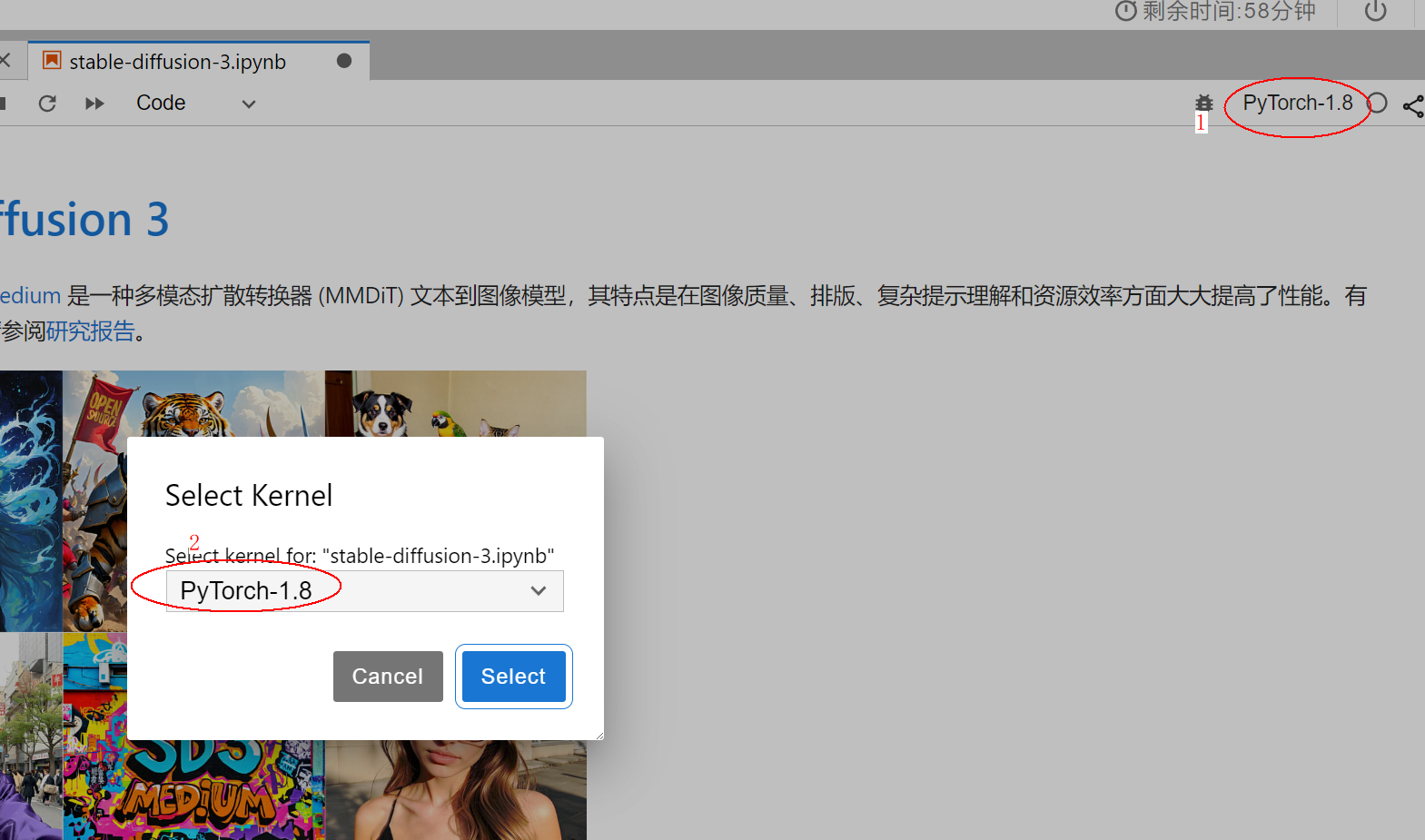
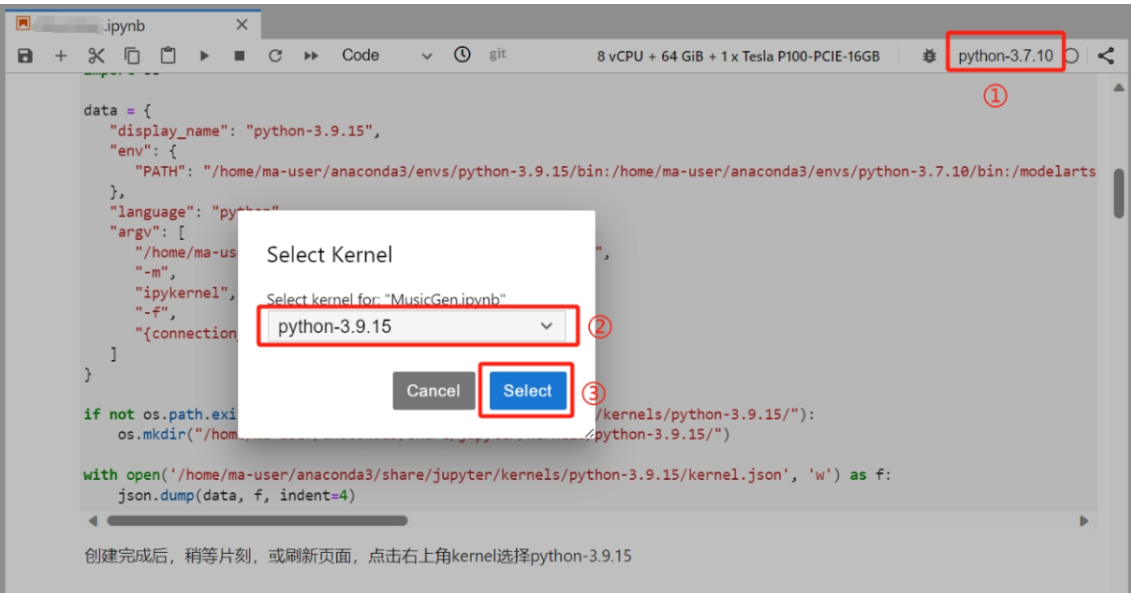
首先切换kernrl,
1. 下载代码和模型
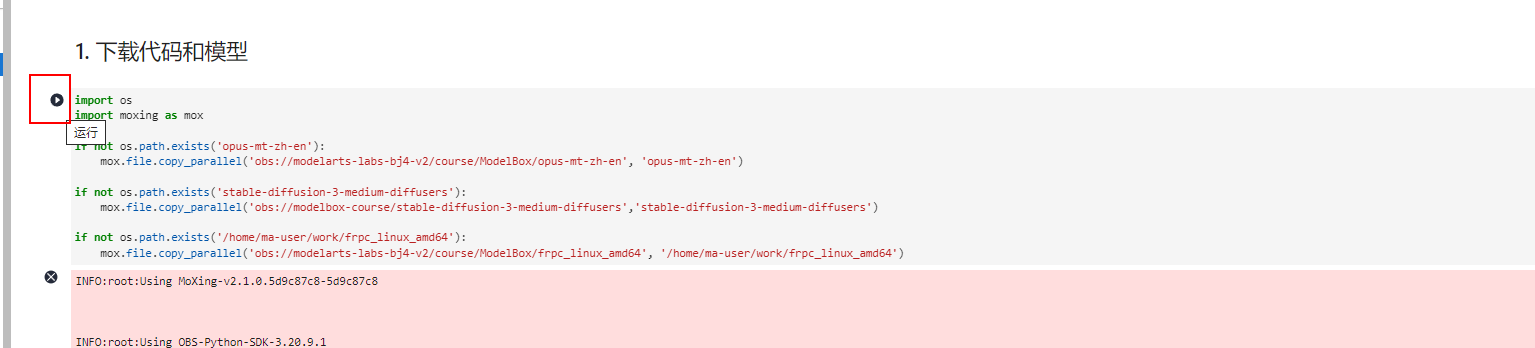
import os

import moxing as mox

if not os.path.exists('opus-mt-zh-en'):

    mox.file.copy_parallel('obs://modelarts-labs-bj4-v2/course/ModelBox/opus-mt-zh-en', 'opus-mt-zh-en')

if not os.path.exists('stable-diffusion-3-medium-diffusers'):

    mox.file.copy_parallel('obs://modelbox-course/stable-diffusion-3-medium-diffusers','stable-diffusion-3-medium-diffusers')

if not os.path.exists('/home/ma-user/work/frpc_linux_amd64'):

    mox.file.copy_parallel('obs://modelarts-labs-bj4-v2/course/ModelBox/frpc_linux_amd64', '/home/ma-user/work/frpc_linux_amd64')
INFO:root:Using MoXing-v2.1.0.5d9c87c8-5d9c87c8
INFO:root:Using OBS-Python-SDK-3.20.9.1
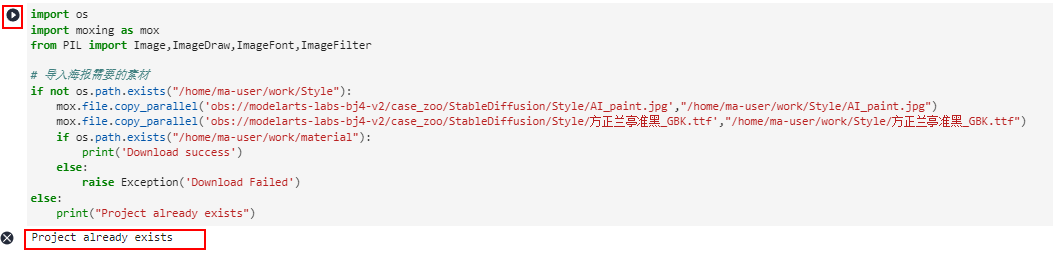
import os

import moxing as mox

from PIL import Image,ImageDraw,ImageFont,ImageFilter

# 导入海报需要的素材

if not os.path.exists("/home/ma-user/work/Style"):

    mox.file.copy_parallel('obs://modelarts-labs-bj4-v2/case_zoo/StableDiffusion/Style/AI_paint.jpg',"/home/ma-user/work/Style/AI_paint.jpg")

    mox.file.copy_parallel('obs://modelarts-labs-bj4-v2/case_zoo/StableDiffusion/Style/方正兰亭准黑_GBK.ttf',"/home/ma-user/work/Style/方正兰亭准黑_GBK.ttf")

    if os.path.exists("/home/ma-user/work/material"):

        print('Download success')

    else:

        raise Exception('Download Failed')

else:

    print("Project already exists")
Project already exists
2. 配置运行环境
本案例依赖Python-3.9.15及以上环境,因此我们首先创建虚拟环境:
!/home/ma-user/anaconda3/bin/conda clean -i

!/home/ma-user/anaconda3/bin/conda create -n python-3.9.15 python=3.9.15 -y --override-channels --channel https://mirrors.tuna.tsinghua.edu.cn/anaconda/pkgs/main

!/home/ma-user/anaconda3/envs/python-3.9.15/bin/pip install ipykernel
/home/ma-user/anaconda3/lib/python3.7/site-packages/requests/__init__.py:91: RequestsDependencyWarning: urllib3 (1.26.12) or chardet (3.0.4) doesn't match a supported versi
RequestsDependencyWarning)
/home/ma-user/anaconda3/lib/python3.7/site-packages/requests/__init__.py:91: RequestsDependencyWarning: urllib3 (1.26.12) or chardet (3.0.4) doesn't match a supported version!
RequestsDependencyWarning)
Collecting package metadata (current_repodata.json): done
Solving environment: failed with repodata from current_repodata.json, will retry with next repodata source.
Collecting package metadata (repodata.json): done
Solving environment: done
[2K [90m━━━━━━━━━━━━━━━━━━━━━━━━━━━━━━━━━━━━━━[0m [32m808.2/808.2 kB[0m [31m11.1 MB/s[0m eta [36m0:00:00[0m00:01[0m
[?25hCollecting jupyter-client>=6.1.12 (from ipykernel)
Successfully installed asttokens-2.4.1 comm-0.2.2 debugpy-1.8.2 decorator-5.1.1 exceptiongroup-1.2.1 executing-2.0.1 importlib-metadata-8.0.0 ipykernel-6.29.5 ipython-8.18.1 jedi-0.19.1 jupyter-client-8.6.2 jupyter-core-5.7.2 matplotlib-inline-0.1.7 nest-asyncio-1.6.0 packaging-24.1 parso-0.8.4 pexpect-4.9.0 platformdirs-4.2.2 prompt-toolkit-3.0.47 psutil-6.0.0 ptyprocess-0.7.0 pure-eval-0.2.2 pygments-2.18.0 python-dateutil-2.9.0.post0 pyzmq-26.0.3 six-1.16.0 stack-data-0.6.3 tornado-6.4.1 traitlets-5.14.3 typing-extensions-4.12.2 wcwidth-0.2.13 zipp-3.19.2
import json

import os

data = {

   "display_name": "python-3.9.15",

   "env": {

      "PATH": "/home/ma-user/anaconda3/envs/python-3.9.15/bin:/home/ma-user/anaconda3/envs/python-3.7.10/bin:/modelarts/authoring/notebook-conda/bin:/opt/conda/bin:/usr/local/nvidia/bin:/usr/local/cuda/bin:/usr/local/sbin:/usr/local/bin:/usr/sbin:/usr/bin:/sbin:/bin:/home/ma-user/modelarts/ma-cli/bin:/home/ma-user/modelarts/ma-cli/bin:/home/ma-user/anaconda3/envs/PyTorch-1.8/bin"

   },

   "language": "python",

   "argv": [

      "/home/ma-user/anaconda3/envs/python-3.9.15/bin/python",

      "-m",

      "ipykernel",

      "-f",

      "{connection_file}"

   ]

}

if not os.path.exists("/home/ma-user/anaconda3/share/jupyter/kernels/python-3.9.15/"):

    os.mkdir("/home/ma-user/anaconda3/share/jupyter/kernels/python-3.9.15/")

with open('/home/ma-user/anaconda3/share/jupyter/kernels/python-3.9.15/kernel.json', 'w') as f:

    json.dump(data, f, indent=4)
创建完成后,稍等片刻,或刷新页面,点击右上角kernel选择python-3.9.15
查看Python版本
!python -V
Python 3.9.15
查看GPU型号,至少需要32GB显存
!nvidia-smi
Wed Jul 10 23:52:26 2024
+-----------------------------------------------------------------------------+
| NVIDIA-SMI 470.57.02 Driver Version: 470.57.02 CUDA Version: 11.4 |
|-------------------------------+----------------------+----------------------+
| GPU Name Persistence-M| Bus-Id Disp.A | Volatile Uncorr. ECC |
| Fan Temp Perf Pwr:Usage/Cap| Memory-Usage | GPU-Util Compute M. |
| | | MIG M. |
|===============================+======================+======================|
| 0 Tesla V100-PCIE... On | 00000000:00:0D.0 Off | 0 |
| N/A 30C P0 25W / 250W | 0MiB / 32510MiB | 0% Default |
| | | N/A |
+-------------------------------+----------------------+----------------------+
+-----------------------------------------------------------------------------+
| Processes: |
| GPU GI CI PID Type Process name GPU Memory |
| ID ID Usage |
|=============================================================================|
| No running processes found |
+-----------------------------------------------------------------------------+
安装SD3依赖包
!pip install --upgrade pip

!pip install torch==2.0.1 torchvision==0.15.2 torchaudio==2.0.2

!pip install diffusers transformers sentencepiece accelerate protobuf gradio spaces

!cp /home/ma-user/work/frpc_linux_amd64 /home/ma-user/anaconda3/envs/python-3.9.15/lib/python3.9/site-packages/gradio/frpc_linux_amd64_v0.2

!chmod +x /home/ma-user/anaconda3/envs/python-3.9.15/lib/python3.9/site-packages/gradio/frpc_linux_amd64_v0.2
 Looking in indexes: http://repo.myhuaweicloud.com/repository/pypi/simple

    Requirement already satisfied: pip in /home/ma-user/anaconda3/envs/python-3.9.15/lib/python3.9/site-packages (24.0)

    Collecting pip

      Downloading http://repo.myhuaweicloud.com/repository/pypi/packages/e7/54/0c1c068542cee73d8863336e974fc881e608d0170f3af15d0c0f28644531/pip-24.1.2-py3-none-any.whl (1.8 MB)

    [2K     [90m━━━━━━━━━━━━━━━━━━━━━━━━━━━━━━━━━━━━━━━━[0m [32m1.8/1.8 MB[0m [31m28.5 MB/s[0m eta [36m0:00:00[0m00:01[0m

    [?25hInstalling collected packages: pip

      Attempting uninstall: pip

        Found existing installation: pip 24.0

        Uninstalling pip-24.0:

          Successfully uninstalled pip-24.0

    Successfully installed pip-24.1.2

    Successfully installed accelerate-0.32.1 aiofiles-23.2.1 altair-5.3.0 annotated-types-0.7.0 anyio-4.4.0 attrs-23.2.0 click-8.1.7 contourpy-1.2.1 cycler-0.12.1 diffusers-0.29.2 dnspython-2.6.1 email_validator-2.2.0 fastapi-0.111.0 fastapi-cli-0.0.4 ffmpy-0.3.2 fonttools-4.53.1 fsspec-2024.6.1 gradio-4.37.2 gradio-client-1.0.2 h11-0.14.0 httpcore-1.0.5 httptools-0.6.1 httpx-0.27.0 huggingface-hub-0.23.4 importlib-resources-6.4.0 jsonschema-4.23.0 jsonschema-specifications-2023.12.1 kiwisolver-1.4.5 markdown-it-py-3.0.0 matplotlib-3.9.1 mdurl-0.1.2 numpy-1.26.4 orjson-3.10.6 pandas-2.2.2 protobuf-5.27.2 psutil-5.9.8 pydantic-2.8.2 pydantic-core-2.20.1 pydub-0.25.1 pyparsing-3.1.2 python-dotenv-1.0.1 python-multipart-0.0.9 pytz-2024.1 pyyaml-6.0.1 referencing-0.35.1 regex-2024.5.15 rich-13.7.1 rpds-py-0.19.0 ruff-0.5.1 safetensors-0.4.3 semantic-version-2.10.0 sentencepiece-0.2.0 shellingham-1.5.4 sniffio-1.3.1 spaces-0.28.3 starlette-0.37.2 tokenizers-0.19.1 tomlkit-0.12.0 toolz-0.12.1 tqdm-4.66.4 transformers-4.42.3 typer-0.12.3 tzdata-2024.1 ujson-5.10.0 uvicorn-0.30.1 uvloop-0.19.0 watchfiles-0.22.0 websockets-11.0.3
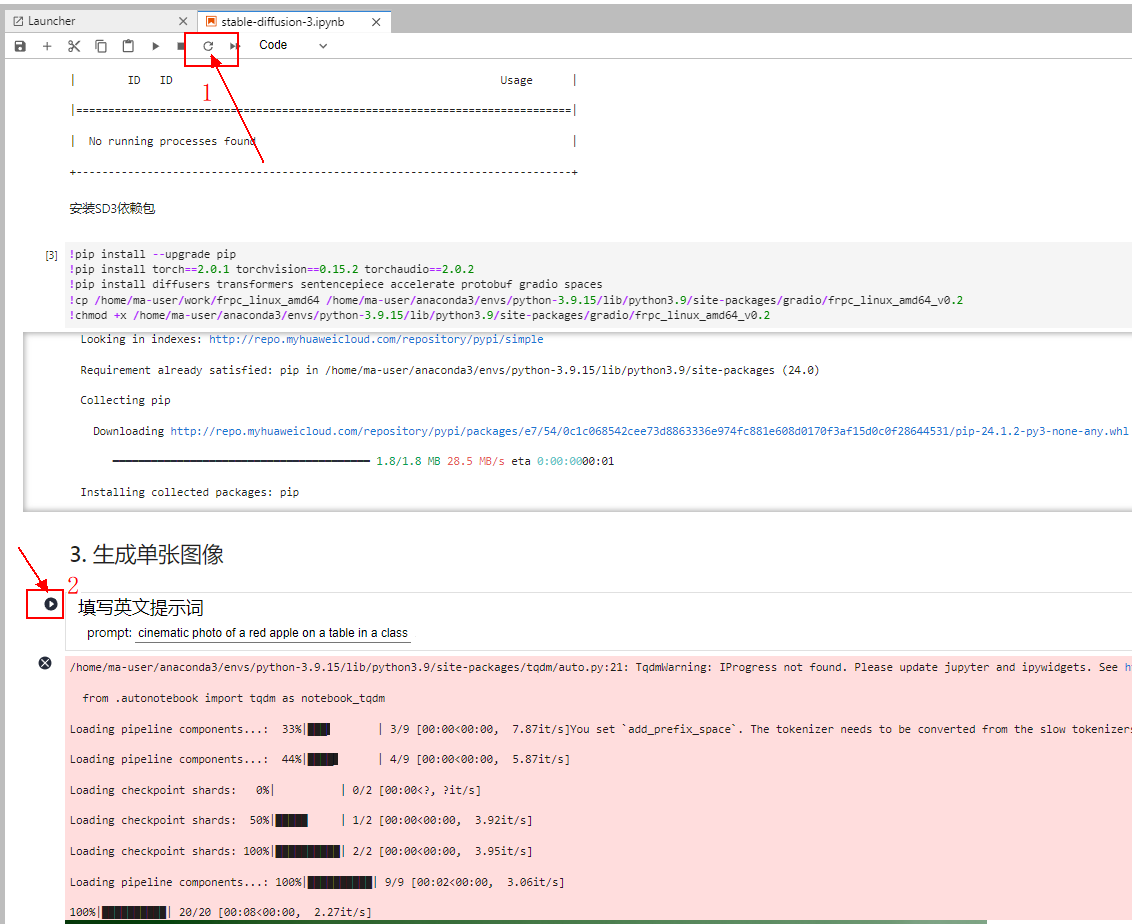
3. 生成单张图像
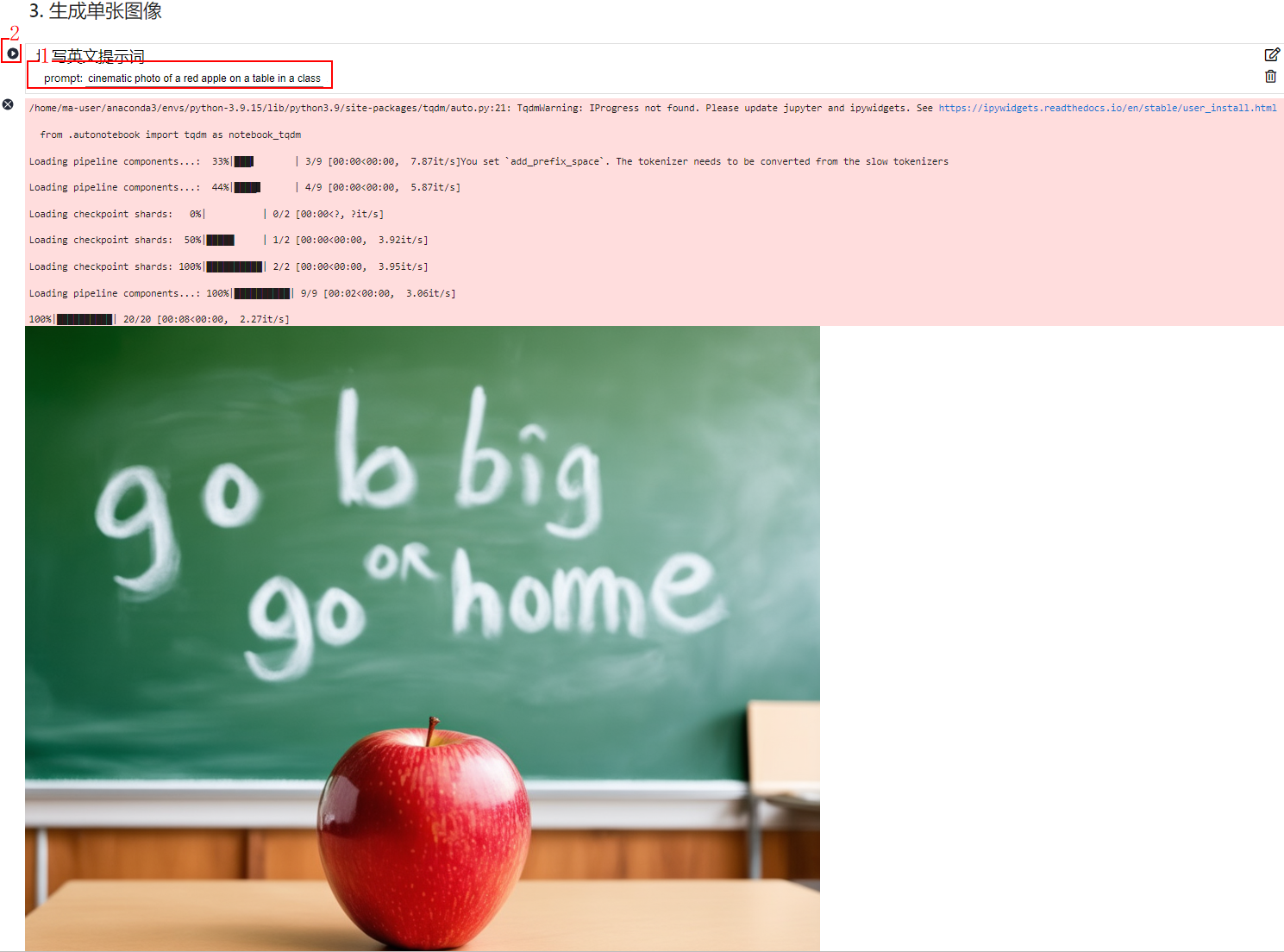
#@title 填写英文提示词

import torch

from diffusers import StableDiffusion3Pipeline

# 清理 GPU 缓存

torch.cuda.empty_cache()

# 确保使用半精度浮点数

torch_dtype = torch.float16

# 尝试减少推理步骤

num_inference_steps = 20

# 调整引导比例

guidance_scale = 5.0

# 定义 Prompt

prompt = "cinematic photo of a red apple on a table in a classroom, on the blackboard are the words go big or go home written in chalk" #@param {type:"string"}

# 加载模型并将其移动到 GPU

pipe = StableDiffusion3Pipeline.from_pretrained("stable-diffusion-3-medium-diffusers", torch_dtype=torch_dtype).to("cuda")

# 根据提供的 Prompt 生成图像

image = pipe(prompt=prompt, num_inference_steps=num_inference_steps, guidance_scale=guidance_scale).images[0]

# 定义保存图像的路径

save_path = '/home/ma-user/work/your_generated_image.png'

# 保存图像到指定路径

image.save(save_path)

# 如果需要在本地查看图像,可以使用 show 方法

image.show()

prompt = "cinematic photo of a red apple on a table in a classroom, on the blackboard are the words go big or go home written in chalk" #@param {type:"string"}
  /home/ma-user/anaconda3/envs/python-3.9.15/lib/python3.9/site-packages/tqdm/auto.py:21: TqdmWarning: IProgress not found. Please update jupyter and ipywidgets. See https://ipywidgets.readthedocs.io/en/stable/user_install.html

      from .autonotebook import tqdm as notebook_tqdm

    Loading pipeline components...:  33%|███▎      | 3/9 [00:00<00:00,  7.87it/s]You set `add_prefix_space`. The tokenizer needs to be converted from the slow tokenizers

    Loading pipeline components...:  44%|████▍     | 4/9 [00:00<00:00,  5.87it/s]

    Loading checkpoint shards:   0%|          | 0/2 [00:00<?, ?it/s][A

    Loading checkpoint shards:  50%|█████     | 1/2 [00:00<00:00,  3.92it/s][A

    Loading checkpoint shards: 100%|██████████| 2/2 [00:00<00:00,  3.95it/s][A

    Loading pipeline components...: 100%|██████████| 9/9 [00:02<00:00,  3.06it/s]

    100%|██████████| 20/20 [00:08<00:00,  2.27it/s]

注意:
出现 Out Of Memory ,尝试重启 kernel 再次运行
4.填写作品名称和作者姓名

#@title 填写作品名称和作者姓名

from PIL import Image, ImageDraw, ImageFont, ImageFilter

def gen_poster(img, txt1, txt2, path, zt):

    # 定义字体和颜色

    font1 = ImageFont.truetype(zt, 30)

    font2 = ImageFont.truetype(zt, 25)

    # 创建一个可以在图像上绘制的 Draw 对象

    img_draw = ImageDraw.Draw(img)

    # 在图像上绘制文本

    img_draw.text((180, 860), txt1, font=font1, fill='#961900')

    img_draw.text((130, 903), txt2, font=font2, fill='#252b3a')

    # 保存图像

    img.save(path)

# 定义模板图像路径和字体路径

template_img = "/home/ma-user/work/Style/AI_paint.jpg"

zt = r"/home/ma-user/work/Style/方正兰亭准黑_GBK.ttf"

# 打开模板图像

temp_image = Image.open(template_img).convert("RGBA")

# 打开生成的图像

image_path = "/home/ma-user/work/your_generated_image.png"  # 替换为你生成的图像路径

image = Image.open(image_path)

# 计算新的大小以适应模板图像的宽度,同时保持图片的原始比例

width_ratio = temp_image.width / image.width

new_height = int(image.height * width_ratio)

new_size = (temp_image.width, new_height)

# 调整生成的图像大小,使用 LANCZOS 重采样算法

image = image.resize(new_size, Image.Resampling.LANCZOS)

# 粘贴调整大小后的图像到模板上

# 假设图像粘贴的起始点是 (40, 266)

temp_image.paste(image, (40, 266))

# 定义作品名称和作者姓名

title_char = "苹果" #@param {type:"string"}

author_char = "ModelArts" #@param {type:"string"}

# 定义保存海报的路径

savepath = '/home/ma-user/work/AI_paint_output.png'  # 确保路径正确,并且有写权限

# 调用函数生成海报

gen_poster(temp_image, title_char, author_char, savepath, zt)

# 使用 Image.open 来打开并显示生成的海报

Image.open(savepath).show()

5. 运行Gradio应用
with gr.Blocks(css=css) as demo:

    gr.HTML("""<h1 align="center">Stable Diffusion 3</h1>""")

    with gr.Column(elem_id="col-container"):

        with gr.Row():

            prompt = gr.Text(

                label="提示词",

                show_label=False,

                max_lines=1,

                placeholder="请输入中文提示词",

                container=False,

            )

            run_button = gr.Button("生成", scale=0)

        result = gr.Image(label="Result", show_label=False)

        with gr.Accordion("更多参数", open=False):

            negative_prompt = gr.Text(

                label="负面提示词",

                max_lines=1,

                placeholder="请输入负面提示词",

            )

            seed = gr.Slider(

                label="Seed",

                minimum=0,

                maximum=MAX_SEED,

                step=1,

                value=0,

            )

            randomize_seed = gr.Checkbox(label="随机种子", value=True)

            with gr.Row():

                width = gr.Slider(

                    label="宽",

                    minimum=256,

                    maximum=MAX_IMAGE_SIZE,

                    step=64,

                    value=1024,

                )

                height = gr.Slider(

                    label="高",

                    minimum=256,

                    maximum=MAX_IMAGE_SIZE,

                    step=64,

                    value=1024,

                )

            with gr.Row():

                guidance_scale = gr.Slider(

                    label="Guidance scale",

                    minimum=0.0,

                    maximum=10.0,

                    step=0.1,

                    value=5.0,

                )

                num_inference_steps = gr.Slider(

                    label="迭代步数",

                    minimum=1,

                    maximum=50,

                    step=1,

                    value=28,

                )

    gr.on(

        triggers=[run_button.click, prompt.submit, negative_prompt.submit],

        fn = infer,

        inputs = [prompt, negative_prompt, seed, randomize_seed, width, height, guidance_scale, num_inference_steps],

        outputs = [result, seed]

    )

demo.launch(share=True)
Writing demo.py
运行Gradio应用,运行成功后点击 Running on public URL后的网页链接即可体验!
!python demo.py
Loading pipeline components...: 56%|███████▏ | 5/9 [00:02<00:01, 2.28it/s]You set `add_prefix_space`. The tokenizer needs to be converted from the slow tokenizers
Loading pipeline components...: 67%|████████▋ | 6/9 [00:02<00:01, 2.61it/s]
Loading checkpoint shards: 0%| | 0/2 [00:00<?, ?it/s][A
Loading checkpoint shards: 50%|█████████ | 1/2 [00:00<00:00, 3.54it/s][A
Loading checkpoint shards: 100%|██████████████████| 2/2 [00:00<00:00, 3.53it/s][A
Loading pipeline components...: 100%|█████████████| 9/9 [00:03<00:00, 2.83it/s]
/home/ma-user/anaconda3/envs/python-3.9.15/lib/python3.9/site-packages/torch/_utils.py:776: UserWarning: TypedStorage is deprecated. It will be removed in the future and UntypedStorage will be the only storage class. This should only matter to you if you are using storages directly. To access UntypedStorage directly, use tensor.untyped_storage() instead of tensor.storage()
return self.fget.__get__(instance, owner)()
/home/ma-user/anaconda3/envs/python-3.9.15/lib/python3.9/site-packages/transformers/models/marian/tokenization_marian.py:175: UserWarning: Recommended: pip install sacremoses.
warnings.warn("Recommended: pip install sacremoses.")
Hardware accelerator e.g. GPU is available in the environment, but no `device` argument is passed to the `Pipeline` object. Model will be on CPU.
Running on local URL: http://127.0.0.1:7860
Running on public URL: https://9c48446865ca38cc99.gradio.live
This share link expires in 72 hours. For free permanent hosting and GPU upgrades, run `gradio deploy` from Terminal to deploy to Spaces (https://huggingface.co/spaces)
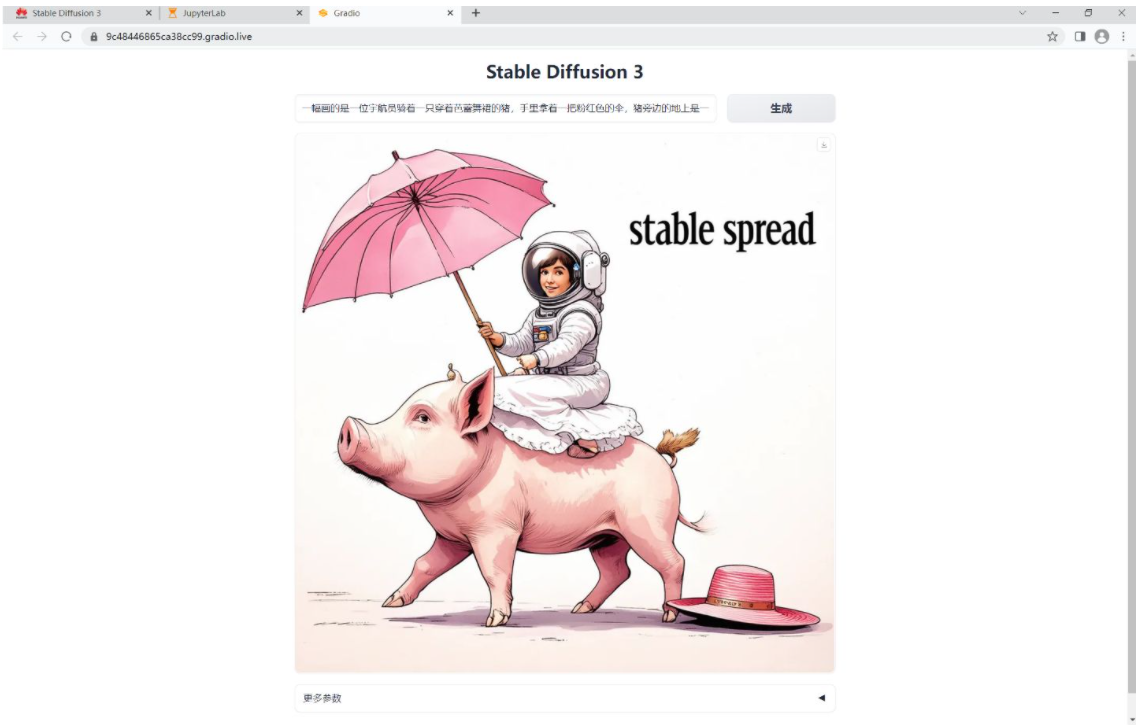
一幅画的是一位宇航员骑着一只穿着芭蕾舞裙的猪,手里拿着一把粉红色的伞,猪旁边的地上是一只戴着大礼帽的知更鸟,角落里写着“稳定扩散”的字样。
A picture of an astronaut riding on a pig in a ballet dress with a pink umbrella next to a big hat on the ground, with the word “stable spread” in the corner.
出现 Out Of Memory ,尝试重启 kernel 再次运行
浏览器打开local URL: http://127.0.0.1:7860 地址,
运行界面:
三、其他案例展示:
Prompt: cinematic photo of a red apple on a table in a classroom, on the blackboard are the words "go big or go home" written in chalk
提示:教室里的桌子上有一个红苹果的电影照片,黑板上用粉笔写着“要么做大,要么回家”

Prompt: a painting of an astronaut riding a pig wearing a tutu holding a pink umbrella, on the ground next to the pig is a robin bird wearing a top hat, in the corner are the words "stable diffusion"
提示:一幅画的是一位宇航员骑着一只穿着芭蕾舞裙的猪,手里拿着一把粉红色的伞,猪旁边的地上是一只戴着大礼帽的知更鸟,角落里写着“稳定扩散”的字样。

Prompt: Three transparent glass bottles on a wooden table. The one on the left has red liquid and the number 1. The one in the middle has blue liquid and the number 2. The one on the right has green liquid and the number 3.
提示:三个透明玻璃瓶放在木桌上。左边的是红色液体和数字1。中间有蓝色液体和数字2。右边的是绿色液体和数字3。

参考:
官网:Stable Diffusion 3 — Stability AI
案例:stable-diffusion-3重磅来袭 (huaweicloud.com)
零代码教你安装部署Stable Diffusion 3,一键生成高质量图像的更多相关文章
- 基于Docker安装的Stable Diffusion使用CPU进行AI绘画
基于Docker安装的Stable Diffusion使用CPU进行AI绘画 由于博主的电脑是为了敲代码考虑买的,所以专门买的高U低显,i9配核显,用Stable Diffusion进行AI绘画的话倒 ...
- Kingbase V8R6集群安装部署案例---脚本在线一键扩容
案例说明: KingbaseES V8R6支持图形化方式在线扩容,但是在一些生产环境,在服务器不支持图形化界面的情况下 ,只能通过脚本命令行的方式执行集群的部署或在线扩容. Tips: Kingbas ...
- Wix 安装部署教程(十六) -- 自动生成多语言文件
因为持续集成需要,所有项目编译完之后生成一个多语言的安装包.之前生成mst文件都是手动操作,而且mst文件必须每次重新和新的安装包“关联”,否则中文的安装包去调用英文的资源的时候就会报类似于“类型转换 ...
- Kubernetes1.91(K8s)安装部署过程(三)--创建高可用etcd集群
这里的etcd集群复用我们测试的3个节点,3个node都要安装并启动,注意修改配置文件 1.TLS认证文件分发:etcd集群认证用,除了本机有,分发到其他node节点 scp ca.pem kuber ...
- Kingbase V8R6集群安装部署案例---脚本在线一键缩容
案例说明: KingbaseES V8R6支持图形化方式在线缩容,但是在一些生产环境,在服务器不支持图形化界面的情况下 ,只能通过脚本命令行的方式执行集群的部署或在线缩容. Tips: Kingb ...
- 在英特尔 CPU 上加速 Stable Diffusion 推理
前一段时间,我们向大家介绍了最新一代的 英特尔至强 CPU (代号 Sapphire Rapids),包括其用于加速深度学习的新硬件特性,以及如何使用它们来加速自然语言 transformer 模型的 ...
- OpenStack Keystone安装部署流程
之前介绍了OpenStack Swift的安装部署,采用的都是tempauth认证模式,今天就来介绍一个新的组件,名为Keystone. 1. 简介 本文将详细描述Keystone的安装部署流程,并给 ...
- 升讯威微信营销系统开发实践:(4)源代码结构说明 与 安装部署说明( 完整开源于 Github)
GitHub:https://github.com/iccb1013/Sheng.WeixinConstruction因为个人精力时间有限,不会再对现有代码进行更新维护,不过微信接口比较稳定,经测试至 ...
- Docker安装部署Rancher
# 一.Rancher简介 [Rancher](https://www.cnrancher.com/rancher/)是一个开源的企业级容器管理平台.通过Rancher,企业再也不必自己使用一系列的开 ...
- crudapi零代码开发平台应用场景和成功案例
应用场景 在前面文章中,已经介绍了crudapi主要功能和使用方式,本文主要介绍crudapi应用场景以及具体的使用方式. 概要 crudapi属于产品级的零代码平台,无需编程,通过配置自动生成cru ...
随机推荐
- 面向K-12学生的远程访问学校计算机实验室
为了应对新冠肺炎大流行,许多学校被迫采用远程学习和混合时间制度.在家学习的学生必须使用自己的个人设备或学校提供的设备(例如 Chromebook )来完成课堂作业. 尽管许多解决方案可以帮助学生和 ...
- pageoffice 5.x升级到pageoffice 6.x的关键步骤
Vue+Springboot前后端分离项目 将后端Springboot项目中pom.xml文件中对于pageoffice的jar引用升级成6.0版本,以maven中央仓库(https://mvnrep ...
- go高并发之路——缓存击穿
缓存击穿,Redis中的某个热点key不存在或者过期,但是此时有大量的用户访问该key.比如xxx直播间优惠券抢购.xxx商品活动,这时候大量用户会在某个时间点一同访问该热点事件.但是可能由于某种原因 ...
- 深入理解Docker原理
本文参考转载至:<深入剖析Kubernetes - 张磊> 更过优秀博文请关注:https://blog.bigcoder.cn 容器技术的核心功能,就是通过约束和修改进程的动态表现,从而 ...
- MindSponge分子动力学模拟——多路径分子模拟(2024.05)
技术背景 在前面的MindSponge教程系列博客中,我们已经介绍过MindSponge分子动力学模拟框架的基础功能使用方法,例如MindSponge的安装与使用.定义分子系统.计算单点能和迭代器等等 ...
- 公众号5月C#/.NET热文一览
C#/.NET/.NET Core全面的学习.工作.面试指南知识库 转眼之间维护DotNetGuide(C#/.NET/.NET Core学习.工作.面试指南知识库)已经持续超过了三年多的时间,Com ...
- iOS线程While-True死循环会发生什么
一.在工作的代码有一段while-True轮训的逻辑,循环中主要的工作是阻塞的IO 代码大概如下: dispatch_async(dispatch_get_global_queue(0, 0), ^{ ...
- PCM转AAC返回1768846202 错误解决
1.参考FFMPEG https://github.com/chrisballinger/FFmpeg-iOS-Encoder/blob/master/FFmpegEncoder/AACEncoder ...
- NOIP模拟53
我在时光斑驳深处,聆听到花开的声音. 前言 这套题好像是随便拼接起来的,来自三套不同的题,最后一道还是学长出的(nb 场上为数不多的几次死磕一道题正解,大概有三个小时吧(惭愧,前两个小时看错题了,一直 ...
- 解决:Maven PKIX path building failed: sun.security.provider.certpath
在构建SpringBoot项目时,maven下载依赖会报 PKIX path building failed: sun.security.provider.certpath的错误. 使用https:/ ...