
[翻译] IDMPhotoBrowser
IDMPhotoBrowser

IDMPhotoBrowser is a new implementation based on MWPhotoBrowser.
IDMPhotoBrowser实现了图片浏览器的功能,基于MWPhotoBrowser.
We've added both user experience and technical features inspired by Facebook's and Tweetbot's photo browsers.
我把Facebook与Tweetbot's的图片浏览器效果整合在一起了.


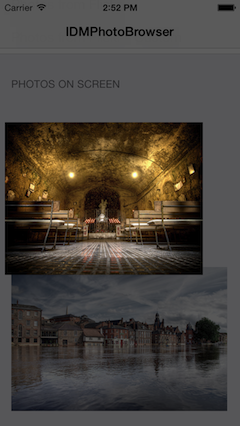


New features:
- Uses ARC 使用ARC
- Uses AFNetworking for image loading 使用AFNetworking作为图片加载器
- Image progress shown 显示图片加载进度
- Minimalistic Facebook-like interface, swipe up/down to dismiss 模仿Facebook样式的用户体验,向上/下轻轻滑动而消失
- Ability to add custom actions on the action sheet 你可以添加自定义的动作到动作清单上去
Features
- Can display one or more images by providing either
UIImageobjects, file paths to images on the device, or URLs to images online - Handles the downloading and caching of photos from the web seamlessly
- Photos can be zoomed and panned, and optional captions can be displayed
- 可以显示一张或者多张图片,格式支持UIImage对象,文件路径,或者是来自网络的图片
- 下载并缓存图片没有丝毫停顿,非常流畅
- 图片可以缩放以及拖拽,也可以让可有可无的文案显示出来
Usage
See the code snippet below for an example of how to implement the photo browser.
看一下代码片段,你就会知道怎么使用了.
First create a photos array containing IDMPhoto objects:
首先,你需要创建一个图片数组,包含了所有的IDMPhoto对象.
// URLs array

NSArray *photosURL = @[[NSURL URLWithString:@"http://farm4.static.flickr.com/3567/3523321514_371d9ac42f_b.jpg"],

[NSURL URLWithString:@"http://farm4.static.flickr.com/3629/3339128908_7aecabc34b_b.jpg"],

[NSURL URLWithString:@"http://farm4.static.flickr.com/3364/3338617424_7ff836d55f_b.jpg"],

[NSURL URLWithString:@"http://farm4.static.flickr.com/3590/3329114220_5fbc5bc92b_b.jpg"]];

// Create an array to store IDMPhoto objects

NSMutableArray *photos = [NSMutableArray new];

for (NSURL *url in photosURL) {

    IDMPhoto *photo = [IDMPhoto photoWithURL:url];

    [photos addObject:photo];

}

// Or use this constructor to receive an NSArray of IDMPhoto objects from your NSURL objects

NSArray *photos = [IDMPhoto photosWithURLs:photosURL];
There are two main ways to presente the photoBrowser, with a fade on screen or with a zooming effect from an existing view.
有两种方式用来显示出photoBrowser,第一种是从屏幕渐变出来,第二种则是从已有的view中缩放出来.
Using a simple fade transition:
使用简单的渐变效果示例:
IDMPhotoBrowser *browser = [[IDMPhotoBrowser alloc] initWithPhotos:photos];
Zooming effect from a view:
使用缩放效果示例:
IDMPhotoBrowser *browser = [[IDMPhotoBrowser alloc] initWithPhotos:photos animatedFromView:sender];
When using this animation you can set the scaleImage property, in case the image from the view is not the same as the one that will be shown on the browser, so it will dynamically scale it:
动力使用动画效果时,你可以设置scaleImage属性,这是缩放参数,设置了后,图片就不会按照原样显示出来.
browser.scaleImage = buttonSender.currentImage;
Presenting using a modal view controller:
用一种modal view的方式来显示出来:
[self presentViewController:browser animated:YES completion:nil];
Customization
Toolbar
You can customize the toolbar. There are three boolean properties you can set: displayActionButton (default is YES), displayArrowButton (default is YES) and displayCounterLabel (default is NO). If you dont want the toolbar at all, you can set displayToolbar = NO.
你可以定制toolbar.有3个属性你可以设置:displayActionButton(默认值是YES),displayArrowButton(默认值是YES)以及displayCounterLabel(默认值是NO).如果你不想让toolbar显示出来,你可以将displayToolbar设置成NO.
Toolbar setup example:
Toolbar设置示例:
browser.displayActionButton = NO;

browser.displayArrowButton = YES;

browser.displayCounterLabel = YES;
It is possible to use your own image on the toolbar arrows:
你也可以用你自己的图片来替换成toolbar的箭头:
browser.leftArrowImage = [UIImage imageNamed:@"IDMPhotoBrowser_customArrowLeft.png"];

browser.rightArrowImage = [UIImage imageNamed:@"IDMPhotoBrowser_customArrowRight.png"];

browser.leftArrowSelectedImage = [UIImage imageNamed:@"IDMPhotoBrowser_customArrowLeftSelected.png"];

browser.rightArrowSelectedImage = [UIImage imageNamed:@"IDMPhotoBrowser_customArrowRightSelected.png"];
If you want to use custom actions, set the actionButtonTitles array with the titles for the actionSheet. Then, implement the photoBrowser:didDismissActionSheetWithButtonIndex:photoIndex: method, from the IDMPhotoBrowser delegate
如果你想用自定义的actions,设置actionButtonTitles数组,然后实现photoBrowser:didDismissActionSheetWithButtonIndex:photoIndex:代理方法.
browser.actionButtonTitles = @[@"Option 1", @"Option 2", @"Option 3", @"Option 4"];
Others
Others customizations you can make are: use white background color, don't display the done button and change the done button background image:
其他的一些可以定制的有:使用白色的背景色,不要显示出done按钮以及修改done按钮的背景图:
browser.useWhiteBackgroundColor = YES;

browser.displayDoneButton = NO;

browser.doneBackgroundImage = [UIImage imageNamed:@"IDMPhotoBrowser_customDoneButton.png"];
Photo Captions
Photo captions can be displayed simply by setting the caption property on specific photos:
你可以通过设置标题属性来显示图片标题:
IDMPhoto *photo = [IDMPhoto photoWithFilePath:[[NSBundle mainBundle] pathForResource:@"photo2l" ofType:@"jpg"]];

photo.caption = @"Campervan";
No caption will be displayed if the caption property is not set.
如果标题属性没有设置,那么这个标题是不会显示出来的.
Custom Captions
By default, the caption is a simple black transparent view with a label displaying the photo's caption in white. If you want to implement your own caption view, follow these steps:
默认情况下,标题其实是一个半透明的view上面添加了一个label,用来显示图片的标题.如果你想实现你自己的标题view,遵循以下几步:
- Optionally use a subclass of
IDMPhotofor your photos so you can store more data than a simple caption string. 可以使用IDMPhoto类来作为你图片的容器,因为他可以显示更多的内容 - Subclass
IDMCaptionViewand override-setupCaptionand-sizeThatFits:(and any other UIView methods you see fit) to layout your own view and set it's size. More information on this can be found inIDMCaptionView.h 继承IDMCaptionView然后重写-setupCaption与-sizeThatFits:方法 - Implement the
-photoBrowser:captionViewForPhotoAtIndex:IDMPhotoBrowser delegate method (shown below). 实现-photoBrowser:captionViewForPhotoAtIndex:代理方法
Example delegate method for custom caption view:
以下是实现代理方法的地方:
- (IDMCaptionView *)photoBrowser:(IDMPhotoBrowser *)photoBrowser captionViewForPhotoAtIndex:(NSUInteger)index {

    IDMPhoto *photo = [self.photos objectAtIndex:index];

    MyIDMCaptionViewSubclass *captionView = [[MyIDMCaptionViewSubclass alloc] initWithPhoto:photo];

    return captionView;

}
Adding to your project
Using CocoaPods
Just add pod 'IDMPhotoBrowser' to your Podfile.
在Podfile中添加'IDMPhotoBrowser'即可.
Including Source Directly Into Your Project
Simply add the files inside IDMPhotoBrowser/Classes to your Xcode project, copying them to your project's directory if required. And also any library inside IDMPhotoBrowser/ExternalLibraries needed.
你也可以直接将IDMPhotoBrowser/Classes类拖到你的项目当中,记得要选中copying选项.
Opensource libraries used
[翻译] IDMPhotoBrowser的更多相关文章
- 《Django By Example》第五章 中文 翻译 (个人学习,渣翻)
书籍出处:https://www.packtpub.com/web-development/django-example 原作者:Antonio Melé (译者@ucag注:大家好,我是新来的翻译, ...
- 《Django By Example》第四章 中文 翻译 (个人学习,渣翻)
书籍出处:https://www.packtpub.com/web-development/django-example 原作者:Antonio Melé (译者注:祝大家新年快乐,这次带来<D ...
- [翻译]开发文档:android Bitmap的高效使用
内容概述 本文内容来自开发文档"Traning > Displaying Bitmaps Efficiently",包括大尺寸Bitmap的高效加载,图片的异步加载和数据缓存 ...
- 【探索】机器指令翻译成 JavaScript
前言 前些时候研究脚本混淆时,打算先学一些「程序流程」相关的概念.为了不因太枯燥而放弃,决定想一个有趣的案例,可以边探索边学. 于是想了一个话题:尝试将机器指令 1:1 翻译 成 JavaScript ...
- 《Django By Example》第三章 中文 翻译 (个人学习,渣翻)
书籍出处:https://www.packtpub.com/web-development/django-example 原作者:Antonio Melé (译者注:第三章滚烫出炉,大家请不要吐槽文中 ...
- 《Django By Example》第二章 中文 翻译 (个人学习,渣翻)
书籍出处:https://www.packtpub.com/web-development/django-example 原作者:Antonio Melé (译者注:翻译完第一章后,发现翻译第二章的速 ...
- 《Django By Example》第一章 中文 翻译 (个人学习,渣翻)
书籍出处:https://www.packtpub.com/web-development/django-example 原作者:Antonio Melé (译者注:本人目前在杭州某家互联网公司工作, ...
- 【翻译】Awesome R资源大全中文版来了,全球最火的R工具包一网打尽,超过300+工具,还在等什么?
0.前言 虽然很早就知道R被微软收购,也很早知道R在统计分析处理方面很强大,开始一直没有行动过...直到 直到12月初在微软技术大会,看到我软的工程师演示R的使用,我就震惊了,然后最近在网上到处了解和 ...
- ASP.NET MVC with Entity Framework and CSS一书翻译系列文章之第一章:创建基本的MVC Web站点
在这一章中,我们将学习如何使用基架快速搭建和运行一个简单的Microsoft ASP.NET MVC Web站点.在我们马上投入学习和编码之前,我们首先了解一些有关ASP.NET MVC和Entity ...
随机推荐
- Linux 搭建Hadoop集群错误锦集
一.Hadoop集群配置好后,执行start-dfs.sh后报错,一堆permission denied zf sbin $ ./start-dfs.sh Starting namenodes on ...
- echarts 雷达图的个性化设置
echarts 雷达图的个性化设置 function test() { let myChart = echarts.init(document.getElementById('levelImage') ...
- C语言——<算法>_冒泡算法的使用及理解
对数组内数值进行有规则排序时,就要用冒泡算法,也是比较简单的一个算法 #include <stdio.h> #include <stdlib.h> int main() { i ...
- Feign性能优化注意事项--超时
Caused by: java.lang.IllegalStateException: PathVariable annotation was empty on param 1. at feign ...
- overfitting(过度拟合)的概念
来自:http://blog.csdn.net/fengzhe0411/article/details/7165549 最近几天在看模式识别方面的资料,多次遇到“overfitting”这个概念,最终 ...
- 让自己的程序支持livewriter
参考 http://www.cnblogs.com/Dah/archive/2007/04/02/697312.html 使用MetaWeblog. 在上面的博客里,基本说明了如何设置. 根据cn ...
- Node.js Cookie管理
Cookie 管理 我们可以使用中间件向 Node.js 服务器发送 cookie 信息,以下代码输出了客户端发送的 cookie 信息: var express=require('express') ...
- Jsp&Servlet入门级项目全程实录第8讲
惯例广告一发,对于初学真,真的很有用www.java1234.com,去试试吧! 1.添加dao public int studentAdd(Connection con,Student studen ...
- Hibernate中NoSession问题
今天在使用hibernate中 Note note = hibTem.load(Note.class, id); 报了一个could not initialize proxy [cn.entity.N ...
- [javaSE] 数组(查找-二分查找)
前提数组必须是有序的 定义最小,最大,中间的角标索引 int min,max,mid; min=0; max=arr.length-1; mid=(min+max)/2; 上面的索引需要变化,使用循环 ...