
佳文赏析:How to uninstall Linux
来源:https://www.dedoimedo.com/computers/linux-uninstall.html
This article was suggested to me by a reader called krishna. I realized this was a very important, very common topic - and quite often so easily overlooked by Linux users all over the world. It stands to logic, really. You install an operating system - so you expect to be able to uninstall it, undo the installation, remove the operating system without any trace left to its presence. How do you do that in Linux?
While the idea is a very logical, it is very difficult to answer. This is probably the reason why so many Linux users never bothered answering it. Not to worry. In this tutorial, I will teach you how you can fully and safely remove Linux installations from your system and remain with a bootable, working machine. Let's begin.

Install Linux
The first step in getting Linux onto your system is by downloading a distribution of your choice, burning the .iso image to a CD, booting a computer from the CD, and then installing the distribution. To learn how to do that, please refer to my myriad Linux reviews and tutorials, all of which explain in great, rich detail the installation procedure for different distributions. Now let's examine several test cases.

Single operating system
This is one of the most common solutions that most people will use. A single instance of an operating system is installed.
Two operating systems in a dual boot configuration
This is another very common scenario. Many new Linux users will be recent converts, all of which have previously and are currently using Windows. Many will keep their Windows installation and use Linux as a second or secondary operating system alongside their existing Windows installation. This configuration is known as dual boot. Please refer to this tutorial to learn how it can be created.

More than two operating systems
This configuration is usually used by power users, who will have several Windows releases and several Linux distributions and possibly other operating systems installed on their machine. Practically, there is very little difference between a dual-boot and a multiple-boot system.
Understand how things work
Whichever configuration you choose, it is important to understand how things work. When you install an operating system, several things are done.
Disk layout is changed
Disks are logically divided into sections called partitions. Operating systems are installed onto these partitions, when they requires at least one and usually no more than a single partition to install to. To better understand partitioning, please read the very extensive GParted tutorial.

The partitions are also formatted with one or another filesystem type, which is a logical data structure method that allows operating systems to interact with the hard disk. For example, NTFS is a Windows filesystem, EXT3 is a Linux filesystem.
A bootloader is installed
When you start your computer, the first thing you see is the BIOS screen. After that, an operating system boots. But who does it do that? Well, the answer is simple.
Hard disks contain sectors, physical parcels onto which logical data is written in the form of a filesystem operations. The very first sector is reserved for a tiny bit of code called the bootloader, which contains a basic set of instructions required to kickstart the operating system boot. The first sector is called the Master Boot Record (MBR) and it points to the active partition where important files necessary for the booting of the operating system can be found.
Every operating system installs this or that bootloader. Windows uses the NT Loader (NTLDR). Linux uses the popular GRUB. Reading my tutorial linked to the left will grant you a much deeper understanding into how GRUB works. So the boot sequence goes like this:
- BIOS looks for the first bootable device (hard disk) and initiates it.
- The MBR is read and the relevant partition is chosen.
- Boot files on the relevant partitions are loaded into memory and the booting of the system begins.
Boot process
The boot process is accompanied by visual cues that allow the user to interact with the system. The first is the BIOS menu, where you can change the boot order of your devices, enable and disable peripherals and other tasks.

Next comes a bootloader menu. On Windows, you do not usually see this menu, as it's hidden from view when there's only one operating system installed. On Linux, the menu is normally displayed, usually offering several boot options.

After this stage, you reach your desktop and things are just the way you know them. However, it is important that you remember the sequence of events that took place.
Operating systems are not self-sustained entities. They require the presence of several factors to be able to function, namely the hard disk and the partitioning layout, which the operating system uses for permanent storage of its files, the bootloader that points to the right files and allows the system to boot, the BIOS, which recognizes and properly initializes the hardware. Take away any one of these and your system will not boot.
Another very critical thing to remember is that on a machine with no operating system installed, nothing will happen past the BIOS stage. Since the hard disks are empty, there is no boot sector and no bootloader installed in it. Therefore, once BIOS initializes the primary boot device, nothing will happen. The boot sequence will simply fail.
This means that uninstalling an operating system usually means leaving your machine unbootable. It is important for you to remember this. The only way to maintain desktop functionality is if there's more than a single operating system installed. You remove one or more, but that's ok, as long as there's at least one instance of an operating system capable of completing the boot sequence. Now that we understand what uninstalling an operating system means, let's do it.
Uninstall Linux
Operating systems will not work without their boot files or if they are never called by the bootloader. Therefore, to remove the presence of an operating system, it is enough to dereference is from the bootloader menu. Alternatively, you can also delete its files or replace them with another operating system. So let's examine our test cases again.
Single operating system
If you have a single operating system, removing it will render the machine unbootable. So any which way you to choose to get rid of is perfectly acceptable. This method is true for just about any operating system, including Windows.
- You can delete all the files on the disks; this will render the system unbootable.(note: “rm -rf /*” can be used)
- You can format the partitions where the operating system is installed.
- You can delete the partitions where the operating system is installed or even delete the entire partition table.
- You can uninstall the bootloader.
- You can install another operating system on top of the existing one, simply overwriting its files.
Two operating systems in a dual boot configuration
This is the case that really interests us. We will focus on the classic case - Windows and Linux. If you've read my GRUB tutorial, you will have learned by now that GRUB install itself into the MBR and replaces the Windows bootloader that existed there.
When you uninstall Linux, which we will do shortly, you remove the GRUB stage2 from the system. GRUB stage2 contains the crucial files that allow it to boot your installed instances of Linux or transfer the boot control to Windows. This means that by removing Linux, you will also cripple the Windows installation. It will be intact, but unbootable.
This is because the Linux bootloader will still be present after you remove the Linux installation. To restore Windows functionality, you will have to install the Windows bootloader again. It will overwrite the GRUB present in the MBR and you'll be back to being able to use Windows once more. Now, to uninstall Linux, there are several options:
- You can boot from a live CD and delete or format the Linux partitions.
- You can boot into Windows and delete or format the Linux partitions.
Now, please note that by default, Windows cannot read data from partitions formatted in Linux filesystems like EXT3, EXT4, JFS, ReiserFS, and others, however the Disk Management utility can see these partitions. It will label them as Unknown.

There is a way to allow Windows to be able to read and write to Linux filesystems. Please read this tutorial for more details.

Furthermore, to learn more how to work with the Disk Management utility in Windows, please read my How to partition and format hard disks in Windows article.
To remove Linux, open the Disk Management utility, select the partition(s) where Linux is installed and then format them or delete them. If you delete the partitions, the device will have all its space freed. To make good use of the free space, create a new partition and format it.

But our work is not done. There's the bootloader issue to fix.
Fix the bootloader
This needs to be done on next reboot. What you need to do is restore the Master Boot Record. There are several tools that can do the trick, I will mention just two:
Super Grub Disk
Super Grub Disk is intended to run from a floppy disk or CD and is used for system rescue. Most importantly, it can be used to restore boot loaders, including GRUB, LILO and even Windows boot loader.
Ultimate Boot CD for Windows
This is one of the most important tools a Windows user can have. It is a complete bootable Windows kernel, packaged with tens of useful utilities in a range of categories. Most importantly, UBCD4WIN can fix the MBR quickly and easily. If you have a Windows CD, you can also boot from it, go into the Recovery Console and manually restore the MBR, although this is a procedure for more advanced users. Let's take a look at each option separately.
Windows Recovery Console
Boot from Window CD. After a while, you'll reach the screen where you have to choose between a setup and the Recovery Console. Press R to get into the Recovery Console.


Provide the administrator's password when asked:

Then simply type the following command:
After that, write quit to exit and reboot. And that's it.
Ultimate Boot CD for Windows
This mighty tool also has the Recovery Console, so you can use it the same way you did before. Or you can boot into the live desktop and use a number of tools.

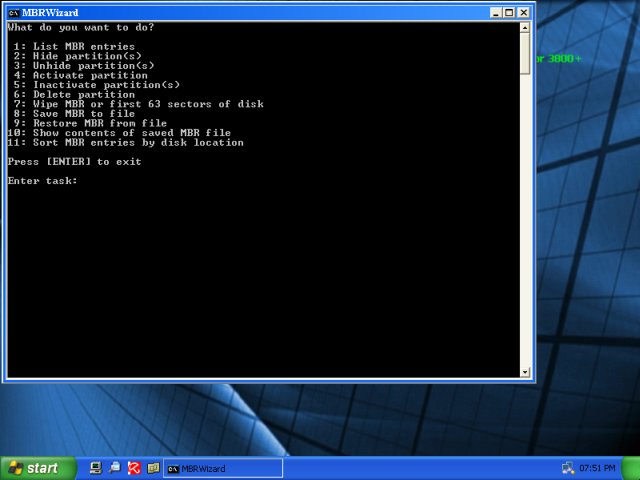
Under Programs > Disk Tools > Partition, you will find both MBRWizard and MbrFix.

Super GRUB Disk
Super GRUB Disk also lets you fix the bootloader, be it LILO, GRUB or NTLDR. Just burn the .iso and let it boot. The main menu is very ugly, but it's quite simple to follow:

That's it. From now on, the principle is the same for three, four or a million operating systems. Just follow the same train of actions.
Conclusion
Uninstalling operating systems is not a simple thing. It's a complicated issue that requires quite a bit of knowledge, including the understanding of how computers work, the boot sequence, the hard disk & partitioning vocabulary, the bootloader.
It comes as no small wonder that so many people avoid this topic. Furthermore, it does hurt many Linux users that one of their peers should abandon the world of freedom and whatnot and go back to using Microsoft software.
Regardless what your motives are, this tutorial provides you with the tools necessary to remove Linux installations from your system and still maintain a bootable, operable machine. I would very much like to believe that no Linux user would ever take a step back and abandon his/her distribution, but in a real world, this happens and having the right tools for the task guarantees a painless transition. I hope you've learned something new. Enjoy.
佳文赏析:How to uninstall Linux的更多相关文章
- 一文让你熟练掌握Linux的ncat(nc)命令
一文让你熟练掌握Linux的ncat(nc)命令 ncat 或者说 nc 是一款功能类似 cat 的工具,但是是用于网络的.它是一款拥有多种功能的 CLI 工具,可以用来在网络上读.写以及重定向数据. ...
- 佳文分享:CAP定理
1976年6月4号,周5,在远离音乐会大厅的一个楼上的房间内,在位于Manchester的Lesser Free Trade Hall ,Sex Pistols 乐队(注:Sex Pistols的经理 ...
- PythonWeb 服务部署文档及迁移到Linux相关
pythonWeb的部署(Django+Uwsgi): 1. 部署服务器上需要的Python3.6环境: 安装集成了python3.6 和pip ,virtualenv虚拟环境 的Anaconda(A ...
- NetBean 远程开发的好文1 --> NetBeans的远程Linux C开发实践
from: http://blog.csdn.net/jacktan/article/details/9268535 一直以来总觉得NetBeans生活在Eclipse的阴影下,同样做为一款不错的基 ...
- 一文带你彻底理解Linux的各种终端类型及概念
每天使用Linux每天都要接触到Bash,使用Bash时似乎永远都让人摸不着头脑的概念就是终端,坐在这台运行着Linux的机器的显示器前面,这个显示器就是终端的输出,而插在机器上的USB键盘或者PS/ ...
- Linux 文档与目录结构
Linux之文档与目录结构 Linux文件系统结构 Linux目录结构的组织形式和Windows有很大的不同.首先Linux没有“盘(C盘.D盘.E盘)”的概念.已经建立文件系统的硬盘分区被挂载到 ...
- Linux之文档与目录结构 目录的相关操作 Linux的文件系统
Linux之文档与目录结构 Linux文件系统结构 Linux目录结构的组织形式和Windows有很大的不同.首先Linux没有“盘(C盘.D盘.E盘)”的概念.已经建立文件系统的硬盘分区被挂载到 ...
- Linux之文档与目录结构 (/ 用法, 相对路径,绝对路径)
Linux之文档与目录结构 Linux文件系统结构 Linux目录结构的组织形式和Windows有很大的不同.首先Linux没有“盘(C盘.D盘.E盘)”的概念.已经建立文件系统的硬盘分区被挂载到 ...
- (转)linux下进程的进程最大数、最大线程数、进程打开的文件数和ulimit命令修改硬件资源限制
ulimit命令查看和更改系统限制 ulimit命令详解 ulimit用于shell启动进程所占用的资源,可以用来设置系统的限制 语法格式 ulimit [-acdfHlmnpsStvw] [size ...
随机推荐
- Vue基于vue-quill-editor富文本编辑器使用心得
vue-quill-editor的guthub地址,现在市面上有很多的富文本编辑器,我个人还是非常推荐Vue自己家的vue-quill-deitor,虽然说只支持IE10+,但这种问题,帅给别人吧! ...
- BaiduSpeechDemo【百度语音SDK集成】(基于v3.0.8.1)
版权声明:本文为HaiyuKing原创文章,转载请注明出处! 前言 上一篇集成的是V3.0.7.3版本的SDK<BaiduSpeechDemo[百度语音SDK集成](基于v3.0.7.3)> ...
- Python--开发简单爬虫
简单爬虫架构 动态运行流程 URL管理器的作用 URL管理器的3种实现方式 网页下载器的作用 Python网页下载器的种类 urllib2下载网页的3种方法 网页解析器的作用 Python的几种网页解 ...
- Navicat 导出sql问题
楼主最近碰到一个问题: 使用Navicat建立数据模型的时候使用导出sql功能导出的sql脚本放在sqlserver中执行失败,表创建成功了,但是我在Navicat中写的表注释和字段注释都没有成功, ...
- Entity Framework 查漏补缺 (三)
Code First的数据库映射 有两种方式来实现数据库映射: 数据属性:Data Annotation 映射配置: Fluent API 有继承关系的实体如何映射? Code First在生成数据库 ...
- Windows10下安装Docker的步骤
一.启用Hyper-V 打开控制面板 - 程序和功能 - 启用或关闭Windows功能,勾选Hyper-V,然后点击确定即可,如图: 点击确定后,启用完毕会提示重启系统,我们可以稍后再重启. 二.安装 ...
- Asp.Net Core 轻松学-在.Net Core 使用缓存和配置依赖策略
前言 几乎在所有的应用程序中,缓存都是一个永恒的话题,恰当的使用缓存可以有效提高应用程序的性能:在某些业务场景下,使用缓存依赖会有很好的体验:在 Asp.Net Core 中,支持了多种缓存组 ...
- java线程通信与协作小结 多线程中篇(十六)
在锁与监视器中我们对Object中的方法进行了简单介绍 以监视器原理为核心,三个方法:wait,notify.notifyAll,可以完成线程之间的通信 当然,不会像“语言”似的,有多种多样的沟通 ...
- JavaScript类型相关常用操作
JS数组,字符串,json互相转换 JS数组转字符串 使用数组自带的join方法可以把数组转化为字符串: let arr = [1,2,'uu']; let str = arr.join(','); ...
- ASP.NET Core 2.2 十八.各种Filter的内部处理机制及执行顺序
ASP.NET core 的Filter是系统中经常用到的,本文详细分享一下各种Filter定义.执行的内部机制以及执行顺序.(ASP.NET Core 系列目录) 一. 概述 ASP.NET Cor ...