
Visual studio之C#实现数字输入模拟键盘
背景
当前做的一个上位机需运行在工控机上,众所周知,工控机不可能配备键盘,只能是触屏,而我当前的上位机需要输入参数,于是之前的解决办法既是调用Windows自带的OSK.exe虚拟键盘,方法在我的另一外一篇博客Visual studio之C# 调用系统软键盘(外部"osk.exe")中已详述,但这种做法有两个致命缺陷,一是由于调用了外部.exe程序,国产杀毒软件会将我的上位机判定为疑似病毒文件(手动微笑);二是,若是该虚拟键盘被提前打开,我就没办法继续打开该软键盘使其在我的上位机界面之上,而该软键盘不是由我打开,我就获取不到它的Process,也就无法将其关闭重新打开,工控机的界面通常不会出现任务栏,因此虚拟键盘要是没有实体键盘就永远无法打开,头疼至极。于是就想到自己实现软键盘。便有此文,做个记录。
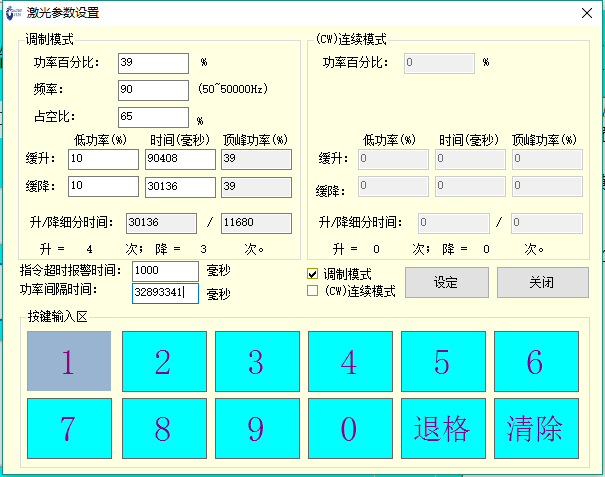
首先强调一下,本软键盘非真正意义的软键盘,只是用了很笨的方法在同一个界面上提供了一个数字输入的解决方案,实际效果如下:
正文
为了不让按键在点击的时候获取焦点,所以我采用了
label控件,一共12个控件,分别是0,1...9,退格,清除,对应的name分别为,keyb0,keyb1,```keb9,keybback,keybclear,对应的Text就是相应的0,1,2...9,退格,清除,为了调整所有按键大小,属性Autosize应该设置为false。在窗体
Load事件中,添加所有label控件的单击事件mybutton_clicked,
        private void lazerctrl_Load(object sender, EventArgs e)

        {

            // 注册键盘按键单击事件

            keyb1.Click += new EventHandler(mybutton_clicked);

            keyb2.Click += new EventHandler(mybutton_clicked);

            keyb3.Click += new EventHandler(mybutton_clicked);

            keyb4.Click += new EventHandler(mybutton_clicked);

            keyb5.Click += new EventHandler(mybutton_clicked);

            keyb6.Click += new EventHandler(mybutton_clicked);

            keyb7.Click += new EventHandler(mybutton_clicked);

            keyb8.Click += new EventHandler(mybutton_clicked);

            keyb9.Click += new EventHandler(mybutton_clicked);

            keyb0.Click += new EventHandler(mybutton_clicked);

            keybback.Click += new EventHandler(mybutton_clicked);

            keybclear.Click += new EventHandler(mybutton_clicked);

        }
在鼠标按键事件中,将控件代表的数字值,填入到页面上最后一个获取到焦点的TextBox,内。这个lastfocustextbox 后面说明,
        // 执行按键操作

        void mybutton_clicked(object sender, EventArgs e)

        {

            Label clickbtn = (Label)sender;

            string strkey = clickbtn.Text;

            if ((lastfocustextbox == textBoxmhpU) || (lastfocustextbox == textBoxmhpD)

                || (lastfocustextbox == textBoxCWhpU) || (lastfocustextbox == textBoxCWhpD)

                || (lastfocustextbox == textBoxmptU) || (lastfocustextbox == textBoxmptD)

                || (lastfocustextbox == textBoxCWptU) || (lastfocustextbox == textBoxCWptD))

            {//不可编辑的textbox就跳过

            }

            else

            {

                if (strkey == "退格")

                {

                    string strNew = this.lastfocustextbox.Text;

                    if (strNew.Length >= 1)

                    {

                        strNew = strNew.Substring(0, strNew.Length - 1);

                        this.lastfocustextbox.Text = strNew;

                        this.lastfocustextbox.SelectionStart = this.lastfocustextbox.Text.Length;

                    }

                    this.lastfocustextbox.Focus();

                }

                else if (strkey == "清除")

                {

                    lastfocustextbox.Clear();

                }

                else

                {

                    lastfocustextbox.AppendText(strkey);

                }

            }

        }
- 为了获知当前聚焦在哪个
TextBox,就需要在窗体Load事件注册所有TextBox的Enter事件,并在事件中将最后一次获得聚焦的TextBox赋值给前文提及的lastfocustextbox中,所以我说这是笨方法。: )
        private void lazerctrl_Load(object sender, EventArgs e)

        {

            // 注册textbox获取焦点事件

            textBoxmp.Enter += new EventHandler(text_getfocused);

            textBoxhz.Enter += new EventHandler(text_getfocused);

            textBoxduty.Enter += new EventHandler(text_getfocused);

            textBoxmlpU.Enter += new EventHandler(text_getfocused);

            textBoxmtU.Enter += new EventHandler(text_getfocused);

            textBoxmlpD.Enter += new EventHandler(text_getfocused);

            textBoxmtD.Enter += new EventHandler(text_getfocused);

            textBoxCWp.Enter += new EventHandler(text_getfocused);

            textBoxCWlpU.Enter += new EventHandler(text_getfocused);

            textBoxCWtU.Enter += new EventHandler(text_getfocused);

            textBoxCWlpD.Enter += new EventHandler(text_getfocused);

            textBoxCWtD.Enter += new EventHandler(text_getfocused);

            textBoxalertt.Enter += new EventHandler(text_getfocused);

            textBoxintervalt.Enter += new EventHandler(text_getfocused);

            textBoxmhpU.Enter += new EventHandler(text_getfocused);

            textBoxmhpD.Enter += new EventHandler(text_getfocused);

            textBoxCWhpU.Enter += new EventHandler(text_getfocused);

            textBoxCWhpD.Enter += new EventHandler(text_getfocused);

            textBoxmptU.Enter += new EventHandler(text_getfocused);

            textBoxmptD.Enter += new EventHandler(text_getfocused);

            textBoxCWptU.Enter += new EventHandler(text_getfocused);

            textBoxCWptD.Enter += new EventHandler(text_getfocused);

        }
此处注意lastfocustextbox 在窗体导入时,一定要赋值一个默认的TextBox,否则在未有一个TextBox获取焦点的情况下,用户点击按键,导致操作null,抛出异常,甚至直接使UI异常关闭。
        // 声明

        private System.Windows.Forms.TextBox lastfocustextbox;

        // 赋初始值

        lastfocustextbox = textBoxintervalt;

        // 获取最后一次获取焦点的Textbox

        void text_getfocused(object sender, EventArgs e)

        {

            TextBox focuedbox = (TextBox)sender;

            lastfocustextbox = focuedbox;

        }
- 至此,按键的功能就可以实现了,但
Lable毕竟不是按键,没有Button的效果,所以我们可以继续的为lable注册鼠标按下和弹起事件,在该事件内改变lable的边框,颜色,甚至是图片,使其有按键按下和弹起的效果,特别可以选一些按键按下和弹起的图片,那样效果会相当不错。同样,在窗体Load事件注册事件
        private void lazerctrl_Load(object sender, EventArgs e)

        {

            // 注册键盘按键鼠标按下事件

            keyb1.MouseDown += new MouseEventHandler(mybutton_down);

            keyb2.MouseDown += new MouseEventHandler(mybutton_down);

            keyb3.MouseDown += new MouseEventHandler(mybutton_down);

            keyb4.MouseDown += new MouseEventHandler(mybutton_down);

            keyb5.MouseDown += new MouseEventHandler(mybutton_down);

            keyb6.MouseDown += new MouseEventHandler(mybutton_down);

            keyb7.MouseDown += new MouseEventHandler(mybutton_down);

            keyb8.MouseDown += new MouseEventHandler(mybutton_down);

            keyb9.MouseDown += new MouseEventHandler(mybutton_down);

            keyb0.MouseDown += new MouseEventHandler(mybutton_down);

            keybback.MouseDown += new MouseEventHandler(mybutton_down);

            keybclear.MouseDown += new MouseEventHandler(mybutton_down);

            // 注册键盘按键鼠标弹起事件

            keyb1.MouseUp += new MouseEventHandler(mybutton_Up);

            keyb2.MouseUp += new MouseEventHandler(mybutton_Up);

            keyb3.MouseUp += new MouseEventHandler(mybutton_Up);

            keyb4.MouseUp += new MouseEventHandler(mybutton_Up);

            keyb5.MouseUp += new MouseEventHandler(mybutton_Up);

            keyb6.MouseUp += new MouseEventHandler(mybutton_Up);

            keyb7.MouseUp += new MouseEventHandler(mybutton_Up);

            keyb8.MouseUp += new MouseEventHandler(mybutton_Up);

            keyb9.MouseUp += new MouseEventHandler(mybutton_Up);

            keyb0.MouseUp += new MouseEventHandler(mybutton_Up);

            keybback.MouseUp += new MouseEventHandler(mybutton_Up);

            keybclear.MouseUp += new MouseEventHandler(mybutton_Up);

        }

        // 执行按键鼠标按下操作

        void mybutton_down(object sender, EventArgs e)

        {

            Label clickbtn = (Label)sender;

            clickbtn.BackColor = System.Drawing.SystemColors.ActiveCaption;

            clickbtn.BorderStyle = System.Windows.Forms.BorderStyle.Fixed3D;

        }

        // 执行按键鼠标弹起操作

        void mybutton_Up(object sender, EventArgs e)

        {

            Label clickbtn = (Label)sender;

            clickbtn.BackColor = System.Drawing.Color.Aqua;

            clickbtn.BorderStyle = System.Windows.Forms.BorderStyle.FixedSingle;

        }
至此,记录完毕。
参考链接
- 参考了很多,记不起来了,这么实现的灵感就来自于各种搜查的各类信息
记录时间:2017-6-11
记录地点:江苏淮安
Visual studio之C#实现数字输入模拟键盘的更多相关文章
- Visual studio之C# 调用系统软键盘(外部"osk.exe")
背景 App需要调用系统软键盘输入数据,自己去实现软键盘有些复杂,现在又是急需,没时间去研究实现软键盘,所以只能调用系统软键盘. 正文 需要添加命名空间, using System.Diagnosti ...
- Visual Studio 开始支持编写 Android 程序并自带 Android 模拟器【转载】
原文地址 本文内容 为什么需要一个 Android 模拟器 针对 Visual Studio Android 模拟器的调试 Visual Studio Android 模拟器的传感器模拟和其他功能 A ...
- 使用Visual Studio 2008创建你的第一个Windows Mobile程序介绍
使用Visual Studio 2008创建你的第一个Windows Mobile程序介绍 Windows MobileMobileWindowsMicrosoftWinForm 介绍 Microso ...
- 适用于 Android 的 Visual Studio 模拟器
适用于 Android 的 Visual Studio 模拟器 https://visualstudio.microsoft.com/zh-hans/vs/msft-android-emulator/ ...
- 介绍Visual Studio的Android模拟器
介绍Visual Studio的Android模拟器 http://blogs.msdn.com/b/visualstudioalm/archive/2014/11/12/introducing-vi ...
- Visual Studio Code 入门教程
Extensible and customizable.(可扩展的和可定制的,这是我喜欢它的原因) Want even more features? Install extensions to add ...
- 为革命保护视力 --- 给 Visual Studio 换颜色
“为革命,保护视力,预防近视,眼保健操开始......” 这个应该是最老版本的眼保健操了,你听过? 一堆废话 且不说上面这个眼保健操到底有木有用,让眼睛放松下还是很有必要的,尤其是现在天天对着不是手机 ...
- win10 安装visual studio 2015遇到的坑
最近win7系统不知啥原因无法访问域中的网络文件,打算升级到win10体验一下.结果发现这一路有太多的坑.首先安装win10基本上算顺利,但是当进入系统后,菜单模式对于PC的鼠标来说,用起来感觉不顺手 ...
- 19个必须知道的Visual Studio快捷键
项目相关的快捷键 Ctrl + Shift + B = 生成项目 Ctrl + Alt + L = 显示Solution Explorer(解决方案资源管理器) Shift + Alt+ C = 添加 ...
随机推荐
- 分布式框架Dubbo配置和实例
准备工作: 1.ZooKeeper:需要去Apache Zookeeper官网下载Zookeeper.tar.gz包,Dubbo是依赖于Zookeeper的 2.Maven:需要去Apache Mav ...
- 原型开发工具 mockplus
韩梦飞沙 韩亚飞 313134555@qq.com yue31313 han_meng_fei_sha 原型开发工具 mockplus 微信(演示) - Mockup Plus Web Ap ...
- luogu P1137 旅行计划
题目描述 小明要去一个国家旅游.这个国家有N个城市,编号为1-N,并且有M条道路连接着,小明准备从其中一个城市出发,并只往东走到城市i停止. 所以他就需要选择最先到达的城市,并制定一条路线以城市i为终 ...
- About 分块
分块的的复杂度是带根号的.... 然后,它是一种暴力算法 简单来说就是优化过的暴力 分块算法会对一个序列(长度为N)进行划分,每一块最多有K个元素,这样就会分为N/K块: 一般K取sqrt(N),那么 ...
- luogu P1440 求m区间内的最小值
题目描述 一个含有n项的数列(n<=2000000),求出每一项前的m个数到它这个区间内的最小值.若前面的数不足m项则从第1个数开始,若前面没有数则输出0. 输入输出格式 输入格式: 第一行两个 ...
- 20162307 实验三 敏捷开发与XP实践
实验三 <敏捷开发与XP实践> 北京电子科技学院(BESTI) 实 验 报 告 课程:程序设计与数据结构 班级:1623 姓名:张韵琪 学号:20162307 指导教师:娄佳鹏老师.王志强 ...
- github之怎么上传本地项目
github之怎么上传本地项目 以前都是在自己磁盘上的某个目录下,然后打开git bash,来进行把本地的一些文件推到远程github上. 之前的方法步骤: 1.在github上new一个库,然后gi ...
- 使用参数化查询防止SQL注入漏洞
参数化查询防止SQL注入漏洞 看别人的登录注册sql语句有没漏洞即可 Where name=‘admin’ or ‘1=1’ and password=’123’; 可以Or ‘1=1’就是漏洞 h ...
- 也来讲REST、SOAP
在GIS网络开发过程中不可避免的的会涉及到REST(Representational State Transfer)的服务.自从Roy Fielding博士在2000年他的博士论文中提出REST风格的 ...
- IOS Reachability判断所请求服务器是否超时?
开发Web等网络应用程序的时候,需要确认网络环境,连接情况等信息.如果没有处理它们,是不会通过Apple的审查的. Apple 的 例程 Reachability 中介绍了取得/检测网络状态的方法. ...