
iOS项目开发之仿网易彩票推荐应用
- 简介
- 效果展示
- 思路分析
- 代码实现
- Git地址
一、简介
某些公司有较多的产品时,通常会在一个产品中推广另外的一些产品,我简单的封装了一个UIControllerView,由于不同公司,要求不同。所以大家可以根据自己不同的需求来改里面的内容,希望对大家有用。
我这里解压网易的资源文件,获取到的数据。(如有任何问题,联系本人372623326@qq.com)
二、效果展示
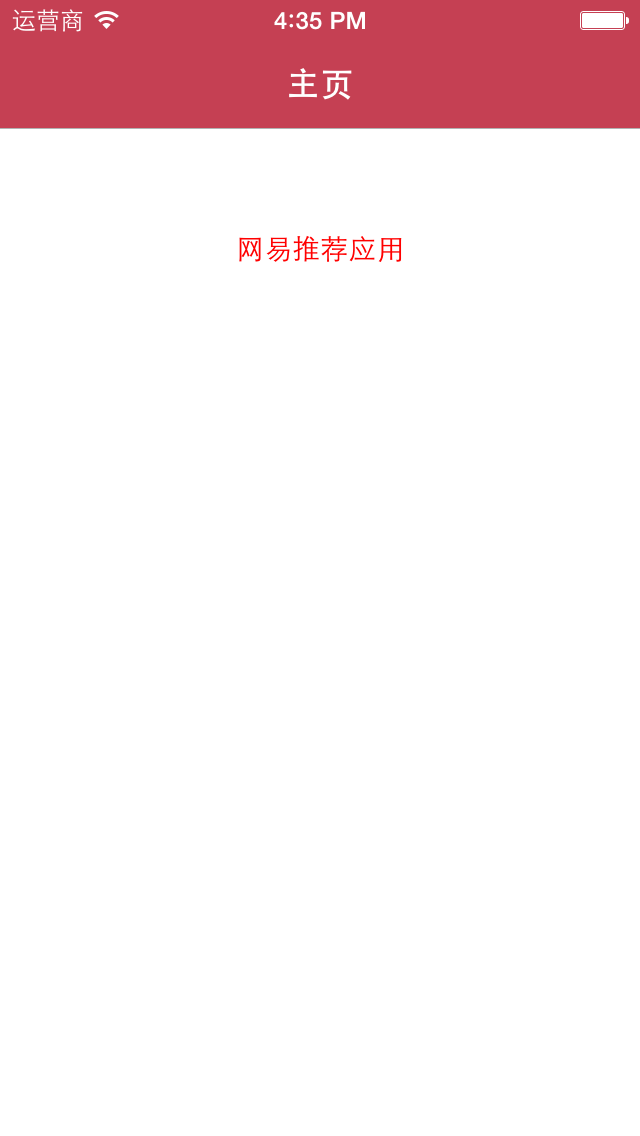
因为我的截图都是使用的模拟器,所以后面都显示的下载图标。如果用真机会根据用户是否下载了对应的应用来判断显示什么样的图片,以及用户之后点击究竟跳转到App Store还是打开应用。(大家可自己测试,后面会放代码)

三、思路分析
网易的资源是json本地文件,里面有所以的资源,已经打开对应的应用的URL和下载应用的URL。我们在显示的时候,只需要根据模型数据,来决定显示就好了
四、代码实现
1⃣️第一个页面的代码实现((.m文件)主要是改变导航条的一些代码,真正用到的时候,只需要告诉第二个页面,json文件的名称就可以了)
#import "MainViewController.h"

#import "ProjectModel.h"

#import "ViewController.h"

#define iOS7 ([[[UIDevice currentDevice] systemVersion] floatValue] >= 7.0)

@interface MainViewController ()

{

    NSArray *_projectData;

}

@end

@implementation MainViewController

+ (void)initialize

{

    // 1.取出设置主题的对象

    UINavigationBar *navBar = [UINavigationBar appearance];

    UIBarButtonItem *barItem = [UIBarButtonItem appearance];

    // 2.设置导航栏的背景图片

    NSString *navBarBg = nil;

    if (iOS7) { // iOS7

        navBarBg = @"NavBar64";

        // 设置导航栏的渐变色为白色(iOS7中返回箭头的颜色变为这个颜色:白色)

        navBar.tintColor = [UIColor whiteColor];

        [[UIApplication sharedApplication] setStatusBarStyle:UIStatusBarStyleLightContent];

    } else { // 非iOS7

        navBarBg = @"NavBar";

        [UIApplication sharedApplication].statusBarStyle = UIStatusBarStyleBlackOpaque;

        // 设置导航栏按钮的背景图片

        [barItem setBackgroundImage:[UIImage imageNamed:@"NavButton"] forState:UIControlStateNormal barMetrics:UIBarMetricsDefault];

        [barItem setBackgroundImage:[UIImage imageNamed:@"NavButtonPressed"] forState:UIControlStateHighlighted barMetrics:UIBarMetricsDefault];

        // 设置导航栏返回按钮的背景图片

        [barItem setBackButtonBackgroundImage:[UIImage imageNamed:@"NavBackButton"] forState:UIControlStateNormal barMetrics:UIBarMetricsDefault];

        [barItem setBackButtonBackgroundImage:[UIImage imageNamed:@"NavBackButtonPressed"] forState:UIControlStateHighlighted barMetrics:UIBarMetricsDefault];

    }

    [navBar setBackgroundImage:[UIImage imageNamed:navBarBg] forBarMetrics:UIBarMetricsDefault];

    // 3.设置导航栏标题颜色为白色

    [navBar setTitleTextAttributes:@{

                                     UITextAttributeTextColor : [UIColor whiteColor]

                                     }];

    // 4.设置导航栏按钮文字颜色为白色

    [barItem setTitleTextAttributes:@{

                                      UITextAttributeTextColor : [UIColor whiteColor],

                                      UITextAttributeFont : [UIFont systemFontOfSize:]

                                      } forState:UIControlStateNormal];

}

- (void)viewDidLoad {

    [super viewDidLoad];

    self.title = @"主页";

    [self addRecommendBtn];

}

- (void)addRecommendBtn

{

    UIButton *btn = [UIButton buttonWithType:UIButtonTypeCustom];

    btn.frame = CGRectMake(, , , );

    [btn setTitle:@"网易推荐应用" forState:UIControlStateNormal];

    [btn setTitleColor:[UIColor redColor] forState:UIControlStateNormal];

    btn.titleLabel.font = [UIFont systemFontOfSize:14.0];

    [btn addTarget:self action:@selector(recommendClick) forControlEvents:UIControlEventTouchUpInside];

    [self.view addSubview:btn];

}

- (void)recommendClick

{

    ViewController *viewController = [[ViewController alloc] init];

    viewController.jsonString = @"more_project.json";

    [self.navigationController pushViewController:viewController animated:YES];

}
2⃣️推荐页面的实现(.m文件)
#import "ViewController.h"

#import "ProjectCell.h"

#import "ProjectModel.h"

@interface ViewController ()

{

    NSArray *_projectData;

}

@end

@implementation ViewController

- (void)setJsonString:(NSString *)jsonString

{

    NSString *path = [[NSBundle mainBundle] pathForResource:jsonString ofType:nil];

    NSData *data = [NSData dataWithContentsOfFile:path];

    NSError *error;

    NSArray *array = [NSJSONSerialization JSONObjectWithData:data options:NSJSONReadingAllowFragments error:&error];

    NSMutableArray *tempArray = [NSMutableArray array];

    for (NSDictionary *dict in array) {

        ProjectModel *p = [ProjectModel ProjectWithDict:dict];

        p.everDownload = [[UIApplication sharedApplication] canOpenURL:[self getUrl:p.customUrl]];

        [tempArray addObject:p];

    }

    _projectData = tempArray;

}

- (NSURL *)getUrl:(NSString *)url

{

    NSString *urlStr = [NSString stringWithFormat:@"%@://", url];

    return [NSURL URLWithString:urlStr];

}

- (void)viewDidLoad {

    [super viewDidLoad];

    self.navigationController.navigationBar.translucent = NO;

    self.title = @"推荐应用";

    self.tableView.separatorStyle = UITableViewCellSeparatorStyleNone;

    self.tableView.showsVerticalScrollIndicator = NO;

    self.tableView.allowsSelection = NO;

}

- (NSInteger)tableView:(UITableView *)tableView numberOfRowsInSection:(NSInteger)section

{

    return _projectData.count;

}

- (ProjectCell *)tableView:(UITableView *)tableView cellForRowAtIndexPath:(NSIndexPath *)indexPath

{

    static NSString *cellIdentifier = @"cell";

    ProjectCell *cell = [tableView dequeueReusableCellWithIdentifier:cellIdentifier];

    if (cell == nil) {

        cell = [[ProjectCell alloc] initWithStyle:UITableViewCellStyleSubtitle reuseIdentifier:cellIdentifier];

    }

    cell.project = _projectData[indexPath.row];

    return cell;

}

- (CGFloat)tableView:(UITableView *)tableView heightForRowAtIndexPath:(NSIndexPath *)indexPath

{

    return ;

}

@end
3⃣️ cell的实现文件(.m文件)
#import "ProjectCell.h"

#define kIconW 54

#define kIconH 54

#define kPadding 10

#define kBtnW 40

#define kBtnH 40

@interface ProjectCell()

{

    UIButton *_controlBtn;

    BOOL _canOpen;

}

@end

@implementation ProjectCell

- (id)initWithStyle:(UITableViewCellStyle)style reuseIdentifier:(NSString *)reuseIdentifier

{

    if (self = [super initWithStyle:style reuseIdentifier:reuseIdentifier]) {

        UIButton *btn = [UIButton buttonWithType:UIButtonTypeCustom];

        btn.center = CGPointMake(self.frame.size.width - kBtnW * 0.5 - kPadding, self.frame.size.height * 0.5 + kPadding);

        btn.bounds = CGRectMake(, , kBtnW, kBtnH);

        [btn addTarget:self action:@selector(btnClick) forControlEvents:UIControlEventTouchUpInside];

        _controlBtn = btn;

        [self.contentView addSubview:btn];

    }

    return self;

}

- (void)btnClick

{

    if (_canOpen) {

        [[UIApplication sharedApplication] openURL:[self getUrl:_project.customUrl]];

    } else {

        [[UIApplication sharedApplication] openURL:[self getUrl:_project.url]];

    }

}

- (void)setProject:(ProjectModel *)project

{

    _project = project;

    _canOpen = project.isEverDownload;

    self.imageView.image = [UIImage imageNamed:project.icon];

    self.textLabel.text = project.title;

    self.detailTextLabel.text = project.stitle;

    if (project.isEverDownload) {

        [_controlBtn setImage:[UIImage imageNamed:@"appadcell_openbutton"] forState:UIControlStateNormal];

    } else {

        [_controlBtn setImage:[UIImage imageNamed:@"appadcell_downloadbutton"] forState:UIControlStateNormal];

    }

}

- (NSURL *)getUrl:(NSString *)url

{

    NSString *urlStr = [NSString stringWithFormat:@"%@://", url];

    return [NSURL URLWithString:urlStr];

}

- (void)layoutSubviews

{

    [super layoutSubviews];

    CGFloat cellH = self.frame.size.height;

    self.imageView.frame = CGRectMake(cellH - kIconW, (cellH - kIconH) * 0.5, kIconW, kIconH);

    self.imageView.contentMode = UIViewContentModeScaleAspectFit;

    CGRect oldLabelFrame = self.textLabel.frame;

    oldLabelFrame.origin.x = CGRectGetMaxX(self.imageView.frame) + kPadding;

    self.textLabel.frame = oldLabelFrame;

    CGRect oldDetailLabelFrame = self.detailTextLabel.frame;

    oldDetailLabelFrame.origin.x = oldLabelFrame.origin.x;

    self.detailTextLabel.frame = oldDetailLabelFrame;

}

@end
五、Git下载地址
(后续更新上去https://github.com/wangzi9521)
iOS项目开发之仿网易彩票推荐应用的更多相关文章
- iOS项目开发常用功能静态库
YHDeveloperTools iOS项目开发常用功能静态库 查看源码 功能方法: 1.字符检查 [NSString checkStringWithType:Email andTargetStrin ...
- iOS项目开发实战——学会使用TableView列表控件(四)plist读取与Section显示
文本将会实现把数据存储到plist文件里.然后在程序中进行读取.在TableView控件中依据不同的类别显示Section. 有关TableView 的其它实现,请參考<iOS项目开发实战--学 ...
- 聚合数据 iOS 项目开发实战:条码查询器
记录下,聚合数据 iOS 项目开发实战:条码查询器:视频地址:http://www.jikexueyuan.com/course/324.html 条码查询API:https://www.juhe.c ...
- ios项目开发汇总
UI界面 iOS和Android 界面设计尺寸规范 http://www.alibuybuy.com/posts/85486.html iPhone app界面设计尺寸规范 http://www. ...
- iOS项目开发优秀文章汇总
UI界面 iOS和Android 界面设计尺寸规范 http://www.alibuybuy.com/posts/85486.html iPhone app界面设计尺寸规范 http://www. ...
- iOS项目开发实战——使用CoreLocation获取当前位置信息
随着基于位置服务LBS和移动互联网的兴起,你的位置是越来越重要的一个信息.位置服务已经是当前的热门应用如微信.陌陌等社交应用的杀手锏.而在iOS开发中,苹果已经给我们提供了一个位置接口.CoreLoc ...
- iOS项目开发实战——通过Http Get方式与server通信
移动client往往须要同后台server进行通信,上传或者下载数据,最经常使用到的方式就是Http Get,如今我们来学习在iOS项目中使用Get方式同server进行通信. [一]server端实 ...
- iOS项目开发实战——iOS网络编程获取网页Html源码
现在我们身处互联网的时代.不论什么一个软件或是App,都会或多或少与网络打交道,并不断发生数据交互.一个没有涉及网络编程的应用会显得比較low,这里我们将会開始使用Swift开发iOS应用,而且主要来 ...
- iOS项目开发实战——plist数组解析
plist数据是苹果公司创造的数据格式,基于XML,因为在iOS,Mac系统中操作plist很方便,所以我们经常会用到.在iOS项目中.系统会自己主动生成一个Info.plist文件,里面存放了iOS ...
随机推荐
- UCRT: VC 2015 Universal CRT, by Microsoft
https://blogs.msdn.microsoft.com/vcblog/2015/03/03/introducing-the-universal-crt/ App local UCRT DLL ...
- Centos6.5配置阿里云yum源
很多时候,centos6.5 yum源可能无法访问,报404等等问题,一般情况下我们可以将yum源配置成阿里云的源,当然也可以配置成163的,简单说一下配置成阿里云的: 阿里云镜像源地址:http:/ ...
- 在ros下使用tf
tf真是一个好东西,把坐标变换都简化了 首先tf需要有一个broadcaster #include <ros/ros.h> #include <tf/transform_broadc ...
- [BZOJ1260][CQOI2007]涂色paint 区间dp
1260: [CQOI2007]涂色paint Time Limit: 30 Sec Memory Limit: 64 MB Submit: 1575 Solved: 955 [Submit][S ...
- linq连接sqlite数据库(linq to sqlite) .net3.5
http://www.cnblogs.com/xianyin05/archive/2012/12/23/2829905.html using Models; using System; using S ...
- Code+ A 晨跑【三个数的最小公倍数】
时间限制:C/C++ 1秒,其他语言2秒空间限制:C/C++ 262144K,其他语言524288K64bit IO Format: %lld 题目描述 “无体育,不清华”.“每天锻炼一小时,健康工作 ...
- object的hashCode与equals
JAVA代码: public static void main(String[] args) { Object obj1 = new Object(); Obj ...
- Git&GitHun 命令合集
Git&GitHun 命令合集 基本操作 git --version 查看git版本信息 git add 本地库初始化 设置签名 git config user.name xxx git co ...
- JavaSript模块规范 - AMD规范与CMD规范介绍 (转)
JavaSript模块化 在了解AMD,CMD规范前,还是需要先来简单地了解下什么是模块化,模块化开发? 模块化是指在解决某一个复杂问题或者一系列的杂糅问题时,依照一种分类的思维把问题 ...
- Ubuntu 16.04使用“从互联网自动获取”时间无法写入硬件BIOS的奇怪问题
目前发现的就是这个问题,只能手动同步到BIOS. 如果是手动设置过时间,那么可以正常同步到BIOS. 而如果切换到从互联网自动获取时间时,是不能同步到BIOS的,但是界面上的时间确实最新的. 并且这个 ...