
NPOI之Excel——合并单元格、设置样式、输入公式
首先建立一个空白的工作簿用作测试,并在其中建立空白工作表,在表中建立空白行,在行中建立单元格,并填入内容:
//建立空白工作簿

IWorkbook workbook = new HSSFWorkbook();

//在工作簿中:建立空白工作表

ISheet sheet = workbook.CreateSheet();

//在工作表中:建立行,参数为行号,从0计

IRow row = sheet.CreateRow(0);
//在行中:建立单元格,参数为列号,从0计

ICell cell = row.CreateCell(0);

//设置单元格内容

cell.SetCellValue("实习鉴定表");
设置单元格样式:设置单元格样式时需要注意,务必创建一个新的样式对象进行设置,否则会将工作表所有单元格的样式一同设置,它们应该共享的是一个样式对象:
ICellStyle style = workbook.CreateCellStyle();

//设置单元格的样式:水平对齐居中

style.Alignment = HorizontalAlignment.CENTER;

//新建一个字体样式对象
IFont font = workbook.CreateFont();

//设置字体加粗样式
font.Boldweight = short.MaxValue;

//使用SetFont方法将字体样式添加到单元格样式中
style.SetFont(font);

//将新的样式赋给单元格

cell.CellStyle = style;
设置单元格宽高:
设置单元格的高度实际是设置其所在行高,所以要在单元格所在行上设置行高,行高设置数值好像是像素点的1/20,所以*20以便达到设置效果;
设置单元格的宽度实际上是设置其所在列宽,所以要在单元格所在列上设置(列的设置在工作表上),宽度数值好像是字符的1/256,所以*256以便达到设置效果。
//设置单元格的高度

row.Height = 30 * 20;

//设置单元格的宽度
sheet.SetColumnWidth(0, 30 * 256);
合并单元格:合并单元格实际上是声明一个区域,该区域中的单元格将进行合并,合并后的内容与样式以该区域最左上角的单元格为准。
//设置一个合并单元格区域,使用上下左右定义CellRangeAddress区域

//CellRangeAddress四个参数为:起始行,结束行,起始列,结束列

sheet.AddMergedRegion(new CellRangeAddress(0, 0, 0, 10));

添加公式:使用Cell的CellFormula来设置公式,是一个字符串,公式前不需要加=号。
//通过Cell的CellFormula向单元格中写入公式

//注:直接写公式内容即可,不需要在最前加'='

ICell cell2 = sheet.CreateRow(1).CreateCell(0);

cell2.CellFormula = "HYPERLINK(\"测试图片.jpg\",\"测试图片.jpg\")";
将工作簿写入文件查看效果:
//将工作簿写入文件

using (FileStream fs = new FileStream("生成效果.xls", FileMode.Create, FileAccess.Write))

{

    workbook.Write(fs);

}
最终效果:

设置Excel的自动筛选功能
单元格数字格式的问题
NPOI向Excel文件中插入数值时,可能会出现数字当作文本的情况(即左上角有个绿色三角),这样单元格的值就无法参与运算。这是因为在SetCellValue设置单元格值的时候使用了字符串进行赋值,默认被转换成了字符型。如果需要纯数字型的,请向SetCellValue中设置数字型变量。
以上两个问题的示例代码如下:

//建立空白工作薄

IWorkbook workbook = new HSSFWorkbook();

//在工作薄中建立工作表

ISheet sheet = workbook.CreateSheet();

//填充筛选的内容

sheet.CreateRow(0).CreateCell(0).SetCellValue("省份");

sheet.CreateRow(1).CreateCell(0).SetCellValue("河北省");

sheet.CreateRow(2).CreateCell(0).SetCellValue("湖南省");

//验证数字格式问题

sheet.GetRow(1).CreateCell(2).SetCellValue("123");

sheet.GetRow(2).CreateCell(2).SetCellValue(123);

//设置Excel的自动筛选

CellRangeAddress c = CellRangeAddress.ValueOf("A1");

sheet.SetAutoFilter(c);

//写文件

using (FileStream fs = new FileStream("haha.xls", FileMode.Create, FileAccess.Write))

{

    workbook.Write(fs);

}
最终的效果显示:

Npoi导入导出Excel操作
using NPOI.HSSF.UserModel;
using NPOI.SS.UserModel;
using System;
using System.Collections.Generic;
using System.Data;
using System.IO;
using System.Linq;
using System.Text;
using System.Threading.Tasks; namespace HblGrabPro
{
class ExcelHelper
{
public static void DsToExcel(DataSet ds, string strExcelFileName)
{
HSSFWorkbook workbook = new HSSFWorkbook();
foreach(DataTable dt in ds.Tables )
{
try
{
ISheet sheet = workbook.CreateSheet(string.IsNullOrEmpty(dt.TableName) ? Path.GetFileNameWithoutExtension(strExcelFileName) : dt.TableName);
ICellStyle HeadercellStyle = workbook.CreateCellStyle();
HeadercellStyle.BorderBottom = NPOI.SS.UserModel.BorderStyle.Thin;
HeadercellStyle.BorderLeft = NPOI.SS.UserModel.BorderStyle.Thin;
HeadercellStyle.BorderRight = NPOI.SS.UserModel.BorderStyle.Thin;
HeadercellStyle.BorderTop = NPOI.SS.UserModel.BorderStyle.Thin;
HeadercellStyle.Alignment = NPOI.SS.UserModel.HorizontalAlignment.Center; NPOI.SS.UserModel.IFont headerfont = workbook.CreateFont();
headerfont.Boldweight = (short)FontBoldWeight.Bold;
HeadercellStyle.SetFont(headerfont); int icolIndex = 0;
IRow headerRow = sheet.CreateRow(0);
foreach (DataColumn item in dt.Columns)
{
ICell cell = headerRow.CreateCell(icolIndex);
cell.SetCellValue(item.ColumnName);
cell.CellStyle = HeadercellStyle;
icolIndex++;
} ICellStyle cellStyle = workbook.CreateCellStyle();
cellStyle.DataFormat = HSSFDataFormat.GetBuiltinFormat("@");
cellStyle.BorderBottom = NPOI.SS.UserModel.BorderStyle.Thin;
cellStyle.BorderLeft = NPOI.SS.UserModel.BorderStyle.Thin;
cellStyle.BorderRight = NPOI.SS.UserModel.BorderStyle.Thin;
cellStyle.BorderTop = NPOI.SS.UserModel.BorderStyle.Thin; NPOI.SS.UserModel.IFont cellfont = workbook.CreateFont();
cellfont.Boldweight = (short)FontBoldWeight.Normal;
cellStyle.SetFont(cellfont); //建立内容行
int iRowIndex = 1;
int iCellIndex = 0;
foreach (DataRow Rowitem in dt.Rows)
{
IRow DataRow = sheet.CreateRow(iRowIndex);
foreach (DataColumn Colitem in dt.Columns)
{ ICell cell = DataRow.CreateCell(iCellIndex);
cell.SetCellValue(Rowitem[Colitem].ToString());
cell.CellStyle = cellStyle;
iCellIndex++;
}
iCellIndex = 0;
iRowIndex++;
} for (int i = 0; i < icolIndex; i++)
{
sheet.AutoSizeColumn(i);
}
}
catch (Exception ex)
{
//ILog log = LogManager.GetLogger("Exception Log");
//log.Error(ex.Message + Environment.NewLine + ex.StackTrace);
////记录AuditTrail
//CCFS.Framework.BLL.AuditTrailBLL.LogAuditTrail(ex);
continue;
//MessageBox.Show(m_Common_ResourceManager.GetString("Export_to_excel_failed"), m_Common_ResourceManager.GetString("Information"), MessageBoxButtons.OK, MessageBoxIcon.Information);
}
}
FileStream file = new FileStream(strExcelFileName, FileMode.OpenOrCreate);
workbook.Write(file);
file.Flush();
file.Close();
} public static void DtToExcel(DataTable dt, string strExcelFileName)
{
HSSFWorkbook workbook = new HSSFWorkbook();
try
{ ISheet sheet = workbook.CreateSheet("Sheet1"); ICellStyle HeadercellStyle = workbook.CreateCellStyle();
HeadercellStyle.BorderBottom = NPOI.SS.UserModel.BorderStyle.Thin;
HeadercellStyle.BorderLeft = NPOI.SS.UserModel.BorderStyle.Thin;
HeadercellStyle.BorderRight = NPOI.SS.UserModel.BorderStyle.Thin;
HeadercellStyle.BorderTop = NPOI.SS.UserModel.BorderStyle.Thin;
HeadercellStyle.Alignment = NPOI.SS.UserModel.HorizontalAlignment.Center;
//字体
NPOI.SS.UserModel.IFont headerfont = workbook.CreateFont();
headerfont.Boldweight = (short)FontBoldWeight.Bold;
HeadercellStyle.SetFont(headerfont); //用column name 作为列名
int icolIndex = 0;
IRow headerRow = sheet.CreateRow(0);
foreach (DataColumn item in dt.Columns)
{
ICell cell = headerRow.CreateCell(icolIndex);
cell.SetCellValue(item.ColumnName);
cell.CellStyle = HeadercellStyle;
icolIndex++;
} ICellStyle cellStyle = workbook.CreateCellStyle(); //为避免日期格式被Excel自动替换,所以设定 format 为 『@』 表示一率当成text來看
cellStyle.DataFormat = HSSFDataFormat.GetBuiltinFormat("@");
cellStyle.BorderBottom = NPOI.SS.UserModel.BorderStyle.Thin;
cellStyle.BorderLeft = NPOI.SS.UserModel.BorderStyle.Thin;
cellStyle.BorderRight = NPOI.SS.UserModel.BorderStyle.Thin;
cellStyle.BorderTop = NPOI.SS.UserModel.BorderStyle.Thin; NPOI.SS.UserModel.IFont cellfont = workbook.CreateFont();
cellfont.Boldweight = (short)FontBoldWeight.Normal;
cellStyle.SetFont(cellfont); //建立内容行
int iRowIndex = 1;
int iCellIndex = 0;
foreach (DataRow Rowitem in dt.Rows)
{
IRow DataRow = sheet.CreateRow(iRowIndex);
foreach (DataColumn Colitem in dt.Columns)
{ ICell cell = DataRow.CreateCell(iCellIndex);
cell.SetCellValue(Rowitem[Colitem].ToString());
cell.CellStyle = cellStyle;
iCellIndex++;
}
iCellIndex = 0;
iRowIndex++;
} //自适应列宽度
for (int i = 0; i < icolIndex; i++)
{
sheet.AutoSizeColumn(i);
} //写Excel
FileStream file = new FileStream(strExcelFileName, FileMode.OpenOrCreate);
workbook.Write(file);
file.Flush();
file.Close(); //MessageBox.Show(m_Common_ResourceManager.GetString("Export_to_excel_successfully"), m_Common_ResourceManager.GetString("Information"), MessageBoxButtons.OK, MessageBoxIcon.Information);
}
catch (Exception ex)
{
//ILog log = LogManager.GetLogger("Exception Log");
//log.Error(ex.Message + Environment.NewLine + ex.StackTrace);
////记录AuditTrail
//CCFS.Framework.BLL.AuditTrailBLL.LogAuditTrail(ex); //MessageBox.Show(m_Common_ResourceManager.GetString("Export_to_excel_failed"), m_Common_ResourceManager.GetString("Information"), MessageBoxButtons.OK, MessageBoxIcon.Information);
}
finally { workbook = null; } } public static DataTable ExcelToDt(string strFilePath, string strTableName, int iSheetIndex)
{ string strExtName = Path.GetExtension(strFilePath); DataTable dt = new DataTable();
if (!string.IsNullOrEmpty(strTableName))
{
dt.TableName = strTableName;
} if (strExtName.Equals(".xls") || strExtName.Equals(".xlsx"))
{
using (FileStream file = new FileStream(strFilePath, FileMode.Open, FileAccess.Read))
{
HSSFWorkbook workbook = new HSSFWorkbook(file);
ISheet sheet = workbook.GetSheetAt(iSheetIndex); //列头
foreach (ICell item in sheet.GetRow(sheet.FirstRowNum).Cells)
{
dt.Columns.Add(item.ToString(), typeof(string));
} //写入内容
System.Collections.IEnumerator rows = sheet.GetRowEnumerator();
while (rows.MoveNext())
{
IRow row = (HSSFRow)rows.Current;
if (row.RowNum == sheet.FirstRowNum)
{
continue;
} DataRow dr = dt.NewRow();
foreach (ICell item in row.Cells)
{
switch (item.CellType)
{
case CellType.Boolean:
dr[item.ColumnIndex] = item.BooleanCellValue;
break;
case CellType.Error:
//dr[item.ColumnIndex] = ErrorEval.GetText(item.ErrorCellValue);
break;
case CellType.Formula:
switch (item.CachedFormulaResultType)
{
case CellType.Boolean:
dr[item.ColumnIndex] = item.BooleanCellValue;
break;
case CellType.Error:
//dr[item.ColumnIndex] = ErrorEval.GetText(item.ErrorCellValue);
break;
case CellType.Numeric:
if (DateUtil.IsCellDateFormatted(item))
{
dr[item.ColumnIndex] = item.DateCellValue.ToString("yyyy-MM-dd hh:MM:ss");
}
else
{
dr[item.ColumnIndex] = item.NumericCellValue;
}
break;
case CellType.String:
string str = item.StringCellValue;
if (!string.IsNullOrEmpty(str))
{
dr[item.ColumnIndex] = str.ToString();
}
else
{
dr[item.ColumnIndex] = null;
}
break;
case CellType.Unknown:
case CellType.Blank:
default:
dr[item.ColumnIndex] = string.Empty;
break;
}
break;
case CellType.Numeric:
if (DateUtil.IsCellDateFormatted(item))
{
dr[item.ColumnIndex] = item.DateCellValue.ToString("yyyy-MM-dd hh:MM:ss");
}
else
{
dr[item.ColumnIndex] = item.NumericCellValue;
}
break;
case CellType.String:
string strValue = item.StringCellValue;
if (string.IsNullOrEmpty(strValue))
{
dr[item.ColumnIndex] = strValue.ToString();
}
else
{
dr[item.ColumnIndex] = null;
}
break;
case CellType.Unknown:
case CellType.Blank:
default:
dr[item.ColumnIndex] = string.Empty;
break;
}
}
dt.Rows.Add(dr);
}
}
} return dt;
}
}
}
用NPOI操作EXCEL--生成下拉列表
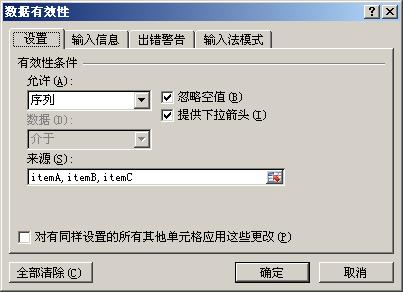
(1)选定一个要生成下拉列表的区域;
(2)设置数据有效性为序列,并在来源中填充可选下拉的值,用“,”隔开(如图)。
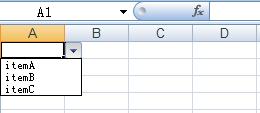
对应的效果为:
同样,利用NPOI代码也可以实现上面的效果:
HSSFSheet sheet1 = hssfworkbook.CreateSheet("Sheet1");
CellRangeAddressList regions = new CellRangeAddressList(0, 65535, 0, 0);
DVConstraint constraint = DVConstraint.CreateExplicitListConstraint(new string[] { "itemA", "itemB", "itemC" });
HSSFDataValidation dataValidate = new HSSFDataValidation(regions, constraint);
sheet1.AddValidationData(dataValidate);
下面对代码作一下简要说明:
先设置一个需要提供下拉的区域,关于CellRangeAddressList构造函数参数的说明请参见上一节:
然后将下拉项作为一个数组传给CreateExplicitListConstraint作为参数创建一个约束,根据要控制的区域和约束创建数据有效性就可以了。
但是这样会有一个问题:Excel中允许输入的序列来源长度最大为255个字符,也就是说当下拉项的总字符串长度超过255是将会出错。那么如果下拉项很多的情况下应该怎么处理呢?答案是通过引用的方式。步骤如下:
先创建一个Sheet专门用于存储下拉项的值,并将各下拉项的值写入其中:
sheet2.CreateRow(0).CreateCell(0).SetCellValue("itemA");
sheet2.CreateRow(1).CreateCell(0).SetCellValue("itemB");
sheet2.CreateRow(2).CreateCell(0).SetCellValue("itemC");
然后定义一个名称,指向刚才创建的下拉项的区域:
range.Reference = "ShtDictionary!$A1:$A3";
range.NameName = "dicRange";
最后,设置数据约束时指向这个名称而不是字符数组:
CellRangeAddressList regions = new CellRangeAddressList(0, 65535, 0, 0);
DVConstraint constraint = DVConstraint.CreateFormulaListConstraint("dicRange");
HSSFDataValidation dataValidate = new HSSFDataValidation(regions, constraint);
sheet1.AddValidationData(dataValidate);
执行这段代码,生成的Excel效果如下:

在名称管理器中会发现有一个名为"dicRange"的名称,指向"ShtDictionary!$A1:$A3"的下拉项区域: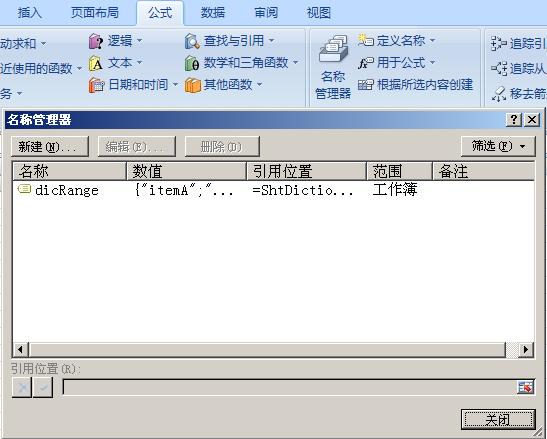
在数据有效性中会发现来源变成了"=dicRange",指向上面定义的名称。而不是以前的"itemA,itemB,itemC":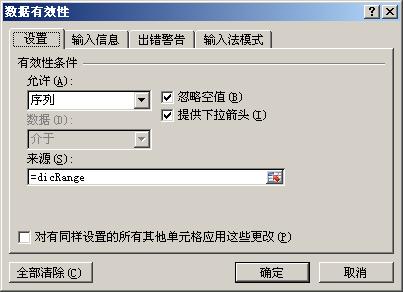
NPOI之Excel——合并单元格、设置样式、输入公式的更多相关文章
- NPOI之Excel——合并单元格、设置样式、输入公式、设置筛选等
首先建立一个空白的工作簿用作测试,并在其中建立空白工作表,在表中建立空白行,在行中建立单元格,并填入内容: //建立空白工作簿 IWorkbook workbook = new HSSFWorkboo ...
- 创建excel,合并单元格,设置单元格样式
package com.huawei.excel; import java.io.File;import java.io.FileOutputStream;import java.util.Date; ...
- npoi导出excel合并单元格
需要引用NPOI.dll程序集和Ionic.Zip.dll程序集 string[] headerRowName = { "序号", "地市", "镇街 ...
- NPOI.dll 用法。单元格,样式,字体,颜色,行高,宽度。读写excel
NPOI.dll 用法.单元格,样式,字体,颜色,行高,宽度.读写excel 转载:http://yuncode.net/code/c_531e679b3896495 view source prin ...
- asp.net C#取Excel 合并单元格内容
asp教程.net c#取excel 合并单元格内容读取excel数据,填充dataset// 连接字符串 string xlspath = server.mappath("~/www.11 ...
- NPOI 生成Excel (单元格合并、设置单元格样式:字段,颜色、设置单元格为下拉框并限制输入值、设置单元格只能输入数字等)
NPIO源码地址:https://github.com/tonyqus/npoi NPIO使用参考:源码中的 NPOITest项目 下面代码包括: 1.包含多个Sheet的Excel 2.单元格合并 ...
- 转载 NPOI.dll 用法。单元格,样式,字体,颜色,行高,宽度。读写excel
我用的版本是1.25的.每个版本用法有一点不同 using System; using System.Collections.Generic; using System.ComponentModel; ...
- java poi导出Excel合并单元格并设置边框
import org.apache.poi.hssf.usermodel.HSSFCell; import org.apache.poi.hssf.usermodel.HSSFCellStyle; i ...
- C# NPOI Excel 合并单元格和取消单元格
1.合并单元操作 //合并单元格 /** 第一个参数:从第几行开始合并 第二个参数:到第几行结束合并 第三个参数:从第几列开始合并 第四个参数:到第几列结束合并 **/ CellRangeAddres ...
随机推荐
- [转]基于AngularJS的前端架构(上)
模块化 怎么分模块 AngularJS自己有模块的概念,但只是为controller.direcitive.service等提供一个集合的概念,并没有文件调度的功能. 官方推荐的模块分类方法是: an ...
- SQL中一种类似GUID值的函数实现
开发中会需要用到多列值组合成一个ID值的情况.比如做数据清洗的时候,一张表A有五列,分别是医院.科室.医生.职称.电话.面有许多重复的数据需要和另一个表B(和A列相同)做对比.清洗需要做两件事 ...
- LoadRunner - 结果分析 / Result Analysis
LoadRunner 最重要也是最难理解的地方--测试结果的分析.其余的录制和加压测试等设置对于我们来讲通过几次操作就可以轻松掌握了.针对 Results Analysis 我用图片加文字做了一个例子 ...
- EasyUI 兼容 IE6 方法总结
1.combobox 如果单选,multiple必须也设置为true.这个ie7如果没设置,会保持多选状态,算是一个bug. 2.combobox 最好用js来渲染,而不是一开始就class=“eas ...
- DataTable分组归类
我们在做项目的时候,经常需要根据表或DataTable中某些字段来归类,为此就写出以下方法,帮组需要的人. #region 对DataTable进行分组 + public void GroupData ...
- springmvc返回jsp源代码解决办法
url-pattern问题 spring用到forward("/WEB-INF/jsp/*.jsp")而forward当然是又要经过web.xml的映射的,然后,在URL匹配时, ...
- 2、onclickListener冲突
事情是这样的. 我在activity中同时使用普通按钮和对话框按钮,并都设置点击时候的回调函数,由于都要用到onclickListener,但是两者却不是一个文件,无法同时import,这就是本文出现 ...
- Installing Ruby 1.9.3 on Ubuntu 12.04 Precise Pengolin (without RVM)
02 MAY, 2012 The new Ubuntu release has just rolled around and with it a slew of new packages. Perso ...
- 线段树--Color the ball(多次染色问题)
K - Color the ball Time Limit:3000MS Memory Limit:32768KB 64bit IO Format:%I64d & %I64u ...
- Posix线程编程指南(4) 线程终止
线程终止方式 一般来说,Posix的线程终止有两种情况:正常终止和非正常终止.线程主动调用pthread_exit()或者从线程函数中return都将使线程正常退出,这是可预见的退出方式:非正常终止是 ...