
bootstrap轮播图组件
一、轮播图组件模板(官方文档)
    <div id="carousel-example-generic" class="carousel slide" data-ride="carousel">

        <!-- 指示器 -->

        <ol class="carousel-indicators">

          <li data-target="#carousel-example-generic" data-slide-to="0" class="active"></li>

          <li data-target="#carousel-example-generic" data-slide-to="1"></li>

          <li data-target="#carousel-example-generic" data-slide-to="2"></li>

        </ol>

        <!-- 轮播图片及说明文字 -->

        <div class="carousel-inner" role="listbox">

          <div class="item active">

            <img src="..." alt="图片1">

            <div class="carousel-caption">

              ...

            </div>

          </div>

          <div class="item">

            <img src="..." alt="图片2">

            <div class="carousel-caption">

              ...

            </div>

          </div>

        </div>

        <!-- 控制按钮:左右切换 -->

        <a class="left carousel-control" href="#carousel-example-generic" role="button" data-slide="prev">

          <span class="glyphicon glyphicon-chevron-left" aria-hidden="true"></span>

          <span class="sr-only">Previous</span>

        </a>

        <a class="right carousel-control" href="#carousel-example-generic" role="button" data-slide="next">

          <span class="glyphicon glyphicon-chevron-right" aria-hidden="true"></span>

          <span class="sr-only">Next</span>

        </a>

      </div>
二、分析轮播图组件结构
①carousel 轮播图的模块, slide是否加上滑动效果,data-ride="carousel" 初始化轮播图属性
②data-target="#carousel-example-generic" 控制目标轮播图,data-slide-to="数字" 控制的是轮播图当中的第几张 (索引),class="active" 当前选中的点
③role="listbox" 提供给屏幕阅读器使用,class="carousel-inner"需要轮播的容器,每一个容器里class="item"包括轮播图片img和图片的说明性文字carousel-caption
④left carousel-control是切换上一张的按钮,right carousel-control是切换下一张的按钮,其中的data-slide="next/prev"声明左滑还是右滑,aria-hidden和sr-only是提供给屏幕阅读器使用
三、精简版轮播图模板
<div id="carousel-example-generic" class="carousel slide" data-ride="carousel">

        <!-- 指示器 -->

        <ol class="carousel-indicators">

          <li data-target="#carousel-example-generic" data-slide-to="0" class="active"></li>

          <li data-target="#carousel-example-generic" data-slide-to="1"></li>

          <li data-target="#carousel-example-generic" data-slide-to="2"></li>

        </ol>

        <!-- 轮播图片及说明文字 -->

        <div class="carousel-inner" role="listbox">

          <div class="item active">

            <img src="..." alt="图片1">

          </div>

          <div class="item">

            <img src="..." alt="图片2">

          </div>

          <div class="item">

            <img src="..." alt="图片3">

          </div>

        </div>

        <!-- 控制按钮:左右切换 -->

        <a class="left carousel-control" href="#carousel-example-generic" role="button" data-slide="prev">

          <span class="glyphicon glyphicon-chevron-left"></span>

        </a>

        <a class="right carousel-control" href="#carousel-example-generic" role="button" data-slide="next">

          <span class="glyphicon glyphicon-chevron-right"></span>

        </a>

      </div>
四、例子:在PC端使用轮播图(高度固定,图片居中,容器铺满,使用背景图)
<div id="carousel-example-generic" class="carousel slide" data-ride="carousel">

        <!-- 指示器 -->

        <ol class="carousel-indicators">

          <li data-target="#carousel-example-generic" data-slide-to="0" class="active"></li>

          <li data-target="#carousel-example-generic" data-slide-to="1"></li>

          <li data-target="#carousel-example-generic" data-slide-to="2"></li>

        </ol>

        <!-- 轮播图片及说明文字 -->

        <div class="carousel-inner" role="listbox">

          <div class="item active">

            <a href="#" class="pc_imgBox" style="background-image: url('images/2-1.png')"></a>

          </div>

          <div class="item">

            <a href="#" class="pc_imgBox" style="background-image: url('images/2-2.png')"></a>

          </div>

          <div class="item">

            <a href="#" class="pc_imgBox" style="background-image: url('images/2-3.png')"></a>

          </div>

        </div>

        <!-- 控制按钮:左右切换 -->

        <a class="left carousel-control" href="#carousel-example-generic" role="button" data-slide="prev">

          <span class="glyphicon glyphicon-chevron-left"></span>

        </a>

        <a class="right carousel-control" href="#carousel-example-generic" role="button" data-slide="next">

          <span class="glyphicon glyphicon-chevron-right"></span>

        </a>

      </div>
        .pc_imgBox{

            display: block;

            height: 400px;

            width: 100%;

            background-size: cover;

            background-position:  center;

            background-repeat: no-repeat;

        }

        .carousel-indicators{

            background: #ccc;

        }

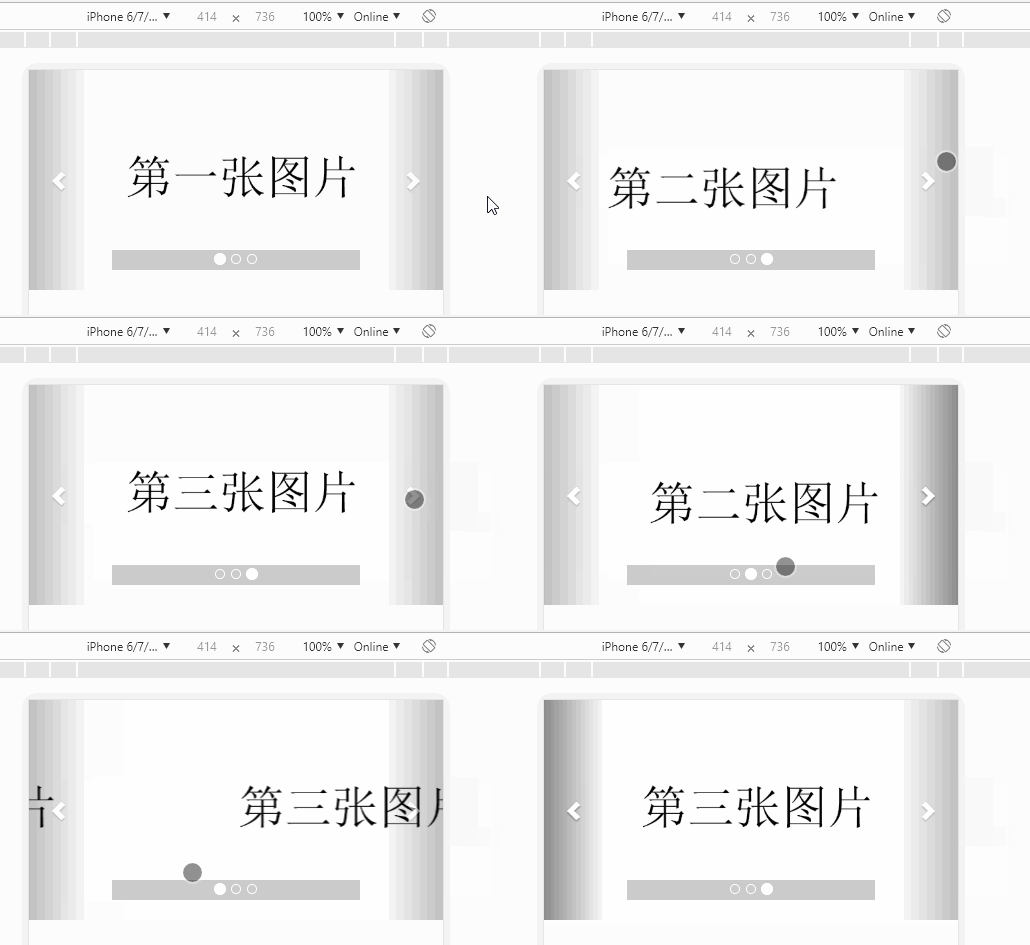
五、例子:在移动端使用轮播图(宽度自适应,高度自动变化,使用img引入图片)
<div id="carousel-example-generic" class="carousel slide" data-ride="carousel">

        <!-- 指示器 -->

        <ol class="carousel-indicators">

          <li data-target="#carousel-example-generic" data-slide-to="0" class="active"></li>

          <li data-target="#carousel-example-generic" data-slide-to="1"></li>

          <li data-target="#carousel-example-generic" data-slide-to="2"></li>

        </ol>

        <!-- 轮播图片及说明文字 -->

        <div class="carousel-inner" role="listbox">

          <div class="item active">

            <a href="#" class="pc_imgBox"><img src="data:images/1-1.png" alt=""></a>

          </div>

          <div class="item">

            <a href="#" class="m_imgBox"><img src="data:images/1-2.png" alt=""></a>

          </div>

          <div class="item">

            <a href="#" class="m_imgBox"><img src="data:images/1-3.png" alt=""></a>

          </div>

        </div>

        <!-- 控制按钮:左右切换 -->

        <a class="left carousel-control" href="#carousel-example-generic" role="button" data-slide="prev">

          <span class="glyphicon glyphicon-chevron-left"></span>

        </a>

        <a class="right carousel-control" href="#carousel-example-generic" role="button" data-slide="next">

          <span class="glyphicon glyphicon-chevron-right"></span>

        </a>

      </div>
        .m_imgBox{

            display: block;

            width: 100%;

        }

        .carousel-indicators{

            background: #ccc;

        }
六、例子:响应式的轮播图(利用媒体查询自适应PC端和移动端)
<div id="carousel-example-generic" class="carousel slide" data-ride="carousel">

        <!-- 指示器 -->

        <ol class="carousel-indicators">

          <li data-target="#carousel-example-generic" data-slide-to="0" class="active"></li>

          <li data-target="#carousel-example-generic" data-slide-to="1"></li>

          <li data-target="#carousel-example-generic" data-slide-to="2"></li>

        </ol>

        <!-- 轮播图片及说明文字 -->

        <div class="carousel-inner" role="listbox">

          <div class="item active">

            <a href="#" class="pc_imgBox hidden-xs" style="background-image: url('images/2-1.png')"></a>

            <a href="#" class="m_imgBox hidden-lg hidden-md hidden-sm"><img src="data:images/1-1.png" alt=""></a>

          </div>

          <div class="item">

            <a href="#" class="pc_imgBox hidden-xs" style="background-image: url('images/2-2.png')"></a>

            <a href="#" class="m_imgBox hidden-lg hidden-md hidden-sm"><img src="data:images/1-2.png" alt=""></a>

          </div>

          <div class="item">

            <a href="#" class="pc_imgBox hidden-xs" style="background-image: url('images/2-3.png')"></a>

            <a href="#" class="m_imgBox hidden-lg hidden-md hidden-sm"><img src="data:images/1-3.png" alt=""></a>

          </div>

        </div>

        <!-- 控制按钮:左右切换 -->

        <a class="left carousel-control" href="#carousel-example-generic" role="button" data-slide="prev">

          <span class="glyphicon glyphicon-chevron-left"></span>

        </a>

        <a class="right carousel-control" href="#carousel-example-generic" role="button" data-slide="next">

          <span class="glyphicon glyphicon-chevron-right"></span>

        </a>

      </div>
        .pc_imgBox{

            display: block;

            height: 400px;

            width: 100%;

            background-size: cover;

            background-position:  center;

            background-repeat: no-repeat;

        }

        .m_imgBox{

            display: block;

            width: 100%;

        }

        .carousel-indicators{

            background: #ccc;

        }

bootstrap轮播图组件的更多相关文章
- 第124天:移动web端-Bootstrap轮播图插件使用
Bootstrap JS插件使用 > 对于Bootstrap的JS插件,我们只需要将文档实例中的代码粘到我们自己的代码中> 然后作出相应的样式调整 Bootstrap中轮播图插件叫作Car ...
- 原生JS面向对象思想封装轮播图组件
原生JS面向对象思想封装轮播图组件 在前端页面开发过程中,页面中的轮播图特效很常见,因此我就想封装一个自己的原生JS的轮播图组件.有了这个需求就开始着手准备了,代码当然是以简洁为目标,轮播图的各个功能 ...
- bootstrap轮播图 两侧半透明阴影
用bootstrap轮播图:Carousel插件,图片两侧影音实在碍眼,想去掉,首先发现有css里由opacity: 0.5这个东西来控制,全部改成opacity: 0.0,发现指示箭头也看不见了. ...
- reactjs-swiper react轮播图组件基于swiper
react轮播图组件基于swiper demo地址:http://reactjs-ui.github.io/reactjs-swiper/simple.html 1. 下载安装 npm install ...
- 03 uni-app框架学习:轮播图组件的使用
1.轮播图组件的使用 参照官方文档 2.在页面上加入这个组件 3.在页面中引去css样式 并编写样式 ps:upx单位是什么 简单来说 就相当于小程序中的rpx 是一个自适应的单位 会根据屏幕宽度自动 ...
- Vue2 轮播图组件 slide组件
Vue2原生始轮播图组件,支持宽度自适应.高度设置.轮播时间设置.左右箭头按钮控制,圆点按钮切换,以及箭头.圆点按钮是否显示. <v-carousel :slideData="slid ...
- vue移动音乐app开发学习(三):轮播图组件的开发
本系列文章是为了记录学习中的知识点,便于后期自己观看.如果有需要的同学请登录慕课网,找到Vue 2.0 高级实战-开发移动端音乐WebApp进行观看,传送门. 完成后的页面状态以及项目结构如下: 一: ...
- Bootstrap 轮播图的使用和理解
<!DOCTYPE html> <html lang="zh-CN"> <head> <meta charset="utf-8& ...
- taro 自定义 轮播图组件
1.代码 components/MySwiper/index.js /** * 轮播图组件 */ import Taro, { Component } from '@tarojs/taro'; imp ...
随机推荐
- Django开发之module
1.首先需要安装你要使用的数据的python模块组件 2.需要新建一个app 切换到工程根目录下,然后执行django-admin.py startpapp firstModule 编辑first/s ...
- 转:使用Goproxy解决golang.org模块无法下载的问题
原文https://studygolang.com/articles/22277?fr=sidebar 简介 Goproxy 中国完全实现了 Go 的模块代理协议.并且它是一个由中国备受信赖的云服务提 ...
- java之spring之初始spring
1.Spring 在多个框架中起到润滑剂的作用,桥梁的作用,纽带的作用. 2.Spring是一个容器,也是一个对象工厂.帮助程序员创建对象,管理对象. 3.Spring的体系结构: 4.学习sprin ...
- 2019 斗鱼java面试笔试题 (含面试题解析)
本人5年开发经验.18年年底开始跑路找工作,在互联网寒冬下成功拿到阿里巴巴.今日头条.斗鱼等公司offer,岗位是Java后端开发,因为发展原因最终选择去了斗鱼,入职一年时间了,之前面试了很多家公 ...
- 自学Python编程的第八天----------来自苦逼的转行人
2019-09-18-21:11:24(初学者不会学博客,望大家见谅见谅) 今天学的内容是有关list..dict.set集合的使用方法和注意事项 list和dict在循环中不可删,而且list在迭代 ...
- GridPanel列头带有复选框的列
由于工作需要,封装了ExtJS4,GridPanel列头带有复选框的列, 代码如下: /** * 列头带有复选框的列 * */ Ext.define("org.pine.widget.Che ...
- 如何统一管理单个任务下所有API的同步情况?
1. 一分钟完成单个API配置 单个API的配置包含:API名称.URL地址.请求方式.参数设置.自定义高级设置. 参数允许用户填写:Text.WebService.Timestamp.DependO ...
- Eclipse - 安装Indent Guide,使JAVA代码具备编辑缩进线,和Delphi一样酷!!
Delphi里面默认就有代码编辑缩进线,这在编写逻辑复杂的大块代码时候非常有好处,可以清楚地看到每块代码的范围,下面就是Delphi里面代码编辑缩进线的截图: 非常棒的效果,我喜欢,在处理复杂逻辑代码 ...
- Implement CGLIB in ABAP
What is cglib?A Byte Code Generation Library which is high level API to generate and transform Java ...
- Linux内核学习散知识整理
1.container_of(ptr, type, member) 使用方法:根据指向结构体type的成员member的指针ptr,获取指向改结构体的指针 /** * container_of - c ...