
Word 脚本 (自用)
打开开发工具
右击功能区->自定义功能区
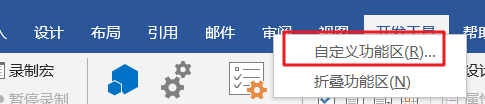
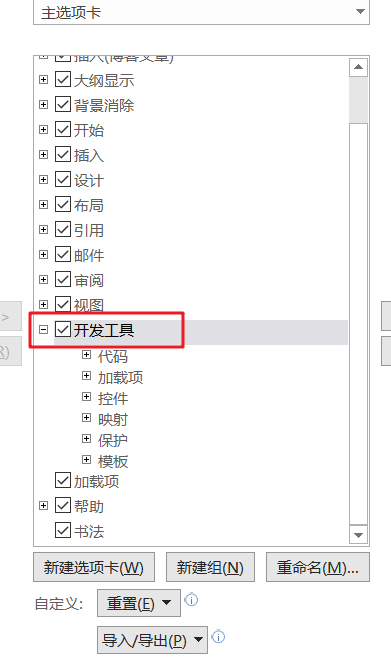
勾选开发工具->确定
导入代码
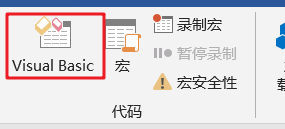
开发工具选项卡->Visual Basic
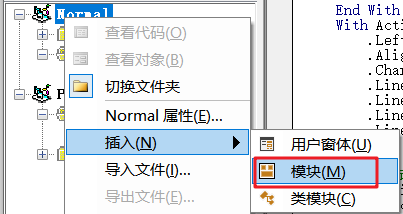
右击Normal->插入->模块
粘贴代码->ctrl+s 保存
Sub 修改样式()

    ' 八号磅值5

    ' 七号磅值5.5

    ' 小六磅值6.5 六号磅值7.5

    ' 小五磅值9 五号磅值10.5

    ' 小四磅值12 四号磅值14

    ' 小三磅值15 三号磅值16

    ' 小二磅值18 二号磅值22

    ' 小一磅值24 一号磅值26

    ' 小初磅值36 初号磅值42

    ' 删除用户所有自定义样式

    For Each sty In ActiveDocument.Styles

     If sty.BuiltIn = False Then sty.Delete

    Next sty

    '标题1样式

    With ActiveDocument.Styles(wdStyleHeading1).Font

        .Color = wdColorAutomatic

        .NameFarEast = "宋体"

        .NameAscii = "Times New Roman"

        .Size = 16  '字号,请输入对应数字

        .Bold = 1 '加粗为1,不加粗为0

    End With

    With ActiveDocument.Styles(wdStyleHeading1).ParagraphFormat

        .LeftIndent = CentimetersToPoints(0)

        .Alignment = wdAlignParagraphCenter ' 居中对齐

        .CharacterUnitFirstLineIndent = 0

        .LineUnitBefore = 0.5  '段前为0.5行

        .LineUnitAfter = 0.5 '段后为0.5行

        .LineSpacingRule = wdLineSpaceExactly

        .LineSpacing = 23

    End With

    '标题2样式

    With ActiveDocument.Styles(wdStyleHeading2).Font

        .Color = wdColorAutomatic

        .NameFarEast = "宋体"

        .NameAscii = "Times New Roman"

        .Size = 14  '字号,请输入对应数字

        .Bold = 1 '加粗为1,不加粗为0

    End With

    With ActiveDocument.Styles(wdStyleHeading2).ParagraphFormat

        .LeftIndent = CentimetersToPoints(0)

        .Alignment = wdAlignParagraphJustify

        .CharacterUnitFirstLineIndent = 0  ' 首行缩进0字符

        .LineUnitBefore = 0.5

        .LineUnitAfter = 0.5

        .LineSpacingRule = wdLineSpaceExactly

        .LineSpacing = 23

    End With

    '标题3样式

    With ActiveDocument.Styles(wdStyleHeading3).Font

        .Color = wdColorAutomatic

        .NameFarEast = "宋体"

        .NameAscii = "Times New Roman"

        .Size = 14  '字号,请输入对应数字

        .Bold = 1 '加粗为1,不加粗为0

    End With

    With ActiveDocument.Styles(wdStyleHeading3).ParagraphFormat

        .LeftIndent = CentimetersToPoints(0)

        .Alignment = wdAlignParagraphJustify

        .CharacterUnitFirstLineIndent = 0

        .LineUnitBefore = 0

        .LineUnitAfter = 0

        .LineSpacingRule = wdLineSpaceExactly

        .LineSpacing = 23

    End With

    '标题4样式

    With ActiveDocument.Styles(wdStyleHeading4).Font

        .Color = wdColorAutomatic

        .NameFarEast = "宋体"

        .NameAscii = "Times New Roman"

        .Size = 14  '字号,请输入对应数字

        .Bold = 1 '加粗为1,不加粗为0

    End With

    With ActiveDocument.Styles(wdStyleHeading4).ParagraphFormat

        .LeftIndent = CentimetersToPoints(0)

        .Alignment = wdAlignParagraphJustify

        .CharacterUnitFirstLineIndent = 0

        .LineUnitBefore = 0

        .LineUnitAfter = 0

        .LineSpacingRule = wdLineSpaceExactly

        .LineSpacing = 23

    End With

    '标题5样式

    With ActiveDocument.Styles(wdStyleHeading5).Font

        .Color = wdColorAutomatic

        .NameFarEast = "宋体"

        .NameAscii = "Times New Roman"

        .Size = 14  '字号,请输入对应数字

        .Bold = 1 '加粗为1,不加粗为0

    End With

    With ActiveDocument.Styles(wdStyleHeading5).ParagraphFormat

        .LeftIndent = CentimetersToPoints(0)

        .Alignment = wdAlignParagraphJustify

        .CharacterUnitFirstLineIndent = 0

        .LineUnitBefore = 0

        .LineUnitAfter = 0

        .LineSpacingRule = wdLineSpaceExactly

        .LineSpacing = 23

    End With

    ' 正文样式

    With ActiveDocument.Styles("正文").Font

        .Color = wdColorAutomatic

        .NameFarEast = "宋体"

        .NameAscii = "Times New Roman"

        .Size = 12  '字号,请输入对应数字

        .Bold = 0 '加粗为1,不加粗为0

    End With

    With ActiveDocument.Styles("正文").ParagraphFormat

        .LeftIndent = CentimetersToPoints(0)

        .Alignment = wdAlignParagraphJustify

        .CharacterUnitFirstLineIndent = 2

        .LineUnitBefore = 0  '段前为0.8行

        .LineUnitAfter = 0 '段后为0.5行

        .LineSpacingRule = wdLineSpaceExactly

        .LineSpacing = 23

    End With

    ' 图标表

    Application.ScreenUpdating = False '关闭屏幕更新

    ActiveDocument.Styles.Add Name:="图标表", Type:=wdStyleTypeParagraph

    ActiveDocument.Styles("图标表").AutomaticallyUpdate = False

    With ActiveDocument.Styles("图标表").Font

        .Color = wdColorAutomatic

        .NameFarEast = "楷体"

        .NameAscii = "Times New Roman"

        .Size = 10.5  '字号,请输入对应数字

        .Bold = 0 '加粗为1,不加粗为0

    End With

    With ActiveDocument.Styles("图标表").ParagraphFormat

        .LeftIndent = CentimetersToPoints(0)

        .Alignment = wdAlignParagraphCenter

        '.CharacterUnitFirstLineIndent = 0

        .LineUnitBefore = 0.5

        .LineUnitAfter = 0.5

        .OutlineLevel = wdOutlineLevelBodyText ' 大纲级别普通文本

        .LineSpacingRule = wdLineSpaceSingle

    End With

End Sub

Sub 设置图标表()

    Selection.Style = "图标表"

End Sub
自定义功能
右击功能区->自定义功能区
点击开始->新建组->点击刚创建的组->重命名
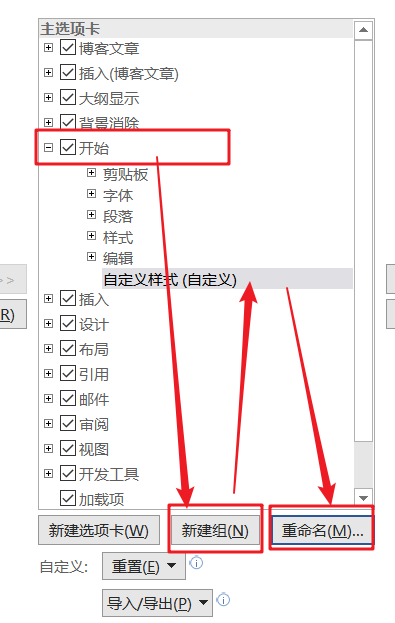
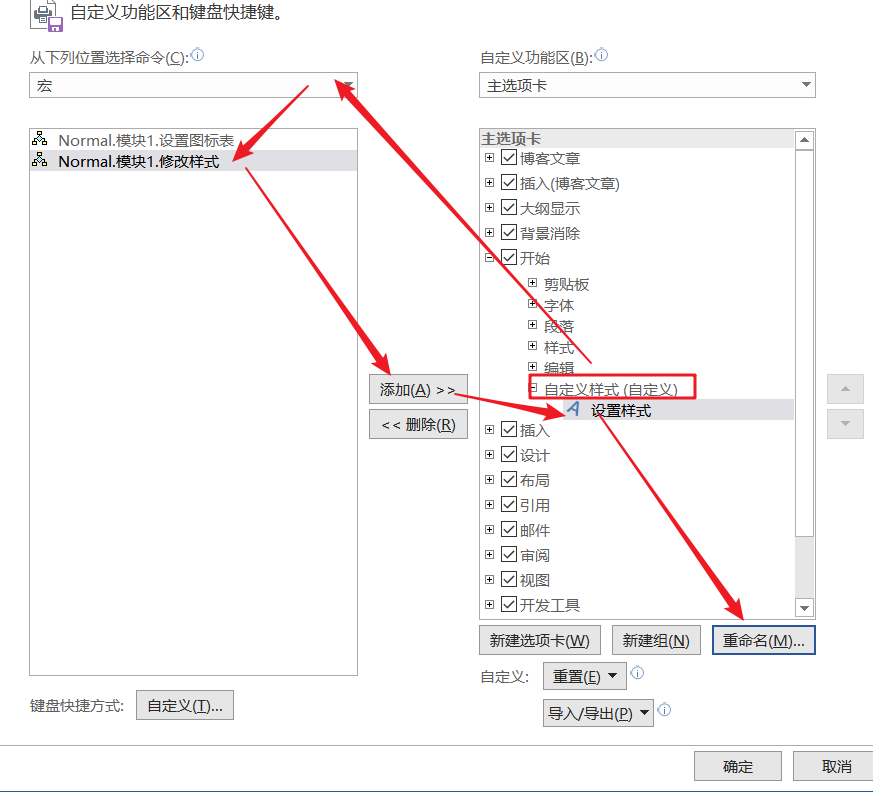
点击自定义样式->选择宏->选择相应的函数->添加->选择刚添加的函数->重命名并设置图标
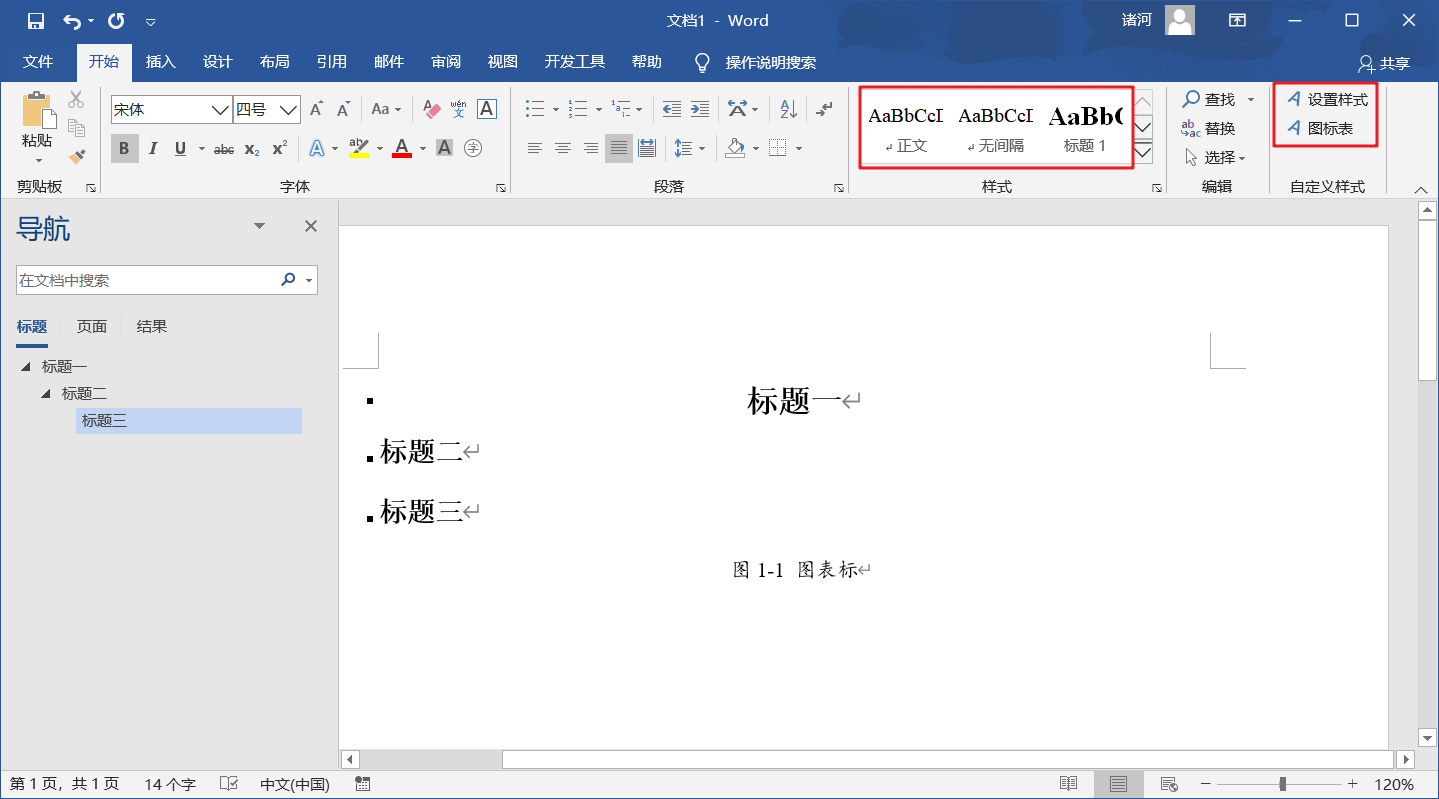
完工
最后点击相应的相应的样式,便可应用及自动产生大纲级别
Word 脚本 (自用)的更多相关文章
- 60天shell脚本计划-5/12-渐入佳境
--作者:飞翔的小胖猪 --创建时间:2021年2月16日 --修改时间:2021年2月20日 说明 每日上传更新一个shell脚本,周期为60天.如有需求的读者可根据自己实际情况选用合适的脚本,也可 ...
- STORM_0007_Multi-Lang protocol of Storm/多语言协议的翻译
原始地址: http://storm.apache.org/releases/1.0.1/Multilang-protocol.html 这个协议试用0.7.1之后的版本 通过ShellBolt和 ...
- 曾Python培训讲师-2年Python开发无包装简历-20191217-可公开
目录 个人介绍 技能介绍 项目经历 自我评价 简历非完整版,需要完整版看下述信息,禁止任何一切私人用途.转发 我生日是27号,那就27元一份,有需求的来购买!只会涨价不会降价,大概卖10份涨1元:曾P ...
- word 宏,脚本编程
'脚本方式新建word 再新建文档,文档中输入字符串"你好" Dim wdapp As Word.Application Dim wddoc As Word.Document Se ...
- Tampermonkey脚本安装问题及自用脚本推荐
对于高手来说,chrome浏览器中即使没有其他任何chrome插件,可能都无关紧要.但是有一个插件必不可少, 那就是Tampermonkey油猴插件.Tampermonkey是Chrome上最流行的用 ...
- 某阅读多word整理自动化脚本
版权声明:本文为博主原创文章,转载 请注明出处:https://blog.csdn.net/sc2079/article/details/101055192 - 写在前面 最近想练习英语,发现电脑磁盘 ...
- doc或docx(word)或image类型文件批量转PDF脚本
doc或docx(word)或image类型文件批量转PDF脚本 1.实际生产环境中遇到文件展示只能适配PDF版本的文件,奈何一万个文件有七千个都是word或者image类型的,由此搞个脚本批量转换下 ...
- 分享一个自用的 Inno Setup 软件打包脚本
此脚本支持打包mysql.安装mysql服务.安装windows服务.操作ini文件.操作注册表.高效压缩文件等功能,基本能满足常用的软件打包需求. ;定义各种常量 #define MyAppName ...
- word vbs脚本 设置所有题注样式为蓝色,下划线
Attribute VB_Name = "题注样式" Sub SetCorssRef() 'Word版,设置所有交叉引用的文本的格式 Dim aField As Word.Fiel ...
随机推荐
- HarmonyOS分布式任务调度开发之--你必须知道的bundleName
背景 最近基于HarmonyOS在写一个通讯录的项目,已经完成了一个java版本的通讯录,通讯录数据全部存储在sqlite数据库中.现在在着手写一个JS版本的通讯录,这时候关于JS版本中数据的读取,我 ...
- 【Java】网络编程之NIO
简单记录 慕课网-解锁网络编程之NIO的前世今生 & 一站式学习Java网络编程 全面理解BIO/NIO/AIO 内容概览 文章目录 1.[了解] NIO网络编程模型 1.1.NIO简介 1. ...
- 【Linux】使用cryptsetup加密磁盘 策略为LUKS
LUKS(Linux Unified Key Setup)为Linux硬盘分区加密提供了一种标准,它不仅能通用于不同的Linux发行版本,还支持多用户/口令.因为它的加密密钥独立于口令,所以如果口令失 ...
- kubernets之pod的标签的使用
一 对于kubernets里面的资源标记完成之后的使用 1 node节点标签的应用(将资源调度到特定的节点上) #kubia-gpu.ymlapiVersion: v1 kind: Pod metad ...
- Linux删除文件后磁盘目录不释放
今天测试oracle数据库的时候,把表空间连带内容和数据文件一并删除了,但是删除之后,查看数据文件不存在了,但是目录的带下没有释放 SQL> drop tablespace users incl ...
- 4、python+selenium实现12306模拟登录
简介: 这里是利用了selenium+图片识别验证,来实现12306的模拟登录,中间也参考了好几个项目,实现了这个小demo,中间也遇到了很多的坑,主要难点在于图片识别和滑动验证这两个方面,图片识别是 ...
- js千分位分隔,数字货币化方法学习记录
js千分位分隔,数字货币化-4种方法(含正则) 方法1-整数货币化 // 整数货币化 function intCurrency(num) { var reg = new RegExp("^[ ...
- nfs samba文件共享服务
(注意:实验之前强关闭selinux和防火墙) 一丶nfs ① 1.服务端 启动服务 systemctl start nfs.service 配置文件 vim /etc/exports share ...
- jQuery 勾选显示
<!DOCTYPE html> <html> <head> <meta charset="UTF-8"> <title> ...
- Spark SQL如何选择join策略
前言 众所周知,Catalyst Optimizer是Spark SQL的核心,它主要负责将SQL语句转换成最终的物理执行计划,在一定程度上决定了SQL执行的性能. Catalyst在由Optimiz ...