
安装v2sora@y
v2r@y安装
1. 安装nginx
这儿使用tengine进行安装, 可以看以前的博客
1.1) 注意带 http_v2 编译
./configure --with-http_v2_module
不然会报错
此时安装的openresty配置http2会报错 the "http2" parameter requires ngx_http_v2_module
如果已经安装的ginx, 可以使用 nginx -v查看编译参数, 然后加上上述参数重新编译, 之后make, 不执行 make install , 然后将编译后的nginx进行替换现有的.
cp /usr/local/nginx/sbin/nginx /usr/local/nginx/sbin/nginx.bak

cp objs/nginx /usr/local/nginx/sbin/nginx
1.2). 配置文件
1.2.1) /usr/local/nginx/conf/nginx.conf
user root;

worker_processes  1;

worker_rlimit_nofile    652144;

error_log  /usr/local/nginx/logs/error.log crit;

pid /run/nginx.pid;

events {

    use epoll;

    multi_accept on;

    worker_connections  1024;

}

http {

    include /usr/local/nginx/conf/mime.types;

    client_max_body_size 1m;

    sendfile     on;

    tcp_nopush   on;

    access_log   off;

    keepalive_timeout  60;

    proxy_ignore_client_abort on;

    limit_req_zone $binary_remote_addr zone=allips:200m rate=90r/m;

    upstream vr_server {

        server 127.0.0.1:18181;

        keepalive 1000;

    }

    include conf.d/*.conf;

}
1.2.2) /usr/local/nginx/conf/conf.d/default.conf
server {

        listen       80;

        server_name  vr.xxx.cn;

        location / {

            root   html;

            index  index.html index.htm;

        }

        error_page   500 502 503 504  /50x.html;

        location = /50x.html {

            root   html;

        }

        location ~/.well-known {

          allow all;

        }

    		return 301 https://$server_name$request_uri;

}
注意上面配置中的 location ~/.well-konw, 这个在使用certbot的时候使用的
1.2.3) /usr/local/nginx/conf/conf.d/v2r@y.conf
server {

    listen 443 ssl http2 default_server;

    listen [::]:443 ssl http2 default_server;

    ssl_certificate /etc/letsencrypt/live/vr.xxxxxxxx.cn/fullchain.pem;     #生成的密钥对 #你的ssl证书, 如果第一次,可能还需要自签一下

    ssl_certificate_key /etc/letsencrypt/live/vr.xxxxxxxx.cn/privkey.pem;   #生成的密钥对, 你的ssl key

    server_name vr.xxxxxxxx.cn;

    ssl_protocols   TLSv1 TLSv1.1 TLSv1.2; #使用的协议

    ssl_ciphers HIGH:!aNULL:!MD5;#使用的加密算法

    root /usr/local/nginx/html;

    # Add index.php to the list if you are using PHP

    index index.html index.htm index.nginx-debian.html;

    location /bronk {

        proxy_redirect off;

        proxy_pass http://vr_server;

        proxy_http_version 1.1;

        proxy_set_header Upgrade $http_upgrade;

        proxy_set_header Connection "upgrade";

        proxy_set_header Host $http_host;

    }

}
1.2.4) 将80端口所有的http服务转到https
我没试验这个
server {

    listen 80;

    server_name linuxstory.org www.linuxstory.org;

    return 301 https://$server_name$request_uri;

}
1.2.5) 开放防火墙端口
system-cmd --zone=public --add-port=80/tcp --permanent

system-cmd --zone=public --add-port=443/tcp --permanent
2. 安装certbot
需要自己注册域名, 并且域名指向自己的服务器, 服务器的443和80端口都开着
1.1) 服务器应具有的环境
$ yum -y install yum-utils

$ yum-config-manager --enable rhui-REGION-rhel-server-extras rhui-REGION-rhel-server-optional
1.2) 针对nginx环境
yum install certbot python2-certbot-nginx
1.3) 准备location
cerbot 签名有两种方式 一种是 --webroot 一种是 --Standalone 在网上看到的区别是 第一种不需要停现在的服务 第二种需要停掉服务 那好 我需要的是第一种 :)
然后确认下你要签名的域名 是否已经指向你自己的服务器了 还有云服务的话 要记得看下安全组 443端口有没有开 总之就是要确认你的准备工作是没问题的
 location ~ /.well-known {

            allow all;

 }
看到另外一种方式, 没有实验
location ^~ /.well-known/acme-challenge/ {

   default_type "text/plain";

   root     /home/wwwroot/linuxstory.org/;

}

location = /.well-known/acme-challenge/ {

   return 404;

}
1.4) 生成证书
certbot certonly --webroot -w /usr/local/nginx/html -d vr.xxx.cn --email xxx@hotmail.com
- Webroot: webroot 模式
- w: nginx服务器的html目录(80端口所在的目录)
- -d: 域名
- —email: 用于接收过期信息
服务器输出如下信息, 证明生成正确, 注意其中的目录地址
IMPORTANT NOTES:
- Congratulations! Your certificate and chain have been saved at:
/etc/letsencrypt/live/vr.xxxxxxxx.cn/fullchain.pem
Your key file has been saved at:
/etc/letsencrypt/live/vr.xxxxxxxx.cn/privkey.pem
Your cert will expire on 2019-09-12. To obtain a new or tweaked
version of this certificate in the future, simply run certbot
again. To non-interactively renew all of your certificates, run
"certbot renew"- If you like Certbot, please consider supporting our work by:
Donating to ISRG / Let's Encrypt: https://letsencrypt.org/donate
Donating to EFF: https://eff.org/donate-le
/etc/letsencrypt/live/你的域名/ 下存放的就是密钥
1.5) 在nginx的443端口下使用https证书
参照nginx下的v2r@y.conf 文件的配置
1.6) 设置过期自动生成新证书
crontab -e之后进行编辑
0 0 15 */3 * /usr/bin/certbot renew # 3,6,9,12月的15号零点进行更新
参考: http简介及ssl工具
3. 安装v2r@y
3.1) linux提供一键安装脚本
bash <(curl -L -s https://install.direct/go.sh)
此脚本会自动安装如下文件
/usr/bin/v2r@y/v2r@y:v2r@y 程序;
/usr/bin/v2r@y/v2ctl:v2r@y 工具;
/etc/v2r@y/config.json:配置文件;
/usr/bin/v2r@y/geoip.dat:IP 数据文件
/usr/bin/v2r@y/geosite.dat:域名数据文件 此脚本会配置自动运行脚本。自动运行脚本会在系统重启之后,自动运行 v2r@y。目前自动运行脚本只支持带有 Systemd 的系统,以及 Debian / Ubuntu 全系列。
运行脚本位于系统的以下位置:
/etc/systemd/system/v2r@y.service: Systemd/etc/init.d/v2r@y: SysV
3.2) 启动
systemctl start|stop|status|reload|restart|force-reload v2@ray
3.3) 配置文件
3.3.1) 服务端配置文件
/etc/v2@ray/config.json
更改配置文件
{

  "log" : {

    "access": "/var/log/v2r@y/access.log",

    "error": "/var/log/v2r@y/error.log",

    "loglevel": "warning"

  },

  "inbound": {

    "port": 10000, //(此端口与nginx配置相关)

    "listen": "127.0.0.1",

    "protocol": "vmess",

    "settings": {

      "clients": [

        {

          "id": "xxxxxxd1f-687c-4188-9abc-80073a618ca3", //你的UUID, 此ID需与客户端保持一致

          "level": 1,

          "alterId": 64 //此ID也需与客户端保持一致

        }

      ]

    },

   "streamSettings":{

      "network": "ws",

      "wsSettings": {

           "path": "/ray" //与nginx配置相关

      }

   }

  },

  "outbound": {

    "protocol": "freedom",

    "settings": {}

  },

  "outboundDetour": [

    {

      "protocol": "blackhole",

      "settings": {},

      "tag": "blocked"

    }

  ],

  "routing": {

    "strategy": "rules",

    "settings": {

      "rules": [

        {

          "type": "field",

          "ip": [

            "0.0.0.0/8",

            "10.0.0.0/8",

            "100.64.0.0/10",

            "127.0.0.0/8",

            "169.254.0.0/16",

            "172.16.0.0/12",

            "192.0.0.0/24",

            "192.0.2.0/24",

            "192.168.0.0/16",

            "198.18.0.0/15",

            "198.51.100.0/24",

            "203.0.113.0/24",

            "::1/128",

            "fc00::/7",

            "fe80::/10"

          ],

          "outboundTag": "blocked"

        }

      ]

    }

  }

}
3.3.2). 客户端配置文件
{

  "log": {

    "loglevel": "warning"

  },

  "inbound": {

    "port": 1080,

    "listen": "127.0.0.1",

    "protocol": "socks",

    "settings": {

      "auth": "noauth",

      "udp": false

    }

  },

  "inboundDetour": [

    {

        "port": 8123,

        "listen": "127.0.0.1",

        "protocol": "http",

        "settings": {}

    }

  ],

  "outbound": {

    "protocol": "vmess",

    "settings": {

      "vnext": [{

        "address": "test.v2r@y.com", // 服务器地址,请修改为你自己的服务器 ip 或域名

        "port": 443,  // 服务器端口

        "users": [{

            "id": "4xxxxxxf-687c-4188-9abc-80073a618ca3", //你的UUID, 此ID需与服务端保持一致

            "level": 1,

            "alterId": 64,  //此ID也需与客户端保持一致

            "security": "aes-128-gcm"

        }]

      }]

    },

    "streamSettings":{

        "network": "ws",

        "security": "tls",

        "tlsSettings": {

            "serverName": "test.v2r@y.com" //此域名是你服务器的域名

        },

        "wsSettings": {

            "path": "/ray" //与服务器配置及nginx配置相关

        }

    },

    "tag": "forgin"

  },

  "outboundDetour": [

    {

        "protocol": "freedom",

        "settings": {},

        "tag": "direct"

    }

  ],

  "routing": { //此路由配置是自动分流, 国内IP和网站直连

    "strategy": "rules",

    "settings": {

        "domainStrategy": "IPIfNonMatch",

        "rules": [

            {

                "type": "chinaip",

                "outboundTag": "direct"

            },

            {

                "type": "chinasites",

                "outboundTag": "direct"

            },

            {

                "type": "field",

                "ip": [

                    "0.0.0.0/8",

                    "10.0.0.0/8",

                    "100.64.0.0/10",

                    "127.0.0.0/8",

                    "169.254.0.0/16",

                    "172.16.0.0/12",

                    "192.0.0.0/24",

                    "192.0.2.0/24",

                    "192.168.0.0/16",

                    "198.18.0.0/15",

                    "198.51.100.0/24",

                    "203.0.113.0/24",

                    "::1/128",

                    "fc00::/7",

                    "fe80::/10"

                ],

                "outboundTag": "direct"

            }

        ]

    }

  },

  "policy": {

    "levels": {

      "0": {"uplinkOnly": 0}

    }

  }

}
3.4) window连接
下载客户端, (下载地址)[https://pan.laod.cc/download/]
v2r@yN
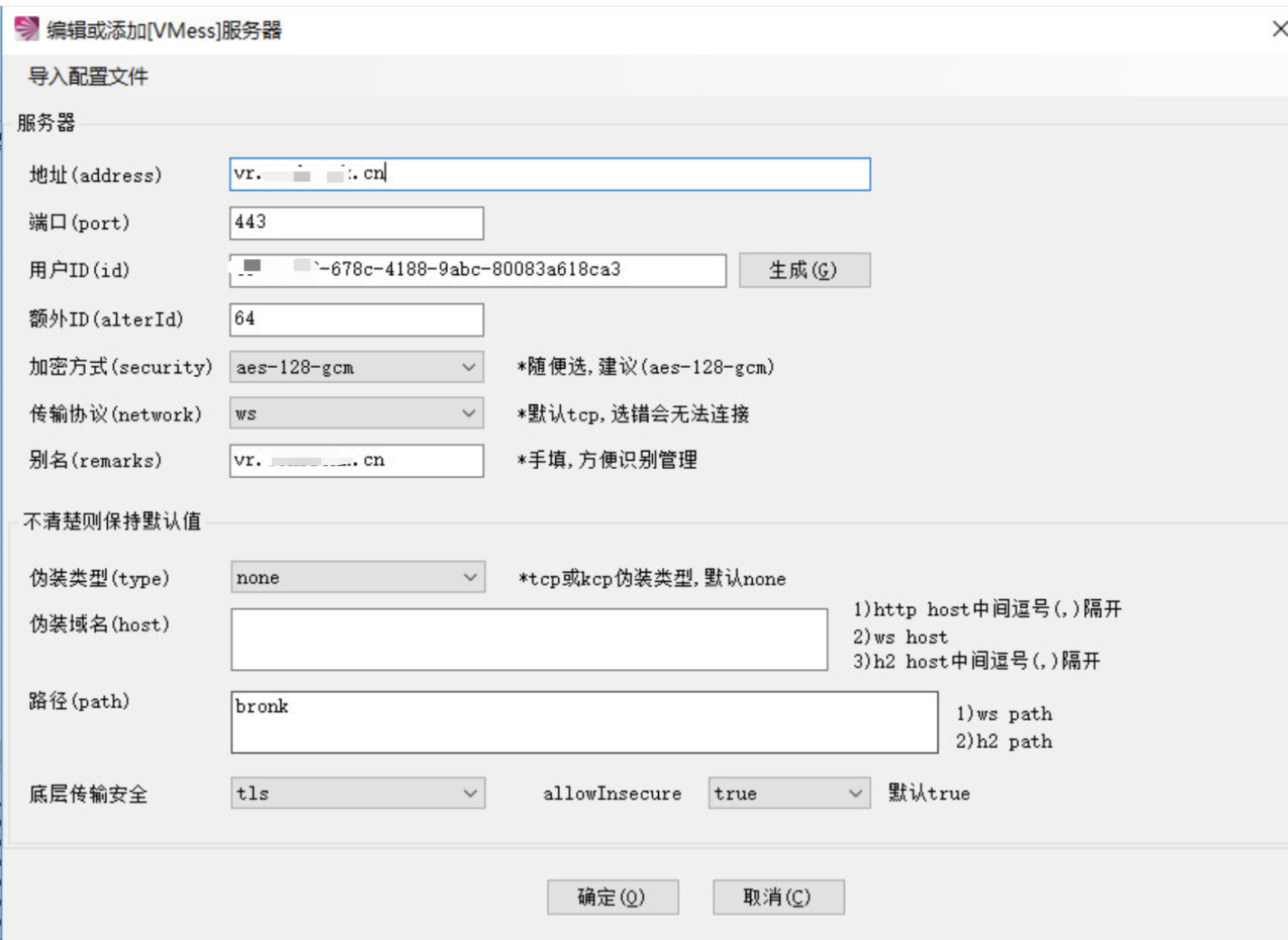
注意uuid 和服务端一致
3.5) mac连接
使用v2r@yX 连接不上, 后使用v2r@yU进行连接的

4. 启用google的BBR加速
wget -N --no-check-certificate "https://raw.githubusercontent.com/chiakge/Linux-NetSpeed/master/tcp.sh" && chmod +x tcp.sh && ./tcp.sh
先选择2, 重启后选择7, 即可
5. 异常
碰到一个异常
rejected v2r@y.com/core/proxy/vmess/encoding: invalid user
是因为v2r@y 的uuid或者服务器时间和本地的不一致
更改服务器时区
timedatectl set-timezone Asia/Shanghai
如果服务器有ipv6, 那么使用全局模式可以自动ipv6
安装v2sora@y的更多相关文章
- 安装v2ra y
说明 全文中所有的‘删掉我’,都请忽略,如果不这么做,那么您将看不到这篇文章 ssr已经不行了,现在大家都以v2ra y为主 安装服务端 运行一键安装脚本,之后进入脚本界面,选“1”安装: bash ...
- Linux网卡驱动安装、防火墙原理
安装网卡驱动程序: 需要检查是否安装kernel依赖包: rpm –q kernel-devel #检查kernel依赖包是否安装 yum –y install kernel-devel 检查gcc和 ...
- centos6.5下使用yum完美搭建LNMP环境(php5.6) 无脑安装
准备工作 配置防火墙,开启80端口.3306端口删除原有的 iptables , 添加合适的配置 rm -rf /etc/sysconfig/iptables vi /etc/sysconfig/ip ...
- centos编译安装mysql
groupadd mysql #添加mysql组useradd -g mysql -s /sbin/nologin mysql #创建用户mysql并加入到mysql组,不允许mysql用户直接登录系 ...
- centos7 安装lnmp环境
准备工作 一.配置防火墙 vim /etc/sysconfig/iptables 开启80端口.3306.22端口 -A INPUT -m state --state NEW -m tcp -p tc ...
- yum---Linux软件安装与管理
查询: yum list #查询所有可用的软件包列表 yum search keywords #搜索服务器上所有和关键字相关的软件包 安装: yum -y install 包名 options: in ...
- 在centos 7.0上利用yum一键安装mono
首先我们需要先配置一下yum源中mono的引用说明: 第一步: vi /etc/yum.repos.d/mono.repo 第二步:在刚打开的文件中编辑如下内容 [mono]name=monobase ...
- Ubuntu 安装php+mysql 环境
新系统安装完毕后,首先运行apt-get update 更新apt库. 然后安装ssh,输入apt-get install openssh-server,安装ssh是为了可以远程操作,不然坐在机房实在 ...
- CentOS7 NTP 安装配置
NTP 网络时间协议用来同步网络上不同主机的系统时间.你管理的所有主机都可以和一个指定的被称为 NTP 服务器的时间服务器同步它们的时间.而另一方面,一个 NTP 服务器会将它的时间和任意公共 NTP ...
随机推荐
- 更改路由器的外网IP
此方法适用于通过路由器拨号上网的宽带,若宽带通过光猫拨号上网则需要将光猫改为桥接模式并在路由器中配置宽带账号和密码 测试环境: 路由器:TP-LINK TL-WDR7800千兆版 硬件版本:1.0 软 ...
- 利用Python进行数据分析-Pandas(第二部分)
上一个章节中我们主要是介绍了pandas两种数据类型的具体属性,这个章节主要介绍操作Series和DataFrame中的数据的基本手段. 一.基本功能 1.重新索引 pandas对象的一个重要方法是r ...
- Java描述设计模式(02):简单工厂模式
本文源码:GitHub·点这里 || GitEE·点这里 一.生活场景简介 1.引入场景 订餐流程简单描述 1).食品抽象类,规定食品的基础属性操作 2).鱼类,鸡肉类食品类扩展 3).订餐流程类,根 ...
- 三行Jquery代码实现简单的选项卡
今晚,我们来用实现一个简单的选项卡切换代码,主要代码只有两行. 效果: 思路:通过切换JQuery控制div的显隐和样式的改变 其中那个一个div显示,其余全隐藏 实现: <!DOCTYPE h ...
- MVC邮箱验证
post请求 [HttpPost] public void Email(Models.Email m,string Txt) { if (Txt!= Session["yzm"]. ...
- 高强度学习训练第十六天总结: Spring框架中的设计模式
仔细想了想..没必要重复造轮子. 每天复习啥了就直接CTRL CV了 https://gitee.com/SnailClimb/JavaGuide/blob/master/docs/system-de ...
- log4j配置项
log4j 配置文件log4j.rootLogger=INFO,console,dailyFile# 控制台配置项log4j.appender.console=org.apache.log4j.Con ...
- Ubuntu16.0 GTX1660Ti 安装NVIDIA CUDA cuDNN Tensflow
主要参考这篇文章Ubuntu16.04(GTX1660ti)cuda10.0和cudnn7.6环境配置 (环境乃一生之敌!!!). 容易错的点: 安装NVIDIA驱动的时候选择run版本,不要选择de ...
- DropDownList绑定数据源后,要插入项的处理
private void BindDivision() { DivisionService divisionService = new DivisionService(); var divisions ...
- benchmarks (主要用于分布式文件系统性能测试)
最近进行学习过程中,遇到一些可以用得上的benchmark,在这里进行简要记录:之后估计会用到 TensorFlow benchmarks https://github.com/tensorflow/ ...