
富文本编辑器TinyMCE的使用(React Vue)
富文本编辑器TinyMCE的使用(React Vue)
一,需求与介绍
1.1,需求
编辑新闻等富有个性化的文本
1.2,介绍
TinyMCE是一款易用、且功能强大的所见即所得的富文本编辑器。
TinyMCE的优势:
- 开源可商用,基于LGPL2.1
- 插件丰富,自带插件基本涵盖日常所需功能
- 接口丰富,可扩展性强,有能力可以无限拓展功能
- 界面好看,符合现代审美
- 提供经典、内联、沉浸无干扰三种模式
- 对标准支持优秀(自v5开始)
- 多语言支持,官网可下载几十种语言。
二,配置集成并组件化
2.1,通用配置
1,工具栏toolbar
 // Here is a list of the toolbar

 // Detail list see https://www.tinymce.com/docs/advanced/editor-control-identifiers/#toolbarcontrols

 // const toolbar = ['searchreplace bold italic underline strikethrough alignleft aligncenter alignright outdent indent  blockquote undo redo removeformat subscript superscript code codesample', 'hr bullist numlist link image charmap preview anchor pagebreak insertdatetime media table emoticons forecolor backcolor']// fullscreen

 const toolbar = ['code codesample undo redo restoredraft | cut copy paste pastetext | forecolor backcolor searchreplace bold italic underline strikethrough link anchor | alignleft aligncenter alignright alignjustify outdent indent | bullist numlist | formatselect fontselect fontsizeselect | blockquote subscript superscript removeformat | table image media charmap emoticons hr pagebreak insertdatetime print preview']// | fullscreen

 export default toolbar
2,插件plugins
 // Any plugins you want to use has to be imported

 // Detail plugins list see https://www.tinymce.com/docs/plugins/

 // Custom builds see https://www.tinymce.com/download/custom-builds/

 // const plugins = ['advlist anchor autolink autosave code codesample directionality emoticons fullscreen hr image imagetools insertdatetime link lists media nonbreaking noneditable pagebreak paste preview print save searchreplace spellchecker tabfocus table template textpattern visualblocks visualchars wordcount']

 const plugins = ['print preview searchreplace autolink directionality visualblocks visualchars fullscreen image link media template code codesample table charmap hr pagebreak nonbreaking anchor insertdatetime advlist lists wordcount imagetools textpattern help paste emoticons autosave']

 export default plugins
3,常用字体配置fonts
 // Any font you want to use has to be imported

 const fontsizeFormats='12px 14px 16px 18px 24px 36px 48px 56px 72px';

 const fontFormats= '微软雅黑=Microsoft YaHei,Helvetica Neue,PingFang SC,sans-serif;苹果苹方=PingFang SC,Microsoft YaHei,sans-serif;宋体=simsun,serif;仿宋体=FangSong,serif;黑体=SimHei,sans-serif;Arial=arial,helvetica,sans-serif;Arial Black=arial black,avant garde;Book Antiqua=book antiqua,palatino;Comic Sans MS=comic sans ms,sans-serif;Courier New=courier new,courier;Georgia=georgia,palatino;Helvetica=helvetica;Impact=impact,chicago;Symbol=symbol;Tahoma=tahoma,arial,helvetica,sans-serif;Terminal=terminal,monaco;Times New Roman=times new roman,times;Verdana=verdana,geneva;Webdings=webdings;Wingdings=wingdings,zapf dingbats;知乎配置=BlinkMacSystemFont, Helvetica Neue, PingFang SC, Microsoft YaHei, Source Han Sans SC, Noto Sans CJK SC, WenQuanYi Micro Hei, sans-serif;小米配置=Helvetica Neue,Helvetica,Arial,Microsoft Yahei,Hiragino Sans GB,Heiti SC,WenQuanYi Micro Hei,sans-serif';

 export default {

     fontsizeFormats,

     fontFormats

 }
4,准备标签
   <div>

               <textarea id="tinymceId"/>

             </div>
在textarea外面需要套一层div,否则会产生一些意想不到的问题
5,初始化标签,生成编辑框
  window.tinymce.init({

       language: 'zh_CN',

       selector: `#${tinymceId}`,

       height: height,

       body_class: 'panel-body ',

       object_resizing: false,

       toolbar: toolbar.length > 0 ? toolbar : defaultToolbar,

       menubar: menubar,

       plugins: defaultplugins,

       end_container_on_empty_block: true,

       fontsize_formats: fontsizeFormats,

       font_formats: fontFormats,

       powerpaste_word_import: 'clean',

       code_dialog_height: 450,

       code_dialog_width: 1000,

       advlist_bullet_styles: 'square',

       advlist_number_styles: 'default',

       imagetools_cors_hosts: ['www.tinymce.com', 'codepen.io'],

       default_link_target: '_blank',

       link_title: false,

       nonbreaking_force_tab: true, // inserting nonbreaking space   need Nonbreaking Space Plugin

       init_instance_callback: editor => {

         if (content) {

           editor.setContent(content)

         }

         editor.on('NodeChange Change KeyUp SetContent', () => {

         })

       },

       setup(editor) {

         editor.on('FullscreenStateChanged', (e) => {

         })

       }

     })
2.2,React组件化
直接放代码
 import React from 'react';

 import { Button } from 'antd';

 import PropTypes from 'prop-types';

 import styles from './index.less';

 import defaultplugins from './plugins';

 import defaultToolbar from './toolbar';

 import {

   fontsizeFormats,

   fontFormats

 } from './font';

 import UploadImage from './UploadImage';

 class Tinymce extends React.Component {

   static propTypes = {

     tinymceId: PropTypes.string,

     content: PropTypes.string,

     toolbar: PropTypes.array,

     menubar: PropTypes.string,

     height: PropTypes.number,

     getContent: PropTypes.func,

   };

   static defaultProps = {

     tinymceId: 'react-tinymce-' + +new Date() + ((Math.random() * 1000).toFixed(0) + ''),

     menubar: 'file edit insert view format table',

     height: 520,

     toolbar: []

   };

   constructor(props) {

     super(props);

     this.state = {

       hasChange: false,

       hasInit: false,

       fullscreen: false,

     };

   };

   componentDidMount() {

     this.initTinymce()

   }

   componentWillUnmount() {

     this.destroyTinymce()

   }

   initTinymce() {

     const { tinymceId, menubar, height, toolbar, content, getContent } = this.props

     const _this = this

     window.tinymce.init({

       language: 'zh_CN',

       selector: `#${tinymceId}`,

       height: height,

       body_class: 'panel-body ',

       object_resizing: false,

       toolbar: toolbar.length > 0 ? toolbar : defaultToolbar,

       menubar: menubar,

       plugins: defaultplugins,

       end_container_on_empty_block: true,

       fontsize_formats: fontsizeFormats,

       font_formats: fontFormats,

       powerpaste_word_import: 'clean',

       code_dialog_height: 450,

       code_dialog_width: 1000,

       advlist_bullet_styles: 'square',

       advlist_number_styles: 'default',

       imagetools_cors_hosts: ['www.tinymce.com', 'codepen.io'],

       default_link_target: '_blank',

       link_title: false,

       nonbreaking_force_tab: true, // inserting nonbreaking space   need Nonbreaking Space Plugin

       init_instance_callback: editor => {

         if (content) {

           editor.setContent(content)

         }

         _this.setState({

           hasInit: true

         })

         editor.on('NodeChange Change KeyUp SetContent', () => {

           _this.setState({

             hasChange: true

           })

         })

       },

       setup(editor) {

         editor.on('FullscreenStateChanged', (e) => {

           _this.setState({

             fullscreen: e.state

           })

         })

       }

     })

   }

   destroyTinymce() {

     const { tinymceId } = this.props

     const { fullscreen } = this.state

     const tinymce = window.tinymce.get(tinymceId)

     if (fullscreen) {

       tinymce.execCommand('mceFullScreen')

     }

     if (tinymce) {

       tinymce.destroy()

     }

   }

   // setContent(value) {

   //   const { tinymceId } = this.props

   //   window.tinymce.get(tinymceId).setContent(value)

   // }

   saveToGetContent() {

     const { tinymceId, getContent } = this.props

     if (getContent && typeof getContent === 'function') {

       getContent(window.tinymce.get(tinymceId).getContent())

     }

   }

   /**

    * 上传图片成功回调

    *  */

   imageSuccessCBK(arr) {

     const { tinymceId } = this.props

     arr.forEach(v => {

       window.tinymce.get(tinymceId).insertContent(`<img class="wscnph" src="${v.url}" >`)

     })

   }

   render() {

     const { loading, tinymceId } = this.props

     const { fullscreen } = this.state

     const header = (

       <Page.Header breadcrumb={['富文本实例']} title={'富文本实例'} />

     );

     return (

       <div className={styles['tinymce-components']}>

         <Page header={header} loading={!!loading}>

           <div className={fullscreen ? "tinymce-container mce-fullscreen" : "tinymce-container"}>

             <div>

               <textarea id={tinymceId} className={styles['tinymce-textarea']} />

             </div>

             <div className="editor-custom-btn-container">

               <UploadImage className="editor-upload-btn" imageSuccessCBK={(arr)=>{this.imageSuccessCBK(arr)}}/>

             </div>

             <Button type="primary" onClick={() => { this.saveToGetContent() }}>保存</Button>

           </div>

         </Page>

       </div>

     );

   }

 }

 export default Tinymce;
上传图片组件,使用antd的部分组件:
 import React from 'react';

 import { Button, Modal, Icon, Upload, message } from 'antd';

 import PropTypes from 'prop-types';

 import styles from './index.less';

 const Dragger = Upload.Dragger;

 class UploadImage extends React.Component {

   static propTypes = {

     imageSuccessCBK: PropTypes.func,

   };

   static defaultProps = {

   };

   constructor(props) {

     super(props);

     this.state = {

       visible: false,

       listObj: {}

     };

   };

   /**

    * 显示弹框

    *

    *  */

   showModal = () => {

     this.setState({

       visible: true,

     });

   }

   /**

  * 确认

  *

  *  */

   handleOk = (e) => {

     const { imageSuccessCBK } = this.props

     const { listObj } = this.state

     const imagesFileArr = Object.keys(listObj).map(v => listObj[v])

     imageSuccessCBK(imagesFileArr)

     this.setState({

       visible: false,

       listObj: {},

       Uploading: false

     });

   }

   handleCancel = (e) => {

     this.setState({

       visible: false,

       listObj: {}

     });

   }

   render() {

     const { loading } = this.props

     const { visible, listObj, Uploading } = this.state

     const props = {

       name: 'file',

       multiple: true,

       action: '//jsonplaceholder.typicode.com/posts/',

       listType: 'picture',

       onChange: (info) => {

         const uid = info.file.uid

         const objKeyArr = Object.keys(listObj)

         const status = info.file.status;

         if (status !== 'uploading') {

           console.log(info.file, info.fileList);

         }

         if (status === 'done') {//已成功上传

           this.setState({

             Uploading: false,

           })

           for (let i = 0, len = objKeyArr.length; i < len; i++) {

             if (listObj[objKeyArr[i]].uid === uid) {

               listObj[objKeyArr[i]].url = info.file.thumbUrl

               listObj[objKeyArr[i]].hasSuccess = true

               message.success(`${info.file.name} file uploaded successfully.`);

               return

             }

           }

         } else if (status === 'error') {

           this.setState({

             Uploading: false,

           })

           message.error(`${info.file.name} file upload failed.`);

         }

         if (status === 'removed') {//移除上传的

           for (let i = 0, len = objKeyArr.length; i < len; i++) {

             if (listObj[objKeyArr[i]].uid === uid) {

               delete listObj[objKeyArr[i]]

               message.success(`${info.file.name} file removed successfully.`);

               return

             }

           }

         }

       },

       beforeUpload: (file) => {

         this.setState({

           Uploading: true,

         })

         const _self = this

         const _URL = window.URL || window.webkitURL

         const fileName = file.uid

         listObj[fileName] = {}

         return new Promise((resolve, reject) => {

           const img = new Image()

           img.src = _URL.createObjectURL(file)

           img.onload = function () {

             listObj[fileName] = { hasSuccess: false, uid: file.uid, width: this.width, height: this.height }

             _self.setState({

               listObj,

             })

           }

           resolve(true)

         })

       },

     };

     return (

       <div>

         <Button

           style={{ marginTop: 0 }}

           type="primary"

           shape="round"

           icon="upload"

           onClick={() => { this.showModal() }}>

           上传

            </Button>

         {

           visible ? <Modal

             title="上传图片"

             visible={visible}

             onCancel={this.handleCancel}

             footer={[

               <div key="1">

                 <Button onClick={() => this.handleCancel()} loading={!!Uploading}>取消</Button>

                 <Button type="primary" style={{ marginLeft: 8 }} onClick={() => this.handleOk()} loading={!!Uploading}>

                   确定

                 </Button>

               </div>]}

           >

             <Dragger {...props}>

               <p className="ant-upload-drag-icon">

                 <Icon type="inbox" />

               </p>

               <p className="ant-upload-text">Click or drag file to this area to upload</p>

               <p className="ant-upload-hint">Support for a single or bulk upload. Strictly prohibit from uploading company data or other band files</p>

             </Dragger>

           </Modal> : null

         }

       </div>

     );

   }

 }

 export default UploadImage;
2.3,Vue组件化
直接放代码
<template>
<div :class="{fullscreen:fullscreen}" class="tinymce-container editor-container">
<div>
<textarea :id="tinymceId" class="tinymce-textarea" />
</div>
<div class="editor-custom-btn-container">
<editorImage color="#1890ff" class="editor-upload-btn" @successCBK="imageSuccessCBK" />
</div>
</div>
</template> <script>
import editorImage from './components/EditorImage'
import plugins from './plugins'
import toolbar from './toolbar'
import font from './font'; export default {
name: 'Tinymce',
components: { editorImage },
props: {
id: {
type: String,
default: function() {
return 'vue-tinymce-' + +new Date() + ((Math.random() * 1000).toFixed(0) + '')
}
},
value: {
type: String,
default: ''
},
toolbar: {
type: Array,
required: false,
default() {
return []
}
},
menubar: {
type: String,
default: 'file edit insert view format table'
},
height: {
type: Number,
required: false,
default: 520
}
},
data() {
return {
hasChange: false,
hasInit: false,
tinymceId: this.id,
fullscreen: false,
languageTypeList: {
'en': 'en',
'zh': 'zh_CN'
}
}
},
computed: {
language() {
return this.languageTypeList[this.$store.getters.language]
}
},
watch: {
value(val) {
if (!this.hasChange && this.hasInit) {
this.$nextTick(() =>
window.tinymce.get(this.tinymceId).setContent(val || ''))
}
},
language() {
this.destroyTinymce()
this.$nextTick(() => this.initTinymce())
}
},
mounted() {
this.initTinymce()
},
activated() {
this.initTinymce()
},
deactivated() {
this.destroyTinymce()
},
destroyed() {
this.destroyTinymce()
},
methods: {
initTinymce() {
const _this = this
window.tinymce.init({
language: 'zh_CN',
selector: `#${this.tinymceId}`,
height: this.height,
body_class: 'panel-body ',
object_resizing: false,
toolbar: this.toolbar.length > 0 ? this.toolbar : toolbar,
menubar: this.menubar,
plugins: plugins,
end_container_on_empty_block: true,
fontsize_formats: font.fontsizeFormats,
font_formats: font.fontFormats,
powerpaste_word_import: 'clean',
code_dialog_height: 450,
code_dialog_width: 1000,
advlist_bullet_styles: 'square',
advlist_number_styles: 'default',
imagetools_cors_hosts: ['www.tinymce.com', 'codepen.io'],
default_link_target: '_blank',
link_title: false,
nonbreaking_force_tab: true, // inserting nonbreaking space need Nonbreaking Space Plugin
init_instance_callback: editor => {
if (_this.value) {
editor.setContent(_this.value)
}
_this.hasInit = true
editor.on('NodeChange Change KeyUp SetContent', () => {
this.hasChange = true
this.$emit('input', editor.getContent())
})
},
setup(editor) {
editor.on('FullscreenStateChanged', (e) => {
_this.fullscreen = e.state
})
}
})
},
destroyTinymce() {
const tinymce = window.tinymce.get(this.tinymceId)
if (this.fullscreen) {
tinymce.execCommand('mceFullScreen')
} if (tinymce) {
tinymce.destroy()
}
},
setContent(value) {
window.tinymce.get(this.tinymceId).setContent(value)
},
getContent() {
window.tinymce.get(this.tinymceId).getContent()
},
imageSuccessCBK(arr) {
const _this = this
arr.forEach(v => {
window.tinymce.get(_this.tinymceId).insertContent(`<img class="wscnph" src="${v.url}" >`)
})
}
}
}
</script> <style scoped>
.tinymce-container {
position: relative;
line-height: normal;
}
.tinymce-container>>>.mce-fullscreen {
z-index: 10000;
}
.tinymce-textarea {
visibility: hidden;
z-index: -1;
}
.editor-custom-btn-container {
position: absolute;
right: 4px;
top: 4px;
/*z-index: 2005;*/
}
.fullscreen .editor-custom-btn-container {
z-index: 10000;
position: fixed;
}
.editor-upload-btn {
display: inline-block;
}
</style>
上传图片组件,使用elementUI的部分组件:
 <template>

   <div class="upload-container">

     <el-button :style="{background:color,borderColor:color}" icon="el-icon-upload" size="mini" type="primary" @click=" dialogVisible=true">

       upload

     </el-button>

     <el-dialog :visible.sync="dialogVisible">

       <el-upload

         :multiple="true"

         :file-list="fileList"

         :show-file-list="true"

         :on-remove="handleRemove"

         :on-success="handleSuccess"

         :before-upload="beforeUpload"

         class="editor-slide-upload"

         action="https://httpbin.org/post"

         list-type="picture-card"

       >

         <el-button size="small" type="primary">

           Click upload

         </el-button>

       </el-upload>

       <el-button @click="dialogVisible = false">

         Cancel

       </el-button>

       <el-button type="primary" @click="handleSubmit">

         Confirm

       </el-button>

     </el-dialog>

   </div>

 </template>

 <script>

 // import { getToken } from 'api/qiniu'

 export default {

   name: 'EditorSlideUpload',

   props: {

     color: {

       type: String,

       default: '#1890ff'

     }

   },

   data() {

     return {

       dialogVisible: false,

       listObj: {},

       fileList: []

     }

   },

   methods: {

     checkAllSuccess() {

       return Object.keys(this.listObj).every(item => this.listObj[item].hasSuccess)

     },

     handleSubmit() {

       const arr = Object.keys(this.listObj).map(v => this.listObj[v])

       if (!this.checkAllSuccess()) {

         this.$message('Please wait for all images to be uploaded successfully. If there is a network problem, please refresh the page and upload again!')

         return

       }

       this.$emit('successCBK', arr)

       this.listObj = {}

       this.fileList = []

       this.dialogVisible = false

     },

     handleSuccess(response, file) {

       const uid = file.uid

       const objKeyArr = Object.keys(this.listObj)

       for (let i = 0, len = objKeyArr.length; i < len; i++) {

         if (this.listObj[objKeyArr[i]].uid === uid) {

           this.listObj[objKeyArr[i]].url = response.files.file

           this.listObj[objKeyArr[i]].hasSuccess = true

           return

         }

       }

     },

     handleRemove(file) {

       const uid = file.uid

       const objKeyArr = Object.keys(this.listObj)

       for (let i = 0, len = objKeyArr.length; i < len; i++) {

         if (this.listObj[objKeyArr[i]].uid === uid) {

           delete this.listObj[objKeyArr[i]]

           return

         }

       }

     },

     beforeUpload(file) {

       const _self = this

       const _URL = window.URL || window.webkitURL

       const fileName = file.uid

       this.listObj[fileName] = {}

       return new Promise((resolve, reject) => {

         const img = new Image()

         img.src = _URL.createObjectURL(file)

         img.onload = function() {

           _self.listObj[fileName] = { hasSuccess: false, uid: file.uid, width: this.width, height: this.height }

         }

         resolve(true)

       })

     }

   }

 }

 </script>

 <style lang="scss" scoped>

 .editor-slide-upload {

   margin-bottom: 20px;

   /deep/ .el-upload--picture-card {

     width: 100%;

   }

 }

 </style>
三,使用
3.1,React
第一步:导入组件
import Tinymce from '../../components/Tinymce';
第二步:使用组件
   <Tinymce

             content={''}

               tinymceId='tinymceIdDemo'

               getContent={(content) => { this.getContent(content) }}

             />
第三步:获取输入的富文本
  getContent(content) {

     console.log('content===',content)

     this.setState({

       content

     })

   }
第四步:文本渲染
  {/* 渲染标签字符串 */}

             <div dangerouslySetInnerHTML={{ __html: content }}></div>
第五步:效果
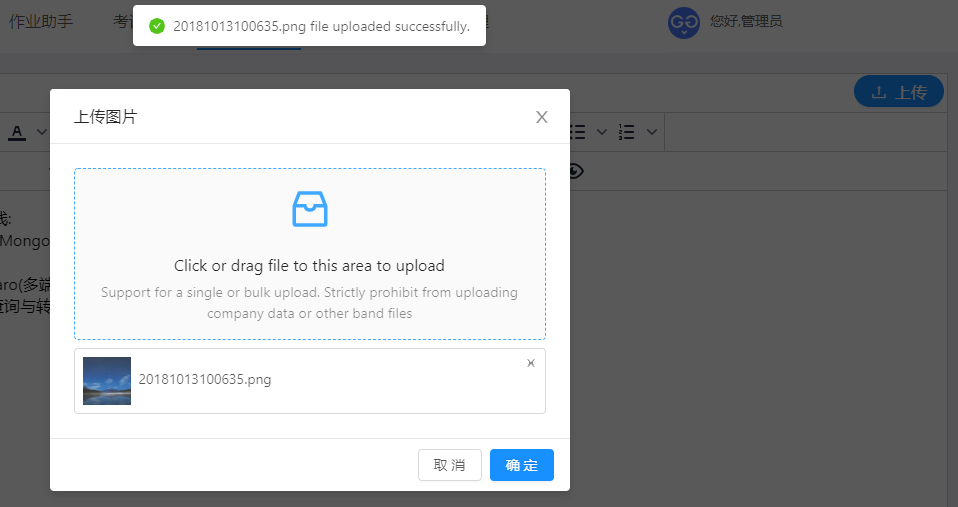
图片上传成功效果
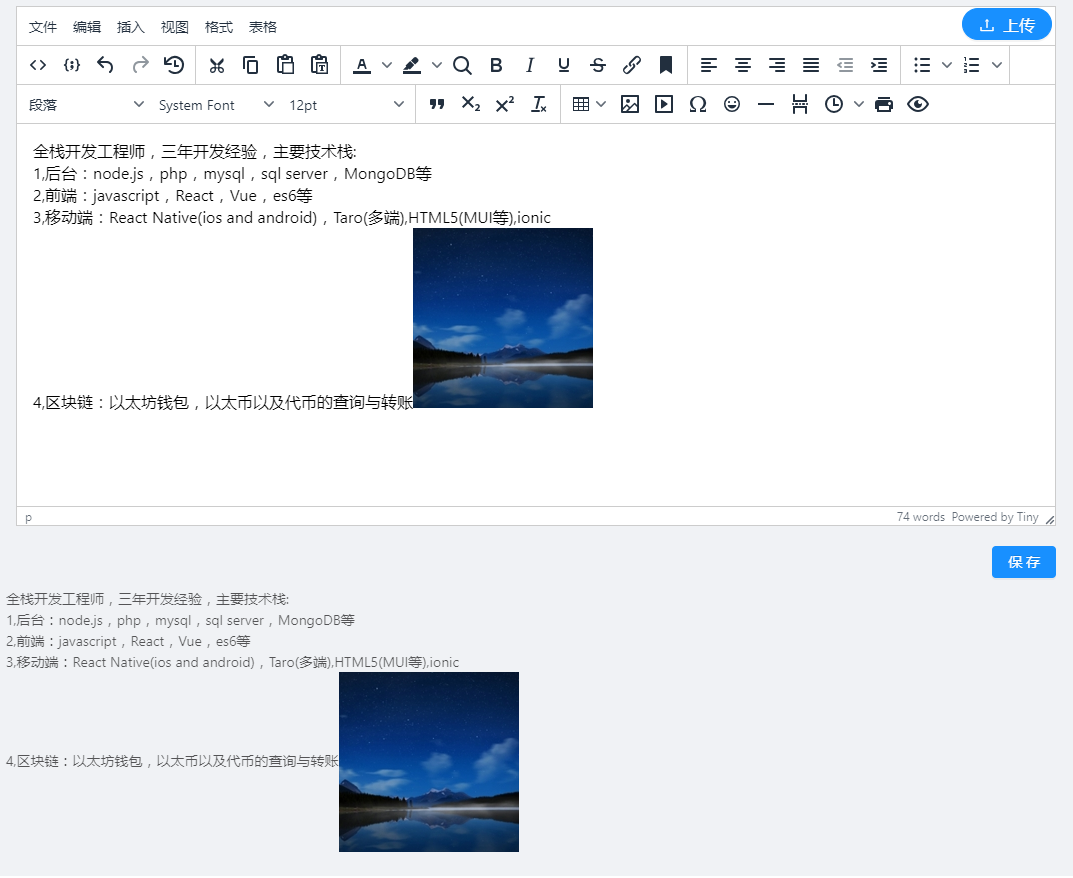
完成效果展示
3.2,Vue
第一步:引入组件
import Tinymce from '@/components/Tinymce'
第二步:注册组件
components: { Tinymce },
第三步:使用组件
  <div>

       <tinymce v-model="content" :height="300" />

     </div>
第四步:获取内容
利用vue的数据双向绑定
  getContent() {

       console.log(this.content)

       this.hasContent = this.content

     }
第五步:渲染获取的内容
<div class="editor-content" v-html="hasContent" />
第六步:效果图
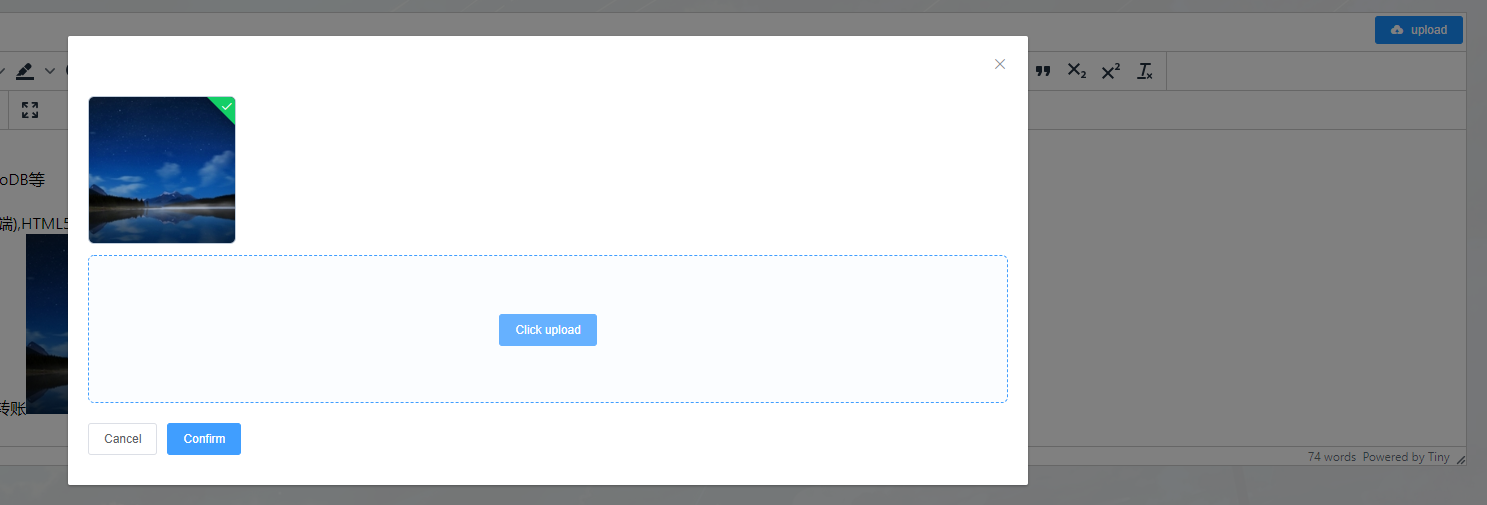
图片上传成功效果
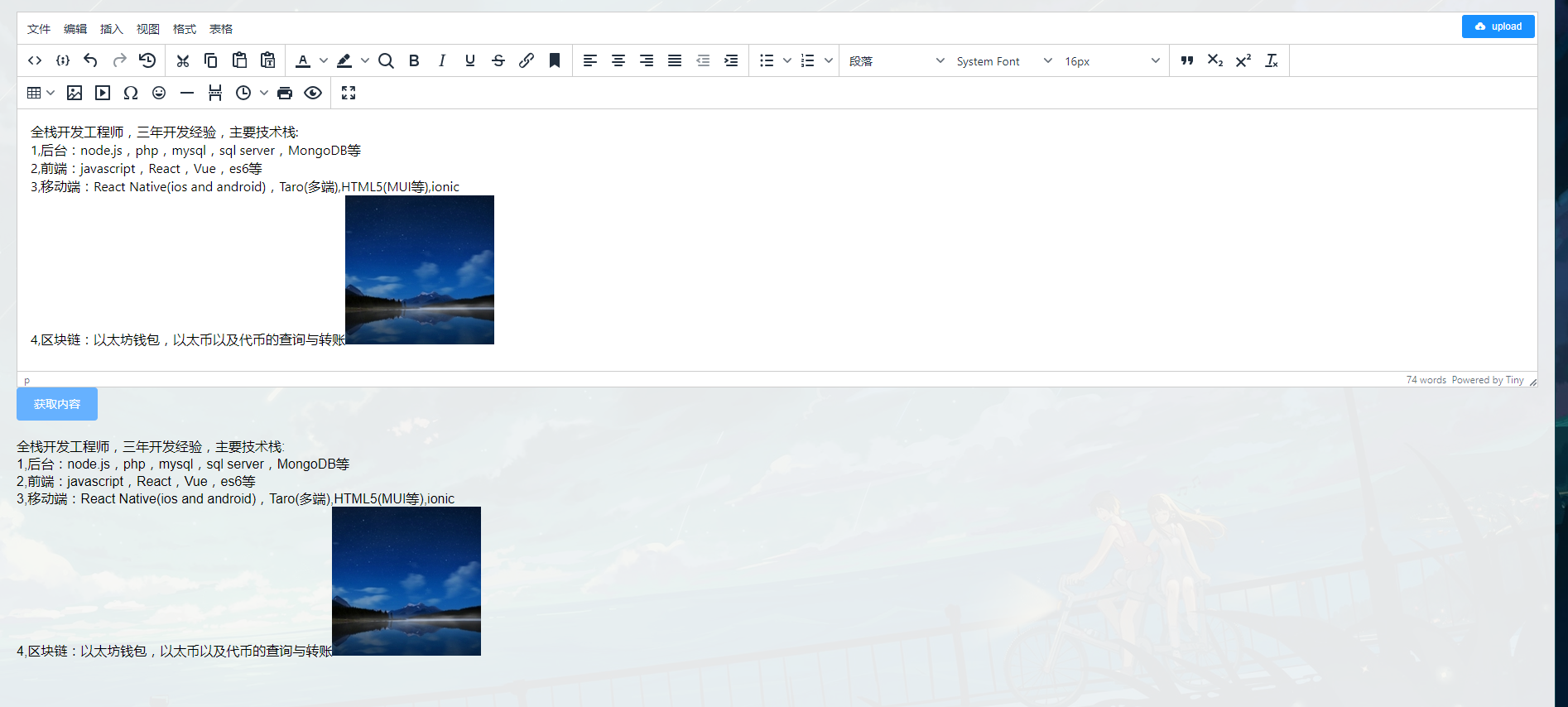
完整效果
富文本编辑器TinyMCE的使用(React Vue)的更多相关文章
- 富文本编辑器 tinymce 的安装与使用
百度的富文本编辑器大家都熟悉,那么下面给大家介绍一款富文本编辑器tinymce ,个人感觉比百度的界面好看,调用方便,就不知道各位大神怎么看咯! tinymce中文文档 以下是vue中使用示例,献上最 ...
- django后台集成富文本编辑器Tinymce的使用
富文本编辑器Tinymce是使用步骤: 1.首先去python的模块包的网站下载一个django-tinymce的包 2.下载上图的安装包,然后解压,进入文件夹,执行: (pychrm直接运行命令pi ...
- 富文本编辑器tinymce支持从word复制粘贴保留格式和图片的插件wordpaster
tinymce是很优秀的一款富文本编辑器,可以去官网下载.https://www.tiny.cloud 这里分享的是它官网的一个收费插件powerpaste的旧版本源码,但也不影响功能使用. http ...
- 富文本编辑器TinyMCE
最近项目中用到了javascript富文本编辑器,从网上找开源控件,发现很多可选,参考下面文章,列出了很多可用的插件http://www.cnblogs.com/ywqu/archive/2009/1 ...
- Django 之 富文本编辑器-tinymce
这里的富文本编辑器以 tinymce 为例. 环境:ubuntu 16.04 + django 1.10 + python 2.7 ubuntu安装tinymce: python 2.7 $ sudo ...
- 富文本编辑器TInyMCE,本地图片上传(Image Upload)
TinyMCE 官网 (类似:百度的富文本web编辑器UEditor) 第一步 下载 TinyMCE,解压后放入工程,在需要的HTML页面引入tinymce.min.js. 第二步 下载tinyMCE ...
- Java开发之富文本编辑器TinyMCE
一.题外话 最近负责了一个cms网站的运维,里面存在很多和编辑器有关的问题,比如编辑一些新闻博客,论文模块.系统采用的是FCKEditor,自我感觉不是很好,如下图 特别是在用户想插入一个图片的话,就 ...
- 富文本编辑器Tinymce的示例和配置
Demo链接: https://download.csdn.net/download/silverbutter/10557703 有时候需要验证tinyMCE编辑器中的内容是否符合规范(不为空),就需 ...
- tinymce 富文本编辑器 编写资料
tinymce官方文档: 粘贴图片插件 博客搬运地址 使用Blob获取图片并二进制显示实例页面 tinymce自动调整插件 是时候掌握一个富文本编辑器了——TinyMCE(1) XMLHttpRequ ...
随机推荐
- Git密码修改后,Jenkins job如何批量更新密码?
很多时候,由于一些原因,更新了Git账号密码:但是,Jenkins构建时,需要通过这个账号去拉取代码:这个时候咋办? 很多同学会说,直接一个个项目更新就OK. 那么,如果是几百个项目.甚至几千个项目呢 ...
- SQLServer常用运维SQL整理
今天线上SQLServer数据库的CPU被打爆了,紧急情况下,分析了数据库阻塞.连接分布.最耗CPU的TOP10 SQL.查询SQL并行度配置.查询SQL 重编译的原因等等 整理了一些常用的SQL 1 ...
- 手把手教你实现"短信轰炸"
手把手教你实现"短信轰炸" 我这里采用简单易懂的语言--"Python3"来实现 实现前的准备: 1,电脑,谷歌浏览器 2,pyth ...
- POJ 2778:DNA Sequence(AC自动机构造矩阵)
http://poj.org/problem?id=2778 题意:有m个病毒DNA,问构造一个长度为n的不带病毒DNA的字符串可以有多少种. 思路:看到这题有点懵,想了挺久题解的思路. 使用AC自动 ...
- 数字IC前后端设计中的时序收敛(三)--Hold违反的修复方法
本文转自:自己的微信公众号<数字集成电路设计及EDA教程>(二维码见博文底部) 里面主要讲解数字IC前端.后端.DFT.低功耗设计以及验证等相关知识,并且讲解了其中用到的各种EDA工具的教 ...
- 【风哥干货】快速解决Oracle数据库故障必备的20个脚本与命令
1.操作系统性能(通常故障出现时最先检查的内容)top.topas.vmstat.iostat.free.nmon 2.万能重启方法 如应急情况,需要重启数据库:tail -100f <对应路径 ...
- 第八章 Fisco Bcos 国密版本的部署、控制台搭建、合约的部署、sdk 调用
鉴于笔者以前各大博客教程都有很多人提问,早期建立一个技术交流群,里面技术体系可能比较杂,想了解相关区块链开发,技术提问,请加QQ群:538327407 参考资料 证书说明:https://mp.wei ...
- Greenplum主备节点切换
1. 场景描述 Greenplum主节点出现故障,需要将standby节点手动切换为master节点,当master节点修复完成后,再将新修复的master节点设置为standyb节点加入到集群中. ...
- 视频4K技术的解读
前几年4K技术就已经有人提及,今年更是成了一个非常热门的词汇,而且4K技术已经普遍应用于各类终端,如电视机.机顶盒.手机等.那么如何来理解4K这个东东呢?今天博主就谈谈自己对4K技术的认识. 博主认为 ...
- 如何入门 MySQL
如何入门MySQL 前言: 关于如何入门MySQL,后台有好多同学咨询我,可能部分读者刚开始学习MySQL,我前面发的文章对部分同学来说暂时接触不到.原本写技术文章的目的是记录自己的工作学习,没有考虑 ...