
微信小程序组件构建UI界面小练手 —— 表单登录注册微信小程序
通过微信小程序中丰富的表单组件来完成登录界面、手机快速注册界面、企业用户注册界面的微信小程序设计。
将会用到view视图容器组件、button按钮组件、image图片组件、input输入框组件、checkbox多项选择器组件、switch开关选择组件、navigator页面连接组件等。
Ⅰ、登录设计
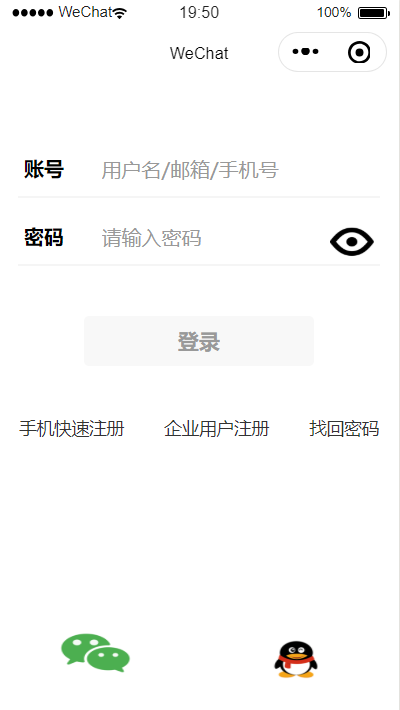
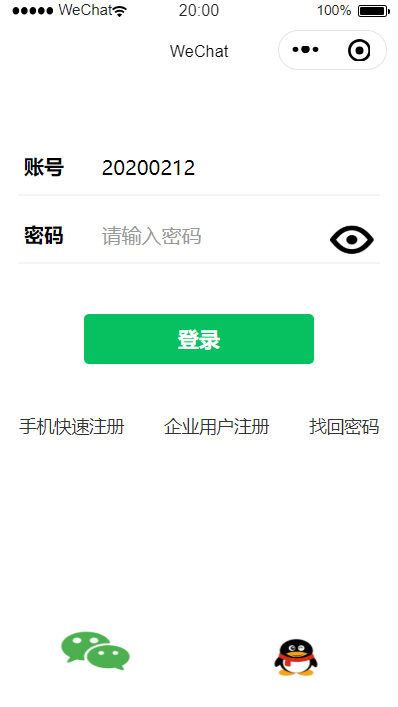
登录表单中,需输入账号、密码进行登录,在账号、密码输入框中都有友好的提示信息;登录按钮默认是灰色不可用状态,只有输入内容后,才会变为可用状态;在登录按钮下面提供手机快速注册、企业用户注册、找回密码链接;界面最下面是微信、QQ第三方登录方式。
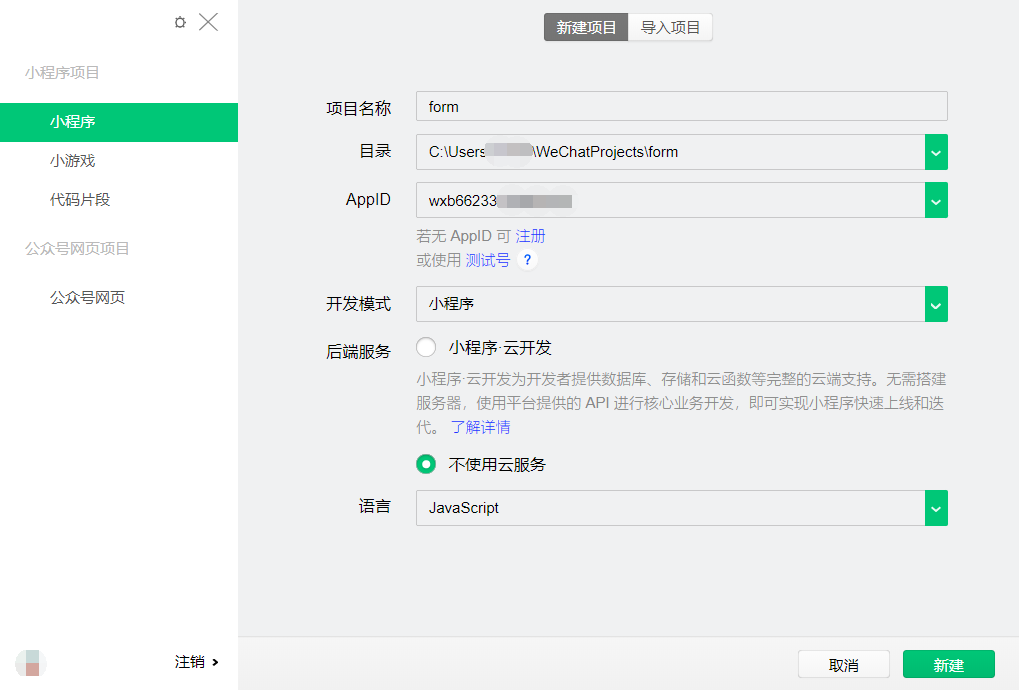
一、新建一个名为form的项目:
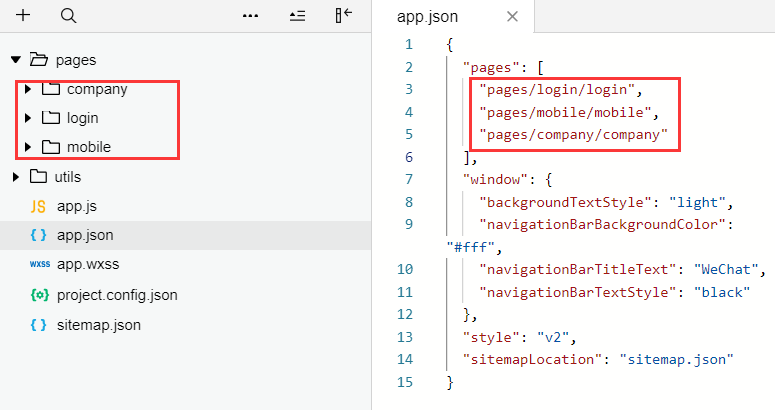
二、在app.json文件里添加"pages/login/login" "pages/mobile/mobile" "pages/company/company" 3个文件目录,并删除默认的文件目录以及对应的文件夹:
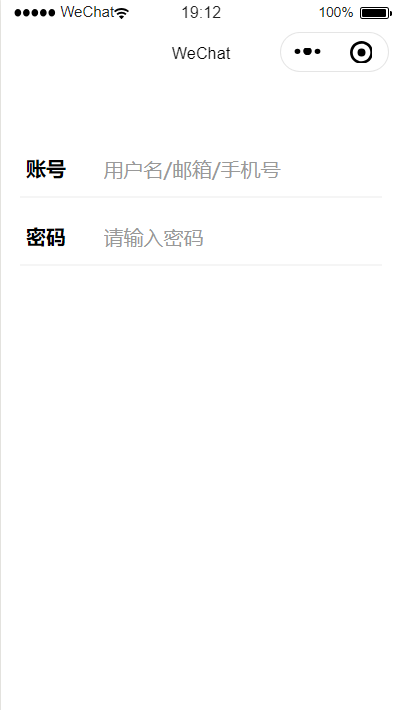
三、在"pages/login/login"文件里,进行账号密码输入框布局设计,并添加相应的样式:
(login.wxml)
 <!--pages/login/login.wxml-->

 <view class="content">

   <view class="account">

     <view class="title">账号</view>

     <view class="num"><input bindinput="accountInput" placeholder="用户名/邮箱/手机号" placeholder-style="color:#999999;"/></view>

   </view>

   <view class="hr"></view>

   <view class="account">

     <view class="title">密码</view>

     <view class="num"><input bindblur="pwdBlur" placeholder="请输入密码" password placeholder-style="color:#999999;"/></view>

     <view class="see">

       <image src="/images/see.jpg" style="width:42px;height:30px;"></image>

     </view>

   </view>

 <view class="hr"></view>

 </view>
(login.wxss)
 /* pages/login/login.wxss */

 .content{

   margin-top: 40px;

 }

 .account{

   display: flex;

   flex-direction: row;

   padding-left: 20px;

   padding-top: 20px;

   padding-bottom: 10px;

   width: 90%;

 }

 .title{

   margin-right: 30px;

   font-weight: bold;

 }

 .hr{

   border: 1px solid #cccccc;

   opacity: 0.2;

   width: 90%;

   margin: 0 auto;

 }

 .see{

   position: absolute;

   right: 20px;

 }
效果图如下:
四、在"pages/login/login"文件中进行登录按钮、手机快速注册、企业用户注册、找回密码以及第三方登录布局的设计,并添加相应的样式:
(login.wxml)
 <!--pages/login/login.wxml-->

 <view class="content">

   <view class="account">

     <view class="title">账号</view>

     <view class="num"><input bindinput="accountInput" placeholder="用户名/邮箱/手机号" placeholder-style="color:#999999;"/></view>

   </view>

   <view class="hr"></view>

   <view class="account">

     <view class="title">密码</view>

     <view class="num"><input bindblur="pwdBlur" placeholder="请输入密码" password placeholder-style="color:#999999;"/></view>

     <view class="see">

       <image src="/images/see.gif" style="width:35px;height:30px;"></image>

     </view>

   </view>

 <view class="hr"></view>

 <button class="btn" disabled="{{disabled}}" type="{{btnstate}}"bindtap="login">登录</button>

 <view class="operate">

   <view><navigator url="../mobile/mobile">手机快速注册</navigator></view>

   <view><navigator url="../company/company">企业用户注册</navigator></view>

   <view>找回密码</view>

 </view>

 <view class="login">

   <view><image src="/images/wxlogin.gif" style="width:60px;height:40px;"></image></view>

   <view><image src="/images/qqlogin.gif" style="width:70px;height:50px;"></image></view>

 </view>

 </view>
(login.wxss)
 .account{

   display: flex;

   flex-direction: row;

   padding-left: 20px;

   padding-top: 20px;

   padding-bottom: 10px;

   width: 90%;

 }

 .title{

   margin-right: 30px;

   font-weight: bold;

 }

 .hr{

   border: 1px solid #cccccc;

   opacity: 0.2;

   width: 90%;

   margin: 0 auto;

 }

 .see{

   position: absolute;

   right: 20px;

 }

 .btn{

   width: 90%;

   margin-top: 40px;

   color: #999999;

 }

 .operate{

   display: flex;

   flex-direction: row;

 }

 .operate view{

   margin: 0 auto;

   margin-top: 40px;

   font-size: 14px;

   color: #333333;

 }

 .login{

   display: flex;

   flex-direction: row;

   margin-top: 150px;

 }

 .login view{

   margin: 0 auto;

 }
效果图如下:
五、在"pages/login/login"文件中的js文件里添加accountInput、pwdBlur事件函数,当账号里输入内容后,登录按钮变为可用状态:
 // pages/login/login.js

 Page({

   data: {

     disabled: true,

     btnstate: "default",

     account:"",

     password:""

   },

   accountInput: function (e){

     var content = e.detail.value;

     console.log(content);

     if(content!=""){

       this.setData({disabled:false,btnstate:"primary",account:content});

     }

   },

   pwdBlur: function (e) {

     var password = e.detail.value;

     if(password!=""){

       this.setData({password:password});

     }

   }

 })
效果如下:
Ⅱ、手机号注册设计
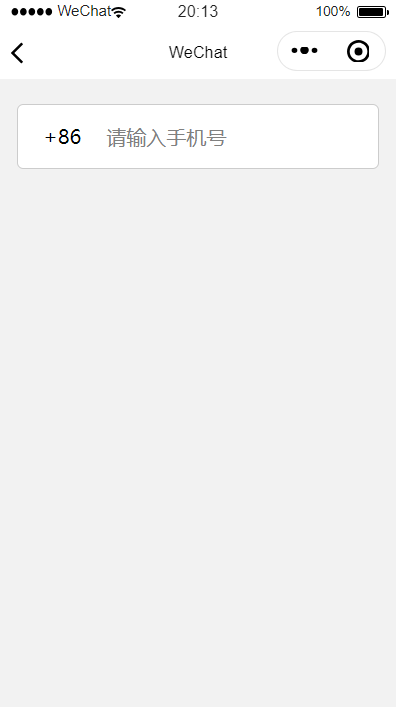
在手机号注册中,需要设计输入框用来输入手机号,设计同意注册以及进行下一步按钮。
六、在"pages/mobile/mobile"文件中,进行手机号输入框布局设计,并添加相应样式:
(mobile.wxml)
 <!--pages/mobile/mobile.wxml-->

 <view class="content">

   <view class="hr"></view>

   <view class="numbg">

     <view>+86</view>

     <view><input placeholder="请输入手机号" maxlenge="11" bindblur="mobileblur"/></view>

   </view>

 </view>
(mobile.wxss)
 /* pages/mobile/mobile.wxss */

 .content{

   width: 100%;

   height: 600px;

   background-color: #f2f2f2;

 }

 .hr{

   padding-top: 20px;

 }

 .numbg{

   border: 1px solid #cccccc;

   width: 90%;

   margin: 0 auto;

   background-color: #ffffff;

   border-radius: 5px;

   display: flex;

   flex-direction: row;

   height: 50px;

 }

 .numbg view{

   margin-left: 20px;

   margin-top: 14px;

 }
效果图如下:
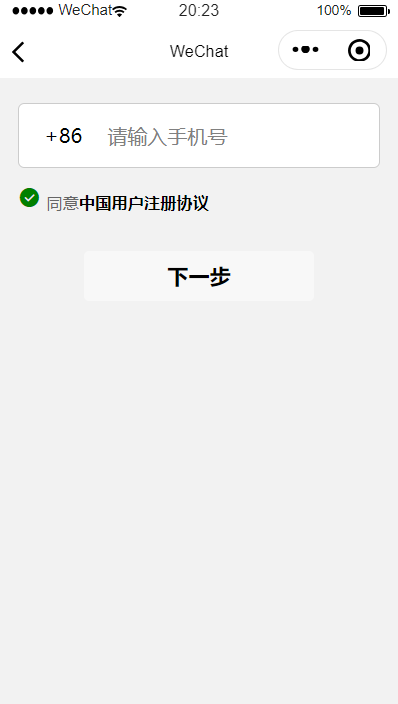
七、在"pages/mobile/mobile"文件中,设计注册协议和下一步按钮操作,并添加相应的样式:
(mobile.wxml)
 <!--pages/mobile/mobile.wxml-->

 <view class="content">

   <view class="hr"></view>

   <view class="numbg">

     <view>+86</view>

     <view><input placeholder="请输入手机号" maxlenge="11" bindblur="mobileblur"/></view>

   </view>

   <view>

     <view class="xieyi">

       <icon type="success" color="green" size="18"></icon>

       <text class="agree">同意</text>

       <text class="opinion">中国用户注册协议</text>

     </view>

   </view>

   <button class="btn" disabled="{{disabled}}" type="{{btnstate}}" bindtap="login">下一步</button>

 </view>
(mobile.wxss)
 /* pages/mobile/mobile.wxss */

 .content{

   width: 100%;

   height: 600px;

   background-color: #f2f2f2;

 }

 .hr{

   padding-top: 20px;

 }

 .numbg{

   border: 1px solid #cccccc;

   width: 90%;

   margin: 0 auto;

   background-color: #ffffff;

   border-radius: 5px;

   display: flex;

   flex-direction: row;

   height: 50px;

 }

 .numbg view{

   margin-left: 20px;

   margin-top: 14px;

 }

 .xieyi{

   margin-top: 15px;

   margin-left: 15px;

 }

 .agree{

   font-size: 13px;

   margin-left: 5px;

   color: #666666;

 }

 .opinion{

   font-size: 13px;

   color: #000000;

   font-weight: bold;

 }

 .btn{

   width: 90%;

   margin-top: 30px;

 }
效果:
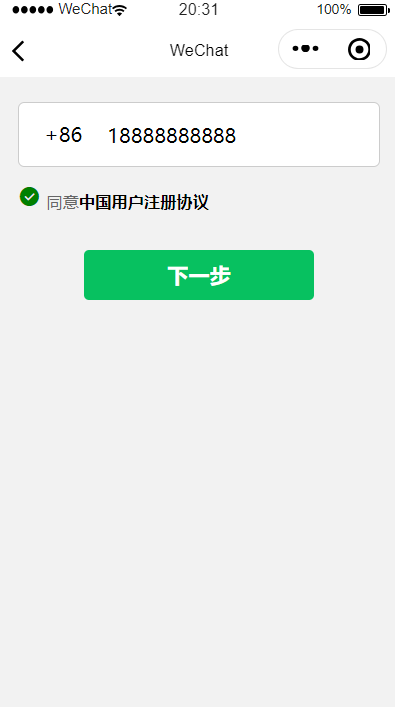
八、在"pages/mobile/mobile"文件中,添加mobileblur事件,如果输入手机号,下一步按钮变为可用状态:
 // pages/mobile/mobile.js

 Page({

   data: {

     disabled: true,

     btnstate: "default",

     mobile:""

   },

   mobileblur: function (e) {

     var content = e.detail.value;

     if(content!=""){

       this.setData({ disabled: false, btnstate: "primary", account: content });

     }

     else{

       this.setData({disabled:true,btnstate:"default",mobile:""});

     }

   }

 })
效果图:
Ⅲ、企业用户注册设计
在企业用户注册中,有6个表单项:用户名、密码、企业全称、联系人姓名、手机号和短信验证码。还有一个注册按钮和同意注册协议。
九、在"page/company/company"文件中,进行用户名、密码、企业全称、联系人姓名、手机号、短信验证码表单项布局设计,并添加相应的样式:
(company.wxml)
 <!--pages/company/company.wxml-->

 <form bindsubmit="formSubmit" bindreset="formReset">

 <view class="content">

   <view class="hr"></view>

   <view class="item">

     <input type="text" name="loginName" placeholder="请设置4-20位用户名" placeholder-class="holder" bingblur="accountblur"/>

   </view>

   <view class="item flex">

     <input type="text" password name="password" placeholder="请设置5-20位登录密码" placeholder-class="holder"/>

     <switch type="switch" name="switch"/>

   </view>

   <view class="item">

     <input type="text" name="company" placeholder="请填写工商局注册名称" placeholder-class="holder"/>

   </view>

   <view class="item">

     <input type="text" name="userName" placeholder="联系人姓名" placeholder-class="holder"/>

   </view>

   <view class="mobileInfo">

     <view class="mobile">

       <input type="text" name="mobile" placeholder="请输入手机号" placeholder-class="holder"/>

     </view>

     <view class="code">发送验证码</view>

   </view>

   <view class="item">

     <input type="text" name="code" placeholder="短信验证码" placeholder-class="holder"/>

   </view>

 </view>

 </form>
(company.wxss)
 /* pages/company/company.wxss */

 .content{

   width: 100%;

   height: 700px;

   background-color: #f2f2f2;

 }

 .hr{

   padding-top: 40px;

 }

 .item{

   margin: 0 auto;

   border: 1px solid #cccccc;

   height: 40px;

   width: 90%;

   border-radius: 3px;

   background-color: #ffffff;

   margin-bottom: 15px;

 }

 .item input{

   height: 40px;

   line-height: 40px;

   margin-left: 10px;

 }

 .holder{

   font-size: 14px;

   color: #999999;

 }

 .flex{

   display: flex;

   flex-direction: row;

 }

 .flex input{

   width: 300px;

 }

 item switch{

   margin-top: 5px;

   margin-right: 5px;

 }

 .mobileInfo{

   display: flex;

   flex-direction: row;

 }

 .mobile{

   margin: 0 auto;

   border: 1px solid #cccccc;

   height: 40px;

   width: 50%;

   border-radius: 3px;

   background-color: #ffffff;

   margin-bottom: 15px;

   display: flex;

   flex-direction: row;

   margin-left: 5%;

 }

 .mobile input{

   margin-top: 8px;

   margin-left: 10px;

 }

 .code{

   border: 1px solid #cccccc;

   height: 40px;

   width: 35%;

   background-color: #edeeec;

   border-radius: 3px;

   text-align: center;

   margin-left: 10px;

   line-height: 40px;

   color: #999999;

   font-size: 15px;

   margin-bottom: 15px;

   margin-right: 5%;

 }
效果图:

十、在"pages/company/company"文件中,设计注册按钮和同意注册协议,并添加相应的样式:
(company.wxml)
 <!--pages/company/company.wxml-->

 <form bindsubmit="formSubmit" bindreset="formReset">

 <view class="content">

   <view class="hr"></view>

   <view class="item">

     <input type="text" name="loginName" placeholder="请设置4-20位用户名" placeholder-class="holder" bingblur="accountblur"/>

   </view>

   <view class="item flex">

     <input type="text" password name="password" placeholder="请设置5-20位登录密码" placeholder-class="holder"/>

     <switch type="switch" name="switch"/>

   </view>

   <view class="item">

     <input type="text" name="company" placeholder="请填写工商局注册名称" placeholder-class="holder"/>

   </view>

   <view class="item">

     <input type="text" name="userName" placeholder="联系人姓名" placeholder-class="holder"/>

   </view>

   <view class="mobileInfo">

     <view class="mobile">

       <input type="text" name="mobile" placeholder="请输入手机号" placeholder-class="holder"/>

     </view>

     <view class="code">发送验证码</view>

   </view>

   <view class="item">

     <input type="text" name="code" placeholder="短信验证码" placeholder-class="holder"/>

   </view>

   <button class="btn" disabled="{{disabled}}" type="{{btnstate}}" form-type="submit">注册</button>

   <view class="xieyi">

     <text class="agree">注册即视为同意</text><text class="opinion">中国用户注册协议</text>

   </view>

 </view>

 </form>
(company.wxss)
 /* pages/company/company.wxss */

 .content{

   width: 100%;

   height: 700px;

   background-color: #f2f2f2;

 }

 .hr{

   padding-top: 40px;

 }

 .item{

   margin: 0 auto;

   border: 1px solid #cccccc;

   height: 40px;

   width: 90%;

   border-radius: 3px;

   background-color: #ffffff;

   margin-bottom: 15px;

 }

 .item input{

   height: 40px;

   line-height: 40px;

   margin-left: 10px;

 }

 .holder{

   font-size: 14px;

   color: #999999;

 }

 .flex{

   display: flex;

   flex-direction: row;

 }

 .flex input{

   width: 300px;

 }

 item switch{

   margin-top: 5px;

   margin-right: 5px;

 }

 .mobileInfo{

   display: flex;

   flex-direction: row;

 }

 .mobile{

   margin: 0 auto;

   border: 1px solid #cccccc;

   height: 40px;

   width: 50%;

   border-radius: 3px;

   background-color: #ffffff;

   margin-bottom: 15px;

   display: flex;

   flex-direction: row;

   margin-left: 5%;

 }

 .mobile input{

   margin-top: 8px;

   margin-left: 10px;

 }

 .code{

   border: 1px solid #cccccc;

   height: 40px;

   width: 35%;

   background-color: #edeeec;

   border-radius: 3px;

   text-align: center;

   margin-left: 10px;

   line-height: 40px;

   color: #999999;

   font-size: 15px;

   margin-bottom: 15px;

   margin-right: 5%;

 }

 .btn{

   width: 90%;

   color: #999999;

   margin-top: 40px;

 }

 .xieyi{

   margin-top: 15px;

   margin-left: 15px;

   font-size: 13px;

 }

 .agree{

   margin-left: 5px;

   color: #666666;

 }

 .opinion{

   color: red;

   font-weight: bold;

   text-decoration: underline;

 }
如下是效果图:

十一、当输入用户名后,注册按钮即变为可用状态,同时将表单内容提交到company.js文件后台里,保存到缓存界面:
 // pages/company/company.js

 Page({

   data: {

     disabled: true,

     btnstate: "default"

   },

   accountblur: function (e) {

     var content = e.detail.value;

     if(content!=""){

       this.setData({disabled:false,btnstate:"primary"});

     }

     else{

       this.setData({disabled:true,btnstate:"default"});

     }

   },

   formSubmit: function (e) {

     console.log(e);

     var user = new Object();

     user.account = e.detail.value.loginName;

     user.password = e.detail.value.password;

     user.company = e.detail.value.company;

     user.userName = e.detail.value.userName;

     user.code = e.detail.value.code;

     user.mobile = e.detail.value.mobile;

     user.switch = e.detail.value.switch;

     wx.setStorageSync('user',user);

     wx.showToast({

       title: "注册成功",

       icon: "success",

       duration: 1000,

       success:function(){

         wx.navigateTo({

           url: '../login/login',

         })

       }

     })

   }

 })
至此,也就完成了登录注册表单设计,在登陆界面进行登录,可以通过手机快速注册进行手机号注册,也可以通过企业用户注册来注册企业账号。
微信小程序组件构建UI界面小练手 —— 表单登录注册微信小程序的更多相关文章
- 如果选择构建ui界面方式,手写代码,xib和StoryBoard间的博弈
代码手写UI这种方法经常被学院派的极客或者依赖多人合作的大型项目大规模使用. 大型多人合作项目使用代码构建UI,主要是看中纯代码在版本管理时的优势,检查追踪改动以及进行代码合并相对容易一些. 另外,代 ...
- C#/.NET基于Topshelf创建Windows服务的守护程序作为服务启动的客户端桌面程序不显示UI界面的问题分析和解决方案
本文首发于:码友网--一个专注.NET/.NET Core开发的编程爱好者社区. 文章目录 C#/.NET基于Topshelf创建Windows服务的系列文章目录: C#/.NET基于Topshelf ...
- SpringSecurity实战记录(一)开胃菜:基于内存的表单登录小Demo搭建
Ps:本次搭建基于Maven管理工具的版本,Gradle版本可以通过gradle init --type pom命令在pom.xml路径下转化为Gradle版本(如下图) (1)构建工具IDEA In ...
- C# Winform 通过FlowLayoutPanel及自定义的编辑控件,实现快速构建C/S版的编辑表单页面
个人理解,开发应用程序的目的,不论是B/S或是C/S结构类型,无非就是实现可供用户进行查.增.改.删,其中查询用到最多,开发设计的场景也最为复杂,包括但不限于:表格记录查询.报表查询.导出文件查询等等 ...
- Winform 通过FlowLayoutPanel及自定义的编辑控件,实现快速构建C/S版的编辑表单页面 z
http://www.cnblogs.com/zuowj/p/4504130.html 不论是B/S或是C/S结构类型,无非就是实现可供用户进行查.增.改.删,其中查询用到最多,开发设计的场景 也最为 ...
- Android逆向破解表单登录程序
Android逆向破解表单登录程序 Android开发 ADT: android studio(as) 程序界面如下,登录成功时弹出通知登录成功,登录失败时弹出通知登录失败. 布局代码 <?xm ...
- 用友时空B/S表单外挂(接口)程序操作说明文档
用友时空B/S表单外挂(接口)程序 一.B/S表单接口需求 众所周知,用友时空KSOA支持B/S架构.且移动商务.在线门店,都是完全基于B/S架构的. B/S架构的优越性在于没有本地客户端和本地数据, ...
- 从微信小程序到鸿蒙js开发【08】——表单组件&注册登录模块
目录: 1.登录模块 2.注册模块 3.系列文章导读 牛年将至,祝大家行行无bug,页页so easy- 在微信小程序中,提供了form组件,可以将input.picker.slider.button ...
- 微信小程序--问题汇总及详解之form表单
附上微信小程序开发文档链接:https://mp.weixin.qq.com/debug/wxadoc/dev/framework/MINA.html form表单: 当点击 <form/> ...
随机推荐
- 使用eNSP配置QinQ
参考链接:https://blog.csdn.net/alone_map/article/details/52217094 本文主要记录使用华为eNSP模拟器来实现配置QinQ,并对QinQ的报文进行 ...
- T117897 七步洗手法 / PJT1(洛谷)
题目:现在有n个人需要依次使用1个洗手池洗手,进行一步洗手需要1单位时间.他们每个人至少会进行一步洗手,但是却不一定进行了完整的七部洗手. 现在你知道了他们总共的洗手时间为t,请你推测他们有多少人进行 ...
- openjudge 拯救公主
点击打开题目 看到这道题,第一感觉是我有一句m2p不知当讲不当讲 传送门就算了,你提莫还来宝石,还不给我每种最多有几个~~ 在一般的迷宫问题里,无论已经走了多少步,只要到达同一个点,状态便是等价的,但 ...
- 团队第一次作业(软工C#造梦厂)
一.团队简介 a.团队名称:软工C#造梦厂 b.队员列表 姓名 学号 张旭(组长) 201731024123 周成杰 201731024136 邹扬锋 201731024134 赵俊安 2017310 ...
- GP工作室—系统设计
团队作业第二次作业--系统设计 问题 答案 这个作业属于哪个课程 软件工程 这个作业要求在哪里 作业要求 团队名称 GP工作室 这个作业的目标 对项目软件进行更为详细的系统性设计 按照本游戏的设计要求 ...
- [JLOI2014]松鼠的新家(树链剖分)
[JLOI2014]松鼠的新家(luogu) Description 题目描述 松鼠的新家是一棵树,前几天刚刚装修了新家,新家有n个房间,并且有n-1根树枝连接,每个房间都可以相互到达,且俩个房间之间 ...
- CSS-11-外边距
<!DOCTYPE html> <html> <head> <meta charset="UTF-8"> <title> ...
- Shiro Web集成及拦截器机制(四)
Shiro与 Web 集成 Shiro 提供了与 Web 集成的支持,其通过一个 ShiroFilter 入口来拦截需要安全控制的 URL,然后进行相应的控制,ShiroFilter 类似于如 Str ...
- 使用RKE快速部署k8s集群
一.环境准备 1.1环境信息 IP地址 角色 部署软件 10.10.100.5 K8s Master Etcd.Control 10.10.100.17 K8s Worker1 Worker 10.1 ...
- k3s首季在线培训来袭!本周四晚,线上见!
筹备已久的k3s在线培训终于要和大家见面啦! k3s是一款适用于边缘计算场景以及IoT场景的轻量级Kubernetes发行版,经过CNCF的一致性认证.由业界应用最广泛的Kubernetes管理平台R ...