
Vue上传图片预览组件
父组件:
<template>

    <div>

        <h4>基于Vue.2X的html5上传图片组件</h4>

        <div style="width: 502px;">

            <uploader :src="'/api/imgsupload'"></uploader>

        </div>

    </div>

</template>

<script>

    import uploader from './uploader.vue'

    export default {

        data() {

            return {}

        },

        components: {

            uploader

        }

    }

</script>
子组件:
<template>

    <div class="vue-uploader">

        <div class="file-list">

            <section v-for="(file, index) of files" class="file-item draggable-item">

                <img :src="file.src" alt="" ondragstart="return false;">

                <p class="file-name">{{file.name}}</p>

                <span class="file-remove" @click="remove(index)">+</span>

            </section>

            <section v-if="status == 'ready'" class="file-item">

                <div @click="add" class="add">

                    <span>+</span>

                </div>

            </section>

        </div>

        <section v-if="files.length != 0" class="upload-func">

            <div class="progress-bar">

                <section v-if="uploading" :width="(percent * 100) + '%'">{{(percent * ) + '%'}}</section>

            </div>

            <div class="operation-box">

                <button v-if="status == 'ready'" @click="submit">上传</button>

                <button v-if="status == 'finished'" @click="finished">完成</button>

            </div>

        </section>

        <input type="file" accept="image/*" @change="fileChanged" ref="file" multiple="multiple">

    </div>

</template>

<script>

    export default {

        props: {

            src: {

                type: String,

                required: true

            }

        },

        data() {

            return {

                status: 'ready',

                files: [],

                uploading: false,

                percent:

            }

        },

        methods: {

            add() {

                this.$refs.file.click()//调用file的click事件

            },

            submit() {

                if (this.files.length === ) {

                    console.warn('no file!');

                    return

                }

                //当点击上传按钮时,将会遍历所有选中的文件,并添加到自定义的FormData中

                const formData = new FormData()

                this.files.forEach((item) => {

                    formData.append(item.name, item.file)

                })

                const xhr = new XMLHttpRequest()

                xhr.upload.addEventListener('progress', this.uploadProgress, false)

                xhr.open('POST', this.src, true)

                this.uploading = true

                xhr.send(formData)

                xhr.onload = () => {

                    this.uploading = false

                    if (xhr.status ===  || xhr.status === ) {

                        this.status = 'finished'

                        console.log('upload success!')

                    } else {

                        console.log(`error:error code ${xhr.status}`)

                    }

                }

            },

            finished() {

                this.files = []

                this.status = 'ready'

            },

            remove(index) {

                this.files.splice(index, )

            },

            fileChanged() {

                const list = this.$refs.file.files

                for (let i = ; i < list.length; i++) {

                    if (!this.isContain(list[i])) {

                        const item = {

                            name: list[i].name,

                            size: list[i].size,

                            file: list[i]

                        }

                        this.html5Reader(list[i], item)

                        this.files.push(item)

                    }

                }

                this.$refs.file.value = ''

            },

            // 将图片文件转成BASE64格式

            html5Reader(file, item){

                const reader = new FileReader()

                reader.onload = (e) => {

                    this.$set(item, 'src', e.target.result)

                }

                reader.readAsDataURL(file)

            },

            isContain(file) {

              return this.files.find((item) => item.name === file.name && item.size === file.size)

            },

            uploadProgress(evt) {

                const component = this

                if (evt.lengthComputable) {

                    const percentComplete = Math.round((evt.loaded * ) / evt.total)

                    component.percent = percentComplete /

                } else {

                    console.warn('upload progress unable to compute')

                }

            }

        }

    }

</script>

<style>

.vue-uploader {

    border: 1px solid #e5e5e5;

}

.vue-uploader .file-list {

    padding: 10px 0px;

}

.vue-uploader .file-list:after {

    content: '';

    display: block;

    clear: both;

    visibility: hidden;

    line-height: ;

    height: ;

    font-size: ;

}

.vue-uploader .file-list .file-item {

    float: left;

    position: relative;

    width: 100px;

    text-align: center;

}

.vue-uploader .file-list .file-item img{

    width: 80px;

    height: 80px;

    border: 1px solid #ececec;

}

.vue-uploader .file-list .file-item .file-remove {

    position: absolute;

    right: 12px;

    display: none;

    top: 4px;

    width: 14px;

    height: 14px;

    color: white;

    cursor: pointer;

    line-height: 12px;

    border-radius: %;

    transform: rotate(45deg);

    background: rgba(, , , 0.5);

}

.vue-uploader .file-list .file-item:hover .file-remove {

    display: inline;

}

.vue-uploader .file-list .file-item .file-name {

    margin: ;

    height: 40px;

    word-break: break-all;

    font-size: 14px;

    overflow: hidden;

    text-overflow: ellipsis;

    display: -webkit-box;

    -webkit-line-clamp: ;

    -webkit-box-orient: vertical;

}

.vue-uploader .add {

    width: 80px;

    height: 80px;

    margin-left: 10px;

    float: left;

    text-align: center;

    line-height: 80px;

    border: 1px dashed #ececec;

    font-size: 30px;

    cursor: pointer;

}

.vue-uploader .upload-func {

    display: flex;

    padding: 10px;

    margin: 0px;

    background: #f8f8f8;

    border-top: 1px solid #ececec;

}

.vue-uploader .upload-func .progress-bar {

    flex-grow: ;

}

.vue-uploader .upload-func .progress-bar section {

    margin-top: 5px;

    background: #00b4aa;

    border-radius: 3px;

    text-align: center;

    color: #fff;

    font-size: 12px;

    transition: all .5s ease;

}

.vue-uploader .upload-func .operation-box {

    flex-grow: ;

    padding-left: 10px;

}

.vue-uploader .upload-func .operation-box button {

    padding: 4px 12px;

    color: #fff;

    background: #007ACC;

    border: none;

    border-radius: 2px;

    cursor: pointer;

}

.vue-uploader > input[type="file"] {

    display: none;

}

</style>
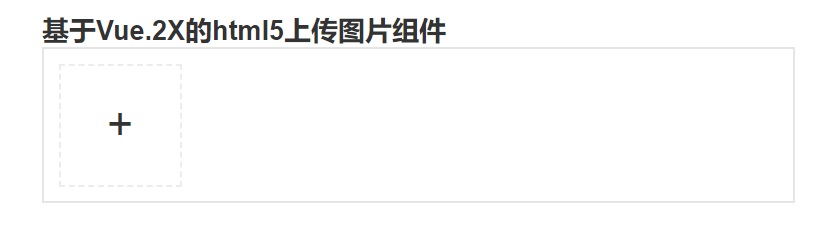
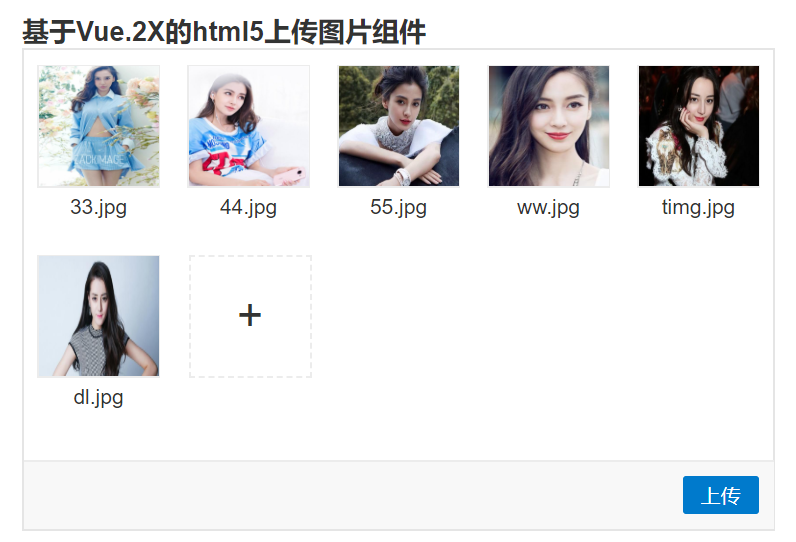
效果:
Vue上传图片预览组件的更多相关文章
- [js开源组件开发]-手机端照片预览组件
手机端照片预览组件 可怜的我用着华为3C手机,用别人现成的组件都好卡,为了适应我这种屌丝,于是自己简化写了一版的照片预览效果,暂时无缩放功能,以后可能有空再加吧,你也可以自己加下,这是个github上 ...
- HTML5上传图片预览
<!DOCTYPE html> <html> <head> <title>HTML5上传图片预览</title> <meta http ...
- jquery实现上传图片预览(需要浏览器支持html5)
jquery实现上传图片预览(需要浏览器支持html5) <!DOCTYPE html PUBLIC "-//W3C//DTD XHTML 1.0 Transitional//EN&q ...
- HTML5上传图片预览功能
HTML5上传图片预览功能 HTML代码如下: <!-- date: 2018-04-27 14:41:35 author: 王召波 descride: HTML5上传图片预览功能 --> ...
- 图片预览组件PhotoView
图片预览组件PhotoView PhotoView是一款图片预览组件,广泛应用于大图的查看.该组件支持图片手势缩放.旋转等功能.它可以很好的和ViewPager.Picasso等组件结合,实现各种复杂 ...
- JS 上传图片 + 预览功能(一)
JS 上传图片 + 预览功能 <body> <input type="file" id="fileimg1" style="disp ...
- js兼容火狐显示上传图片预览效果
js兼容火狐显示上传图片预览效果[谷歌也适用] <!doctype html> <html> <head> <meta content="text/ ...
- 通过HTML5 FileReader实现上传图片预览功能
原文:http://www.htmleaf.com/ziliaoku/qianduanjiaocheng/201706224590.html 在上传图片到服务器之前,我们希望可以预览一下要上传的图片. ...
- 去除ckeditor上传图片预览中的英文字母
去除ckeditor上传图片预览中的英文字母 CKEDITOR.replace('text', { filebrowserImageUploadUrl : 'upload_img.do', langu ...
随机推荐
- HDU.5985.Lucky Coins(概率DP)
题目链接 \(Description\) 有n(n<=10)种硬币,已知每种硬币的数量和它抛一次正面朝上的概率pi.进行如下过程:每次抛一次所有硬币,将正面朝下的硬币去掉.重复该过程直到只剩一种 ...
- [TC14088]LimitedMemorySeries1
[TC14088]LimitedMemorySeries1 题目大意: 给定长度为\(n(n\le5\times10^6)\)的数组\(X\),询问不超过\(q(q\le100)\)次,每次询问第\( ...
- [BZOJ2124]等差子序列/[CF452F]Permutation
[BZOJ2124]等差子序列/[CF452F]Permutation 题目大意: 一个\(1\sim n\)的排列\(A_{1\sim n}\),询问是否存在\(i,j(i<j)\),使得\( ...
- BZOJ3712[PA2014]Fiolki 建图+倍增lca
居然是一道图论题 毫无思路 我们对于每一次的融合操作 $(a,b)$ 建一个新点$c$ 并向$a,b$连边 再将$b$瓶当前的位置赋成$c$ 这样子我们就可以建成一个森林 现在枚举每一种反应$M_i$ ...
- ant design的一些坑
1.在本地修改ant design的某些样式可以生效,但在线上就失效了.比如collapse组件里的箭头图标在本地和在线上的类名有变化,本地类名,线上类名:箭头图标的svg样式在线上会自动添加一个内联 ...
- Cortex-M4 Core Registers
Cortex-M4 Core Registers Goal: visualizing what happens to the Cortex-M4 core registers after reset ...
- ChibiOS/RT 2.6.9 CAN Low Level Driver for STM32
/* ChibiOS - Copyright (C) 2006..2015 Giovanni Di Sirio Licensed under the Apache License, Version 2 ...
- Git+SourceTree使用时出现的问题
今天重新用Git+SourceTree添加代码,出现了很多问题,记录下: 1.安装了我SourceTree后克隆项目,粘贴网址后出现Url不正确的情况. 解决: (寻找了些资料,大仙大部分都是说直接选 ...
- [Go] Template 使用简介
Golang 提供了两个标准库用来处理模板 text/template 和 html/template.我们使用 html/template 格式化 html 字符. 模板引擎 模板引擎很多,Pyth ...
- ADO.NET理论+实践
题记: 每一事物的产生和存在都有其特定的理由. 理论:ADO.NET是一组与数据源进行交互的面向对象类库.通常情况下数据源就是数据库,当然同样也能是文本文件,Excel表格或XML文件,我们知道的数 ...