
Apache入门篇(四)之LAMP架构部署
一、LAMP解析
a: apache
m: mariadb, mysql
p: php, perl, python
静态资源:静态内容;客户端从服务器获得的资源的表现形式与原文件相同;
动态资源:通常是程序文件,需要在服务器执行之后,将执行的结果返回给客户端;
LAMP请求流程:Client --> (http) --> httpd --> (cgi) --> application server (program file) --> (mysql) --> mariadb

二、YUM安装Aapche 2.4、 Mariadb 数据库 以及PHP
程序包:httpd, php, php-mysql, mariadb-server
注意:php要求httpd使用prefork MPM
(1)YUM部署httpd、mariadb以及php
[root@localhost ~]# yum install -y httpd

[root@localhost ~]# yum install -y mariadb mariadb-server mariadb-libs mariadb-devel php php-mysql  #安装mariadb、php

(2)启动httpd、mariadb、php

[root@localhost ~]# systemctl enable httpd

[root@localhost ~]# systemctl start httpd

[root@localhost ~]# systemctl enable mariadb   #设置mariadb开机启动

[root@localhost ~]# systemctl start mariadb    #启动数据库

[root@localhost ~]# netstat -tulnp |grep ""   #查看监听端口

tcp               0.0.0.0:            0.0.0.0:*               LISTEN      /mysqld

[root@localhost ~]# mysql -uroot -p -e "select version();"  #查看mariadb的版本

Enter password:

+----------------+

| version()      |

+----------------+

| 5.5.-MariaDB |

+----------------+

[root@localhost ~]# php -v

PHP 5.4. (cli) (built: Apr   ::)

Copyright (c) - The PHP Group

Zend Engine v2.4.0, Copyright (c) - Zend Technologies

(3)检查MPM模式是否为prefork

[root@localhost ~]# grep "^[a-Z]" /etc/httpd/conf.modules.d/-mpm.conf

LoadModule mpm_prefork_module modules/mod_mpm_prefork.so

[root@localhost ~]# cd /var/www/html/

[root@localhost html]# cat index.php

<?php

    $link=mysql_connect('127.0.0.1','mysql','');

    if ($link) {

        echo "php_mysql is Success!";

    }

    else {

        echo "php_mysql is Failure!";

    }

    mysql_close();

?>

[root@localhost htdocs]# curl 192.168.56.11

php_mysql is Success!
访问:http://192.168.56.11

三、编译安装Aapche 2.4结合YUM安装的php和mysql
(1)YUM安装mariadb和php
[root@localhost ~]# yum install -y mariadb mariadb-server mariadb-libs mariadb-devel php php-mysql  #安装mariadb、php

(2)安装PHP常用模块

[root@localhost ~]# yum install -y php-gd php-ldap php-odbc php-pear php-xml php-xmlrpc php-mbstring php-snmp php-soap curl curl-devel php-bcmath

(3)启动mariadb并查看端口

[root@localhost ~]# systemctl enable mariadb   #设置mariadb开机启动

[root@localhost ~]# systemctl start mariadb    #启动数据库

[root@localhost ~]# netstat -tulnp |grep ""   #查看监听端口

tcp               0.0.0.0:            0.0.0.0:*               LISTEN      /mysqld

(4)下载httpd 2.4并解压

[root@localhost ~]# wget http://mirror.bit.edu.cn/apache/httpd/httpd-2.4.33.tar.gz

[root@localhost ~]# tar -zxvf httpd-2.4..tar.gz

(5)下载apr和apr-util的1.5.1版本

[root@localhost ~]# wget http://archive.apache.org/dist/apr/apr-util-1.5.1.tar.gz

[root@localhost ~]# wget http://archive.apache.org/dist/apr/apr-1.5.1.tar.gz

[root@localhost ~]# cp -rf apr-util-1.5. httpd-2.4./srclib/apr-util

[root@localhost ~]# cp -rf apr-1.1. httpd-2.4./srclib/apr

(6)编译安装apache 2.4.33

[root@localhost httpd-2.4.]# ./configure \
--prefix=/usr/local/apache-2.4. \  #指定安装路径
--enable-ssl \    # 启动ssl加密功能

--enable-cgi \    # 启用cgi协议

--enable-rewrite \    #启用URL重写功能

--enable-so \    #允许运行时加载DSO模块

--enable-modules=most\  # 启用大多数共享模块

--enable-mods-shared=most \    #启用MPM大多数参数

--enable-mpms-shared=all \    #指定mpm切换为动态加载模式

--with-mpm=event     #指定使用的MPM的类型
[root@localhost httpd-2.4.]# make && make install

(7)修改ServerName,并启动apache

[root@localhost httpd-2.4.]# vim /usr/local/apache-2.4./conf/httpd.conf

ServerName localhost:

[root@localhost httpd-2.4.]# apachectl -t

Syntax OK

[root@localhost httpd-2.4.]# apachectl start

[root@localhost httpd-2.4.]# ps -ef |grep httpd

root              : ?        :: /usr/local/apache-2.4./bin/httpd -k start

daemon         : ?        :: /usr/local/apache-2.4./bin/httpd -k start

daemon         : ?        :: /usr/local/apache-2.4./bin/httpd -k start

daemon         : ?        :: /usr/local/apache-2.4./bin/httpd -k start

root          : pts/    :: grep --color=auto httpd

[root@localhost httpd-2.4.]# curl localhost

<html><body><h1>It works!</h1></body></html>

(8)配置apache解析php并连接mysql

[root@localhost conf]# vim httpd.conf

DocumentRoot "/var/www/html"  #修改网站根目录

<Directory "/var/www/html">  #修改目录权限设置路径

AddType application/x-httpd-php .php  #增加PHP解析类型

<IfModule dir_module>

    DirectoryIndex index.html index.php  #修改主页类型文件

</IfModule>


(9)"/var/www/html/"目录下创建index.php

[root@localhost ~]# cd /var/www/html/

[root@localhost html]# cat index.php

<?php

    $link=mysql_connect('127.0.0.1','mysql','');

    if ($link) {

        echo "php_mysql is Success!";

    }

    else {

        echo "php_mysql is Failure!";

    }

    mysql_close();

?>
(10)测试php和mysql的连通性
[root@localhost htdocs]# curl 192.168.56.11

php_mysql is Success!
访问:http://192.168.56.11

四、编译部署LAMP环境
(1)二进制免编译部署mysql 5.6
# cd /tools

# wget http://mirrors.sohu.com/mysql/MySQL-5.6/mysql-5.6.35-linux-glibc2.5-x86_64.tar.gz

# tar zxvf mysql-5.6.-linux-glibc2.-x86_64.tar.gz

# mv mysql-5.6.-linux-glibc2.-x86_64 /usr/local/mysql

# cd /usr/local/mysql

# useradd mysql

# mkdir /data/

# ./scripts/mysql_install_db --user=mysql --datadir=/data/mysql

# cp support-files/my-default.cnf  /etc/my.cnf

# cp support-files/mysql.server /etc/init.d/mysqld

# vi /etc/init.d/mysqld

定义basedir和datadir

# /etc/init.d/mysqld start
(2)安装Apache 2.4.27
# wget http://mirrors.cnnic.cn/apache/httpd/httpd-2.4.27.tar.gz

# wget http://mirrors.hust.edu.cn/apache/apr/apr-1.5.2.tar.gz

# wget http://mirrors.hust.edu.cn/apache/apr/apr-util-1.5.4.tar.gz

apr和apr-util是一个通用的函数库,它让httpd可以不关心底层的操作系统平台,可以很方便地移植(从linux移植到windows)

# tar zxvf httpd-2.4..tar.gz

# tar zxvf apr-util-1.5..tar.gz

# tar zxvf apr-1.5..tar.gz

# cd /usr/local/src/apr-1.5.

# ./configure --prefix=/usr/local/apr

# make && make install

# cd /usr/local/src/apr-util-1.5.

# ./configure --prefix=/usr/local/apr-util --with-apr=/usr/local/apr

# make && make install

# cd /usr/local/src/httpd-2.4.

# ./configure \

--prefix=/usr/local/apache2. \    # 指定安装目录

--with-apr=/usr/local/apr \        #指定apr的安装路径

--with-apr-util=/usr/local/apr-util \     指定apr-util的安装路径

--enable-ssl \    # 启动ssl加密功能

--enable-cgi \    # 启用cgi协议

--enable-rewrite \    #启用URL重写功能

--enable-so \    #允许运行时加载DSO模块

--enable-modules=most\  # 启用大多数共享模块

--enable-mods-shared=most \    #启用MPM大多数参数

--enable-mpms-shared=all \    #指定mpm切换为动态加载模式

--with-mpm=event     #指定使用的MPM的类型

# make && make install
(3)安装PHP5或PHP7
()PHP5安装

# cd /tools

# wget http://cn2.php.net/distributions/php-5.6.30.tar.gz

# tar zxf php-5.6..tar.gz

# cd php-5.6.

# ./configure --prefix=/usr/local/php --with-apxs2=/usr/local/apache2./bin/apxs --with-config-file-path=/usr/local/php/etc  --with-mysql=/usr/local/mysql --with-pdo-mysql=/usr/local/mysql --with-mysqli=/usr/local/mysql/bin/mysql_config --with-libxml-dir --with-gd --with-jpeg-dir --with-png-dir --with-freetype-dir --with-iconv-dir --with-zlib-dir --with-bz2 --with-openssl --with-mcrypt --enable-soap --enable-gd-native-ttf --enable-mbstring --enable-sockets --enable-exif

# make && make install

# cp php.ini-production  /usr/local/php/etc/php.ini

()PHP7安装

# cd /tools

# wget http://cn2.php.net/distributions/php-7.1.6.tar.bz2

# tar zxf php-7.1..tar.bz2

# cd php-7.1.

# ./configure --prefix=/usr/local/php7 --with-apxs2=/usr/local/apache2./bin/apxs --with-config-file-path=/usr/local/php7/etc  --with-pdo-mysql=/usr/local/mysql --with-mysqli=/usr/local/mysql/bin/mysql_config --with-libxml-dir --with-gd --with-jpeg-dir --with-png-dir --with-freetype-dir --with-iconv-dir --with-zlib-dir --with-bz2 --with-openssl --with-mcrypt --enable-soap --enable-gd-native-ttf --enable-mbstring --enable-sockets --enable-exif

# make && make install

# ls /usr/local/apache2./modules/libphp7.so

# cp php.ini-production  /usr/local/php7/etc/php.ini
(4)配置httpd支持php
httpd主配置文件/usr/local/apache2./conf/httpd.conf

# vim /usr/local/apache2./conf/httpd.conf //修改以下几个地方

ServerName

Require all denied

AddType application/x-httpd-php .php

DirectoryIndex index.html index.php
LoadModule mpm_prefork_module modules/mod_mpm_prefork.so  #启用prefork模式
LoadModule php5_module modules/libphp5.so  #导入php5解析模块,在使用php5版本使用
#LoadModule php7_module modules/libphp7.so  #导入php6=7解析模块,在使用php7版本使用
# /usr/local/apache2./bin/apachectl -t //测试语法

# /usr/local/apache2./bin/apachectl start //启动服务

# netstat -lntp

# curl localhost

# vim /usr/local/apache2./htodcs/test.php //增加如下内容

<?php

echo ;

?>

# curl localhost/test.php
五、使用LAMP部署discuz论坛
()修改主配置文件,增加虚拟主机配置

[root@localhost conf]# vim httpd.conf

打开虚拟主机注释:

Include conf/extra/httpd-vhosts.conf

()修改虚拟主机配置文件,增加虚拟主机bbs.discuz.com

[root@localhost conf]# vim extra/httpd-vhosts.conf

<VirtualHost *:>

    DocumentRoot "/vhosts/html"

    ServerName bbs.discuz.com

</VirtualHost>

()创建网站根目录,并下载Discuz论坛源码包

[root@localhost ~]# mkdir /vhosts/html && cd /vhosts/html

[root@localhost html]# git clone https://gitee.com/ComsenzDiscuz/DiscuzX

[root@localhost html]# mv DiscuzX/* .

[root@localhost html]# rm -rf upload/ readme/ utility/ DiscuzX  #删除多余无用目录

[root@localhost conf]# apachectl -t

Syntax OK

[root@localhost conf]# apachectl stop

[root@localhost conf]# apachectl start

(4)配置数据库

[root@localhost conf]# mysql_secure_installation     #数据库安全初始化

NOTE: RUNNING ALL PARTS OF THIS SCRIPT IS RECOMMENDED FOR ALL MariaDB

      SERVERS IN PRODUCTION USE!  PLEASE READ EACH STEP CAREFULLY!

In order to log into MariaDB to secure it, we'll need the current

password for the root user.  If you've just installed MariaDB, and

you haven't set the root password yet, the password will be blank,

so you should just press enter here.

Enter current password for root (enter for none):

OK, successfully used password, moving on...

Setting the root password ensures that nobody can log into the MariaDB

root user without the proper authorisation.

Set root password? [Y/n] Y

New password: 123456

Re-enter new password: 123456

Password updated successfully!

Reloading privilege tables..

 ... Success!

By default, a MariaDB installation has an anonymous user, allowing anyone

to log into MariaDB without having to have a user account created for

them.  This is intended only for testing, and to make the installation

go a bit smoother.  You should remove them before moving into a

production environment.

Remove anonymous users? [Y/n] Y

 ... Success!

Normally, root should only be allowed to connect from 'localhost'.  This

ensures that someone cannot guess at the root password from the network.

Disallow root login remotely? [Y/n] Y

 ... Success!

By default, MariaDB comes with a database named 'test' that anyone can

access.  This is also intended only for testing, and should be removed

before moving into a production environment.

Remove test database and access to it? [Y/n] Y

 - Dropping test database...

 ... Success!

 - Removing privileges on test database...

 ... Success!

Reloading the privilege tables will ensure that all changes made so far

will take effect immediately.

Reload privilege tables now? [Y/n] Y

 ... Success!

Cleaning up...

All done!  If you've completed all of the above steps, your MariaDB

installation should now be secure.

Thanks for using MariaDB!

[root@localhost conf]# mysql -uroot -p123456    #登录创建discuz的数据库并授权

Welcome to the MariaDB monitor.  Commands end with ; or \g.

Your MariaDB connection id is 38

Server version: 5.5.56-MariaDB MariaDB Server

Copyright (c) 2000, 2017, Oracle, MariaDB Corporation Ab and others.

Type 'help;' or '\h' for help. Type '\c' to clear the current input statement.

MariaDB [(none)]> create database discuz default character set = 'utf8';

Query OK, 1 row affected (0.05 sec)

MariaDB [(none)]> grant all privileges on discuz.* to 'discuz'@"%" identified by '123456';

Query OK, 0 rows affected (0.44 sec)

MariaDB [(none)]> flush privileges;

Query OK, 0 rows affected (0.03 sec)

MariaDB [(none)]> quit;

Bye

[root@localhost conf]# mysql -udiscuz -p123456 -e "show databases;"        #测试授权用户登陆

+--------------------+

| Database           |

+--------------------+

| information_schema |

| discuz             |

+--------------------+
windows下做域名解析:192.168.56.11 bbs.discuz.com
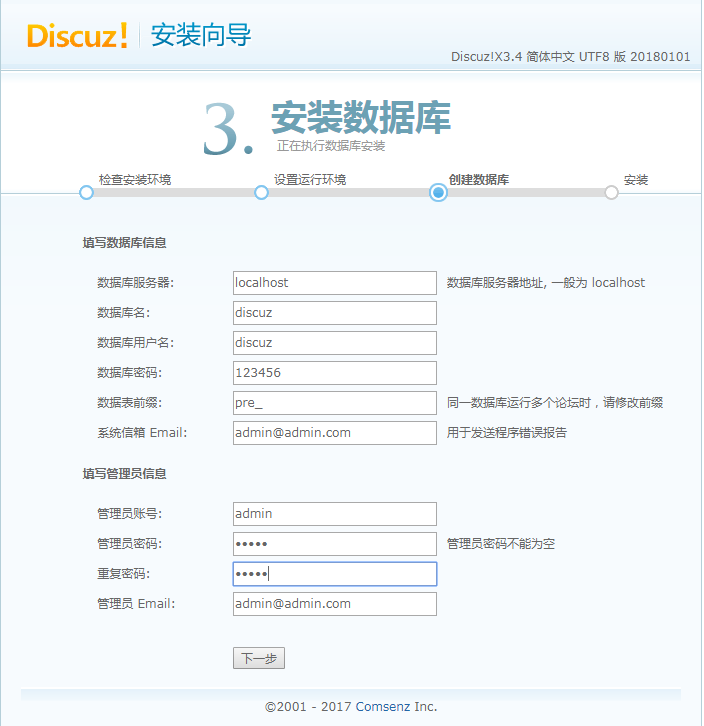
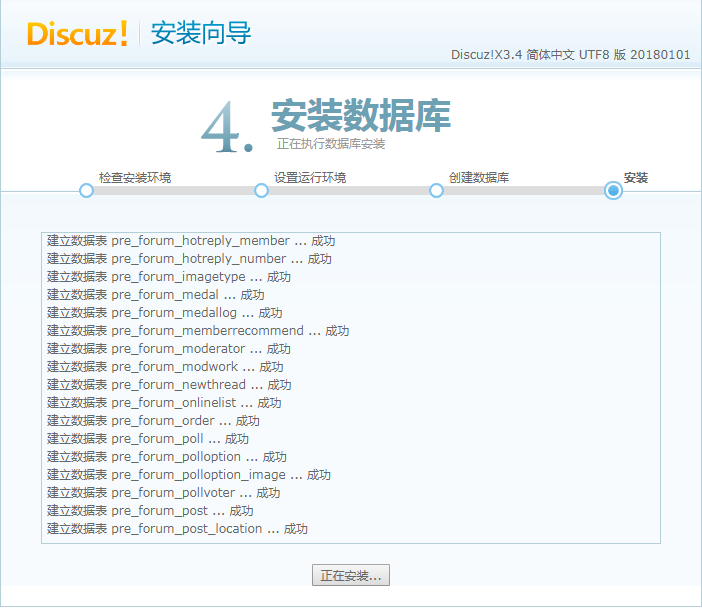
访问:http://bbs.discuz.com进入安装界面


Apache入门篇(四)之LAMP架构部署的更多相关文章
- 【SSRS】入门篇(四) -- 向报表添加数据
原文:[SSRS]入门篇(四) -- 向报表添加数据 定义好数据集后 [SSRS]入门篇(三) -- 为报表定义数据集 ,就可以开始设计报表了,将要显示在报表的字段.文本框.图像和其他项从工具箱拖放到 ...
- FPGA基础入门篇(四) 边沿检测电路
FPGA基础入门篇(四)--边沿检测电路 一.边沿检测 边沿检测,就是检测输入信号,或者FPGA内部逻辑信号的跳变,即上升沿或者下降沿的检测.在检测到所需要的边沿后产生一个高电平的脉冲.这在FPGA电 ...
- LAMP架构部署和动态网站环境的配置
实验环境: 操作系统:centos 7.5 服务器IP:192.168.10.5 运行用户:root 连接工具:xshell工具 web环境:Linux+apache+php+mariadb(LAMP ...
- linux运维、架构之路-Lamp架构部署
一.Lamp架构原理 二.Lamp架构软件安装 1.apache安装脚本 #!/bin/sh cd /server/tools/ yum install zlib-devel -y wget http ...
- Apache入门篇(一)之安装部署apache
一.HTTPD特性 (1)高度模块化:core(核心) + modules(模块) = apache(2)动态模块加载DSO机制: Dynamic Shared Object(动态共享对象)(3)MP ...
- WCF入门(四)---WCF架构
WCF是一个分层架构,为开发各种分布式应用的充分支持.该体系结构在下面将详细说明. 约定 约定层旁边就是应用层,并含有类似于现实世界的约定,指定服务和什么样的信息可以访问它会使操作的信息.约定基本都是 ...
- Apache入门篇(三)之apache2.4.33的新特性解析与虚拟主机实战
1.http 2.4新特性 新特性: (1) 在编译时可以将多个MPM构建为可加载模块,可以在运行时通过LoadModule指令配置所选的MPM: (2) 2.2版本的event MPM在实验阶段,到 ...
- SaltStack入门篇(六)之部署Redis主从实现和Job管理
一.部署Redis主从 需求: 192.168.56.11是主,192.168.56.12是从 redis监听自己的ip地址,而不是0.0.0.0 分析: linux-node1 安装 配置 启动 l ...
- Apache入门 篇(二)之apache 2.2.x常用配置解析
一.httpd 2.2.x目录结构 Cnetos 6.10 YUM安装httpd 2.2.x # yum install -y httpd 程序环境 主配置文件: /etc/httpd/conf/ht ...
随机推荐
- 报错 Filtered offsite request
用scrapy框架迭代爬取时报错 scrapy日志: 在 setting.py 文件中 设置 日志 记录等级 LOG_LEVEL= 'DEBUG' LOG_FILE ='log.txt' 观察 scr ...
- 第04章-VTK基础(7)
[译者:这个系列教程是以Kitware公司出版的<VTK User's Guide -11th edition>一书作的中文翻译(出版时间2010年.ISBN: 978-1-930934- ...
- BZOJ3208:花神的秒题计划Ⅰ(记忆化搜索DP)
Description 背景[backboard]: Memphis等一群蒟蒻出题中,花神凑过来秒题…… 描述[discribe]: 花花山峰峦起伏,峰顶常年被雪,Memphis打算帮花花山风景区 ...
- TP,TN,FP,FN
一张图搞定~~~ [转]https://blog.csdn.net/u011956147/article/details/78967145
- P2986 [USACO10MAR]伟大的奶牛聚集Great Cow Gat…
题目描述 Bessie is planning the annual Great Cow Gathering for cows all across the country and, of cours ...
- rinted端口转发工具
下载包: [root@localhost opt]# wget https://boutell.com/rinetd/http/rinetd.tar.gz 解压编译安装: [root@localhos ...
- Android攻城狮学习笔记—入门篇二
第七章 跑马灯 activity_main.xml<LinearLayout xmlns:android="http://schemas.android.com/apk/res/an ...
- Objective-C基础知识之“类”
Objective-C语言是iOS开发的专用语言,虽然现在在逐步被swift语言取代,但是仍可以作为基础学习,学会Objective-C之后入手swift也是相当快速.今天我来简谈一下关于OC中的类. ...
- linux 学习第十五天(vsftpd配置)
一.vstapd配置 vsftpd 服务(a.匿名公开 b.系统本地账户验证c.虚拟专用用户验证) iptables -F (清空防火墙) service iptables save (保存防火墙 ...
- ionic ios 打包 真机测试常见问题
1.ionic 项目在windows下正常打包安卓包时 迁移到mac下打包ios时 不需要复制平台目录platforms即可 不用再mac下去安装各种插件信息 2.ionic 下不能访问api信 ...