
Installing harbor-2.6.2 on openEuler
一、Installing harbor-2.6.2 on openEuler
1 地址

2 Harbor 安装条件
部署Harbor的最低硬件和软件配置:https://goharbor.io/docs/2.0.0/install-config/installation-prereqs
2.1 Hardware
The following table lists the minimum and recommended hardware configurations for deploying Harbor.
| Resource | Minimum | Recommended |
|---|---|---|
| CPU | 2 CPU | 4 CPU |
| Mem | 4 GB | 8 GB |
| Disk | 40 GB | 160 GB |
2.2 Software
The following table lists the software versions that must be installed on the target host.
| Software | Version | Description |
|---|---|---|
| Docker engine | Version 17.06.0-ce+ or higher | For installation instructions, see Docker Engine documentation |
| Docker Compose | Version 1.18.0 or higher | For installation instructions, see Docker Compose documentation |
| Openssl | Latest is preferred | Used to generate certificate and keys for Harbor |
2.3 Network ports
Harbor requires that the following ports be open on the target host.
| Port | Protocol | Description |
|---|---|---|
| 443 | HTTPS | Harbor portal and core API accept HTTPS requests on this port. You can change this port in the configuration file. |
| 4443 | HTTPS | Connections to the Docker Content Trust service for Harbor. Only required if Notary is enabled. You can change this port in the configuration file. |
| 80 | HTTP | Harbor portal and core API accept HTTP requests on this port. You can change this port in the configuration file. |
二、离线安装 Harbor
1 wget 下载
mkdir /opt/software && cd /opt/software

wget https://github.com/goharbor/harbor/releases/download/v2.6.2/harbor-offline-installer-v2.6.2.tgz
2 解压
tar -zxvf /opt/software/harbor-offline-installer-v2.6.2.tgz -C /opt && cd /opt/harbor && ll

total 774M

-rw-r--r-- 1 root root 3.6K Nov  9 17:35 common.sh

-rw-r--r-- 1 root root 774M Nov  9 17:36 harbor.v2.6.2.tar.gz

-rw-r--r-- 1 root root  11K Nov  9 17:35 harbor.yml.tmpl

-rwxr-xr-x 1 root root 3.1K Nov  9 17:35 install.sh

-rw-r--r-- 1 root root  12K Nov  9 17:35 LICENSE

-rwxr-xr-x 1 root root 1.9K Nov  9 17:35 prepare
最主要的是 harbor.yml.tmpl和 install.sh ,分别是配置文件和安装执行文件。
3 修改配置文件
# 备份一下

cp /opt/harbor/harbor.yml.tmpl /opt/harbor/harbor.yml

# 修改配置文件

vim /opt/harbor/harbor.yml

5 hostname: 114.116...

10 port: 8084

34 harbor_admin_password: root

39 password: root123

47 data_volume: /opt/harbor/data

131 location: /var/log/harbor

# 创建数据和日志目录

mkdir /opt/harbor/data

mkdir /var/log/harbor
4 修改daemon
添加http的通信地址,docker默认使用https进行通信,如果配置了https协议就不需要添加。
cat > /etc/docker/daemon.json << EOF

{

    "registry-mirrors": [

      "https://registry.docker-cn.com",

      "https://docker.mirrors.ustc.edu.cn",

      "https://dockerhub.azk8s.cn",

      "http://hub-mirror.c.163.com"

    ],

    "exec-opts": ["native.cgroupdriver=systemd"],

    "log-driver": "json-file",

    "log-opts": {

        "max-size": "100m"

    },

    "insecure-registries": ["114.116...:8084"]

}

EOF
5 重新加载配置和重启docker
systemctl daemon-reload && systemctl restart docker6 执行部署脚本
/opt/harbor/install.sh

## 查看进程

ps -ef |grep harbor

## 查看镜像

docker images

## 查看镜像启动

docker ps -a
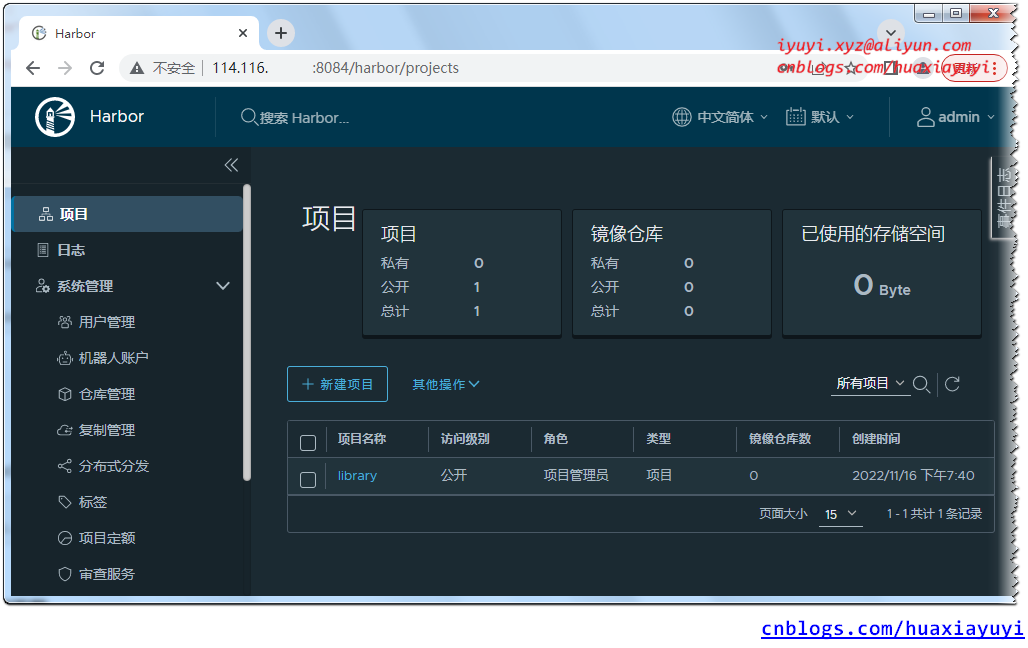
7 登陆 Harbor
服务器 IP:8084
8 命令行登陆 docker
docker info

docker login 114.116...:8084
三、测试上传和下载
1 harbor创建项目
项目--->新建项目--->项目名称--->镜像仓库

2 对需要推送的镜像签名
docker pull tomcat

docker images

docker tag tomcat:latest 114.116...:8084/iyuyixyz/tomcat:latest

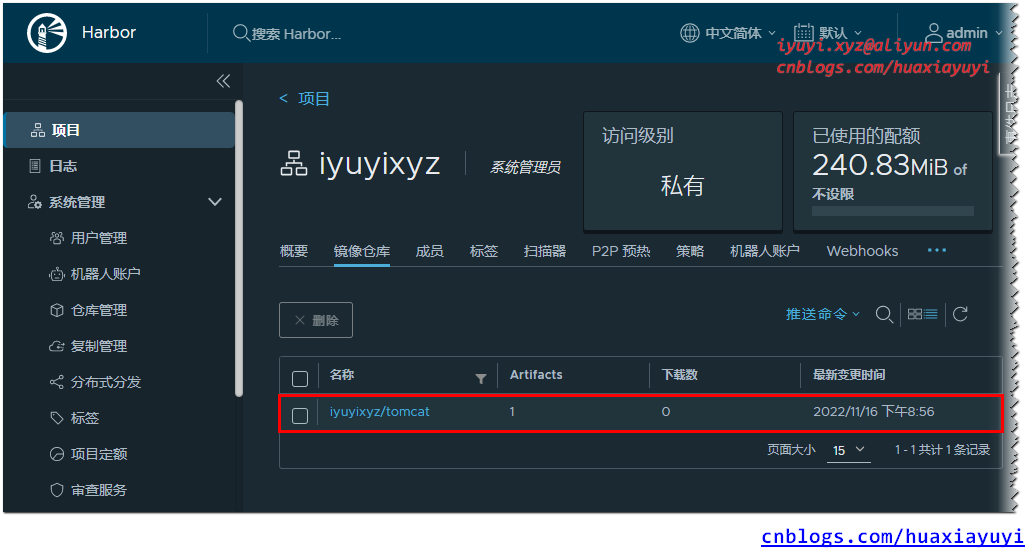
docker push 114.116...:8084/iyuyixyz/tomcat:latest
推送成功!
X、One Step Success
1 /opt/harbor/install.sh harbor 安装日志
查看代码
 [root@ecs-65685 ~]# /opt/harbor/install.sh

[Step 0]: checking if docker is installed ...

Note: docker version: 20.10.16

[Step 1]: checking docker-compose is installed ...

Note: docker-compose version: 2.10.2

[Step 2]: loading Harbor images ...

93d5db33d7f0: Loading layer [==================================================>]  37.72MB/37.72MB

fed5229d083f: Loading layer [==================================================>]  8.902MB/8.902MB

60993d7b1dd7: Loading layer [==================================================>]  3.584kB/3.584kB

dcfafa86c82f: Loading layer [==================================================>]   2.56kB/2.56kB

8eecc685f414: Loading layer [==================================================>]  102.3MB/102.3MB

d93c6405d04a: Loading layer [==================================================>]  103.1MB/103.1MB

Loaded image: goharbor/harbor-jobservice:v2.6.2

a279a640c793: Loading layer [==================================================>]  6.287MB/6.287MB

4f9d6222bbfe: Loading layer [==================================================>]  4.096kB/4.096kB

55ce939e7c9a: Loading layer [==================================================>]  3.072kB/3.072kB

a631cda93151: Loading layer [==================================================>]    186MB/186MB

6fe15b823e2b: Loading layer [==================================================>]  12.87MB/12.87MB

48c9bf72ec70: Loading layer [==================================================>]  199.6MB/199.6MB

Loaded image: goharbor/trivy-adapter-photon:v2.6.2

a9c145b6d823: Loading layer [==================================================>]  5.759MB/5.759MB

7493dee46b78: Loading layer [==================================================>]  90.88MB/90.88MB

531fd3669887: Loading layer [==================================================>]  3.072kB/3.072kB

8bf93a9c7cac: Loading layer [==================================================>]  4.096kB/4.096kB

697af810c7b0: Loading layer [==================================================>]  91.67MB/91.67MB

Loaded image: goharbor/chartmuseum-photon:v2.6.2

565c6d1e1338: Loading layer [==================================================>]  119.9MB/119.9MB

070770563b0d: Loading layer [==================================================>]  3.072kB/3.072kB

1cbd1219edb1: Loading layer [==================================================>]   59.9kB/59.9kB

1eafa56427f8: Loading layer [==================================================>]  61.95kB/61.95kB

Loaded image: goharbor/redis-photon:v2.6.2

b1e37b42b3c0: Loading layer [==================================================>]  119.1MB/119.1MB

Loaded image: goharbor/nginx-photon:v2.6.2

0242e94056b7: Loading layer [==================================================>]  5.754MB/5.754MB

f25460e36589: Loading layer [==================================================>]  8.735MB/8.735MB

0854e8369d2a: Loading layer [==================================================>]  14.47MB/14.47MB

1d58fd938f61: Loading layer [==================================================>]  29.29MB/29.29MB

bbf9db741c3d: Loading layer [==================================================>]  22.02kB/22.02kB

41ea5b5c915c: Loading layer [==================================================>]  14.47MB/14.47MB

Loaded image: goharbor/notary-signer-photon:v2.6.2

1a91031428df: Loading layer [==================================================>]  8.902MB/8.902MB

3b0b5cc72c70: Loading layer [==================================================>]  3.584kB/3.584kB

773ad3349c8a: Loading layer [==================================================>]   2.56kB/2.56kB

39140cab076f: Loading layer [==================================================>]  83.92MB/83.92MB

6c80f545b0fa: Loading layer [==================================================>]  5.632kB/5.632kB

0ccee37aa42e: Loading layer [==================================================>]  106.5kB/106.5kB

756d72e6b8c7: Loading layer [==================================================>]  44.03kB/44.03kB

01a12d2708e6: Loading layer [==================================================>]  84.87MB/84.87MB

eab188b4f0ed: Loading layer [==================================================>]   2.56kB/2.56kB

Loaded image: goharbor/harbor-core:v2.6.2

3aecbbff620d: Loading layer [==================================================>]  1.097MB/1.097MB

3ee789a1e97c: Loading layer [==================================================>]  5.888MB/5.888MB

285f58d22327: Loading layer [==================================================>]    169MB/169MB

b47f4e789504: Loading layer [==================================================>]  16.98MB/16.98MB

e8b4a74e7102: Loading layer [==================================================>]  4.096kB/4.096kB

52bc97105e75: Loading layer [==================================================>]  6.144kB/6.144kB

21cad868f5ac: Loading layer [==================================================>]  3.072kB/3.072kB

6b24213c30fd: Loading layer [==================================================>]  2.048kB/2.048kB

54dd774f4fcd: Loading layer [==================================================>]   2.56kB/2.56kB

8fcc4e1141e7: Loading layer [==================================================>]   2.56kB/2.56kB

47e81a37ed9a: Loading layer [==================================================>]   2.56kB/2.56kB

15a2f5707a75: Loading layer [==================================================>]  8.704kB/8.704kB

Loaded image: goharbor/harbor-db:v2.6.2

b87a3132dc28: Loading layer [==================================================>]  5.759MB/5.759MB

099c3879eab4: Loading layer [==================================================>]  4.096kB/4.096kB

e111d5399557: Loading layer [==================================================>]  17.11MB/17.11MB

0339872ecc4b: Loading layer [==================================================>]  3.072kB/3.072kB

28d42c5fb14d: Loading layer [==================================================>]  29.71MB/29.71MB

a6e47445b2a9: Loading layer [==================================================>]  47.61MB/47.61MB

Loaded image: goharbor/harbor-registryctl:v2.6.2

dc8141f6851b: Loading layer [==================================================>]  8.902MB/8.902MB

98b4e2589226: Loading layer [==================================================>]  25.08MB/25.08MB

b413ead94415: Loading layer [==================================================>]  4.608kB/4.608kB

2c8d3d788084: Loading layer [==================================================>]  25.88MB/25.88MB

Loaded image: goharbor/harbor-exporter:v2.6.2

393d5a0ffc78: Loading layer [==================================================>]  43.85MB/43.85MB

a93c9af803e4: Loading layer [==================================================>]  65.97MB/65.97MB

7d77c2b336d0: Loading layer [==================================================>]  18.28MB/18.28MB

a023a4db994f: Loading layer [==================================================>]  65.54kB/65.54kB

938defed7f01: Loading layer [==================================================>]   2.56kB/2.56kB

40a257e6076f: Loading layer [==================================================>]  1.536kB/1.536kB

0a9ee117d49e: Loading layer [==================================================>]  12.29kB/12.29kB

fee3e00ceac7: Loading layer [==================================================>]  2.613MB/2.613MB

aa7a1d37a974: Loading layer [==================================================>]  379.9kB/379.9kB

Loaded image: goharbor/prepare:v2.6.2

43e329977d55: Loading layer [==================================================>]  5.759MB/5.759MB

cd7f664a365e: Loading layer [==================================================>]  4.096kB/4.096kB

d52491a2b6aa: Loading layer [==================================================>]  3.072kB/3.072kB

96c88da130e9: Loading layer [==================================================>]  17.11MB/17.11MB

3ed947e61e01: Loading layer [==================================================>]   17.9MB/17.9MB

Loaded image: goharbor/registry-photon:v2.6.2

c326200729cd: Loading layer [==================================================>]  5.754MB/5.754MB

dddf8a3ea2da: Loading layer [==================================================>]  8.735MB/8.735MB

64881611b8c7: Loading layer [==================================================>]  15.88MB/15.88MB

e8316cf8a6f4: Loading layer [==================================================>]  29.29MB/29.29MB

a36ddfae8822: Loading layer [==================================================>]  22.02kB/22.02kB

071790bc488e: Loading layer [==================================================>]  15.88MB/15.88MB

Loaded image: goharbor/notary-server-photon:v2.6.2

02fbd82c1ad9: Loading layer [==================================================>]  119.1MB/119.1MB

4cb31a91fcbf: Loading layer [==================================================>]  7.538MB/7.538MB

5c4e30d33b60: Loading layer [==================================================>]  1.185MB/1.185MB

Loaded image: goharbor/harbor-portal:v2.6.2

f0b226869da1: Loading layer [==================================================>]  126.9MB/126.9MB

375103145f01: Loading layer [==================================================>]  3.584kB/3.584kB

5cf0e3f47476: Loading layer [==================================================>]  3.072kB/3.072kB

67b68a640c0f: Loading layer [==================================================>]   2.56kB/2.56kB

d1537b9cab8f: Loading layer [==================================================>]  3.072kB/3.072kB

fccaf06d29a5: Loading layer [==================================================>]  3.584kB/3.584kB

02d47852b759: Loading layer [==================================================>]  20.99kB/20.99kB

Loaded image: goharbor/harbor-log:v2.6.2

[Step 3]: preparing environment ...

[Step 4]: preparing harbor configs ...

prepare base dir is set to /opt/harbor

WARNING:root:WARNING: HTTP protocol is insecure. Harbor will deprecate http protocol in the future. Please make sure to upgrade to https

Generated configuration file: /config/portal/nginx.conf

Generated configuration file: /config/log/logrotate.conf

Generated configuration file: /config/log/rsyslog_docker.conf

Generated configuration file: /config/nginx/nginx.conf

Generated configuration file: /config/core/env

Generated configuration file: /config/core/app.conf

Generated configuration file: /config/registry/config.yml

Generated configuration file: /config/registryctl/env

Generated configuration file: /config/registryctl/config.yml

Generated configuration file: /config/db/env

Generated configuration file: /config/jobservice/env

Generated configuration file: /config/jobservice/config.yml

Generated and saved secret to file: /data/secret/keys/secretkey

Successfully called func: create_root_cert

Generated configuration file: /compose_location/docker-compose.yml

Clean up the input dir

Note: stopping existing Harbor instance ...

[Step 5]: starting Harbor ...

[+] Running 10/10

 ⠿ Network harbor_harbor        Created                                                                                           0.0s

 ⠿ Container harbor-log         Started                                                                                           0.5s

 ⠿ Container redis              Started                                                                                           0.8s

 ⠿ Container harbor-portal      Started                                                                                           1.0s

 ⠿ Container registry           Started                                                                                           1.0s

 ⠿ Container harbor-db          Started                                                                                           1.1s

 ⠿ Container registryctl        Started                                                                                           1.1s

 ⠿ Container harbor-core        Started                                                                                           1.2s

 ⠿ Container nginx              Started                                                                                           1.6s

 ⠿ Container harbor-jobservice  Started                                                                                           1.7s

 ----Harbor has been installed and started successfully.----
Y、Error message
1 绑定源路径不存在
Error response from daemon: invalid mount config for type "bind": bind source path does not exist: /var/log/harbor/解决
mkdir /var/log/harbor/2 权限被拒绝
nginx: [emerg] open() "/etc/nginx/nginx.conf" failed (13: Permission denied)解决
## -^-Z、Related Links
Installing Docker-20.10.12 on CentOS 7.9:https://www.cnblogs.com/huaxiayuyi/p/16775236.html
Installing docker on openEuler:https://www.cnblogs.com/huaxiayuyi/p/16894371.html
Installing docker-compose on CentOS 7.9:https://www.cnblogs.com/huaxiayuyi/p/16775728.html
Installing harbor-2.6.2 on CentOS 8.3:https://www.cnblogs.com/huaxiayuyi/p/16894018.html
Installing harbor-2.6.2 on openEuler的更多相关文章
- Harbor 定制页面 和 二次开发指南
harbor的官方地址:https://github.com/goharbor/harbor 想对Harbor进行二次开发,首先要指定一个harbor的版本,这里我们以Harbor:1.6.2为例: ...
- 【Docker】Maven打包SpringBoot项目成Docker镜像并上传到Harbor仓库(Eclipse、STS、IDEA、Maven通用)
写在前面 最近,在研究如何使用Maven将SpringBoot项目打包成Docker镜像并发布到Harbor仓库,网上翻阅了很多博客和资料,发现大部分都是在复制粘贴别人的东西,没有经过实践的检验,根本 ...
- installing mysql,this may take a few minutes,hold on plz wdcp卡住解决办法
centos6安装wdcp时make in progress卡住的解决办法 今天在一台centos6的vps上安装wdcp出现的这个问题,到安装程序滚动至下面这里时出现"卡死". ...
- docker 私有镜像管理工具harbor 安装
因为各种原因,官方的离线安装包下载比较费事,经常不成功,所以通过分部安装解决问题 1. docker yum install libdevmapper* -y -H tcp://0.0.0.0:237 ...
- MSI Error 1603 installing AppFabric 1.1 / Win7 x64
MSI Error 1603 installing AppFabric 1.1 / Win7 x64 Archived Forums A-B > AppFabric Caching 先说解 ...
- [转]Installing python 2.7 on centos 6.3. Follow this sequence exactly for centos machine only
Okay for centos 6.4 also On apu.0xdata.loc, after this install was done $ which python /usr/local/bi ...
- [转]Installing SharePoint 2013 on Windows Server 2012 R2
转自:http://www.avivroth.com/2013/07/09/installing-sharepoint-2013-on-windows-server-2012-r2-preview/ ...
- 安装mysql odbc遇到error 1918.errror installing ODBC driver mysql ODBC 5.3 ANSI Drive
环境:Windows server2008r2 安装mysql-connector-odbc-5.3.6-win32 报错 相信错误信息:Error 1918.errror installing OD ...
- Using Confluent’s JDBC Connector without installing the entire platform
转自:https://prefrontaldump.wordpress.com/2016/05/02/using-confluents-jdbc-connector-without-installin ...
- Cocoapods的安装报错 - Error installing pods:activesupport requires Ruby version >=2.2.2
1.打开终端 2 移除现有 Ruby 默认源 输入以下指令 $gem sources --remove https://rubygems.org/ 3.使用新的源 输入以下指令 $gem source ...
随机推荐
- Linux 定时器介绍
以下内容为本人的著作,如需要转载,请声明原文链接微信公众号「englyf」https://www.cnblogs.com/englyf/p/16651865.html 曾经常去沙县小吃,就为了蹭上一碗 ...
- KingbaseES R3 读写分离集群在线扩容案例
案例说明: 1. 通过sys_basebackup创建新备库. 2. 将备库加入到Cluster nodes管理,可以用kingbase_monitor.sh一键启停. 3. 主备复制切换测试. 此次 ...
- 使用『jQuery』『原生js』制作一个选项卡盒子 —— { }
效果 HTML 部分 <body> <div id="main-box"> <div id="left-nav"></ ...
- Java中的引用概念
Java对对象和基本的数据类型的处理是不一样的.和C语言一样,当把Java的基本数据类型(如int,char,double等)作为入口参数传给函数体的时候,传入的参数在函数体内部变成了局部变量,这个局 ...
- 华南理工大学 Python第3章课后小测-1
1.(单选)给出如下代码 s = 'Hello scut' print(s[::-1]) 上述代码的输出结果是(本题分数:4)A) HelloB) Hello scutC) olleH tucsD) ...
- linux下搭建ftp文件服务器
linux下搭建ftp文件服务器 一.搭建步骤(以在centos7中搭建为例) 1.首先检查一下系统中是否已经安装了vsftpd软件 # 查看是否安装vsftpd rpm -q vsftpd rpm ...
- 在Windows 2012 R2上安装vcenter 5.5
在Windows 2012 R2上安装vCenter 5.5做个实验,发现安装的时候卡在Install Directory service了. 重启后,再装也一样. 上网查了一下,说是要装好ADLDS ...
- 深度剖析Istio共享代理新模式Ambient Mesh
摘要:今年9月份,Istio社区宣布Ambient Mesh开源,由此引发国内外众多开发者的热烈讨论. 本文分享自华为云社区<深度剖析!Istio共享代理新模式Ambient Mesh>, ...
- 查询参数和字符串校验:Query_Parameters_and_String_Validations
官方文档地址:https://fastapi.tiangolo.com/zh/tutorial/query-params-str-validations/ # -*- coding: UTF-8 -* ...
- git pull提示如下信息时候的操作
执行git pull时提示信息如下: There is no tracking information for the current branch. Please specify which bra ...