
[WPF实用技巧]如何使WPF的TreeView节点之间有连线
示例代码:TreeViewEx.zip
原文地址:http://www.codeproject.com/Tips/673071/WPF-TreeView-with-WinForms-Style-Fomat
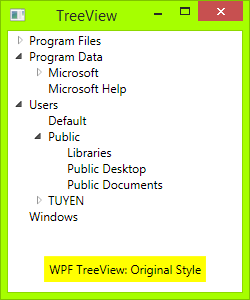
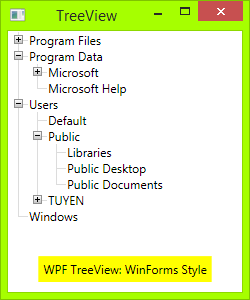
Introduction
WPF default TreeView is very good, but many people still want it to have lines join each of its child elements, like Windows Forms TreeView, including me. I have searched on the internet and have some examples, but they were not designed well enough.
Now, I myself designed a TreeView with style as WinForms. Hope this will help many people!
Source Code
All you need is an XAML file and a code behind.
First, you need draw Toggle Button: From Triangle button to Plus-Minus button: draw a rectangle with dark border, then draw two lines, one vertical line and one horizontal line. When TreeViewItem is expanded, the vertical line will hide:
<!-- Toggle Button -->

<Style x:Key="ExpandCollapseToggleStyle" TargetType="ToggleButton">

    <Setter Property="Focusable" Value="False"/>

    <Setter Property="Template">

        <Setter.Value>

            <ControlTemplate TargetType="ToggleButton">

                <Grid Width="15" Height="13" SnapsToDevicePixels="True">

<!-- Rectangle 9x9 pixels -->

                    <Rectangle Width="9" Height="9"

                    Stroke="#919191" SnapsToDevicePixels="true">

                        <Rectangle.Fill>

                            <LinearGradientBrush EndPoint="0.5,2" StartPoint="0.5,0">

                                <GradientStop Color="White" Offset="0"/>

                                <GradientStop Color="Silver" Offset="0.5"/>

                                <GradientStop Color="LightGray" Offset="1"/>

                            </LinearGradientBrush>

                        </Rectangle.Fill>

                    </Rectangle>

<!-- Vertical line inside rectangle -->

                    <Rectangle x:Name="ExpandPath" Width="1"

                    Height="5" Stroke="Black" SnapsToDevicePixels="true"/>

<!-- Horizontal line inside rectangle -->

                    <Rectangle Width="5" Height="1"

                    Stroke="Black" SnapsToDevicePixels="true"/>

                </Grid>

                <ControlTemplate.Triggers>

                    <Trigger Property="IsChecked" Value="True">

                        <Setter Property="Visibility"

                        TargetName="ExpandPath" Value="Collapsed"/>

                    </Trigger>

                </ControlTemplate.Triggers>

            </ControlTemplate>

        </Setter.Value>

    </Setter>

</Style>
In the above code, you can see a trigger, it will make the vertical line inside toggle button hide if item is expanded, or show if its children collapsed.
Then, you need to draw vertical and horizontal connecting lines between nodes: You need to redesignTreeViewItem control. Add these connecting lines:
 <!-- Horizontal line -->

<Rectangle x:Name="HorLn" Margin="9,1,0,0" Height="1"

Stroke="#DCDCDC" SnapsToDevicePixels="True"/>

<!-- Vertical line -->

<Rectangle x:Name="VerLn" Width="1" Stroke="#DCDCDC"

Margin="0,0,1,0" Grid.RowSpan="2" SnapsToDevicePixels="true"

Fill="White"/>
to your TreeViewItem template like this:
<!-- TreeViewItem -->

<Style x:Key="{x:Type TreeViewItem}" TargetType="{x:Type TreeViewItem}">

    <Setter Property="Template">

        <Setter.Value>

            <ControlTemplate TargetType="{x:Type TreeViewItem}">

                <Grid>

                    <Grid.ColumnDefinitions>

                        <ColumnDefinition MinWidth="19" Width="Auto"/>

                        <ColumnDefinition Width="Auto"/>

                        <ColumnDefinition Width="*"/>

                    </Grid.ColumnDefinitions>

                    <Grid.RowDefinitions>

                        <RowDefinition Height="Auto"/>

                        <RowDefinition/>

                    </Grid.RowDefinitions>

                    <!-- Connecting Lines -->

                    <!-- Horizontal line -->

                    <Rectangle x:Name="HorLn" Margin="9,1,0,0" Height="1" Stroke="#DCDCDC" SnapsToDevicePixels="True"/>

                    <!-- Vertical line -->

                    <Rectangle x:Name="VerLn" Width="1"

                    Stroke="#DCDCDC" Margin="0,0,1,0" Grid.RowSpan="2"

                    SnapsToDevicePixels="true" Fill="White"/>

                    <!-- Insert Toggle Button -->

                    <ToggleButton Margin="-1,0,0,0" x:Name="Expander"

                    Style="{StaticResource ExpandCollapseToggleStyle}"

                    IsChecked="{Binding Path=IsExpanded,

                    RelativeSource={RelativeSource TemplatedParent}}" ClickMode="Press"/>

                    <Border Name="Bd" Grid.Column="1"

                    Background="{TemplateBinding Background}"

                    BorderBrush="{TemplateBinding BorderBrush}"

                    BorderThickness="{TemplateBinding BorderThickness}"

                    Padding="{TemplateBinding Padding}" SnapsToDevicePixels="True">

                        <ContentPresenter x:Name="PART_Header"

                        ContentSource="Header"

                        HorizontalAlignment="{TemplateBinding HorizontalContentAlignment}"

                        MinWidth="20"/>

                    </Border>

                    <ItemsPresenter x:Name="ItemsHost" Grid.Row="1"

                    Grid.Column="1" Grid.ColumnSpan="2"/>

                </Grid>

            </ControlTemplate>

        </Setter.Value>

    </Setter>

</Style>
Then, you need put the class TreeViewLineConverter to your namespace. This class will change the connecting lines if the item is the last in the list:
using System;

using System.Windows;

using System.Windows.Controls;

using System.Windows.Data;

namespace TreeViewEx

{

    public partial class MainWindow : Window

    {

        public MainWindow()

        {

            InitializeComponent();

        }

    }

    class TreeViewLineConverter : IValueConverter

    {

        public object Convert(object value, Type targetType,

        object parameter, System.Globalization.CultureInfo culture)

        {

            TreeViewItem item = (TreeViewItem)value;

            ItemsControl ic = ItemsControl.ItemsControlFromItemContainer(item);

            return ic.ItemContainerGenerator.IndexFromContainer(item) == ic.Items.Count - 1;

        }

        public object ConvertBack(object value, Type targetType,

        object parameter, System.Globalization.CultureInfo culture)

        {

            return false;

        }

    }

}
Insert your namespace to your XAML, i.e.:
<Window x:Class="TreeViewEx.MainWindow"

        xmlns="http://schemas.microsoft.com/winfx/2006/xaml/presentation"

        xmlns:x="http://schemas.microsoft.com/winfx/2006/xaml"

        xmlns:local="clr-namespace:TreeViewEx"/>
Add this line to Window.Resources:
<local:TreeViewLineConverter x:Key="LineConverter"/>
Add trigger to TreeViewItem template, this trigger changes the connecting lines if the item is the last in the list:
<!-- This trigger changes the connecting lines if the item is the last in the list -->

<DataTrigger Binding="{Binding RelativeSource={RelativeSource Self},

Converter={StaticResource LineConverter}}" Value="true">

    <Setter TargetName="VerLn" Property="Height" Value="9"/>

    <Setter TargetName="VerLn" Property="VerticalAlignment" Value="Top"/>

</DataTrigger>
The TreeView will have WinForms style now. You can add more trigger to control behavior of TreeView if you want. The full trigger can be found in the attached file.
ToDo
In WinForms TreeView, the connecting line is a dotted line. To make these lines dotted, change:
<!-- Connecting Lines -->

<Rectangle x:Name="HorLn" Margin="9,1,0,0" Height="1"

Stroke="#DCDCDC" SnapsToDevicePixels="True"/>

<Rectangle x:Name="VerLn" Width="1" Stroke="#DCDCDC"

Margin="0,0,1,0" Grid.RowSpan="2" SnapsToDevicePixels="true"

Fill="White"/>
To:
<!-- Connecting Lines -->

<Rectangle x:Name="HorLn" Margin="9,1,0,0" Height="1"

Stroke="Blue" StrokeDashCap="Square" StrokeDashArray="0,2"

StrokeDashOffset="1" SnapsToDevicePixels="True"/>

<Rectangle x:Name="VerLn" Width="1"  Stroke="Blue"

StrokeDashCap="Square" StrokeDashArray="0,2" Margin="0,0,1,0"

Grid.RowSpan="2" SnapsToDevicePixels="true" Fill="White"/>
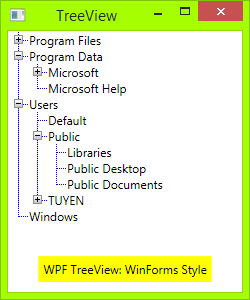
But it is not pretty, as you see. As I'm a newbie in WPF, I don't know to style these lines perfectly.
Reference
This is the code I referenced before I wrote my own:
[WPF实用技巧]如何使WPF的TreeView节点之间有连线的更多相关文章
- wpf中,一个简单的自定义treeview
首先创建一个自定义控件,在里面定义好treeview的样式,将本来的三角形的图标变为加号的图标,并且添加节点之间的连线. <UserControl x:Class="TreeViewE ...
- WPF进阶技巧和实战03-控件(4-基于范围的控件及日期控件)
系列文章链接 WPF进阶技巧和实战01-小技巧 WPF进阶技巧和实战02-布局 WPF进阶技巧和实战03-控件(1-控件及内容控件) WPF进阶技巧和实战03-控件(2-特殊容器) WPF进阶技巧和实 ...
- WPF进阶技巧和实战03-控件(3-文本控件及列表控件)
系列文章链接 WPF进阶技巧和实战01-小技巧 WPF进阶技巧和实战02-布局 WPF进阶技巧和实战03-控件(1-控件及内容控件) WPF进阶技巧和实战03-控件(2-特殊容器) WPF进阶技巧和实 ...
- 使WPF程序应用预置的控件风格, 如Aero, Luna, Royale, Classic等
原文:使WPF程序应用预置的控件风格, 如Aero, Luna, Royale, Classic等 WPF预设有Aero, Classic, Luna, Royale主题, WPF程序会根据 ...
- WPF实用指南一:在WPF窗体的边框中添加搜索框和按钮
原文:WPF实用指南一:在WPF窗体的边框中添加搜索框和按钮 在边框中加入一些元素,在应用程序的界面设计中,已经开始流行起来.特别是在浏览器(Crome,IE,Firefox,Opera)中都有应用. ...
- WPF实用指南二:移除窗体的图标
原文:WPF实用指南二:移除窗体的图标 WPF没有提供任何功能来移除窗体上的icon图标.一般的做法是设置一个空白的图标,如下图1: 这种做法在窗体边框与标题之间仍然会保留一片空白. 比较好的做法是使 ...
- WPF如何实现TreeView节点重命名
我们经常看到一些软件比如酷狗音乐,在对列表右键进行重命名的时候,当前列表会泛白并且进入可编辑状态,当我们更改完成后就会并进入非编辑状态,这些具体是怎么实现的呢?下面的方法也许会提供一些思路,下面的Tr ...
- WPF 之 TreeView节点重命名
下面的TreeView节点是通过数据双向绑定的方式,绑定到TextBlock控件和TextBox控件的Text属性上,并且让两者绑定相同的属性,同时使TextBox控件刚好完全覆盖TextBlock控 ...
- WPF实用知识点
1.一个基本的WPF程序, 需要引入的程序集WindowsBase, PresentationCore, PresentationFramework using System; using Syste ...
随机推荐
- 关于本地缓存localStorage
localStorage的优势 1.localStorage拓展了cookie的4K限制 2.localStorage会可以将第一次请求的数据直接存储到本地,这个相当于一个5M大小的针对于前端页面的数 ...
- DataSet用法详细 转
DataSet用法详细 转 DataSet用法详细 一.特点介绍 1.处理脱机数据,在多层应用程序中很有用. 2.可以在任何时候查看DataSet中任意行的内容,允许修改查询结果的方法. 3.处理分级 ...
- C++中下标操作注意事项
C++中,下标操作不添加元素,对于任何使用下标操作的情况,如string类型.vector类型等等,必须是已存在的元素才能用下标操作符进行索引.如果类型为空,通过 下标操作进行赋值时,不会添加任何元素 ...
- Spring RestTemplate: 比httpClient更优雅的Restful URL访问, java HttpPost with header
{ "Author": "tomcat and jerry", "url":"http://www.cnblogs.com/tom ...
- javascript面向对象(1)
主要内容: 在讲面向对象之前,我们先看一个示例: 类似这种情况大家都能够理解,但是,如果把代码改动一下,请再看一下: 为什么会这样? 如果把代码再改一下看看,如把变量改成b,则直接报错 JavaScr ...
- angularjs 作用域
1.指令属性取值:通过attr.someAttribute属性名字获取 以下,通过$eval(attr.data)获取value <div ng-controller="personC ...
- Memcached Memcached.ClientLibrary.SockIOPool”的类型初始值设定项引发异常
又一次遭遇"xxx类型初始值设定项引发异常" 下了个c#实现的轻量级IoC开源项目,可是在本地使用时发现一运行就捕捉到"类型初始值设定项引发异常"的异常信息,调 ...
- redis五种数据类型的使用(zz)
redis五种数据类型的使用 redis五种数据类型的使用 (摘自:http://tech.it168.com/a2011/0818/1234/000001234478_all.shtml ) 1.S ...
- Ajax Step By Step1
Ajax 最关键的地方,就是实现异步请求.接受响应及执行回调. jQuery 对 Ajax 做了大量的封装,不需要去考虑浏览器兼容性, 对于封装的方式,jQuery 采用了三层封装:最底层的封装方法为 ...
- 验证radio 是否被选中
var radioType=document.getElementsByName("radioType"); var isCheckRadio=false; for(v ...