
Android Studio导入Android 4.4.4r1的源码
本文博客地址:http://blog.csdn.net/qq1084283172/article/details/70339471
一、环境配置
1.ubuntu 14.04.5 x64bit
2.jdk-6u45-linux-x64.bin
3.Android Studio 2.3
4.Android 4.4.4r1
二、JDK的配置
根据google官方文档 https://source.android.com/source/requirements#jdk 的提示了解到,Android4.4.4r1源码的编译需要JDK1.6版本,这里以 jdk-6u45-linux-x64 为例,进行Android源码的编译。Oracle
JDK所有版本的官方下载地址为:http://www.oracle.com/technetwork/java/javase/archive-139210.html。
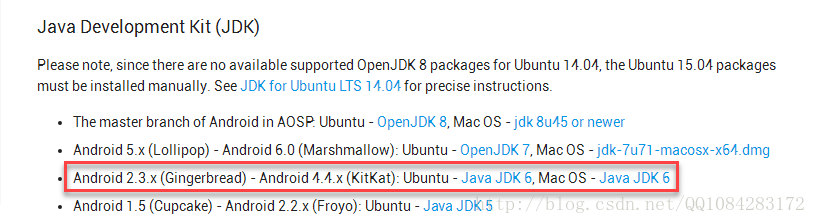
对下载的 jdk-6u45-linux-x64.bin 进行解压:
$ chmod a+x jdk-6u45-linux-x64.bin

$ ./jdk-6u45-linux-x64.bin
配置jdk的环境变量:
# 打开环境变量配置文件

$ sudo gedit /etc/profile

# 配置jdk环境变量

export JAVA_HOME=/opt/jdk1.6.0_45

export JRE_HOME=${JAVA_HOME}/jre

export PATH=$PATH:${JAVA_HOME}/bin

export CLASSPATH=.:${JAVA_HOME}/lib:${JRE_HOME}/lib

# 保存、关闭/etc/profile文件,更新使环境变量生效

$ source /etc/profile

# 查看jdk的版本信息

$ java -version

java version "1.6.0_45"

Java(TM) SE Runtime Environment (build 1.6.0_45-b06)

Java HotSpot(TM) 64-Bit Server VM (build 20.45-b01, mixed mode)
三、安装依赖库文件
根据google官方文档 https://source.android.com/source/initializing#for-ubuntu-14-04 知道:在ubuntu 14.04版本的系统上编译Android源码需要安装下面的依赖库文件。
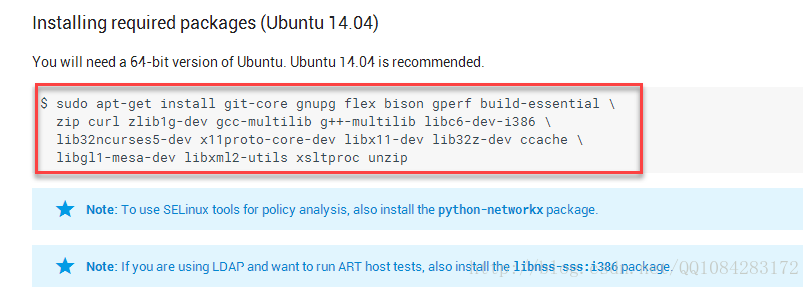
在ubuntu 14.04系统上编译Android系统源码需要安装的依赖库文件:
$ sudo apt-get install git-core gnupg flex bison gperf build-essential \

  zip curl zlib1g-dev gcc-multilib g++-multilib libc6-dev-i386 \

  lib32ncurses5-dev x11proto-core-dev libx11-dev lib32z-dev ccache \

  libgl1-mesa-dev libxml2-utils xsltproc unzip
四、Android源码的编译
# Clean up

$ make clobber

# Set up environment

$ . build/envsetup.sh

# or

$ source build/envsetup.sh

# Choose a target

$ lunch

You're building on Linux

Lunch menu... pick a combo:

     1. aosp_arm-eng

     2. aosp_x86-eng

     3. aosp_mips-eng

     4. vbox_x86-eng

     5. aosp_grouper-userdebug

     6. aosp_flo-userdebug

     7. aosp_deb-userdebug

     8. aosp_tilapia-userdebug

     9. aosp_mako-userdebug

     10. aosp_hammerhead-userdebug

     11. aosp_manta-userdebug

     12. mini_armv7a_neon-userdebug

     13. mini_x86-userdebug

     14. mini_mips-userdebug

Which would you like? [aosp_arm-eng] 1

# Build the code

$ make -j16
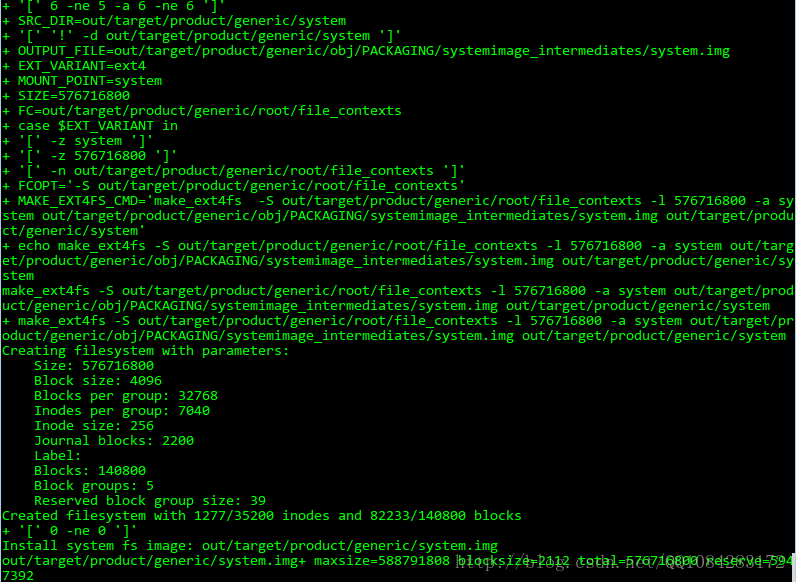
Android 4.4.4r1的源码编译成功的结果截图:
五、Linux下Android Studio的下载和安装
根据google官方的文档了解到,各版本的Android Studio的下载地址为:https://developer.android.com/studio/index.html#tos-header。根据自己的实际需要选择目标版本的Android
Studio进行下载,这里下载Linux 版本的Android Studio,并且Android Studio的下载具体地址为:https://dl.google.com/dl/android/studio/ide-zips/2.3.1.0/android-studio-ide-162.3871768-linux.zip。google官方还提供了各版本的Android
Studio安装教程的说明,详细的说明了各个版本的Android Studio安装需要注意的细节,参考地址为:https://developer.android.com/studio/install.html。
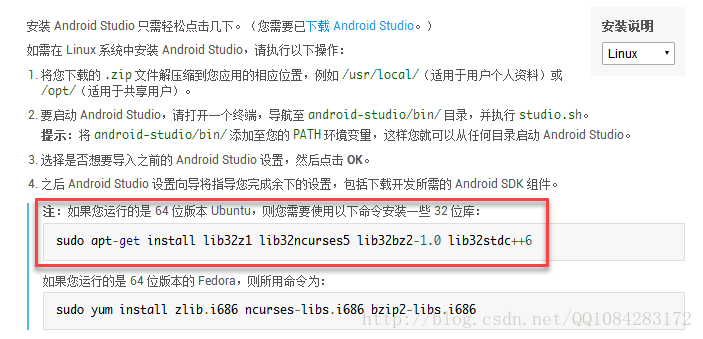
Android Studio安装命令示例如下:
# ubuntu 64bit需要安装32bit的依赖库文件

$ sudo apt-get install lib32z1 lib32ncurses5 lib32bz2-1.0 lib32stdc++6

# 解压下载的android-studio文件包

$ unzip android-studio-ide-162.3871768-linux.zip

$ ls -l

# 拷贝android-studio到/opt目录下

$ sudo mv android-studio /opt/

$ cd /opt/android-studio/bin/

$ ls -l

# 赋予可执行权限(可选)

$ sudo chmod +x ./studio.sh

# 启动Android Studio

$ ./studio.sh
Android Studio安装和启动成功以后,按照Android Studio的提示进行相关的配置即可。在配置的过程中Android Studio会提示下载需要的sdk、emulator等文件,保持网络的畅通,等待Android Studio下载完成就好。为了启动 Android Studio 方便,需要将 android-studio/bin/ 添加至 PATH 环境变量中,这样我们就可以从任何目录启动
Android Studio 程序。
# 打开环境变量配置文件

$ sudo gedit /etc/profile

# 添加Android Studio至环境变量

export ANDROID_STUDIO_HOME=/opt/android-studio

export PATH=$PATH:${ANDROID_STUDIO_HOME}/bin

# 保存、关闭/etc/profile文件,更新使环境变量生效

$ source /etc/profile

# 任意目录启动Android Studio测试

$ studio.sh
六、Android Studio导入Android源码
在Android源码的文件路径 /development/tools/idegen下,有关于怎么导入Andriod源码到Android Studio 或者Eclipse中的说明,具体的就是 /development/tools/idegen/README 文件。导入Android源码到Android
Studio中的说明如下:
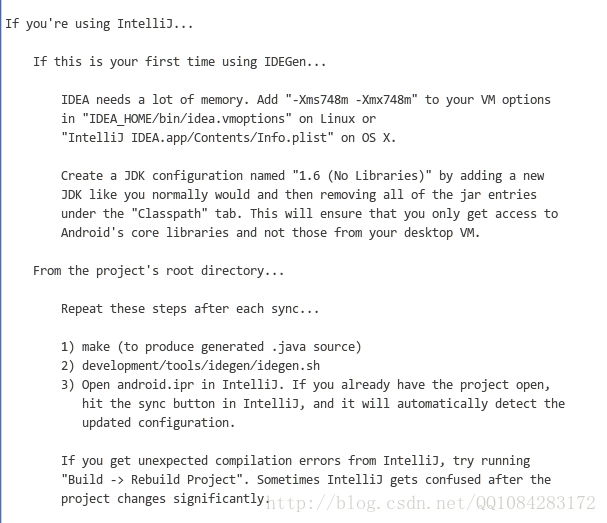
完整的 /development/tools/idegen/README 文件的说明,如下:
IDEGen automatically generates Android IDE configurations for IntelliJ IDEA

and Eclipse. Your IDE should be able to compile everything in a reasonable

amount of time with no errors.

If you're using IntelliJ...

    If this is your first time using IDEGen...

        IDEA needs a lot of memory. Add "-Xms748m -Xmx748m" to your VM options

        in "IDEA_HOME/bin/idea.vmoptions" on Linux or

        "IntelliJ IDEA.app/Contents/Info.plist" on OS X.

        Create a JDK configuration named "1.6 (No Libraries)" by adding a new

        JDK like you normally would and then removing all of the jar entries

        under the "Classpath" tab. This will ensure that you only get access to

        Android's core libraries and not those from your desktop VM.

    From the project's root directory...

        Repeat these steps after each sync...

        1) make (to produce generated .java source)

        2) development/tools/idegen/idegen.sh

        3) Open android.ipr in IntelliJ. If you already have the project open,

           hit the sync button in IntelliJ, and it will automatically detect the

           updated configuration.

        If you get unexpected compilation errors from IntelliJ, try running

        "Build -> Rebuild Project". Sometimes IntelliJ gets confused after the

        project changes significantly.

If you're using Eclipse...

    If this is your first time using IDEGen...

        Edit eclipse.ini ("Eclipse.app/Contents/MacOS/eclipse.ini" on OS X) and

        add "-Xms748m -Xmx748m" to your VM options.

        Configure a JRE named "1.5 (No Libraries)" under "Preferences -> Java ->

        Installed JREs". Remove all of the jar entries underneath "JRE system

        libraries". Eclipse will not let you save your configuration unless at

        least one jar is present, so include a random jar that won't get in the

        way.

    From the project's root directory...

        Repeat these steps after each sync...

        1) make (to produce generated .java source)

        2) development/tools/idegen/idegen.sh

        3) Import the project root directory into your Eclipse workspace. If you

           already have the project open, simply refresh it (F5).

Excluding source roots and jars

    IDEGen keeps an exclusion list in the "excluded-paths" file. This file

    has one regular expression per line that matches paths (relative to the

    project root) that should be excluded from the IDE configuration. We

    use Java's regular expression parser (see java.util.regex.Parser).

    You can create your own additional exclusion list by creating an

    "excluded-paths" file in the project's root directory. For example, you

    might exclude all apps except the Browser in your IDE configuration with

    this regular expression: "^packages/apps/(?!Browser)".

Controlling source root ordering (Eclipse)

    You may want some source roots to come before others in Eclipse. Simply

    create a file named "path-precedence" in your project's root directory.

    Each line in the file is a regular expression that matches a source root

    path (relative to the project's root directory). If a given source root's

    path matches a regular expression that comes earlier in the file, that

    source root will come earlier in the generated configuration. If a source

    root doesn't match any of the expressions in the file, it will come last,

    so you effectively have an implicit ".*" rule at the end of the file.

    For example, if you want your applications's source root to come first,

    you might add an expression like "^packages/apps/MyApp/src$" to the top

    of the "path-precedence" file.  To make source roots under ./out come last,

    add "^(?!out/)" (which matches all paths that don't start with "out/").
按照Android源码提供的帮助说明导入Android源码到Android Studio中的步骤:
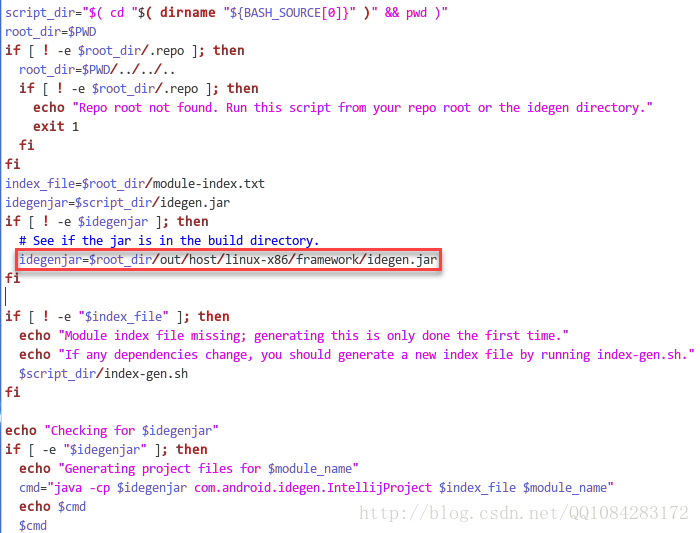
1.在导入Android源码到Android Studio中之前一定要保证已经成功编译过Android源码。由于在执行 /development/tools/idegen/idegen.sh 脚本时会使用到 /out/host/linux-x86/framework/idegen.jar工具(如下图所示),因此在执行 /development/tools/idegen/idegen.sh 脚本之前需要确保 idegen.jar
工具已经存在。
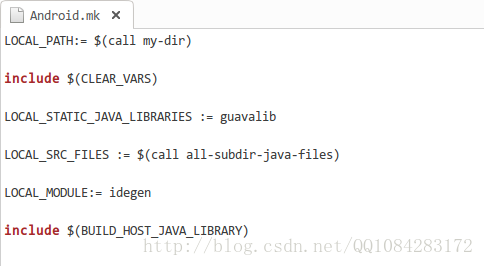
2.如果在 /out/host/linux-x86/framework/ 目录下,不存在 idegen.jar ,则可以根据 /development/tools/idegen/Android.mk 进行编译生成。
3.在Android源码的根目录下,执行下面的命令先生成 idegen.jar 文件,然后生成导入Android源码到Android Studio中的配置文件。
# 导入预设脚本

$ source build/envsetup.sh

# 编译生成idegen.jar工具

$ mmm ./development/tools/idegen/

# 生成导入Android源码到Android Studio中的配置文件

$ ./development/tools/idegen/idegen.sh
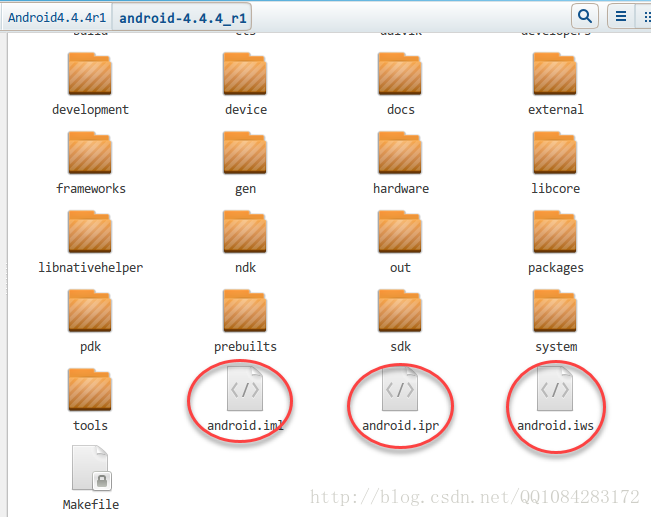
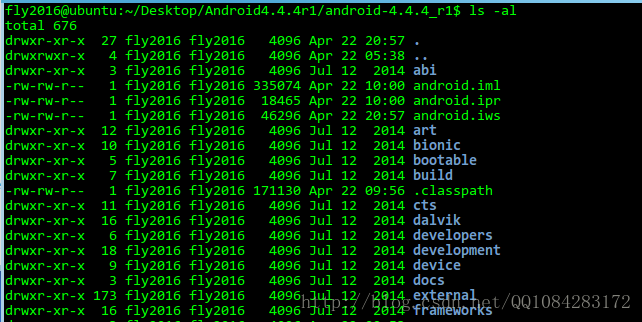
执行上面的命令成功以后会在Android源码的根目录下生成 android.iml、android.ipr
和 android.iws 文件,结果截图如下:
其实,在Android源码的根目录下也生成了Eclipse导入Android源码的配置文件.classpath ,结果如下图所示:
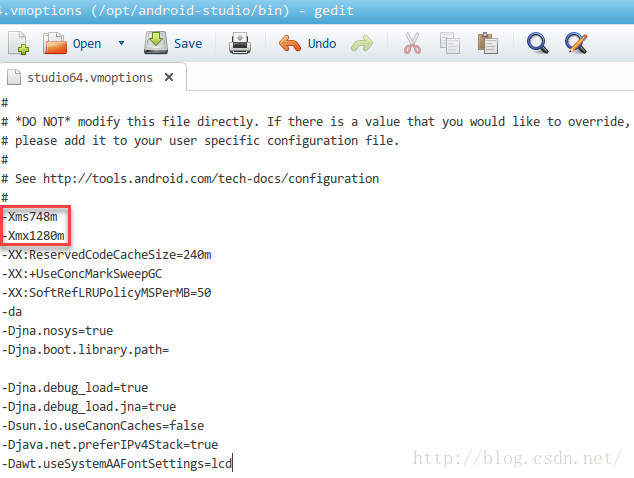
4.在将Android源码导入到Android Studio中需要消耗很多的内存,因此需要修改Android Studio的配置文件,将分配的内存空间改大一点。Linux 32位系统下修改android-studio/bin/studio.vmoptions ,Linux 64位系统下修改 android-studio/bin/studio64.vmoptions 调整其中-Xms和-Xmx的参数值,推荐至少在748m以上。这里是
ubuntu 14.04 64bit 的系统,因此修改后的 android-studio/bin/studio64.vmoptions 文件如下:
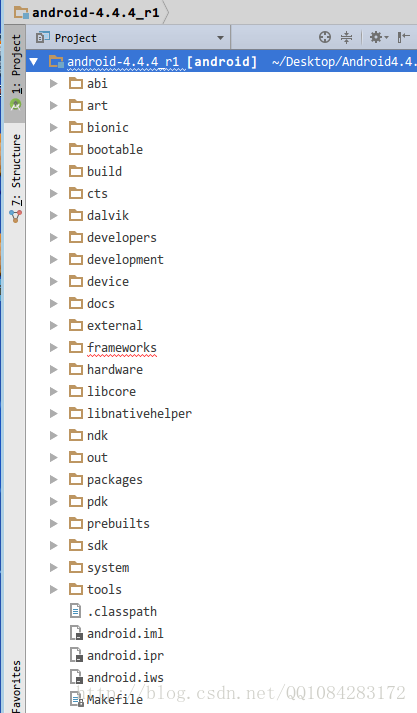
5.执行 studio.sh 启动Android Studio,点击 File->Open,选择Android源码根目录下刚才生成的android.ipr文件 即可,然后等待Android Studio导入Android源码。下面是Android Studio导入Android源码后的结果截图:
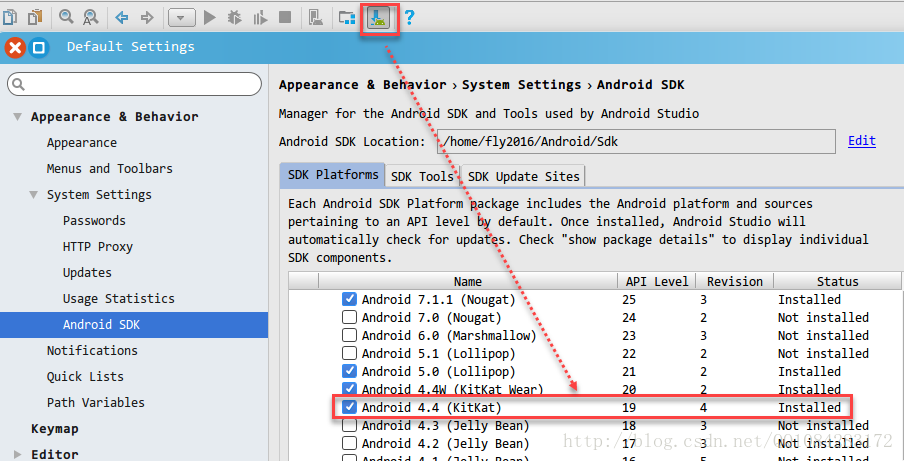
6.在Android Studio中根据当前编译的Android源码的版本即 Android 4.4.4r1 ,保持网络畅通下载Android 4.4.4r1对应的Android SDK的版本Android API 19,如下图所示:
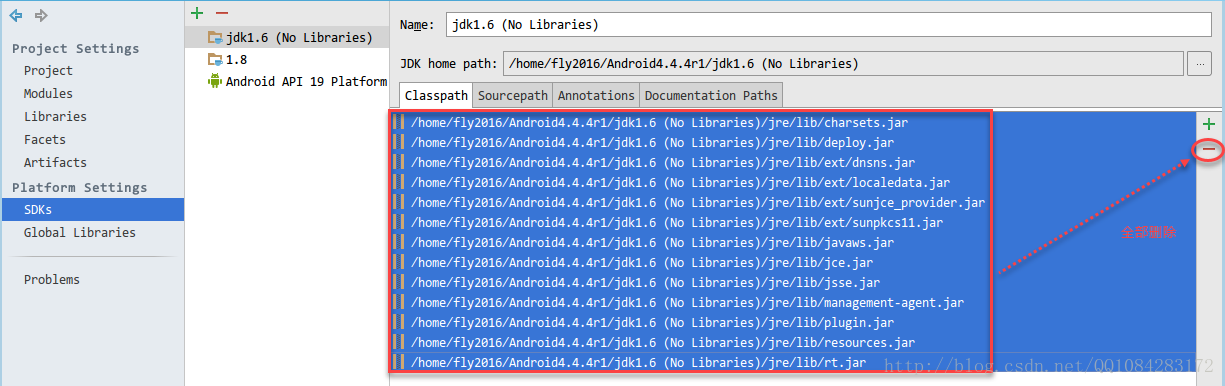
点击 File->Project Structure->SDKs-> "+" 创建一个新的JDK命名为jdk1.6 (No Libraries),然后删除掉classpath标签页下面所有的jar文件(也就是需要删掉Classpath标签页下的所有jar包)。这样可以确保使用Android源码里的库文件即使Android源码不使用本地安装的jdk的jar包而是使用Android源码的核心jar库文件。
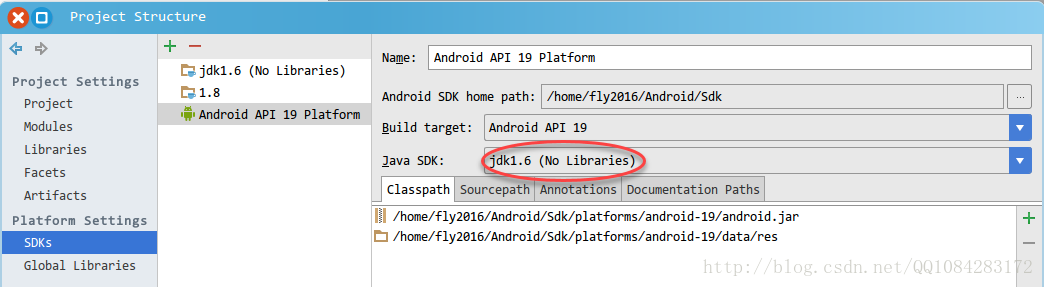
并将 jdk1.6 (No Libraries) 作为Android SDK(Android API 19)版本要使用的jar包,设置如下图所示:
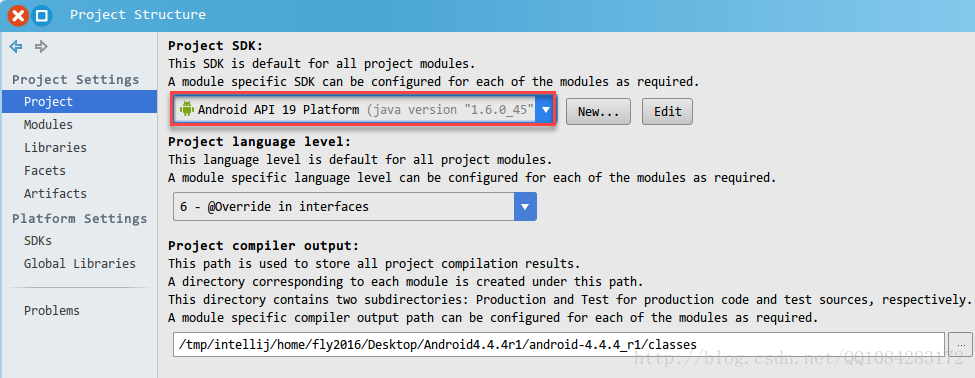
然后在 Project标签 中的 Project SDK 中选择对应的Android SDK(Android API 19)版本,如下图所示:
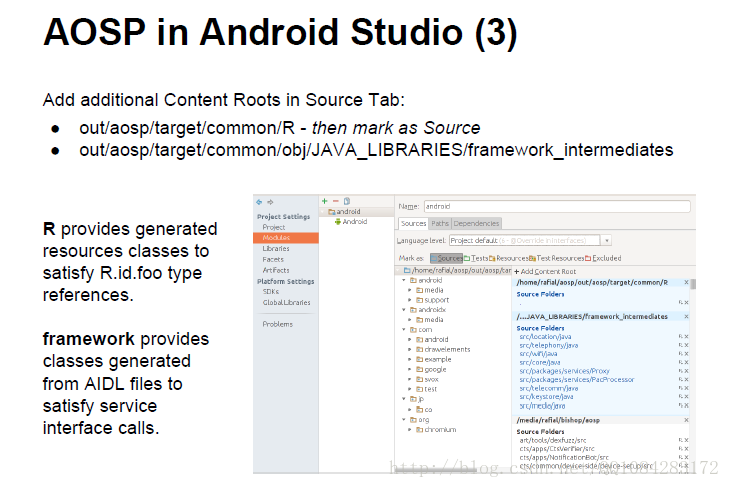
7.确保在上面的操作步骤中已为当前Android源码工程正确的设置了Android SDK和JDK,然后打开 Projects Stucture, 选择Modules将所有的默认的依赖jar库文件全部删除(为了方便起见,后边如果缺少什么jar库文件,可以自行添加进来)。
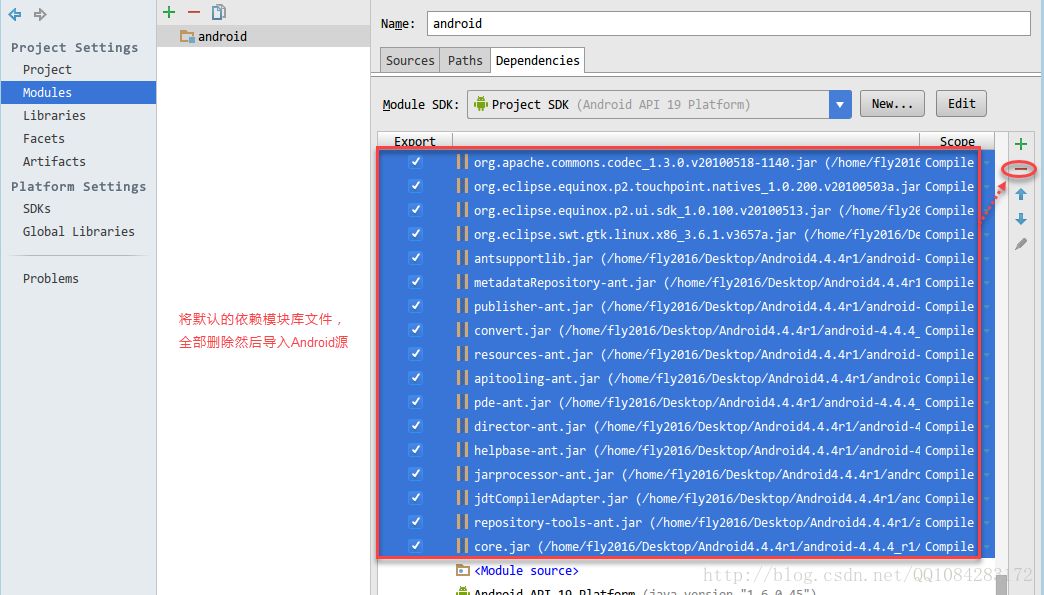
默认依赖jar文件全部删除完成之后,保留如下图所示的两项,然后点击右边的 "+" 添加Android源码的 frameworks 和external 目录中的jar包文件,如下图所示:
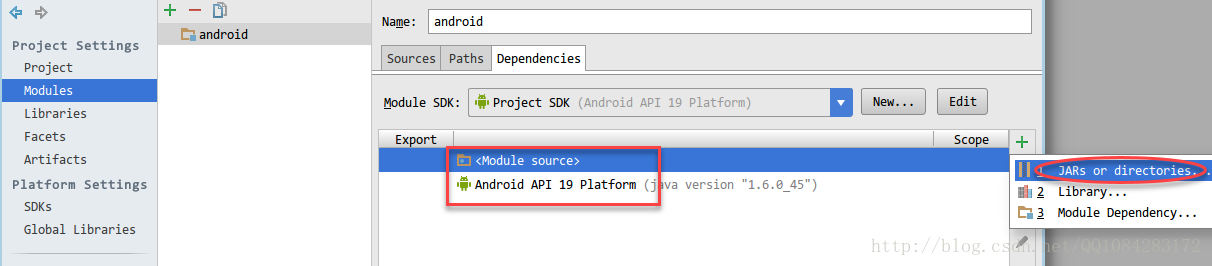
将Android源码的 frameworks 和 external 目录中的jar包文件添加成功以后的截图,如下:
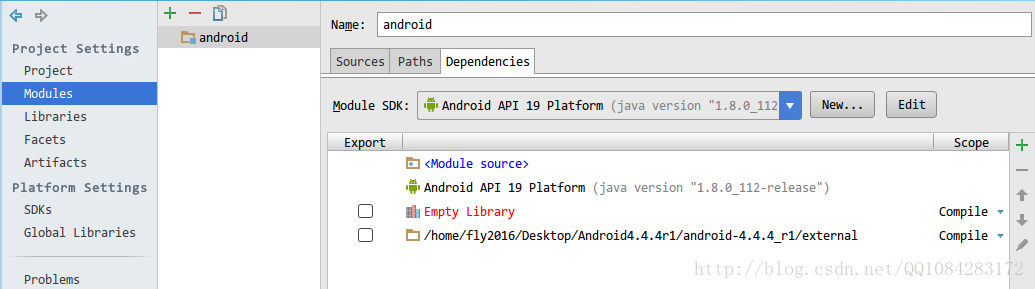
在以后阅读Android源码的过程中,如果出现代码跳转错误,请仿照上面的步骤将相应代码的路径或jar文件添加到Moduled的Dependencies标签页下即可。
七.总结
关于向Android Studio中导入Android源码,参考了一些博客但是很多都说的不是很清楚,这里也是稀里糊涂的实践了一遍,可能是由于我选的Android源码版本比较低而且Android Studio的版本比较高,最后导致实践出来的结果和其他博主操作的结果有所不同。《Android
Studio导入Android源码》这篇博文写的还不错,其中有些细节的地方是参考的这篇博文。
参考文章链接:
《Macbook Pro下载并编译Android源码并导入Android Studio》
八.其他的参考资料
《Introduction to AOSP》这篇文章也有一些介绍,不过实践了一下,有些步骤也过时了。具体的步骤详情如下,仅供参考:
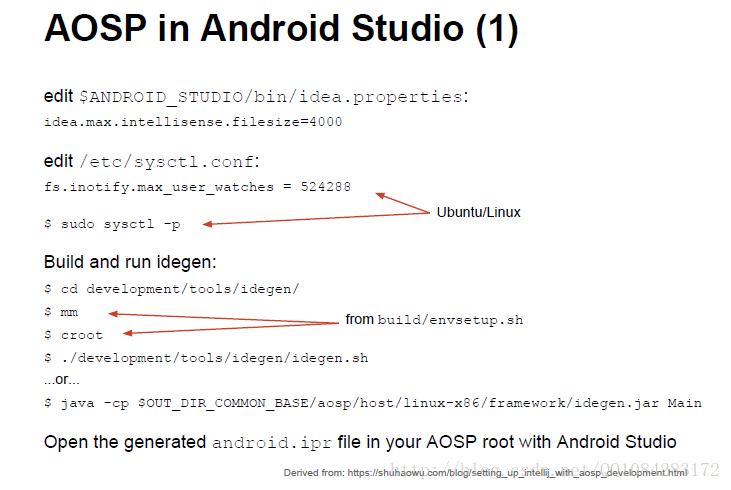
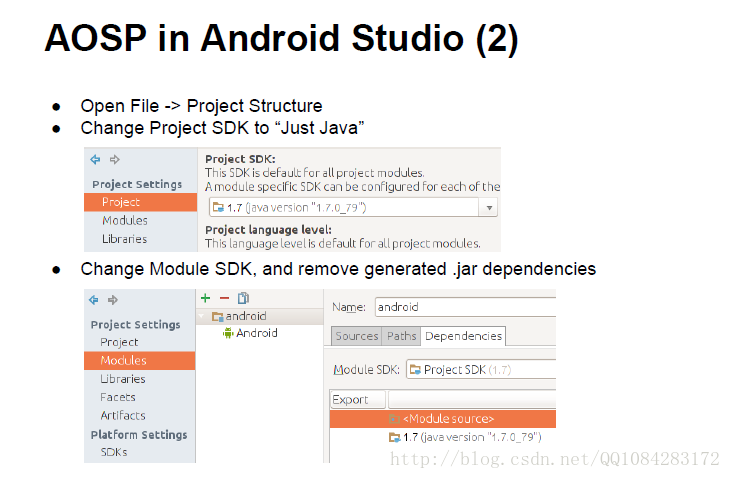
Android Studio导入Android 4.4.4r1的源码的更多相关文章
- Android Studio 导入 Android 系统模块并编译和调试
FAQ: AS导入系统模块源码,并且能够编译调试,正常查看java doc ???? Android AOSP基础(五)Android Studio调试系统源码的三种方式http://liuwangs ...
- android studio导入android studio工程
在导入其他android studio工程的时候因为gradle和sdk.tool等版本不一样,会导致android studio自动去后台下载,导致占用硬盘越来越大,最主要的时候会等待很久,不知道要 ...
- Android Studio导入第三方类库的方法
Android Studio导入第三方类库的方法 本人也刚刚开始尝试做android app的开发,听说android studio是Google支持的android 应用开发工具,所以想应该肯定比E ...
- Android Studio导入Vitamio多媒体开发框架
PS:这篇笔记用于解决Android Studio导入Vitamio框架的问题.官网给出的相关说明过于简单,故整理这篇文章,希望能帮助到像我一样遇到这个问题的朋友. 开发学习建议参考农民伯伯的博客中的 ...
- android studio 导入一个已有的android studio project作为lib使用
android studio 导入一个已有的android studio project作为lib使用 新项目来了. 需要搭建框架. android studio对我来说还是很陌生,之前一个项目在同事 ...
- Android Studio导入System Library步骤
转载请注明出处:http://www.cnblogs.com/cnwutianhao/p/6242170.html 请尊重知识产权!!! 同步更新到CSDN:http://blog.csdn.net ...
- android studio 导入工程问题总结
github上下了几个开源项目,在导入android studio时出现各种问题, 在网上查询各种资料后一一得以解决,现对个问题点进行简单的总结: 1. gradle project sync fai ...
- Android Studio导入Eclipse项目和一些常见的问题
Android Studio版本 Eclipse项目工程:一个主工程,一个Emojicon依赖库. 有两种方式导入Eclipse工程: 1.兼容Eclipse 2.全新的Android Gradle ...
- Android Studio 导入外部lib文件
Android Studio 导入外部lib文件 1.将jar包放入Module里的lib文件夹中.(自己创建lib文件夹) 2.在project选中jar包点击右键"Add as li ...
随机推荐
- 《C++ Primer》笔记 第10章 泛型算法
迭代器令算法不依赖于容器,但算法依赖于元素类型的操作. 算法永远不会执行容器的操作.算法永远不会改变底层容器的大小. accumulate定义在头文件numeric中,接受三个参数,前两个指出需要求和 ...
- Java练习——String类练习
需求: 给定一个字符串String str=" Hello World",返回长度,返回o第一次出现的索引,返回最后一个o的索引,把所有的l都替换为m,并把字符串str按空格分割为 ...
- 链表算法题之中等级别,debug调试更简单
文章简述 大家好,本篇是个人的第 5 篇文章 从本篇文章开始,分享关于链表的题目为中等难度,本次共有 3 道题目. 一,两数相加 1.1 题目分析 题中写到数字是按照逆序的方式存储,从进位的角度看,两 ...
- 翻译:《实用的Python编程》04_03_Special_methods
目录 | 上一节 (4.2 继承) | 下一节 (4.4 异常) 4.3 特殊方法 可以通过特殊方法(或者称为"魔术"方法(magic method))自定义 Python 行为的 ...
- 动态规划-最长公共上升子序列-n^2解法
1. 题目描述 给定两个数列\(A, B\),如果他们都包含一段位置不一定连续的数,且数值是严格递增的,那么称这一段数是两个数列的公共上升子序列.求\(A\)和\(B\)的最长公共上升子序列. 输入格 ...
- 修改RedHat7的root用户密码
前言 前段时间由于长时间没有使用虚拟机里面的一个操作系统,导致密码记得不是太清,登录不进去.今天想起还是做个小记录,以便以后参考. 再一个是,当时网上也搜了很多解决问题的博客,但大部分都是同一个博客内 ...
- unable to read askpass response from 'C:\Users\wxy\.IntelliJIdea2019.1\system\tmp\intellij-git-askpass.bat' bash: /dev/tty: No such device or address failed to execute prompt script (exit code 1)
解决方法:
- 导出目录的JS代码,与目录的三级标题测试
二级标题 三级标题 三级标题 三级标题 三级标题 三级标题 二级标题 三级标题 三级标题 三级标题 三级标题 三级标题 这里是现在页尾目录功能的代码源码: <!-- 目录索引列表生成 --> ...
- CodeForces CF862E题解
\(Part\ 1:\) 我们发现每次修改动的是\(a\)串,所以对于这个答案的公式,\(b_{i+j}\)的部分是可以求出来的.所以我们可以把公式改成如下所示: \(f(j)=|\sum_{i=1} ...
- 更改当前目录--cd
pwd 显示当前所在的目录路径 cd ../ 回到上一层目录 cd ../../ 回到上上层目录 cd / 回到根目录 cd ~ 回到当前用户的根目录 c ...