
Remote X11 GUI for Linux/Unix
摘自:https://www.redwireservices.com/remote-x11-for-linux-unix
The Problem
One of my most feared questions from end users is “how can I interact with an X11 GUI application on our remote Linux system if I have no access to the physical console, X11 isn’t installed, and there is no VNC access?” After hearing this many times at one site, I wrote a script to automate the server side process, but even that does not address the whole story. I’m writing this post as a quick reference when I field this question in the future, and I hope it helps you, too.
The problem is that most system administrators do not install X11, Xorg, or other GUI interfaces on Linux and Unix systems as this introduces more packages to manage and patch, more security bugs to fix/mitigate, and a larger install footprint (more used space). That last point may seem moot today, but with many environments deploying hundreds of virtual machines, 200-400MB of extra space per VM can really add up quickly (see my latest presentation on Open Source Data Deduplication for more ideas on saving space in these environments). If you consider the overhead of installing a modern desktop/windowing system such as Gnome or KDE, it could easily more than double the data size footprint of a Linux server.
OK, many environments don’t install the Linux/Unix GUI bits (also known as X11 or Xorg server), so who cares, I can just install everything via the command line, right? Well, yes, for the most part you can just install applications via the command line and forget this whole issue. However, there are a few vendor applications, notably including Oracle Database and Application Server products, that are difficult if not impossible to install without a GUI.
The Solution
The modern solution to the problem stated above is to tunnel X11 traffic over ssh (securely), and display it on your workstation, whether it be Windows, Mac OS X, or Linux. For sake of helping the most folks, we’ll focus on Windows workstations here, but Linux and Mac OS X should work with only the server side changes we write here (just connect with the command line ssh -Y your_username@your_servername.com).
In certain circumstances, it may be advantageous to setup a VNC server to accomplish the same thing, but that requires more of X11 and an windowing environment be configured on the server side, and we’d like to avoid as many server side changes as possible, as many users won’t have access to make these changes themselves.
Process Overview
In order to obtain the ability to interact with an X11 GUI remotely, we will follow these general steps:
- Ensure that the foundational X11 packages are installed
- Ensure that OpenSSH server is configured to forward X11 connections
- Configure a local X11 server on our workstation
- Configure our ssh application to forward X11 requests
- Test with a simple application
- Configured authentication if user changes are needed
- Move on with the task at hand
1) Ensure that the foundational X11 packages are installed
In order to use remote X11, you must have a few X11 packages
installed on the server. In many cases these are already installed, but
you may have to ask your System Administrator to install them for you,
it’s easy:
RHEL/CentOS/Fedora (xterm is optional, but beneficial for testing):
sudo yum install xorg-x11-xauth xterm
2) Ensure that OpenSSH server is configured to forward X11 connections
On RHEL and related RedHat based servers, the file to check is /etc/ssh/sshd_config. Review this file for the following line:
X11Forwarding yes
If that line is preceded by a comment (#) or is set to no, update the file to match the above, and restart your ssh server daemon (be careful here — if you made an error you may lock yourself out of the server).
sudo /etc/init.d/sshd restart
3) Configure a local X11 server on your workstation
Next we need to install and configure a local X11 server, Xmingor Cygwin/X are popular
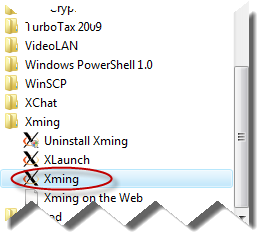
Click Xming to start the Xming X11 Server on your Desktop/Workstation
free choices for Windows. Simply download and follow the install instructions for these packages, Xming is by far easier to setup for beginners. After the install is complete, and you’ve rebooted your workstation/desktop (if requested), start the X11 server application from the start menu.
4) Configure our ssh application to forward X11 requests
Next, we need to ensure that our ssh client is configured to forward X11 requests from the server. If you are using Cygwin/X, a Mac, or a Linux desktop, simple open up a terminal and preface your ssh command with -Y, for example:
ssh -Y your_username@your_server.your_domain.com
That will tell SSH to forward all X11 requests to your local desktop. For Windows, the most popular client is PuTTY. To achieve the same result in PuTTY, load the profile of the server you wish to connect to, or simply fill out the connection details. Next expand the Connection and SSH options on the left hand side. Under SSH and then X11, ensure that Enable X11 Forwarding is checked.
PuTTY Configuration Window Show X11 Forwarding Enabled.
Finally, click the Open button to connect to the remote server.
5) Test with a simple application
If everything has gone according to plan you now have a server configured to allow X11 connections, an ssh client configured likewise, and you are ready to test. When connecting to the remote server (last step in part 4 above), you may see a message like this:
/usr/bin/xauth: creating new authority file /home/ec2-user/.Xauthority
This is a normal message, and in fact it tells us that part of our changes are working! This file contains an authentication token required to connect with the X11 server. Now to test, it’s easy, just enter this command on the remote ssh session:
xterm
Wait just a few seconds depending on your internet/network connection speed, and you should see the following.
xterm displayed on Windows from a remote Linux Server
If you see something similar, congratulations! Remote X11 connections are working!
6) Configured authentication if user changes are needed
X11 forwarding is working, great! These days, however, users are often not allowed to log in as root, which is great for security, but adds yet another step to our process. In step 5 we ran xterm as ourselves, which validates our setup is proper. Try running the same command as another user, though, via sudo and you’ll likely see an error like the following.
X11 Error from Improper Xauth Configuration
The problem here is that a .Xauthority file is created automatically at log in time for our user, allowing our user access to our local X11 server (on our desktop). However, when root tries to access this connection it is denied without the proper permissions.
To work around this, simply copy the .Xauthority file from your user directory to the user you want to work with (root for example). Note that this should be done from your user account, not as root:
sudo cp ~/.Xauthority ~root/
sudo /bin/chown root ~root/.Xauthority
Try running xterm again as root, it should work.
sudo xterm
7) Move on with the task at hand
There you have it, now that you can login remotely and still access a GUI as any user, you can move on to installing your GUI centric application such as Oracle.
sudo cp ~/.Xauthority ~oracle/
sudo /bin/chown oracle ~oracle/.Xauthority
sudo su - oracle
./runInstaller
Enjoy!
Gotchas
When installing or configuring an application, like those from Oracle, keep in mind that a break in your internet connection or other problems with your link may cause the remote program to be closed! So while it may be tempting to let an X11 process run overnight, you may have better results sticking around until the process completes. If your installer/application stops to ask you a question and your link does fail, you will likely lose all the work completed to that point and have to start all over again. Save early, save often, as they say.
Conclusion
If this was helpful, please drop us a line at info at redwireservices.com, @RedWireServices on Twitter, or using the contact page. If you have additional tips to add, please add a comment below and I will update the post accordingly to help as many as possible.
Finally, if you or your company are in need of IT disaster recovery planning, backup system assistance, storage, or archival help, give us a ring at (206) 829-8621.
Remote X11 GUI for Linux/Unix的更多相关文章
- LINUX&UNIX 安装vmware workstation10和centOS6
大一下时,学习了linux&unix这门课程,全字符的操作,我对它并不是很感冒,不过,还是找学长安装过虚拟机和Linux系统,在考前利用它和putty进行复习.现在重装系统之后,各类软件,自然 ...
- Linux/Unix mac 命令笔记
bg和fg Linux/Unix 区别于微软平台最大的优点就是真正的多用户,多任务.因此在任务管理上也有别具特色的管理思想.我们知道,在 Windows 上面,我们要么让一个程序作为服务在后台一直运行 ...
- Linux/Unix 线程同步技术之互斥量(1)
众所周知,互斥量(mutex)是同步线程对共享资源访问的技术,用来防止下面这种情况:线程A试图访问某个共享资源时,线程B正在对其进行修改,从而造成资源状态不一致.与之相关的一个术语临界区(critic ...
- 学习linux/unix编程方法的建议(转)
假设你是计算机科班出身,计算机系的基本课程如数据结构.操作系统.体系结构.编译原理.计算机网络你全修过 我想大概可以分为4个阶段,水平从低到高从安装使用=>linux常用命令=>linux ...
- Linux/Unix双机建立信任教程
Linux/Unix双机建立信任教程 一 需要建立信任关系的2台主机都执行生成密钥输入ssh-keygen -t rsa之后全部默认回车,这样就会在/root/.ssh下生成密钥文件 [root@pl ...
- 今天在Mac机器上使用了Flex Builder编辑了一个源代码文件,保存后使用vim命令去打开时发现系统自动在每一行的结尾添加了^M符号,其实^M在Linux/Unix中是非常常见的,也就是我们在Win中见过的/r回车符号。由于编辑软件的编码问题,某些IDE的编辑器在编辑完文件之后会自动加上这个^M符号。看起来对我们的源代码没有任何影响,其实并不然,当我们把源代码文件Check In到svn之类
今天在Mac机器上使用了Flex Builder编辑了一个源代码文件,保存后使用vim命令去打开时发现系统自动在每一行的结尾添加了^M符号,其实^M在Linux/Unix中是非常常见的,也就是我们在W ...
- Linux/Unix 怎样找出并删除某一时间点的文件(转)
在Linux/Unix系统中,我们的应用每天会产生日志文件,每天也会备份应用程序和数据库,日志文件和备份文件长时间积累会占用大量的存储空间,而有些日志和备份文件是不需要长时间保留的,一般保留7天内的文 ...
- Linux Unix 环境变量设置实例
背景 从第一次写Hello World我们便开始接触环境变量.这最基础的系统设置是必须要掌握的,尤其在是Linux/Unix系统中.比如,哪天某个Java进程出现问题,我们想分析一下其线程堆栈,却发现 ...
- Linux / UNIX create soft link with ln command
How to: Linux / UNIX create soft link with ln command by NIXCRAFT on SEPTEMBER 25, 2007 · 42 COMMENT ...
随机推荐
- PowerShell批量创建文件夹
效果如下: 实现关键: mkdir (1..10|%{"hwllo$_"}) 过程概述:
- 2018.11.14 hibernate中的查询优化---关联级别查询
查询优化------关联级别查询 集合策略 在Mapper映射文件中添加属性 测试数据 lazy:true 延时加载数据 fetch:select 单表查询 控制台显示输出 结论:单表查询,使用到在加 ...
- 八数码(IDA*算法)
八数码 IDA*就是迭代加深和A*估价的结合 在迭代加深的过程中,用估计函数剪枝优化 并以比较优秀的顺序进行扩展,保证最早搜到最优解 需要空间比较小,有时跑得比A*还要快 #include<io ...
- 使用百度新闻RSS
function getbaidu() { $result=""; //RSS源地址列表数组 $rssfeed = array("http://news.baidu.co ...
- Sublime Text Build 3065 License key
Sublime Text Build 3065 License key 复制如下三个任意一个正版注册码即可 —– BEGIN LICENSE —– Andrew Weber Single User ...
- MongoDB 和 Mongoose 04
一.安装 1. 相关 https://www.mongodb.org/dl/win32/ MongoDB的版本偶数版本为稳定版,奇数版本为开发版 MongoDB对于32位系统支持不佳,所以3.2版本以 ...
- Java基础——数据结构总结
目的 : 加强类与对象的内存分配理解,加强操作能力.理解数据结构. 结构 : 数据元素之间的关系. 数据结构 : 带有结构的数据对象. 线性结构: 各数据元素之间的逻辑以用一个线性序列简单的表达出现. ...
- Xshell中使用FTP/SFTP工具下载文件
(1)sftp host_ip,输入用户名/密码 (2)通过cd命令找到远程服务器要拷贝的文件: 通过lcd命令指定本地保存地址. (3)通过get filename拷贝文件 (4)在本地查看,已经可 ...
- Web前端几种常见的实现水平垂直居中的方法
第一种: 父容器不设置宽度,用定位实现水平垂直居中. <!DOCTYPE html> <html lang="en"> <head> <m ...
- SAP ABAP 日期,时间 相关函数
获的两个日期之间的分钟数 data min TYPE i. CALL FUNCTION 'DELTA_TIME_DAY_HOUR' EXPORTING T1 = ' T2 = ' D1 = ' D2 ...