
201871010118-唐敬博 《面向对象程序设计(java)》第十五周学习总结
博文正文开头格式:(2分)
|
项目 |
内容 |
|
这个作业属于哪个课程 |
<https://www.cnblogs.com/nwnu-daizh/> |
|
这个作业的要求在哪里 |
<https://www.cnblogs.com/zyja/p/11963340.html> |
|
作业学习目标 |
(1) 掌握菜单组件用途及常用API; (2) 掌握对话框组件用途及常用API; (3) 学习设计简单应用程序的GUI。 |
随笔博文正文内容包括:
第一部分:总结菜单、对话框两类组件用途及常用API(30分)
菜单条、菜单和菜单项
下拉式菜单通过出现在菜单条上的名字可视化表示,菜单条(JMenuBar)通常出现在JFrame的顶部,一个菜单条显示多个下拉式菜单的名字。可以用两种方式来激活下拉式菜单。一种是按下鼠标的按钮,并保持按下状态,移动鼠标,直至释放鼠标完成选择,高亮度显示的菜单项即为所选择的。另一种方式是当光标位于菜单条中的菜单名上时,点击鼠标,在这种情况下,菜单会展开,且高亮度显示菜单项。
一个菜单条可以放多个菜单(JMenu),每个菜单又可以有许多菜单项(JMenuItem)。例如,Eclipse环境的菜单条有File、Edit、Source、Refactor等菜单,每个菜单又有许多菜单项。例如,File菜单有New、Open File、Close 、Close All等菜单项。
向窗口增设菜单的方法是:先创建一个菜单条对象,然后再创建若干菜单对象,把这些菜单对象放在菜单条里,再按要求为每个菜单对象添加菜单项。
菜单中的菜单项也可以是一个完整的菜单。由于菜单项又可以是另一个完整菜单,因此可以构造一个层次状菜单结构。
1.菜单条
类JMenuBar的实例就是菜单条。例如,以下代码创建菜单条对象menubar:
JMenuBar menubar = new JMenuBar();
在窗口中增设菜单条,必须使用JFrame类中的setJMenuBar()方法。例如,代码:
setJMenuBar(menubar);
类JMenuBar的常用方法有:
- add(JMenu m):将菜单m加入到菜单条中。
- countJMenus():获得菜单条中菜单条数。
- getJMenu(int p):取得菜单条中的菜单。
- remove(JMenu m):删除菜单条中的菜单m。
2. 菜单
由类JMenu创建的对象就是菜单。类JMenu的常用方法如下:
- JMenu():建立一个空标题的菜单。
- JMenu(String s):建立一个标题为s的菜单。
- add(JMenuItem item):向菜单增加由参数item指定的菜单选项。
- add(JMenu menu):向菜单增加由参数menu指定的菜单。实现在菜单嵌入子菜单。
- addSeparator():在菜单选项之间画一条分隔线。
- getItem(int n):得到指定索引处的菜单项。
- getItemCount():得到菜单项数目。
- insert(JMenuItem item,int n):在菜单的位置n插入菜单项item.
- remove(int n):删除菜单位置n的菜单项
- removeAll():删除菜单的所有菜单项。
3.菜单项
类JMenuItem 的实例就是菜单项。类JMenuItem的常用方法如下:
- JMenuItem():构造无标题的菜单项。
- JMenuItem(String s):构造有标题的菜单项。
- setEnabled(boolean b):设置当前单项是否可被选择。
- isEnabled():返回当前菜单项是否可被用户选择。
- getLabel():得到菜单项的名称。
- setLabel():设置菜单选项的名称。
- addActionListener(ActionListener e):为菜单项设置监视器。监视器接受点击某个菜单的动作事件。
4. 处理菜单事件
菜单的事件源是用鼠标点击某个菜单项。处理该事件的接口是ActionListener,要实现的接口方法是actionPerformed(ActionEvent e),获得事件源的方法getSource().
【例 11-15】小应用程序示意窗口有菜单条的实现方法。设有一个按钮,当按钮处于打开窗口状态时,单击按钮将打开一个窗口,窗口设有一个菜单条,有两个菜单,每个菜单又各有三个菜单项。当一个菜单项被选中时,菜单项监视方法在文本框中显示相应菜单项被选中字样。
5. 嵌入子菜单
创建了一个菜单,并创建多个菜单项,其中某个菜单项又是一个(含其他菜单项的)菜单,这就构成菜单嵌套。例如,将上述程序中的有关代码改成如下:
Menu menu1,menu2,item4;
MenuItem item3,item5,item6,item41,item42;
另插入以下代码创建item41和item42菜单项,并把它们加入到item4菜单中:
item41= new MenuItem(“东方红”);
item42 = new MenuItem(“牡丹”);
item4.add(item41);
item4.add(item42);
则点击item4菜单时,又会打开两个菜单项供选择。
6. 向菜单增加退出项
增设一个新的菜单项,对该菜单项加入监视,对应的监视方法中使用System.exit()方法,就能实现单击该菜单项时退出Java运行环境。例如,以下示意代码:
…
item7 = new MenuItem(“退出”);
item7.addActionListener(this);
…
public void actionPerformed(ActionEvent e){
if(e.getSource()==item7){
System.exit(0);
}
}
7.设置菜单项的快捷键
用MenuShortcut类为菜单项设置快捷键。构造方法是MenuShortcut(int key)。其中key可以取值KeyEvent.VK_A至KenEvent.VK_Z,也可以取 ‘a’到 ‘z’键码值。菜单项使用setShortcut(MenuShortcut k)方法来设置快捷键。例如,以下代码设置字母e为快捷键。
class Herwindow extends Frame implements ActionListener{
MenuBar menbar;
Menu menu;
MenuItem item;
MenuShortcut shortcut = new MenuShortcut(KeyEvent.VK_E);
…
item.setShortcut(shortcut);
…
}
选择框菜单项
菜单也可以包含具有持久的选择状态的选项,这种特殊的菜单可由JCheckBoxMenuItem类来定义。JCheckBoxMenuItem对象像选择框一样,能表示一个选项被选中与否,也可以作为一个菜单项加到下拉菜单中。点击JCheckBoxMenuItem菜单时,就会在它的左边出现打勾符号或清除打勾符号。例如,在例6.5程序的类MenuWindow中,将代码
addItem(menu1,“跑步”,this);addItem(menu1,”跳绳”,this);
改写成以下代码,就将两个普通菜单项“跑步“和“跳绳”改成两个选择框菜单项:
JCheckBoxMenuItem item1 = new JCheckBoxMenuItem(“跑步”);
JCheckBoxMenuItem item2 = new JCheckBoxMenuItem(“跳绳”);
item1.setActionCommand(“跑步”);
item1.addActionListener(this);
menu1.add(item1);
item2.setActionCommand(“跳绳”);
item2.addActionListener(this);
menu1.add(item2);
工具栏:
工具栏中提供了快速执行常用命令的按钮,可以将它随意拖拽到窗体的四周,JToolBar 工具栏相当于一个组件的容器,可以添加按钮,微调控制器等组件到工具栏中。每个添加的组件会被分配一个整数的索引,来确定这个组件的显示顺序。另外,组件可以位于窗体的任何一个边框,也可以成为一个单独的窗体。
注意:如果希望工具栏可以随意拖动,窗体一定要采用默认的边界布局方式,并且不能在边界布局的四周添加任何组件。
工具栏默认是可以随意拖动的。
常用构造方法
JToolBar():建立一个新的JToolBar,位置为默认的水平方向.
JToolBar(int orientation):建立一个指定的JToolBar.
JToolBar(String name):建立一个指定名称的JToolBar.
JToolBar(String name,int orientation):建立一个指定名称和位置的JToolBar.
对话框:
(1)对话框是一种大小不能变化、不能有菜单的容器窗口;
(2)对话框不能作为一种应用程序的主框架,而必须包含在其他的容器当中;
(3)Java提供多种形式的对话框;
——JOptionPane类:支持简单、标准的对话框;
——JFileChooser类:支持文件打开、保存对话框;
——ProgressMonitor类:支持操作进度条控制对话框等。
(4)对话框依赖于框架,当框架撤销时,依赖该框架的对话框也会撤销,当框架窗口恢复时,依赖框架的对话框也会返回到屏幕;
(5)对话框分为有模式和无模式两种:
1)有模式的对话框处于激活状态时,程序只能响应对话框内部的事件,不能再激活它所依赖的窗口或组件,而且它将堵塞当前线程的执行,即堵塞使得对话框处于激活状态的线程,直到该对话框消失不可见;
2)无模式对话框处于激活状态时,程序仍能激活它所依赖的窗口或者组件,它不能堵塞线程的执行。
选项对话框:
(1)JOptionPane提供的对话框是模式对话框,当模式对话框显示时,它不允许用户输入到程序的其他的窗口,使用JOptionPane,可以创建和对定义问题、信息、警告、和错误等几种类型的对话框。
(2)创建对话框:
对话框的构造方法:
——JDialog (Frame owner) ——构造一个没有标题的非模式对话框
——JDialog(Frame owner , boolean modal) ——构造一个没有标题的对话框,boolean 型参数modal指定对话框是否为模式窗口
——JDialog(Frame owner ,String title) ——构造一个有标题的非模式对话框
——JDialog(Frame owner , String title, boolean modal) ——构造一个有标题的
第二部分:实验部分
实验1:测试程序1(7分)
代码如下:
package menu;

import java.awt.*;

import javax.swing.*;

/**

 * @version 1.25 2018-04-10

 * @author Cay Horstmann

 */

public class MenuTest

{

   public static void main(String[] args)

   {

      EventQueue.invokeLater(() -> {

         var frame = new MenuFrame();

         frame.setTitle("MenuTest");

         frame.setDefaultCloseOperation(JFrame.EXIT_ON_CLOSE);

         frame.setVisible(true);

      });

   }

}
package menu;

import java.awt.event.*;

import javax.swing.*;

/**

 * A frame with a sample menu bar.

 */

public class MenuFrame extends JFrame

{

   private static final int DEFAULT_WIDTH = 300;

   private static final int DEFAULT_HEIGHT = 200;

   private Action saveAction;

   private Action saveAsAction;

   private JCheckBoxMenuItem readonlyItem;

   private JPopupMenu popup;

   /**

    *在显示台上显示已选择动作名称

    */

   class TestAction extends AbstractAction

   {

      public TestAction(String name)

      {

         super(name);

      }

      public void actionPerformed(ActionEvent event)

      {

         System.out.println(getValue(Action.NAME) + " selected.");//getValue返回被存储的值

      }

   }

   public MenuFrame()

   {

      setSize(DEFAULT_WIDTH, DEFAULT_HEIGHT);

      var fileMenu = new JMenu("File");//菜单定义

      fileMenu.add(new TestAction("New"));

      // 加速器

      var openItem = fileMenu.add(new TestAction("Open"));

      openItem.setAccelerator(KeyStroke.getKeyStroke("ctrl O"));//"ctrl O"设置为Open菜单项的加速器

      fileMenu.addSeparator();//添加分隔符行

      saveAction = new TestAction("Save");

      JMenuItem saveItem = fileMenu.add(saveAction);

      saveItem.setAccelerator(KeyStroke.getKeyStroke("ctrl S"));//"ctrl S"设置为Save菜单项的加速器

      saveAsAction = new TestAction("Save As");

      fileMenu.add(saveAsAction);

      fileMenu.addSeparator();//添加分隔符行

      fileMenu.add(new AbstractAction("Exit")

         {

            public void actionPerformed(ActionEvent event)

            {

               System.exit(0);

            }

         });

      //复选框和单按钮菜单项

      readonlyItem = new JCheckBoxMenuItem("Read-only");

      readonlyItem.addActionListener(new ActionListener()

         {

            public void actionPerformed(ActionEvent event)

            {

               boolean saveOk = !readonlyItem.isSelected();

               saveAction.setEnabled(saveOk);//若"Read-only"复选框未被选择,Save、Save as菜单项均可执行点击操作

               saveAsAction.setEnabled(saveOk);

            }

         });

      var group = new ButtonGroup();

      var insertItem = new JRadioButtonMenuItem("Insert");

      insertItem.setSelected(true);//默认

      var overtypeItem = new JRadioButtonMenuItem("Overtype");

      group.add(insertItem);

      group.add(overtypeItem);

      // 展示图标

      var cutAction = new TestAction("Cut");

      cutAction.putValue(Action.SMALL_ICON, new ImageIcon("cut.gif"));//putValue将值放置在动作对象内

      var copyAction = new TestAction("Copy");

      copyAction.putValue(Action.SMALL_ICON, new ImageIcon("copy.gif"));

      var pasteAction = new TestAction("Paste");

      pasteAction.putValue(Action.SMALL_ICON, new ImageIcon("paste.gif"));

      var editMenu = new JMenu("Edit");//定义菜单

      editMenu.add(cutAction);

      editMenu.add(copyAction);

      editMenu.add(pasteAction);

      //展示子菜单

      var optionMenu = new JMenu("Options");

      optionMenu.add(readonlyItem);

      optionMenu.addSeparator();//分隔符

      optionMenu.add(insertItem);

      optionMenu.add(overtypeItem);

      editMenu.addSeparator();

      editMenu.add(optionMenu);

      //展示快捷键

      var helpMenu = new JMenu("Help");

      helpMenu.setMnemonic('H');//设置快捷字符,该字符在标签中以下划线的项式显示

      var indexItem = new JMenuItem("Index");

      indexItem.setMnemonic('I');

      helpMenu.add(indexItem);

      //在快捷键上添加动作

      var aboutAction = new TestAction("About");

      aboutAction.putValue(Action.MNEMONIC_KEY, new Integer('A'));

      helpMenu.add(aboutAction);

      // 将所有的顶部菜单添加到菜单栏上

      var menuBar = new JMenuBar();

      setJMenuBar(menuBar);//设置菜单栏

      menuBar.add(fileMenu);

      menuBar.add(editMenu);

      menuBar.add(helpMenu);

      // 展示弹出菜单

      popup = new JPopupMenu();

      popup.add(cutAction);

      popup.add(copyAction);

      popup.add(pasteAction);

      var panel = new JPanel();

      panel.setComponentPopupMenu(popup);//设置组件的弹出菜单

      add(panel);

   }

}
运行截图:

实验1:测试程序2(7分)
package toolBar;

import java.awt.*;

import javax.swing.*;

/**

 * @version 1.15 2018-04-10

 * @author Cay Horstmann

 */

public class ToolBarTest

{

   public static void main(String[] args)

   {

      EventQueue.invokeLater(() -> {

         var frame = new ToolBarFrame();

         frame.setTitle("ToolBarTest");

         frame.setDefaultCloseOperation(JFrame.EXIT_ON_CLOSE);

         frame.setVisible(true);

      });

   }
package toolBar;

import java.awt.*;

import java.awt.event.*;

import javax.swing.*;

/**

 * A frame with a toolbar and menu for color changes.

 */

public class ToolBarFrame extends JFrame

{

   private static final int DEFAULT_WIDTH = 300;

   private static final int DEFAULT_HEIGHT = 200;

   private JPanel panel;

   public ToolBarFrame()

   {

      setSize(DEFAULT_WIDTH, DEFAULT_HEIGHT);

      // add a panel for color change

      panel = new JPanel();

      add(panel, BorderLayout.CENTER);

      // 设置动作

      var blueAction = new ColorAction("Blue", new ImageIcon("blue-ball.gif"), Color.BLUE);

      var yellowAction = new ColorAction("Yellow", new ImageIcon("yellow-ball.gif"),

            Color.YELLOW);

      var redAction = new ColorAction("Red", new ImageIcon("red-ball.gif"), Color.RED);

      var exitAction = new AbstractAction("Exit", new ImageIcon("exit.gif"))

         {

            public void actionPerformed(ActionEvent event)

            {

               System.exit(0);

            }

         };

      exitAction.putValue(Action.SHORT_DESCRIPTION, "Exit");

      // populate toolbar

      var bar = new JToolBar();//创建工具栏

      bar.add(blueAction);//用action对象填充工具栏

      bar.add(yellowAction);

      bar.add(redAction);

      bar.addSeparator();

      bar.add(exitAction);

      add(bar, BorderLayout.NORTH);

      // populate menu

      var menu = new JMenu("Color");//菜单

      menu.add(yellowAction);

      menu.add(blueAction);

      menu.add(redAction);

      menu.add(exitAction);

      var menuBar = new JMenuBar();//菜单栏

      menuBar.add(menu);

      setJMenuBar(menuBar);//设置菜单栏

   }

   /**

    * The color action sets the background of the frame to a given color.

    */

   class ColorAction extends AbstractAction

   {

      public ColorAction(String name, Icon icon, Color c)

      {

         putValue(Action.NAME, name);

         putValue(Action.SMALL_ICON, icon);

         putValue(Action.SHORT_DESCRIPTION, name + " background");

         putValue("Color", c);

      }

      public void actionPerformed(ActionEvent event)

      {

         Color c = (Color) getValue("Color");

         panel.setBackground(c);

      }

   }

}
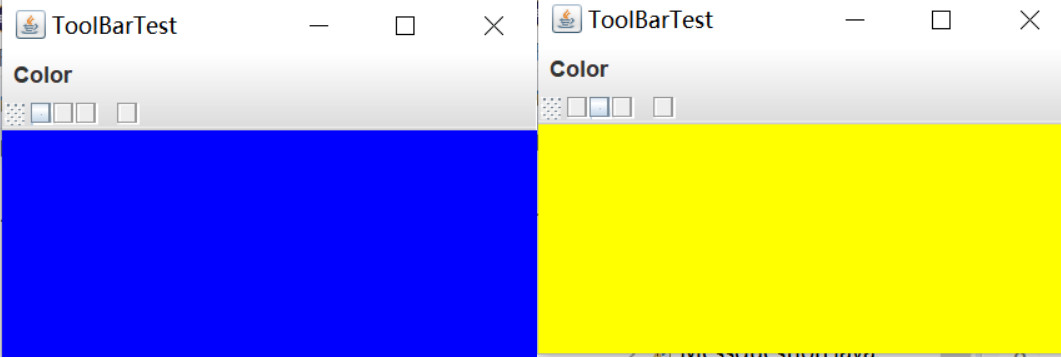
运行截图:
实验1:测试程序3(7分)
package optionDialog;

import java.awt.*;

import javax.swing.*;

/**

 * @version 1.35 2018-04-10

 * @author Cay Horstmann

 */

public class OptionDialogTest

{

   public static void main(String[] args)

   {

      EventQueue.invokeLater(() -> {

         var frame = new OptionDialogFrame();

         frame.setTitle("OptionDialogTest");

         frame.setDefaultCloseOperation(JFrame.EXIT_ON_CLOSE);

         frame.setVisible(true);

      });

   }

}
package optionDialog;

import javax.swing.*;

/**

 * A panel with radio buttons inside a titled border.

 */

public class ButtonPanel extends JPanel

{

   private ButtonGroup group;

   /**

    * Constructs a button panel.

    * @param title the title shown in the border

    * @param options an array of radio button labels

    */

   public ButtonPanel(String title, String... options)

   {

      setBorder(BorderFactory.createTitledBorder(BorderFactory.createEtchedBorder(), title));//设置边框即标题

      setLayout(new BoxLayout(this, BoxLayout.Y_AXIS));//垂直排列

      group = new ButtonGroup();

      // 为每一个选项创建一个单选钮

      for (String option : options)

      {

         var button = new JRadioButton(option);

         button.setActionCommand(option);

         add(button);

         group.add(button);

         button.setSelected(option == options[0]);//设置默认选择

      }

   }

   /**

    * Gets the currently selected option.

    * @return the label of the currently selected radio button.

    */

   public String getSelection()

   {

      return group.getSelection().getActionCommand();

   }

}

package optionDialog;

import java.awt.*;

import java.awt.event.*;

import java.awt.geom.*;

import java.util.*;

import javax.swing.*;

/**

 * A frame that contains settings for selecting various option dialogs.

 */

public class OptionDialogFrame extends JFrame

{

   private ButtonPanel typePanel;

   private ButtonPanel messagePanel;

   private ButtonPanel messageTypePanel;

   private ButtonPanel optionTypePanel;

   private ButtonPanel optionsPanel;

   private ButtonPanel inputPanel;

   private String messageString = "Message";

   private Icon messageIcon = new ImageIcon("blue-ball.gif");

   private Object messageObject = new Date();

   private Component messageComponent = new SampleComponent();

   public OptionDialogFrame()

   {

      var gridPanel = new JPanel();

      gridPanel.setLayout(new GridLayout(2, 3));

      typePanel = new ButtonPanel("Type", "Message", "Confirm", "Option", "Input");

      messageTypePanel = new ButtonPanel("Message Type", "ERROR_MESSAGE", "INFORMATION_MESSAGE",

            "WARNING_MESSAGE", "QUESTION_MESSAGE", "PLAIN_MESSAGE");

      messagePanel = new ButtonPanel("Message", "String", "Icon", "Component", "Other",

            "Object[]");

      optionTypePanel = new ButtonPanel("Confirm", "DEFAULT_OPTION", "YES_NO_OPTION",

            "YES_NO_CANCEL_OPTION", "OK_CANCEL_OPTION");

      optionsPanel = new ButtonPanel("Option", "String[]", "Icon[]", "Object[]");

      inputPanel = new ButtonPanel("Input", "Text field", "Combo box");

      gridPanel.add(typePanel);

      gridPanel.add(messageTypePanel);

      gridPanel.add(messagePanel);

      gridPanel.add(optionTypePanel);

      gridPanel.add(optionsPanel);

      gridPanel.add(inputPanel);

      // Show按钮的添加

      var showPanel = new JPanel();

      var showButton = new JButton("Show");

      showButton.addActionListener(new ShowAction());

      showPanel.add(showButton);

      add(gridPanel, BorderLayout.CENTER);

      add(showPanel, BorderLayout.SOUTH);

      pack();

   }

   /**

    *得到当前选择的信息

    * @return a string, icon, component, or object array, depending on the Message panel selection

    */

   public Object getMessage()

   {

      String s = messagePanel.getSelection();

      if (s.equals("String")) return messageString;

      else if (s.equals("Icon")) return messageIcon;

      else if (s.equals("Component")) return messageComponent;

      else if (s.equals("Object[]")) return new Object[] { messageString, messageIcon,

            messageComponent, messageObject };

      else if (s.equals("Other")) return messageObject;

      else return null;

   }

   /**

    * Gets the currently selected options.

    * @return an array of strings, icons, or objects, depending on the Option panel selection

    */

   public Object[] getOptions()

   {

      String s = optionsPanel.getSelection();

      if (s.equals("String[]")) return new String[] { "Yellow", "Blue", "Red" };

      else if (s.equals("Icon[]")) return new Icon[] { new ImageIcon("yellow-ball.gif"),

            new ImageIcon("blue-ball.gif"), new ImageIcon("red-ball.gif") };

      else if (s.equals("Object[]")) return new Object[] { messageString, messageIcon,

            messageComponent, messageObject };

      else return null;

   }

   /**

    * Gets the selected message or option type

    * @param panel the Message Type or Confirm panel

    * @return the selected XXX_MESSAGE or XXX_OPTION constant from the JOptionPane class

    */

   public int getType(ButtonPanel panel)

   {

      String s = panel.getSelection();

      try

      {

         return JOptionPane.class.getField(s).getInt(null);//JOptionPane.xxx来获得这个静态字段的值

      }

      catch (Exception e)

      {

         return -1;

      }

   }

   /**

    * The action listener for the Show button shows a Confirm, Input, Message, or Option dialog

    * depending on the Type panel selection.

    */

   private class ShowAction implements ActionListener

   {

      public void actionPerformed(ActionEvent event)

      {

         if (typePanel.getSelection().equals("Confirm")) JOptionPane.showConfirmDialog(

               OptionDialogFrame.this, getMessage(), "Title", getType(optionTypePanel),

               getType(messageTypePanel));

         else if (typePanel.getSelection().equals("Input"))

         {

            if (inputPanel.getSelection().equals("Text field")) JOptionPane.showInputDialog(

                  OptionDialogFrame.this, getMessage(), "Title", getType(messageTypePanel));

            else JOptionPane.showInputDialog(OptionDialogFrame.this, getMessage(), "Title",

                  getType(messageTypePanel), null, new String[] { "Yellow", "Blue", "Red" },

                  "Blue");

         }

         else if (typePanel.getSelection().equals("Message")) JOptionPane.showMessageDialog(

               OptionDialogFrame.this, getMessage(), "Title", getType(messageTypePanel));

         else if (typePanel.getSelection().equals("Option")) JOptionPane.showOptionDialog(

               OptionDialogFrame.this, getMessage(), "Title", getType(optionTypePanel),

               getType(messageTypePanel), null, getOptions(), getOptions()[0]);

      }

   }

}

/**

 * A component with a painted surface

 */

class SampleComponent extends JComponent

{

   public void paintComponent(Graphics g)

   {

      var g2 = (Graphics2D) g;

      var rect = new Rectangle2D.Double(0, 0, getWidth() - 1, getHeight() - 1);

      g2.setPaint(Color.YELLOW);

      g2.fill(rect);

      g2.setPaint(Color.BLUE);

      g2.draw(rect);

   }

   public Dimension getPreferredSize()

   {

      return new Dimension(10, 10);

   }

}
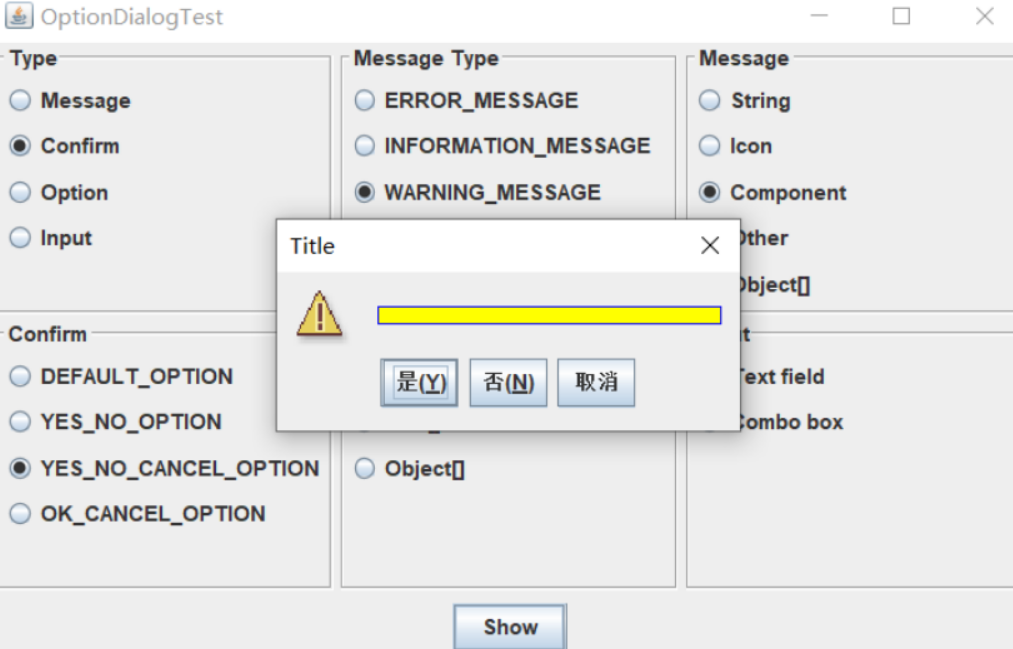
运行结果:

实验1:测试程序4(7分)
package dialog;

import java.awt.*;

import javax.swing.*;

/**

 * @version 1.35 2018-04-10

 * @author Cay Horstmann

 */

public class DialogTest

{

   public static void main(String[] args)

   {

      EventQueue.invokeLater(() -> {

          DialogFrame frame = new DialogFrame();

         frame.setTitle("DialogTest");

         frame.setDefaultCloseOperation(JFrame.EXIT_ON_CLOSE);

         frame.setVisible(true);

      });

   }

}
package dialog;

import java.awt.BorderLayout;

import javax.swing.JButton;

import javax.swing.JDialog;

import javax.swing.JFrame;

import javax.swing.JLabel;

import javax.swing.JPanel;

/**

 * A sample modal dialog that displays a message and waits for the user to click

 * the OK button.

 */

public class AboutDialog extends JDialog

{

   public AboutDialog(JFrame owner)

   {

      super(owner, "About DialogTest", true);//调用超类的构造器

      // add HTML label to center

      add(

         new JLabel(

            "<html><h1><i>Core Java</i></h1><hr>By Cay Horstmann</html>"),

         BorderLayout.CENTER);

      // OK button closes the dialog

      JButton ok = new JButton("OK");

      ok.addActionListener(event -> setVisible(false));//可见

      // add OK button to southern border

       JPanel panel = new JPanel();

      panel.add(ok);

      add(panel, BorderLayout.SOUTH);

      pack();

   }

}
package dialog;

import javax.swing.JFrame;

import javax.swing.JMenu;

import javax.swing.JMenuBar;

import javax.swing.JMenuItem;

/**

 * A frame with a menu whose File->About action shows a dialog.

 */

public class DialogFrame extends JFrame

{

   private static final int DEFAULT_WIDTH = 300;

   private static final int DEFAULT_HEIGHT = 200;

   private AboutDialog dialog;

   public DialogFrame()

   {

      setSize(DEFAULT_WIDTH, DEFAULT_HEIGHT);

      // construct a File menu

      JMenuBar menuBar = new JMenuBar();//菜单栏

      setJMenuBar(menuBar);

      JMenu fileMenu = new JMenu("File");

      menuBar.add(fileMenu);

      // add About and Exit menu items

      // the About item shows the About dialog

      JMenuItem aboutItem = new JMenuItem("About");

      aboutItem.addActionListener(event -> {

         if (dialog == null) // first time

            dialog = new AboutDialog(DialogFrame.this);

         dialog.setVisible(true); // pop up dialog

      });

      fileMenu.add(aboutItem);

      // the Exit item exits the program

      JMenuItem exitItem = new JMenuItem("Exit");

      exitItem.addActionListener(event -> System.exit(0));//退出

      fileMenu.add(exitItem);

   }

}
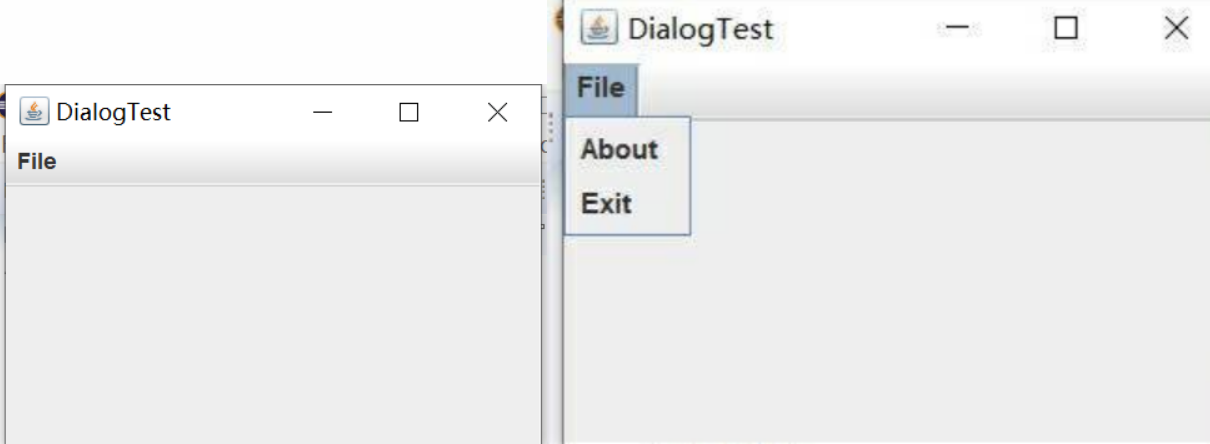
运行结果:
实验1:测试程序5(7分)
package dataExchange;

import java.awt.*;

import javax.swing.*;

/**

 * @version 1.35 2018-04-10

 * @author Cay Horstmann

 */

public class DataExchangeTest

{

   public static void main(String[] args)

   {

      EventQueue.invokeLater(() -> {

         var frame = new DataExchangeFrame();

         frame.setTitle("DataExchangeTest");

         frame.setDefaultCloseOperation(JFrame.EXIT_ON_CLOSE);

         frame.setVisible(true);

      });

   }

}
package dataExchange;

import java.awt.*;

import java.awt.event.*;

import javax.swing.*;

/**

 * A frame with a menu whose File->Connect action shows a password dialog.

 */

public class DataExchangeFrame extends JFrame

{

   public static final int TEXT_ROWS = 20;

   public static final int TEXT_COLUMNS = 40;

   private PasswordChooser dialog = null;

   private JTextArea textArea;

   public DataExchangeFrame()

   {

      // 创建File菜单

      var mbar = new JMenuBar();//菜单栏

      setJMenuBar(mbar);

      var fileMenu = new JMenu("File");//菜单

      mbar.add(fileMenu);

      //添加Connect、Exit菜单项

      var connectItem = new JMenuItem("Connect");//菜单项

      connectItem.addActionListener(new ConnectAction());

      fileMenu.add(connectItem);

      //关闭程序

      var exitItem = new JMenuItem("Exit");

      exitItem.addActionListener(event -> System.exit(0));

      fileMenu.add(exitItem);

      textArea = new JTextArea(TEXT_ROWS, TEXT_COLUMNS);//含滚动条的文本区

      add(new JScrollPane(textArea), BorderLayout.CENTER);

      pack();

   }

   /**

    * The Connect action pops up the password dialog.

    */

   private class ConnectAction implements ActionListener

   {

      public void actionPerformed(ActionEvent event)

      {

         //第一次,创建对话框

         if (dialog == null) dialog = new PasswordChooser();

         //设置默认值

         dialog.setUser(new User("yourname", null));

         //弹出对话框

         if (dialog.showDialog(DataExchangeFrame.this, "Connect"))

         {

            // 重新得到用户输入

            User u = dialog.getUser();

            textArea.append("user name = " + u.getName() + ", password = "

               + (new String(u.getPassword())) + "\n");

         }

      }

   }

}
package dataExchange;

import java.awt.BorderLayout;

import java.awt.Component;

import java.awt.Frame;

import java.awt.GridLayout;

import javax.swing.JButton;

import javax.swing.JDialog;

import javax.swing.JLabel;

import javax.swing.JPanel;

import javax.swing.JPasswordField;

import javax.swing.JTextField;

import javax.swing.SwingUtilities;

/**

 * A password chooser that is shown inside a dialog.

 */

public class PasswordChooser extends JPanel

{

   private JTextField username;

   private JPasswordField password;

   private JButton okButton;

   private boolean ok;

   private JDialog dialog;

   public PasswordChooser()

   {

      setLayout(new BorderLayout());

      //创建还有user name与password域的面板

      var panel = new JPanel();

      panel.setLayout(new GridLayout(2, 2));

      panel.add(new JLabel("User name:"));

      panel.add(username = new JTextField(""));

      panel.add(new JLabel("Password:"));

      panel.add(password = new JPasswordField(""));

      add(panel, BorderLayout.CENTER);

      // create Ok and Cancel buttons that terminate the dialog

      okButton = new JButton("Ok");

      okButton.addActionListener(event -> {

         ok = true;

         dialog.setVisible(false);//点击OK按钮后关闭对话框

      });

      var cancelButton = new JButton("Cancel");

      cancelButton.addActionListener(event -> dialog.setVisible(false));

      //添加按钮

      var buttonPanel = new JPanel();

      buttonPanel.add(okButton);

      buttonPanel.add(cancelButton);

      add(buttonPanel, BorderLayout.SOUTH);

   }

   /**

    * Sets the dialog defaults.

    * @param u the default user information

    */

   public void setUser(User u)//放置默认值

   {

      username.setText(u.getName());

   }

   /**

    * Gets the dialog entries.

    * @return a User object whose state represents the dialog entries

    */

   public User getUser()

   {

      return new User(username.getText(), password.getPassword());

   }

   /**

    * Show the chooser panel in a dialog.

    * @param parent a component in the owner frame or null

    * @param title the dialog window title

    */

   public boolean showDialog(Component parent, String title)

   {

      ok = false;

      //拥有者框架

      Frame owner = null;

      if (parent instanceof Frame)

         owner = (Frame) parent;

      else

         owner = (Frame) SwingUtilities.getAncestorOfClass(Frame.class, parent);//返回给定组件的最先的父容器

      //第一次或改变拥有者,则创建新的对话框

      if (dialog == null || dialog.getOwner() != owner)

      {

         dialog = new JDialog(owner, true);

         dialog.add(this);

         dialog.getRootPane().setDefaultButton(okButton);//设置默认按钮

         dialog.pack();

      }

      //设置标题并展示对话框

      dialog.setTitle(title);

      dialog.setVisible(true);

      return ok;

   }

}
package dataExchange;

/**

 * A user has a name and password. For security reasons, the password is stored as a char[], not a

 * String.

 */

public class User

{

   private String name;

   private char[] password;

   public User(String aName, char[] aPassword)

   {

      name = aName;

      password = aPassword;

   }

   public String getName()

   {

      return name;

   }

   public char[] getPassword()

   {

      return password;

   }

   public void setName(String aName)

   {

      name = aName;

   }

   public void setPassword(char[] aPassword)

   {

      password = aPassword;

   }

}
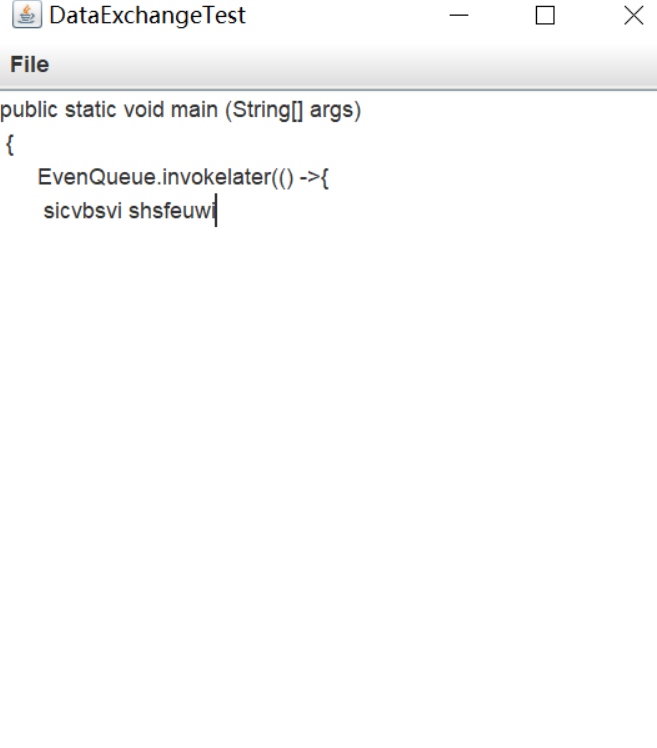
运行结果:
实验1:测试程序6(7分)
package fileChooser;

import java.awt.*;

import javax.swing.*;

/**

 * @version 1.26 2018-04-10

 * @author Cay Horstmann

 */

public class FileChooserTest

{

   public static void main(String[] args)

   {

      EventQueue.invokeLater(() -> {

         var frame = new ImageViewerFrame();

         frame.setTitle("FileChooserTest");

         frame.setDefaultCloseOperation(JFrame.EXIT_ON_CLOSE);

         frame.setVisible(true);

      });

   }

}
package fileChooser;

import java.io.*;

import javax.swing.*;

import javax.swing.filechooser.*;

import javax.swing.filechooser.FileFilter;

/**

 * A frame that has a menu for loading an image and a display area for the

 * loaded image.

 */

public class ImageViewerFrame extends JFrame

{

   private static final int DEFAULT_WIDTH = 300;

   private static final int DEFAULT_HEIGHT = 400;

   private JLabel label;

   private JFileChooser chooser;

   public ImageViewerFrame()

   {

      setSize(DEFAULT_WIDTH, DEFAULT_HEIGHT);

      // set up menu bar

      var menuBar = new JMenuBar();//菜单栏

      setJMenuBar(menuBar);

      var menu = new JMenu("File");//菜单

      menuBar.add(menu);

      var openItem = new JMenuItem("Open");

      menu.add(openItem);

      openItem.addActionListener(event -> {

         chooser.setCurrentDirectory(new File("."));//设置当前目录

         //文件选择对话框

            int result = chooser.showOpenDialog(ImageViewerFrame.this);

            // 图像文件接受,把它作为标签的图标

            if (result == JFileChooser.APPROVE_OPTION)

            {

               String name = chooser.getSelectedFile().getPath();//获取用户选择的一个文件路径

               label.setIcon(new ImageIcon(name));

               pack();

            }

         });

      var exitItem = new JMenuItem("Exit");

      menu.add(exitItem);

      exitItem.addActionListener(event -> System.exit(0));

      //使用标签显示图像

      label = new JLabel();

      add(label);

      // 创建文件选择器

      chooser = new JFileChooser();

      //接受所有以.jpg, .jpeg, .gif格式的图片文件

      var filter = new FileNameExtensionFilter(

            "Image files", "jpg", "jpeg", "gif");

      chooser.setFileFilter(filter);//文件对话框的文件过滤器

      chooser.setAccessory(new ImagePreviewer(chooser));//设置附件组件

      chooser.setFileView(new FileIconView(filter, new ImageIcon("palette.gif")));//设置文件视图来提供文件过滤器显示信息

   }

}
package fileChooser;

import java.awt.*;

import java.io.*;

import javax.swing.*;

/**

 * A file chooser accessory that previews images.

 */

public class ImagePreviewer extends JLabel

{

   /**

    * Constructs an ImagePreviewer.

    * @param chooser the file chooser whose property changes trigger an image

    *        change in this previewer

    */

   public ImagePreviewer(JFileChooser chooser)

   {

      setPreferredSize(new Dimension(100, 100));

      setBorder(BorderFactory.createEtchedBorder());//3D效果的直线边框

      chooser.addPropertyChangeListener(event -> {

         if (event.getPropertyName() == JFileChooser.SELECTED_FILE_CHANGED_PROPERTY)

         {

            //用户选定新的文件

            File f = (File) event.getNewValue();

            if (f == null)

            {

               setIcon(null);

               return;

            }

            //将图像设置未图标

            var icon = new ImageIcon(f.getPath());

            //图标过大或过小,缩放

            if (icon.getIconWidth() > getWidth())

               icon = new ImageIcon(icon.getImage().getScaledInstance(

                     getWidth(), -1, Image.SCALE_DEFAULT));

            setIcon(icon);//设置图标

         }

      });

   }

}
package fileChooser;

import java.io.*;

import javax.swing.*;

import javax.swing.filechooser.*;

import javax.swing.filechooser.FileFilter;

/**

 * A file view that displays an icon for all files that match a file filter.

 */

public class FileIconView extends FileView

{

   private FileFilter filter;

   private Icon icon;

   /**

    * Constructs a FileIconView.

    * @param aFilter a file filter--all files that this filter accepts will be shown

    * with the icon.

    * @param anIcon--the icon shown with all accepted files.

    */

   public FileIconView(FileFilter aFilter, Icon anIcon)

   {

      filter = aFilter;

      icon = anIcon;

   }

   public Icon getIcon(File f)

   {

      if (!f.isDirectory() && filter.accept(f)) return icon;

      else return null;

   }

}
运行截图:
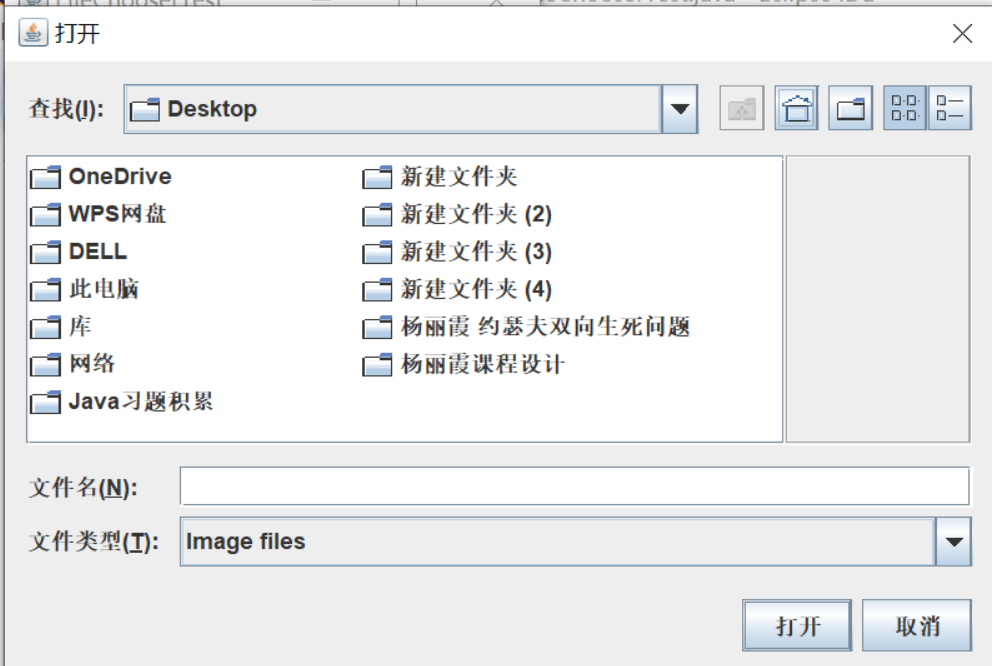
实验1:测试程序7(7分)
package colorChooser;

import java.awt.*;

import javax.swing.*;

/**

 * @version 1.04 2015-06-12

 * @author Cay Horstmann

 */

public class ColorChooserTest

{

   public static void main(String[] args)

   {

      EventQueue.invokeLater(() -> {

         JFrame frame = new ColorChooserFrame();

         frame.setTitle("ColorChooserTest");

         frame.setDefaultCloseOperation(JFrame.EXIT_ON_CLOSE);

         frame.setVisible(true);

      });

   }

}
package colorChooser;

import javax.swing.*;

/**

 * A frame with a color chooser panel

 */

public class ColorChooserFrame extends JFrame

{

   private static final int DEFAULT_WIDTH = 300;

   private static final int DEFAULT_HEIGHT = 200;

   public ColorChooserFrame()

   {

      setSize(DEFAULT_WIDTH, DEFAULT_HEIGHT);

      // add color chooser panel to frame

      ColorChooserPanel panel = new ColorChooserPanel();//初始颜色为白色的颜色选择器

      add(panel);

   }

}
package colorChooser;

import java.awt.Color;

import java.awt.Frame;

import java.awt.event.ActionEvent;

import java.awt.event.ActionListener;

import javax.swing.JButton;

import javax.swing.JColorChooser;

import javax.swing.JDialog;

import javax.swing.JPanel;

/**

 * A panel with buttons to pop up three types of color choosers

 */

public class ColorChooserPanel extends JPanel

{

   public ColorChooserPanel()

   {

      JButton modalButton = new JButton("Modal");

      modalButton.addActionListener(new ModalListener());

      add(modalButton);

      JButton modelessButton = new JButton("Modeless");

      modelessButton.addActionListener(new ModelessListener());

      add(modelessButton);

      JButton immediateButton = new JButton("Immediate");

      immediateButton.addActionListener(new ImmediateListener());

      add(immediateButton);

   }

   /**

    *弹出模式颜色选择器

    */

   private class ModalListener implements ActionListener

   {

      public void actionPerformed(ActionEvent event)

      {

         Color defaultColor = getBackground();

         Color selected = JColorChooser.showDialog(ColorChooserPanel.this, "Set background",

               defaultColor);

         if (selected != null) setBackground(selected);//将当前选中的颜色,点击OK按钮,设置为背景颜色

      }

   }

   /**

    * 弹出无模式颜色选择器,点击OK,对话框的背景颜色就会被设置为所选择的颜色

    */

   private class ModelessListener implements ActionListener

   {

      private JDialog dialog;

      private JColorChooser chooser;

      public ModelessListener()

      {

         chooser = new JColorChooser();//颜色选择器

         dialog = JColorChooser.createDialog(ColorChooserPanel.this, "Background Color",

               false /* not modal */, chooser,

               event -> setBackground(chooser.getColor()),

               null /* no Cancel button listener */);

      }//点击OK,对话框的背景颜色就会被设置为所选择的颜色

      public void actionPerformed(ActionEvent event)

      {

         chooser.setColor(getBackground());

         dialog.setVisible(true);

      }

   }

   /**

    * 弹出无模式颜色选择器,当用户选择一种新的颜色,立即改变背景颜色

    */

   private class ImmediateListener implements ActionListener

   {

      private JDialog dialog;

      private JColorChooser chooser;

      public ImmediateListener()

      {

         chooser = new JColorChooser();

         chooser.getSelectionModel().addChangeListener(

               event -> setBackground(chooser.getColor()));//监视颜色选择,立即反馈给用户

         dialog = new JDialog((Frame) null, false /* not modal */);//无模式对话框

         dialog.add(chooser);

         dialog.pack();

      }

      public void actionPerformed(ActionEvent event)

      {

         chooser.setColor(getBackground());

         dialog.setVisible(true);

      }

   }

}
运行结果:
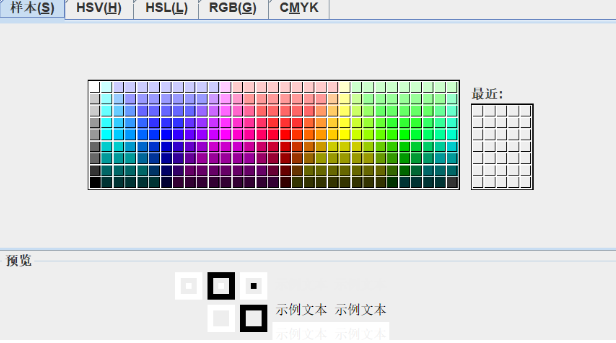
实验2:结对编程练习包含以下4部分:(该项作业16周实验课现场检查,并单独评分)
1) 程序设计思路简述;
2) 符合编程规范的程序代码;
3) 程序运行功能界面截图;
实验总结:(16分)
在本周的实验中,通过阅读完整的代码,我逐渐了解了菜单的完整使用过程及方法,对菜单有了更深的理解。在老师讲解知识后,要把不明白的程序要弄清楚,多多理解几次。本次的结对编程让我体会到结对编程的好处,两个人同时去这同一个程序,可以通过讨论,相互提出问题,解决问题,可达到事半功倍的效果。也是对编程能力的一种提升。这次结对编程内容同时也是对这次新知识的一种应用,实现了对新知识的巩固,利用。以后要多通过自己实践,去应用理论知识。
201871010118-唐敬博 《面向对象程序设计(java)》第十五周学习总结的更多相关文章
- 201571030332 扎西平措 《面向对象程序设计Java》第八周学习总结
<面向对象程序设计Java>第八周学习总结 项目 内容 这个作业属于哪个课程 https://www.cnblogs.com/nwnu-daizh/ 这个作业的要求在哪里 https: ...
- 201771010118马昕璐《面向对象程序设计java》第八周学习总结
第一部分:理论知识学习部分 1.接口 在Java程序设计语言中,接口不是类,而是对类的一组需求描述,由常量和一组抽象方法组成.Java为了克服单继承的缺点,Java使用了接口,一个类可以实现一个或多个 ...
- 201771010134杨其菊《面向对象程序设计java》第八周学习总结
第八周学习总结 第一部分:理论知识 一.接口.lambda和内部类: Comparator与comparable接口: 1.comparable接口的方法是compareTo,只有一个参数:comp ...
- 201771010134杨其菊《面向对象程序设计java》第七周学习总结
第七周学习总结 第一部分:理论知识 1.继承是面向对象程序设计(Object Oriented Programming-OOP)中软件重用的关键技术.继承机制使用已经定义的类作为基础建立新的类定义,新 ...
- 201871010126 王亚涛《面向对象程序设计 JAVA》 第十三周学习总结
内容 这个作业属于哪个课程 https://www.cnblogs.com/nwnu-daizh/ 这个作业的要求在哪里 https://www.cnblogs.com/nwnu-daizh/p/ ...
- 马凯军201771010116《面向对象程序设计Java》第八周学习总结
一,理论知识学习部分 6.1.1 接口概念 两种含义:一,Java接口,Java语言中存在的结构,有特定的语法和结构:二,一个类所具有的方法的特征集合,是一种逻辑上的抽象.前者叫做“Java接口”,后 ...
- 周强201771010141《面向对象程序设计Java》第八周学习总结
一.理论知识学习部分 Java为了克服单继承的缺点,Java使用了接口,一个类可以实现一个或多个接口. 接口体中包含常量定义和方法定义,接口中只进行方法的声明,不提供方法的实现. 类似建立类的继承关系 ...
- 201777010217-金云馨《面向对象程序设计Java》第八周学习总结
项目 内容 这个作业属于哪个课程 https://www.cnblogs.com/nwnu-daizh/ 这个作业的要求在哪里 https://www.cnblogs.com/nwnu-daizh/p ...
- 201871010126 王亚涛 《面向对象程序设计 (Java)》第十七周学习总结
内容 这个作业属于哪个课程 https://www.cnblogs.com/nwnu-daizh/ 这个作业的要求在哪里 https://www.cnblogs.com/nwnu-daizh/p/12 ...
- 20155322 2016-2017-2 《Java面向对象程序设计》第十二周课堂练习之Arrays和String单元测试
20155322 2016-2017-2 <Java面向对象程序设计>第十二周课堂练习之Arrays和String单元测试 练习目地 在IDEA中以TDD的方式对String类和Array ...
随机推荐
- ora-01489 字符串连接的结果过长 解决方案
如下代码,使用listagg进行分组拼接时,常常会报 ora-01489 错误,造成该报错的主要原因是:oracle对字符变量的长度限制,正常情况下,oracle定义的varchar2类型变量的长度不 ...
- 浅谈DFS序
浅谈DFS序 本篇随笔简要讲解一下信息学奥林匹克竞赛中有关树的DFS序的相关内容. DFS序的概念 先来上张图: 树的DFS序,简单来讲就是对树从根开始进行深搜,按搜到的时间顺序把所有节点打上时间戳. ...
- luoguP5227 [AHOI2013]连通图
题意 虽然没用线段树,但是仍然是线段树分治的思想. 考虑分治询问序列,假设当前在\([l,r]\),我们将\([1,l-1]\)和\([r+1,Q]\)的与\([l,r]\)内不重复的边都连上了. 先 ...
- 开发者必备Linux命令
开发者必备Linux常用命令,掌握这些命令绝对够了,基于CenterOS7.6. 系统服务管理 systemctl 输出系统中各个服务的状态: systemctl list-units --type= ...
- Paper | Compression artifacts reduction by a deep convolutional network
目录 1. 故事 2. 方法 3. 实验 这是继SRCNN(超分辨)之后,作者将CNN的战火又烧到了去压缩失真上.我们看看这篇文章有什么至今仍有启发的故事. 贡献: ARCNN. 讨论了low-lev ...
- vs中 Stack around the variable 'XXX' was corrupted.
https://blog.csdn.net/hou09tian/article/details/75042206 把 project->配置属性->c/c++->代码生成->基 ...
- 匿名函数和for_each用法
匿名函数,C++11的 for_each 用法 #include <iostream> #include <algorithm> #include "testClas ...
- 使用 jQuery.TypeAhead 让文本框自动完成 (一)(最简单的用法)
项目地址:https://github.com/twitter/typeahead.js 直接贴代码了: @section headSection { <script type="te ...
- axios和fetch区别对比
axios axios({ method: 'post', url: '/user/12345', data: { firstName: 'Fred', lastName: 'Flintstone' ...
- python 统计使用技巧
python 统计使用技巧 # 1.不输入回车获取值 注:需要tty模块配合. fd = sys.stdin.fileno() old_settings = termios.tcgetattr(fd) ...