
微信小程序商品详情 + 评论功能实现
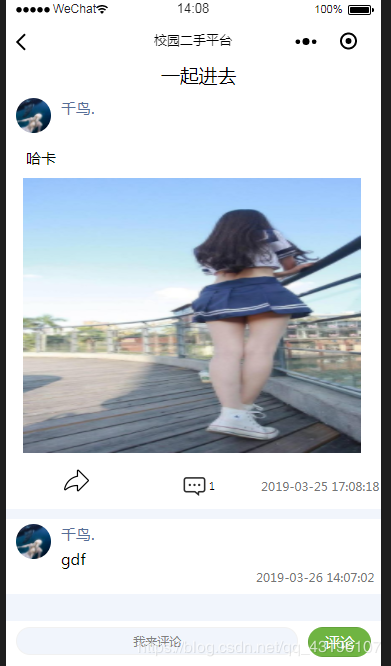
这是一个商品展示并能进行评论和答复的功能页面,
遇到的问题有:
- 分享功能没有办法将json数据写在地址中,只能传id来进行获取
- 这里必须新加一个状态用来判断是否显示x回复@x,因为我以前的判断这个依据是如果回复的人是楼主则不显示,后来发现如果楼主回复了你,你再想回复楼主的话就无法显示x回复@x,所以这里要加一个参数,所有回复的都是false,评论都是true,加上这个条件就能判断出你是单纯的评论还是回复了
<!--pages/wantDetail/wantDetail.wxml-->
<view class='qiu' bindtouchstart="touchstar">
  <view class='qiu_titleAndUser'>
    <text class='title'>{{title}}</text>
    <view class='user'>
      <image class='userImg' src='{{userImg}}'></image>
      <text class='userName' style='position: absolute; margin-left:20rpx;'>{{userName}}</text>
    </view>
    <view class='text_detail'>{{content}}</view>
    <image wx:if="{{imgUrl !==''}}" class='img' src='https://qhds.drefore.cn{{imgUrl}}'></image>
    <view class='three_but'>
      <view class='three_view'>
        <button class='share' open-type='share'>
          <image class='countImg' src="../../resources/images/share.png" />
        </button>
      </view>
      <view class='three_view'>
        <image bindtap='addWantImg' class='countImg' src='../../resources/images/anscount.png'></image>
        <text class='count'>{{count}}</text>
      </view>
      <view class='three_view'>
        <text class='time'>{{time}}</text>
      </view>
    </view>
  </view>
</view>
<view class='reply'>
  <view class='replyUser' wx:for="{{wantReplay}}" wx:key="{{index}}" bindtouchstart="touchstar">
    <block wx:if="{{item.replyName === userName && item.state === true}}">
      <image class='userImg' src='{{item.userImg}}'></image>
      <text class='userName' style='position: absolute; margin-left:20rpx;'>{{item.userName}}</text>
      <view class='reply_content' data-replyuserid='{{item.userID}}' data-replyname='{{item.userName}}' bindtap='getReplyUserID'>{{item.content}}</view>
      <view class='reply_time'>{{item.time}}</view>
    </block>
    <block wx:else>
      <image class='userImg' src='{{item.userImg}}'></image>
      <view class='huifu'>
        <text class='userName'>{{item.userName}}</text>
        <text class='huifu_text'>回复@</text>
        <text class='userName'>{{item.replyName}}</text>
      </view>
      <view class='reply_content' data-replyuserid='{{item.userID}}' data-replyname='{{item.userName}}' bindtap='getReplyUserID'>{{item.content}}</view>
      <view class='reply_time'>{{item.time}}</view>
    </block>
  </view>
</view>
<view class='ask'>
  <block wx:if="{{check}}">
    <input class='input' type='text' placeholder='我来评论' bindinput='contentInp' value='{{contentInp}}' focus='{{focus}}'></input>
    <button class='button' bindtap='addWant'>评论</button>
  </block>
  <block wx:else>
    <input class='input' type='text' placeholder='回复@{{replyName}}' bindinput='replyInp' value='{{replyInp}}' focus='{{focus}}'></input>
    <button class='button' bindtap='addWant'>评论</button>
  </block>
</view>
WXML
// pages/wantDetail/wantDetail.js
var app = getApp();
Page({

  /**
   * 页面的初始数据
   * user开头的数据都是楼主的
   */
  data: {
    wantID: 0,
    userID: 0, //userID
    replyUserID: 0, //回复哪个人的userID 默认等于楼主id
    replyName: "",
    count: 0,
    content: "",
    imgUrl: "",
    time: "",
    title: "",
    userName: "",
    userImg: "",
    limit: 5,
    wantReplay: [],
    contentInp: "",
    replyInp: "",
    focus: false,
    check: true, //默认显示我来评论input
  },

  /**
   * 生命周期函数--监听页面加载
   */
  onLoad: function(options) {
    this.setData({
      wantID: options.id
    })
    this.getWantDetail();
  },

  getWantDetail() {
    let params = {
      wantID: this.data.wantID,
      offset: 0,
      limit: this.data.limit
    }
    app.getWantDetail(params).then(res => {
      let wantDetail = [];
      for (var i = 0; i < res.data.wantDetail.length; i++) {
        if (res.data.wantDetail[i].pid === 0) {
          wantDetail = res.data.wantDetail[i]
          res.data.wantDetail.splice(i, 1)
        }
      }
      this.setData({
        wantReplay: res.data.wantDetail,
        count: wantDetail.count,
        content: wantDetail.content,
        imgUrl: wantDetail.imgUrl,
        time: wantDetail.time,
        title: wantDetail.title,
        userName: wantDetail.userName,
        userImg: wantDetail.userImg,
        userID: wantDetail.userID,
        replyUserID: wantDetail.userID,
      })
    })
  },

  onReachBottom: function() {
    this.data.limit = this.data.limit + 4
    this.getWantDetail();
  },
  //触摸事件切换到回复楼主
  touchstar: function() {
    this.setData({
      check: true,
      focus: false,
      contentInp: "",
      replyInp: "",
    })
  },
  /**评论输入框 */
  contentInp(e) {
    this.setData({
      contentInp: e.detail.value
    })
  },
  /**答复输入框 */
  replyInp(e) {
    this.setData({
      replyInp: e.detail.value
    })
  },

  /**消息图片点击 */
  addWantImg() {
    this.setData({
      focus: true,
    })
  },
  addWant() {
    if (this.data.contentInp.length > 100) {
      wx.showToast({
        title: '请将字数控制在100字以内哦',
        icon: "none",
        duration: 1000,
        mask: true,
      })
    } else {
      if (this.data.replyUserID === this.data.userID && this.data.check === true) {
        this.addComment();
      } else {
        this.addReply();
      }
    }
  },

  /**发表评论 */
  addComment() {
    let params = {
      pID: this.data.wantID,
      userID: app.globalData.userID,
      content: this.data.contentInp,
      replyUserID: this.data.userID,
      type: 1,
      state: true
    }
    app.addReply(params).then(res => {
      if (res.state === 1) {
        this.setData({
          contentInp: ""
        })
        wx.showToast({
          title: '评论成功',
          icon: "none",
          duration: 1000,
          mask: true,
        })
        this.getWantDetail();
      }
    })
  },
  /**点击评论获取要回复的人的id */
  getReplyUserID(e) {
    let replyID = e.currentTarget.dataset.replyuserid;
    if (replyID === app.globalData.userID) {
      wx.showToast({
        title: '请不要回复自己哦',
        icon: "none",
        duration: 1000,
        mask: true,
      })
    } else {
      this.setData({
        replyUserID: replyID,
        replyName: e.currentTarget.dataset.replyname,
        focus: true,
        check: false
      })
    }
  },
  /**回复 */
  addReply() {
    let params = {
      pID: this.data.wantID,
      userID: app.globalData.userID,
      content: this.data.replyInp,
      replyUserID: this.data.replyUserID,
      type: 1,
      state: false
    }
    app.addReply(params).then(res => {
      if (res.state === 1) {
        this.setData({
          replyInp: "",
          check: true
        })
        wx.showToast({
          title: '评论成功',
          icon: "none",
          duration: 1000,
          mask: true,
        })
        this.getWantDetail();
      }
    })
  },
  /**
   * 用户点击右上角分享
   */
  onShareAppMessage: function(ops) {
    wx.showShareMenu({
      withShareTicket: true
    })
    return {
      title: 'xxxx',
      path: 'pages/wantDetail/wantDetail?id=' + this.data.wantID,
      imageUrl: "https://qhds.drefore.cn" + this.data.imgUrl,
      success: function(res) {
        console.log("success" + res)
      },
      fail: function(res) {
        console.log("fail" + res)
      }
    }
  },
})
JS
/* pages/wantDetail/wantDetail.wxss */

page {
  background-color: #f1f5fc;
}

.qiu {
  width: 100%;
  background-color: white;
}

.qiu_titleAndUser {
  margin-left: 20rpx;
}

.title {
  display: flex;
  justify-content: center;
  align-items: center;
}

.user {
  width: 100%;
  margin-top: 20rpx;
  margin-bottom: 20rpx;
}

.userImg {
  width: 70rpx;
  height: 70rpx;
  border-radius: 50%;
}

.userName {
  font-size: 30rpx;
  color: #566f98;
}

.text_detail {
  font-size: 30rpx;
  margin-left: 20rpx;
  margin-bottom: 20rpx;
}

.img {
  width: 90%;
  height: 500rpx;
  margin: 20rpx 20rpx;
}

.countImg {
  width: 50rpx;
  height: 50rpx;
}

.count {
  font-size: 20rpx;
  margin-left: 5rpx;
}

.time {
  font-size: 25rpx;
  color: #757575;
  margin-left: 410rpx;
}

.reply {
  width: 100%;
  background-color: white;
  margin-top: 20rpx;
  margin-bottom: 100rpx;
}

.replyUser {
  padding-top: 10rpx;
  margin-left: 20rpx;
  margin-bottom: 20rpx;
  width: 100%;
}

.reply_content {
  width: 80%;
  font-size: 30rpx;
  margin-left: 90rpx;
  margin-top: -30rpx;
}

.reply_time {
  width: 260rpx;
  height: 50rpx;
  font-size: 25rpx;
  color: #757575;
  margin-left: 480rpx;
}

.huifu {
  position: absolute;
  margin-left: 90rpx;
  margin-top: -90rpx;
}

.huifu_text {
  font-size: 30rpx;
  margin-left: 5rpx;
  margin-right: 5rpx;
}

.ask {
  position: fixed;
  bottom:;
  width: 100%;
  height: 90rpx;
  background-color: white;
  display: flex;
  flex-direction: row;
}

.input {
  width: 600rpx;
  border: 1rpx solid #f1f1f1;
  margin: 12rpx 0rpx 12rpx 20rpx;
  border-radius: 30rpx;
  background: #f1f5fc;
  font-size: 25rpx;
  text-align: center;
}

.button {
  background: #6fb442;
  color: white;
  border-radius: 30rpx;
  font-size: 30rpx;
  width: 130rpx;
  height: 60rpx;
  display: flex;
  align-items: center;
  justify-content: center;
  margin: 12rpx 20rpx;
}
CSS
微信小程序商品详情 + 评论功能实现的更多相关文章
- 微信小程序仿朋友圈功能开发(发布、点赞、评论等功能)
微信小程序仿朋友圈功能开发(发布.点赞.评论等功能) 1.项目分析 项目整体分为三个部分 发布 展示 详情页 graph LR 朋友圈发布 --内容发布--> 内容展示 内容展示 --点击展示卡 ...
- 微信小程序产品定位及功能介绍
产品定位及功能介绍 微信小程序是一种全新的连接用户与服务的方式,它可以在微信内被便捷地获取和传播,同时具有出色的使用体验. 小程序注册 注册小程序帐号 在微信公众平台官网首页(mp.weixin.qq ...
- (三)微信小程序首页的分类功能和搜索功能的实现笔记
就在昨天,微信宣布了微信小程序开发者工具新增“云开发”功能 下载最新的开发者工具,现在无需服务器即可实现小程序的快速迭代! 分类功能和搜索功能的效果图 1.首页分类功能的实现 boxtwo方法(.js ...
- 微信小程序开发平台新功能「云开发」快速上手体验
微信小程序开发平台刚刚开放了一个全新的功能:云开发. 简单地说就是将开发人员搭建微信小程序后端的成本再次降低,此文刚好在此产品公测时,来快速上手看看都有哪些方便开发者的功能更新. 微信小程序一直保持一 ...
- 让你的微信小程序具有在线支付功能
前言 最近需要在微信小程序中用到在线支付功能,于是看了一下官方的文档,发现要在小程序里实现微信支付还是很方便的,如果你以前开发过服务号下的微信支付,那么你会发现其实小程序里的微信支付和服务号里的开发过 ...
- 微信小程序注册60s倒计时功能 使用JS实现注册60s倒计时功能
微信小程序+WEB使用JS实现注册[60s]倒计时功能开发步骤: 1.wxml页面代码: <text>绑定手机</text> <form bindsubmit=" ...
- 微信小程序又一爆炸功能上线-云开发
云开发介绍 开发者可以使用云开发开发微信小程序.小游戏,无需搭建服务器,即可使用云端能力. 云开发为开发者提供完整的云端支持,弱化后端和运维概念,无需搭建服务器,使用平台提供的 API 进行核心业务开 ...
- 微信小程序中悬浮窗功能的实现(主要探讨和解决在原生组件上的拖动)
问题场景 所谓悬浮窗就是图中微信图标的按钮,采用fixed定位,可拖动和点击. 这算是一个比较常见的实现场景了. 为什么要用cover-view做悬浮窗?原生组件出来背锅了~ 最初我做悬浮窗用的不是c ...
- 【微信小程序】:评论、回复和删除功能 -- 2017/7/14
1.理论核心:传参->pid,评论父id需要在wxml页面传递:小程序端和WEB端不同核心:前者操纵数据,后者操纵DOM元素对象 2.不废话,直接代码:wxml <view class=& ...
随机推荐
- linux more-显示文件内容,每次显示一屏
博主推荐:获取更多 linux文件内容查看命令 收藏:linux命令大全 more命令是一个基于vi编辑器文本过滤器,它以全屏幕的方式按页显示文本文件的内容,支持vi中的关键字定位操作.more名单中 ...
- buf.readInt16BE()
buf.readInt16BE(offset[, noAssert]) buf.readInt16LE(offset[, noAssert]) offset {Number} 0 noAssert { ...
- python爬虫29 | 使用scrapy爬取糗事百科的例子,告诉你它有多厉害!
是时候给你说说 爬虫框架了 使用框架来爬取数据 会节省我们更多时间 很快就能抓取到我们想要抓取的内容 框架集合了许多操作 比如请求,数据解析,存储等等 都可以由框架完成 有些小伙伴就要问了 你他妈的 ...
- Python之两个值对换
- 【Python实践-8】和为S的两个数字
(剑指offer)输入一个递增排序的数组和一个数字S,在数组中查找两个数,使得他们的和正好是S,如果有多对数字的和等于S,输出两个数的乘积最小的. 思路:选定第一个数字,然后遍历后面的数字求和并与S比 ...
- PAT 1137 Final Grading
For a student taking the online course "Data Structures" on China University MOOC (http:// ...
- 魔法猪学院(codevs 1835)
题目描述 Description iPig在假期来到了传说中的魔法猪学院,开始为期两个月的魔法猪训练.经过了一周理论知识和一周基本魔法的学习之后,iPig对猪世界的世界本原有了很多的了解:众所周知,世 ...
- 使用AtomicInteger原子类代替i++线程安全操作
Java中自增自减操作不具原子性,在多线程环境下是线程不安全的,可以使用使用AtomicInteger原子类代替i++,i--操作完成多线程线程安全操作. 下面是等于i++多线程的自增操作代码: pu ...
- springboot整合dubbo的简单案例
使用框架: jdk 1.8 springboot-2.1.3 dubbo-2.6 spring-data-jpa-2.1.5 一.开发dubbo服务接口: 按照Dubbo官方开发建议,创建一个接口项目 ...
- Mybatis在Spring环境下的启动顺序
主要看三个类: mybatis-spring-1.2.2.jar包 -> org.mybatis.spring.SqlSessionFactoryBean mybatis-3.2.6.jar包 ...