
升级Https前的可行性验证(一)
升级Https之前的可行性验证
注意:自签证书和Nginx的安装都基于ContOS 6
一、如何申请OpenSSL自签证书
1、安装OpenSSL
(一)OpenSSL 工具下载
(二)OpenSSL 安装
查看服务器是否安装有OpenSSL
openssl version -a- 1
将下载的OpenSSL源码上传至Linux服务器
可以使用Xshell的Xftp工具。
解压上传的.tar.gz压缩包
tar -zxvf openssl-1.1.1-pre8.tar.gz- 1
安装gcc编译器,如果已经安装请略过
#如果系统安装了gcc编译器,如下图所示的gcc version gcc -v #安装gcc yum install gcc-c++- 1
- 2
- 3
- 4
- 5
- 6
- 7
- 8
- 9

安装zlib库,如果已经安装请略过
#检查是否安装zlib,如果安装如下图所示 whereis zlib #获取zlib源码包 wget http://zlib.net/zlib-1.2.11.tar.gz #切换到zlib源码包中 cd zlib-1.2.11 #安装zlib ./configure && make && make install- 1
- 2
- 3
- 4
- 5
- 6
- 7
- 8
- 9
- 10
- 11
- 12
- 13
- 14
- 15
- 16
- 17
- 18
- 19

安装OpenSSL工具
#首先进入OpenSSL工具解压之后的目录 cd openssl-1.1.1-pre8 #--prefix=指定的安装路径 ./config shared zlib --prefix=/usr/local/openssl && make && make install #安装完成之后再当前目录再执行下面命令 ./config -t make depend #然后进入OpenSSL的安装目录 cd /usr/local #建立文件链接 ln -s openssl ssl #打开etc下的这个ld.so.conf配置文件,然后再文本中添加/usr/local/openssl/lib vim /etc/ld.so.conf #执行命令使文件链接共享生效 ldconfig- 1
- 2
- 3
- 4
- 5
- 6
- 7
- 8
- 9
- 10
- 11
- 12
- 13
- 14
- 15
- 16
- 17
- 18
- 19
- 20
- 21
- 22
- 23
- 24
- 25
- 26
- 27
- 28
- 29
- 30
- 31
- 32
- 33
- 34
环境变量配置
#打开etc目录下的profile文件

vim /etc/profile

#然后再文件的末尾添加如下内容

export OPENSSL=/usr/local/openssl/bin

export PATH=$OPENSSL:$PATH:$HOME/bin- 1
- 2
- 3
- 4
- 5
- 6
- 7
- 8
- 9
- 10
重开命令窗口,加载环境变量
2、自签证书
(一)生成根证书
生成.key后缀私钥
#生成私钥到指定目录 openssl genrsa -out /usr/local/nginx/conf/rootca.key- 1
- 2
- 3
- 4
生成.csr后缀的证书申请文件
#通过私钥生成申请文件到指定目录 openssl req -new -key /usr/local/nginx/conf/rootca.key -out /usr/local/nginx/conf/rootca.csr- 1
- 2
- 3
- 4
生成.crt后缀的证书文件
#通过私钥和证书申请文件,来自签证书 openssl x509 -req -days 3650 -in /usr/local/nginx/conf/rootca.csr -signkey /usr/local/nginx/conf/rootca.key -out /usr/local/nginx/conf/rootca.crt- 1
- 2
- 3
- 4
(二)通过根证书签发服务端证书
生成.key后缀私钥
#生成服务端私钥 openssl genrsa -out /usr/local/nginx/conf/server.key- 1
- 2
- 3
- 4
生成.csr后缀的证书申请文件
#生成服务端证书申请文件 openssl req -new -key /usr/local/nginx/conf/server.key -out /usr/local/nginx/conf/server.csr- 1
- 2
- 3
- 4
生成.crt后缀的证书文件
#签发服务端证书文件 openssl ca -in /usr/local/nginx/conf/server.csr -cert /usr/local/nginx/conf/rootca.crt -keyfile /usr/local/nginx/conf/rootca.key -out /usr/local/nginx/conf/server.csr- 1
- 2
- 3
- 4
二、Nginx 安装
1、安装Nginx
(一)下载相关源码包
下载Nginx源码包
#通过wget命令来远程获取源码包到当前目录 wget http://nginx.org/download/nginx-1.15.2.tar.gz ./- 1
- 2
- 3
- 4
下载Pcre源码包
#通过wget命令来远程获取源码包到当前目录 wget ftp://ftp.csx.cam.ac.uk/pub/software/programming/pcre/pcre-8.40.tar.gz ./- 1
- 2
- 3
- 4
(二)安装
安装Pcre
#解压压缩包 tar -zxvf pcre-8.40.tar.gz #切换到解压的目录中 cd ./pcre-8.40 #安装 ./configure && make && make install- 1
- 2
- 3
- 4
- 5
- 6
- 7
- 8
- 9
- 10
- 11
- 12
- 13
- 14
安装Nginx
#解压压缩包 tar -zxvf nginx-1.15.2.tar.gz #切换到解压的目录中 cd ./nginx-1.15.2 #安装 ./configure && make && make install- 1
- 2
- 3
- 4
- 5
- 6
- 7
- 8
- 9
- 10
- 11
- 12
- 13
- 14
2、安装Https模块
如果之前有安装过Nginx并且配置过nginx.conf,那么一定先做备份
#备份配置文件,前面是文件名,后面携带备份时间 cp nginx.conf ./nginx.conf.2018816 #备份安装目录sbin中 nginx运行文件 cp ./nginx/sbin/nginx ./nginx/sbin/nginx2018816- 1
- 2
- 3
- 4
- 5
- 6
- 7
- 8
- 9
在源码目录下安装Https模块
#备份安装目录sbin中 nginx运行文件 cp ./nginx/sbin/nginx ./nginx/sbin/nginx2018816 #先cd到源码包中 #获取https模块到指定目录 ./configure --prefix=./nginx --with-http_stub_status_module --with-http_ssl_module #编译 make #将编译好的nginx运行文件复制到安装目录的sbin中 cp ./objs/nginx /usr/local/nginx/sbin/- 1
- 2
- 3
- 4
- 5
- 6
- 7
- 8
- 9
- 10
- 11
- 12
- 13
- 14
- 15
- 16
- 17
- 18
- 19
- 20
- 21
- 22
验证Https模块是否安装成功
#通过命令查看Https模块是否安装成功,如果安装成功如下图所示 /usr/local/nginx/sbin/nginx -V- 1
- 2
- 3
- 4

3、启动Nginx验证是否安装成功
Nginx 常用的一些命令
#测试nginx.conf文件是否配置正确 ./sbin/nginx -t #启动nginx ./sbin/nginx #重启 ./sbin/nginx -s reload- 1
- 2
- 3
- 4
- 5
- 6
- 7
- 8
- 9
- 10
- 11
- 12
- 13
- 14
启动Nginx
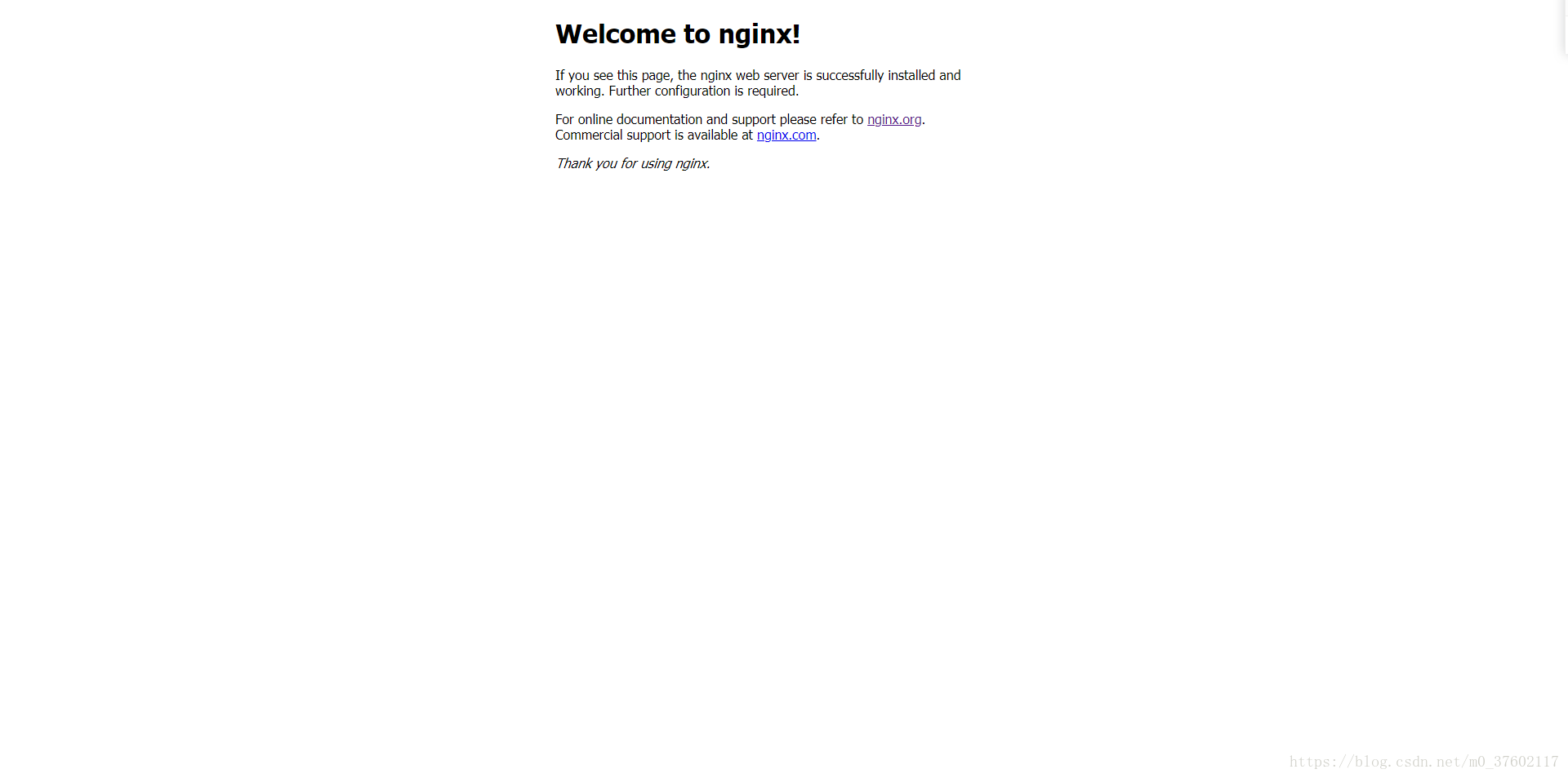
访问Nginx部署的服务器ip地址,出现如下图所示页面则表示安装成功。
三、Nginx 配置
1、Nginx 配置Https
(一)配置端口监听
listen       443 ssl;

server_name 10.3.1.2;- 1
- 2
(二)配置证书
ssl_certificate      /usr/local/nginx/conf/server.crt;

ssl_certificate_key /usr/local/openssl/bin/nopass-server.key;- 1
- 2
(三)其他参数配置
ssl_session_cache    shared:SSL:1m;

ssl_session_timeout  5m;

server_tokens off;

ssl_ciphers  HIGH:!aNULL:!MD5;

ssl_prefer_server_ciphers  on;
- 1
- 2
- 3
- 4
- 5
- 6
- 7
- 8
2、Nginx 配置请求重定向和代理
<!-- 配置重定向 -->

location = /xxx {

    return 302 http://10.3.1.2:18080/bms_core;

}

<!-- 配置代理 -->

location = /bms_core/ {

    proxy_set_header Host $host:$server_port;

    proxy_set_header X-Real-IP $remote_addr;

    proxy_set_header X-Forwarded-For $proxy_add_x_forwarded_for;

    proxy_pass http://10.3.1.1:18080;

}

<!--

    注意:

        1、location后接的是请求匹配规则

        2、在代理时如果,转发的地址最后加了/,那么location后匹配的请求路径不会被代理到proxy_pass指定的路径后,如果不加/,那么location后的匹配路径就会添加在proxy_pass指定的代理路径后。示例:如果加/就会是这样http://10.3.1.1:18080,如果不加/就会使这样http://10.3.1.1:18080/bms_core/

        3、在代理配置时加上proxy_set_header Host $host:$server_port;的作用就是在代理时端口号就不会被去掉

-->- 1
- 2
- 3
- 4
- 5
- 6
- 7
- 8
- 9
- 10
- 11
- 12
- 13
- 14
- 15
- 16
- 17
- 18
- 19
3、Nginx 配置项目静态资源
<!-- 静态资源配置

    注意:如果监听了80端口(Http)和445端口(https),如果不配置静态资源的代理,则会出现静态资源无法访问的情况。原因是因为,如果是一个Html页面,你在第一次访问的时候给你返回之后,在Html中引用的一个静态资源是重新发起请求去获取的,当请求到了80端口和445端口就会再次取来匹配location,因为这个时候没有配置就会出现静态资源无法访问。

    解决方案:1、配置静态资源代理

            2、将Nginx服务器作为静态资源访问服务器,然后再配置如果请求静态资源就去Nginx中去匹配,在实际改造中这样不现实,还是配置静态资源访问吧

    如果有更好的解决方案请在下方评论!!!

-->

location ~ \.(gif|jpg|png|js|css)$ {

    proxy_set_header Host $host:$server_port;

    proxy_set_header X-Real-IP $remote_addr;

    proxy_set_header X-Forwarded-For $proxy_add_x_forwarded_for;

    proxy_pass http://10.3.1.1:18080;

}- 1
- 2
- 3
- 4
- 5
- 6
- 7
- 8
- 9
- 10
- 11
- 12
4、Nginx Http和Https共存
<!--

    目前的Http和Https共存,我暂时是单独配置一个Http Server 和一个Https Server两个端口监听互不干扰,同样如果有更好的方案请在下方评论告诉我!!!

 -->

server {

        listen 80;

        server_name  10.3.1.2;

        location / {

            root html;

            index  index.html index.htm;

        }

        location = /bms_core/ {

            proxy_set_header X-Real-IP $remote_addr;

            proxy_set_header X-Forwarded-For $proxy_add_x_forwarded_for;

            proxy_set_header Host $host:$server_port;

            proxy_pass http://10.3.1.1:18080;

            #return 302 http://10.3.1.2:18080/bms_core;

        }

        location ~ \.(gif|jpg|png|js|css)$ {

            proxy_set_header Host $host:$server_port;

            proxy_set_header X-Real-IP $remote_addr;

            proxy_set_header X-Forwarded-For $proxy_add_x_forwarded_for;

            proxy_pass http://10.3.1.1:18080;

        }

        location = /bms {

            return 302 http://10.3.1.2:18080/bms_core;

        }

    }
- 1
- 2
- 3
- 4
- 5
- 6
- 7
- 8
- 9
- 10
- 11
- 12
- 13
- 14
- 15
- 16
- 17
- 18
- 19
- 20
- 21
- 22
- 23
- 24
- 25
- 26
- 27
- 28
- 29
- 30
- 31
- 32
5、我的nginx.conf配置文件的完整配置
worker_processes  4;

events {

    worker_connections  1024;

}

http {

    include       mime.types;

    default_type  application/octet-stream;

    log_format  main  '$remote_addr - $remote_user [$time_local] "$request" '

                      '$status $body_bytes_sent "$http_referer" '

                      '"$http_user_agent" "$http_x_forwarded_for"';

    access_log  /usr/local/nginx/logs/access.log  main;

    sendfile        on;

    keepalive_timeout  65;

    upstream my_server{

        server 10.3.1.2:3128 weight=5 ;

        server 10.3.1.2:80 weight=1;

     }

    server {

        listen 80;

        server_name  10.3.1.2;

        location / {

            root html;

            index  index.html index.htm;

        }

        location = /bms_core/ {

            proxy_set_header X-Real-IP $remote_addr;

            proxy_set_header X-Forwarded-For $proxy_add_x_forwarded_for;

            proxy_set_header Host $host:$server_port;

            proxy_pass http://10.3.1.1:18080;

            #return 302 http://10.3.1.2:18080/bms_core;

        }

        location ~ \.(gif|jpg|png|js|css)$ {

            proxy_set_header Host $host:$server_port;

            proxy_set_header X-Real-IP $remote_addr;

            proxy_set_header X-Forwarded-For $proxy_add_x_forwarded_for;

            proxy_pass http://10.3.1.1:18080;

        }

        location = /bms {

            return 302 http://10.3.1.2:18080/bms_core;

        }

    }

    server {

        listen       443 ssl;

        server_name  10.3.1.2;

        ssl_certificate      /usr/local/nginx/conf/server.crt;

        ssl_certificate_key  /usr/local/openssl/bin/nopass-server.key;

        ssl_session_cache    shared:SSL:1m;

        ssl_session_timeout  5m;

        server_tokens off;

        ssl_ciphers  HIGH:!aNULL:!MD5;

        ssl_prefer_server_ciphers  on;

        location / {

            root   html;

            index  index.html index.htm;

        }

        location = /xxx {

            return 302 http://10.3.1.2:18080/bms_core;

        }

        location = /bms_core/ {

            proxy_set_header Host $host:$server_port;

            proxy_set_header X-Real-IP $remote_addr;

            proxy_set_header X-Forwarded-For $proxy_add_x_forwarded_for;

            proxy_pass http://10.3.1.1:18080;

        }

        location ~ \.(gif|jpg|png|js|css)$ {

            proxy_set_header Host $host:$server_port;

            proxy_set_header X-Real-IP $remote_addr;

            proxy_set_header X-Forwarded-For $proxy_add_x_forwarded_for;

            proxy_pass http://10.3.1.1:18080;

        }

    }

}
- 1
- 2
- 3
- 4
- 5
- 6
- 7
- 8
- 9
- 10
- 11
- 12
- 13
- 14
- 15
- 16
- 17
- 18
- 19
- 20
- 21
- 22
- 23
- 24
- 25
- 26
- 27
- 28
- 29
- 30
- 31
- 32
- 33
- 34
- 35
- 36
- 37
- 38
- 39
- 40
- 41
- 42
- 43
- 44
- 45
- 46
- 47
- 48
- 49
- 50
- 51
- 52
- 53
- 54
- 55
- 56
- 57
- 58
- 59
- 60
- 61
- 62
- 63
- 64
- 65
- 66
- 67
- 68
- 69
- 70
- 71
- 72
- 73
- 74
- 75
- 76
- 77
- 78
- 79
- 80
- 81
- 82
- 83
- 84
- 85
- 86
- 87
- 88
- 89
- 90
- 91
- 92
- 93
- 94
四、验证Client到Nginx Https请求是否生效,Https请求中是否建立SSL握手
1、验证Https模块和Https Server配置是否生效
(一)通过使用Https请求Nginx

(二)需要注意的点
使用OpenSSL进行自签证书,所得证书是不能被浏览器所信任的。
如果实际业务并没有浏览器与服务端交互,那么就可以使用OpenSSL进行自签证书,签发证书的目的只是为了单纯的使用Https请求来提高数据安全性,关于Https为什么安全,请参考下面博客。
如果需要使用到受浏览器信任的CA证书,可以参考下面博客对CA证书签发机构的介绍,自己选择哪个签来机构来签发自己的受信任CA证书。
2、Tcpdump使用
#查看网卡名命令

ifconfig

#通过tcpdump抓包

#eth0为网卡名

#host 10.2.1.254为发起请求的客户端ip地址

#-w ./eth1.cap是将抓包信息输出到指定目录下指定文件中

tcpdump -i eth0 host 10.2.1.254 -w ./eth1.cap- 1
- 2
- 3
- 4
- 5
- 6
- 7
- 8
3、Wireshark使用
(一)查看抓包信息
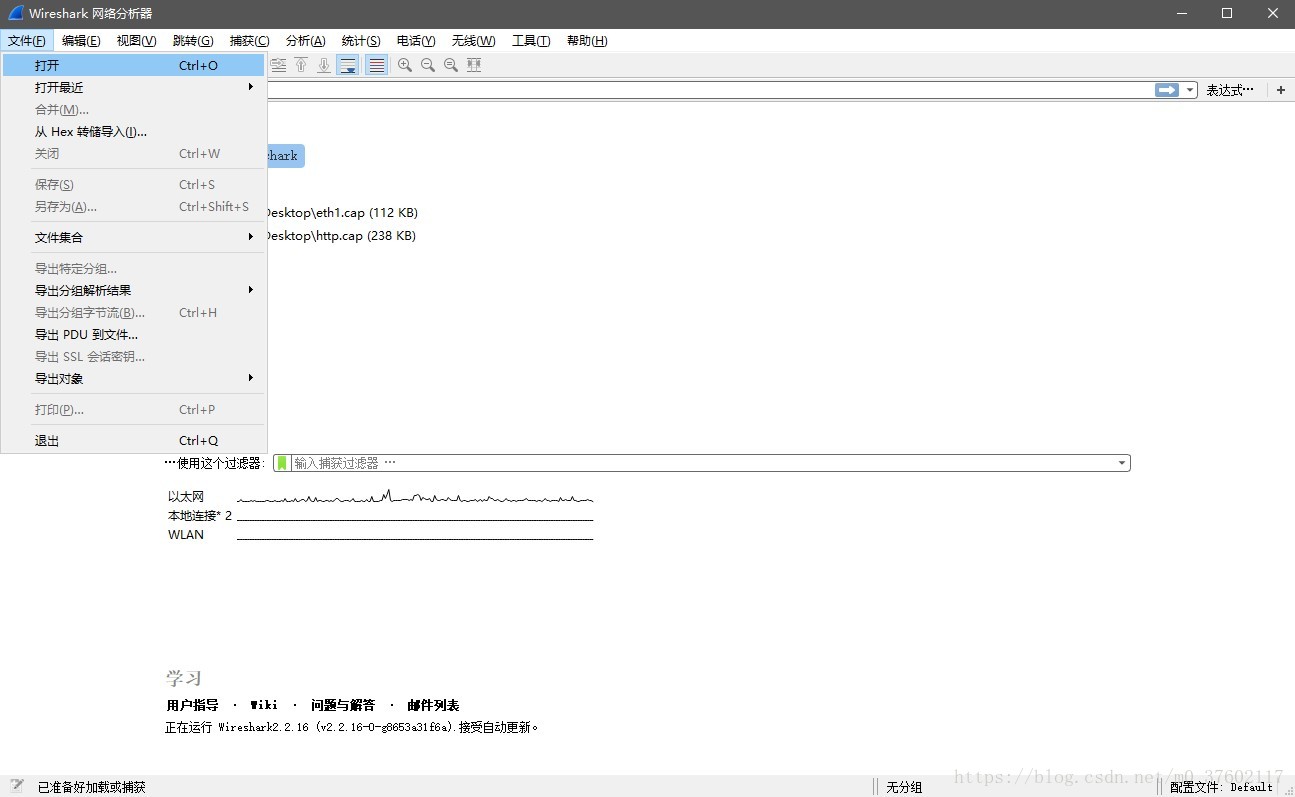
在Wireshark中点击文件,然后打开抓包文件。
(二)查看TCP传输流
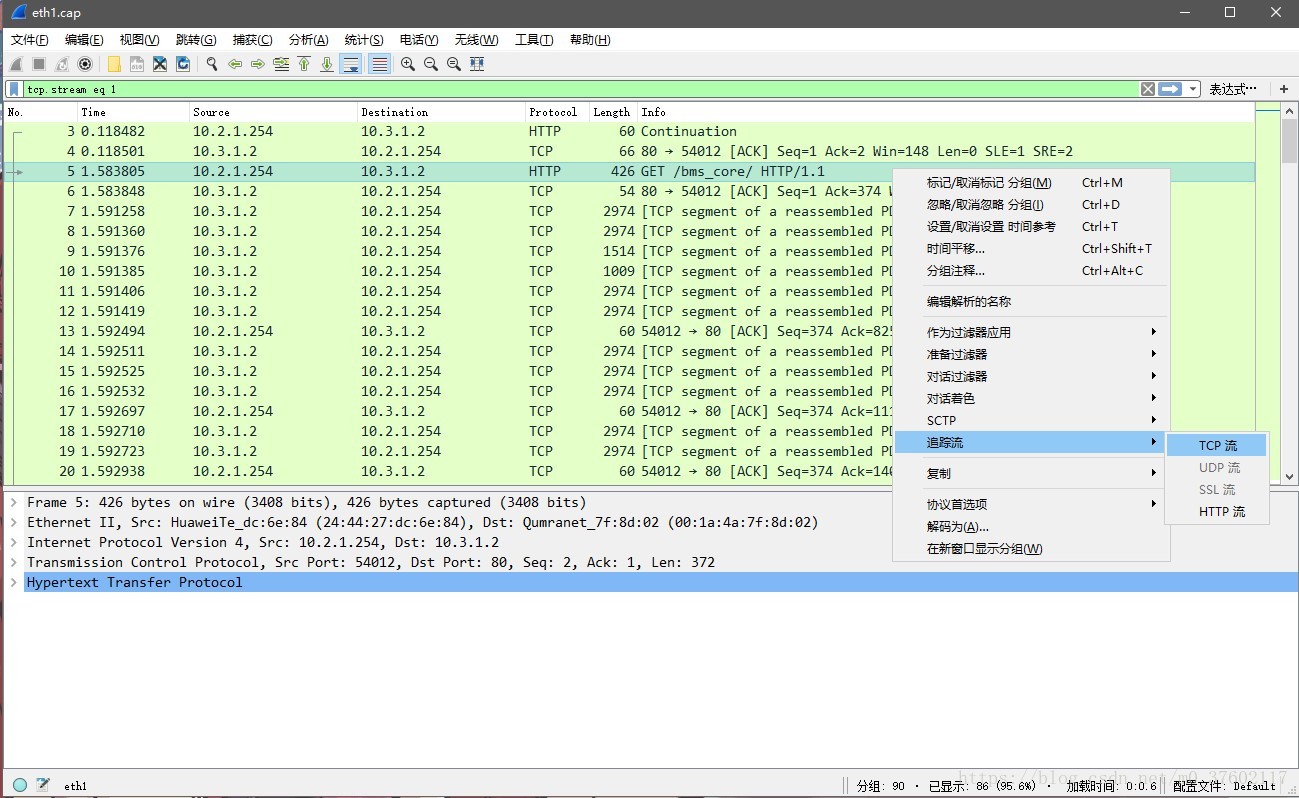
点击请求,然后右键追踪TCP流。
4、抓取Http请求
(一)查看是否发起Http请求
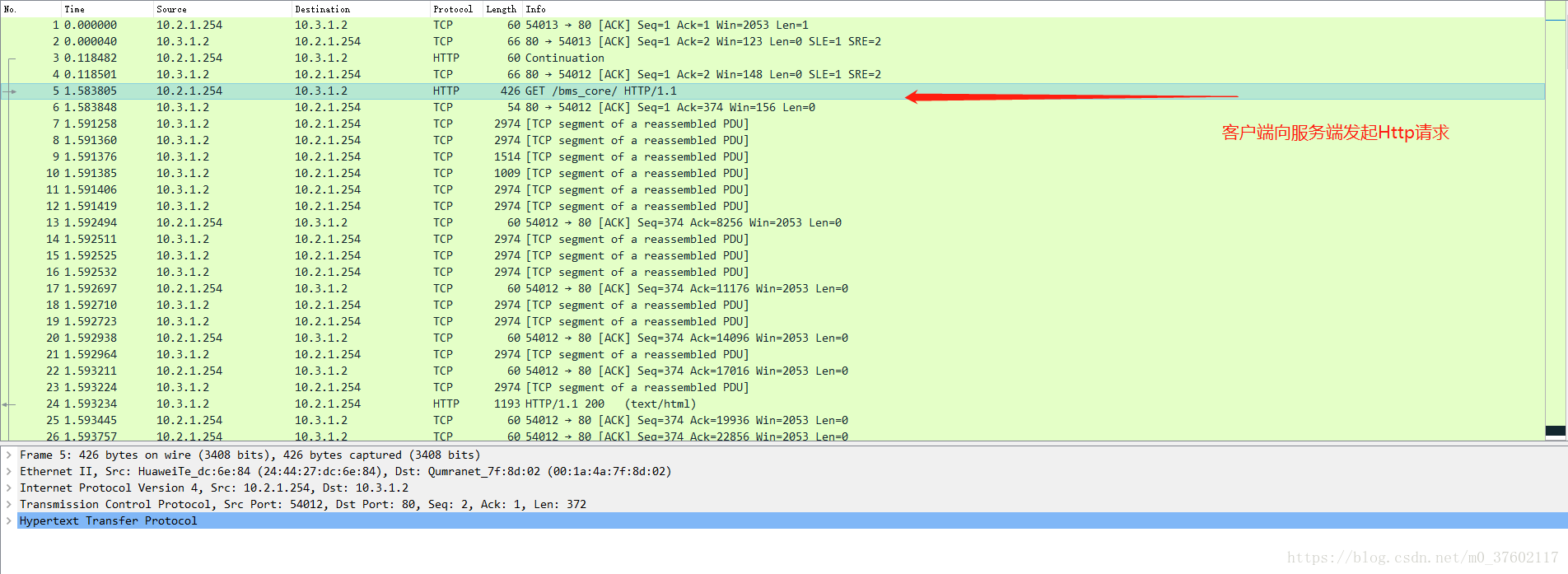
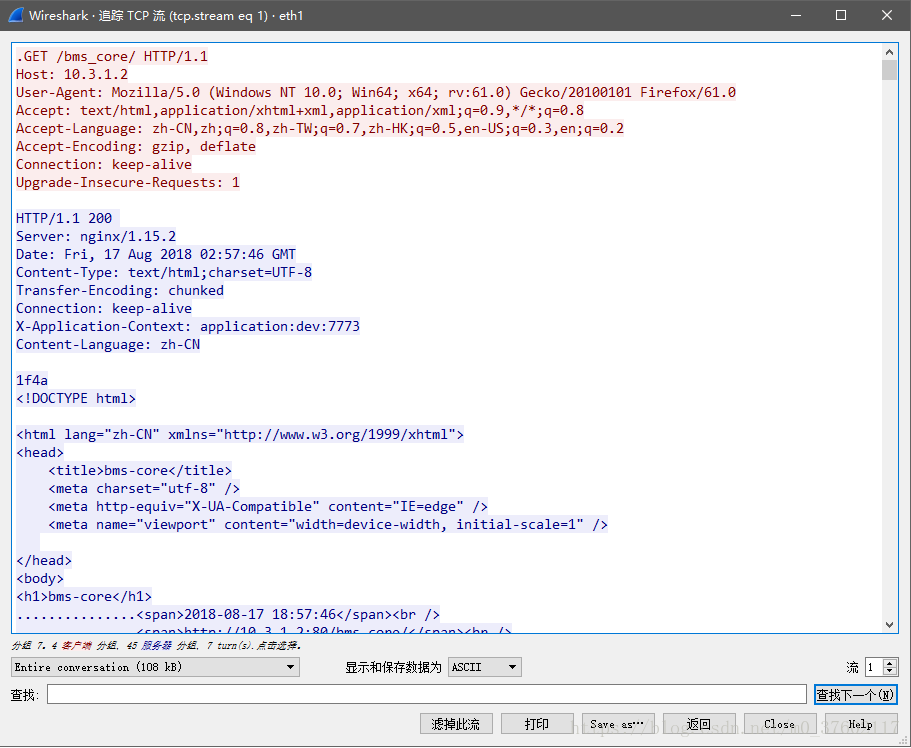
(二)追踪TCP流,查看数据包在TCP传输过程中是否是明文
5、抓取Https请求
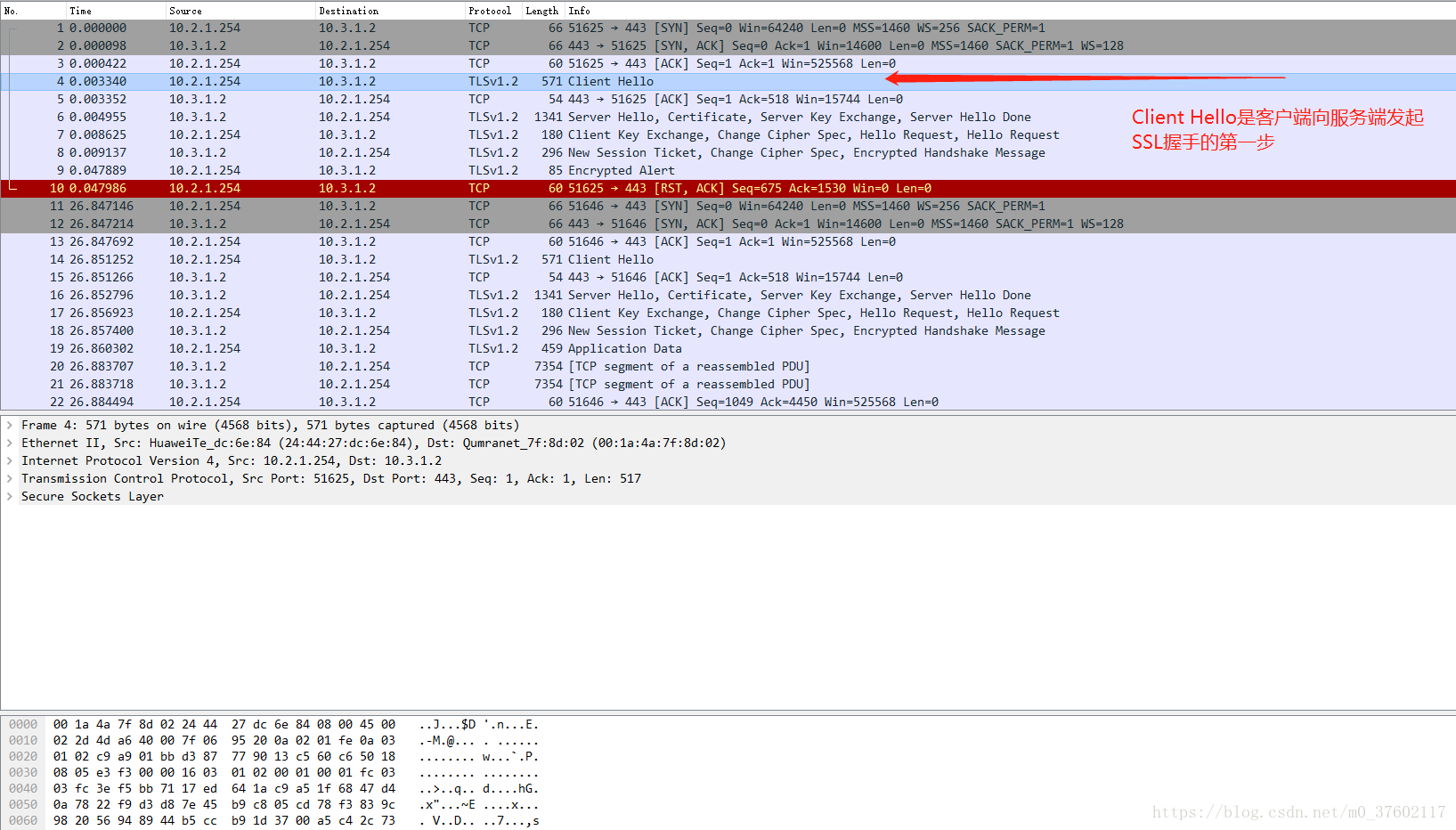
(一)查看是否建立握手
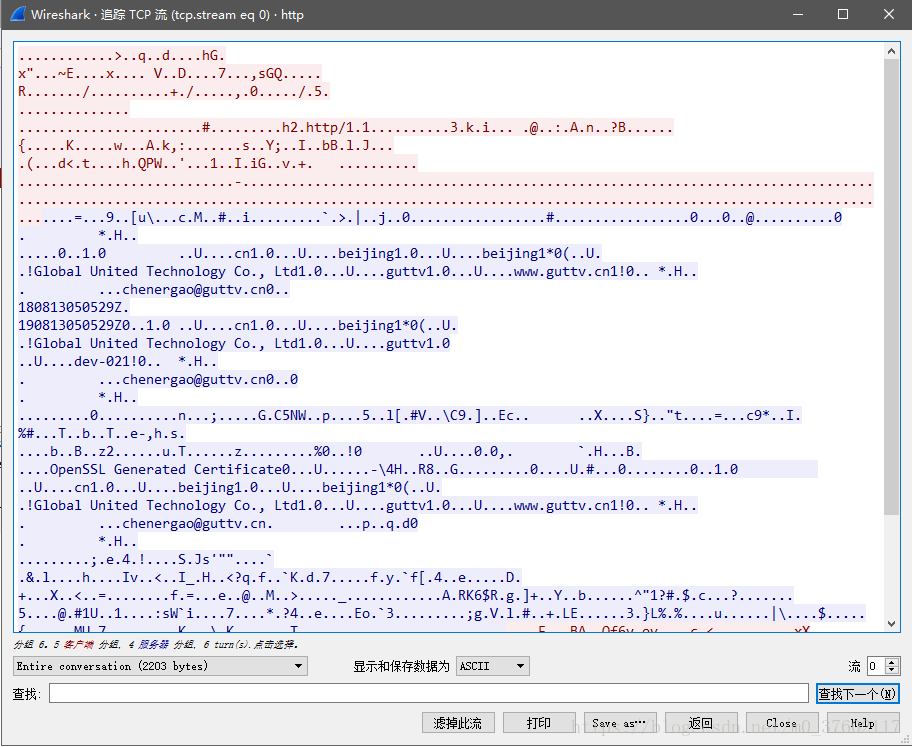
(二)追踪TCP流,查看数据包是否加密
6、结论
(一)Http
通过Client向服务端发起的Http请求看到,客户端向服务端发起Http请求,并且通过追踪TCP流可以看到数据是明文传输没有被加密。
(二)Https
通过Client向服务端发起的Https请求看到,中间建立了TLS握手,并且通过追踪TCP流可以看到数据是使用对称加密后的数据。
升级Https前的可行性验证(一)的更多相关文章
- iOS升级HTTPS通过ATS你所要知道的
由于苹果规定2017年1月1日以后,所有APP都要使用HTTPS进行网络请求,否则无法上架,因此研究了一下在iOS中使用HTTPS请求的实现.网上搜索了一些比较有用资料,大家可以参考下 苹果强制升级的 ...
- 超详细网站博客域名和二级域名、子域名升级HTTPS免费申请SSL证书配置nginx指南
随着互联网的飞速发展,我们的工作生活已经离不开互联网,HTTP虽然使用极为广泛, 但是存在不小的安全缺陷, 主要是其数据的明文传送和消息完整性检测的缺乏, 而这两点恰好是网络支付,网络交易等网站应用中 ...
- iOS 升级HTTPS通过ATS你所要知道的
由于苹果规定2017年1月1日以后,所有APP都要使用HTTPS进行网络请求,否则无法上架,因此研究了一下在iOS中使用HTTPS请求的实现.网上搜索了一些比较有用资料,大家可以参考下 苹果强制升级的 ...
- 为什么非全站升级HTTPS不可?
升级HTTPS已经是大势所趋,但仍有大量互联网企业犹豫是否要全站升级HTTPS,为此本文梳理了全站升级HTTPS与部分升级HTTPS的优劣势对比,来判断是否真的有必要进行全站HTTPS升级. HTTP ...
- 阿里云免费购买SSL证书,nginx无缝升级https
最近在升级交流学习社区,觉得有必要升级成https.以下是自己在升级中记录. 以下包括以下部分: 一.阿里云免费购买SSL证书 1.自己在阿里云申请了免费的,然后自己支付0元,购买了SSL证书 2.我 ...
- 网站HTTP升级HTTPS完全配置手册
本文由葡萄城技术团队于博客园原创并首发 转载请注明出处:葡萄城官网,葡萄城为开发者提供专业的开发工具.解决方案和服务,赋能开发者. 今天,所有使用Google Chrome稳定版的用户迎来了v68正式 ...
- 教你50招提升ASP.NET性能(十八):在处理网站性能问题前,首先验证问题是否出在客户端
(29)Before tackling any website performance issue, first verify the problem isn’t on the client 招数29 ...
- 网站 HTTP 升级 HTTPS 完全配置手册
网站 HTTP 升级 HTTPS 完全配置手册 今天,所有使用Google Chrome稳定版的用户迎来了v68正式版首个版本的发布,详细版本号为v68.0.3440.75,上一个正式版v67.0.3 ...
- centos7编译安装nginx及无缝升级https
安装依赖: yum install -y gcc-c++ pcre pcre-devel zlib zlib-devel openssl openssl-devel 下载nginx: wget -c ...
随机推荐
- 大纲2.3 Internet
Internet:域名系统基础知识和配置,上网查询访问的方法,常用电子邮件的种类和收发电子邮件的方法,网络信息搜索,网络信息下载.上传的基本方法,网络信息共享方法. DNS域名系统 域名 不区分大小写 ...
- C++ Curiously Recurring Template Prattern(CRTP)例程
简单介绍和例子请参考:C++ 惯用法 CRTP 简介 下面例子为兼顾CRTP和多态的例子. #include <iostream> #include <vector> usin ...
- java自动给版本升级,遇9变0且前面一个版本加1
/** * 自动升级版本号,版本号+1 * @param version * @return */ private String autoUpgradeVersion(String version){ ...
- 使用 IntraWeb (7) - 主模板
TIWLayoutMgrHTML.TIWTemplateProcessorHTML 属于页面级的模板, 如果要全站统一模板, 当然要用主模板. TIWTemplateProcessorHTML 通过其 ...
- showplan_text查询计划查询 sql执行顺序 时间 IO
http://www.cnblogs.com/happyday56/archive/2009/09/10/1564144.html set showplan_text ongoselect exp ...
- linux后台开发核心技术
3. 常用STL的使用 3.1. string (1)string类的实现(使用strlen.strcpy.strcat.strcmp等,注意判NULL). (2)C++字符串和C字符串的转换:dat ...
- List、Set、Map 和 Queue 之间的区别
list 和set 有共同的父类 它们的用法也是一样的 唯一的不太就是set中不能有相同的元素 list中可以list和set的用途非常广泛 list可以完全代替数组来使用map 是独立的合集 它使用 ...
- Revit API取得变量的内参名称
与取得元素变量的内参名称类别有个BuiltInParameter //取得内参名称 [Transaction(TransactionMode.Manual)] [Regeneration(Regene ...
- lodash用法系列(2),处理对象
Lodash用来操作对象和集合,比Underscore拥有更多的功能和更好的性能. 官网:https://lodash.com/引用:<script src="//cdnjs.clou ...
- eclipse使用profile完成不同环境的maven打包功能
原文:https://blog.csdn.net/duan9421/article/details/79086335 我们在日常开发工作中通常会根据不同的项目运行环境,添加不同的配置文件,例如 开发环 ...