
Android学习使用基本界面组件(下拉框,单选框,复选框,数字转轮,滚动条)
(一)建立单选框按钮
RadioGroup和RadioButton建立单选框按钮
字符串资源文件:
<resources>

    <string name="app_name">婚姻建议程序</string>

    <string name="sex">性别:</string>

    <string name="age">年龄:</string>

    <string name="btn_ok">确定</string>

    <string name="result">建议:</string>

    <string name="edt_age_hint">(输入年龄)</string>

    <string name="sug_not_hurry">还不急</string>

    <string name="sug_get_married">赶快结婚!</string>

    <string name="sug_find_couple">开始找对象。</string>

    <string name="male">男生</string>

    <string name="female">女生</string>

    <string name="male_age_range1">小于28岁</string>

    <string name="male_age_range2">28~33岁</string>

    <string name="male_age_range3">大于33岁</string>

    <string name="female_age_range1">小于25岁</string>

    <string name="female_age_range2">25~30岁</string>

    <string name="female_age_range3">大于30岁</string>

</resources>
界面布局文件:
<?xml version="1.0" encoding="utf-8"?>

<LinearLayout xmlns:android="http://schemas.android.com/apk/res/android"

    xmlns:app="http://schemas.android.com/apk/res-auto"

    xmlns:tools="http://schemas.android.com/tools"

    android:layout_width="match_parent"

    android:layout_height="match_parent"

    android:orientation="vertical"

    tools:context=".MainActivity" >

    <TextView

        android:id="@+id/sex"

        android:layout_width="match_parent"

        android:layout_height="wrap_content"

        android:text="@string/sex"

        android:textSize="25sp" />

    <RadioGroup

        android:id="@+id/radGrpSex"

        android:layout_width="wrap_content"

        android:layout_height="wrap_content"

        android:orientation="vertical"

        android:checkedButton="@+id/radBtnMale">

        <RadioButton

            android:id="@+id/radBtnMale"

            android:textSize="20sp"

            android:text="@string/male" />

        <RadioButton

            android:id="@+id/radBtnFemale"

            android:textSize="20sp"

            android:text="@string/female" />

    </RadioGroup>

    <TextView

        android:id="@+id/age"

        android:layout_width="match_parent"

        android:layout_height="wrap_content"

        android:text="@string/age"

        android:textSize="25sp" />

    <RadioGroup

        android:layout_width="wrap_content"

        android:layout_height="wrap_content"

        android:id="@+id/radGrpAge"

        android:orientation="vertical"

        android:checkedButton="@+id/radBtnAgeRange1">

        <RadioButton

            android:id="@+id/radBtnAgeRange1"

            android:textSize="20sp"

            android:text="@string/male_age_range1"/>

        <RadioButton

            android:id="@+id/radBtnAgeRange2"

            android:textSize="20sp"

            android:text="@string/male_age_range2"/>

        <RadioButton

            android:id="@+id/radBtnAgeRange3"

            android:textSize="20sp"

            android:text="@string/male_age_range3"/>

    </RadioGroup>

    <Button

        android:id="@+id/btnOk"

        android:layout_width="wrap_content"

        android:layout_height="wrap_content"

        android:layout_gravity="center_horizontal"

        android:background="#4CAF50"

        android:text="@string/btn_ok" />

    <TextView

        android:id="@+id/txtR"

        android:layout_width="match_parent"

        android:layout_height="wrap_content"

        android:text="@string/result"

        android:textSize="25sp" />

</LinearLayout>
程序文件
package com.example.newapp;

import androidx.appcompat.app.AppCompatActivity;

import android.os.Bundle;

import android.view.View;

import android.widget.AdapterView;

import android.widget.Button;

import android.widget.EditText;

import android.widget.RadioButton;

import android.widget.RadioGroup;

import android.widget.Spinner;

import android.widget.TextView;

public class MainActivity extends AppCompatActivity {

    private Button mBtnOk;

    private TextView mTxtR;

    private RadioGroup mRadGrpSex,mRadGrpAge;

    private RadioButton mRadBtnAgeRange1,mRadBtnAgeRange2,mRadBtnAgeRange3;

    @Override

    protected void onCreate(Bundle savedInstanceState) {

        super.onCreate(savedInstanceState);

        setContentView(R.layout.activity_main);

        mBtnOk=(Button)findViewById(R.id.btnOk);

        mTxtR=(TextView)findViewById(R.id.txtR);

        mBtnOk.setOnClickListener(btnOkOnClick);

        mRadGrpAge=(RadioGroup)findViewById(R.id.radGrpAge);

        mRadGrpSex=(RadioGroup)findViewById(R.id.radGrpSex);

        mRadBtnAgeRange1=(RadioButton)findViewById(R.id.radBtnAgeRange1);

        mRadBtnAgeRange2=(RadioButton)findViewById(R.id.radBtnAgeRange2);

        mRadBtnAgeRange3=(RadioButton)findViewById(R.id.radBtnAgeRange3);

        mRadGrpSex.setOnCheckedChangeListener(radGrpSexOnCheckedChange);

    }

    private View.OnClickListener btnOkOnClick =new View.OnClickListener(){

        @Override

        public void onClick(View v) {

            String strSug=getString(R.string.result);

            switch (mRadGrpAge.getCheckedRadioButtonId()){

                case R.id.radBtnAgeRange1:

                    strSug+=getString(R.string.sug_not_hurry);

                    break;

                case R.id.radBtnAgeRange2:

                    strSug+=getString(R.string.sug_find_couple);

                    break;

                case R.id.radBtnAgeRange3:

                    strSug+=getString(R.string.sug_get_married);

                    break;

            }

            mTxtR.setText(strSug);

        }

    };

    private RadioGroup.OnCheckedChangeListener radGrpSexOnCheckedChange = new RadioGroup.OnCheckedChangeListener() {

        @Override

        public void onCheckedChanged(RadioGroup group, int checkedId) {

            if(checkedId==R.id.radBtnMale){

                mRadBtnAgeRange1.setText(getString(R.string.male_age_range1));

                mRadBtnAgeRange2.setText(getString(R.string.male_age_range2));

                mRadBtnAgeRange3.setText(getString(R.string.male_age_range3));

            }else{

                mRadBtnAgeRange1.setText(getString(R.string.female_age_range1));

                mRadBtnAgeRange2.setText(getString(R.string.female_age_range2));

                mRadBtnAgeRange3.setText(getString(R.string.female_age_range3));

            }

        }

    };

}
程序截图:
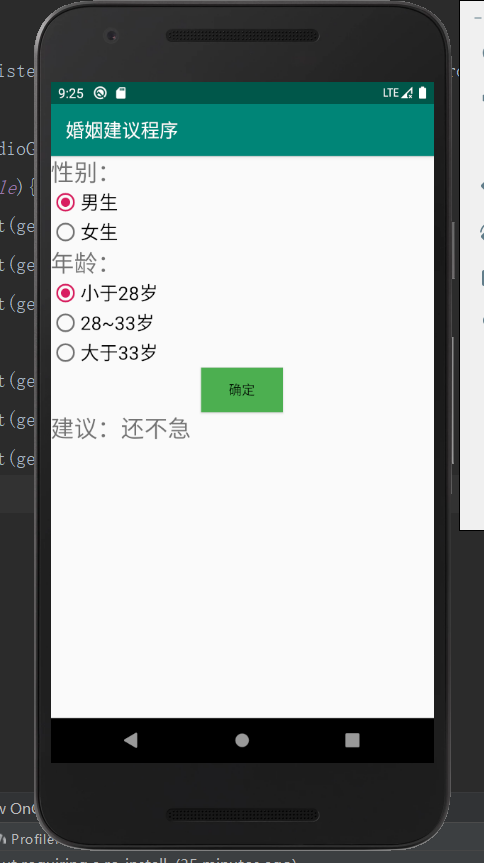
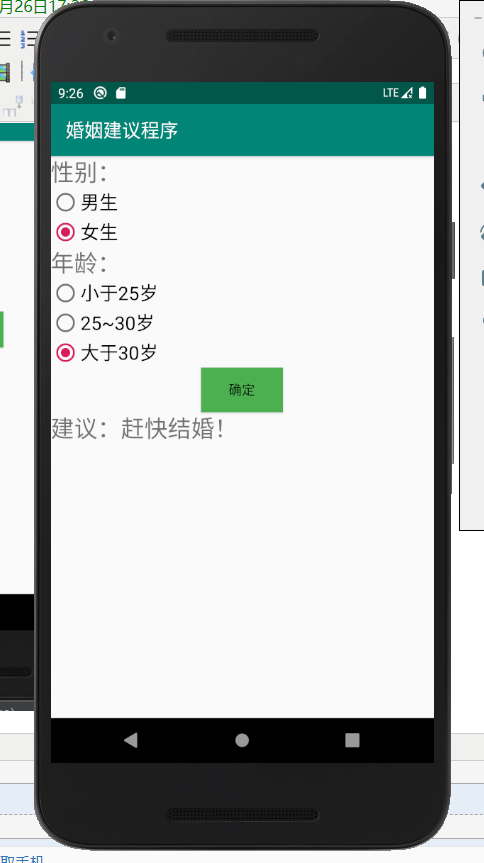
(二)下拉框Spinner和数字转轮NumberPicker的使用
Spinner组件来控制实现选择性别
数字转轮来实现年龄的选择
字符串资源文件:
<resources>

    <string name="app_name">婚姻建议程序</string>

    <string name="sex">性别:</string>

    <string name="age">年龄:</string>

    <string name="btn_ok">确定</string>

    <string name="result">建议:</string>

    <string name="edt_age_hint">(输入年龄)</string>

    <string name="sug_not_hurry">还不急</string>

    <string name="sug_get_married">赶快结婚!</string>

    <string name="sug_find_couple">开始找对象。</string>

    <string name="sex_male">男</string>

    <string-array name="sex_list">

        <item>男</item>

        <item>女</item>

    </string-array>

    <string name="spn_sex_list_prompt">请选择性别</string>

</resources>
界面布局文件:
<?xml version="1.0" encoding="utf-8"?>

<LinearLayout xmlns:android="http://schemas.android.com/apk/res/android"

    xmlns:app="http://schemas.android.com/apk/res-auto"

    xmlns:tools="http://schemas.android.com/tools"

    android:layout_width="match_parent"

    android:layout_height="match_parent"

    android:orientation="vertical"

    tools:context=".MainActivity" >

    <TextView

        android:id="@+id/sex"

        android:layout_width="match_parent"

        android:layout_height="wrap_content"

        android:text="@string/sex"

        android:textSize="25sp" />

    <Spinner

        android:id="@+id/spnSex"

        android:layout_width="match_parent"

        android:layout_height="wrap_content"

        android:entries="@array/sex_list"

        android:spinnerMode="dialog"

        android:prompt="@string/spn_sex_list_prompt" />

    <TextView

        android:id="@+id/age"

        android:layout_width="match_parent"

        android:layout_height="wrap_content"

        android:text="@string/age"

        android:textSize="25sp" />

    <TextView

        android:id="@+id/txtAge"

        android:layout_width="wrap_content"

        android:layout_height="wrap_content"

        android:textSize="25sp" />

    <NumberPicker

        android:id="@+id/numPickerAge"

        android:layout_width="wrap_content"

        android:layout_height="wrap_content"

        android:layout_gravity="center_horizontal" />

    <Button

        android:id="@+id/btnOk"

        android:layout_width="wrap_content"

        android:layout_height="wrap_content"

        android:layout_gravity="center_horizontal"

        android:background="#4CAF50"

        android:text="@string/btn_ok" />

    <TextView

        android:id="@+id/txtR"

        android:layout_width="match_parent"

        android:layout_height="wrap_content"

        android:text="@string/result"

        android:textSize="25sp" />

</LinearLayout>
主程序文件:
package com.example.newapp;

import androidx.appcompat.app.AppCompatActivity;

import android.os.Bundle;

import android.view.View;

import android.widget.AdapterView;

import android.widget.Button;

import android.widget.EditText;

import android.widget.NumberPicker;

import android.widget.RadioButton;

import android.widget.RadioGroup;

import android.widget.Spinner;

import android.widget.TextView;

public class MainActivity extends AppCompatActivity {

    private NumberPicker mNumPickerAge;

    private Button mBtnOk;

    private TextView mTxtR,mTxtAge;

    private Spinner mSpnSex;

    private String msSex;

    @Override

    protected void onCreate(Bundle savedInstanceState) {

        super.onCreate(savedInstanceState);

        setContentView(R.layout.activity_main);

        mTxtAge=(TextView)findViewById(R.id.txtAge);

        mTxtAge.setText("25");

        mNumPickerAge=(NumberPicker)findViewById(R.id.numPickerAge);

        mNumPickerAge.setMinValue(0);

        mNumPickerAge.setMaxValue(200);

        mNumPickerAge.setValue(25);

        mNumPickerAge.setOnValueChangedListener(numPickerAgeOnValueChange);

        mBtnOk=(Button)findViewById(R.id.btnOk);

        mTxtR=(TextView)findViewById(R.id.txtR);

        mBtnOk.setOnClickListener(btnOkOnClick);

        mSpnSex=(Spinner)findViewById(R.id.spnSex);

        mSpnSex.setOnItemSelectedListener(spnSexOnItemSelected);

    }

    private View.OnClickListener btnOkOnClick =new View.OnClickListener(){

        @Override

        public void onClick(View v) {

            int iAge=mNumPickerAge.getValue();

            String strSug=getString(R.string.result);

            if(msSex.equals(getString(R.string.sex_male)))

            {

                if(iAge<28)

                    strSug+=getString(R.string.sug_not_hurry);

                else if(iAge>33)

                    strSug+=getString(R.string.sug_get_married);

                else

                    strSug+=getString(R.string.sug_find_couple);

            }

            else

            {

                if(iAge<25)

                    strSug+=getString(R.string.sug_not_hurry);

                else if(iAge>30)

                    strSug+=getString(R.string.sug_get_married);

                else

                    strSug+=getString(R.string.sug_find_couple);

            }

            mTxtR.setText(strSug);

        }

    };

    private AdapterView.OnItemSelectedListener spnSexOnItemSelected=new AdapterView.OnItemSelectedListener() {

        @Override

        public void onItemSelected(AdapterView<?> parent, View view, int position, long id) {

            msSex=parent.getSelectedItem().toString();

        }

        @Override

        public void onNothingSelected(AdapterView<?> parent) {

        }

    };

    private NumberPicker.OnValueChangeListener numPickerAgeOnValueChange=new NumberPicker.OnValueChangeListener() {

        @Override

        public void onValueChange(NumberPicker picker, int oldVal, int newVal) {

            mTxtAge.setText(String.valueOf(newVal));

        }

    };

}
程序截图:
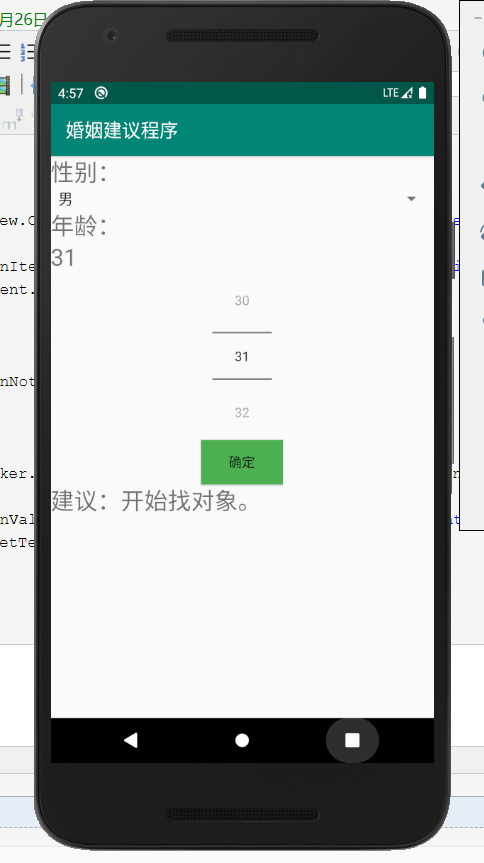
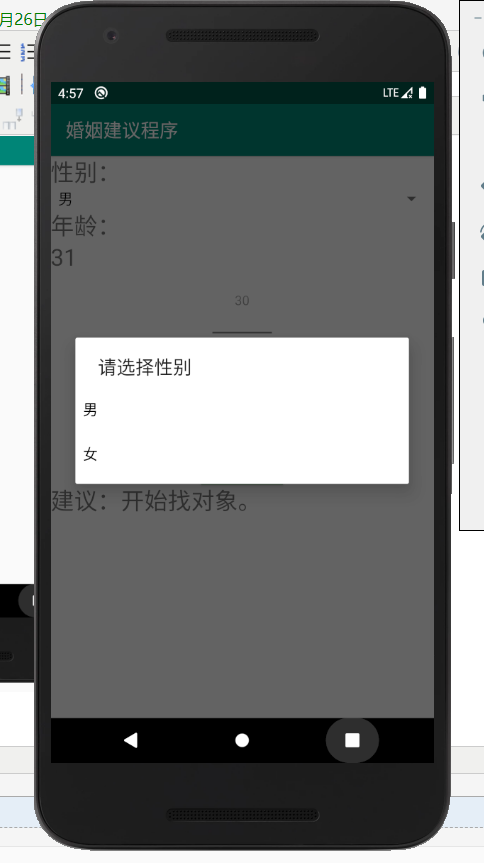

(三)复选框和滚动条(CheckBox与ScrollView)
在进行多项选择时,由于项目过多我们可能会使用到滚动条,因此本次的实验目的是:实现用滚动条来上下滚动对项目的选择
同时使用上复选框
字符串资源文件:
<resources>

    <string name="app_name">兴趣选择程序</string>

    <string name="music">音乐</string>

    <string name="sing">唱歌</string>

    <string name="dance">跳舞</string>

    <string name="travel">旅行</string>

    <string name="reading">阅读</string>

    <string name="writing">写作</string>

    <string name="climbing">爬山</string>

    <string name="swim">游泳</string>

    <string name="exercise">运动</string>

    <string name="fitness">健身</string>

    <string name="photo">摄影</string>

    <string name="eating">美食</string>

    <string name="painting">绘画</string>

    <string name="your_hobby">您的兴趣:</string>

    <string name="btn_ok">确定</string>

</resources>
界面布局文件:
<?xml version="1.0" encoding="utf-8"?>

<ScrollView xmlns:android="http://schemas.android.com/apk/res/android"

    xmlns:app="http://schemas.android.com/apk/res-auto"

    xmlns:tools="http://schemas.android.com/tools"

    android:layout_width="match_parent"

    android:layout_height="wrap_content">

    <LinearLayout

        android:id="@+id/LinearLayout1"

        android:layout_width="wrap_content"

        android:layout_height="wrap_content"

        android:orientation="vertical"

        tools:context=".MainActivity">

        <CheckBox

            android:id="@+id/chkBoxMusic"

            android:layout_width="wrap_content"

            android:layout_height="wrap_content"

            android:textSize="30sp"

            android:text="@string/music" />

        <CheckBox

            android:id="@+id/chkBoxSing"

            android:layout_width="wrap_content"

            android:layout_height="wrap_content"

            android:textSize="30sp"

            android:text="@string/sing" />

        <CheckBox

            android:id="@+id/chkBoxDancing"

            android:layout_width="wrap_content"

            android:layout_height="wrap_content"

            android:textSize="30sp"

            android:text="@string/dance" />

        <CheckBox

            android:id="@+id/chkBoxTravel"

            android:layout_width="wrap_content"

            android:layout_height="wrap_content"

            android:textSize="30sp"

            android:text="@string/travel" />

        <CheckBox

            android:id="@+id/chkBoxReading"

            android:layout_width="wrap_content"

            android:layout_height="wrap_content"

            android:textSize="30sp"

            android:text="@string/reading" />

        <CheckBox

            android:id="@+id/chkBoxWriting"

            android:layout_width="wrap_content"

            android:layout_height="wrap_content"

            android:textSize="30sp"

            android:text="@string/writing" />

        <CheckBox

            android:id="@+id/chkBoxClimbing"

            android:layout_width="wrap_content"

            android:layout_height="wrap_content"

            android:textSize="30sp"

            android:text="@string/climbing" />

        <CheckBox

            android:id="@+id/chkBoxSwim"

            android:layout_width="wrap_content"

            android:layout_height="wrap_content"

            android:textSize="30sp"

            android:text="@string/swim" />

        <CheckBox

            android:id="@+id/chkBoxExercise"

            android:layout_width="match_parent"

            android:layout_height="wrap_content"

            android:text="@string/exercise"

            android:textSize="30sp" />

        <CheckBox

            android:id="@+id/chkBoxFitness"

            android:layout_width="wrap_content"

            android:layout_height="wrap_content"

            android:textSize="30sp"

            android:text="@string/fitness" />

        <CheckBox

            android:id="@+id/chkBoxPhoto"

            android:layout_width="wrap_content"

            android:layout_height="wrap_content"

            android:textSize="30sp"

            android:text="@string/photo" />

        <CheckBox

            android:id="@+id/chkBoxEating"

            android:layout_width="wrap_content"

            android:layout_height="wrap_content"

            android:textSize="30sp"

            android:text="@string/eating" />

        <CheckBox

            android:id="@+id/chkBoxPainting"

            android:layout_width="wrap_content"

            android:layout_height="wrap_content"

            android:textSize="30sp"

            android:text="@string/painting" />

        <Button

            android:id="@+id/btnOk"

            android:layout_width="wrap_content"

            android:layout_height="wrap_content"

            android:text="@string/btn_ok" />

        <TextView

            android:id="@+id/txtHobby"

            android:layout_width="420dp"

            android:layout_height="47dp" />

    </LinearLayout>

</ScrollView>
程序文件:
package com.example.newapp;

import androidx.appcompat.app.AppCompatActivity;

import android.os.Bundle;

import android.view.View;

import android.widget.Button;

import android.widget.CheckBox;

import android.widget.TextView;

import org.w3c.dom.Text;

public class MainActivity extends AppCompatActivity {

    private CheckBox mChkBoxMusic,mChkBoxSing,mChkBoxDance,mChkBoxTravel,mChkBoxReading,mChkBoxWriting,mChkBoxFitness,mChkBoxClimbing,mChkBoxSwim,mChkBoxExercise,mChkBoxPhoto,mChkBoxEating,mChkBoxPainting;

    private Button mBtnOk;

    private TextView mTxtHobby;

    @Override

    protected void onCreate(Bundle savedInstanceState) {

        super.onCreate(savedInstanceState);

        setContentView(R.layout.activity_main);

        mChkBoxMusic=(CheckBox)findViewById(R.id.chkBoxMusic);

        mChkBoxSing=(CheckBox)findViewById(R.id.chkBoxSing);

        mChkBoxDance=(CheckBox)findViewById(R.id.chkBoxDancing);

        mChkBoxTravel=(CheckBox)findViewById(R.id.chkBoxTravel);

        mChkBoxReading=(CheckBox)findViewById(R.id.chkBoxReading);

        mChkBoxWriting=(CheckBox)findViewById(R.id.chkBoxWriting);

        mChkBoxClimbing=(CheckBox)findViewById(R.id.chkBoxClimbing);

        mChkBoxSwim=(CheckBox)findViewById(R.id.chkBoxSwim);

        mChkBoxExercise=(CheckBox)findViewById(R.id.chkBoxExercise);

        mChkBoxFitness=(CheckBox)findViewById(R.id.chkBoxFitness);

        mChkBoxPhoto=(CheckBox)findViewById(R.id.chkBoxPhoto);

        mChkBoxEating=(CheckBox)findViewById(R.id.chkBoxEating);

        mChkBoxPainting=(CheckBox)findViewById(R.id.chkBoxPainting);

        mBtnOk=(Button)findViewById(R.id.btnOk);

        mTxtHobby=(TextView)findViewById(R.id.txtHobby);

        mBtnOk.setOnClickListener(btnOkOnClick);

    }

    private View.OnClickListener btnOkOnClick=new View.OnClickListener() {

        @Override

        public void onClick(View v) {

            String s=getString(R.string.your_hobby);

            if(mChkBoxMusic.isChecked())

                s+=mChkBoxMusic.getText().toString();

            if(mChkBoxSing.isChecked())

                s+=mChkBoxSing.getText().toString();

            if(mChkBoxDance.isChecked())

                s+=mChkBoxDance.getText().toString();

            if(mChkBoxTravel.isChecked())

                s+=mChkBoxTravel.getText().toString();

            if(mChkBoxReading.isChecked())

                s+=mChkBoxReading.getText().toString();

            if(mChkBoxWriting.isChecked())

                s+=mChkBoxWriting.getText().toString();

            if(mChkBoxClimbing.isChecked())

                s+=mChkBoxClimbing.getText().toString();

            if(mChkBoxSwim.isChecked())

                s+=mChkBoxSwim.getText().toString();

            if(mChkBoxExercise.isChecked())

                s+=mChkBoxExercise.getText().toString();

            if(mChkBoxFitness.isChecked())

                s+=mChkBoxFitness.getText().toString();

            if(mChkBoxPhoto.isChecked())

                s+=mChkBoxPhoto.getText().toString();

            if(mChkBoxEating.isChecked())

                s+=mChkBoxEating.getText().toString();

            if(mChkBoxPainting.isChecked())

                s+=mChkBoxPainting.getText().toString();

            mTxtHobby.setText(s);

        }

    };

}
程序截图:

Android学习使用基本界面组件(下拉框,单选框,复选框,数字转轮,滚动条)的更多相关文章
- 下拉选择select和复选框checkbox的状态的各种方式
复选框的状态 <input name="ck" value=" " type="checkbox" checked> 或者&l ...
- Android 自学之基本界面组件(下)
按钮(Button)与图片按钮(ImageButton)组件的功能和用法 Button继承了TextView,ImageButton继承了Button.不管是Button还是ImageButton,他 ...
- Python3+Selenium3+webdriver学习笔记8(单选、复选框、弹窗处理)
#!/usr/bin/env python# -*- coding:utf-8 -*-'''Selenium3+webdriver学习笔记8(单选.复选框.弹窗处理)''' from selenium ...
- 可分组的选择框控件(MVVM下)(Toggle样式 仿造单选框RadioButton,复选框CheckBox功能)
原地址: http://www.cnblogs.com/yk250/p/5660340.html 效果图如下:支持分组的单选框,复选框样式和MVVM下功能的实现.这是项目中一个快捷键功能的扩展. 1, ...
- android 中单选和复选框监听操作
单选按钮RadioGroup.复选框CheckBox都有OnCheckedChangeListener事件,我们一起了解一下. package com.genwoxue.oncheckedchange ...
- 【JavaScript&jQuery】单选框radio,复选框checkbox,下拉选择框select
HTML: <!DOCTYPE html> <html> <head> <title></title> <meta charset=& ...
- Android初级教程小案例之单选框RadioGroup与复选框CheckBox
Android里面的单选框和html中的其实是一样的效果.这里用到两个控件:CheckBox和RadioGroup.直接上代码: radio.xml布局文件: <?xml version=&qu ...
- [ PyQt入门教程 ] PyQt5基本控件使用:单选按钮、复选框、下拉框
本文主要介绍PyQt5界面最基本使用的单选按钮.复选框.下拉框三种控件的使用方法进行介绍. 1.RadioButton单选按钮/CheckBox复选框.需要知道如何判断单选按钮是否被选中. 2.Com ...
- 【转】Android学习基础自定义Checkbox组件
原文网址:http://forum.maiziedu.com/thread-515-1-1.html heckbox组件是一种可同时选中多项的基础控件,即复选框,在android学习中,Checkbo ...
随机推荐
- 解决git速度太慢的问题,亲测有效
在家用的是电信网,每次git大型项目总是失败,甚是苦恼,解决了好几次都失败了,终忍受不了,下定决心干掉它. git clone特别慢是因为github.global.ssl.fastly.net域名被 ...
- 线程锁Lock ,Rlock
锁的引入: 我们查看官方文档:https://docs.python.org/3/library/threading.html#lock-objects 原语锁:threading.Lock 实现原始 ...
- 清除ios系统alert弹出框的域名
清除ios系统alert弹出框的域名 <script> window.alert = function(name) { var iframe = document.createElemen ...
- python中可变类型和不可变类型数据的复制
常见的复制方式有以下5种第1种:通过等号[=]复制 - 不论可变还是不可变数据类型,通过[=]复制后都指向同一个内存地址: - 改变复制后的数据(例子中的anotherStr,anotherList) ...
- vue的一些基础知识点,后续会更新最全的vue知识点
axios中jq的基础 jq语法 $(this).hide() 隐藏当前的html元素 $(''#test").hide() 隐藏id='test'的元素 添加新的 HTML 内容 我们将学 ...
- [Luogu]中位数
Description Luogu1168 Solution 一种神奇的做法:开一个大根堆和小根堆,保证大根堆比小根堆多1个元素,且大根堆堆顶元素比小根堆堆顶元素小,那么大根堆堆顶就是中位数.插入的时 ...
- python3练习100题——027
又是一道迭代的题,没做好. 看了答案才试着写出来. 我一定要加油啊,为了尽快摆脱现在讨厌的生活! 原题链接:http://www.runoob.com/python/python-exercise-e ...
- 压缩包安装mysql8.0
在使用django的时候遇到一个错误,就是用脚本改变数据库的时候,发现mysql的版本不够,需要的版本应该大于5.8,而我的只有5.5,就很烦,恰好我之前有8.0的压缩包.(mysql重装已经不下十次 ...
- HTTPSConnectionPool(host='files.pythonhosted.org', port=443): Read timed out的解决方法
问题描述: Pycharm创建Django项目提示:HTTPSConnectionPool(host='files.pythonhosted.org', port=443): Read timed o ...
- JVM的前世今生
前世 jvm的数据区 分别是方法区(Method Area),Java栈(Java stack),本地方法栈(Native Method Stack),堆(Heap),程序计数器(Program Co ...