
[UWP] 模仿哔哩哔哩的一键三连
1. 一键三连
什么是一键三连?
哔哩哔哩弹幕网中用户可以通过长按点赞键同时完成点赞、投币、收藏对UP主表示支持,后UP主多用“一键三连”向视频浏览者请求对其作品同时进行点赞、投币、收藏。
去年在云之幻大佬的 哔哩 项目里看到一键三连的 UWP 实现,觉得挺有趣的,这次参考它的代码重新实现一次,最终成果如下:

下面这些是一键三连的核心功能:
- 可以控制并显示进度
- 有普通状态和完成状态
- 可以点击或长按
- 当切换到完成状态时弹出写泡泡
- 点击切换状态
- 长按 2 秒钟切换状态,期间有进度显示
这篇文章将介绍如何使用自定义控件实现上面的功能。写简单的自定义控件的时候,我推荐先写完代码,然后再写控件模板,但这个控件也适合一步步增加功能,所以这篇文章用逐步增加功能的方式介绍如何写这个控件。
2. ProgressButton
万事起头难,做控件最难的是决定控件名称。不过反正也是玩玩的 Demo,就随便些用 ProgressButton 吧,因为有进度又可以点击。
第二件事就是决定这个按钮继承自哪个控件,可以选择继承 Button 或 RangeBase 以减少需要自己实现的功能。因为长按这个需求破坏了点击这个行为,所以还是放弃 Button 选择 RangeBase 比较好。然后再加上 Content 属性,控件的基础代码如下:
[ContentProperty(Name = nameof(Content))]

public partial class ProgressButton : RangeBase

{

    public ProgressButton()

    {

        DefaultStyleKey = typeof(ProgressButton);

    }

    public object Content

    {

        get => (object)GetValue(ContentProperty);

        set => SetValue(ContentProperty, value);

    }

}
在控件模板中用一个 CornerRadius 很大的 Border 模仿圆形边框,ContentControl 显示 Content,RadialProgressBar 显示进度,控件模板的大致结构如下:
<ControlTemplate TargetType="local:ProgressButton">

    <Grid x:Name="RootGrid">

        <Border x:Name="RootBorder"

                        Margin="{TemplateBinding Padding}"

                        Background="{TemplateBinding Background}"

                        BorderBrush="{TemplateBinding BorderBrush}"

                        BorderThickness="1"

                        CornerRadius="100">

            <ContentControl x:Name="ContentControl"

                                    HorizontalAlignment="{TemplateBinding HorizontalContentAlignment}"

                                    VerticalAlignment="{TemplateBinding VerticalContentAlignment}"

                                    Content="{TemplateBinding Content}"

                                    Foreground="{TemplateBinding Foreground}" />

        </Border>

        <control:RadialProgressBar x:Name="PressProgressBar"

                                           Background="Transparent"

                                           Foreground="{StaticResource PrimaryColor}"

                                           Maximum="{TemplateBinding Maximum}"

                                           Minimum="{TemplateBinding Minimum}"

                                           Outline="Transparent"

                                           Value="{TemplateBinding Value}" />

    </Grid>

</ControlTemplate>
这时候的调用方式及效果如下所示:
<lab:ProgressButton x:Name="LikeButton" Content="" />
<lab:ProgressButton x:Name="CoinButton" Content="" Value="0.5" />
<lab:ProgressButton x:Name="FavoriteButton" Content="" Value="1" />

3. 状态
有了上面的代码,后面的功能只需要按部就班地一个个添加上去。我从以前的代码里抄来状态相关的代码。虽然定义了这么多状态备用,其实我也只用到 Idle 和 Completed,其它要用到的话可以修改 ControlTemplate。
public enum ProgressState

{

    Idle,

    InProgress,

    Completed,

    Faulted,

}
- Idle,空闲的状态。
- InProgress,开始的状态,暂时不作处理。
- Completed,完成的状态。
- Faulted,出错的状态,暂时不作处理。
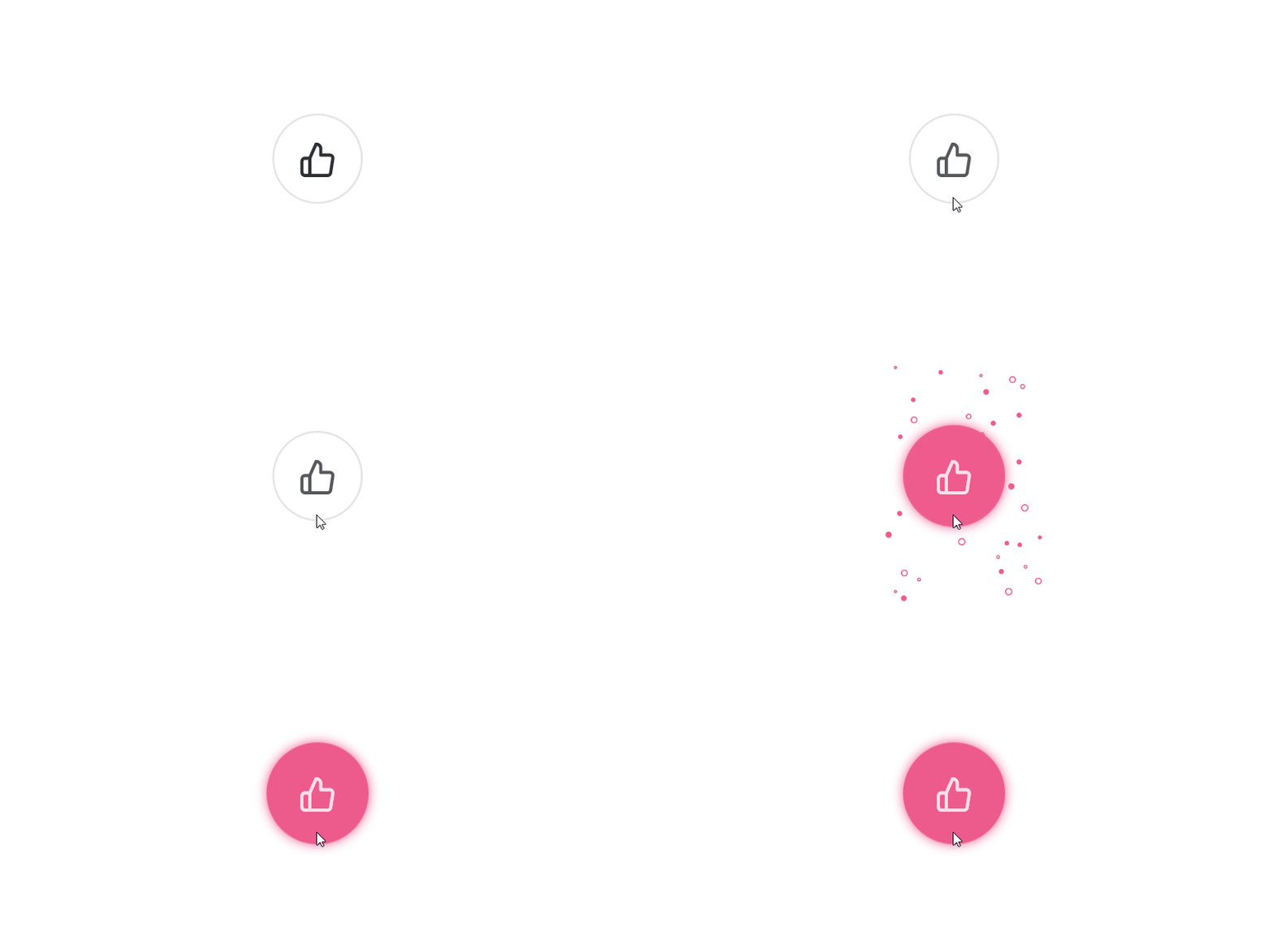
在控件模板中添加一个粉红色的带一个同色阴影的圆形背景,其它状态下隐藏,在切换到 Completed 状态时显示。为了好看,还添加了 ImplictAnimation 控制淡入淡出。
<ContentControl x:Name="CompletedElement"

                Template="{StaticResource CompletedTemplate}"

                Visibility="Collapsed">

    <animations:Implicit.HideAnimations>

        <animations:OpacityAnimation SetInitialValueBeforeDelay="True"

                                     From="1"

                                     To="0"

                                     Duration="0:0:0.3" />

    </animations:Implicit.HideAnimations>

    <animations:Implicit.ShowAnimations>

        <animations:OpacityAnimation SetInitialValueBeforeDelay="True"

                                     From="0"

                                     To="1"

                                     Duration="0:0:0.6" />

    </animations:Implicit.ShowAnimations>

</ContentControl>
在 VisualStateManager 中加入 ProgressStates 这组状态,只需要控制 Completed 状态的 Setters,显示粉红色的背景,隐藏边框,文字变白色。
<VisualStateGroup x:Name="ProgressStates">

    <VisualState x:Name="Idle" />

    <VisualState x:Name="InProgress" />

    <VisualState x:Name="Completed">

        <VisualState.Setters>

            <Setter Target="RootBorder.BorderBrush" Value="Transparent" />

            <Setter Target="ContentControl.Foreground" Value="White" />

            <Setter Target="CompletedElement.Visibility" Value="Visible" />

        </VisualState.Setters>

    </VisualState>

    <VisualState x:Name="Faulted" />

</VisualStateGroup>

4. Button 的 CommonStates
作为一个 Button,按钮的 PointOver 和 Pressed 状态当然必不可少,这些逻辑我参考了 真篇文章 最后一部分代码(不过我没有加入 Click 事件)。在控件模板中也制作了最简单的处理:
<VisualStateGroup x:Name="CommonStates">

    <VisualState x:Name="PointerOver">

        <VisualState.Setters>

            <Setter Target="ContentControl.Opacity" Value="0.8" />

        </VisualState.Setters>

    </VisualState>

    <VisualState x:Name="Pressed">

        <VisualState.Setters>

            <Setter Target="ContentControl.Opacity" Value="0.6" />

        </VisualState.Setters>

    </VisualState>

</VisualStateGroup>
5. 气泡
气泡动画来源于火火的 BubbleButton,它封装得很优秀,ProgressButton 只需要在 Completed 状态下设置 BubbleView.IsBubbing = true 即可触发气泡动画,这大大减轻了 XAML 的工作:
<Setter Target="BubbleView.IsBubbing" Value="True" />

<bubblebutton:BubbleView x:Name="BubbleView"

                         HorizontalAlignment="Stretch"

                         VerticalAlignment="Stretch"

                         Foreground="{StaticResource PrimaryColor}" />
6. Tapped 和 Holding
因为要实现长按功能,所以我没有实现 Button 的 Click,而是使用了 GestureRecognizer 的 Tapped 和 Holding,订阅这两个事件,触发后重新抛出。
private GestureRecognizer _gestureRecognizer = new GestureRecognizer();

public ProgressButton()

{

    _gestureRecognizer.GestureSettings = GestureSettings.HoldWithMouse | GestureSettings.Tap | GestureSettings.Hold;

    _gestureRecognizer.Holding += OnGestureRecognizerHolding;

    _gestureRecognizer.Tapped += OnGestureRecognizerTapped;

}

public event EventHandler<HoldingEventArgs> GestureRecognizerHolding;

public event EventHandler<TappedEventArgs> GestureRecognizerTapped;

protected override void OnPointerPressed(PointerRoutedEventArgs e)

{

    // SOME CODE

    var points = e.GetIntermediatePoints(null);

    if (points != null && points.Count > 0)

    {

        _gestureRecognizer.ProcessDownEvent(points[0]);

        e.Handled = true;

    }

}

protected override void OnPointerReleased(PointerRoutedEventArgs e)

{

    // SOME CODE

    var points = e.GetIntermediatePoints(null);

    if (points != null && points.Count > 0)

    {

        _gestureRecognizer.ProcessUpEvent(points[0]);

        e.Handled = true;

        _gestureRecognizer.CompleteGesture();

    }

}

protected override void OnPointerMoved(PointerRoutedEventArgs e)

{

    // SOME CODE

    _gestureRecognizer.ProcessMoveEvents(e.GetIntermediatePoints(null));

}

private void OnGestureRecognizerTapped(GestureRecognizer sender, TappedEventArgs args)

{

    GestureRecognizerTapped?.Invoke(this, args);

}

private void OnGestureRecognizerHolding(GestureRecognizer sender, HoldingEventArgs args)

{

    GestureRecognizerHolding?.Invoke(this, args);

}
由于一键三连属于业务方面的功能(要联网、检查状态、还可能回退),不属于控件应该提供的功能,所以 ProgressButton 只需要实现到这一步就完成了。
7. 实现一键三连
终于要实现一键三连啦。首先创建三个 ProgressButton, 然后互相双向绑定 Value 的值并订阅事件:
<lab:ProgressButton x:Name="LikeButton"
Content=""
GestureRecognizerHolding="OnGestureRecognizerHolding"
GestureRecognizerTapped="OnGestureRecognizerTapped" />
<lab:ProgressButton x:Name="CoinButton"
Content=""
GestureRecognizerHolding="OnGestureRecognizerHolding"
GestureRecognizerTapped="OnGestureRecognizerTapped"
Value="{Binding ElementName=LikeButton, Path=Value}" />
<lab:ProgressButton x:Name="FavoriteButton"
Content=""
GestureRecognizerHolding="OnGestureRecognizerHolding"
GestureRecognizerTapped="OnGestureRecognizerTapped"
Value="{Binding ElementName=LikeButton, Path=Value}" />
处理 Tapped 的代码很简单,就是反转一下状态:
private void OnGestureRecognizerTapped(object sender, Windows.UI.Input.TappedEventArgs e)

{

    var progressButton = sender as ProgressButton;

    if (progressButton.State == ProgressState.Idle)

        progressButton.State = ProgressState.Completed;

    else

        progressButton.State = ProgressState.Idle;

}
Holding 的代码就复杂一些,设置一个动画的 Taget 然后启动动画,动画完成后把所有 ProgressButton 的状态改为 Completed,最后效果可以参考文章开头的 gif:
private void OnGestureRecognizerHolding(object sender, Windows.UI.Input.HoldingEventArgs e)

{

    var progressButton = sender as ProgressButton;

    if (e.HoldingState == HoldingState.Started)

    {

        if (!_isAnimateBegin)

        {

            _isAnimateBegin = true;

            (_progressStoryboard.Children[0] as DoubleAnimation).From = progressButton.Minimum;

            (_progressStoryboard.Children[0] as DoubleAnimation).To = progressButton.Maximum;

            Storyboard.SetTarget(_progressStoryboard.Children[0] as DoubleAnimation, progressButton);

            _progressStoryboard.Begin();

        }

    }

    else

    {

        _isAnimateBegin = false;

        _progressStoryboard.Stop();

    }

}

private void OnProgressStoryboardCompleted(object sender, object e)

{

    LikeButton.State = ProgressState.Completed;

    CoinButton.State = ProgressState.Completed;

    FavoriteButton.State = ProgressState.Completed;

}
8. 最后
很久没有认真写 UWP 的博客了,我突然有了个大胆的想法,在这个时间点,会不会就算我胡说八道都不会有人认真去验证我写的内容?毕竟现在写 UWP 的人又不多。不过放心,我对 UWP 是认真的,我保证我是个诚实的男人。
不过这个一键三连功能做出来后,又好像,完全没机会用到嘛。难得都做出来了,就用来皮一下。

9. 源码
[UWP] 模仿哔哩哔哩的一键三连的更多相关文章
- 仿哔哩哔哩应用客户端Android版源码项目
这是一款高仿哔哩哔哩安卓客户端,跟官方网的差不多吧,界面也几乎是一样的,应用里面也加了一些弹出广告,大家可以参考一下吧,安装测试包在源码文件那里,大家可以多多参考一下. 哔哩哔哩弹幕网是国内知名的弹幕 ...
- 在Python中用Request库模拟登录(四):哔哩哔哩(有加密,有验证码)
!已失效! 抓包分析 获取验证码 获取加密公钥 其中hash是变化的,公钥key不变 登录 其中用户名没有被加密,密码被加密. 因为在获取公钥的时候同时返回了一个hash值,推测此hash值与密码加密 ...
- YouTuboba视频搬运~哔哩哔哩
将YouTube上面的视频搬运到哔哩哔哩上面教程 1.首先选择YouTube上面一个视频,需要谷歌登录,然后保存这个视频播放链接. 2.在浏览器中输入这个网址:en.savefrom.net,点击En ...
- 可以在GitHub或者码云里 直接搜索 项目 比如 哔哩哔哩
韩梦飞沙 韩亚飞 313134555@qq.com yue31313 han_meng_fei_sha Search · 哔哩哔哩 哔哩哔哩 · 搜索 - 码云 还有就是 以前的项目 可以不要 ...
- Ajax介绍及爬取哔哩哔哩番剧索引追番人数排行
Ajax,是利用JavaScript在保证页面不被刷新,页面链接不改变的情况下与服务器交换数据并更新部分网页的技术.简单的说,Ajax使得网页无需刷新即可更新其内容.举个例子,我们用浏览器打开新浪微博 ...
- 如何下载B站哔哩哔哩(bilibili)弹幕网站上的视频呢?小白教你个简单方法
对于90后.00后来说,B站肯定听过吧.小编有一个苦恼的地方,有时候想把哔哩哔哩(bilibili)上看到的视频保存到手机相册,不知道咋操作啊.网上百度了下,都是要下载电脑软件的,有些还得要付费的.前 ...
- 2019 哔哩哔哩java面试笔试题 (含面试题解析)
本人5年开发经验.18年年底开始跑路找工作,在互联网寒冬下成功拿到阿里巴巴.今日头条.哔哩哔哩等公司offer,岗位是Java后端开发,因为发展原因最终选择去了哔哩哔哩,入职一年时间了,也成为了面 ...
- python预课05 爬虫初步学习+jieba分词+词云库+哔哩哔哩弹幕爬取示例(数据分析pandas)
结巴分词 import jieba """ pip install jieba 1.精确模式 2.全模式 3.搜索引擎模式 """ txt ...
- 最新 哔哩哔哩java校招面经 (含整理过的面试题大全)
从6月到10月,经过4个月努力和坚持,自己有幸拿到了网易雷火.京东.去哪儿.哔哩哔哩等10家互联网公司的校招Offer,因为某些自身原因最终选择了哔哩哔哩.6.7月主要是做系统复习.项目复盘.Leet ...
随机推荐
- C# TCP应用编程一 概述
TCP 是Transmission Control Protocol(传输控制协议)的简称,是TCP/IP 体系中面向连接的运输层协议,在网络中提供全双工的和可靠的服务.一旦通信双方建立了TCP 连接 ...
- 头疼的Python 脚本报错
Python 脚本报错 检查是否用了制表符.变量声明前面不能用制表符,只能用空格,版本为2.7.14
- Kubernets二进制安装(18)之安装部署Heapster
1.下载heapster镜像 在运维主机(mfyxw50.mfyxw.com)执行 [root@mfyxw50 ~]# docker pull quay.io/bitnami/heapster:1.5 ...
- 注意力(Attention)与Seq2Seq的区别
什么是注意力(Attention)? 注意力机制可看作模糊记忆的一种形式.记忆由模型的隐藏状态组成,模型选择从记忆中检索内容.深入了解注意力之前,先简要回顾Seq2Seq模型.传统的机器翻译主要基于S ...
- 关于string类中find函数的讲解
以下所讲的所有的string查找函数,都有唯一的返回类型,那就是size_type,即一个无符号整数(按打印出来的算).若查找成功,返回按查找规则找到的第一个字符或子串的位置:若查找失败,返回npos ...
- WebSocket All In One
WebSocket All In One WebSocket heartbeat WebSocket 心跳检测 ping pong refs xgqfrms 2012-2020 www.cnblogs ...
- auto switch HTTP protocol Chrome Extension
auto switch HTTP protocol Chrome Extension HTTPS auto switch to HTTP VPN https://chrome.google.com/w ...
- 视屏剪辑软件 & free video editor
视屏剪辑软件 & free video editor purpose add animation keyframe to tutorials video vlog demos tutorial ...
- Apache HTTP Server & WS (websockets)
Apache HTTP Server & WS (websockets) Apache HTTP Server Version 2.4 https://httpd.apache.org/doc ...
- vue & dynamic components
vue & dynamic components https://vuejs.org/v2/guide/components-dynamic-async.html keep-alive htt ...