
Centos6 安装nginx
一、编译安装nginx
1、安装nginx所需要的库pcre,pcre的全称为:perl compatible regular expression即perl正则表达式,是为了使nginx具备URL重写功能的rewrite模块
[root@web01 ~]# yum install pcre pcre-devel -y ####安装[root@web01 ~]# rpm -qa pcre pcre-devel ####检查pcre-devel-7.8-7.el6.x86_64pcre-7.8-7.el6.x86_64
2、安装nginx
[root@web01 ~]# yum install openssl-devel openssl -y  ###安装nginx基础依赖包[root@web01 ~]# rpm -qa openssl-devel openssl    ###检查是否安装成功openssl-1.0.1e-57.el6.x86_64openssl-devel-1.0.1e-57.el6.x86_64[root@web01 ~]# mkdir -p /server/tools    ######创建一个目录,管理下载的工具软件[root@web01 ~]# useradd nginx -s /sbin/nologin -M  #####添加nginx用户,不需要登陆,不需要家目录[root@web01 ~]# cd /server/tools/[root@web01 tools]# tar xf nginx-1.6.3.tar.gz    #####解压nginx,软件请自行下载  [root@web01 tools]# cd nginx-1.6.3[root@web01 nginx-1.6.3]# mkdir -p /application/nginx-1.6.3    创建nginx安装目录[root@web01 nginx-1.6.3]# ./configure --user=nginx --group=nginx --prefix=/application/nginx-1.6.3/ --with-http_stub_status_module --with-http_ssl_module  ###配置安装参数checking for OS + Linux 2.6.32-431.el6.x86_64 x86_64checking for C compiler ... not found

./configure: error: C compiler cc is not found      #####没有安装编译环境

[root@web01 nginx-1.6.3]# yum install gcc gcc-c++ -y    ######安装编译工具[root@web01 nginx-1.6.3]# rpm -qa gcc gcc-c++      ###检查gcc-c++-4.4.7-18.el6_9.2.x86_64gcc-4.4.7-18.el6_9.2.x86_64[root@web01 nginx-1.6.3]# ./configure --user=nginx --group=nginx --prefix=/application/nginx-1.6.3/ --with-http_stub_status_module --with-http_ssl_module  ##重新配置.......省略.......Configuration summary  + using system PCRE library  + using system OpenSSL library  + md5: using OpenSSL library  + sha1: using OpenSSL library  + using system zlib library      nginx path prefix: "/application/nginx-1.6.3/"        ###安装目录  nginx binary file: "/application/nginx-1.6.3//sbin/nginx"    #####执行程序  nginx configuration prefix: "/application/nginx-1.6.3//conf"    ####配置文件目录  nginx configuration file: "/application/nginx-1.6.3//conf/nginx.conf"  #####主配置文件  nginx pid file: "/application/nginx-1.6.3//logs/nginx.pid"      ####pid文件  nginx error log file: "/application/nginx-1.6.3//logs/error.log"    ####错误日志  nginx http access log file: "/application/nginx-1.6.3//logs/access.log"  ####访问控制文件  nginx http client request body temporary files: "client_body_temp"      nginx http proxy temporary files: "proxy_temp"  nginx http fastcgi temporary files: "fastcgi_temp"  nginx http uwsgi temporary files: "uwsgi_temp"  nginx http scgi temporary files: "scgi_temp"[root@web01 nginx-1.6.3]# make [root@web01 nginx-1.6.3]# make install    ####安装[root@web01 nginx-1.6.3]# ln -s /application/nginx-1.6.3 /application/nginx  ####软连接到/application/nginx,方便管理软件版本;##################注释################--prefix=/application/nginx-1.6.3   安装路径--user=nginx  指定进程用户权限--group=nginx  指定进程用户组权限--with-http_stub_status_module  激活nginx状态信息--with-http_ssl_module  激活ssl加密功能
3、启动并检查nginx
[root@web01 nginx-]# /application/nginx/sbin/nginx -t    ########-t  检查配置文件
nginx: the configuration file /application/nginx-//conf/nginx.conf syntax is ok
nginx: configuration file /application/nginx-//conf/nginx.conf test is successful
[root@web01 nginx-]# /application/nginx/sbin/nginx    ######启动nginx
[root@web01 nginx-]# lsof -i :80      #####查看nginx端口是否成功启动
COMMAND  PID  USER   FD   TYPE DEVICE SIZE/OFF NODE NAME
nginx     root          0t0  TCP *:http (LISTEN)
nginx    nginx          0t0  TCP *:http (LISTEN)
4、客户端验证
[root@web01 ~]# /etc/init.d/iptables stop  ####关闭防火墙[root@web01 ~]# chkconfig iptables off    ####关闭防火墙开机启动[root@web01 ~]# getenforce       ###检查selinux状态,为关闭状态,如果不是请自行关闭Disabled[root@web01 ~]# ip addr
: lo: <LOOPBACK,UP,LOWER_UP> mtu  qdisc noqueue state UNKNOWN
    link/loopback ::::: brd :::::
    inet  scope host lo
    inet6 ::/ scope host
       valid_lft forever preferred_lft forever
: eth0: <BROADCAST,MULTICAST,UP,LOWER_UP> mtu  qdisc pfifo_fast state UP qlen
    link/ether :0c::7d::f3 brd ff:ff:ff:ff:ff:ff
    inet  brd 192.168.127.255 scope global eth0    #####服务器地址
    inet6 fe80::20c:29ff:fe7d:93f3/ scope link
       valid_lft forever preferred_lft foreverwindows客户端在浏览器输入http://192.168.127.11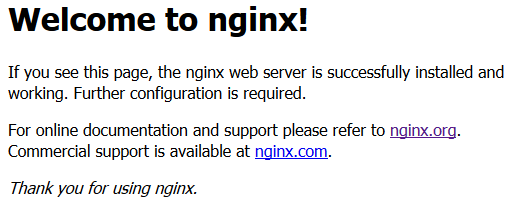
也可在本地用命令检测
[root@web01 ~]# wget 127.0.0.1
--2018-06-05 17:22:27-- http://127.0.0.1/
正在连接 127.0.0.1:80... 已连接。
已发出 HTTP 请求,正在等待回应... 200 OK
长度:612 [text/html]
正在保存至: “index.html”
100%[=========================================================================>] 612 --.-K/s in 0s
2018-06-05 17:22:27 (50.2 MB/s) - 已保存 “index.html” [612/612])
二、nginx目录结构和可加载模块功能
1、目录结构
[root@web01 ~]# tree /application/nginx
/application/nginx
├── client_body_temp
├── conf      #####nginx配置文件目录
│   ├── fastcgi.conf     ######fastcgi相关参数的配置文件
│   ├── fastcgi.conf.default  ######fastcgi原始备份
│   ├── fastcgi_params      ####fastcgi的参数文件
│   ├── fastcgi_params.default
│   ├── koi-utf
│   ├── koi-win
│   ├── mime.types      ####媒体类型
│   ├── mime.types.default
│   ├── nginx.conf        ####nginx默认配置文件
│   ├── nginx.conf.default
│   ├── scgi_params        ####scgi相关参数文件,一般用不到
│   ├── scgi_params.default
│   ├── uwsgi_params      #####uwsgi相关参数文件,一般用不到
│   ├── uwsgi_params.default
│   └── win-utf
├── fastcgi_temp    ####fastcgi临时数据目录
├── html        ####bginx的默认站点目录
│   ├── 50x.html    ####错误页面
│   └── index.html    ###默认首页文件
├── logs
│   ├── access.log    ####nginx默认访问日志文件
│   ├── error.log      ####默认错误日志文件
│   └── nginx.pid      #####pid文件
├── proxy_temp      ####临时目录
├── sbin        ####命令目录
│   └── nginx
├── scgi_temp     ####临时目录
└── uwsgi_temp    ###临时目录
2、功能模块
- ngx_http_core_module:包括一些核心的http参数配置,对应nginx的配置为http区块部分
- ngx_http_access_module:访问控制模块,用来控制网站用户对nginx的访问
- ngx_http_gzip_module:压缩模块,对nginx返回的数据压缩,属于性能优化模块
- ngx_http_fastcgi_module:fastCGI模块,和动态应用相关的模块
- ngx_http_proxy_module:proxy代理模块
- ngx_http_upstream_module:负载均衡模块,可以实现网站的负载均衡功能及节点的健康检查
- ngx_http_rewrite_module:URL地址重写模块
- ngx_http_limit_conn_module:限制用户并发连接数及请求数模块
- ngx_http_limit_req_module:根据定义的key限制nginx请求过程的速率
- ngx_http_log_module:访问日志模块,以指定的格式记录nginx客户访问日志等信息
- ngx_http_auth_basic_module:web认证模块,设置web用户通过账号,密码访问nginx
- ngx_http_ssl_module:ssl模块,用于加密的http连接,如https
- ngx_http_stub_status_module:nginx基本访问状态信息模块
3、nginx主配置文件
[root@web01 ~]# cat /application/nginx/conf/nginx.conf      #####nginx配置文件#号后面内容为默认

#user  nobody;      ###nginx默认权限用户,编译时已指定--user=nginx
worker_processes  ;        #####nginx进程数,默认为1,可根据服务器核心数修改,如单cpu4核心,可修改为4

#error_log  logs/error.log;      ###默认错误日志文件
#error_log  logs/error.log  notice;      ####notice错误级别日志
#error_log  logs/error.log  info;       ###info日志

#pid        logs/nginx.pid;      ####pid文件

events {
    worker_connections  ;      ####nginx默认支持的最大连接数
}

http {       ########http全局配置模块
    include       mime.types;        ####调用支持的媒体类型文件
    default_type  application/octet-stream;

    #log_format  main  '$remote_addr - $remote_user [$time_local] "$request" '    ###默认日志内容格式
    #                  '$status $body_bytes_sent "$http_referer" '
    #                  '"$http_user_agent" "$http_x_forwarded_for"';

    #access_log  logs/access.log  main;      ####默认访问日志

    sendfile        on;        ####高效传输模式
    #tcp_nopush     on;

    #keepalive_timeout  ;
    keepalive_timeout  ;      ####超时时间

    #gzip  on;        ####支持gzip压缩

    server {                    #####虚拟主机配置模块
        listen       ;      ####监听80端口
        server_name  localhost;

        #charset koi8-r;

        #access_log  logs/host.access.log  main;      #####该虚拟主机访问日志

        location / {            ####location模块,
            root   html;          #####站点数据文件目录
            index  index.html index.htm;    ####默认网站首页
        }

        #error_page                /.html;      ####错误页面

        # redirect server error pages to the static page /50x.html
        #
        error_page        /50x.html;    #####错误页面
        location = /50x.html {
            root   html;
        }

        # proxy the PHP scripts to Apache listening on
        #
        #location ~ \.php$ {
        #    proxy_pass   http://127.0.0.1;
        #}

        # pass the PHP scripts to FastCGI server listening on
        #
        #location ~ \.php$ {
        #    root           html;
        #    fastcgi_pass   ;
        #    fastcgi_index  index.php;
        #    fastcgi_param  SCRIPT_FILENAME  /scripts$fastcgi_script_name;
        #    include        fastcgi_params;
        #}

        # deny access to .htaccess files, if Apache's document root
        # concurs with nginx's one
        #
        #location ~ /\.ht {
        #    deny  all;
        #}
    }

    # another virtual host using mix of IP-, name-, and port-based configuration
    #
    #server {          ######基于ip,端口的虚拟主机范例
    #    listen       ;
    #    listen       somename:;
    #    server_name  somename  alias  another.alias;

    #    location / {
    #        root   html;
    #        index  index.html index.htm;
    #    }
    #}

    # HTTPS server
    #
    #server {            #####基于ssl认证的范例
    #    listen        ssl;
    #    server_name  localhost;

    #    ssl_certificate      cert.pem;
    #    ssl_certificate_key  cert.key;

    #    ssl_session_cache    shared:SSL:1m;
    #    ssl_session_timeout  5m;

    #    ssl_ciphers  HIGH:!aNULL:!MD5;
    #    ssl_prefer_server_ciphers  on;

    #    location / {
    #        root   html;
    #        index  index.html index.htm;
    #    }
    #}

}
Centos6 安装nginx的更多相关文章
- centos6安装nginx
1.获取官方的仓库地址 我们需要先访问nginx的官方网站,获取官方的仓库地址https://nginx.org/en/linux_packages.html#stable 新建/etc/yum.re ...
- 转载《centos6安装nginx最详细步骤》
出处:https://www.cnblogs.com/hltswd/p/6956264.html 第一步:在centos下面下载 nginx wget http://nginx.or ...
- centos6安装nginx最详细步骤
第一步:在centos下面下载 nginx wget http://nginx.org/download/nginx-1.2.9.tar.gz 解压 tar zxf nginx-1. ...
- centos6.3安装nginx
一般使用linux系统的不少网友可能都是直接使用一键安装包进行安装的,以前作者也这样,但是很多时候这些一键安装方便是方便但是可能在升级及其他很多地方不是很好,本文就说下在centos6.3安装ngin ...
- Centos6 下安装Nginx+Mysql+PHP
安装nginx https://segmentfault.com/a/1190000007928556 添加源 $ wget http://nginx.org/packages/centos/6/no ...
- 【CentOS6.5】安装nginx报错:No package nginx available. Error: Nothing to do
今天在给centos6.5安装nginx时候,提示报错No package nginx available. Error: Nothing to do, 后来百度一下,说缺少EPEL(epel是社区强 ...
- centos6.5编译安装nginx
系统64位 centos6.5 nginx官网:http://nginx.org/ 下载nginx源码包: wget http://nginx.org/download/nginx-1.6.2.ta ...
- centos6.5 安装nginx
安装之前先安装VMware tools(方便于从windows上拷贝文件到linux) 1. nginx安装环境 nginx是C语言开发,建议在linux上运行,本次使用Centos6.5作为安装环境 ...
- Centos6.6 编译安装nginx
一.基本环境 nginx 1.9版以后增加了一些新的特性,支持tcp负载均衡,不过这次还是用1.8.0,这里面有个memcached的代理模块,有时间再测试下 1.centos6.6 2.nginx1 ...
随机推荐
- 【OpenJ_Bailian - 4070 】全排列
全排列 Descriptions: 对于数组[1, 2, 3],他们按照从小到大的全排列是 1 2 3 1 3 2 2 1 3 2 3 1 3 1 2 3 2 1 现在给你一个正整数n,n小于8,输出 ...
- 用WEKA进行数据挖掘
学习于IBM教学文档 数据挖掘学习与weka使用 第二部 分分类和集群 分类 vs. 群集 vs. 最近邻 在我深入探讨每种方法的细节并通过 WEKA 使用它们之前,我想我们应该先理解每个模型 - 每 ...
- jsp错误处理
jsp提供了很好的错误能力,除了在java代码中可以使用try语句,还可以指定一个特殊页面,当页面应用遇到未捕获的异常时,用户将看到一个精心设计的网页解释发生了什么,而不是一个用户无法理解的错误信息. ...
- Radis
http://www.redis.cn/ http://try.redis.io/ http://www.redisdoc.com/en/latest/ Redis 命令参考¶ 本文档是 Redis ...
- Neither BindingResult nor plain target object for bean name 'user' available as request attribute
这个异常是因为jsp页面写错了. 把<form:form></form:form>标签改成普通的标签即可. 应该是第一次访问的时候,user是空的.但springmvc不能是空 ...
- AJPFX关于Collection 集合的表述
集合的遍历class Demo_Collection{ public static void main(String[] args){ Collection c = new ...
- SpringBoot 2.x (3):文件上传
文件上传有两个要点 一是如何高效地上传:使用MultipartFile替代FileOutputSteam 二是上传文件的路径问题的解决:使用路径映射 文件路径通常不在classpath,而是本地的一个 ...
- [BZOJ1004][HNOI2008]Cards 群论+置换群+DP
题目链接:http://www.lydsy.com/JudgeOnline/problem.php?id=1004 首先贴几个群论相关定义和引理. 群:G是一个集合,*是定义在这个集合上的一个运算. ...
- shell编写的多服务器自动互信脚本(安装ceph)
相信大家都使用过分布式存储,而在分布式存储中较为出色的非ceph莫属了,但是这里就不深入聊ceph啦,我们只是聊聊安装ceph时遇到的问题. ceph需要多台主机进行ssh互信.三台还能忍受,但是当超 ...
- 使用Kotlin,抛弃findViewById
有没有觉得Android的findViewById挺烦人的.使用Kotlin可以让你彻底抛弃这个烦恼 步骤1.在build.gradle(Module:app)中添加如下一句话 这个在老一点版本的An ...