
selenium怎么操作web页面常见的元素
总结一下selenium怎么操作web页面常见的元素。
主要有:
- 上传
- alter dialog
- prompt dialog
- confirm dialog
- select list
- radio box
- input box
- checkBox
测试页面如下:
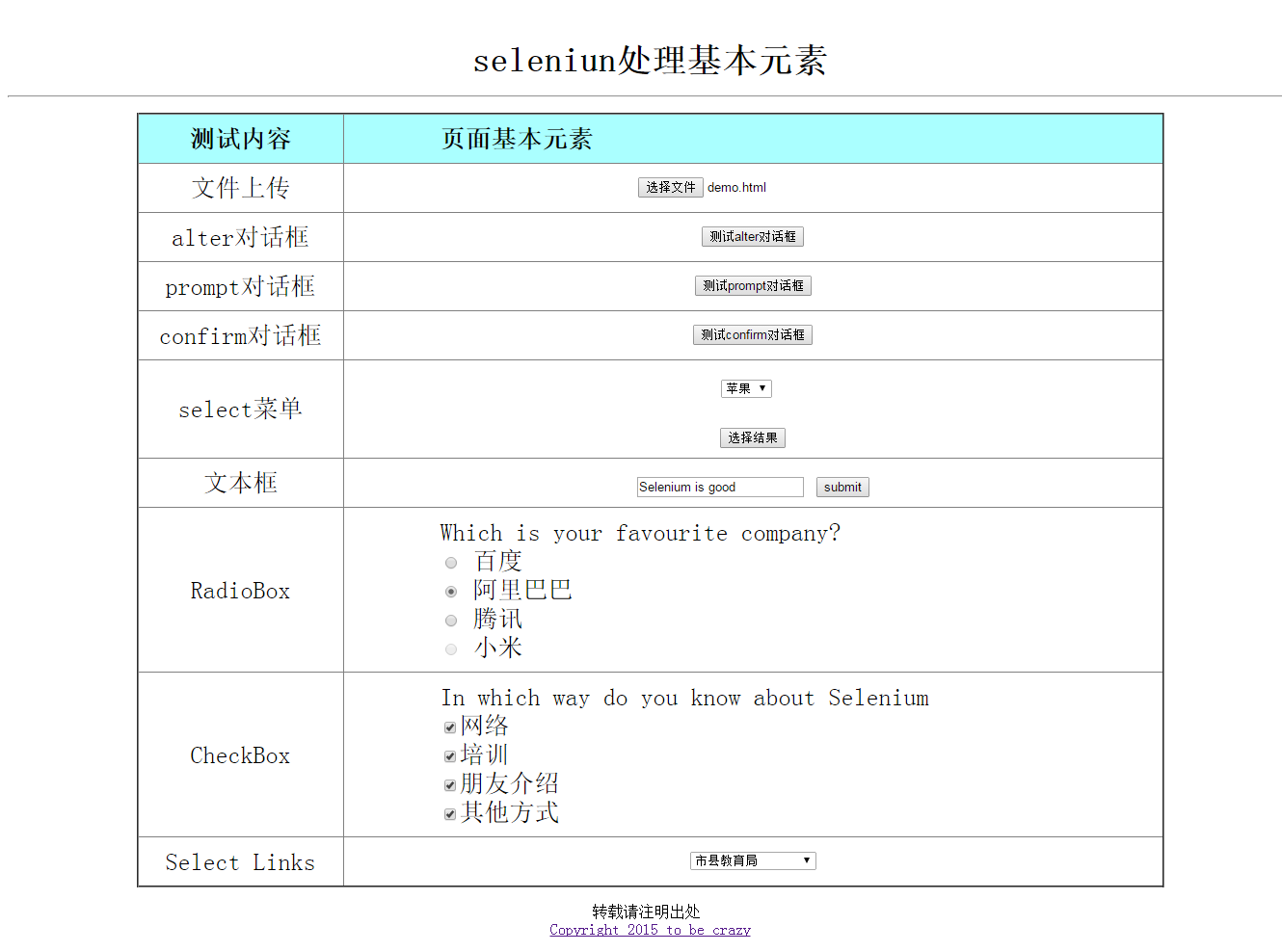
selenium 最核心的技巧是WebElement的识别和定位
selenium总共有八种定位方法
- By.id() 通过id定位
- By.name() 通过name 定位
- By.xpath() 通过xpath定位
- By.className() 通过className定位
- By.cssSelector() 通过CSS 定位
- By.linkText() 通过linkText
- By.tagName() 通过tagName
- By.partialLinkText() 通过匹到的部分linkText
目前,使用比较多的是cssSelector和xpath,因为一个页面中Id name className tagName LinkText等比较容易重复 不容易 确定唯一
接下来会有具体的例子来演示如何定位
上传文件
一般,上传页面如果是input,像这样的,可以使用sendkeys

首先,这里使用xpath定位到该元素,然后使用sendKeys即可,sendKeys send你要上传的文件的绝对路径
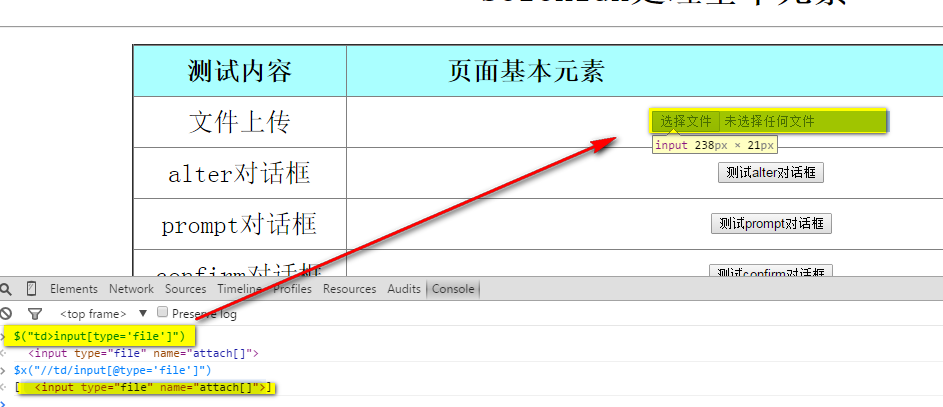
1 //td/input[@type='file']
也可以使用cssSelector,关于xpath和cssSelector更多知识,以后会做一些专题
1 td>input[type='file']
如何验证你写的xptah/cssSelector是正确的呢?
有以下几种方法:
- F12 ,使用浏览器的console ,xpath使用$x() function,css使用 $() function
- 使用第三方插件firebug
- 使用selenium IDE
alert对话框
细分三种,Alert,prompt,confirm
Selenium有以下方法:
Alert alert =driver.switchTo().alert();
1. driver.switchTo().alert(); 获取alert
2. alert.accept(); 点确定
3. alert.dismiss(); 点取消
4. alert.getText();获取alert的内容
select菜单
select也是比较常见的,selenium封装了以下方法
创建select
WebElement selector = driver.findElement(By.id("Selector"));

Select select = new Select(selector);
选择select的option有以下三种方法
- selectByIndex(int index) 通过index
- selectByVisibleText(String text) 通过匹配到的可见字符
- selectByValue(String value) 通过匹配到标签里的value
WebElement selector = driver.findElement(By.id("Selector"));

        Select select = new Select(selector);

        select.selectByIndex(3);

        select.selectByVisibleText("桃子");

        select.selectByValue("apple");
输入框
输入框就比较简单了,不再多说
sendKeys()输入内容
clear() 清空
单选框(RadioBox)
单选框可以有获取状态,是否被选中
radioBox.isSelected();
是否enable
radioBox.isEnabled()
使用click方法选中
复选框(checkBox)
复选框和单选框基本差不多,此处略
超链接
超链接比较常见,一般都是标签a
<a href="http://www.cnblogs.com/tobecrazy/" >Copyright 2015 to be crazy </a>
一般使用click方法
这里我们了解一下浏览器打开超链接时,如果是chrome,点超链接的同时按下Ctrl会打开新标签,按下shift会打开新窗口
这里单讲一下不同窗口切换.
selenium有两个关于获取窗口的方法:
1. driver.getWindowHandle(); 返回的是字符串,获取当前窗口的句柄
2. driver.getWindowHandles(); 返回的是 Set<String> ,获取所有窗口
如果你想在窗口之间切换
driver.switchTo().window(window);
小技巧: 如何滚动到你定位的元素
这里使用java script
// scroll to mylink

        JavascriptExecutor scroll = (JavascriptExecutor) driver;

        scroll.executeScript("arguments[0].scrollIntoView();", myLink);
接下来是所有测试代码:
package DriverTest;
import java.util.Arrays;
import java.util.List;
import java.util.Set;
import java.util.concurrent.TimeUnit;
import org.openqa.selenium.Alert;
import org.openqa.selenium.By;
import org.openqa.selenium.JavascriptExecutor;
import org.openqa.selenium.Keys;
import org.openqa.selenium.WebDriver;
import org.openqa.selenium.WebElement;
import org.openqa.selenium.chrome.ChromeDriver;
import org.openqa.selenium.chrome.ChromeOptions;
import org.openqa.selenium.interactions.Actions;
import org.openqa.selenium.remote.DesiredCapabilities;
import org.openqa.selenium.support.ui.Select;
import org.testng.Assert;
/**
* 出来web基本元素
*
* @author nancy
*
*/
public class TestDemo {
public static void main(String[] args) throws Exception {
String URL = "file:///F:/workspace/SeleniumTest/demo.html";
String chromdriver="BrowserDriver/chromedriver.exe";
System.setProperty("webdriver.chrome.driver", chromdriver);
ChromeOptions options = new ChromeOptions();
// options.addExtensions(new File(""));
DesiredCapabilities capabilities = DesiredCapabilities.chrome();
capabilities.setCapability("chrome.switches",
Arrays.asList("--start-maximized"));
options.addArguments("--test-type", "--start-maximized");
WebDriver driver=new ChromeDriver(options);
driver.get(URL);
// max size the browser
driver.manage().window().maximize();
driver.manage().timeouts().pageLoadTimeout(10, TimeUnit.SECONDS);
WebElement upload = driver.findElement(By
.xpath("//td/input[@type='file']"));
upload.sendKeys("F:/workspace/SeleniumTest/demo.html");
Assert.assertTrue(upload.getAttribute("value").contains("demo"));
// for alert
WebElement clickOnAlert = driver.findElement(By
.xpath("//td/input[@name='alterbutton']"));
clickOnAlert.click();
delay(2);
// get alert
Alert alert = driver.switchTo().alert();
Assert.assertTrue(alert.getText().contains("alert"));
// click alert ok
alert.accept();
delay(2);
// for prompt
WebElement clickOnPrompt = driver.findElement(By
.xpath("//td/input[@name='promptbutton']"));
clickOnPrompt.click();
delay(2);
Alert prompt = driver.switchTo().alert();
prompt.sendKeys("I love Selenium");
prompt.accept();
delay(5);
Alert afterAccept = driver.switchTo().alert();
Assert.assertTrue(afterAccept.getText().contains("I love Selenium"));
// click alert ok
afterAccept.accept();
delay(2);
// for confirm
WebElement clickOnConfirm = driver.findElement(By
.xpath("//td/input[@name='confirmbutton']"));
clickOnConfirm.click();
delay(2);
Alert confirm = driver.switchTo().alert();
confirm.dismiss();
delay(2);
Alert afterDismiss = driver.switchTo().alert();
Assert.assertTrue(afterDismiss.getText().contains("You pressed Cancel"));
delay(2);
afterDismiss.accept();
driver.manage().timeouts().implicitlyWait(60, TimeUnit.SECONDS);
WebElement selector = driver.findElement(By.id("Selector"));
Select select = new Select(selector);
select.selectByIndex(3);
select.selectByVisibleText("桃子");
select.selectByValue("apple");
System.out.println(select.getAllSelectedOptions().toString());
delay(2);
WebElement showSelectResult = driver.findElement(By
.name("showSelectResult"));
showSelectResult.click();
delay(2);
Alert yourSelect = driver.switchTo().alert();
Assert.assertTrue(yourSelect.getText().contains("苹果"));
delay(2);
yourSelect.accept();
// input box
WebElement editBox = driver.findElement(By
.xpath("//td/input[@id='edit']"));
editBox.sendKeys("Selenium is good");
WebElement submitButton = driver.findElement(By
.xpath("//input[@type='button' and @name='submit']"));
submitButton.click();
delay(2);
Alert submitAlert = driver.switchTo().alert();
Assert.assertEquals(submitAlert.getText(), "Selenium is good");
submitAlert.accept();
delay(2);
// for radio Box
WebElement duRadioBox = driver.findElement(By
.cssSelector("div#radio>input.Baidu"));
WebElement aLiRadioBox = driver.findElement(By
.cssSelector("div#radio>input.Alibaba"));
WebElement TXRadioBox = driver.findElement(By
.cssSelector("div#radio>input.Tencent"));
WebElement MiRadioBox = driver.findElement(By
.cssSelector("div#radio>input.Mi"));
delay(2);
Assert.assertTrue(TXRadioBox.isSelected());
Assert.assertTrue(!MiRadioBox.isEnabled());
delay(2);
duRadioBox.click();
Assert.assertTrue(duRadioBox.isSelected());
delay(2);
aLiRadioBox.click();
Assert.assertTrue(aLiRadioBox.isSelected());
delay(2);
// for checkBox
List<WebElement> webCheckBox = driver.findElements(By
.xpath("//input[@type='checkbox']"));
for (WebElement e : webCheckBox) {
e.click();
Assert.assertTrue(e.isSelected());
delay(2);
}
// for links
String defaultWindow = driver.getWindowHandle();
WebElement myLink = driver.findElement(By
.linkText("Copyright 2015 to be crazy"));
delay(3);
// scroll to mylink
JavascriptExecutor scroll = (JavascriptExecutor) driver;
scroll.executeScript("arguments[0].scrollIntoView();", myLink);
// open link in a new windows press shift when you click
delay(2);
Actions actions = new Actions(driver);
actions.keyDown(Keys.SHIFT).click(myLink).perform();
delay(3);
Set<String> currentWindows = driver.getWindowHandles();
System.out.println(currentWindows.size());
for (String window : currentWindows) {
if (!window.endsWith(defaultWindow)) {
driver = driver.switchTo().window(window);
driver.manage().timeouts()
.pageLoadTimeout(60, TimeUnit.SECONDS);
driver.manage().timeouts().implicitlyWait(60, TimeUnit.SECONDS);
break;
}
}
Assert.assertTrue(driver.getCurrentUrl().contains("tobecrazy"));
delay(10);
driver.quit();
}
/**
* @author Young
* @param seconds
*/
public static void delay(int seconds) {
try {
Thread.sleep(seconds * 1000);
} catch (InterruptedException e) {
// TODO Auto-generated catch block
e.printStackTrace();
}
}
}
demo.html代码:
<html>
<head>
<title>selenium处理基本页面元素</title>
<style type="text/css">
table{font-size:26;text-align:center;width:80%;border-collapse:collapse;margin:auto}
table th{background: #aff}
.display{color:red}
.widgetStyle{text-align:left;padding-left:100px}
</style>
<script language= "javascript" type="text/javascript">
function clickbutton(flag)
{
if (flag == 1) alert("测试alert对话框");
if (flag == 2)
{
var name=prompt("测试prompt对话框","");
if (name!=null && name!="")
{
//document.write(name);
alert(name);
}
}
if (flag == 3)
{
var r=confirm('测试confirm对话框', '测试confirm对话框?',"测试结果:")
if (r==true)
{
//document.write("You pressed OK!")
alert("You pressed OK!");
}
else
{
//document.write("You pressed Cancel!")
alert("You pressed Cancel!");
}
}
if (flag == 4)
alert(document.getElementById("edit").value);
}
function getOptions()
{
var x=document.getElementById("Selector");
var y=x.options[x.selectedIndex].text
// document.write(y);
alert(y);
}
</script>
</head>
<body>
<center>
</br>
<div>
<p>
<div class="text" style="font-size:36;text-align:center"><b>seleniun处理基本元素</b></div>
</p>
<hr>
</div>
<p>
<table cellpadding="10" cellspacing="0" border="2">
<thead>
<tr>
<th width=20% class="widgetleft">测试内容</th>
<th width=80% class="widgetStyle">页面基本元素</th>
</tr>
</thead>
<tr>
<td>文件上传</td>
<td><input type="file" name="attach[]" /></td>
</tr>
<tr>
<td>alter对话框</td>
<td>
<input type="button" name="alterbutton" value="测试alter对话框" onclick = "clickbutton(1);" />
</td>
</tr>
<tr>
<td>prompt对话框</td>
<td>
<input type="button" name="promptbutton" value="测试prompt对话框" onclick = "clickbutton(2);" />
</td>
</tr>
<tr>
<td>confirm对话框</td>
<td>
<input type="button" name="confirmbutton" value="测试confirm对话框" onclick = "clickbutton(3);" />
</td>
</tr>
<tr>
<td>select菜单</td>
<td>
<select id="Selector">
<option value="apple" index="1" >苹果</option>
<option value="peach" index="2" >桃子</option>
<option value="banana" index="3" >香蕉</option>
<option value="orange" index="4">桔子</option>
<option value="grape" index="5">葡萄</option>
<option value="mango" index="6">芒果</option>
</select>
<br /><br />
<input type="button" id="showSelectResult" name="showSelectResult" onclick="getOptions()" value="选择结果">
</td>
</tr>
<tr>
<td>文本框</td>
<td>
<input type="text" name="edit" id="edit" value="" />
<input type="button" name="submit" value="submit" onclick = "clickbutton(4);"/>
</td>
</tr>
<tr>
<td>RadioBox</td>
<td class="widgetStyle">
<label>
Which is your favourite company?
</label>
<div id='radio' >
<input type='radio' name="company" class='Baidu'/>
<span class="pip"></span>
<label>百度</label>
</br>
<input type='radio' name="company" class='AliBaBa'/>
<span class="pip"></span>
<label>阿里巴巴</label></br>
<input type='radio' name="company" class='Tencent' checked/>
<span class="pip"></span>
<label>腾讯</label></br>
<input type='radio' name="company" class='Mi' disabled="true"/>
<span class="pip"></span>
<label>小米</label>
</td>
</tr>
<tr>
<td>CheckBox</td>
<td class="widgetStyle">
<label>
In which way do you know about Selenium
<label>
<div id='checkbox'>
<input type="checkbox" name="checkbox1" id="web"/><label>网络</label></br>
<input type="checkbox" name="checkbox2" id="training"/><label>培训</label></br>
<input type="checkbox" name="checkbox3" id="friend"/><label>朋友介绍</label></br>
<input type="checkbox" name="checkbox4" id="other" /><label>其他方式</label>
</div>
</td>
</tr>
<tr>
<td>Select Links</td>
<td>
<div class="links">
<select name="jumpMenu" id="jumpMenu" onchange="window.open(this.value)">
<option selected="selected">市县教育局</option>
<option value="http://www.zzjy.gov.cn/" >郑州市教育局</option>
<option value="http://www.kfedu.com.cn/" >开封教育网</option>
<option value="http://www.lyenet.org/" >洛阳市教育局</option>
<option value="http://www.pdsedu.gov.cn/" >平顶山教育网</option>
<option value="http://www.anyangedu.com/" >安阳教育信息网</option>
<option value="http://www.hnhbedu.net/" >鹤壁教育信息网</option>
<option value="http://www.xxjy.gov.cn/" >新乡市教育局</option>
<option value="http://www.jzedu.cn/" >焦作市教育局</option>
<option value="http://www.xcsjyw.com/" >许昌教育网</option>
<option value="http://www.lhjy.net/" >漯河教育网</option>
<option value="http://www.smxjy.cn/" >三门峡教育信息港</option>
<option value="http://www.sqedu.gov.cn/" >商丘市教育局</option>
<option value="http://www.zkedu.gov.cn/" >周口市教育局</option>
<option value="http://www.zmdedu.net/" >驻马店教育局 </option>
<option value="http://www.nyedu.net/" >南阳教育局</option>
<option value="http://www.xinyangedu.gov.cn/" >信阳市教育局</option>
<option value="http://www.jyedu.org/" >济源教育网</option>
</select>
</div>
</td>
</tr>
</table>
</p>
<p>
<label for="edit">请注明出处</label>
</br>
<a href="http://www.cnblogs.com/tobecrazy/" >Copyright 2015 to be crazy </a>
</p>
</center>
</body>
</html>
selenium怎么操作web页面常见的元素的更多相关文章
- Selenium 定位页面元素 以及总结页面常见的元素 以及总结用户常见的操作
1. Selenium常见的定位页面元素 2.页面常见的元素 3. 用户常见的操作 1. Selenium常见的定位页面元素 driver.findElement(By.id());driver.fi ...
- 软件测试 基础 (三) (web 页面常见功能测试)
web 页面中 四种常见 必测控件 输入框 1.为空 (如果不为空,页面有“*”号标注,或者只有一个输入框) a.没有任何输入,焦点离开有提示,提交页面无跳转 仍有提示 b.输入一个或多个空格,焦点离 ...
- Python3 Selenium自动化web测试 ==> 第六节 WebDriver高级应用 -- 操作web页面的滚动条
学习目的: 掌握页面元素定位以外的其他重要知识点. 正式步骤: 测试Python3代码 # -*- coding:utf-8 -*- from selenium import webdriver fr ...
- WebDriver高级应用——操作Web页面的滚动条
目的: (1)滑动页面的滚动条到页面最下方 (2)滑动页面的滚动条到页面某个元素 (3)滑动页面的滚动条向下移动某个数量的像素 测试的网址: http://www.seleniumhq.org/ 代码 ...
- JQueryiframe页面操作父页面中的元素与方法(实例讲解)
1)在iframe中查找父页面元素的方法:$('#id', window.parent.document) 2)在iframe中调用父页面中定义的方法和变量:parent.methodparent.v ...
- web页面中快速找到html对应元素两种方法
一.第一种方法(通过先进入开发模式然后再去选择网页元素) 1.打开IE.Chrome.FireFox等,按 F12 键进入开发模式 2.在打开的控制窗口左上角有个 箭头 按钮,点击它之后,此时将鼠标 ...
- Selenium+Python自动化测试实战(2)元素定位
1.Selenium2 的原理 第一篇分享简单介绍了基于Python开发的Selenium2的环境配置,这篇主要讲一下基本用法.首先讲一下Selenium2的基本原理.基本上知道了这个东西是怎么回事, ...
- Selenium+java - 操作滚动条
前言 在写脚本时,总会遇到一种情况,就是当滚动拉倒最下面了,表单或者下拉框.按钮这些元素未在当前页面展示,而webdriver提供的方法都是操作当前页面可见的元素,这时我们使用JavaScript操作 ...
- Selenium with Python 004 - 页面元素操作
毫无疑问,首先需要导入webdriver from selenium import webdriver 清除文本 driver.find_element_by_id('kw').clear() 文本输 ...
随机推荐
- CSS面试复习(二):CSS的使用
一.CSS基础 1.选择器 选择器{ 属性:值: 属性:值 } 作用:用于匹配HTML元素.分类和权重.解析方式和性能.值得关注的选择器 分类: 元素选择器a{} 伪元素选择器::before{} 类 ...
- Censys
Censys Censys持续监控互联网上所有可访问的服务器和设备,以便您可以实时搜索和分析它们,了解你的网络攻击面,发现新的威胁并评估其全球影响.从互联网领先的扫描仪ZMap的创造者来说,我们的使命 ...
- Python 爬虫一 简介
什么是爬虫? 爬虫可以做什么? 爬虫的本质 爬虫的基本流程 什么是request&response 爬取到数据该怎么办 什么是爬虫? 网络爬虫(又被称为网页蜘蛛,网络机器人,在FOAF社区中间 ...
- java.lang.RuntimeException: Cannot create a secure XMLInputFactory 异常处理
背景:本人在近日的webservice CXF接口的编写调试过程中,发现一个很奇怪的现象--我在本地对接口进行往返请求时完全没有问题,不管是main方法直接调用还是业务场景里调用都无问题,在其他同 ...
- Linux C++ TCP Socket通信实例
环境:Linux 语言:C++ 通信方式:TCP 下面用TCP协议编写一个简单的服务器.客户端,其中服务器端一直监听本机的6666号端口.如果收到连接请求,将接收请求并接收客户端发来的消息:客户端与服 ...
- 使用服务器参数文件(SPFILE)管理初始化参数
传统上,Oracle数据库的初始化参数存储在文本初始化参数文件中.为了更好的可管理性,您可以选择在二进制服务器参数文件中维护初始化参数,该文件在数据库启动和关闭期间保持不变.本节介绍服务器参数文件,并 ...
- SpringSecurityOAuth使用JWT Token
⒈JWT? JWT(Json Web Token),是Json的一个开放的Token标准. 1,自包含,SpringSecurityOAuth的默认Token是UUID的一个随机的无意义的字符串,并不 ...
- PTA L1题目合集(更新至2019.3)
L1-001 Hello World (5 分) 链接:https://pintia.cn/problem-sets/994805046380707840/problems/9948051471320 ...
- [转]Python中的eval()、exec()及其相关函数
Python中的eval().exec()及其相关函数 刚好前些天有人提到eval()与exec()这两个函数,所以就翻了下Python的文档.这里就来简单说一下这两个函数以及与它们相关的几个函数 ...
- python下载夏目友人帳
python下载夏目友人帐 一般情况下我们使用爬虫更多的应该是爬数据或者图片吧,今天在这里和大家分享一下关于使用爬虫技术来进行视频下载的方法,不仅可以方便的下载一些体积小的视频,针对大容量的视频下载同 ...