
08.nextcloud搭建
由于公司用的nfs文件共享系统满足不了权限需求,测试nextcloud是否符合要求
参考博客:
https://www.cnblogs.com/davidz/articles/9686716.html
安装使用的是root账号:
安装步骤: Centos7系统安装nextcloud-15.0.5,详细教程
一、# 先删除系统可能自带的PHP和nginx,用来面命令查找是否有安装
$ rpm -qa |grep php
$ rpm -qa |grep nginx
如果没有数据出来,就代表是干净的。
二、其实安装# 安装yum的epel源,这个是必须的 。
$ yum -y install epel-release
# 安装nginx
$ yum install -y nginx
systemctl enable nginx
systemctl start nginx
# 安装php的源
$ rpm -Uvh https://mirror.webtatic.com/yum/el7/webtatic-release.rpm
# 安装php已经会用到扩展(扩展我这里提一句,已经要安装完,不然会有一些莫名其妙的报错)
$ yum install -y php70w-devel php70w-pear php70w-pecl php70w-gd php70w-opcache php70w-cli php70w-pdo php70w-process php70w-pecl-apcu php70w-mcrypt php70w-mysql php70w-fpm php70w-pecl-memcached php70w-common php70w-xml php70w-mbstring php70w-pecl-igbinary php70w-json php70w-pecl-apcu-devel php70w-intl
# 检查是否安装成功
# nginx -v
nginx version: nginx/1.12.2
# php -v
PHP 7.0.31 (cli) (built: Jul 20 2018 08:55:22) ( NTS )
Copyright (c) 1997-2017 The PHP Group
Zend Engine v3.0.0, Copyright (c) 1998-2017 Zend Technologies
with Zend OPcache v7.0.31, Copyright (c) 1999-2017, by Zend Technologies
到此,这两个重要组件就安装成功了,然后我们来安装mysql.
三、nextcloud 还需要数据库
安装数据库
yum install -y mariadb mariadb-server
第八步:
设计数据库开机自启动,并且手动启动数据库
systemctl enable mariadb.service
systemctl start mariadb.service
vi /etc/my.cnf
增加一行
character-set-server=utf8
[mysqld_safe]
log-error=/var/log/mariadb/mariadb.log
pid-file=/var/run/mariadb/mariadb.pid
重启服务
systemctl restart mariadb.service
mysqladmin -uroot password "123456"
mysql -uroot -p123456
grant all privileges on *.* to root@"192.168.50.171" identified by "123456" with grant option;
grant all privileges on *.* to root@"192.168.50.1" identified by "123456" with grant option;
四、为nextcloud 生成自签名ssl证书
mkdir /etc/nginx/cert/
$ cd /etc/nginx/cert/ # 没有则创建此文件夹
$ openssl req -new -x509 -days 36500 -nodes -out /etc/nginx/cert/nextcloud.crt -keyout /etc/nginx/cert/nextcloud.key #这里默认是365天,我本来想多搞几年,忘记了。还不知道下次怎么续订证书。呵呵
openssl req -new -x509 -days 36500 -nodes -out /etc/nginx/cert/nextcloud.crt -keyout /etc/nginx/cert/nextcloud.key
openssl req -new -x509 -days 36500 -nodes -newkey rsa:1024 -keyout /etc/nginx/cert/yun.key -out /etc/nginx/cert/yun.csr
# 会出现下面的选项需要填写,可以随便填。
Country Name (2 letter code) [XX]:cn //国家
State or Province Name (full name) []:guangdong //省份
Locality Name (eg, city) [Default City]:guangzhou //地区名字
Organization Name (eg, company) [Default Company Ltd]:Amos //公司名
Organizational Unit Name (eg, section) []:Technology //部门
Common Name (eg, your name or your server's hostname) []:Amos //CA主机名
Email Address []:Amos@Amos.com //Email地址
# 修改证书和文件夹权限
$ chmod 600 /etc/nginx/cert/*
$ chmod 700 /etc/nginx/cert
五、下载nextcloud,并配置php和nginx
# 下载nextcloud,官网地址为: https://nextcloud.com/install/#instructions-server
$ cd /usr/local/src
$ yum install -y wget unzip
$ wget https://download.nextcloud.com/server/releases/nextcloud-15.0.5.zip # 下载(这里虽然是13.0.2,后续会自动更新版本)
$ unzip nextcloud-15.0.5.zip # 解压
$ mv nextcloud /usr/share/nginx/html/ # 移动到指定文件夹内
$ cd /usr/share/nginx/html/nextcloud # 进行nextcloud 目录中
$ mkdir data # 创建数据文件夹
useradd nginx
$ chown nginx:nginx -R nextcloud/ # 将nextcloud文件授权给nginx
# 配置php-fpm
$ vim /etc/php-fpm.d/www.conf
-----------------------------------------------------------------------------------------
user = nginx //将用户和组都改为nginx
group = nginx
listen = 127.0.0.1:9000
env[HOSTNAME] = $HOSTNAME //将以下几行,去掉注释
env[PATH] = /usr/local/bin:/usr/bin:/bin
env[TMP] = /tmp
env[TMPDIR] = /tmp
env[TEMP] = /tmp
------------------------------------------------------------------------------------------
# 为php创建session文件夹
$ mkdir -p /var/lib/php/session
$ chown nginx:nginx -R /var/lib/php/session/
# 配置nginx
$ cd /etc/nginx/conf.d/
$ vim nextcloud.conf (这里说一下,这个代码一定要copy,我亲测过,没有报错)
-------------------------------------------------------------------------------------------
upstream php-handler {
server 127.0.0.1:9000;
#server unix:/var/run/php5-fpm.sock;
}
server {
listen 80;
server_name localhost;
# enforce https
rewrite ^(.*)$ https://$host$1 permanent;
}
server {
listen 443 ssl;
server_name localhost;
ssl_certificate /etc/nginx/cert/nextcloud.crt;
ssl_certificate_key /etc/nginx/cert/nextcloud.key;
# Add headers to serve security related headers
# Before enabling Strict-Transport-Security headers please read into this
# topic first.
add_header Strict-Transport-Security "max-age=15768000;
includeSubDomains; preload;";
add_header X-Content-Type-Options nosniff;
add_header X-Frame-Options "SAMEORIGIN";
add_header X-XSS-Protection "1; mode=block";
add_header X-Robots-Tag none;
add_header X-Download-Options noopen;
add_header X-Permitted-Cross-Domain-Policies none;
# Path to the root of your installation
root /usr/share/nginx/html/nextcloud/;
location = /robots.txt {
allow all;
log_not_found off;
access_log off;
}
# The following 2 rules are only needed for the user_webfinger app.
# Uncomment it if you're planning to use this app.
#rewrite ^/.well-known/host-meta /public.php?service=host-meta last;
#rewrite ^/.well-known/host-meta.json /public.php?service=host-meta-json
# last;
location = /.well-known/carddav {
return 301 $scheme://$host/remote.php/dav;
}
location = /.well-known/caldav {
return 301 $scheme://$host/remote.php/dav;
}
# set max upload size
client_max_body_size 10240M; # 上传文件最大限制,php.ini中也要修改,最后优化时会提及。
fastcgi_buffers 64 4K;
# Disable gzip to avoid the removal of the ETag header
gzip on;
gzip_vary on;
gzip_comp_level 4;
gzip_min_length 256;
gzip_proxied expired no-cache no-store private no_last_modified no_etag auth;
gzip_types application/atom+xml application/javascript application/json application/ld+json application/manifest+json application/rss+xml application/vnd.geo+json application/vnd.ms-fontobject application/x-font-ttf application/x-web-app-manifest+json application/xhtml+xml application/xml font/opentype image/bmp image/svg+xml image/x-icon text/cache-manifest text/css text/plain text/vcard text/vnd.rim.location.xloc text/vtt text/x-component text/x-cross-domain-policy;
# Uncomment if your server is build with the ngx_pagespeed module
# This module is currently not supported.
#pagespeed off;
error_page 403 /core/templates/403.php;
error_page 404 /core/templates/404.php;
location / {
rewrite ^ /index.php$uri;
}
location ~ ^/(?:build|tests|config|lib|3rdparty|templates|data)/ {
deny all;
}
location ~ ^/(?:\.|autotest|occ|issue|indie|db_|console) {
deny all;
}
location ~ ^/(?:index|remote|public|cron|core/ajax/update|status|ocs/v[12]|updater/.+|ocs-provider/.+|core/templates/40[34])\.php(?:$|/) {
include fastcgi_params;
fastcgi_split_path_info ^(.+\.php)(/.*)$;
fastcgi_param SCRIPT_FILENAME $document_root$fastcgi_script_name;
fastcgi_param PATH_INFO $fastcgi_path_info;
fastcgi_param HTTPS on;
#Avoid sending the security headers twice
fastcgi_param modHeadersAvailable true;
fastcgi_param front_controller_active true;
fastcgi_pass php-handler;
fastcgi_intercept_errors on;
fastcgi_request_buffering off;
}
location ~ ^/(?:updater|ocs-provider)(?:$|/) {
try_files $uri/ =404;
index index.php;
}
# Adding the cache control header for js and css files
# Make sure it is BELOW the PHP block
location ~* \.(?:css|js)$ {
try_files $uri /index.php$uri$is_args$args;
add_header Cache-Control "public, max-age=7200";
# Add headers to serve security related headers (It is intended to
# have those duplicated to the ones above)
# Before enabling Strict-Transport-Security headers please read into
# this topic first.
add_header Strict-Transport-Security "max-age=15768000;includeSubDomains; preload;";
add_header X-Content-Type-Options nosniff;
add_header X-Frame-Options "SAMEORIGIN";
add_header X-XSS-Protection "1; mode=block";
add_header X-Robots-Tag none;
add_header X-Download-Options noopen;
add_header X-Permitted-Cross-Domain-Policies none;
# Optional: Don't log access to assets
access_log off;
}
location ~* \.(?:svg|gif|png|html|ttf|woff|ico|jpg|jpeg)$ {
try_files $uri /index.php$uri$is_args$args;
# Optional: Don't log access to other assets
access_log off;
}
}
六、https://登陆是报配置文件问题:
cd /usr/share/nginx/html/nextcloud/config
vim config.php (在倒数第二行加)
'trusted_domains' =>
array (
0 => 'localhost' ,
1 => 'cloud.flybird.com' ,
2 => '192.168.50.177' ,
3 => '[fe80 :: 50:177]' ,
),
重启生效:
systemctl restart php-fpm
七、启动nginx和php-fpm
备注我的标准 系统是关闭了防火墙的,后来启动报错,建议在新建系统时不要关闭防火墙下面的代码我的系统没有测试到
$ nginx -t # 检查nginx配置是否正确,出现下面输入则正确。
nginx: the configuration file /etc/nginx/nginx.conf syntax is ok
nginx: configuration file /etc/nginx/nginx.conf test is successful
# 启动并设为开机启动 nginx,php-fpm
$ systemctl start nginx
$ systemctl enable nginx
$ systemctl start php-fpm
$ systemctl enable php-fpm
# 配置防火墙,开放http和https的端口。
$ firewall-cmd --add-port=80/tcp --permanent
$ firewall-cmd --add-port=443/tcp --permanent
$ firewall-cmd --reload
PS: 这里我的selinux是关闭的,如果selinux没有关闭,则执行下面命令关闭selinux
$ setenforce 0 # 关闭selinux
$ vim /etc/selinux/config # 修改配置,永久关闭。
------------------------------------------------------
SELINUX=disabled(添加这句话写在中间)
------------------------------------------------------
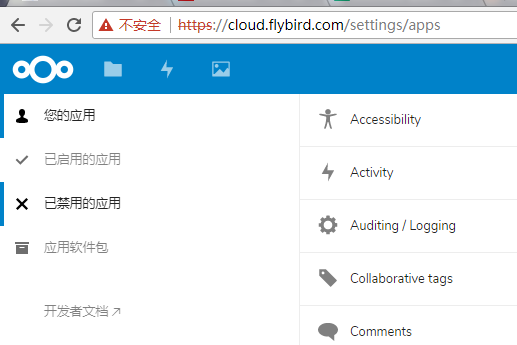
登陆配置数据库后的效果,我是试过很多搭建方案最终选此方案的,因为想集成Collabora Online在线编辑
08.nextcloud搭建的更多相关文章
- 基于 Ubuntu + nextCloud 搭建自己的私人网盘
提醒一下,如果之前通过apache搭建了网站,不要用snap命令来搭建,否则,至少有一个无法正常运行(不要问我怎么知道的,都是血的教训啊). 你可以通过腾讯云的实验主机进行尝试. 1.基础设置 切换为 ...
- Linux下使用nextcloud搭建个人网盘
市面上有那么多的网盘服务提供商,为什么还要自己搭建网盘呢?主要有以下原因: 免费的网盘都有种种限制,要么不限速容量小(onedriver,google driver),要么容量大限速(百度云) 付费网 ...
- nextcloud搭建私有云盘
一.基础环境准备 1.安装一台centos7的linux服务器. # 系统初始化 # 如果时区不对,请修改时区 #mv /etc/localtime /etc/localtime_bak #ln -s ...
- 服务器+nextcloud搭建自己的私有云盘
简介 Nextcloud是一款开源免费的私有云存储网盘项目,可以让你快速便捷地搭建一套属于自己或团队的云同步网盘,从而实现跨平台跨设备文件同步.共享.版本控制.团队协作等功能.它的客户端覆盖了Wind ...
- 使用NextCloud搭建私有网络云盘并支持Office文档在线预览编辑以及文件同步
转载自:https://www.bilibili.com/read/cv16835328?spm_id_from=333.999.0.0 0x00 前言简述 描述:由于个人家里的NAS以及公司团队对私 ...
- 基于Ubuntu + nextCloud 搭建自己的私人网盘
系统要求:Ubuntu 16.04.1 LTS 64 位操作系统 基础设置 切换为 root 账号 Ubutu 系统默认登录的用户为非 root 权限用户,为了能正常安装 nextCloud,需要切换 ...
- 小小白搭建nextcloud云盘
我是一名linux的小小白,今天就利用自己的所学搭建属于自己的云盘——nextcloud. 本人学生狗,普通的云盘也要几十块钱,既然我们只是拿来搭建巩固自己知识并不做为生产力,我们就用VMware W ...
- 搭建nextcloud私有云存储网盘
简介: 搭建个人云存储一般会想到ownCloud,堪称是自建云存储服务的经典.而Nextcloud是ownCloud原开发团队打造的号称是“下一代”存储. 真正试用过后就由衷地赞同这个Nextclou ...
- CentOS8 NextCloud 私有云存储搭建
本文首发:https://www.somata.work/2019/CentOS8NextCloudBuild.html 之前发现 Owncloud 越来越捞了,推出了企业版和社区版,近几日突然发现原 ...
随机推荐
- 07_zookeeper的客户端工具curator_基本api
[zk原生api的不足之处] * 不能自动超时重连,需要手动操作 * watcher事件注册一次后就会失效 * 不支持递归创建节点 [ Apache curator ] * 解决了watcher的注册 ...
- configure配置安装详解
使用 ./configure --help 就可以查看到所有的配置选项. 1.--host=HOST指定软件运行的系统平台.如果没有指定,将会运行`config.guess'来检测.--host 指定 ...
- SpringMVC学习(四)——处理器Handler的各种常用实现
代码:http://files.cnblogs.com/files/douJiangYouTiao888/MultiActionController.zip 在使用springMVC的开发过程中,Ha ...
- 红黑树(R-B Tree)
R-B Tree简介 R-B Tree,全称是Red-Black Tree,又称为“红黑树”,它一种特殊的二叉查找树.红黑树的每个节点上都有存储位表示节点的颜色,可以是红(Red)或黑(Black). ...
- C++数组怎么复制
C++数组怎么复制: #include <string.h>main(){int a[10]={34,56,4,10,77,51,93,30,5,52};int b[10];memcpy( ...
- Day01——Python简介
一.Python简介 python的创始人为吉多·范罗苏姆(Guido van Rossum).1989年的圣诞节期间,吉多·范罗苏姆为了在阿姆斯特丹打发时间,决心开发一个新的脚本解释程序,作为ABC ...
- excel操作方法
excel分列: http://jingyan.baidu.com/article/54b6b9c0d53f622d593b4772.html excel分列: http://jingyan.baid ...
- Jquery学习---Easy UI 框架
Jquery的easyui 1.1. easyui的目录分析 以 jquery Easy UI 1.3.2 版本学习 demo 实例 locale 国际化信息 plugins 框架一些插件 src 源 ...
- yii2.0查询关联数据以及widgets小部件
怎样去查询关联数据呢,接下来整理一个简单的代码:
- ZT 段祺瑞终生忏悔枪杀学生?
段祺瑞终生忏悔枪杀学生?http://cache.baiducontent.com/c?m=9f65cb4a8c8507ed4fece76310528c315c4380146080955468d4e4 ...