
WPF实现导航的几种方式
下面是展示的是几种导航方式:
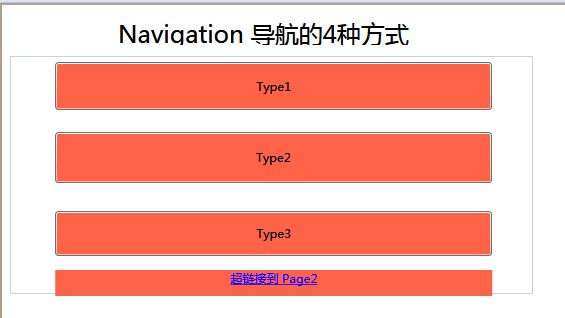
我们来具体看下xaml文件
<Page x:Class="WPF实现Navigation.Page1"

      xmlns="http://schemas.microsoft.com/winfx/2006/xaml/presentation"

      xmlns:x="http://schemas.microsoft.com/winfx/2006/xaml"

      xmlns:mc="http://schemas.openxmlformats.org/markup-compatibility/2006"

      xmlns:d="http://schemas.microsoft.com/expression/blend/2008"

      mc:Ignorable="d"

      d:DesignHeight="" d:DesignWidth=""

    Title="Page1">

    <Grid Width="" Height="">

        <Canvas Margin="10,53,86,37" Name="grid1">

            <Button Background="Tomato" Canvas.Left="9.26" Canvas.Top="-107" Click="button1_Click" Content="Type1" Height="" Margin="36,113,27,0" Name="button1" VerticalAlignment="Top" Width="" />

            <Button Background="Tomato" Canvas.Left="" Canvas.Top="-74" Click="button2_Click" Content="Type2" Height="" Margin="36,150,27,127" Name="button2" VerticalAlignment="Top" Width="436.74" />

            <Button Background="Tomato" Canvas.Left="9.26" Canvas.Top="" Click="button3_Click" Content="Type3" Height="" Margin="36,0,27,88" Name="button3" VerticalAlignment="Bottom" Width="" />

            <TextBlock Background="Tomato" Canvas.Left="45.26" Canvas.Top="" Height="" Text="Type4" TextAlignment="Center" Width=""><Hyperlink NavigateUri="Page2.xaml">超链接到 Page2</Hyperlink></TextBlock>

        </Canvas>

        <Label Content="Navigation 导航的4种方式" FontSize="" Height="" Margin="113,10,0,0" Name="label1" VerticalAlignment="Top" HorizontalAlignment="Left" Width="" />

    </Grid>

</Page>
下面我们看下具体代码展示:
using System;

using System.Collections.Generic;

using System.Linq;

using System.Text;

using System.Windows;

using System.Windows.Controls;

using System.Windows.Data;

using System.Windows.Documents;

using System.Windows.Input;

using System.Windows.Media;

using System.Windows.Media.Imaging;

using System.Windows.Navigation;

using System.Windows.Shapes;

namespace WPF实现Navigation

{

    /// <summary>

    /// Page1.xaml 的交互逻辑

    /// </summary>

    public partial class Page1 : Page

    {

        public Page1()

        {

            InitializeComponent();

            this.KeepAlive = true;

        }

        private void button1_Click(object sender, RoutedEventArgs e)

        {

            //本地话操作,通过方法来跳转

            Page2 page = new Page2();

            NavigationService ns = NavigationService.GetNavigationService(this);

            ns.Navigate(page);

        }

        private void button2_Click(object sender, RoutedEventArgs e)

        {

            //适合游览器,通过属性的方式,uri指向

            NavigationService ns = NavigationService.GetNavigationService(this);

            ns.Source = new Uri("Page2.xaml", UriKind.Relative);

        }

        private void button3_Click(object sender, RoutedEventArgs e)

        {

            NavigationService ns = NavigationService.GetNavigationService(this);

            ns.Content = new Page2();

        }

    }

}
跳转页面展示: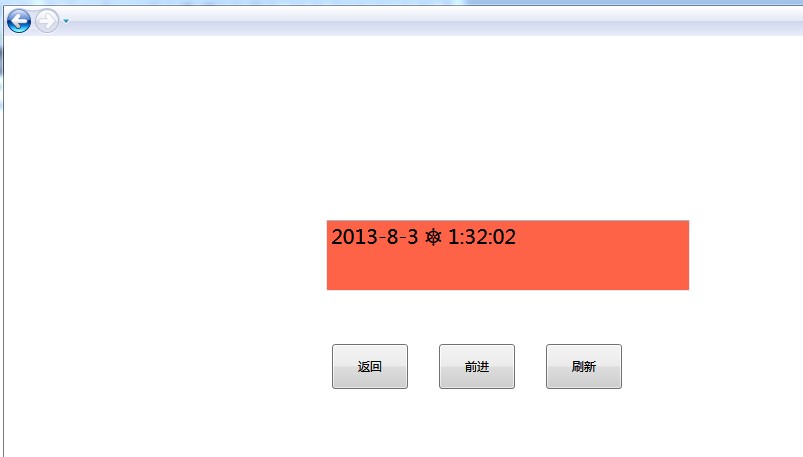
具体xaml文件:
<Page x:Class="WPF实现Navigation.Page2"

      xmlns="http://schemas.microsoft.com/winfx/2006/xaml/presentation"

      xmlns:x="http://schemas.microsoft.com/winfx/2006/xaml"

      xmlns:mc="http://schemas.openxmlformats.org/markup-compatibility/2006"

      xmlns:d="http://schemas.microsoft.com/expression/blend/2008"

      mc:Ignorable="d"

      d:DesignHeight="" d:DesignWidth=""

    Title="Page2">

    <Grid Height="" Width=""  Loaded="Grid_Loaded">

        <Canvas Height="" Margin="36,0,37,12" Name="canvas1" VerticalAlignment="Bottom">

            <Button Canvas.Left="" Canvas.Top="" Click="button1_Click" Content="刷新" Height="" HorizontalAlignment="Right" Margin="0,0,12,23" Name="button1" VerticalAlignment="Bottom" Width="" />

            <Button Canvas.Left="-6" Canvas.Top="" Click="button2_Click" Content="返回" Height="" HorizontalAlignment="Left" Margin="12,0,0,23" Name="button2" VerticalAlignment="Bottom" Width="" />

            <Button Canvas.Left="" Canvas.Top="" Click="button3_Click" Content="前进" Height="" Margin="93,0,142,23" Name="button3" VerticalAlignment="Bottom" Width="" />

        </Canvas>

        <TextBox Background="Tomato" FontSize="" Height="" Margin="36,124,37,0" Name="textBox1" VerticalAlignment="Top" />

    </Grid>

</Page>
后台代码实现:
using System;

using System.Collections.Generic;

using System.Linq;

using System.Text;

using System.Windows;

using System.Windows.Controls;

using System.Windows.Data;

using System.Windows.Documents;

using System.Windows.Input;

using System.Windows.Media;

using System.Windows.Media.Imaging;

using System.Windows.Navigation;

using System.Windows.Shapes;

namespace WPF实现Navigation

{

    /// <summary>

    /// Page2.xaml 的交互逻辑

    /// </summary>

    public partial class Page2 : Page

    {

        //过多的导航会带来性能问题,通过依赖属性来控件系统管理内存方式,进行优化

        public static DependencyProperty RAM;

        public Page2()

        {

            if (RAM == null)

            {

                this.KeepAlive = true;

                //依赖属性注册器

                Page2.RAM = DependencyProperty.Register(

                        "RAMState",

                        typeof(string),

                        typeof(Page2),

                        new FrameworkPropertyMetadata(

                        null,

                        FrameworkPropertyMetadataOptions.Journal));

            }

            InitializeComponent();

        }

        //定义一个属性访问器

        public string RAMState

        {

            get

            {

                return (string)base.GetValue(Page2.RAM);

            }

            set

            {

                base.SetValue(Page2.RAM, value);

            }

        }

        private void Grid_Loaded(object sender, RoutedEventArgs e)

        {

            this.textBox1.Text = System.DateTime.Now.ToString();

        }

        private void button2_Click(object sender, RoutedEventArgs e)

        {

            //首先判断检索导航,是否后退

            if (this.NavigationService.CanGoBack)

                this.NavigationService.GoBack();

        }

        private void button3_Click(object sender, RoutedEventArgs e)

        {

            //首先判断检索导航,是否前进

            if (this.NavigationService.CanGoForward)

                this.NavigationService.GoForward();

        }

        private void button1_Click(object sender, RoutedEventArgs e)

        {

            //进行刷新

            this.NavigationService.Refresh();

        }

    }

}
关于导航的更多的信息,可以从msdn上了解:http://msdn.microsoft.com/zh-cn/library/vstudio/system.windows.navigation.navigationwindow(v=vs.100).aspx
简单的demo:http://files.cnblogs.com/BABLOVE/WPF%E5%AE%9E%E7%8E%B0Navigation.rar
WPF实现导航的几种方式的更多相关文章
- WPF设置样式的几种方式
第一种方式是直接使用Setter来进行,可以对Background等进行设置. <Window.Resources> <Style TargetType="Button&q ...
- WPF实现动画的几种方式及其小案例
WPF实现动画的方式: 基于计时器的动画 建立一个定时器,然后根据其频率循环调用函数或者一个事件处理函数,在这个函数中可以手工更新目标属性,直到达到最终值,这时可以停止计时器. 案例: 效果图: XA ...
- iOS 滑动隐藏导航栏-三种方式
/** 1隐藏导航栏-简单- */ self.navigationController.hidesBarsOnSwipe = YES; /** 2隐藏导航栏-不随tableView滑动消失效果 ...
- WPF 应用 - WPF 播放 GIF 的两种方式
1. 使用 Winform 的 PictureBox 1.1 引用 dll WindowsFormsIntegration.dll System.Windows.Forms.dll System.Dr ...
- WPFの三种方式实现快捷键
最近,对wpf添加快捷键的方式进行了整理.主要用到的三种方式如下: 一.wpf命令: 资源中添加命令 <Window.Resources> <RoutedUICommand x:Ke ...
- MVC3+EF4.1学习系列(五)----- EF查找导航属性的几种方式
文章索引和简介 通过上一篇的学习 我们把demo的各种关系终于搭建里起来 以及处理好了如何映射到数据库等问题 但是 只是搭建好了关系 问题还远没有解决 这篇就来写如何查找导航属性 和查找导航属性的几种 ...
- WPF中使用文件浏览对话框的几种方式
原文:WPF中使用文件浏览对话框的几种方式 WPF本身并没有为我们提供文件浏览的控件, 也不能直接使用Forms中的控件,而文件浏览对话框又是我们最常用的控件之一. 下面是我实现的方式 方式1: 使用 ...
- WPF中实现PropertyGrid(用于展示对象的详细信息)的三种方式
原文:WPF中实现PropertyGrid(用于展示对象的详细信息)的三种方式 由于WPF中没有提供PropertyGrid控件,有些业务需要此类的控件.这篇文章介绍在WPF中实现PropertyGr ...
- WPF -- 使用当前进程打开自定义文件的一种方式
问题描述 当双击打开自定义格式的文件时,希望使用当前正在运行的进程,而不是另起一个进程. 本文介绍一种方式解决如上问题,方案参考user3582780的解答 设置自定义文件格式的默认打开方式 参考链接 ...
随机推荐
- JSTL 数字日期标签库
<frm:formatNumber/>标签 该标签依据特定的区域将数字改变为不同的格式来显示. 被格式化的数据<frm:formatNumber> <fmt:format ...
- HTML5另类塔防游戏 -《三国战线》公布
关于本作 游戏介绍 本游戏是一款另类塔防游戏.本作以三国这段历史为题材,提供了从颍川之战到官渡之战.官渡之战到夷陵之战.夷陵之战到五丈原之战等15个关卡.在每一个关卡中,你会控制一名三国武将与出现的敌 ...
- N!末尾有多少个零
题目一:210!最后结果有几个零. 请自己思索10分钟以上再看解释 凡是这种题目必有规律可言, 关键是你找到这个规律的恒心.可采用笨拙的方法思考. 1! = 1 ...
- android线程与线程池-----线程池(二)《android开发艺术与探索》
android 中的线程池 线程池的优点: 1 重用线程池中的线程,避免了线程的创建和销毁带来的性能开销 2 能有效的控制最大并发数,避免大量线程之间因为喜欢抢资源而导致阻塞 3 能够对线程进行简单的 ...
- linux bash下 快捷键
c + a # 光标跳转到最左 c + e # 光标跳转到最后 c + w # 删除最后输入的单词 c + u # 删除整行 c + k # 删除光标到末尾 c + l # 清屏 c + z # 挂起 ...
- html响应式布局,css响应式布局,响应式布局入门
html响应式布局,css响应式布局,响应式布局入门 >>>>>>>>>>>>>>>>>>& ...
- 过滤器(filter)实现用户登录拦截
过滤器(filter)实现用户登录拦截 >>>>>>>>>>>>>>>>>>>> ...
- PHP获取用户访问IP地址的5种方法
IP地址获得的五种方法: <?php //方法1: $ip = $_SERVER["REMOTE_ADDR"]; echo $ip; //方法2: $user_IP = ($ ...
- SqlSugar简单工模式数据访问简单Demo
源代码地址:http://git.oschina.net/tiama3798/BootstrapBack_Demo 1.Model层 2.抽象层实例: 基础接口 /// <summary> ...
- mvc5 + ef6 + autofac搭建项目(四)
在列表页面,点击新增,弹出窗口实现视屏上传,这里存在一个问题,就是大文件上传的问题,iis出于安全问题,有限制,当然这不是大问题,解决也很容易: 见截图: 请忽略视屏文件,看得懂的请装作不懂. 源码 ...