
自定义input[type="radio"]
对于表单,input[type="radio"] 的样式总是不那么友好,在不同的浏览器中表现不一。
对单选按钮自定义样式,我们以前一直用的脚本来实现,不过现在可以使用新的伪类 :checkbox 来实现。
如果直接对单选按钮设置样式,那么这个伪类并不实用,因为没有多少样式能够对单选按钮起作用。不过,倒是可以基于单选按钮的勾选状态借助组合选择符来给其他元素设置样式。
很多时候,无论是为了表单元素统一,还是为了用户体验良好,我们都会选择 label 元素和 input[type="radio"] 一起使用。当<label>元素与单选按钮关联之后,也可以起到触发开关的作用。
思路:
1. 可以为<label>元素添加生成性内容(伪元素),并基于单选按钮的状态来为其设置样式;
2. 然后把真正的单选按钮隐藏起来;
3. 最后把生成内容美化一下。
解决方法:
1. 一段简单的结构代码:

<div class="female">

    <input type="radio" id="female" name="sex" />

    <label for="female">女</label>

</div>

<div class="male">

    <input type="radio" id="male" name="sex" />

    <label for="male">男</label>

</div>
2. 生成一个伪元素,作为美化版的单选按钮,先给伪元素添加一些样式:
input[type="radio"] + label::before {

    content: "\a0"; /*不换行空格*/

    display: inline-block;

    vertical-align: middle;

    font-size: 18px;

    width: 1em;

    height: 1em;

    margin-right: .4em;

    border-radius: 50%;

    border: 1px solid #01cd78;

    text-indent: .15em;

    line-height: 1;

}
现在的样子:

原来的单选按钮仍然可见,但是我们先给单选按钮的勾选状态添加样式:
3. 给单选按钮的勾选状态添加不同的样式:
input[type="radio"]:checked + label::before {

    background-color: #01cd78;

    background-clip: content-box;

    padding: .2em;

}
现在的样子:
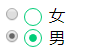

4. 现在把原来的单选按钮隐藏:
input[type="radio"] {

    position: absolute;

    clip: rect(0, 0, 0, 0);

}
现在的样子:


隐藏原来的单选按钮时,如果使用 display: none; 的话,那样会把它从键盘 tab 键切换焦点的队列中完全删除。
于是可采用剪切的方式,让剪切后的尺寸为零,这样就隐藏了原来的单选按钮。
下面为旧内容:
为了最大程度的显示出它们的差别,并且为了好看,首先定义了一些样式:
<form action="">

    <div class="sex">

        <div class="female">

            <label for="female">女</label>

            <input type="radio" name="sex" id="female">

        </div>

        <div class="male">

            <label for="male">男</label>

            <input type="radio" name="sex" id="male">

        </div>

    </div>

</form>
body { margin: 0; }

input { padding: 0; margin: 0; border: 0; }

.female, .male {

    position: relative;

    height: 40px;

    line-height: 40px;

    margin-left: 40px;

}

.sex label {

    display: block;

    height: 40px;

    width: 40px;

    line-height: 40px;

    font-size: 20px;

    cursor: pointer;

}

.sex input {

    z-index: 3;

    position: absolute;

    top: 0;

    bottom: 0;

    left: 40px;

    margin: auto;

    display: block;

    width: 30px;

    height: 30px;

    cursor: pointer;

}
然后在各个浏览器中观察,会发现有很大的差别:
ie:
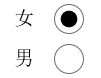
edge:

opera:

chrome:

firefox:

对于 firefox 浏览器,即便是设置了宽和高,依然是没有效果,input[type="radio"] 的那个圆圈还是初始状态那么大。其它浏览器的表现也不一致,为了达到一致的效果,我们需要做兼容处理。
思路:
1. 将 input[type="radio"] 隐藏, opacity: 0; 置于上层,当我们点击它时,就能正确的响应原本的事件。
2. 自定义一个圆圈,置于下层,模拟原本相似的样式;
3. 用 js 实现选中 input[type="radio"] 时,在其下层的自定义的元素改变原来的背景颜色。
代码:
<form action="">

    <div class="sex">

        <div class="female">

            <label for="female">女</label>

            <input type="radio" name="sex" id="female">

            <span class="female-custom"></span> <!-- 同下面的 span 一样作为自定义的元素 -->

        </div>

        <div class="male">

            <label for="male">男</label>

            <input type="radio" name="sex" id="male">

            <span class="male-custom"></span>

        </div>

    </div>

</form>
body { margin: 0; }

input { padding: 0; margin: 0; border: 0; }

.female, .male {

    position: relative; /* 设置为相对定位,以便让子元素能绝对定位 */

    height: 40px;

    line-height: 40px;

    margin-left: 40px;

}

.sex label {

    display: block;

    height: 40px;

    width: 40px;

    line-height: 40px;

    font-size: 20px;

    cursor: pointer;

}

.sex input {

    z-index: 3;

    position: absolute;

    top: 0;

    bottom: 0;

    left: 40px;

    margin: auto; /* 这里及以上的定位,可以让该元素竖直居中。(top: 0; bottom: 0;) */

    opacity: 0;

    display: block;

    width: 30px;

    height: 30px;

    cursor: pointer;

}

.sex span {

    position: absolute;

    top: 0;

    bottom: 0;

    left: 40px;

    margin: auto;

    display: block;

    width: 25px;

    height: 25px;

    border: 1px solid #000;

    border-radius: 50%;

    cursor: pointer;

}

.sex span.active {

    background-color: #000;

}
$("#male").click( function () {

    $(this).siblings("span").addClass("active");

    $(this).parents("div").siblings("div").children("span").removeClass("active");

});

$("#female").click( function () {

    $(this).siblings("span").addClass("active");

    $(this).parents("div").siblings("div").children("span").removeClass("active");

});
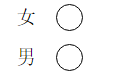
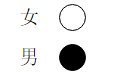
这样处理后,在浏览器中展示效果全部一样了:

扩展:
1. 对于代码中出现的定位,对父元素使用 position: relative; 给子元素使用 position: absolute; top: 0; right: 0; bottom: 0; left: 0; margin: auto; 能实现让子元素相对于父元素居中(满足水平居中和竖直居中)显示。如果只是需要竖直居中,则不需要添加 right: 0; 和 left: 0; 的样式。
2. 有时当我们不容易确定子元素的高度时,可以这样设置:对父元素 position: relative; 对子元素 position: absolute; top: 10px; bottom: 10px; margin: auto; 这样一来,子元素的高度就是父元素的高度减去20px后的值了,同样,top 和 bottom 支持百分数,可扩展性更强。
优化更新:
需求:
1. 有时候我们需要内联的单选样式;
2. 选中的按钮内的小圆圈不需要占满整个外圈的大小。
思路:
1. 让每一个包裹选择的 div 左浮动;
2. 给父元素添加圆形的外边框,子元素设置一个稍小于父元素大小的背景。
代码:
<form action="">

    <div class="fruit">

        <div class="apple">

            <label for="apple">苹果</label>

            <input type="radio" name="fruit" id="apple">

            <div class="user-defined">

                <span class="circle"></span>

            </div>

        </div>

        <div class="banana">

            <label for="banana">香蕉</label>

            <input type="radio" name="fruit" id="banana">

            <div class="user-defined">

                <span class="circle"></span>

            </div>

        </div>

        <div class="orange">

            <label for="orange">橘子</label>

            <input type="radio" name="fruit" id="orange">

            <div class="user-defined">

                <span class="circle"></span>

            </div>

        </div>

    </div>

</form>
* { box-sizing: border-box; }

body { padding: 50px; }

input { padding: 0; margin: 0; border: 0; }

.fruit:before { content: ""; display: table; }

.fruit:after { content: ""; display: table; clear: both; }

.fruit > div { position: relative; float: left; margin-right: 50px; width: 80px; height: 40px; line-height: 40px; }

.fruit > div:last-child { margin-right: 0; }

.fruit label { display: block; width: 50px; height: 40px; line-height: 40px; cursor: pointer; }

.fruit input { z-index: 3; display: block; opacity: 0; position: absolute; top: 0; bottom: 0; left: 50px; margin: auto; width: 30px; height: 30px; cursor: pointer; }

.fruit .user-defined { z-index: 2; position: absolute; top: 0; bottom: 0; left: 50px; margin: auto; width: 30px; height: 30px; border: 1px solid #000; border-radius: 50%; cursor: pointer; }

.fruit .user-defined span.circle  { display: block; width: 24px; height: 24px; margin-top: 2px; margin-left: 2px; background-color: transparent; border-radius: 50%; }

.fruit .user-defined span.active  { background-color: #000; }
$("input").click(function() {

    $(this).siblings("div").children("span").addClass("active");

    $(this).parents("div").siblings("div").find("span").removeClass("active");

});
效果显示如下:

优化更新: (2016年11月07日)
需求:
1. 有时候我们的选择只有两种,比如性别;
2. 这种选择希望能像手机系统设置里的切换一样。
思路:
1. 让每一个包裹选择的 div 左浮动;
2. 让当前子元素添加区别的背景。
预期结果:

代码:
<div class="sex">

    <span class="warning fl">性别确定后将不可更改!</span>

    <div class="select fr">

        <div class="male fl">

            <label for="male">

                <input type="radio" name="sex" id="male" checked>男

            </label>

            <span class="btn active">男</span>

        </div>

        <div class="female fl">

            <label for="female">

                <input type="radio" name="sex" id="female">女

            </label>

            <span class="btn">女</span>

        </div>

    </div>

</div>
/*性别*/

.sex span.warning {

    font-size: 1.4rem;

    color: #ccc;

}

.sex .male,

.sex .female {

    position: relative;

    width: 4rem;

    height: 3.9rem;

    z-index: 1;

    line-height: 3.9rem;

    text-align: center;

}

.sex .male label,

.sex .female label {

    position: absolute;

    top: 0;

    bottom: 0;

    left: 0;

    width: 4rem;

    height: 3.9rem;

    z-index: 3;

    opacity: 0;

    margin: auto;

    display: inline-block;

    line-height: 3.9rem;

    cursor: pointer;

}

.sex input {

    display: inline-block;

    vertical-align: middle;/*让默认的单选样式的圆圈和“男”“女”的文本没有高差,看起来在同一水平线*/

    height: 2.8rem;

    line-height: 2.8rem;

    margin: 0; /*清除浏览器默认的外边距*/

}

.sex .male span.btn,

.sex .female span.btn {

    position: absolute;

    top: 0;

    bottom: 0;

    left: 0;

    width: 4rem;

    height: 2.8rem;

    z-index: 2;

    margin: auto;

    display: inline-block;

    line-height: 2.6rem;

    text-align: center;

    border: .1rem solid #fe5454;

    color: #fe5454;

}

.sex .male span {

    border-top-left-radius: .2rem;

    border-bottom-left-radius: .2rem;

}

.sex .female span {

    border-top-right-radius: .2rem;

    border-bottom-right-radius: .2rem;

}

.sex .male span.active,

.sex .female span.active {

    background-color: #fe5454;

    color: #fff;

}
如果用 jQuery 来写切换的功能的话,很简单的几行代码:
$(".select label").click(function() {

    $(this).siblings("span").addClass("active");

    $(this).parent().siblings("div").find("span").removeClass("active");

});
最后,做出来的效果单选原样式没有 opacity: 0; 隐藏时:

单选原样式 opacity: 0; 隐藏时:


自定义input[type="radio"]的更多相关文章
- 自定义input[type="radio"]的样式
对于表单,input[type="radio"] 的样式总是不那么友好,在不同的浏览器中表现不一. 为了最大程度的显示出它们的差别,并且为了好看,首先定义了一些样式: <fo ...
- 自定义input[type="radio"]的样式(支持普通浏览器,IE8以上)
对于表单,input[type="radio"] 的样式总是不那么友好,在不同的浏览器中表现不一. 对单选按钮自定义样式,我们以前一直用的脚本来实现,不过现在可以使用新的伪类 :c ...
- 原生javascript自定义input[type=radio]效果
2018年6月27日 更新 找到最为简单的仅仅使用css3的方案 <!DOCTYPE html> <html lang="en"> <head> ...
- 纯css兼容个浏览器input[type='radio']不能自定义样式
各个浏览器对于表单input[type='radio'].input[type='checkbox']的样式总是各有差异 //html <div class="remember-a ...
- input[type="radio"]自定义样式
input为radio时,虽然会有默认选中的样式,但是并不符合大多数项目的需求,我们的目标是可以随心所欲自定义它的样式.怎么做呢?其实很简单,只要抓住3点.分别是1.label 2.隐藏自带样式 3. ...
- 原生javascript自定义input[type=checkbox]效果
2018年6月27日 更新 能用css3,就不用js 用纯css3实现样式重写 <!DOCTYPE html> <html lang="en"> < ...
- Jquery给input[type=radio] 控件赋值
setobject: function (data, scope, win) { //data jsoon数据, scope,一般为form的id,win 窗口对象,如果在当前window win=n ...
- <input type="radio" >与<input type="checkbox">值得获取
<%@ page language="java" import="java.util.*" pageEncoding="UTF-8"% ...
- 如何更改 iOS 和安卓浏览器上的 input[type="radio"] 元素的默认样式?
Safari 上的默认样式是这样的, 背景颜色可以使用background-color改变,但中间那个点始终无法去掉. 我查了一些jQuery插件,如iCheck.js,但是那说明写得我都看不明白,根 ...
随机推荐
- Qt 在相同的线程中可以在信号中传递未注册的元对象,在非相同线程中则不能传递未测试的对象,为什么呢?
有兄台知道可以在留言告诉我,万分感谢!!! 需求:需要在多线程中传递未注册的非元对象数据,时间紧急,无法及时更改该传递的数据为元对象,非继承 QObject 这里采用指针方式传递,同时把传递的局部变量 ...
- SQL数据库—<10>--查询练习题
待整理···· 45题.分页查询 学生选课数据库SQL语句练习题(45个题) 练习题网盘地址:点我 create database xxb go use xxb go --表(一)Student (学 ...
- unittest接口自动化测试报告
unittest接口自动化测试报告 展示: 代码: __author__ = "Wai Yip Tung, Findyou" __version__ = "0.8.2.1 ...
- 转载:Angular的filter总结
过滤器(filter)正如其名,作用就是接收一个输入,通过某个规则进行处理,然后返回处理后的结果.主要用在数据的格式化上,例如获取一个数组 中的子集,对数组中的元素进行排序等.ng内置了一些过滤器,它 ...
- Codeforces 1195E OpenStreetMap 单调队列套单调队列
题意:给你一个n * m的矩阵,问所有的a * b的子矩阵的最小的元素的和是多少.题目给出了矩阵中的数的数据生成器. 思路:如果这个问题是1维的,即求所有区间的最小元素的和,用单调队列O(n)就可以做 ...
- Retrofit总结(原)
1.Retrofit的作用 A type-safe HTTP client for Android and Java 看到这句话时候在想什么是类型安全? 百度一下:类型安全代码指访问被授权可以访问的内 ...
- CSS 3D 的魅力
作者 | 子慕大诗人 来源 | www.cnblogs.com/1wen/p/9064011.html 前言: 最近玩了玩用css来构建3D效果,写了几个demo,所以博客总结一下. 在阅读 ...
- springboot 2.x相关配置
1.在配置文件中进行配置 #############指定项目中所有的日期类型返回json格式########### spring.jackson.date-format=yyyy-MM-dd HH:m ...
- Magolor的数据结构作业
\(CodeForces 706E ~Working routine\) 给出一个矩阵,每次操作交换两个子矩阵,求最后状态. 使用链表存储,每次交换后,影响到的之后矩阵边缘的指针,暴力修改. \(~~ ...
- Springboot解决使用@Scheduled创建任务时无法在同一时间执行多个任务的BUG
1.在启动类使用 @SpringBootApplication @EnableJpaRepositories(repositoryFactoryBeanClass = MyRepositoryFact ...