
vue项目使用cropperjs制作图片剪裁,压缩组件
项目中裁剪图片效果
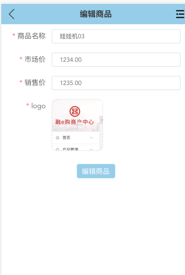
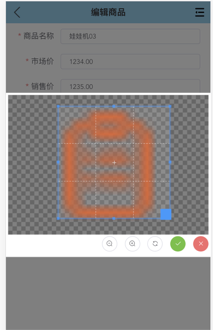
代码部分:(将上传部分 封装成一个组件直接调用当前组件)
<template>

  <div id="demo">

    <!-- 遮罩层 -->

    <div class="father" v-show="panel">

    <div class="container">

      <div id="cropper" style="margin-top:1%;margin-left: 1%;margin-right: 1%;height: 85%;margin-bottom: 1%">

        <img id="image" :src="url" alt="Picture">

      </div>

      <div>

        <div style="float: right;margin-right: 1%">

          <el-button icon="el-icon-zoom-out" @click="zoom(-1)" size="mini" circle></el-button>

          <el-button icon="el-icon-zoom-in" @click="zoom(1)" size="mini" circle></el-button>

          <el-button icon="el-icon-refresh" @click="rotate" size="mini" circle></el-button>

          <el-button type="success" icon="el-icon-check" @click="crop" size="mini" circle></el-button>

          <el-button type="danger" icon="el-icon-close" @click="panel=false" size="mini" circle></el-button>

        </div>

      </div>

    </div>

  </div>

    <div >

      <div >

        <input type="file" id="change" accept="image" @change="change" style="display:none;">

        <div  class="show"

              v-on:mouseover="addClassload"

              v-on:mouseout="removeClassload"

              @click="upload"

              :style="'backgroundImage:url(http://d.fumaqi.com'+params.logo+');border: 1px dashed '+color">

          <i class="el-icon-plus i" :style="'color: '+color"></i>

        </div>

      </div>

    </div>

  </div>

</template>

<script>

  // import {test} from '@/api/psych'

  import { uploadImg } from '@/api/index'

  import Cropper from 'cropperjs'

  export default {

    components: {

    },

    props:["params"],

    data () {

      return {

        headerImage: '',

        picValue:'',

        cropper:'',

        croppable:false,

        panel:false,

        url:'',

        color:"#d9d9d9",

        current:0,

      }

    },

    mounted () {

      //初始化这个裁剪框

      var self = this;

      var image = document.getElementById('image');

      this.cropper = new Cropper(image, {

        aspectRatio: 1,

        viewMode: 1,

        zoomOnWheel:false,//是否允许通过鼠标滚轮来缩放图片

        background:true,//是否在容器上显示网格背景

        rotatable:true,//是否允许旋转图片

        ready: function () {

          self.croppable = true;

        }

      });

      console.log(133)

      console.log(this.params.logo)

      this.headerImage = this.params.logo

    },

    methods: {

      addClassload(){

        this. color="#1b95e0"

      },

      removeClassload(){

        this. color="#d9d9d9"

      },

      //点击按钮自动执行选择文件事件

      upload(){

        this.url='',

        this.current=0;

        document.getElementById("change").value=null;

        document.getElementById("change").click();

      },

      //旋转

      rotate(){

        //alert(this.cropper.image)

        this.current = (this.current+90)%360;

        this.cropper.rotate(this.current);

      },

      //缩放

      zoom(num){

        num = num || 1;

        this.cropper.zoom(num);

      },

      getObjectURL (file) {

        var url = null ;

        if (window.createObjectURL!=undefined) { // basic

          url = window.createObjectURL(file) ;

        } else if (window.URL!=undefined) { // mozilla(firefox)

          url = window.URL.createObjectURL(file) ;

        } else if (window.webkitURL!=undefined) { // webkit or chrome

          url = window.webkitURL.createObjectURL(file) ;

        }

        return url ;

      },

      change (e) {

        let files = e.target.files || e.dataTransfer.files;

        if (!files.length) return;

        this.panel = true;

        this.picValue = files[0];

        this.url = this.getObjectURL(this.picValue);

        //每次替换图片要重新得到新的url

        if(this.cropper){

          this.cropper.replace(this.url);

        }

        this.panel = true;

      },

      crop () {

        this.panel = false;

        var croppedCanvas;

        var roundedCanvas;

        if (!this.croppable) {

          return;

        }

        // Crop

        croppedCanvas = this.cropper.getCroppedCanvas();

        console.log(this.cropper)

        // Round

        /*截取圆形

        roundedCanvas = this.getRoundedCanvas(croppedCanvas);

        this.headerImage = roundedCanvas.toDataURL();

        */

        //方形

        this.headerImage = croppedCanvas.toDataURL();

        var   gettype=Object.prototype.toString

        this.postImg()

      },

      dataURLtoFile (dataurl, filename = 'file') {

        let arr = dataurl.split(',')

        let mime = arr[0].match(/:(.*?);/)[1]

        let suffix = mime.split('/')[1]

        let bstr = atob(arr[1])

        let n = bstr.length

        let u8arr = new Uint8Array(n)

        while (n--) {

          u8arr[n] = bstr.charCodeAt(n)

        }

        return new File([u8arr], `${filename}.${suffix}`, {type: mime})

      },

     /* // 截取圆形

      getRoundedCanvas (sourceCanvas) {

        var canvas = document.createElement('canvas');

        var context = canvas.getContext('2d');

        var width = sourceCanvas.width;

        var height = sourceCanvas.height;

        canvas.width = width;

        canvas.height = height;

        context.imageSmoothingEnabled = true;

        context.drawImage(sourceCanvas, 0, 0, width, height);

        context.globalCompositeOperation = 'destination-in';

        context.beginPath();

        context.arc(width / 2, height / 2, Math.min(width, height) / 2, 0, 2 * Math.PI, true);

        context.fill();

        return canvas;

      },*/

      postImg () {

        //这边写图片的上传

        var formData = new FormData();

        formData.append("avatar",this.dataURLtoFile(this.headerImage));

        uploadImg(formData).then(response => {

          if(response.data.code == 0){

              //  alert("成功");

              this.params.logo = response.data.data

               this.$emit('changeImg',response.data.data)

          }else{

              this.$toast(res.data.msg)

            }

        }).catch((res) => {

              this.$toast('网路异常')

          })

      }

    }

  }

</script>

<style>

  *{

    margin: 0;

    padding: 0;

  }

  .father{

    background-color: rgba(0,0,0,0.5);

    position: fixed;

    left:0px;

    top:0px;

    width:100%;

    height:100%;

    z-index: 33;

  }

  .i{

    font-size: 28px;

    color: #8c939d;

    width: 100px;

    height: 100px;

    line-height: 100px;

    text-align: center;

  }

  #demo .show {

    border: 1px dashed #d9d9d9;

    border-radius: 10%;

    width: 100px;

    height: 100px;

    cursor: pointer;

    position: relative;

    overflow: hidden;

    display: inline-block;

    text-align: center;

    outline: none;

    background-position: center center;

    background-repeat: no-repeat;

    background-size: cover;

  }

  #demo .container {

    z-index: 99;

    height: 300px;

    width: 100%;

    position: fixed;

    /*padding-top: 60px;*/

    /* left: 35%; */

    top: 25%;

    background-color: white;

  }

  #demo #image {

    max-width: 100%;

  }

 /* .cropper-view-box,.cropper-face {

    border-radius: 100%; 圆形截图设置

  }*/

  /*!

   * Cropper.js v1.0.0-rc

   * https://github.com/fengyuanchen/cropperjs

   *

   * Copyright (c) 2017 Fengyuan Chen

   * Released under the MIT license

   *

   * Date: 2017-03-25T12:02:21.062Z

   */

  .cropper-container {

    font-size: 0;

    line-height: 0;

    position: relative;

    -webkit-user-select: none;

    -moz-user-select: none;

    -ms-user-select: none;

    user-select: none;

    direction: ltr;

    -ms-touch-action: none;

    touch-action: none

  }

  .cropper-container img {

    /* Avoid margin top issue (Occur only when margin-top <= -height) */

    display: block;

    min-width: 0 !important;

    max-width: none !important;

    min-height: 0 !important;

    max-height: none !important;

    width: 100%;

    height: 100%;

    image-orientation: 0deg

  }

  .cropper-wrap-box,

  .cropper-canvas,

  .cropper-drag-box,

  .cropper-crop-box,

  .cropper-modal {

    position: absolute;

    top: 0;

    right: 0;

    bottom: 0;

    left: 0;

  }

  .cropper-wrap-box {

    overflow: hidden;

  }

  .cropper-drag-box {

    opacity: 0;

    background-color: #fff;

  }

  .cropper-modal {

    opacity: .5;

    background-color: #000;

  }

  .cropper-view-box {

    display: block;

    overflow: hidden;

    width: 100%;

    height: 100%;

    outline: 1px solid #39f;

    outline-color: rgba(51, 153, 255, 0.75);

  }

  .cropper-dashed {

    position: absolute;

    display: block;

    opacity: .5;

    border: 0 dashed #eee

  }

  .cropper-dashed.dashed-h {

    top: 33.33333%;

    left: 0;

    width: 100%;

    height: 33.33333%;

    border-top-width: 1px;

    border-bottom-width: 1px

  }

  .cropper-dashed.dashed-v {

    top: 0;

    left: 33.33333%;

    width: 33.33333%;

    height: 100%;

    border-right-width: 1px;

    border-left-width: 1px

  }

  .cropper-center {

    position: absolute;

    top: 50%;

    left: 50%;

    display: block;

    width: 0;

    height: 0;

    opacity: .75

  }

  .cropper-center:before,

  .cropper-center:after {

    position: absolute;

    display: block;

    content: ' ';

    background-color: #eee

  }

  .cropper-center:before {

    top: 0;

    left: -3px;

    width: 7px;

    height: 1px

  }

  .cropper-center:after {

    top: -3px;

    left: 0;

    width: 1px;

    height: 7px

  }

  .cropper-face,

  .cropper-line,

  .cropper-point {

    position: absolute;

    display: block;

    width: 100%;

    height: 100%;

    opacity: .1;

  }

  .cropper-face {

    top: 0;

    left: 0;

    background-color: #fff;

  }

  .cropper-line {

    background-color: #39f

  }

  .cropper-line.line-e {

    top: 0;

    right: -3px;

    width: 5px;

    cursor: e-resize

  }

  .cropper-line.line-n {

    top: -3px;

    left: 0;

    height: 5px;

    cursor: n-resize

  }

  .cropper-line.line-w {

    top: 0;

    left: -3px;

    width: 5px;

    cursor: w-resize

  }

  .cropper-line.line-s {

    bottom: -3px;

    left: 0;

    height: 5px;

    cursor: s-resize

  }

  .cropper-point {

    width: 5px;

    height: 5px;

    opacity: .75;

    background-color: #39f

  }

  .cropper-point.point-e {

    top: 50%;

    right: -3px;

    margin-top: -3px;

    cursor: e-resize

  }

  .cropper-point.point-n {

    top: -3px;

    left: 50%;

    margin-left: -3px;

    cursor: n-resize

  }

  .cropper-point.point-w {

    top: 50%;

    left: -3px;

    margin-top: -3px;

    cursor: w-resize

  }

  .cropper-point.point-s {

    bottom: -3px;

    left: 50%;

    margin-left: -3px;

    cursor: s-resize

  }

  .cropper-point.point-ne {

    top: -3px;

    right: -3px;

    cursor: ne-resize

  }

  .cropper-point.point-nw {

    top: -3px;

    left: -3px;

    cursor: nw-resize

  }

  .cropper-point.point-sw {

    bottom: -3px;

    left: -3px;

    cursor: sw-resize

  }

  .cropper-point.point-se {

    right: -3px;

    bottom: -3px;

    width: 20px;

    height: 20px;

    cursor: se-resize;

    opacity: 1

  }

  @media (min-width: 768px) {

    .cropper-point.point-se {

      width: 15px;

      height: 15px

    }

  }

  @media (min-width: 992px) {

    .cropper-point.point-se {

      width: 10px;

      height: 10px

    }

  }

  @media (min-width: 1200px) {

    .cropper-point.point-se {

      width: 5px;

      height: 5px;

      opacity: .75

    }

  }

  .cropper-point.point-se:before {

    position: absolute;

    right: -50%;

    bottom: -50%;

    display: block;

    width: 200%;

    height: 200%;

    content: ' ';

    opacity: 0;

    background-color: #39f

  }

  .cropper-invisible {

    opacity: 0;

  }

  .cropper-bg {

    background-image: url('data:image/png;base64,iVBORw0KGgoAAAANSUhEUgAAABAAAAAQAQMAAAAlPW0iAAAAA3NCSVQICAjb4U/gAAAABlBMVEXMzMz////TjRV2AAAACXBIWXMAAArrAAAK6wGCiw1aAAAAHHRFWHRTb2Z0d2FyZQBBZG9iZSBGaXJld29ya3MgQ1M26LyyjAAAABFJREFUCJlj+M/AgBVhF/0PAH6/D/HkDxOGAAAAAElFTkSuQmCC');

  }

  .cropper-hide {

    position: absolute;

    display: block;

    width: 0;

    height: 0;

  }

  .cropper-hidden {

    display: none !important;

  }

  .cropper-move {

    cursor: move;

  }

  .cropper-crop {

    cursor: crosshair;

  }

  .cropper-disabled .cropper-drag-box,

  .cropper-disabled .cropper-face,

  .cropper-disabled .cropper-line,

  .cropper-disabled .cropper-point {

    cursor: not-allowed;

  }

</style>
vue项目使用cropperjs制作图片剪裁,压缩组件的更多相关文章
- Vue项目打包后背景图片路径错误
vue项目打包之后背景图片出错的解决方案如下: 1,找到 config->index.js里面,如下修改 默认配置: env: require('./prod.env'), index: pat ...
- 详解如何在vue项目中引入饿了么elementUI组件
在开发的过程之中,我们也经常会使用到很多组件库:vue 常用ui组件库:https://blog.csdn.net/qq_36538012/article/details/82146649 今天具体说 ...
- 配置vue项目将打包后图片文件的引用路径改为cdn路径?
vue cli3项目, 需求: 图片文件打包时, 将项目内的所有图片文件的引用地址改为cdn路径 vue cli3的默认配置下, 打包后图片使用的是相对路径, 例如打包后项目内图片引用路径为 img/ ...
- vue项目使用Echarts制作项目工期甘特图
目录 1,前言 2,布局和数据部分 3,制作甘特图 1,前言 项目迭代过程中,碰上一个需求,要求用甘特图的方式显示项目的工期进度,开完会我赶紧搜索一下甘特图是啥东东,大概了解之后,做出了如下样式 Ec ...
- vue中使用cropperjs进行图片裁剪上传
下面代码直接就可以复制使用了,但是需要在本地下个cropperjs,下载命令:npm install cropperjs --save-dev <template> <div id= ...
- vue项目webpack打包后图片路径错误
首先项目是vue-cli搭建的,项目结构如下: 然后发现在css里写的图片引用地址在开发时正常显示,但在打包扔上服务器之后报错 报的是404,路径前面多了/static/css,不知道为啥. 在自己慢 ...
- vue项目build打包后图片路径不对导致图片空白不显示问题解决方法
1.在上篇文章src配置及引入的基础上修改项目配置: 文章链接地址:https://www.cnblogs.com/hsl-shiliang/p/10333022.html. 2.具体配置过程如图: ...
- vue项目中编写一个图片预览的公用组件
今天产品提出了一个查看影像的功能需求. 在查看单据的列表中,有一列是影像字段,一开始根据单据号调用接口查看是否有图片附件,如果有则弹出一个全屏的弹出层,如果没有给出提示.而且,从列表进入详情之后,附件 ...
- 保存头像- vue项目-base64字符串转图片
<img :onerror="errpic" class="customerHead" :src="param.customerHead&quo ...
随机推荐
- 初试spark java WordCount
初始环境:OS X 10.10.5 准备:boot2docker 进入boot2docker后安装 docker-spark 地址: https://github.com/sequenceiq/do ...
- [转载]十六进制数的两种不同表示:0x和H
来源:https://blog.csdn.net/u013773644/article/details/519811860x是16进制的前缀,H是16进制的后缀 都是表示十六进制数,意义上没有什么区别 ...
- 这十个MySQL经典错误
今天就给大家列举 MySQL 数据库中,最经典的十大错误案例,并附有处理问题的解决思路和方法,希望能给刚入行,或数据库爱好者一些帮助,今后再遇到任何报错,我们都可以很淡定地去处理.学习任何一门技术的同 ...
- 4种常用的Ajax请求方式
在jQuery中,AJAX常见的请求方式主要有一下4种: 1.$.ajax()返回其创建的 XMLHttpRequest 对象 $.ajax() 只有一个参数:参数key/value对象,包含各配置及 ...
- dubbo学习笔记一(服务注册)
相关的资料 官方文档 官方博客 项目结构 项目说明 [lesson1-config-api] 是一个接口工程,编译后是jar包,被其他工程依赖 [lesson1-config-2-properties ...
- SuperMap-WMTS服务修改切片集顺序
1.访问iserver的服务接口,找到WMTS服务接口 2.选择切片集的默认顺序
- python、mysql四-2:多表查询
一 介绍 本节主题 多表连接查询 复合条件连接查询 子查询 准备表 #建表 create table department( id int, name varchar() ); create tabl ...
- cgicc使用
CgiCc 使用 一.下载 下载地址: http://ftp.gnu.org/gnu/cgicc/ ftp://ftp.gnu.org/gnu/cgicc/ 二.配置.编译.安装 下载完成后解压:sh ...
- 第02章 新手必须掌握的 Linux 命令
- 关于Win Re的故事
闲来无事,拿出来自己的小破笔记本瞎折腾,突然发现桌面上竟然还残留着上一个公司的内部vpn, 我是一个有着轻微洁癖强迫症的人,留着这么一个东西占据我本来就不是很大的固态硬盘,简直是罪过.于是我头脑一热, ...