
Matplotlib绘图设置---文字和标签
文字和文字位置
通过plt.text()或ax.text()命令可在图形上添加文字。
Signature:

ax.text(x, y, s, fontdict=None, withdash=<deprecated parameter>, **kwargs)

Docstring:

Add text to the axes.

Add the text *s* to the axes at location *x*, *y* in data coordinates.

Parameters

----------

x, y : scalars

    The position to place the text. By default, this is in data

    coordinates. The coordinate system can be changed using the

    *transform* parameter.

s : str

    The text.

fontdict : dictionary, optional, default: None

    A dictionary to override the default text properties. If fontdict

    is None, the defaults are determined by your rc parameters.

withdash : boolean, optional, default: False

    Creates a `~matplotlib.text.TextWithDash` instance instead of a

    `~matplotlib.text.Text` instance.

Returns

-------

text : `.Text`

    The created `.Text` instance.

Other Parameters

----------------

**kwargs : `~matplotlib.text.Text` properties.

    Other miscellaneous text parameters.

Examples

--------

Individual keyword arguments can be used to override any given

parameter::

    >>> text(x, y, s, fontsize=12)

The default transform specifies that text is in data coords,

alternatively, you can specify text in axis coords (0,0 is

lower-left and 1,1 is upper-right).  The example below places

text in the center of the axes::

    >>> text(0.5, 0.5, 'matplotlib', horizontalalignment='center',

    ...      verticalalignment='center', transform=ax.transAxes)

You can put a rectangular box around the text instance (e.g., to

set a background color) by using the keyword `bbox`.  `bbox` is

a dictionary of `~matplotlib.patches.Rectangle`

properties.  For example::

    >>> text(x, y, s, bbox=dict(facecolor='red', alpha=0.5))
text函数中transform参数用于设置坐标变换,Matplotlib一共有三种方式设置文字位置:
- ax.transData : 默认的,以数据为基准的坐标变换(x轴和y轴的标签作为数据坐标);
- ax.transAxes: 以坐标轴为基准的坐标变换(以坐标轴左下角原点,按坐标轴尺寸的比例呈现坐标);
- fig.transFigure:以图形为基准的坐标变换(以图纸左下角原点,按图形尺寸的比例呈现坐标)。
三个坐标系呈现的文字都是左对齐,当改变坐标轴上下限时,只有transData坐标会受影响,其它两个坐标系不变。
fig, ax = plt.subplots(facecolor='lightgray')

ax.axis([0, 10, 0, 10])

ax.text(1, 5, ".Data:(1, 5)", transform=ax.transData)

ax.text(0.5, 0.1, ".Axes:(0.5, 0.1)", transform=ax.transAxes)

ax.text(0.2, 0.2, ".Figure:(0.2, 0.2)", transform=fig.transFigure)
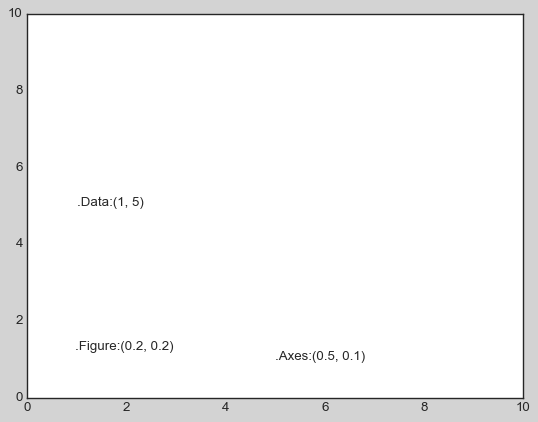
ax.set_xlim(0, 2)

ax.set_ylim(-6, 6)

fig

箭头和注释
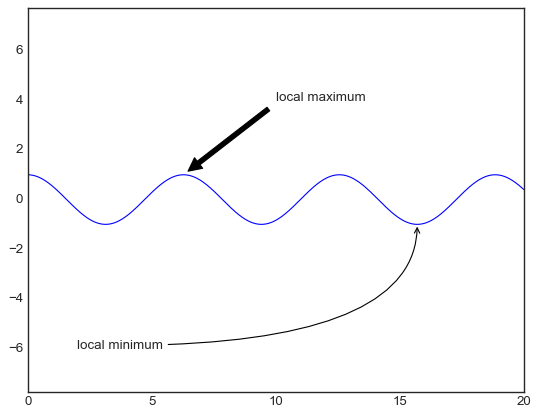
Matplotlib中plt.annotate()/ax.annotate()函数可用于创建文字以及箭头等。
Signature:

ax.annotate(s, xy, *args, **kwargs)

Docstring:

Annotate the point *xy* with text *text*.

In the simplest form, the text is placed at *xy*.

Optionally, the text can be displayed in another position *xytext*.

An arrow pointing from the text to the annotated point *xy* can then

be added by defining *arrowprops*.

Parameters

----------

text : str

    The text of the annotation.  *s* is a deprecated synonym for this

    parameter.

xy : (float, float)

    The point *(x,y)* to annotate.

xytext : (float, float), optional

    The position *(x,y)* to place the text at.

    If *None*, defaults to *xy*.

xycoords : str, `.Artist`, `.Transform`, callable or tuple, optional

    The coordinate system that *xy* is given in. The following types

    of values are supported:

    - One of the following strings:

      =================   =============================================

      Value               Description

      =================   =============================================

      'figure points'     Points from the lower left of the figure

      'figure pixels'     Pixels from the lower left of the figure

      'figure fraction'   Fraction of figure from lower left

      'axes points'       Points from lower left corner of axes

      'axes pixels'       Pixels from lower left corner of axes

      'axes fraction'     Fraction of axes from lower left

      'data'              Use the coordinate system of the object being

                          annotated (default)

      'polar'             *(theta,r)* if not native 'data' coordinates

      =================   =============================================

    - An `.Artist`: *xy* is interpreted as a fraction of the artists

      `~matplotlib.transforms.Bbox`. E.g. *(0, 0)* would be the lower

      left corner of the bounding box and *(0.5, 1)* would be the

      center top of the bounding box.

    - A `.Transform` to transform *xy* to screen coordinates.

    - A function with one of the following signatures::

        def transform(renderer) -> Bbox

        def transform(renderer) -> Transform

      where *renderer* is a `.RendererBase` subclass.

      The result of the function is interpreted like the `.Artist` and

      `.Transform` cases above.

    - A tuple *(xcoords, ycoords)* specifying separate coordinate

      systems for *x* and *y*. *xcoords* and *ycoords* must each be

      of one of the above described types.

    See :ref:`plotting-guide-annotation` for more details.

    Defaults to 'data'.

textcoords : str, `.Artist`, `.Transform`, callable or tuple, optional

    The coordinate system that *xytext* is given in.

    All *xycoords* values are valid as well as the following

    strings:

    =================   =========================================

    Value               Description

    =================   =========================================

    'offset points'     Offset (in points) from the *xy* value

    'offset pixels'     Offset (in pixels) from the *xy* value

    =================   =========================================

    Defaults to the value of *xycoords*, i.e. use the same coordinate

    system for annotation point and text position.

arrowprops : dict, optional

    The properties used to draw a

    `~matplotlib.patches.FancyArrowPatch` arrow between the

    positions *xy* and *xytext*.

    If *arrowprops* does not contain the key 'arrowstyle' the

    allowed keys are:

    ==========   ======================================================

    Key          Description

    ==========   ======================================================

    width        The width of the arrow in points

    headwidth    The width of the base of the arrow head in points

    headlength   The length of the arrow head in points

    shrink       Fraction of total length to shrink from both ends

    ?            Any key to :class:`matplotlib.patches.FancyArrowPatch`

    ==========   ======================================================

    If *arrowprops* contains the key 'arrowstyle' the

    above keys are forbidden.  The allowed values of

    ``'arrowstyle'`` are:

    ============   =============================================

    Name           Attrs

    ============   =============================================

    ``'-'``        None

    ``'->'``       head_length=0.4,head_width=0.2

    ``'-['``       widthB=1.0,lengthB=0.2,angleB=None

    ``'|-|'``      widthA=1.0,widthB=1.0

    ``'-|>'``      head_length=0.4,head_width=0.2

    ``'<-'``       head_length=0.4,head_width=0.2

    ``'<->'``      head_length=0.4,head_width=0.2

    ``'<|-'``      head_length=0.4,head_width=0.2

    ``'<|-|>'``    head_length=0.4,head_width=0.2

    ``'fancy'``    head_length=0.4,head_width=0.4,tail_width=0.4

    ``'simple'``   head_length=0.5,head_width=0.5,tail_width=0.2

    ``'wedge'``    tail_width=0.3,shrink_factor=0.5

    ============   =============================================

    Valid keys for `~matplotlib.patches.FancyArrowPatch` are:

    ===============  ==================================================

    Key              Description

    ===============  ==================================================

    arrowstyle       the arrow style

    connectionstyle  the connection style

    relpos           default is (0.5, 0.5)

    patchA           default is bounding box of the text

    patchB           default is None

    shrinkA          default is 2 points

    shrinkB          default is 2 points

    mutation_scale   default is text size (in points)

    mutation_aspect  default is 1.

    ?                any key for :class:`matplotlib.patches.PathPatch`

    ===============  ==================================================

    Defaults to None, i.e. no arrow is drawn.

annotation_clip : bool or None, optional

    Whether to draw the annotation when the annotation point *xy* is

    outside the axes area.

    - If *True*, the annotation will only be drawn when *xy* is

      within the axes.

    - If *False*, the annotation will always be drawn.

    - If *None*, the annotation will only be drawn when *xy* is

      within the axes and *xycoords* is 'data'.

    Defaults to *None*.

**kwargs

    Additional kwargs are passed to `~matplotlib.text.Text`.
fig, ax = plt.subplots()

x = np.linspace(0, 20, 1000)

ax.plot(x, np.cos(x))

ax.axis('equal')

#arrowprops用于设置箭头风格,xy设置箭头位置,xytext设置文字位置

ax.annotate('local maximum', xy=(6.28, 1), xytext=(10, 4),

            arrowprops=dict(facecolor='black', shrink=0.05))

ax.annotate('local minimum', xy=(5 * np.pi, -1), xytext=(2, -6),

            arrowprops=dict(arrowstyle="->",connectionstyle="angle3,angleA=0,angleB=90"))
Matplotlib绘图设置---文字和标签的更多相关文章
- Python matplotlib绘图设置图例
一.语法简介 plt.legend(loc=2,edgecolor='red',facecolor='green',shadow='True',fontsize=10) #edgecolor 图例边框 ...
- 【划重点】Python matplotlib绘图设置坐标轴的刻度
一.语法简介 plt.xticks(ticks,labels,rotation=30,fontsize=10,color='red',fontweight='bold',backgroundcolor ...
- Python matplotlib绘图设置坐标轴的标题
一.语法简介 plt.xlabel("销售月份",fontsize=16,color='red',fontweight='bold',loc='center',background ...
- python绘图设置标题、标签,无法显示中文
先说解决办法:在程序开始之前,引入使用的模块之后,添加如下代码: plt.rcParams['font.sans-serif']=['SimHei'] plt.rcParams['axes.unico ...
- matplotlib绘图教程,设置标签与图例
大家好,欢迎大家阅读周四数据处理专题,我们继续介绍matplotlib作图工具. 在上一篇文章当中我们介绍了matplotlib这个包当中颜色.标记和线条这三种画图的设置,今天我们同样也介绍三种新的设 ...
- Matplotlib绘图双纵坐标轴设置及控制设置时间格式
双y轴坐标轴图 今天利用matplotlib绘图,想要完成一个双坐标格式的图. fig=plt.figure(figsize=(20,15)) ax1=fig.add_subplot(111) ax1 ...
- matplotlib 绘图
http://blog.csdn.net/jkhere/article/details/9324823 都打一遍 5 matplotlib-绘制精美的图表 matplotlib 是python最著名的 ...
- matplotlib绘图的基本操作
转自:Laumians博客园 更简明易懂看Matplotlib Python 画图教程 (莫烦Python)_演讲•公开课_科技_bilibili_哔哩哔哩 https://www.bilibili. ...
- python中利用matplotlib绘图可视化知识归纳
python中利用matplotlib绘图可视化知识归纳: (1)matplotlib图标正常显示中文 import matplotlib.pyplot as plt plt.rcParams['fo ...
- matplotlib绘图基本用法-转自(http://blog.csdn.net/mao19931004/article/details/51915016)
本文转载自http://blog.csdn.net/mao19931004/article/details/51915016 <!DOCTYPE html PUBLIC "-//W3C ...
随机推荐
- java+文件读写实现的图书管理系统
一功能 管理员具有的功能 1.增加图书.删除图书.修改图书信息.查询图书.图书列表 2.借阅者管理,通过借阅的书号查询图书信息 3.个人信息修改 读者功能 1.图书借阅 2.图书归还 3.图书查询 4 ...
- CoaXPress 2.0 FPGA 4 Channel Host and Device FMC Card User Manual
Hello-FPGA CoaXPress 2.0 FMC Card User Manual 4 1 CoaXPress 简介 4 2 CoaXPress 4R FMC 5 2.1 硬件特性 5 2.2 ...
- .NET应用国际化支持-葡萄牙语下如何不区分重音的模糊查询
葡萄牙语,作为一种罗曼语族的语言,其正字法(orthography)并不使用音标系统来标记发音,而是有一套特定的拼写规则.然而,葡萄牙语中确实使用重音符号(acentos)来标记某些元音的重音(str ...
- Java 多线程------例子(2) --创建 三个窗口 买票 总票数为 100张 使用实现Runnabel接口的方式
1 package com.bytezero.threadexer; 2 3 /** 4 * 创建 三个窗口 买票 总票数为 100张 使用实现Runnabel接口的方式 5 * 6 * @autho ...
- C++ //常用查找算法 find //自定义类型需要重载 ==
1 //常用查找算法 find 2 #include<iostream> 3 #include<algorithm> 4 #include<functional> ...
- Codeforces Round 734 (Div. 3)B2. Wonderful Coloring - 2(贪心构造实现)
思路: 分类讨论: 当一个数字出现的次数大于等于k,那么最多有k个能被染色, 当一个数字出现的次数小于k,南那么这些数字都可能被染色 还有一个条件就是需要满足每个颜色的数字个数一样多,这里记出现次数小 ...
- gRPC入门学习之旅(一)
gRpc简介 gRPC 是Google公司开发的基于HTTP/2设计,面向移动的一个高性能.开源和通用的 RPC 框架,是一款语言中立.平台中立.开源的远程过程调用(RPC)系统. gRpc官网地址: ...
- Java自定义注解校验枚举值类型参数
项目开发中会经常使用到各种枚举值,枚举值一般都是固定的,不会随意改变其中的值. 比如性别分为男女,确定之后一般都不会轻易改变,这时候使用枚举值就非常地方便.很多 时候,在页面中传入的参数就是枚举值中的 ...
- Jetpack Compose(3) —— 状态管理
上一篇文章拿 TextField 组件举例时,提到了 State,即状态.本篇文章,即讲解 State 的相关改概念. 一.什么是状态 与其它声明式 UI 框架一样,Compose 的职责非常单纯,仅 ...
- C#版开源免费的Bouncy Castle密码库
前言 今天大姚给大家分享一款C#版开源.免费的Bouncy Castle密码库:BouncyCastle. 项目介绍 BouncyCastle是一款C#版开源.免费的Bouncy Castle密码库, ...