
Swift - 页控件(UIPageControl)的用法
使用页控件可以用来展示多个桌面。比如很多应用第一次登陆时,会在开始页面使用页控件来介绍功能,通过左右滑动来切换页。

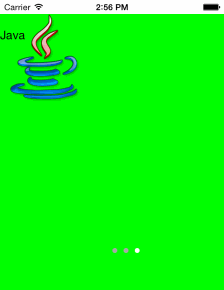
|
1
2
3
4
5
6
7
8
9
10
11
12
13
14
15
16
17
18
19
20
21
22
23
24
25
26
27
28
29
30
31
32
33
34
35
36
37
38
39
40
41
42
43
44
45
46
47
48
49
50
51
52
53
54
55
56
57
58
59
60
61
62
63
64
65
66
67
68
69
70
71
72
73
74
75
76
77
78
79
80
|
import UIKitclass ViewController: UIViewController, UIScrollViewDelegate { //界面设计元素引用 @IBOutlet var pageControl: UIPageControl! @IBOutlet var scrollView: UIScrollView! //需要显示的页面内容 var courses = [ ["name":"Swift","pic":"swift.png"], ["name":"ObjectC","pic":"oc.jpg"], ["name":"Java","pic":"java.png"] ] override func viewDidLoad() { super.viewDidLoad() // Do any additional setup after loading the view, typically from a nib. //设置scrollView的内容总尺寸 scrollView.contentSize = CGSizeMake( CGFloat(CGRectGetWidth(self.view.bounds)) * CGFloat(self.courses.count), CGRectGetHeight(self.view.bounds) ) //关闭滚动条显示 scrollView.showsHorizontalScrollIndicator = false scrollView.showsVerticalScrollIndicator = false scrollView.scrollsToTop = false //协议代理,在本类中处理滚动事件 scrollView.delegate = self //滚动时只能停留到某一页 scrollView.pagingEnabled = true //添加页面到滚动面板里 let size = scrollView.bounds.size for (seq,course) in enumerate(courses) { var page = UIView() var imageView=UIImageView(image:UIImage(named:course["pic"]!)) page.addSubview(imageView); page.backgroundColor = UIColor.greenColor() let lbl = UILabel(frame: CGRect(x: 0, y: 20, width: 100, height: 20)) lbl.text = course["name"] page.addSubview(lbl) page.frame = CGRect(x: CGFloat(seq) * size.width, y: 0, width: size.width, height: size.height) scrollView.addSubview(page) } //页控件属性 pageControl.backgroundColor = UIColor.clearColor() pageControl.numberOfPages = courses.count pageControl.currentPage = 0 //设置页控件点击事件 pageControl.addTarget(self, action: "pageChanged:", forControlEvents: UIControlEvents.ValueChanged) } override func didReceiveMemoryWarning() { super.didReceiveMemoryWarning() // Dispose of any resources that can be recreated. } //UIScrollViewDelegate方法,每次滚动结束后调用 func scrollViewDidEndDecelerating(scrollView: UIScrollView!) { //通过scrollView内容的偏移计算当前显示的是第几页 let page = Int(scrollView.contentOffset.x / scrollView.frame.size.width) //设置pageController的当前页 pageControl.currentPage = page } //点击页控件时事件处理 func pageChanged(sender:UIPageControl) { //根据点击的页数,计算scrollView需要显示的偏移量 var frame = scrollView.frame frame.origin.x = frame.size.width * CGFloat(sender.currentPage) frame.origin.y = 0 //展现当前页面内容 scrollView.scrollRectToVisible(frame, animated:true) }} |
--- Main.storyboard ---
|
1
2
3
4
5
6
7
8
9
10
11
12
13
14
15
16
17
18
19
20
21
22
23
24
25
26
27
28
29
30
31
32
33
34
35
36
37
38
39
|
<?xml version="1.0" encoding="UTF-8" standalone="no"?><document type="com.apple.InterfaceBuilder3.CocoaTouch.Storyboard.XIB" version="3.0" toolsVersion="6154.21" systemVersion="13D65" targetRuntime="iOS.CocoaTouch" propertyAccessControl="none" useAutolayout="YES" useTraitCollections="YES" initialViewController="BYZ-38-t0r"> <dependencies> <plugIn identifier="com.apple.InterfaceBuilder.IBCocoaTouchPlugin" version="6153.13"/> </dependencies> <scenes> <!--View Controller--> <scene sceneID="tne-QT-ifu"> <objects> <viewController id="BYZ-38-t0r" customClass="ViewController" customModule="SwiftInAction_008_019" customModuleProvider="target" sceneMemberID="viewController"> <layoutGuides> <viewControllerLayoutGuide type="top" id="y3c-jy-aDJ"/> <viewControllerLayoutGuide type="bottom" id="wfy-db-euE"/> </layoutGuides> <view key="view" contentMode="scaleToFill" id="8bC-Xf-vdC"> <rect key="frame" x="0.0" y="0.0" width="480" height="480"/> <autoresizingMask key="autoresizingMask" widthSizable="YES" heightSizable="YES"/> <subviews> <scrollView clipsSubviews="YES" multipleTouchEnabled="YES" contentMode="scaleToFill" fixedFrame="YES" translatesAutoresizingMaskIntoConstraints="NO" id="MQq-Dc-kWf"> <rect key="frame" x="0.0" y="20" width="320" height="460"/> </scrollView> <pageControl opaque="NO" contentMode="scaleToFill" fixedFrame="YES" contentHorizontalAlignment="center" contentVerticalAlignment="center" numberOfPages="3" translatesAutoresizingMaskIntoConstraints="NO" id="Rre-R2-IHS"> <rect key="frame" x="150" y="339" width="60" height="37"/> <color key="pageIndicatorTintColor" white="0.66666666666666663" alpha="1" colorSpace="calibratedWhite"/> </pageControl> </subviews> <color key="backgroundColor" white="1" alpha="1" colorSpace="custom" customColorSpace="calibratedWhite"/> <simulatedOrientationMetrics key="simulatedOrientationMetrics" orientation="landscapeRight"/> </view> <connections> <outlet property="pageControl" destination="Rre-R2-IHS" id="R3n-tp-UIl"/> <outlet property="scrollView" destination="MQq-Dc-kWf" id="scK-rG-Yia"/> </connections> </viewController> <placeholder placeholderIdentifier="IBFirstResponder" id="dkx-z0-nzr" sceneMemberID="firstResponder"/> </objects> </scene> </scenes></document> |
Swift - 页控件(UIPageControl)的用法的更多相关文章
- iOS:分页控件UIPageControl的使用
分页控件:UIPageControl 功能:通常搭配滚动视图一起使用,设置pagingEnabled=YES即可,UIScrollView会被分割成多个独立页面,用户的滚动体验则变成了页面翻转,一 ...
- Atitti usrQBf1801 翻页控件规范 v2
Atitti usrQBf1801 翻页控件规范 v2 1. 参考api 参考easyui ,.net系列的1 1.1. 翻页流程 初始化翻页控件,以及绑定新页面event onSelectPa ...
- MFC ActiveX新增属性页 控件不响应
在Activex中可以添加自定义的属性页,在新的属性页上添加一个button控件,设置好响应函数后,测试时发现点击button没有响应. 对比之前的主属性页发现,新增属性页的属性“Disabled” ...
- 023.MFC_属性页控件(tab control)
属性页控件属性页->选项卡->对话框CTabCtrl一.建立名为tabCtrl的mfc工程,添加Tab Control控件,设置属性ID为IDC_TAB,并添加变量m_tab 在tabCt ...
- Swift - 图像控件(UIImageView)的用法
1,使用图像控件显示图片 1 2 3 var imageView=UIImageView(image:UIImage(named:"icon")) imageView.frame= ...
- Swift UI控件详细介绍(上)
UI控件 首先介绍一下AppDelegate.swift@UIApplicationMain 调用了OC中的UIApplicationMain函数:UIApplicationMain是iOS应用程序的 ...
- DevExpress 控件 GridControl常见用法
刚接触DevExpress第三方控件,把GridControl的常见用法整理一下,以供参考: 说明: gcTest GridControl gvText GridView //隐藏最上面的G ...
- Repeater控件的详细用法
中隔行(交替项)呈现一次.通过设置 AlternatingItemTemplate 元素的样式属性,可以为其指定不同的外观. FooterTemplate在所有数据绑定行呈现之后呈现一次的元素.典型的 ...
- Webdriver控制翻页控件,并实现向前向后翻页功能,附上代码,仅供参考,其他类似日期控件的功能可以自己封装
新增输入与选择页面的html源码: <div style="margin-top:-60px;" class="modal-content" id=&qu ...
随机推荐
- CMake使用之一
概述 CMake是一个比make更高级的编译配置工具,它可以根据不同平台.不同的编译器,生成相应的Makefile或者vcproj项目. 通过编写CMakeLists.txt,可以控制生成的Makef ...
- pyfits 读取bintable
import pyfits as pf import numpy as np import math import pandas as pd import matplotlib.pyplot as p ...
- HDOJ 1598 Kruscal
贪心思想的Kruscal:先对边排序,再从第一条边开始,一旦start point 和 end poiont 连上,就break #include <stdio.h> #include & ...
- 16-UIKit(AutoLayout、Animation)
目录: 一.AutoLayout自动布局 二.动画(Animation) 回到顶部 一.AutoLayout自动布局 1.什么是AutoLayout 从ios6开始引入的新技术,是新版的自动布局技术 ...
- The Meta-Object System
The Meta-Object System Qt元对象系统为对象之间的交互提供了信号与槽机制,运行时信息和动态属性系统. 元对象系统基于三件事: 1. Qobject类作为所有要利用元对象 ...
- 基于visual Studio2013解决C语言竞赛题之0611素数排序
题目
- Testin_百度百科
Testin_百度百科 Testin 编辑 目录 1测试平台 2三大特性 #1 真机终端云,节省测试设备购买租赁成本#2 自动化测试,节省测试人员成本及时间# ...
- 史上最强Android 开启照相或者是从本地相册选中一张图片以后先裁剪在保存并显示的讲解附源码
整个程序的布局很简单 只在一个垂直方向上的线性布局里面有俩个按钮(Button)和一个显示图片的控件(ImageView)这里就不给出这部分的代码了 1.是打开系统的相册 Intent alb ...
- IE 下使用firebug
javascript :var firebug=document.createElement('script');firebug.setAttribute('src','http://getfireb ...
- ean128与code128 条形码 算法分析
[code128条形码组成] 除终止符(STOP)由13个模块组成外,其他字符均由11个模块组成 就是说,如果用‘1’表示黑线(实模块),用‘0’表示白线(空模块),那么每表示一个字符就需要11条线, ...