
第十二篇 -- QMainWindow与QAction(剪切-复制-粘贴)
效果图:

按照上一节的方法,将剪切-复制-粘贴图标放置到工具栏后,为其指定槽函数。这些功能无需自己编写代码来实现,QPlainTextEdit提供了实现这些编辑功能的槽函数,如cut()、copy()、paste()等,只需要将这些Action和相应的槽函数关联即可。
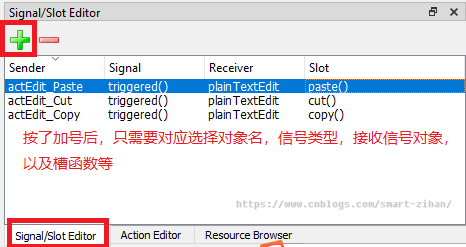
然后将ui转换成py文件,执行即可。
ui_mainWindow.py
# -*- coding: utf-8 -*-

# Form implementation generated from reading ui file 'ui_mainWindow.ui'

#

# Created by: PyQt5 UI code generator 5.13.0

#

# WARNING! All changes made in this file will be lost!

from PyQt5 import QtCore, QtGui, QtWidgets

class Ui_MainWindow(object):

    def setupUi(self, MainWindow):

        MainWindow.setObjectName("MainWindow")

        MainWindow.resize(532, 367)

        self.centralwidget = QtWidgets.QWidget(MainWindow)

        self.centralwidget.setObjectName("centralwidget")

        self.plainTextEdit = QtWidgets.QPlainTextEdit(self.centralwidget)

        self.plainTextEdit.setGeometry(QtCore.QRect(0, 0, 531, 291))

        font = QtGui.QFont()

        font.setPointSize(18)

        self.plainTextEdit.setFont(font)

        self.plainTextEdit.setObjectName("plainTextEdit")

        MainWindow.setCentralWidget(self.centralwidget)

        self.menubar = QtWidgets.QMenuBar(MainWindow)

        self.menubar.setGeometry(QtCore.QRect(0, 0, 532, 21))

        self.menubar.setObjectName("menubar")

        self.menu = QtWidgets.QMenu(self.menubar)

        self.menu.setObjectName("menu")

        self.menu_2 = QtWidgets.QMenu(self.menubar)

        self.menu_2.setObjectName("menu_2")

        self.menu_3 = QtWidgets.QMenu(self.menubar)

        self.menu_3.setObjectName("menu_3")

        MainWindow.setMenuBar(self.menubar)

        self.toolBar = QtWidgets.QToolBar(MainWindow)

        self.toolBar.setToolButtonStyle(QtCore.Qt.ToolButtonIconOnly)

        self.toolBar.setObjectName("toolBar")

        MainWindow.addToolBar(QtCore.Qt.TopToolBarArea, self.toolBar)

        self.actFont_Italic = QtWidgets.QAction(MainWindow)

        self.actFont_Italic.setCheckable(True)

        icon = QtGui.QIcon()

        icon.addPixmap(QtGui.QPixmap("icons/images/Italic.jpg"), QtGui.QIcon.Normal, QtGui.QIcon.Off)

        self.actFont_Italic.setIcon(icon)

        self.actFont_Italic.setObjectName("actFont_Italic")

        self.actFont_Bold = QtWidgets.QAction(MainWindow)

        self.actFont_Bold.setCheckable(True)

        icon1 = QtGui.QIcon()

        icon1.addPixmap(QtGui.QPixmap("icons/images/Bold.jpg"), QtGui.QIcon.Normal, QtGui.QIcon.Off)

        self.actFont_Bold.setIcon(icon1)

        self.actFont_Bold.setObjectName("actFont_Bold")

        self.actFont_Underline = QtWidgets.QAction(MainWindow)

        self.actFont_Underline.setCheckable(True)

        icon2 = QtGui.QIcon()

        icon2.addPixmap(QtGui.QPixmap("icons/images/underline.jpg"), QtGui.QIcon.Normal, QtGui.QIcon.Off)

        self.actFont_Underline.setIcon(icon2)

        self.actFont_Underline.setObjectName("actFont_Underline")

        self.actEdit_Cut = QtWidgets.QAction(MainWindow)

        icon3 = QtGui.QIcon()

        icon3.addPixmap(QtGui.QPixmap("icons/images/cut.jpg"), QtGui.QIcon.Normal, QtGui.QIcon.Off)

        self.actEdit_Cut.setIcon(icon3)

        self.actEdit_Cut.setObjectName("actEdit_Cut")

        self.actEdit_Copy = QtWidgets.QAction(MainWindow)

        icon4 = QtGui.QIcon()

        icon4.addPixmap(QtGui.QPixmap("icons/images/copy.jpg"), QtGui.QIcon.Normal, QtGui.QIcon.Off)

        self.actEdit_Copy.setIcon(icon4)

        self.actEdit_Copy.setObjectName("actEdit_Copy")

        self.actEdit_Paste = QtWidgets.QAction(MainWindow)

        icon5 = QtGui.QIcon()

        icon5.addPixmap(QtGui.QPixmap("icons/images/paste.jpg"), QtGui.QIcon.Normal, QtGui.QIcon.Off)

        self.actEdit_Paste.setIcon(icon5)

        self.actEdit_Paste.setObjectName("actEdit_Paste")

        self.menubar.addAction(self.menu.menuAction())

        self.menubar.addAction(self.menu_2.menuAction())

        self.menubar.addAction(self.menu_3.menuAction())

        self.toolBar.addAction(self.actFont_Italic)

        self.toolBar.addSeparator()

        self.toolBar.addAction(self.actFont_Bold)

        self.toolBar.addSeparator()

        self.toolBar.addAction(self.actFont_Underline)

        self.toolBar.addSeparator()

        self.toolBar.addAction(self.actEdit_Cut)

        self.toolBar.addAction(self.actEdit_Copy)

        self.toolBar.addAction(self.actEdit_Paste)

        self.toolBar.addSeparator()

        self.retranslateUi(MainWindow)

        self.actEdit_Cut.triggered.connect(self.plainTextEdit.cut)

        self.actEdit_Copy.triggered.connect(self.plainTextEdit.copy)

        self.actEdit_Paste.triggered.connect(self.plainTextEdit.paste)

        QtCore.QMetaObject.connectSlotsByName(MainWindow)

    def retranslateUi(self, MainWindow):

        _translate = QtCore.QCoreApplication.translate

        MainWindow.setWindowTitle(_translate("MainWindow", "MainWindow"))

        self.menu.setTitle(_translate("MainWindow", "文件(F)"))

        self.menu_2.setTitle(_translate("MainWindow", "编辑(E)"))

        self.menu_3.setTitle(_translate("MainWindow", "格式(M)"))

        self.toolBar.setWindowTitle(_translate("MainWindow", "toolBar"))

        self.actFont_Italic.setText(_translate("MainWindow", "斜体"))

        self.actFont_Italic.setToolTip(_translate("MainWindow", "<html><head/><body><p><span style=\" font-style:italic;\">斜体</span></p></body></html>"))

        self.actFont_Bold.setText(_translate("MainWindow", "粗体"))

        self.actFont_Bold.setToolTip(_translate("MainWindow", "加粗"))

        self.actFont_Underline.setText(_translate("MainWindow", "下划线"))

        self.actFont_Underline.setToolTip(_translate("MainWindow", "下划线"))

        self.actEdit_Cut.setText(_translate("MainWindow", "剪切"))

        self.actEdit_Cut.setToolTip(_translate("MainWindow", "剪切到粘贴板"))

        self.actEdit_Cut.setShortcut(_translate("MainWindow", "Ctrl+X"))

        self.actEdit_Copy.setText(_translate("MainWindow", "复制"))

        self.actEdit_Copy.setToolTip(_translate("MainWindow", "复制到粘贴板"))

        self.actEdit_Copy.setShortcut(_translate("MainWindow", "Ctrl+C"))

        self.actEdit_Paste.setText(_translate("MainWindow", "粘贴"))

        self.actEdit_Paste.setToolTip(_translate("MainWindow", "从粘贴板粘贴"))

        self.actEdit_Paste.setShortcut(_translate("MainWindow", "Ctrl+V"))
myMainWindow.py
#!/usr/bin/env python

# _*_ coding: UTF-8 _*_

"""=================================================

@Project -> File    : Operate-system -> myMainWindow.py

@IDE     : PyCharm

@Author  : zihan

@Date    : 2020/4/11 14:44

@Desc    :

================================================="""

import sys

from PyQt5.QtWidgets import (QApplication, QMainWindow, QActionGroup, QLabel, QProgressBar, QSpinBox, QFontComboBox)

from PyQt5.QtCore import Qt, pyqtSlot

from PyQt5.QtGui import QTextCharFormat, QFont

from ui_mainWindow import Ui_MainWindow

class QmyMainWindow(QMainWindow):

    def __init__(self, parent=None):

        super().__init__(parent)

        self.ui = Ui_MainWindow()

        self.ui.setupUi(self)

        # 设置斜体

        self.ui.actFont_Italic.triggered.connect(self.do_act_font_italic_triggered)

        # 设置粗体

        self.ui.actFont_Bold.triggered.connect(self.do_act_font_bold_triggered)

        # 设置下划线

        self.ui.actFont_Underline.triggered.connect(self.do_act_underline_triggered)

    @pyqtSlot(bool)

    def do_act_font_italic_triggered(self, checked):  # 斜体

        fmt = self.ui.plainTextEdit.currentCharFormat()

        fmt.setFontItalic(checked)

        self.ui.plainTextEdit.mergeCurrentCharFormat(fmt)

    @pyqtSlot(bool)

    def do_act_font_bold_triggered(self, checked):  # 粗体

        fmt = self.ui.plainTextEdit.currentCharFormat()

        if checked:

            fmt.setFontWeight(QFont.Bold)

        else:

            fmt.setFontWeight(QFont.Normal)

        self.ui.plainTextEdit.mergeCurrentCharFormat(fmt)

    @pyqtSlot(bool)

    def do_act_underline_triggered(self, checked):  # 下划线

        fmt = self.ui.plainTextEdit.currentCharFormat()

        fmt.setFontUnderline(checked)

        self.ui.plainTextEdit.mergeCurrentCharFormat(fmt)

if __name__ == "__main__":

    app = QApplication(sys.argv)  # 创建app,用QApplication类

    form = QmyMainWindow()

    form.show()

    sys.exit(app.exec_())
ok.
第十二篇 -- QMainWindow与QAction(剪切-复制-粘贴)的更多相关文章
- 第十四篇 -- QMainWindow与QAction(清空-全选-撤销-重做-关闭-语言选择)
效果图: 这次添加了关闭-撤销-重做-全选-清空等功能,并添加了字体和字体大小选择.基本方法跟前面几篇类似. ui_mainWindow.py # -*- coding: utf-8 -*- # Fo ...
- 解剖SQLSERVER 第十二篇 OrcaMDF 行压缩支持(译)
解剖SQLSERVER 第十二篇 OrcaMDF 行压缩支持(译) http://improve.dk/orcamdf-row-compression-support/ 在这两个月的断断续续的开发 ...
- 第十二篇 SQL Server代理多服务器管理
本篇文章是SQL Server代理系列的第十二篇,详细内容请参考原文 在这一系列的上一篇,我们查看了维护计划,一个维护计划可能会创建多个作业,多个计划.你还简单地看了SSIS子系统,并查看了维护计划作 ...
- 第十二篇 Integration Services:高级日志记录
本篇文章是Integration Services系列的第十二篇,详细内容请参考原文. 简介在前一篇文章我们配置了SSIS内置日志记录,演示了简单和高级日志配置,保存并查看日志配置,生成自定义日志消息 ...
- Python之路【第十二篇】:JavaScrpt -暂无内容-待更新
Python之路[第十二篇]:JavaScrpt -暂无内容-待更新
- Python开发【第二十二篇】:Web框架之Django【进阶】
Python开发[第二十二篇]:Web框架之Django[进阶] 猛击这里:http://www.cnblogs.com/wupeiqi/articles/5246483.html 博客园 首页 ...
- 【译】第十二篇 Integration Services:高级日志记录
本篇文章是Integration Services系列的第十二篇,详细内容请参考原文. 简介在前一篇文章我们配置了SSIS内置日志记录,演示了简单和高级日志配置,保存并查看日志配置,生成自定义日志消息 ...
- 【译】第十二篇 SQL Server代理多服务器管理
本篇文章是SQL Server代理系列的第十二篇,详细内容请参考原文 在这一系列的上一篇,我们查看了维护计划,一个维护计划可能会创建多个作业,多个计划.你还简单地看了SSIS子系统,并查看了维护计划作 ...
- 跟我学SpringCloud | 第十二篇:Spring Cloud Gateway初探
SpringCloud系列教程 | 第十二篇:Spring Cloud Gateway初探 Springboot: 2.1.6.RELEASE SpringCloud: Greenwich.SR1 如 ...
随机推荐
- noip2006 总结
T1 能量项链 原题 在Mars星球上,每个Mars人都随身佩带着一串能量项链.在项链上有N颗能量珠.能量珠是一颗有头标记与尾标记的珠子,这些标记对应着某个正整数.并且,对于相邻的两颗珠子,前一颗珠子 ...
- expdp数据泵导出数据汇总
[oracle@enmo1 ~]$ mkdir datadump[oracle@enmo1 ~]$ cd datadump/[oracle@enmo1 datadump]$ pwd/home/orac ...
- SpringCloud Alibaba实战(9:Hystrix容错保护)
源码地址:https://gitee.com/fighter3/eshop-project.git 持续更新中-- 在上一节我们已经使用OpenFeign完成了服务间的调用.想一下,假如我们一个服务链 ...
- [源码解析] 深度学习分布式训练框架 horovod (8) --- on spark
[源码解析] 深度学习分布式训练框架 horovod (8) --- on spark 目录 [源码解析] 深度学习分布式训练框架 horovod (8) --- on spark 0x00 摘要 0 ...
- 安聊服务端Netty的应用
Netty简介 Netty是一个面向网络编程的Java基础框架,它基于异步的事件驱动,并且内置多种网络协议的支持,可以快速地开发可维护的高性能的面向协议的服务器和客户端. 安聊简介 安聊是一个即时聊天 ...
- 95、配置ntp服务器
95.1.ntp简介: ntp服务使用的是udp的123端口,如果开启了防火墙要记得放开这个端口: NTP(Network Time Protocol,网络时间协议)是用来使网络中的各个计算机时间同步 ...
- AcWing 241. 楼兰图腾
#include<bits/stdc++.h> using namespace std; const int N=2e5+5; typedef long long ll; ll ans,l ...
- Java:Java中equlas和==的区别
== 比较的是栈内存的地址值,用来判断两个对象的地址是否相同,即是否是指相同一个对象.比较的是真正意义上的指针操作. 基本数据类型如:byte,short,char,int,long,float,do ...
- MySQL中的字段拼接 concat() concat_ws() group_concat()函数
1.concat()函数 2.concat_ws()函数 3.group_concat()函数 操作的table select * from test_concat order by id limit ...
- Swoole_process实现进程池的方法
Swoole 的进程之间有两种通信方式,一种是消息队列(queue),另一种是管道(pipe),对swoole_process 的研究在swoole中显得尤为重要. 预备知识 IO多路复用 swool ...