
微信小程序 主题皮肤切换(switch开关)
示例效果:

功能点分析:
1.点击switch开关,切换主题皮肤(包括标题栏、底部tabBar);
2.把皮肤设置保存到全局变量,在访问其它页面时也能有效果
3.把设置保存到本地,退出应用再进来时,依然加载上次设置的皮肤
步骤:
1、需要切换的皮肤:新建一个skin目录,下面写一个skin.wxss
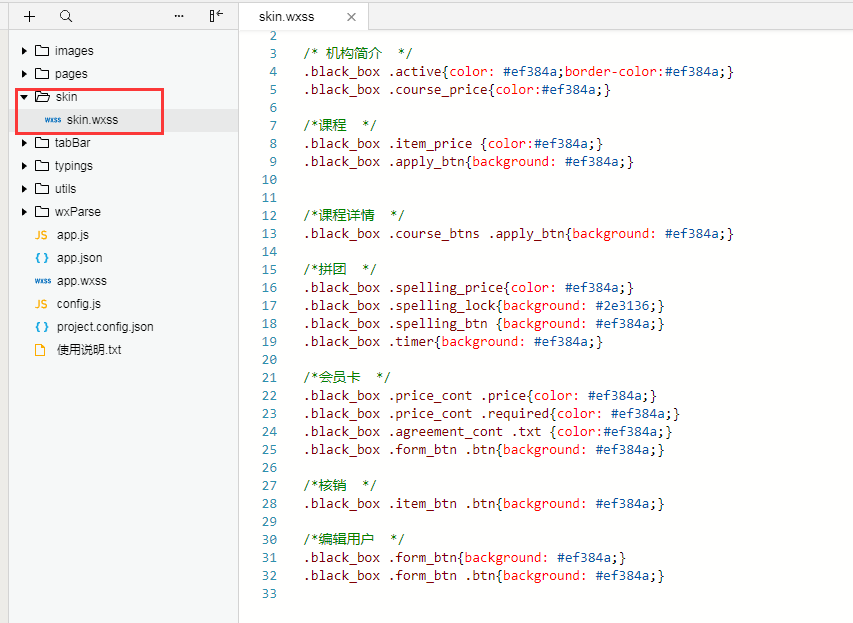
black_box就是最外面,也是最大的盒子(除了默认的page哈); black_box就是切换的皮肤;
还有关键一步,在app.wxss文件中把这个皮肤文件引入,因为换肤是所有页面都变化
@import "skin/skin.wxss";
通过控制skinStyle的值“black”来改变皮肤样式,我们还能写个blue_box的皮肤,然后设置变量为skinStyle为blue就行了
2、switch开关:
user.wxml:
user.js:根据皮肤开关设置皮肤模式(包括标题栏、tabBar等),并保存到本地; 最后,在每个页面,包括切换皮肤的页面的Page中的onLoad事件里,设置标题栏背景及SkinStyle的值;
const app = getApp()

Page({

  data: {

      skinStyle: '',

  },

  //皮肤开关

  switchChange: function (e) {

      var that = this;

      //开启

      if (e.detail.value == true) {

          app.globalData.skin = "black"

          app.setSkinBlackTitle(); //设置标题栏

          app.globalData.skinSwitch = true
          app.setBlackTabBar(); //设置tabBar
      } else {

          app.globalData.skin = 'normal'

          app.setSkinNormalTitle()

          app.globalData.skinSwitch = false
          app.setNormalTabBar();
      }

      that.setData({

          skinStyle: app.globalData.skin

      })

      //保存到本地

      wx.setStorage({

          key: "skin",

          data: app.globalData.skin

      })

      wx.setStorage({

          key: "skinSwitch",

          data: app.globalData.skinSwitch

      })

  },

  onLoad: function (options) {

      app.setNavBarBg();//设置标题栏背景色

      var that = this

      that.setData({

          skinStyle: app.globalData.skin,

          skinSwitch: app.globalData.skinSwitch

      })

  }

})
app.js:
在app.js的文件中,Page里的globalData中设置:skin:"normal",即默认为normal皮肤;tabBar数据配置;
我们要在程序打开时就获取皮肤设置,所以要在app.js去get与皮肤、标题、tabBar相关的信息:getSkin()
    //app.js

    App({

        onLaunch: function () {

            console.log('进入app');

            // 展示本地存储能力

            var logs = wx.getStorageSync('logs') || []

            logs.unshift(Date.now())

            wx.setStorageSync('logs', logs)

            this.login();


            this.getSkin();

        },

        globalData: {

            userInfo: null,

            skin: 'normal',

            skinSwitch: '',

        },

       //设置tabBar -- 默认模式

        setNormalTabBar(){

            wx.setTabBarItem({

                index: 0,

                text: '首页',

                iconPath: "images/icons/home_1.png",

                selectedIconPath: "images/icons/home_2.png",

            })

            wx.setTabBarItem({

                index: 1,

                text: '报名',

                iconPath: "images/icons/apply_1.png",

                selectedIconPath: "images/icons/apply_2.png",

            })

            wx.setTabBarItem({

                index: 2,

                text: '我的',

                iconPath: "images/icons/user_1.png",

                selectedIconPath: "images/icons/user_2.png",

            })

            wx.setTabBarStyle({

                color: '#7f8389',

                selectedColor: '#329fff',

                backgroundColor: '#f7f7fa',

                borderStyle: 'black'

            })

        },

       //设置tabBar -- 黑色模式

        setBlackTabBar(){

            wx.setTabBarItem({

                index: 0,

                text: '首页',

                iconPath: "images/icons/icon_home_1.png",

                selectedIconPath: "images/icons/icon_home_2.png",

            })

            wx.setTabBarItem({

                index: 1,

                text: '报名',

                iconPath: "images/icons/icon_apply_1.png",

                selectedIconPath: "images/icons/icon_apply_2.png",

            })

            wx.setTabBarItem({

                index:2,

                text: '我的',

                iconPath: "images/icons/icon_user_1.png",

                selectedIconPath: "images/icons/icon_user_2.png",

            })

            wx.setTabBarStyle({

                color: '#2e3136',

                selectedColor: '#ef384a',

                backgroundColor: '#ffffff',

                borderStyle: 'black'

            })

        },

        //皮肤

        getSkin: function () {

            var that = this

            wx.getStorage({

                key: 'skin',

                success: function (res) {

                    that.globalData.skin = res.data

                    if (that.globalData.skin == 'normal') {

                        that.globalData.skinSwitch = false

                        that.setSkinNormalTitle()

                        that.setNormalTabBar();

                    } else {

                        that.globalData.skinSwitch = true

                        that.setSkinBlackTitle()

                        that.setBlackTabBar()

                    }

                }

            })

        },

        //导航栏标题背景

        setNavBarBg: function () {

            var that = this

            if (that.globalData.skin == "normal") {

                that.setSkinNormalTitle()

            } else {

                that.setSkinBlackTitle()

            }

        },

        setSkinBlackTitle: function () {

            wx.setNavigationBarColor({

                frontColor: '#ffffff',

                backgroundColor: '#2e3136',

            })

        },

        setSkinNormalTitle: function () {

            wx.setNavigationBarColor({

                frontColor: '#000000',

                backgroundColor: '#ffffff',

            })

        },

    });
微信小程序 主题皮肤切换(switch开关)的更多相关文章
- 微信小程序换皮肤,动态切换菜单栏和导航栏的样式,动态修改TabBar和NavigationBar
在做微信小程序换皮肤的时候,需要动态修改菜单栏(TabBar)和导航栏(NavigationBar) 但是在小程序中它们的样式是写在app.json里面,而且app.json是静态编译,运行时哪怕你修 ...
- 微信小程序写tab切换
微信小程序之tab切换效果,如图: 最近在学习微信小程序并把之前的公司app搬到小程序上,挑一些实现效果记录一下(主要是官方文档里没说的,毕竟官方文档只是介绍功能) .wxml代码: <view ...
- 微信小程序Tab选项卡切换大集合
代码地址如下:http://www.demodashi.com/demo/14028.html 一.前期准备工作 软件环境:微信开发者工具 官方下载地址:https://mp.weixin.qq.co ...
- 微信小程序左右滑动切换页面示例代码--转载
微信小程序——左右滑动切换页面事件 微信小程序的左右滑动触屏事件,主要有三个事件:touchstart,touchmove,touchend. 这三个事件最重要的属性是pageX和pageY,表示X, ...
- 微信小程序开发--路由切换,页面重定向
这段时间开发了一个微信小程序,虽然小程序的导航API 官方文档写得很详细,但是在具体开发过程中还是会遇到很多不明白,或者一时转不过弯的地方. 1.页面切换传参,参数读取 1.1 wx.navigat ...
- 微信小程序左右滑动切换图片酷炫效果
开门见山,先上效果吧!感觉可以的用的上的再往下看. 心动吗?那就继续往下看! 先上页面结构吧,也就是wxml文件,其实可以理解成微信自己封装过的html,这个不多说了,不懂也没必要往下看了. < ...
- 微信小程序左右滑动切换图片酷炫效果(附效果)
开门见山,先上效果吧!感觉可以的用的上的再往下看. 心动吗?那就继续往下看! 先上页面结构吧,也就是wxml文件,其实可以理解成微信自己封装过的html,这个不多说了,不懂也没必要往下看了. < ...
- 微信小程序标签页切换
WXML中: <view class="swiper-tab"> <view class="swiper-tab-list {{currentTab== ...
- 微信小程序之 catalog 切换
组件名称:catalog 组件属性:catalogData,type:String 组件描述:这是一个子组件,数据从父组件中传递 效果图: catalog 目录为多个,使用 scroll-view 容 ...
随机推荐
- leetcood学习笔记-58-最后一个单词的长度
题目描述: 第一次解答: class Solution: def lengthOfLastWord(self, s: str) -> int: L=s.strip().split(" ...
- Jmeter-【JSON Extractor】-响应结果中一级key取值
一.请求返回样式 二.取code值 三.查看结果
- 使用canvas绘制6X6调色盘
<canvas id="canvas" height="150" width="150"></canvas> var ...
- hdu多校第七场 1006(hdu6651) Final Exam 博弈
题意: 有n道题,这n道题共m分,要求你至少做出k道才能及格,你可以自由安排复习时间,但是只有某道题复习时间严格大于题目分配的分值时这道题才能够被做出来,求最少的,能够保证及格的复习时间.复习时间和分 ...
- 在360的兼容模式下关于innerHTML=“”,引发的问题
innerHTML属性,可以动态设置和修改dom,但是在360的兼容模式下回存在一些问题...... var dBody = document.body; var fatherDom = docume ...
- VS2010-MFC(Ribbon界面开发:为Ribbon Bar添加控件)
转自:http://www.jizhuomi.com/software/253.html 前面一节为大家简单介绍了如何创建Ribbon样式的应用程序框架,本节教程就来初步讲讲怎样为Ribbon Bar ...
- (转)python之函数介绍及使用
为什么要用函数? 1.减少代码量 2.保持一致性 3.易维护 一.函数的定义和使用 ? 1 2 3 4 5 6 def test(参数): ... 函数体 . ...
- Codeforces 1174B Ehab Is an Odd Person
题目链接:http://codeforces.com/problemset/problem/1174/B 题意:给定长度 n 的数组,任意俩个相加为奇数的数可以交换数组中的位置,让这个数组尽量从小到大 ...
- 如何把本地文件上传github
1.$ git config --global user.name "xxx" 2.$ git config --global user.email xxx@qq.com 3.进入 ...
- licecap图片区域问题
之前一直好用的licecap最近突然没法用了,结果发现是屏幕分辨率的文本大小的问题,因为选了特大的.发现制作成的gif图片的区域有问题.后来改回中等的,就可以了.