
使用threejs实现3D卡片菜单
成品效果:
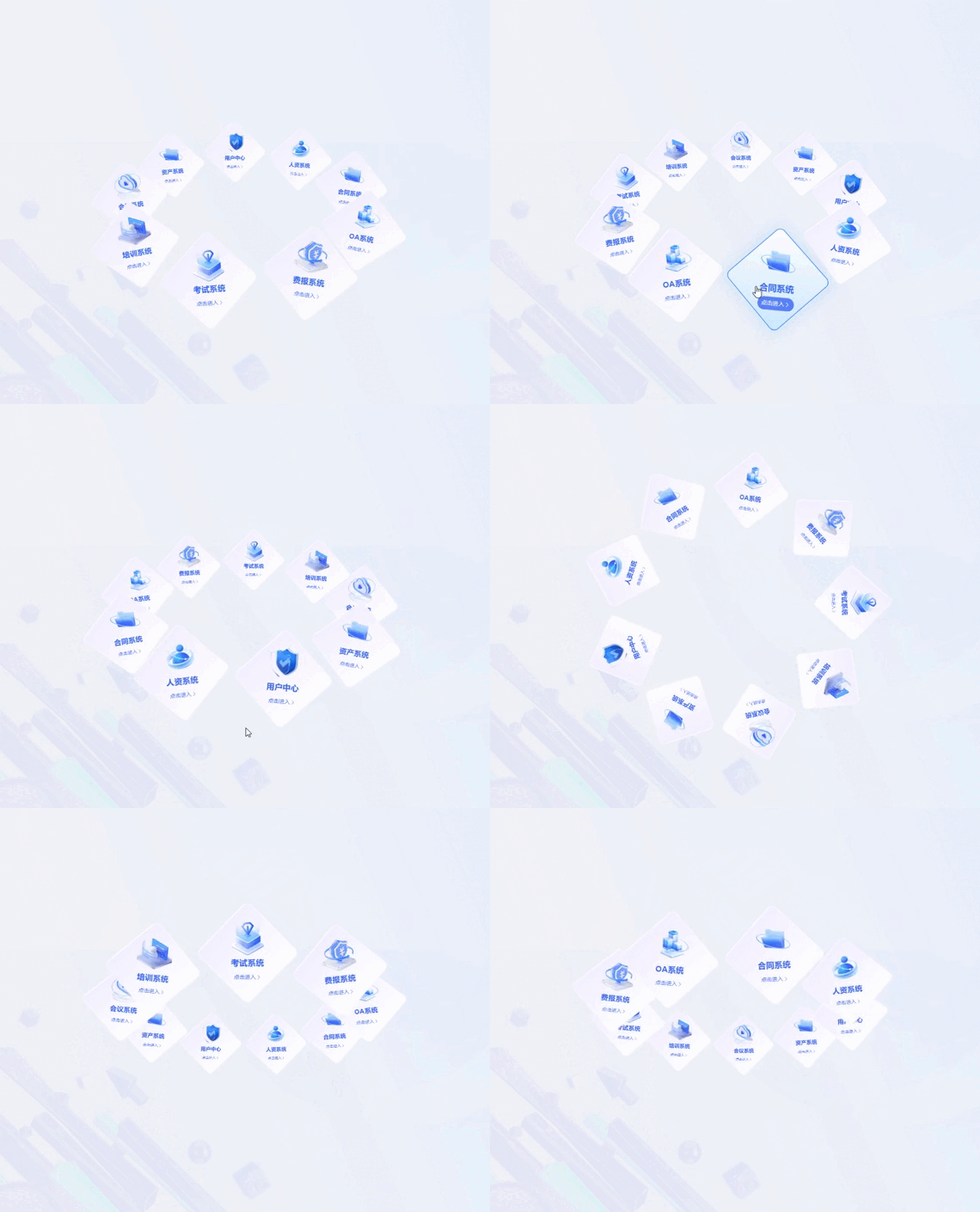
用到的技术:vue2、three.js、gsap.js
template
<template>

  <div id="box" class="container"></div>

</template>
script
import * as THREE from "three";

import { OrbitControls } from "three/examples/jsm/controls/OrbitControls.js";

import { CSS3DObject, CSS3DRenderer } from "three/examples/jsm/renderers/CSS3DRenderer.js";

import gsap from "gsap";

const httpMatcher = /http|https/;

export default {

  name: "3DMenu",

  components: {},

  data() {

    return {

      app: null,

      el: null,

      mesh: null,

      camera: null,

      scene: null,

      renderer: null,

      labelRenderer: null,

      controls: null,

      menuData: [

        {

          id: "1",

          parentId: "1537645492375449602",

          name: "用户中心",

          description: null,

          appKey: "xjt_user",

          appHomePage: "/auth-ui/",

        },

        {

          id: "1534774879700992002",

          parentId: "1537645492375449602",

          name: "人资系统",

          description: null,

          appKey: "xjt_hr",

          appHomePage: "/hr-ui/",

        },

        {

          id: "1536947570488430593",

          parentId: "1537645492375449602",

          name: "合同系统",

          description: null,

          appKey: "xjt_contract",

          appHomePage: "/contract-ui/",

        },

        {

          id: "1537733169730351105",

          parentId: "1537645492375449602",

          name: "OA系统",

          description: null,

          appKey: "xjt_oa",

          appHomePage: "/oa-ui/",

        },

        {

          id: "1551507637786374145",

          parentId: "1537645492375449602",

          name: "费报系统",

          description: null,

          appKey: "xjt_fb",

          appHomePage: "/feibao-ui/",

        },

        {

          id: "1613789365929680897",

          parentId: "1537645492375449602",

          name: "考试系统",

          description: null,

          appKey: "xjt_exam",

          appHomePage: "/exam-ui/",

        },

        {

          id: "1615265465629380610",

          parentId: "1537645492375449602",

          name: "培训系统",

          description: null,

          appKey: "xjt_px",

          appHomePage: "/px-ui/",

        },

        {

          id: "1669546339670454274",

          parentId: "1537645492375449602",

          name: "会议系统",

          description: null,

          appKey: "xjt_cloud_meeting",

          appHomePage: "/cloud-meeting-ui/",

        },

        {

          id: "1674596267673264130",

          parentId: "1537645492375449602",

          name: "资产系统",

          description: null,

          appKey: "xjt_property",

          appHomePage: "/property-ui/",

        },

      ],

      radius: 400,

      objects: [],

      spheres: [], //用来存放目标对象的位置

      isAnimationPaused: false,

    };

  },

  mounted() {

    this.initZThree();

    window.addEventListener("resize", this.handleResize);

  },

  beforeDestroy() {

    window.removeEventListener("resize", this.handleResize);

    this.destroyThree();

  },

  methods: {

    initZThree() {

      this.el = document.getElementById("box");

      const { offsetWidth, offsetHeight } = this.el;

      this.initScene();

      this.initCamera(offsetWidth, offsetHeight);

      this.initRenderer(offsetWidth, offsetHeight);

      this.initControl();

      this.initMenu();

    },

    initScene() {

      // 渲染场景

      this.scene = new THREE.Scene();

    },

    initCamera(offsetWidth, offsetHeight) {

      // 创建相机

      this.camera = new THREE.PerspectiveCamera(

        50,

        offsetWidth / offsetHeight,

        1,

        20000

      );

      this.camera.position.set(-1265, 798, -105); // 设置相机位置

      this.camera.lookAt(0, 0, 0); // 设置相机看先中心点

    },

    initRenderer(offsetWidth, offsetHeight) {

      // 创建渲染器

      this.renderer = new THREE.WebGLRenderer({

        antialias: true, // true/false表示是否开启反锯齿

        alpha: true, // true/false 表示是否可以设置背景色透明

      });

      this.renderer.setSize(offsetWidth, offsetHeight); // 设置渲染区域宽高

      this.renderer.shadowMap.enabled = true; // 允许渲染器产生阴影贴图

      this.renderer.setPixelRatio(window.devicePixelRatio);

      this.renderer.setClearColor(0x01dcc9, 0); // 设置背景颜色

      this.el.append(this.renderer.domElement);

      // 网页标签

      this.labelRenderer = new CSS3DRenderer();

      this.labelRenderer.domElement.style.zIndex = 2;

      this.labelRenderer.domElement.style.position = "absolute";

      this.labelRenderer.domElement.style.top = "0px";

      this.labelRenderer.domElement.style.left = "0px";

      this.labelRenderer.domElement.style.pointerEvents = "none"; // 避免HTML标签遮挡三维场景的鼠标事件

      this.labelRenderer.setSize(offsetWidth, offsetHeight);

      this.labelRenderer.domElement.addEventListener("mousemove", this.handleMousemove);

      this.labelRenderer.domElement.addEventListener("mouseout",  this.handleMouseout);

      this.el.appendChild(this.labelRenderer.domElement);

    },

    initControl() {

      // 初始化控制器

      let controls = new OrbitControls(this.camera, this.renderer.domElement);

      // controls.autoRotate = true; //为true时,相机自动围绕目标旋转,但必须在animation循环中调用update()

      controls.enableDamping = true; // 设置带阻尼的惯性

      controls.dampingFactor = 0.05; // 设置阻尼的系数

      // 避免鼠标滚轮放大缩小

      controls.minDistance = 1500;

      controls.maxDistance = 1500;

      this.controls = controls;

      this.controls.update();

    },

    initMenu() {

      this.objects = [];

      this.spheres = [];

      this.menuData.forEach((item, index) => {

        const cardLabel = this.addCss3dLabel(item, index + 1);

        cardLabel.element.addEventListener("click", this.handleClick);

        this.objects.push(cardLabel);

        this.scene.add(cardLabel);

      });

      const vector = new THREE.Vector3(20, 20, 20);

      for (let i = 0, l = this.objects.length; i < l; i++) {

        const phi = (i / l) * 2 * Math.PI; // 分配每个对象在圆上的角度

        const object = new THREE.Object3D();

        object.position.x = this.radius * Math.cos(phi);

        object.position.y = 0;

        object.position.z = this.radius * Math.sin(phi);

        // 设置对象朝向圆心

        vector.x = object.position.x;

        vector.y = object.position.y;

        vector.z = object.position.z;

        object.lookAt(vector);

        this.spheres.push(object);

      }

      this.transform();

      this.renderFun(); // 渲染

    },

    addCss3dLabel(item = {}, index) {

      const element = document.createElement("div");

      element.className = `sys-item-li sys-item-${index}`;

      element.innerHTML = `<div class="sys-item"><div class="sys-content" data-url="${item.appHomePage}"><div class="sys-bg ${item.appKey}"></div><div class="sys-name">${item.name}</div><div class="sys-btn">点击进入<i class="el-icon-arrow-right"></i></div></div></div>`;

      let textLabel = new CSS3DObject(element);

      textLabel.name = item.name;

      textLabel.userData = item;

      const position = Math.random() * this.radius + this.radius;

      textLabel.position.set(position, position, position);

      return textLabel;

    },

    renderFun() {

      this.objects.forEach((object) => {

        object.lookAt(this.camera.position);

      });

      if (!this.isAnimationPaused) {

        this.scene.rotation.y -= 0.005; // 旋转速度

      }

      this.renderer.render(this.scene, this.camera);

      this.labelRenderer.render(this.scene, this.camera);

      requestAnimationFrame(this.renderFun);

    },

    transform(duration = 2) {

      for (var i = 0; i < this.objects.length; i++) {

        let object = this.objects[i];

        let target = this.spheres[i];

        gsap.to(object.position, {

          x: target.position.x,

          y: target.position.y,

          z: target.position.z,

          duration: Math.random() * duration + duration,

          ease: "Linear.inOut",

        });

        gsap.to(object.rotation, {

          x: target.rotation.x,

          y: target.rotation.y,

          z: target.rotation.z,

          duration: Math.random() * duration + duration,

          ease: "Linear.inOut",

        });

      }

    },

    handleResize() {

      this.camera.aspect = this.el.offsetWidth / this.el.offsetHeight;

      this.camera.updateProjectionMatrix();

      this.renderer.setSize(this.el.offsetWidth, this.el.offsetHeight);

      this.labelRenderer.setSize(this.el.offsetWidth, this.el.offsetHeight);

    },

    handleMousemove() {

      this.isAnimationPaused = true; // 暂停动画

    },

    handleMouseout() {

      this.isAnimationPaused = false; // 恢复动画

    },

    handleClick(e) {

      const { url } = e.target.dataset;

      console.log("url", url);

       if (httpMatcher.test(url)) {

          window.location.href = url;

        } else {

          window.location.href = `${window.location.origin}${url}`;

        }

    },

    destroyThree() {

      this.scene.traverse((child) => {

        if (child.material) {

          child.material.dispose();

        }

        if (child.geometry) {

          child.geometry.dispose();

        }

        child = null;

      });

      this.renderer.forceContextLoss();

      this.renderer.dispose();

      this.scene.clear();

    },

  },

};
css
.container {

  width: 100%;

  height: 100%;

  overflow: hidden;

  background-color: #f2f6fe;

  background-image: url(~@/assets/images/subsystem/switch-system-bg.jpg);

  background-size: cover;

  background-repeat: no-repeat;

  ::v-deep.sys-item {

    opacity: 1;

    width: 24vh;

    height: 24vh;

    text-align: center;

    color: #fff;

    border: 1px solid rgba(255, 255, 255, 0.3);

    border-radius: 16px;

    overflow: hidden;

    color: #3768f5;

    transform: rotate(45deg);

    cursor: pointer;

    &::before {

      content: "";

      position: absolute;

      width: 100%;

      height: 100%;

      margin-left: -50%;

      z-index: 1;

      box-sizing: border-box;

      border-radius: 16px;

      border: 2px solid rgba(255, 255, 255, 0.5);

      background: linear-gradient(90deg, #f2efff 0%, #fff 100%);

      transition: all 0.25s ease;

    }

    &:hover {

      transform: rotate(45deg) scale(1.07);

      box-shadow: 0 2px 24px 16px rgba(0, 142, 255, 0.08);

      background: linear-gradient(135deg, #fff 0%, #cbe8ff 100%);

      &::before {

        opacity: 1;

        border: 2px solid #4a93ff;

        box-shadow: 0 2px 24px 12px rgba(0, 142, 255, 0.08);

        background: linear-gradient(135deg, #fff 0%, #cbe8ff 100%);

      }

      .sys-btn {

        color: #fff;

        background: rgba(55, 102, 245, 0.8);

      }

    }

    .sys-content {

      position: relative;

      width: 100%;

      height: 100%;

      transform: rotate(-45deg);

      z-index: 9;

    }

    .sys-bg {

      width: 55%;

      height: 55%;

      margin: auto;

      pointer-events: none;

      background-size: cover;

      background-repeat: no-repeat;

      background-image: url(~@/assets/images/subsystem/xjt_contract.png);

      &.xjt_user {

        background-image: url(~@/assets/images/subsystem/xjt_user.png);

      }

      &.xjt_hr {

        background-image: url(~@/assets/images/subsystem/xjt_hr.png);

      }

      &.xjt_fb,

      &.expense {

        background-image: url(~@/assets/images/subsystem/xjt_fb.png);

      }

      &.xjt_budget {

        background-image: url(~@/assets/images/subsystem/xjt_budget.png);

      }

      &.xjt_px {

        background-image: url(~@/assets/images/subsystem/xjt_px.png);

      }

      &.xjt_contract {

        background-image: url(~@/assets/images/subsystem/xjt_contract.png);

      }

      &.xjt_oa {

        background-image: url(~@/assets/images/subsystem/xjt_oa.png);

      }

      &.xjt_exam {

        background-image: url(~@/assets/images/subsystem/xjt_exam.png);

      }

      &.xjt_cloud_meeting {

        background-image: url(~@/assets/images/subsystem/xjt_cloud_meeting.png);

      }

    }

    .sys-name {

      font-size: 2.7vh;

      font-weight: 600;

      pointer-events: none;

    }

    .sys-btn {

      display: inline-block;

      height: 4vh;

      padding: 0 1.2vh;

      margin-top: 1vh;

      line-height: 4vh;

      font-size: 1.8vh;

      font-weight: 500;

      border-radius: 2vh;

      transition: all 0.2s ease;

      cursor: pointer;

      pointer-events: none;

      .el-icon-arrow-right {

        vertical-align: middle;

        margin-top: -1px;

      }

    }

  }

}
使用threejs实现3D卡片菜单的更多相关文章
- 转 threejs中3D视野的缩放实现
Threejs基础部分学习知道透视相机new THREE.PerspectiveCamera(fov, aspect , near,far)中. fov视野角(拍摄距离)越大,场景中的物体越小.fov ...
- 3D旋转菜单
今天来个3D旋转菜单,是纯css3实现的,主要用到transform,transition,backface-visibility. 主要是transform这个变换,它是今天猪脚. transfor ...
- Threejs 开发3D地图实践总结【转】
Threejs 开发3D地图实践总结 前段时间连续上了一个月班,加班加点完成了一个3D攻坚项目.也算是由传统web转型到webgl图形学开发中,坑不少,做了一下总结分享. 1.法向量问题 法线是垂 ...
- threejs和3d各种效果的学习
写给即将开始threejs学习的自己,各种尝试,各种记忆.不要怕,灰色的年华终会过去. 一个技术学习的快慢,以及你的深刻程度,还有你的以后遇到这个东西的时候的反应速度,很大程度上,取决于你的博客的深刻 ...
- 纯css3响应式3d翻转菜单
前端开发whqet,csdn,王海庆,whqet,前端开发专家 周末快乐哈,今天来看一个纯CSS3实现的3d翻转菜单.3d响应式菜单,希望对大家有所帮助. 在线赞赏效果.在线编辑代码,或者下载收藏. ...
- 3D立体菜单导航
今天在微博里面看到别人分享的一个立体效果,我觉得挺好的,就拿下来自己存着,万一以后用到. 效果如下: index.html <!DOCTYPE html> <html > &l ...
- 教你如何利用threejs对3D模型皮肤进行DIY
一步一步教你如何利用threejs加载gltf模型来实现DIY换肤功能. 模型准备 模型制作 模型可以通过网上下载,也可以自己通过c4d.maya.blender等模型制作软件得到.这里就不叙述有关模 ...
- 用threejs 实现3D物体在浏览器展示
用threejs 实现3D物体在浏览器展示,通过鼠标平移,缩放,键盘箭头按钮左右移动等功能展示. <!DOCTYPE html> <html> <head> < ...
- Vue.js 实现的 3D Tab菜单
今天给大家带来一款基于VueJS的3D Tab菜单,它跟我们之前分享的许多CSS3 Tab菜单不同的是,它可以随着鼠标移动呈现出3D立体的视觉效果,每个tab页面还可以通过CSS自定义封面照片.它的核 ...
- 【译】仿Taasky的3D翻转菜单动画实现
最终效果 最终效果 开始 首先下载并打开一个事先搭好架子的Demo,然后来分析一下.这个Demo包含一个主页和详情页,其中MenuViewController继承自UITableViewControl ...
随机推荐
- 【C#】使用ffmpeg image2pipe将图片保存为mp4视频
文章目录需求实现需求在正式开始之前,先介绍下我的需求是怎么样的,基于此需求如何使用ffmpeg实现.仅供参考. 需求点: 将图片保存为视频图片数量不是固定的,是由上游的webrtc传下的帧数据,转成的 ...
- ReplayKit 启动录制按钮 RPSystemBroadcastPickerView 的使用
一.RPSystemBroadcastPickerView 介绍 ReplayKit12自从iOS11公布以来,提供了iOS系统级别的录屏能力(也就是录制自身App以外,手机屏幕内容)的能力,有一个非 ...
- 机器学习策略篇:详解进行误差分析(Carrying out error analysis)
从一个例子开始讲吧. 假设正在调试猫分类器,然后取得了90%准确率,相当于10%错误,,开发集上做到这样,这离希望的目标还有很远.也许的队员看了一下算法分类出错的例子,注意到算法将一些狗分类为猫,看看 ...
- INFINI Labs 产品更新 | Easysearch 1.8.0 发布数据写入限流功能
INFINI Labs 产品又更新啦~,包括 Easysearch v1.8.0.Gateway.Console.Agent.Loadgen v1.25.0.本次各产品更新了很多亮点功能,如 Easy ...
- mysql备份实战
1.备份恢复演练(mysqldump+binlog) 知识储备 如下内容.. 全量备份 全量数据,指的是某一整个数据库(如kings)中所有的表.以及表数据,进行备份. 例如备份所有数据库.以及所有数 ...
- mysql报错 a foreign key constraint fails(外键约束错误)
报错信息如下: (pymysql.err.IntegrityError) (1452, u'Cannot add or update a child row: a foreign key constr ...
- Java类加载和对象创建
引言 Java代码需要被使用,必须要经过类加载器加载到内存中,然后对应的类才能够被创建使用,这文对类加载和对象创建和过程进行分析. 类加载 Java类通过懒加载的方式,经过了Loading.Linki ...
- vite+vue3+ts+elementPlus前端框架搭建 [三] router路由管理
路由包括动态路由.静态路由两种,本文中以静态路由的方式实现了动态路由. 1. 创建Router 在Src目录下创建router文件夹,并在router文件夹下创建index.ts文件. index.t ...
- 交互式转化批处理工具 expect
交互式转化批处理工具 expect expect中相关命令 spawn 启动新的进程 expect 从进程接收字符串 send 用于向进程发送字符串 interact 允许用户交互 exp_conti ...
- 【Playwright+Python】系列教程(二)手把手带你写一个脚本
一.如何使用代理方式打开网页 在 playwright.chromium.launch() 中传入 proxy 参数即可,示例代码如下: 1.同步写法: from playwright.sync_ap ...