
React-Native 之 GD (十)Android启动页面 及 模态方式跳转
1.Android启动页面
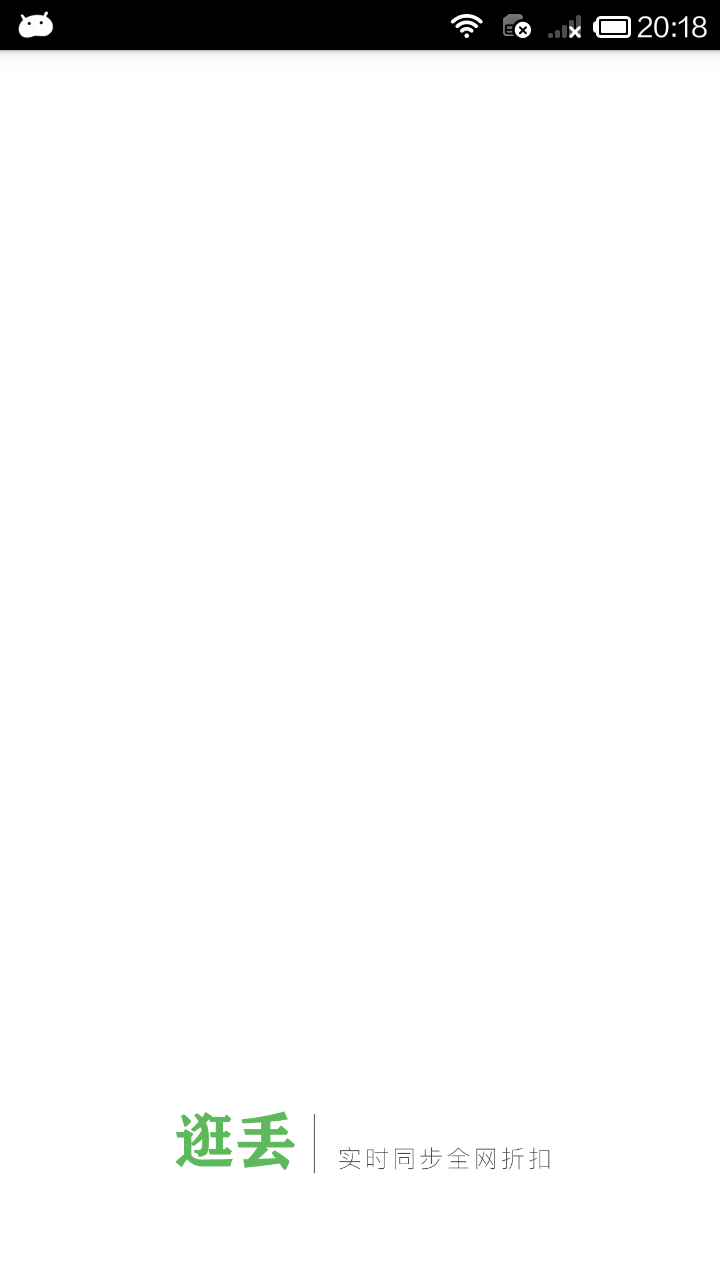
思路:新建一个组件作为 Android 的启动页,index.android.js 的初始化窗口改为 Android启动页,设置定时器,使其在1.5秒后自动跳转到 Main 组件。
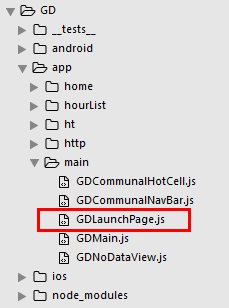
GDLaunchPage.js
/**

 * Android 启动页面

 */

import React, { Component } from 'react';

import {

    StyleSheet,

    Image,

    Dimensions,

} from 'react-native';

// 获取屏幕尺寸

const {width, height} = Dimensions.get('window');

// 引入 主页面

import Main from './GDMain';

export default class GDLaunchPage extends Component {

    componentDidMount() {

        setTimeout(() => {

            // 跳转

            this.props.navigator.replace({

                component:Main

            })

        }, 1500)

    }

    render() {

        return(

            <Image source={{uri:'launchimage'}} style={styles.imageStyle} />

        );

    }

}

const styles = StyleSheet.create({

    imageStyle: {

        width: width,

        height: height,

    },

});
index.android.js 调用
/**

 * Android

 */

import React, { Component } from 'react';

import {

  AppRegistry,

} from 'react-native';

// 导航器

import CustomerComponents, {

    Navigator

} from 'react-native-deprecated-custom-components';

// 引入 启动页面

import LaunchPage from './app/main/GDLaunchPage';

export default class GD extends Component {

  render() {

    return (

    	<Navigator

            initialRoute={

            	{

            		name: 'launchPage',

            		component:LaunchPage

            	}

           	}

            renderScene={(route, navigator) =>{

                let Component = route.component;

                return <Component {...route.params} navigator={navigator} />

            }}

        />

    );

  }

}

AppRegistry.registerComponent('GD', () => GD);
效果图
2.模态方式(Modal)跳转
GDHome.js 引入 Modal
/**

 * 首页

 */

import React, { Component } from 'react';

import {

    StyleSheet,

    Text,

    View,

    TouchableOpacity,

    Image,

    ListView,

    Dimensions,

    ActivityIndicator,

    Modal, // 模态

} from 'react-native';

// 引入 下拉刷新组件

import {PullList} from 'react-native-pull';

// 导航器

import CustomerComponents, {

    Navigator

} from 'react-native-deprecated-custom-components';

// 获取屏幕宽高

const {width, height} = Dimensions.get('window');

// 引入自定义导航栏组件

import CommunalNavBar from '../main/GDCommunalNavBar';

// 引入 近半小时热门组件

import HalfHourHot from './GDHalfHourHot';

// 引入 搜索页面组件

import Search from './GDSearch';

// 引入 cell

import CommunalHotCell from '../main/GDCommunalHotCell';

// 引入 空白页组件

import NoDataView from '../main/GDNoDataView';

// 引入 HTTP封装组件

import HTTPBase from '../http/HTTPBase';

export default class GDHome extends Component {

    // 构造

    constructor(props) {

        super(props);

        // 初始状态

        this.state = {

            dataSource: new ListView.DataSource({rowHasChanged:(r1, r2) => r1 !== r2}), // 数据源 优化

            loaded: false, // 用于判断是否显示空白页

            isModal: false, // 用于判断模态的可见性

        };

        // 绑定

        this.fetchData = this.fetchData.bind(this);

        this.loadMore = this.loadMore.bind(this);

    }

    // 网络请求

    fetchData(resolve) {

        let params = {"count" : 5 };

        HTTPBase.post('http://guangdiu.com/api/getlist.php', params)

            .then((responseData) => {

                this.setState({

                    dataSource: this.state.dataSource.cloneWithRows(responseData.data),

                    loaded:true,

                });

                if (resolve !== undefined){

                    setTimeout(() => {

                        resolve();

                    }, 1000);

                }

            })

            .catch((error) => {

            })

    }

    // 跳转到近半小时热门(通过模态跳转)

    pushToHalfHourHot() {

        this.setState({

            isModal: true

        })

    }

    // 跳转到搜索页面

    pushToSearch() {

        this.props.navigator.push({

            component: Search,

        })

    }

    // 返回左边按钮

    renderLeftItem() {

        // 将组件返回出去

        return(

            <TouchableOpacity

                onPress={() => {this.pushToHalfHourHot()}}

            >

                <Image source={{uri:'hot_icon_20x20'}} style={styles.navbarLeftItemStyle} />

            </TouchableOpacity>

        );

    }

    // 返回中间按钮

    renderTitleItem() {

        return(

            <TouchableOpacity>

                <Image source={{uri:'navtitle_home_down_66x20'}} style={styles.navbarTitleItemStyle} />

            </TouchableOpacity>

        );

    }

    // 返回右边按钮

    renderRightItem() {

        return(

            <TouchableOpacity

                // 跳转搜索页面

                onPress={() => {this.pushToSearch()}}

            >

                <Image source={{uri:'search_icon_20x20'}} style={styles.navbarRightItemStyle} />

            </TouchableOpacity>

        );

    }

    // 加载更多

    loadMore() {

    }

    renderFooter() {

        return (

            <View style={{height: 100}}>

                <ActivityIndicator />

            </View>

        );

    }

    // 根据网络状态决定是否渲染 listView

    renderListView() {

        if(this.state.loaded === false) {

            // 显示空白页

            return(

                <NoDataView />

            );

        }else{

            return(

                <PullList   // 将ListView 改为 PullList

                    // 下拉刷新

                    onPullRelease={(resolve) => this.fetchData(resolve)}

                    // 数据源 通过判断dataSource是否有变化,来判断是否要重新渲染

                    dataSource={this.state.dataSource}

                    renderRow={this.renderRow}

                    // 隐藏水平线

                    showsHorizontalScrollIndicator={false}

                    style={styles.listViewStyle}

                    initialListSize={5}

                    // 返回 listView 头部

                    renderHeader={this.renderHeader}

                    // 上拉加载更多

                    onEndReached={this.loadMore}

                    onEndReachedThreshold={60}

                    renderFooter={this.renderFooter}

                />

            );

        }

    }

    // 返回每一行cell的样式

    renderRow(rowData) {

        // 使用cell组件

        return(

            <CommunalHotCell

                image={rowData.image}

                title={rowData.title}

            />

        );

    }

    // 生命周期 组件渲染完成 已经出现在dom文档里

    componentDidMount() {

        // 请求数据

        this.fetchData();

    }

    // 销毁模态

    onRequestClose() {

        this.setState({

            isModal: false

        })

    }

    // 关闭模态

    closeModal(data) {

        this.setState({

            isModal:data

        })

    }

    render() {

        return (

            <View style={styles.container}>

                {/* 初始化模态 */}

                <Modal

                    animationType='slide'  // 动画 底部弹窗

                    transparent={false}  // 透明度

                    visible={this.state.isModal}  // 可见性

                    onRequestClose={() => this.onRequestClose()}  // 销毁

                >

                    <HalfHourHot removeModal={(data) => this.closeModal(data)} />

                </Modal>

                {/* 导航栏样式 */}

                <CommunalNavBar

                    leftItem = {() => this.renderLeftItem()}

                    titleItem = {() => this.renderTitleItem()}

                    rightItem = {() => this.renderRightItem()}

                />

                {/* 根据网络状态决定是否渲染 listView */}

                {this.renderListView()}

            </View>

        );

    }

}

const styles = StyleSheet.create({

    container: {

        flex: 1,

        alignItems: 'center',

    },

    navbarLeftItemStyle: {

        width:20,

        height:20,

        marginLeft:15,

    },

    navbarTitleItemStyle: {

        width:66,

        height:20,

    },

    navbarRightItemStyle: {

        width:20,

        height:20,

        marginRight:15,

    },

    listViewStyle: {

        width:width,

    },

});
GDHalfHourHot.js 设置返回
/**

 * 近半小时热门

 */

import React, { Component } from 'react';

import {

    StyleSheet,

    Text,

    View,

    TouchableOpacity,

    Image,

    ListView,

    Dimensions,

    DeviceEventEmitter,

} from 'react-native';

// 获取屏幕宽高

const {width, height} = Dimensions.get('window');

// 引入自定义导航栏组件

import CommunalNavBar from '../main/GDCommunalNavBar';

// 引入 cell

import CommunalHotCell from '../main/GDCommunalHotCell';

// 引入 空白页组件

import NoDataView from '../main/GDNoDataView';

// 引入 下拉刷新组件

import {PullList} from 'react-native-pull';

// 引入 HTTP封装组件

import HTTPBase from '../http/HTTPBase';

export default class GDHalfHourHot extends Component {

    // 构造

    constructor(props) {

        super(props);

        // 初始状态

        this.state = {

            dataSource: new ListView.DataSource({rowHasChanged:(r1, r2) => r1 !== r2}), // 数据源 优化

            loaded: false, // 用于判断是否显示空白页

        };

        // 绑定

        this.fetchData = this.fetchData.bind(this);

    }

    // 提供参数出去,便于外部调用

    static defaultProps = {

        removeModal:{}

    }

    // 网络请求

    fetchData(resolve) {

        HTTPBase.get('http://guangdiu.com/api/gethots.php')

            .then((responseData) => { // 处理数据

                // 修改dataSource的值

                this.setState({

                    dataSource: this.state.dataSource.cloneWithRows(responseData.data),

                    loaded:true,

                });

                // 关闭下拉刷新动画

                if (resolve !== undefined){

                    // 使用定时器 延时关闭动画

                    setTimeout(() => {

                        resolve();  // 关闭动画

                    }, 1000);

                }

            })

            .catch((error) => {

            })

    }

    popToHome(data) {

        // 向外部传值

        this.props.removeModal(data);

    }

    // 返回中间按钮

    renderTitleItem() {

        return(

            <Text style={styles.navbarTitleItemStyle}>近半小时热门</Text>

        );

    }

    // 返回右边按钮

    renderRightItem() {

        return(

            <TouchableOpacity

                onPress={() => {this.popToHome(false)}}

            >

                <Text style={styles.navbarRightItemStyle}>关闭</Text>

            </TouchableOpacity>

        );

    }

    // 根据网络状态决定是否渲染 listView

    renderListView() {

        if(this.state.loaded === false) {

            // 显示空白页

            return(

                <NoDataView />

            );

        }else{

            return(

                <PullList   // 将ListView 改为 PullList

                    // 下拉刷新

                    onPullRelease={(resolve) => this.fetchData(resolve)}

                    // 数据源 通过判断dataSource是否有变化,来判断是否要重新渲染

                    dataSource={this.state.dataSource}

                    renderRow={this.renderRow}

                    // 隐藏水平线

                    showsHorizontalScrollIndicator={false}

                    style={styles.listViewStyle}

                    initialListSize={5}

                    // 返回 listView 头部

                    renderHeader={this.renderHeader}

                />

            );

        }

    }

    // 返回 listView 头部

    renderHeader() {

        return(

            <View style={styles.headerPromptStyle}>

                <Text>根据每条折扣的点击进行统计,每5分钟更新一次</Text>

            </View>

        );

    }

    // 返回每一行cell的样式

    renderRow(rowData) {

        // 使用cell组件

        return(

            <CommunalHotCell

                image={rowData.image}

                title={rowData.title}

            />

        );

    }

    componentWillMount() {

        // 向GDMain.js 发送通知 隐藏tabBar

        DeviceEventEmitter.emit('isHiddenTabBar', true);

    }

    componentWillUnmount() {

        // 向GDMain.js 发送通知 显示tabBar

        DeviceEventEmitter.emit('isHiddenTabBar', false);

    }

    // 生命周期 组件渲染完成 已经出现在dom文档里

    componentDidMount() {

        // 请求数据

        this.fetchData();

    }

    render() {

        return (

            <View style={styles.container}>

                {/* 导航栏样式 */}

                <CommunalNavBar

                    titleItem = {() => this.renderTitleItem()}

                    rightItem = {() => this.renderRightItem()}

                />

                {/* 根据网络状态决定是否渲染 listView */}

                {this.renderListView()}

            </View>

        );

    }

}

const styles = StyleSheet.create({

    container: {

        flex:1,

        alignItems: 'center',

    },

    navbarTitleItemStyle: {

        fontSize:17,

        color:'black',

        marginLeft:50

    },

    navbarRightItemStyle: {

        fontSize:17,

        color:'rgba(123,178,114,1.0)',

        marginRight:15

    },

    headerPromptStyle: {

        height:44,

        width:width,

        backgroundColor:'rgba(239,239,239,0.5)',

        justifyContent:'center',

        alignItems:'center'

    },

    listViewStyle: {

        width:width,

    },

});
核心代码:
{/* 初始化模态 */}

                <Modal

                    animationType='slide'  // 动画 底部弹窗

                    transparent={false}  // 透明度

                    visible={this.state.isModal}  // 可见性

                    onRequestClose={() => this.onRequestClose()}  // 销毁

                >

                    <HalfHourHot removeModal={(data) => this.closeModal(data)} />

                </Modal>
.
React-Native 之 GD (十)Android启动页面 及 模态方式跳转的更多相关文章
- Android启动页面的正确打开方式 (转载)
最近由于领导要求写一个手机APP,于是自学开始,不经意间想到使用过的手机APP在打开的时候都是会有一个启动页面,这是如何实现的呢?比较好奇,于是在网上搜到了以下这篇文章,经过个人实验的确可行,不过原文 ...
- 你不可不知的 React Native 混合用法(Android 篇)
前言 当前 React Native 虽说版本更新比较快,各种组件也提供的很全面了,但是在某些情况下,混合开发的方式才会快速缩短开发周期,原因无非就是原生平台的"底蕴"无疑更深,拥 ...
- React Native常用组件在Android和IOS上的不同
React Native常用组件在Android和IOS上的不同 一.Text组件在两个平台上的不同表现 1.1 height与fontSize 1.1.1只指定font,不指定height 在这种情 ...
- [RN] React Native 键盘管理 在Android TextInput遮盖,上移等问题解决办法
React Native 键盘管理 在Android TextInput遮盖,上移等问题解决办法 解决办法: 打开android工程,在AndroidManifest.xml中配置如下: <ac ...
- 封装 React Native 原生组件(iOS / Android)
封装 React Native 原生组件(iOS / Android) 在 React Native中,有很多种丰富的组件了,例如 ScrollView.FlatList.SectionList.Bu ...
- 带着问题写React Native原生控件--Android视频直播控件
最近在做的采用React Native项目有一个需求,视频直播与直播流播放同一个布局中,带着问题去思考如何实现,能更容易找到问题关键点,下面分析这个控件解决方法: 现在条件:视频播放控件(开源的ijk ...
- React Native移动开发实战-3-实现页面间的数据传递
React Native使用props来实现页面间数据传递和通信.在React Native中,有两种方式可以存储和传递数据:props(属性)以及state(状态),其中: props通常是在父组件 ...
- NodeJS笔记(五) 使用React Native 创建第一个 Android APP
参考:原文地址 几个月前官方推出了快速创建工具包,由于对React Native不熟悉这里直接使用这2个工具包进行创建 1. create-react-native-app(下文简称CRNA): 2. ...
- React Native学习(十)—— 生命周期
本文基于React Native 0.52 Demo上传到Git了,有需要可以看看,写了新内容会上传的.Git地址 https://github.com/gingerJY/React-Native-D ...
随机推荐
- Java GC日志
JVM 命令:-Xms5m -Xmx20m -XX:+PrintGCDetails -XX:+PrintCommandLineFlags -XX:+UseSerialGC [GC (Allocatio ...
- Redis 内存满了怎么办……
我们知道Redis是基于内存的key-value数据库,因为系统的内存大小有限,所以我们在使用Redis的时候可以配置Redis能使用的最大的内存大小. 1.通过配置文件配置 通过在Redis安装目录 ...
- linux通信之信号
一. 信号介绍 1.1. 什么是信号 1.1.1. 信号是内容受限的一种异步通信机制 a. 之所以称之为受限是因为通信内容在OS已经规定,内容简单,单一(signal.h文件中定义好) b. 信号本质 ...
- kotlin学习(9)注解
我们一般使用类和函数要说明类和函数的确切名称.调用一个类,你需要知道它定义在哪个类中,还有它的名称和参数的类型. 注解和反射可以给你超越这个规则的能力,让你编写出使用事先未知的任意类的代码.注解赋予这 ...
- 6-1 如何读写csv数据
>>> from urllib import urlretrieve >>> urlretrieve('http://table.finance.yahoo.com ...
- [51Nod1850] 抽卡大赛
link $solution:$ 朴素 $dp$,暴力枚举选择 $i$ 号人的第 $j$ 张卡片,朴素 $dp$ 即可,时间复杂度 $O(n^4)$ . 考虑对于朴素 $dp$ 的优化,发现其实是一个 ...
- C#操作电脑多显示器设置
电脑多显示器设置 第一种方式 通过使用api函数SetDisplayConfig来设置.这种方式在某些电脑中设置有几率会导致电脑黑屏 使用代码如下: private const uint SDC_AP ...
- MFC- socket 编程
一.CAsyncSocket类 CAsyncSocket属于异步非阻塞类. CAsyncSocket类采用了windows socket中的WSAAsyncSelect模型.CAsyncSocket ...
- 【Heaven Cow与God Bull】题解
题目 Description __int64 ago,there's a heaven cow called sjy... A god bull named wzc fell in love with ...
- Java面试之基础篇(1)
1.一个".java"源文件中是否可以包括多个类(不是内部类)?有什么限制? 可以有多个类,但只能有一个public的类,并且public的类名必须与文件名相一致. 2.Java有 ...