
Connect C# to MySQL
Introduction
The purpose of this article is to show in a step by step manner how to use and connect C# with MySql usingMySql Connect/NET. I will create simple examples about the DML (Insert, Update, Select, Delete) throughout the article to show how to query the database using C#, and in the end I will show you how to backup your database and save it in a .sql file from our application, and how to restore it back.
Getting Started
Downloading Connector/Net
First make sure you have downloaded and installed the MySQL Connector/NET from the MySQL official website. In this article, I will use the Connector/NET version 6.1.
Creating the Database
Now let's create the database, and the table that we are going to query from our application later on.
From the command line, we start by creating the database:
create database ConnectCsharpToMysql;
Then we select the database to use before creating the table:
use ConnectCsharpToMysql;
And we create the table that we will query from our application:
create table tableInfo

(

id INT NOT NULL AUTO INCREMENT,

name VARCHAR(30),

age INT,

PRIMARY KEY(id)

);
Using the Code
Adding Reference and Creating the MySQL Connector DLL from the Project
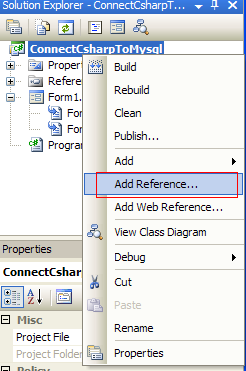
Before we start writing the code, we need to add the mysql Reference in our project. To do so, we right click our project name, and choose Add Reference:
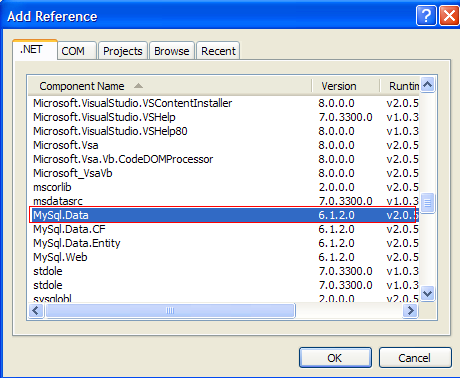
Then we choose MySql.Data from the list:
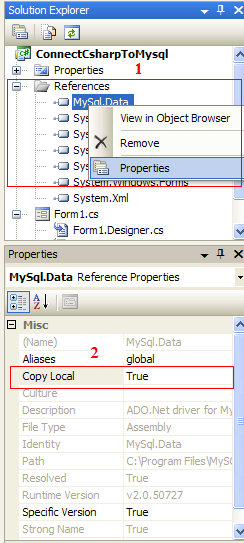
In order to use the application on other computers that don't have the connector installed, we will have to create a DLL from the reference. To do so, we right click the reference name in our project, and set the copy local to truein its properties:
Creating the Class
It's always a better idea to create a new class for connecting to the database and to separate the actual code from the code that will access the database. This will help keep our code neat, easier to read and more efficient.
We will start by adding the MySql Connector library:
//Add MySql Library

using MySql.Data.MySqlClient;
Then declaring and initializing the variables that we will use:
connection: will be used to open a connection to the database.server: indicates where our server is hosted, in our case, it's localhost.database: is the name of the database we will use, in our case it's the database we already created earlier which isconnectcsharptomysql.uid: is our MySQL username.password: is our MySQL password.connectionString: contains the connection string to connect to the database, and will be assigned to the connection variable.
Our class will look as follows:
(Empty methods will be filled later on in this article.)
 Copy Code
class DBConnect
{
private MySqlConnection connection;
private string server;
private string database;
private string uid;
private string password; //Constructor
public DBConnect()
{
Initialize();
} //Initialize values
private void Initialize()
{
server = "localhost";
database = "connectcsharptomysql";
uid = "username";
password = "password";
string connectionString;
connectionString = "SERVER=" + server + ";" + "DATABASE=" +
database + ";" + "UID=" + uid + ";" + "PASSWORD=" + password + ";"; connection = new MySqlConnection(connectionString);
} //open connection to database
private bool OpenConnection()
{
} //Close connection
private bool CloseConnection()
{
} //Insert statement
public void Insert()
{
} //Update statement
public void Update()
{
} //Delete statement
public void Delete()
{
} //Select statement
public List <string> [] Select()
{
} //Count statement
public int Count()
{
} //Backup
public void Backup()
{
} //Restore
public void Restore()
{
}
}
Opening and Closing the Connection
We should always open a connection before querying our table(s), and close it right after we're done, to release the resources and indicate that this connection is no longer needed.
Opening and closing a connection to the database is very simple, however, it's always better to use exception handling before opening a connection or closing it, to catch the errors and deal with them.
Copy Code//open connection to database
private bool OpenConnection()
{
try
{
connection.Open();
return true;
}
catch (MySqlException ex)
{
//When handling errors, you can your application's response based
//on the error number.
//The two most common error numbers when connecting are as follows:
//0: Cannot connect to server.
//1045: Invalid user name and/or password.
switch (ex.Number)
{
case 0:
MessageBox.Show("Cannot connect to server. Contact administrator");
break; case 1045:
MessageBox.Show("Invalid username/password, please try again");
break;
}
return false;
}
} //Close connection
private bool CloseConnection()
{
try
{
connection.Close();
return true;
}
catch (MySqlException ex)
{
MessageBox.Show(ex.Message);
return false;
}
}
Working with DML (Insert, Update, Select, Delete)
Usually, Insert, update and delete are used to write or change data in the database, while Select is used to read data.
For this reason, we have different types of methods to execute those queries.
The methods are the following:
ExecuteNonQuery: Used to execute a command that will not return any data, for exampleInsert,updateordelete.ExecuteReader: Used to execute a command that will return 0 or more records, for exampleSelect.ExecuteScalar: Used to execute a command that will return only 1 value, for exampleSelect Count(*).
I will start with Insert, update and delete, which are the easiest. The process to successfully execute a command is as follows:
- Open connection to the database.
- Create a MySQL command.
- Assign a connection and a query to the command. This can be done using the constructor, or using the
Connectionand theCommandTextmethods in theMySqlCommandclass. - Execute the command.
- Close the connection.
Copy Code//Insert statement
public void Insert()
{
string query = "INSERT INTO tableinfo (name, age) VALUES('John Smith', '33')"; //open connection
if (this.OpenConnection() == true)
{
//create command and assign the query and connection from the constructor
MySqlCommand cmd = new MySqlCommand(query, connection); //Execute command
cmd.ExecuteNonQuery(); //close connection
this.CloseConnection();
}
} //Update statement
public void Update()
{
string query = "UPDATE tableinfo SET name='Joe', age='22' WHERE name='John Smith'"; //Open connection
if (this.OpenConnection() == true)
{
//create mysql command
MySqlCommand cmd = new MySqlCommand();
//Assign the query using CommandText
cmd.CommandText = query;
//Assign the connection using Connection
cmd.Connection = connection; //Execute query
cmd.ExecuteNonQuery(); //close connection
this.CloseConnection();
}
} //Delete statement
public void Delete()
{
string query = "DELETE FROM tableinfo WHERE name='John Smith'"; if (this.OpenConnection() == true)
{
MySqlCommand cmd = new MySqlCommand(query, connection);
cmd.ExecuteNonQuery();
this.CloseConnection();
}
}
To execute a Select statement, we add a few more steps, and we use the ExecuteReader method that will return a dataReader object to read and store the data or records.
- Open connection to the database.
- Create a MySQL command.
- Assign a connection and a query to the command. This can be done using the constructor, or using the
Connectionand theCommandTextmethods in theMySqlCommandclass. - Create a
MySqlDataReaderobject to read the selected records/data. - Execute the command.
- Read the records and display them or store them in a list.
- Close the data reader.
- Close the connection.
Copy Code//Select statement
public List< string >[] Select()
{
string query = "SELECT * FROM tableinfo"; //Create a list to store the result
List< string >[] list = new List< string >[3];
list[0] = new List< string >();
list[1] = new List< string >();
list[2] = new List< string >(); //Open connection
if (this.OpenConnection() == true)
{
//Create Command
MySqlCommand cmd = new MySqlCommand(query, connection);
//Create a data reader and Execute the command
MySqlDataReader dataReader = cmd.ExecuteReader(); //Read the data and store them in the list
while (dataReader.Read())
{
list[0].Add(dataReader["id"] + "");
list[1].Add(dataReader["name"] + "");
list[2].Add(dataReader["age"] + "");
} //close Data Reader
dataReader.Close(); //close Connection
this.CloseConnection(); //return list to be displayed
return list;
}
else
{
return list;
}
}
Sometimes, a command will always return only one value, like for example if we want to count the number of records, we have been using Select Count(*) from tableinfo;, in this case, we will have to use the method ExecuteScalar that will return one value.
The process to successfully run and ExecuteScalar is as follows:
- Open connection to the database.
- Create a MySQL command.
- Assign a connection and a query to the command. This can be done using the constructor, or using the
Connectionand theCommandTextmethods in theMySqlCommandclass. - Execute the command.
- Parse the result if necessary.
- Close the connection.
//Count statement

public int Count()

{

    string query = "SELECT Count(*) FROM tableinfo";

    int Count = -1;

    //Open Connection

    if (this.OpenConnection() == true)

    {

        //Create Mysql Command

        MySqlCommand cmd = new MySqlCommand(query, connection);

        //ExecuteScalar will return one value

        Count = int.Parse(cmd.ExecuteScalar()+"");

        //close Connection

        this.CloseConnection();

        return Count;

    }

    else

    {

        return Count;

    }

}
Backup and Restore the Database
Before I show you how to backup the database from our application, I will explain a little bit about processes, commands, arguments and the input and output.
Usually, to backup a MySQL database from the command line, we write the following:
mysqldump -u username -p password -h localhost ConnectCsharpToMysql > "C:\Backup.sql"
and to restore it, we write:
mysql -u username -p password -h localhost ConnectCsharpToMysql < "C:\Backup.sql"
The following commands can be divided as such:
- mysql and mysqldump are the filename or the executable file.
- -u username -p password -h localhost are the arguments.
- > "C:\Backup.sql" is where the output is directed.
- < "C:\Backup.sql" is where the input is directed.
Now that we know how the command is divided, we can start implementing it in our application.
In C# and .NET applications, starting a process is easy. First we add the library:
using System.Diagnostics;
Then we launch an application, such as Internet Explorer:
Process.Start("IExplore.exe");
ProcessStartInfo is used in conjunction with Process, to setup the process before it starts.
For example, to start Internet Explorer with arguments, we write the following:
ProcessStartInfo psi = new ProcessStartInfo();

psi.FileName = "IExplore.exe";

psi.Arguments = "www.codeproject.com";

Process.Start(psi);
To write our output to a file or read our input, we can use the RedirectStandardInput andRedirectStandardOutput properties in the ProcessStartInfo component to cause the process to get input from or return output to a file or other device. If we use the StandardInput or StandardOutputproperties on the Process component, we must first set the corresponding value on the ProcessStartInfoproperty. Otherwise, the system throws an exception when we read or write to the stream.
Now back to our application, to backup the database, we will have to set the RedirectStandardOutput totrue, and read the output from the process into a string and save it to a file.
Copy Code//Backup
public void Backup()
{
try
{
DateTime Time = DateTime.Now;
int year = Time.Year;
int month = Time.Month;
int day = Time.Day;
int hour = Time.Hour;
int minute = Time.Minute;
int second = Time.Second;
int millisecond = Time.Millisecond; //Save file to C:\ with the current date as a filename
string path;
path = "C:\\MySqlBackup" + year + "-" + month + "-" + day +
"-" + hour + "-" + minute + "-" + second + "-" + millisecond + ".sql";
StreamWriter file = new StreamWriter(path); ProcessStartInfo psi = new ProcessStartInfo();
psi.FileName = "mysqldump";
psi.RedirectStandardInput = false;
psi.RedirectStandardOutput = true;
psi.Arguments = string.Format(@"-u{0} -p{1} -h{2} {3}",
uid, password, server, database);
psi.UseShellExecute = false; Process process = Process.Start(psi); string output;
output = process.StandardOutput.ReadToEnd();
file.WriteLine(output);
process.WaitForExit();
file.Close();
process.Close();
}
catch (IOException ex)
{
MessageBox.Show("Error , unable to backup!");
}
}
To restore the database, we read the .sql file and store it in a string, then set the RedirectStandardInputproperty to true, and write the input from the string to the process.
Copy Code//Restore
public void Restore()
{
try
{
//Read file from C:\
string path;
path = "C:\\MySqlBackup.sql";
StreamReader file = new StreamReader(path);
string input = file.ReadToEnd();
file.Close(); ProcessStartInfo psi = new ProcessStartInfo();
psi.FileName = "mysql";
psi.RedirectStandardInput = true;
psi.RedirectStandardOutput = false;
psi.Arguments = string.Format(@"-u{0} -p{1} -h{2} {3}",
uid, password, server, database);
psi.UseShellExecute = false; Process process = Process.Start(psi);
process.StandardInput.WriteLine(input);
process.StandardInput.Close();
process.WaitForExit();
process.Close();
}
catch (IOException ex)
{
MessageBox.Show("Error , unable to Restore!");
}
}
Conclusion
In this article, I demonstrated how to connect C# to MySQL and query the tables using simple examples for theinsert, update, delete and select statements.
Also, and because it's not widely available over the internet, I decided to demonstrate how to backup and restore a MySQL database from the C# application.
Connect C# to MySQL的更多相关文章
- mySql 远程连接(is not allowed to connect to this MySQL server)
如果你想连接你的mysql的时候发生这个错误: ERROR 1130: Host '192.168.1.3' is not allowed to connect to this MySQL serve ...
- 报错:1130-host ... is not allowed to connect to this MySql server
报错:1130-host ... is not allowed to connect to this MySql server 解决方法: 1. 改表法. 可能是你的帐号不允许从远程登陆,只能在l ...
- 连接Mysql提示Can’t connect to local MySQL server through socket的解决方法
mysql,mysqldump,Mysqladmin,php连接mysql服务常会提示下面错误: ERROR 2002 (HY000): Can't connect to local MySQL se ...
- ERROR 2002 (HY000): Can't connect to local MySQL server through socket '/var/lib/mysql/mysql.sock' (2)
有时候,当我们使用"mysql"."mysqladmin"."mysqldump"等命令管理数据库时,服务器抛出类似如下错误: 一.错误现场 ...
- MySql数据库:Host 'localhost' is not allowed to connect to this MySQL server
修改mysql的root密码后,出现Host 'localhost' is not allowed to connect to this MySQL server 错误. 解决办法: C:\Progr ...
- XtraBackup出现 Can't connect to local MySQL server through socket '/tmp/mysql.sock'
Xtrabackup做备份时遇到下面错误信息MySQL server: Can't connect to local MySQL server through socket '/tmp/mysql.s ...
- ERROR 2002 (HY000): Can't connect to local MySQL server through socket '/var/lib/mysql/mysql.sock' (2)
从供应商手中接手一个云平台(Windwos Azure)上的MySQL数据库,登录数据库时遇到错误: $mysql -uroot -p Enter password: ERROR 2002 (HY00 ...
- ERROR 2002 (HY000): Can’t connect to local MySQL server through socket ‘/var mysql 启动不了(转载)
ERROR 2002 (HY000): Can't connect to local MySQL server through socket '/var mysql 启动不了 ps -A | gr ...
- Mac mySql ERROR 2002 (HY000): Can't connect to local MySQL server through socket '/tmp/mysql.sock' (2)的解决办法
我的环境:Mac 10.11.6 ,mysql 5.7.14 . mac mySql 报错ERROR 2002 (HY000): Can't connect to local MySQL serv ...
- 启动Mysql服务提示Can’t connect to local MySQL server through socket的解决方法
启动Mysql服务常会提示下面错误: ERROR 2002 (HY000): Can't connect to local MySQL server through socket '/var/lib/ ...
随机推荐
- BZOJ1861:[ZJOI2006]书架(Splay)
Description 小T有一个很大的书柜.这个书柜的构造有些独特,即书柜里的书是从上至下堆放成一列.她用1到n的正整数给每本书都编了号. 小T在看书的时候,每次取出一本书,看完后放回书柜然后再拿下 ...
- CF284A Cows and Primitive Roots
嘟嘟嘟 这道题就是求一个奇素数\(p\)的原根数量. 公式是\(\varphi(\varphi(p))\).又因为\(p\)是质数,所以就是\(\varphi(p - 1)\). (证明啥的我不会-- ...
- 新版剑指offer14 剪绳子
int maxProduct(int length){ ) ; ) ; ) ; ; == ) numof3 -= ; )/; ,numof3))*(,numof2)); }
- ajax传递数组,后台接收为null解决方法
traditional:true,加上这个就好,默认为false,即允许深度序列化参数,但是servlet api不支持,所有设为true阻止就好了. $.ajax({ type:'post', ur ...
- 在VSCode使用Markdown绘制UML图
在VSCode使用Markdown绘制UML图 需要插件 Markdown All in One Markdown Preview Enhanced PlantUML markdownlint Mar ...
- Web—10-前端性能优化
前端性能优化 从用户访问资源到资源完整的展现在用户面前的过程中,通过技术手段和优化策略,缩短每个步骤的处理时间从而提升整个资源的访问和呈现速度.网站的性能直接会影响到用户的数量,所有前端性能优化很重要 ...
- oracle json 解析函数
CREATE OR REPLACE TYPE ty_tbl_str_split IS TABLE OF ty_row_str_split;CREATE OR REPLACE TYPE ty_row_s ...
- Objective-C基础知识之“类”
Objective-C语言是iOS开发的专用语言,虽然现在在逐步被swift语言取代,但是仍可以作为基础学习,学会Objective-C之后入手swift也是相当快速.今天我来简谈一下关于OC中的类. ...
- JS中判断字符串中出现次数最多的字符及出现的次数
<script type="text/javascript"> var str = 'qwertyuilo.,mnbvcsarrrrrrrrtyuiop;l,mhgfd ...
- redis具体使用
key 命名规则:不可包含空格和\n 创建方式: set key value values Strings (Binary-safe strings) Lists Sets Sorted sets ...