
[.NET] 开头不讲"Hello Word",读尽诗书也枉然 : Word 操作组件介绍 - Spire.Doc
开头不讲"Hello Word",读尽诗书也枉然 : Word 操作组件介绍 - Spire.Doc
【博主】反骨仔 【原文地址】http://www.cnblogs.com/liqingwen/p/5898368.html
序
本打算过几天简单介绍下组件 Spire.XLS,突然发现园友率先发布了一篇,既然 xls 已经出现,为避免打上抄袭嫌疑,博主只能抢先一步使用 Spire.Doc 简单介绍 Doc 操作,下面是通过 WinForm 程序执行代码完成介绍的。
本机环境:Win10 x64、VS 2015、MS Office 2016。
目录
介绍
这是 E-iceblue 公司开发的其中一个组件 Spire.Doc,它专门为开发人员进行创建,读取,写入、转换打印 word 文档文件提供便利,并且,它不需要你安装 MS Office,就可以对 word 进行操作。这里使用的是免费版进行演示。

图1 官方截图

图2 版本间的功能的差异
一、NuGet 包安装 Dll 引用文件
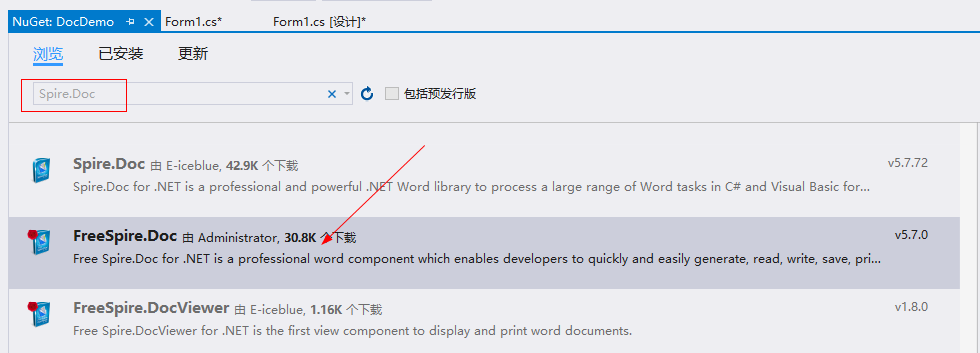
图1-1 打开 NuGet 包管理器
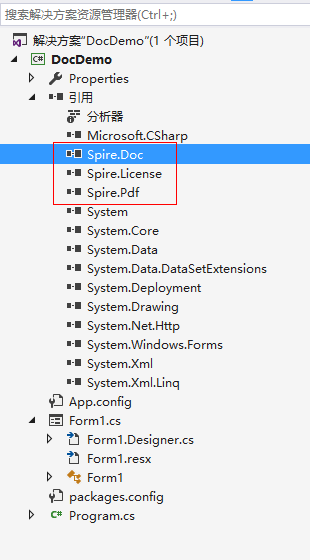
图1-2 安装完后会多 3 个引用文件
二、开头不讲“Hello World”,读尽诗书也枉然
1.先创建个空白的“demo1.docx”文件
图2-1
2.随便写几句代码
     public partial class Form1 : Form

     {

         public Form1()

         {

             InitializeComponent();

         }

         private void button1_Click(object sender, EventArgs e)

         {

             //打开 word 文档

             var document = new Document(@"demo1.docx",FileFormat.Docx);

             //取第一部分

             var section = document.Sections[];

             //取第一个段落

             var paragraph = section.Paragraphs[];

             //追加字符串

             paragraph.AppendText("Hello World!");

             //保存为 .docx 文件

             const string fileName = @"demo1-1.docx";

             document.SaveToFile(fileName, FileFormat.Docx);

             //启动该文件

             Process.Start(fileName);

         }

     }

图 2-2 效果图
【备注】别忘了引入命名空间哦: using Spire.Doc;
上面是向一个空的 word 文档加上“Hello World!”,这次换成直接创建一个新的包含“Hello World!”内容的文档。当然效果跟图 2-2 一样。
         private void button1_Click(object sender, EventArgs e)

         {

             //创建 word 文档

             var document = new Document();

             //创建新的部分

             var section = document.AddSection();

             //创建新的段落

             var paragraph = section.AddParagraph();

             //追加字符串

             paragraph.AppendText("Hello World!");

             //保存为 .doc 文件

             const string fileName = @"demo1-1.doc";

             document.SaveToFile(fileName, FileFormat.Doc);

             //启动该文件

             Process.Start(fileName);

         }
三、文档内容检索与替换
1.内容检索
先在“demo2.docx”中搞了篇《琵琶行》,启动时在文本框中输入“此时无声胜有声”进行检索。
         private void button1_Click(object sender, EventArgs e)

         {

             //加载 demo2.docx

             var document = new Document(@"demo2.docx", FileFormat.Docx);

             //查找所有匹配的字符串

             TextSelection[] textSelections = document.FindAllString(this.textBox1.Text, false, false);

             //修改背景色

             foreach (TextSelection selection in textSelections)

             {

                 selection.GetAsOneRange().CharacterFormat.TextBackgroundColor = Color.Gray;

             }

             //保存文件

             const string fileName = @"demo2-1.docx";

             document.SaveToFile(fileName, FileFormat.Docx);

             //启动该文件

             Process.Start(fileName);

         }
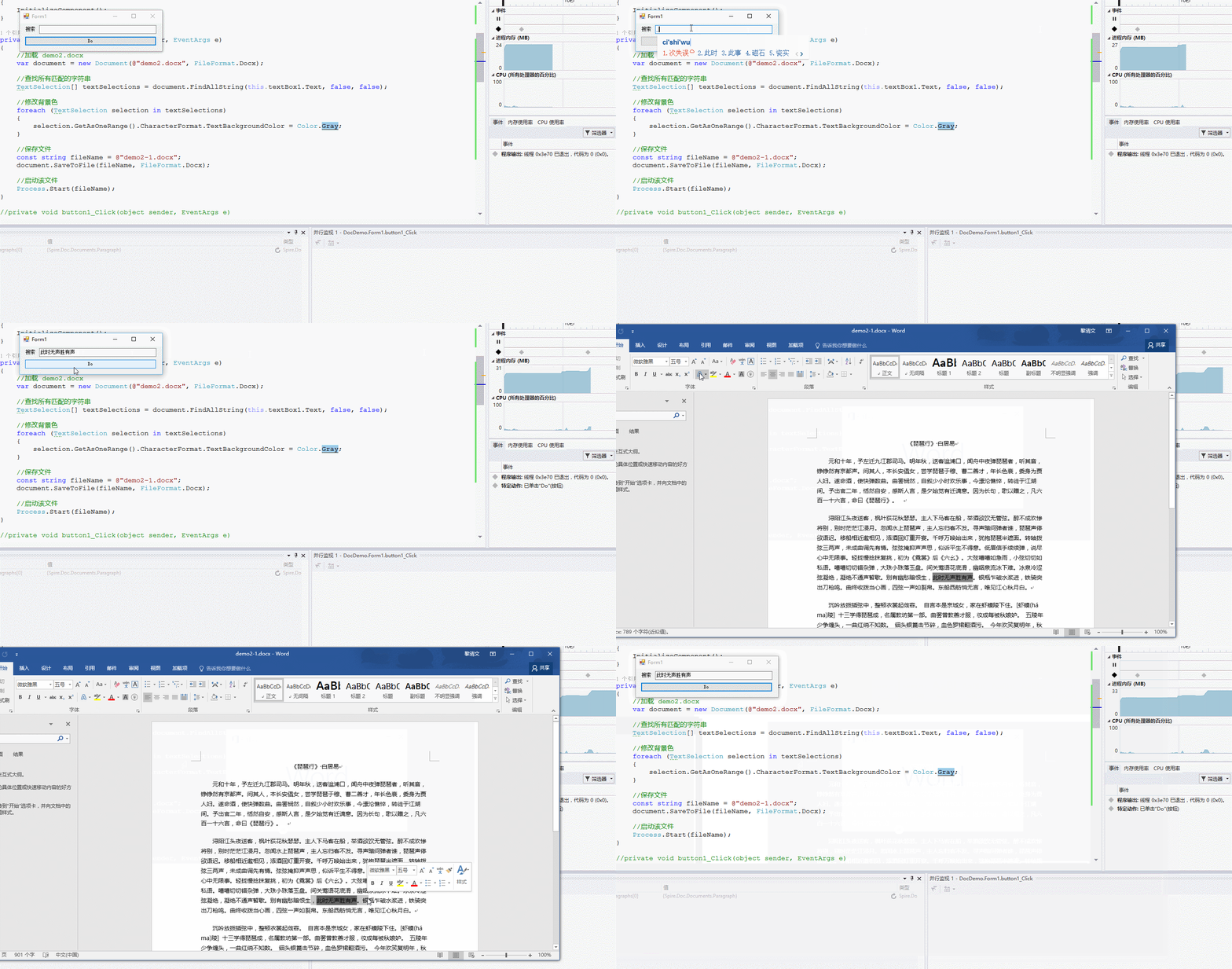
图 3.1-1
2.内容替换
大家尝试在三的基础上简单修改下代码即可。
document.Replace(this.textBox1.Text, this.textBox2.Text,false,false);
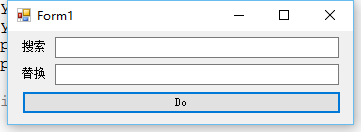
图3.2-1
四、格式化操作 - 字体、颜色、排版缩进和样式等
1.字体和颜色
新建一个空白的 demo3.docx 文件。
         private void button1_Click(object sender, EventArgs e)

         {

             //加载 docx

             var document = new Document(@"demo3.docx", FileFormat.Docx);

             //获取第一个部分

             Section section = document.Sections[];

             //创建一个新的段落或者取第一个段落

             Paragraph paragraph

                 = section.Paragraphs.Count >  ? section.Paragraphs[] : section.AddParagraph();

             //追加文本

             const string text = "This paragraph is demo of text font and color. "

                                 + "The font name of this paragraph is Tahoma. "

                                 + "The font size of this paragraph is 20. "

                                 + "The under line style of this paragraph is DotDot. "

                                 + "The color of this paragraph is Blue. ";

             TextRange txtRange = paragraph.AppendText(text);

             //设置字体

             txtRange.CharacterFormat.FontName = "Tahoma";

             //设置字体大小

             txtRange.CharacterFormat.FontSize = ;

             //设置下划线

             txtRange.CharacterFormat.UnderlineStyle = UnderlineStyle.DotDot;

             //改变字体颜色

             txtRange.CharacterFormat.TextColor = Color.Blue;

             //保存文件

             const string fileName = @"demo3-1.docx";

             document.SaveToFile(fileName, FileFormat.Docx);

             //启动该文件

             Process.Start(fileName);
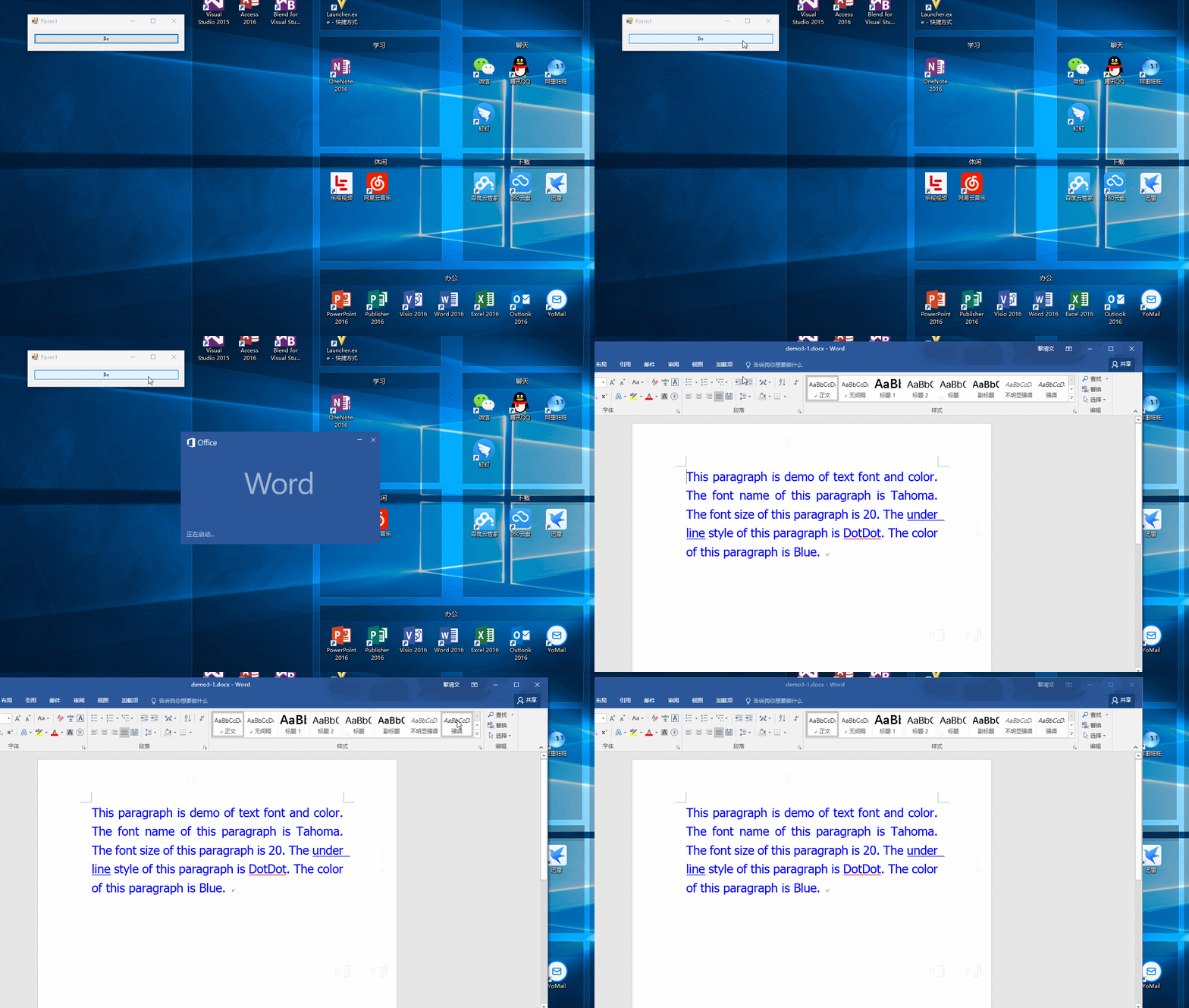
图4.1-1
2.排版缩进
取空白的 docx 文件。
         private void button1_Click(object sender, EventArgs e)

         {

             //加载 docx

             var document = new Document(@"demo3.docx", FileFormat.Docx);

             //获取第一个部分

             Section section = document.Sections[];

             //创建一个新的段落或者取第一个段落

             Paragraph paragraph

                 = section.Paragraphs.Count >  ? section.Paragraphs[] : section.AddParagraph();

             //Append Text

             paragraph.AppendText("这是缩进排版 Demo。");

             paragraph.ApplyStyle(BuiltinStyle.Heading3);

             var random = new Random();

             paragraph = section.AddParagraph();

             for (var i = ; i < random.Next(, ); i++)

             {

                 paragraph = section.AddParagraph();

                 paragraph.AppendText($"I'm {i}");

                 if (i == )

                 {

                     paragraph.ListFormat.ApplyBulletStyle();

                 }

                 else

                 {

                     paragraph.ListFormat.ContinueListNumbering();

                 }

                 paragraph.ListFormat.CurrentListLevel.NumberPosition = -;

             }

             //保存文件

             const string fileName = @"缩进排版.docx";

             document.SaveToFile(fileName, FileFormat.Docx);

             //启动该文件

             Process.Start(fileName);

         }

图4.2-1
3.文本样式
         private void button1_Click(object sender, EventArgs e)

         {

             //创建一个新的 word

             var document = new Document();

             //创建第一部分

             var section = document.AddSection();

             //创建第一个段落

             var paragraph = section.AddParagraph();

             //追加字符串

             paragraph.AppendText("Builtin Style:");

             foreach (BuiltinStyle builtinStyle in Enum.GetValues(typeof(BuiltinStyle)))

             {

                 paragraph = section.AddParagraph(); //增加段落

                 paragraph.AppendText(builtinStyle.ToString());  //追加文本

                 paragraph.ApplyStyle(builtinStyle); //应用样式

             }

             const string fileName = "Style.docx";

             document.SaveToFile(fileName, FileFormat.Docx); //保存文件

             Process.Start(fileName);    //启动

         }
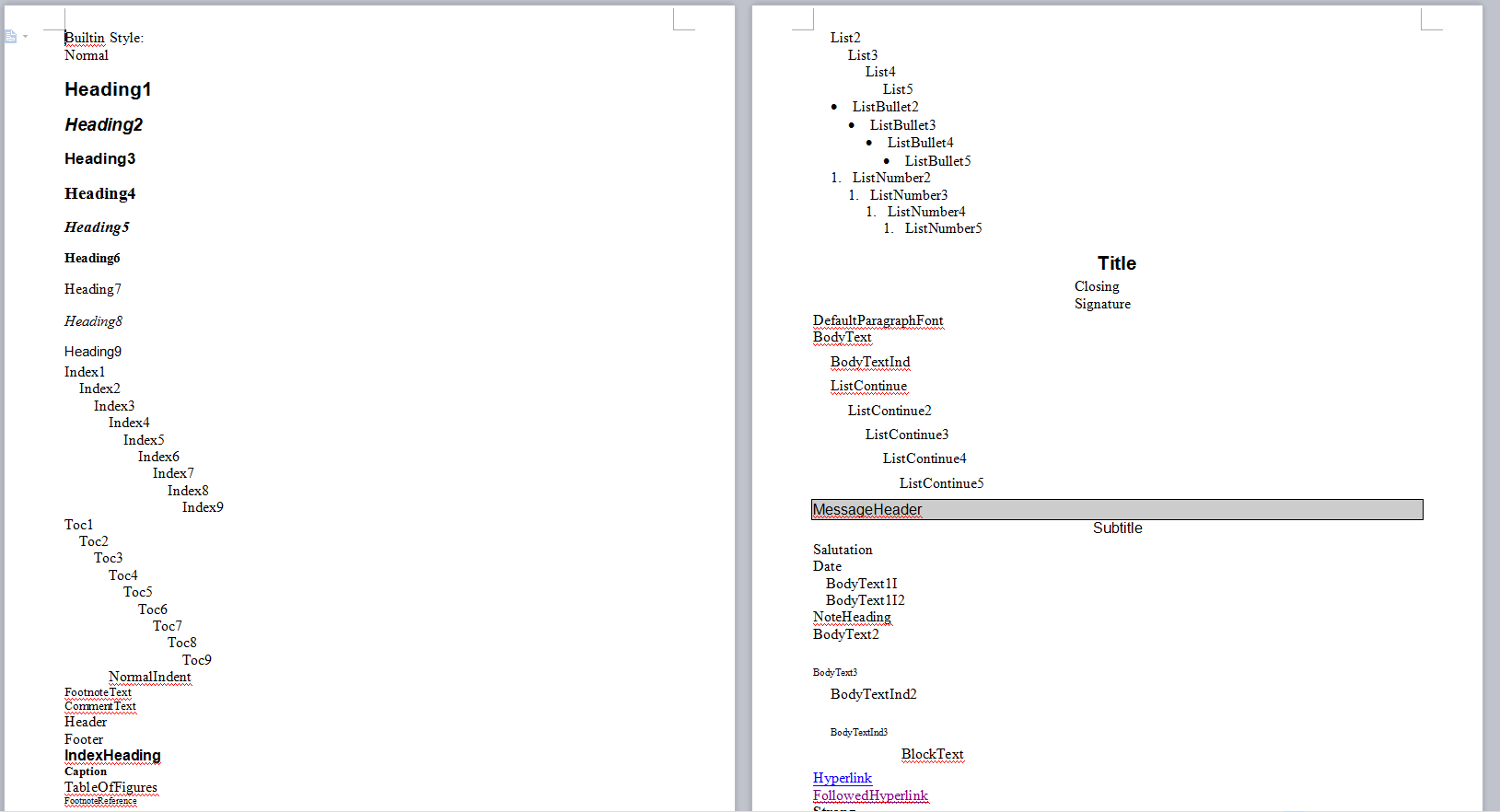
图4.3-1
小结
以上只是几个小小的 Demo,当然,Spire.Doc 的强大远远不止如此。你使用该组件时所遇到的困难,我们可以共同来探讨哦。
[.NET] 开头不讲"Hello Word",读尽诗书也枉然 : Word 操作组件介绍 - Spire.Doc的更多相关文章
- 开头不讲"Hello Word",读尽诗书也枉然 : Word 操作组件介绍 - Spire.Doc (转)
[原文地址]http://www.cnblogs.com/liqingwen/p/5898368.html 序 本打算过几天简单介绍下组件 Spire.XLS,突然发现园友率先发布了一篇,既然 x ...
- Word 操作组件介绍 - Spire.Doc
http://www.cnblogs.com/liqingwen/p/5898368.html
- 【好文翻译】一步一步教你使用Spire.Doc转换Word文档格式
背景: 年11月,微软宣布作为ECMA国际主要合作伙伴,将其开发的基于XML的文件格式标准化,称之为"Office Open XML" .Open XML的引进使office文档结 ...
- 读Zepto源码之样式操作
这篇依然是跟 dom 相关的方法,侧重点是操作样式的方法. 读Zepto源码系列文章已经放到了github上,欢迎star: reading-zepto 源码版本 本文阅读的源码为 zepto1.2. ...
- 读Zepto源码之属性操作
这篇依然是跟 dom 相关的方法,侧重点是操作属性的方法. 读Zepto源码系列文章已经放到了github上,欢迎star: reading-zepto 源码版本 本文阅读的源码为 zepto1.2. ...
- 在C#中使用Spire.doc对word的操作总结
在C#中使用Spire.doc对word的操作总结 在最近的工程中我们要处理一些word文档.通过在网上的大量搜索,我发现大多数软件功能不是不完整就是有重复.极少数可以完全实现的word组件又要收费. ...
- 使用FreePic2Pdf导出书签至Word建立层级目录——快速初始化Word笔记本目录
使用FreePic2Pdf导出书签至Word建立层级目录 --快速初始化Word笔记本目录 文:安徽师范大学2014级计算机科学与技术 王昊 (Get Contact:441301158@qq.com ...
- Spire.Doc组件读取与写入Word
之前写了一篇开源组件DocX读写word的文章,当时时间比较匆忙选了这个组件,使用过程中还是有些不便,不能提前定义好模版,插入Form表单域进行替换.最近无意中发现Spire.Doc组件功能很强大,目 ...
- Word转图片(使用Spire.doc)
Spire.Doc for .NET是一款由E-iceblue公司开发的专业的Word .NET类库.支持.net,WPF,Silverlight, 下载地址:http://www.e-iceblue ...
随机推荐
- 关于 Chrome 浏览器中 onresize 事件的 Bug
我在写插件时用到了 onresize 事件,在反复地测试后发现该事件在 Chrome 及 Opera(内核基本与 Chrome 相同,以下统称 Chrome)浏览器打开时就会执行,这种情况也许不能算作 ...
- ASP.NET Aries 入门开发教程2:配置出一个简单的列表页面
前言: 朋友们都期待我稳定地工作,但创业公司若要躺下,也非意念可控. 若人生注定了风雨飘摇,那就雨中前行了. 最机开始看聊新的工作机会,欢迎推荐,创业公司也可! 同时,趁着自由时间,抓紧把这系列教程给 ...
- jsp中出现onclick函数提示Cannot return from outside a function or method
在使用Myeclipse10部署完项目后,原先不出错的项目,会有红色的叉叉,JSP页面会提示onclick函数错误 Cannot return from outside a function or m ...
- 简单有效的kmp算法
以前看过kmp算法,当时接触后总感觉好深奥啊,抱着数据结构的数啃了一中午,最终才大致看懂,后来提起kmp也只剩下“奥,它是做模式匹配的”这点干货.最近有空,翻出来算法导论看看,原来就是这么简单(先不说 ...
- SQL Server常见数据类型介绍
数据表是由多个列组成,创建表时必须明确每个列的数据类型,以下列举SQL Server常见数据类型的使用规则,方便查阅. 1.整数类型 int 存储范围是-2,147,483,648到2,147,483 ...
- spring源码分析之@ImportSelector、@Import、ImportResource工作原理分析
1. @importSelector定义: /** * Interface to be implemented by types that determine which @{@link Config ...
- Spark踩坑记——数据库(Hbase+Mysql)
[TOC] 前言 在使用Spark Streaming的过程中对于计算产生结果的进行持久化时,我们往往需要操作数据库,去统计或者改变一些值.最近一个实时消费者处理任务,在使用spark streami ...
- CSS知识总结(七)
CSS常用样式 5.背景样式 1)背景颜色 background-color : transparent | color 常用值:①英文单词,②十六进制,③RGB或RGBA 另外,还有一种是 渐变色彩 ...
- centos安装nodejs
1.下载安装nodejs wget http://nodejs.org/dist/v0.10.25/node-v0.10.25.tar.gz compat--c++ tar -xf node-v0.1 ...
- 机器指令翻译成 JavaScript —— No.3 流程分割
上一篇 我们讨论了跳转指令,并实现「正跳转」的翻译,但最终困在「负跳转」上.而且,由于线程模型的差异,我们不能 1:1 的翻译,必须对流程进行一些改造. 当初之所以选择翻译,而不是模拟,就是出于性能考 ...