
Motion Paths in WPF 4 using Expression Blend 4
原文 Motion Paths in WPF 4 using Expression Blend 4
The PathListBox control is a new addition to the Expression Blend 4 SDK, and allows the elements inside a ListBox to lay out along any Path control shape. In this article, we will see how to align some objects to a given path using the ‘PathListBox’ control in WPF 4.0 and Expression Blend 4. We will also see how to animate these objects using Visual states in WPF. To use Visual States, you will need some basic knowledge of Behaviors. Read my previous article Silverlight 4: Introduction to Behaviors to learn more.
So let’s start by creating a WPF application using Microsoft Expression Blend 4.0 and call this application as ‘WPFMotionPathExample’:
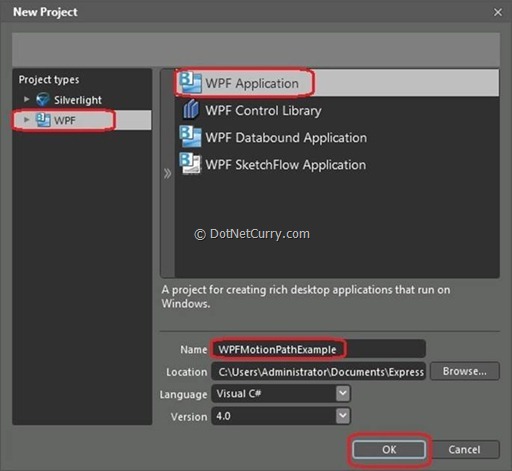
Once the WPF application is created, change its ‘Height’ and ‘Width’ to ‘500’ and ‘600’ respectively. Change the background color of the ‘Grid’ layout to ‘Black’.
Now draw an ‘Ellipse’ on the art board as shown below – (I am using a height of 300 and width of 400 for the ellipse control).
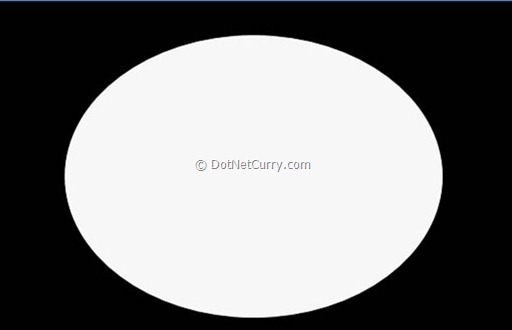
After drawing the ellipse on the art board, go to the ‘Assets’ window in the controls section and add a control ‘PathListBox’ on the ‘MainWindow’ as shown below:
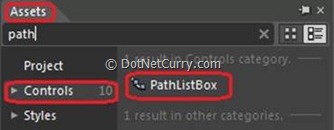
After selecting the ‘PathListBox’ control, go to the Properties window and find a section ‘Layout Paths’ as shown below :

Now drag the ‘Circle’ (Select an object to use as a LayoutPath) highlighted by a yellow color square (as shown in the above diagram) over the ‘Ellipse’ and click on the ‘Ellipse’. Now if you check your ‘Layout Paths’ section in the properties window, you will see your ellipse got added as a layout path, as shown below:

Now to align the objects around the layout path which is an ‘Ellipse’, we need to add objects on our WPF form. This can be done in multiple ways. You can draw an object from ‘Asset’ window and align it to our path or you can add sample data and align it to our path and you can also align a ‘Text’ to our path.
For the first demonstration, we will use sample data which will hold collection of images to be aligned to our layout path. To add the sample data, let’s open the ‘Data’ window from the Windows menu.
Now click on ‘Create Sample Data’ as shown below:
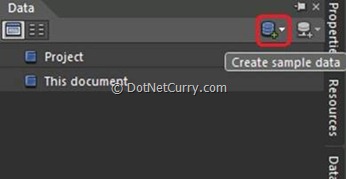
This will ask you to create –
1) New sample data.
2) Import Sample Data from XML.
3) Create sample data from class.
Let’s click the option ‘New Sample Data’. This will create a collection with two properties. We can either change the data type or can add/remove the properties. You will see a dialog which will ask you the scope of the ‘New Sample Data’. Keep the default settings ‘as-is’ and give a name to our new sample data as ‘DummyDS’ as shown below:
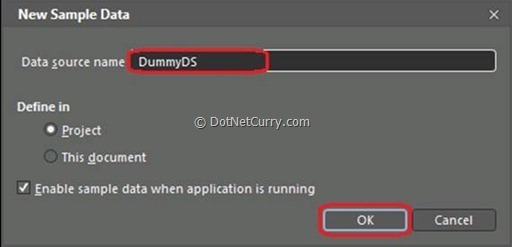
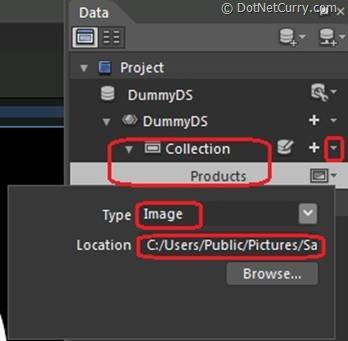
Click the ‘OK’ button. Now from the ‘Collection,’ right click ‘Property2’ and click ‘Remove Property2’. Rename ‘Property1’ as ‘Products’ and change its data type to ‘Image’. You will be asked to browse the folder where all the images are located. Browse the folder as shown below:
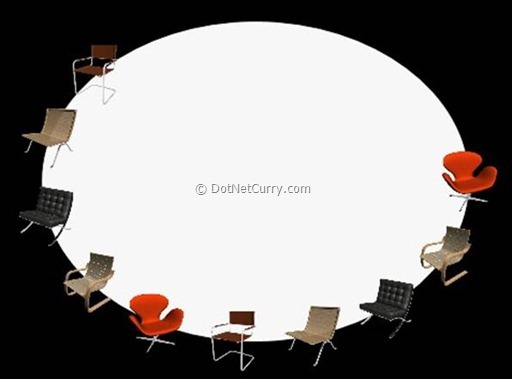
Now select ‘PathListBox’ and drag and drop ‘Collection’ on the ‘PathListBox’ from the ‘Data’ window. Now if you observe your Ellipse, you will see all the ‘Product’ images aligned to our ‘Ellipse Path’ as shown below:
Now let’s create some ‘Visual States’ for our demonstration and handle those states using the behaviors in WPF 4.0.
To add the states into our WPF application, we need to open a ‘States’ window from ‘Windows’ menu. Once you open a State window, let’s click on ‘Add State Group’ as shown below:
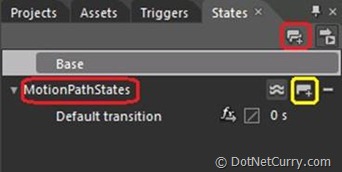
Rename your state group as ‘MotionPathStates’ as shown above. Now click an icon highlighted in yellow called ‘Add State’. Rename this state as ‘MouseOverState’. For this ‘MouseOverState’ visual state, we will rotate our products by 360 degree.
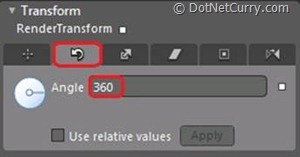
To do so, select ‘PathListBox’ > Go to properties window > Select ‘Transform’ section > In the ‘Render Transform’ group, select ‘Rotate’ group and make its ‘Angle’ property value 360 as shown below:
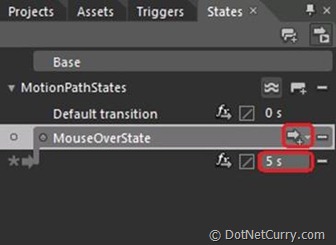
Now let’s get back to our ‘State’ window and add a transition to our ‘MouseOverState’ and change its duration to 5 seconds as shown below:
Now we are done with the Visual State. Let’s handle this visual state using a mouse event. For handling visual states in WPF 4.0 or Silverlight 4.0, we have a very nice feature called ‘Behaviors’. Read my previous article Silverlight 4: Introduction to Behaviors to learn more.
Now let’s handle our states using WPF 4.0 ‘Behavior’.
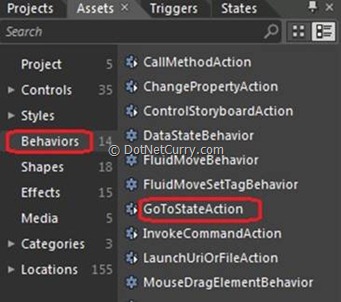
For this demonstration, we will add a behavior ‘GoToStateAction’ to our ‘Ellipse’ and handle the state on ‘Mouse Enter’ event of the ‘Ellipse’. To add the behavior, let’s go to the ‘Asset’ window. From the ‘Behaviors’ group, drag and drop the behavior ‘GoToStateAction’ on the Ellipse as shown below:
Once you are done with this step, now go to your properties window and change the properties of the behavior as shown below :
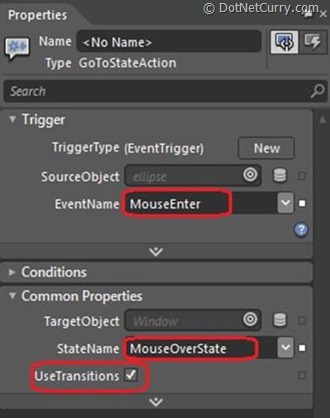
As shown above, change the ‘Event Name’ property to ‘MouseEnter’ and ‘State name’ property to ‘MouseOverState’. Now save your application and press ‘F5’. You will see that when you move your mouse into the Ellipse, the animation starts.
I have shown you a simple demo of Visual state. You can create multiple Visual States and handle them on different events of Ellipse by simply using ‘GoToStateAction’ behavior.
Conclusion - In this article, we saw how to use ‘PathListBox’ control to align objects on a given path in WPF 4.0, by using Microsoft Expression Blend 4.0. Similarly, we can also have multiple layout paths on which we can align our objects as per our requirements. In the next article, I will demonstrate how to align text on a given path using Silverlight 4 and Expression Blend 4.
The entire source code of this article can be downloaded over here
Motion Paths in WPF 4 using Expression Blend 4的更多相关文章
- WPF和Expression Blend开发实例:一个样式实现的数字输入框
原文:WPF和Expression Blend开发实例:一个样式实现的数字输入框 今天来一个比较奇淫技巧的手法,很少人用,同时也不推荐太过频繁的使用. 先上样式: <Style x:Key=&q ...
- WPF和Expression Blend开发实例:模拟QQ登陆界面打开和关闭特效
不管在消费者的心中腾讯是一个怎么样的模仿者抄袭者的形象,但是腾讯在软件交互上的设计一直是一流的.正如某位已故的知名产品经理所说的:设计并非外观怎样,感觉如何.设计的是产品的工作原理.我觉得腾讯掌握了其 ...
- Expression Blend创建自定义按钮
在 Expression Blend 中,我们可以在美工板上绘制形状.路径和控件,然后修改其外观和行为,从而直观地设计应用程序.Button按钮也是Expression Blend最常用的控件之一,在 ...
- Expression Blend制作自定义按钮(转)
来源:http://www.cnblogs.com/iChina/archive/2011/11/25/2262854.html Expression Blend制作自定义按钮 1.从Blend工具箱 ...
- 【翻译】用 Expression Blend 创建酷炫的 Button
原文:Creating “Cool” Buttons with Expression Blend Author: Alex 在本文中,我们将考虑在Expression Blend用几种方法来创建酷炫的 ...
- Expression Blend实例中文教程(9) - 行为快速入门Behaviors
在Blend强大的设计功能支持下,设计人员和开发人员可以无代码实现Silverlight/WPF动画效果,例如上文介绍的StoryBoard,就是一个典型例子,设计人员和开发人员仅需提供必要元素,即可 ...
- Expression Blend实例中文教程(1) - 开篇
随着计算机软件开发分工细节化,微软对已有的产品线进行了调整,在保持原有经典开发工具Visual Studio基础上,又推出了一套新的设计开发工具系列,Expression Studio. Expres ...
- Expression Blend实例中文教程系列
Expression Blend实例中文教程系列 本系列文章均转载:银光中国 时间:2010-04-09 09:20责任编辑:银光中国网 点击:次 Expression Blend实例中文教程系列由C ...
- 用 Expression Blend 创建酷炫的 Button
原文:用 Expression Blend 创建酷炫的 Button 原文:Creating "Cool" Buttons with Expression Blend Author ...
随机推荐
- RandomStringUtils RandomUtils
上一篇是StringUtils 链接http://www.cnblogs.com/tele-share/p/8060129.html 1.RandomStringUtils 1.1模拟实现random ...
- [tmux] Organize your terminal using tmux panes
Learn to organize your workspace using tmux. We'll create a new tmux session and learn how to create ...
- Android系统编译环境初始化时Product产品的import-nodes过程
从运行make -f config,mk文件開始,config,mk作为当前的makefile文件.将会被make解析,一般make解析Makefile文件流程首先是载入当中include的各种其它m ...
- Qt 模仿QQ截图 动态吸附直线
最近在学Qt.学东西怎么能不动手. 就写了些小程序.看QQ截图能够动态吸附直线的功能挺有意思,所以就模仿了一个. 先上效果图 界面很简单..呵呵 移动鼠标,会把鼠标所在最小矩形选中.把没有选中的地方给 ...
- 【codeforces 546A】Soldier and Bananas
time limit per test1 second memory limit per test256 megabytes inputstandard input outputstandard ou ...
- 【序列操作III】线段树
题目描述 给出序列 a1,a2,…an(0≤ai≤109),有关序列的四种操作: 1. al,al+1,…,ar(1≤l≤r≤n)加上 x(-103≤x≤103) 2. al,al+1,…,ar(1≤ ...
- BZOJ 2818 Gcd 线性欧拉筛(Eratosthenes银幕)
标题效果:定整N(N <= 1e7),乞讨1<=x,y<=N和Gcd(x,y)素数的数(x,y)有多少.. 思考:推,. 建立gcd(x,y) = p,然后,x / p与y / p互 ...
- 让Duilib多线程编程更easy
一.Duilib不能开发多线程程序? 记得非常久曾经就听有人说过Duilib的多线程支持性不好,原因是Duilib里面的控件是用数组管理的全局变量,不能进行多线程訪问,加锁非常麻烦.事实上这个说法是非 ...
- 从vue1迁移到vue2踩到的两个坑
先说第一个,在vue1中用v-for的时候,习惯性用$index和$key来取键.今天迁移到vue2之前,也知道vue2里不能这样用了,结果还是出问题了, 数据渲染不出来. <li v-for= ...
- 在web应用程序中在网页中对Web.config文件进行数据连接配置
using System; using System.Collections.Generic; using System.Configuration; using System.Web.Configu ...