
C#笔记(1)窗体
1. 隐藏TabPage
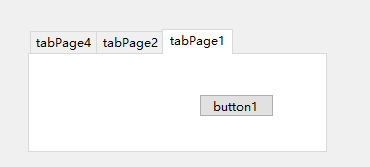
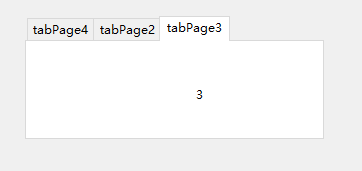
在使用TabControl控件时,希望隐藏其中某个选项卡(即TabPage)。设置该TabPage的父容器为null 即可,如TabPage.Parent = null 。如需显示该TabPage,设置其父容器为对应的TabControl即可;
using System;

using System.Collections.Generic;

using System.ComponentModel;

using System.Data;

using System.Drawing;

using System.Linq;

using System.Text;

using System.Threading.Tasks;

using System.Windows.Forms;

namespace WinFormsApp1

{

    public partial class Form1 : Form

    {

        public Form1()

        {

            InitializeComponent();

        }

        private void Form1_Load(object sender, EventArgs e)

        {

            tabPage3.Parent = null;//使tabPage3不可见

        }

        private void button1_Click(object sender, EventArgs e)

        {

            tabPage3.Parent = tabControl2;//使tabPage3可见

            tabPage1.Parent = null;//使tabPage1不可见

            tabControl2.SelectedTab = tabPage3;//停留在tabPage3

        }

    }

}
2. 鼠标右键菜单
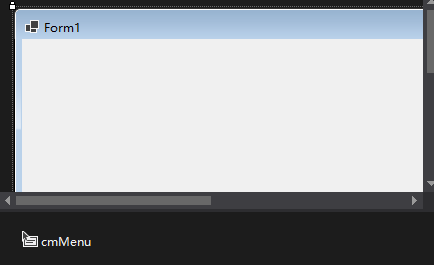
1) 把ContextMenuStrip控件拖放到设计界面上(此处命名为cmMenu)。
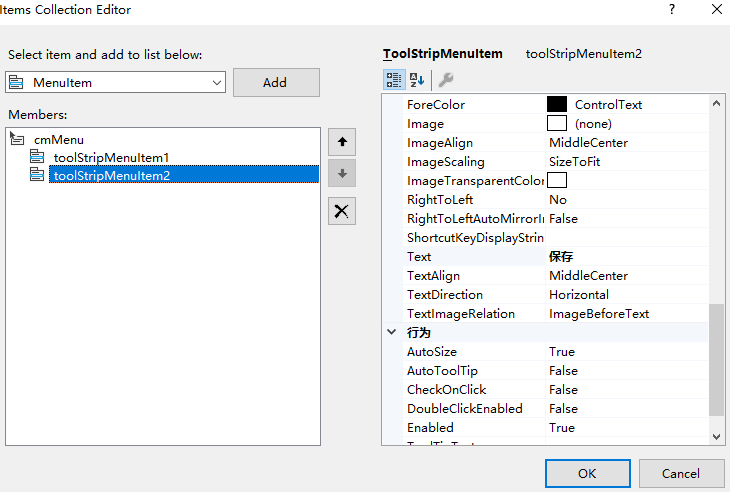
2)右键cmMenu,点击Edit Items,添加菜单项,比如添加“打开”,“保存”等
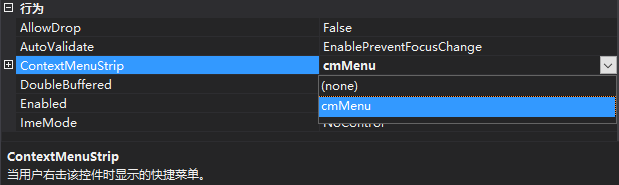
3) 将想绑定控件(此处为Form)的ContextMenuStrip属性设置为设计的ContextMenuStrip(即cmMenu)。
运行:

3. 定时器
示例:用定时器每隔1s刷新数组,数字每次+1
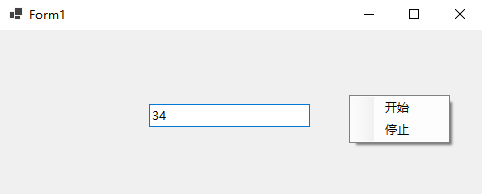
代码:
using System;

using System.Collections.Generic;

using System.ComponentModel;

using System.Data;

using System.Drawing;

using System.Linq;

using System.Text;

using System.Threading.Tasks;

using System.Windows.Forms;

namespace WinFormsApp1

{

    public partial class Form1 : Form

    {

        public Form1()

        {

            InitializeComponent();

        }

        public int number = 0;

        System.Timers.Timer timer;

        private void Form1_Load(object sender, EventArgs e)

        {

            timer = new System.Timers.Timer(1000);

            timer.Elapsed += new System.Timers.ElapsedEventHandler(changeNumber);

            timer.AutoReset = true;//AutoReset属性设置是否重复计时(设置为false只执行一次,设置为true可以多次执行)

            timer.Enabled = false;

        }

        private void changeNumber(object obj, EventArgs e)

        {

            number++;

            this.Invoke(new Action(delegate { this.textBox1.Text = number.ToString(); }));

        }

        private void toolStripMenuItem1_click(object sender, EventArgs e)

        {

            timer.Start();

        }

        private void toolStripMenuItem2_click(object sender, EventArgs e)

        {

            timer.Stop();

        }

    }

}
namespace WinFormsApp1

{

    partial class Form1

    {

        /// <summary>

        ///  Required designer variable.

        /// </summary>

        private System.ComponentModel.IContainer components = null;

        /// <summary>

        ///  Clean up any resources being used.

        /// </summary>

        /// <param name="disposing">true if managed resources should be disposed; otherwise, false.</param>

        protected override void Dispose(bool disposing)

        {

            if (disposing && (components != null))

            {

                components.Dispose();

            }

            base.Dispose(disposing);

        }

        #region Windows Form Designer generated code

        /// <summary>

        ///  Required method for Designer support - do not modify

        ///  the contents of this method with the code editor.

        /// </summary>

        private void InitializeComponent()

        {

            this.components = new System.ComponentModel.Container();

            this.cmMenu = new System.Windows.Forms.ContextMenuStrip(this.components);

            this.toolStripMenuItem1 = new System.Windows.Forms.ToolStripMenuItem();

            this.toolStripMenuItem2 = new System.Windows.Forms.ToolStripMenuItem();

            this.textBox1 = new System.Windows.Forms.TextBox();

            this.cmMenu.SuspendLayout();

            this.SuspendLayout();

            //

            // cmMenu

            //

            this.cmMenu.Items.AddRange(new System.Windows.Forms.ToolStripItem[] {

            this.toolStripMenuItem1,

            this.toolStripMenuItem2});

            this.cmMenu.Name = "contextMenuStrip1";

            this.cmMenu.Size = new System.Drawing.Size(101, 48);

            //

            // toolStripMenuItem1

            //

            this.toolStripMenuItem1.Name = "toolStripMenuItem1";

            this.toolStripMenuItem1.Size = new System.Drawing.Size(100, 22);

            this.toolStripMenuItem1.Text = "开始";

            this.toolStripMenuItem1.Click += new System.EventHandler(this.toolStripMenuItem1_click);

            //

            // toolStripMenuItem2

            //

            this.toolStripMenuItem2.Name = "toolStripMenuItem2";

            this.toolStripMenuItem2.Size = new System.Drawing.Size(100, 22);

            this.toolStripMenuItem2.Text = "停止";

            this.toolStripMenuItem2.Click += new System.EventHandler(this.toolStripMenuItem2_click);

            //

            // textBox1

            //

            this.textBox1.Location = new System.Drawing.Point(149, 74);

            this.textBox1.Name = "textBox1";

            this.textBox1.Size = new System.Drawing.Size(161, 23);

            this.textBox1.TabIndex = 1;

            //

            // Form1

            //

            this.AutoScaleDimensions = new System.Drawing.SizeF(7F, 17F);

            this.AutoScaleMode = System.Windows.Forms.AutoScaleMode.Font;

            this.ClientSize = new System.Drawing.Size(800, 450);

            this.ContextMenuStrip = this.cmMenu;

            this.Controls.Add(this.textBox1);

            this.Name = "Form1";

            this.Text = "Form1";

            this.Load += new System.EventHandler(this.Form1_Load);

            this.cmMenu.ResumeLayout(false);

            this.ResumeLayout(false);

            this.PerformLayout();

        }

        #endregion

        private System.Windows.Forms.ContextMenuStrip cmMenu;

        private System.Windows.Forms.ToolStripMenuItem toolStripMenuItem1;

        private System.Windows.Forms.ToolStripMenuItem toolStripMenuItem2;

        private System.Windows.Forms.TextBox textBox1;

    }

}
C#笔记(1)窗体的更多相关文章
- C#学习笔记-Windows窗体自定义初始位置
根据屏幕大小定义初始位置: (这个不是难,但是最近常常忘记,记着方便查看.) //获取当前屏幕的长和宽 int ScreenX = Screen.PrimaryScreen.Bounds.Width; ...
- C#学习笔记-Windows窗体基本功能(Login登录界面)
本菜鸟由于实习工作的原因,不得不快速接触C#语言,刚刚好又要做毕业设计,所以就通过自学的方式一举两得地完成这两件事情. 故此文字记录或代码中的各种文件名之类均是以毕业设计为模版记录的,看着不方便之处请 ...
- C#学习笔记——MDI窗体(多文档界面)
1.设置父窗体: 如果要将某个窗体设置为父窗体,只需将该窗体的IsMdiContainer属性设置为True即可. 2.设置子窗体: 通过设为某个窗体的MdiParent属性来确定该窗体是那个窗体的子 ...
- JAVA笔记__窗体类/Panel类/Toolkit类
/** * 窗体类 */ public class Main { public static void main(String[] args) { MyFrame m1 = new MyFrame() ...
- c#窗体开发
奇: 常用控件的使用(期间参杂着VS快捷键/常用设置) 快捷键:引用命名空间:shift+alt+F10 断点:F9 调试:F5 逐句调试(每行代码一次跳转):F11 逐过程调试:F10 重构提取方法 ...
- Duilib学习笔记《06》— 窗体基类WindowImpBase
在前面的例子中我们发现,窗口都是继承CWindowWnd.INotifyUI,然后重载相关函数去实现.显然,我们发现窗口的创建流程实际上都是差不多的,主要只是在OnCreate加载的配置文件不同等等… ...
- Duilib学习笔记《04》— 窗体显示
在前面已经了解了duilib控件以及界面布局相关内容,接下来就要考虑该如何将xml中描述的布局通过界面展现出来.实际上在 Duilib学习笔记<01> 中我们已经简单提到过基本的流程及元素 ...
- OpenTK学习笔记(3)-你好!窗体!
参考:http://dreamstatecoding.blogspot.com/2017/01/opengl-4-with-opentk-in-c-part-1.html http://www.cnb ...
- PyQt5学习笔记-从主窗体打开一个子窗体
PyQt5学习笔记-从主窗体打开一个子窗体 软件环境: Eric6+Python3.5+PyQt5 试验目标: 1.点击菜单项Open,打开一个子窗体 2.点击按钮Open,打开一个子窗体 主窗体设计 ...
- SQL Server Window Function 窗体函数读书笔记二 - A Detailed Look at Window Functions
这一章主要是介绍 窗体中的 Aggregate 函数, Rank 函数, Distribution 函数以及 Offset 函数. Window Aggregate 函数 Window Aggrega ...
随机推荐
- arp 的概念解析
前言 这里基于arp的基础概念,请先看前面那一节. 正文 看图: 和前面一样去解析地址. 以太网目的地址:就是mac地址. 在发送arp包的时候呢,这个mac地址就是全部是1,因为不知道对方地址是啥. ...
- 牛客网-SQL专项训练18
①在下列sql语句错误的是?B 解析: 在sql中若要取得NULL,则必须通过IS NULL或者IS NOT NULL进行获取,无法直接使用等号. 一个等号(=)表示把1赋值给变量啊 ==:称为等值符 ...
- 400倍加速, PolarDB HTAP实时数据分析技术解密
简介: PolarDB MySQL是因云而生的一个数据库系统, 除了云上OLTP场景,大量客户也对PolarDB提出了实时数据分析的性能需求.对此PolarDB技术团队提出了In-Memory Col ...
- 国内唯一连续入选Gartner,Quick BI是如何做到的?
简介:阿里云Quick BI凭借灵活的公共云部署,私有化独立部署能力.无缝对接各类云上数据库和自建数据库.可视化搭建分析.高效数据处理能力与强大数据计算能力,使得在2022年持续入选Gartner ...
- 如何在零停机的情况下迁移 Kubernetes 集群
简介:本文将通过集群迁移的需求.场景以及实践方式,介绍如何基于阿里云容器服务 ACK,在零停机的情况下迁移 Kubernetes 集群. 作者:顾静(子白)|阿里云高级研发工程师:谢瑶瑶(初扬)|阿 ...
- Flink 1.14 新特性预览
简介: 一文了解 Flink 1.14 版本新特性及最新进展 本文由社区志愿者陈政羽整理,内容源自阿里巴巴技术专家宋辛童 (五藏) 在 8 月 7 日线上 Flink Meetup 分享的<F ...
- 基于EPCLYPSE的DDS控制器(一)
软硬件平台 操作系统:windows11 软件平台:vivado2021.1 开发套件 硬件平台:Digilent Eclypse-Z7 Zmod开发套件 vivado 工程搭建 ①直接拉取笔者的三个 ...
- Django配置loguru来记录日志
第一步: 在settings.py文件中导入loguru模块并配置日志文件路径和格式等信息 from loguru import logger BASE_DIR = Path(__file__).re ...
- 教你如何破解虚拟机root密码
一.开机时按e键,即可进入grub编辑界面,光标选择第一条,e表示进入编辑模式. 当机器开机出现如图1所示的kernel菜单后,按e键. 二.将光标移动到以linux开头的行,对图2中标注的位置进行修 ...
- ECMAScript 语言规范每年都会进行一次更新,而备受期待的 ECMAScript 2024 将于 2024 年 6 月正式亮相。目前,ECMAScript 2024 的候选版本已经发布,为我们带来了一系列实用的新功能。
Promise.withResolvers 使用 Promise.withResolvers() 关键的区别在于解决和拒绝函数现在与 Promise 本身处于同一作用域,而不是在执行器中被创建和一次性 ...