
使用 OpenSSL 创建私有 CA:3 用户证书
OpenSSL 创建私有 CA 三部曲:
使用 OpenSSL 创建私有 CA:1 根证书
使用 OpenSSL 创建私有 CA:2 中间证书
使用 OpenSSL 创建私有 CA:3 用户证书
在前文《使用 OpenSSL 创建私有 CA:2 中间证书》中我们介绍了如何创建中间证书,并生成证书链。本文我们将介绍如何为应用生成用户证书(web 站点的 ssl 证书),并把证书部署到应用服务器上和客户端上。说明:本系列文章的演示环境为 Ubuntu 18.04,OpenSSL 的版本为 1.1.0g。
目标
为局域网中的站点 bigxa 创建 ssl 证书并部署。
准备用户证书的配置文件
在 myca 目录下创建 bigxa 目录,然后创建配置文件 bigxa/bigxa.cnf,编辑其内容如下:
# OpenSSL to generate a certificate signing requests(csr) configuration file.

# v1

[ req ]

# Options for the `req` tool (`man req`).

# use prompt config control user interactive

prompt = no

input_password =

default_bits        =

distinguished_name  = req_distinguished_name

string_mask         = utf8only

# SHA- is deprecated, so use SHA- instead.

default_md          = sha256

# Extension to add when the -x509 option is used.

#x509_extensions     = v3_ca

req_extensions     = v3_req

[ req_distinguished_name ]

# See <https://en.wikipedia.org/wiki/Certificate_signing_request>.

countryName                     = CN

stateOrProvinceName             = ShaanXi

localityName                    = Xian

organizationName                = PowerCity Ltd

organizationalUnitName          = Star

commonName = bigxa

emailAddress                    = ljfpower@.com

[ v3_req ]

subjectAltName = DNS:bigxa
该配置文件主要通过 [ req_distinguished_name ] 段来设置证书的信息,请注意 [ v3_req ] 段中的 subjectAltName 信息,如果你为局域网中的 IP 地址生成 https 证书,就必须要设置 subjectAltName。
创建秘钥
进入 bigxa 目录:
$ cd bigxa
创建目录 private csr certs:
$ mkdir private csr certs
执行下面的命令重建私钥:
$ openssl genrsa -out private/bigxa.key.pem
注意,这里我们没有使用 -aes256 选项,这样创建的秘钥不包含密码。如果要创建 web 服务器用的 ssl 证书,一定不要为秘钥设置密码!否则在每次重启 web 服务的时候都需要输入密码!同样也把秘钥的权限设置为 400:
$ chmod private/bigxa.key.pem
此时当前目录为 myca/bigxa。
创建 Certificate Signing Requests(csr)
对于创建站点的 https 类型的证书,必须在配置文件中设置 Common Name 为 fully qualified domain name(也就是 网站的域名,或者是局域网中的机器名或 IP)。我们的 web 服务器机器名为 bigxa,所以在配置文件中设置 Common Name 为 bigxa,同时设置 subjectAltName 为 DNS:bigxa。注意,Common Name 不能与根 CA 和中间 CA 的 Common Name 相同。
使用下面的命令生成 csr:
$ openssl req -config bigxa.cnf \

    -key private/bigxa.key.pem \

    -new -sha256 \

    -out csr/bigxa.csr.pem
用下面的命令来验证已经生成的 csr:
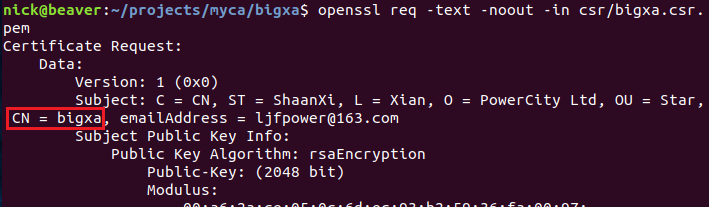
$ openssl req -text -noout -in csr/bigxa.csr.pem
注意确认下图中的关键信息 CN = bigxa:
还有 Subject Alternative Name:

创建用户证书
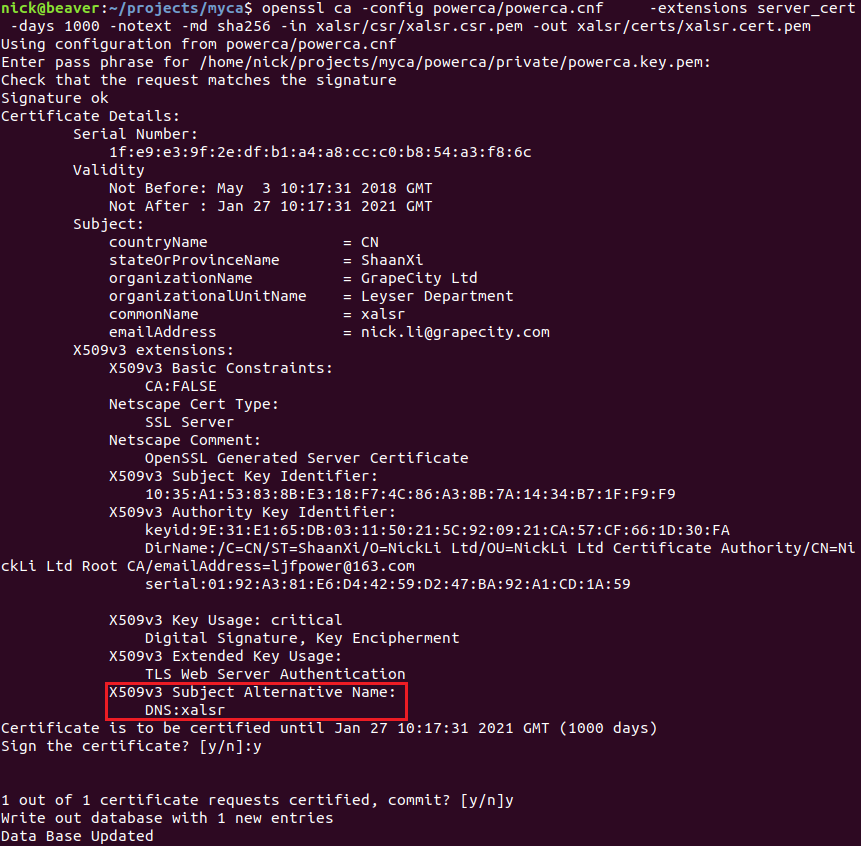
因为我们在 powerca.cnf 中添加了 copy_extensions = copy,所以在使用 csr 生成用户证书时可以直接使用中间证书的配置文件(powerca/powerca.cnf)而不用修改。下面先回到 myca 目录下,然后生成用户证书:
$ cd ..

$ openssl ca -config powerca/powerca.cnf \

    -extensions server_cert -days  -notext -md sha256 \

    -in bigxa/csr/bigxa.csr.pem \

    -out bigxa/certs/bigxa.cert.pem
这次输入的密码为 powerca 秘钥的保护密码:123456。
如果发生 "TXT_DB error number 2" 的错误,把 powerca/db/index 文件中相同名称的记录删除即可。这个文件是 OpenSSL CA 工具存储数据的数据库:

证书生成后我们把它的权限修改为 444:
$ chmod bigxa/certs/bigxa.cert.pem
验证证书
先通过下面的命令来验证用户证书中的基本信息:
$ openssl x509 -text -in bigxa/certs/bigxa.cert.pem -noout
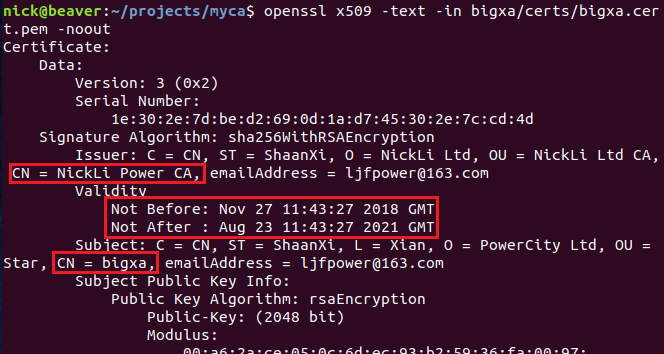
图中显示证书颁发机构为 NickLi Power CA,可用日期为 2018-11-27 至 2021-8-23 号,证书的 Common Name 为 bigxa。还有一些 X509 协议相关的信息:

CA:FALSE 表示该证书不能用作中间证书了,SSL Server 表示该证书可以用来支持 HTTPS 协议,最后确认 Subject Alternative Name 为:DNS:bigxa。
最后通过下面的命令验证证书的合法性:
$ openssl verify -CAfile powerca/certs/powerca-chain.cert.pem bigxa/certs/bigxa.cert.pem

自动创建用户证书
如果手动创建每个用户证书还是挺繁琐的,我们可以把这个过程自动化掉。在 myca 目录下创建 usercert 目录:
$ mkdir usercert
把 bigxa/bigxa.cnf 拷贝到 usercert 目录下:
$ cp bigxa/bigxa.cnf usercert/usercert.csr.cnf
在 usercert 目录下创建 private csr certs 三个目录:
$ mkdir usercert/{private,csr,certs}
然后在 myca 目录下创建脚本文件 certhelper.sh,编辑其内容如下:
#!/bin/bash

# ./certhelper.sh yourhostname

# if hostname is IP, should add the second paramerter "ip"

# ./certhelper.sh 10.3.2.33 ip

set -ex

# demo: check string is empty

if [ -z "$1" ]; then

    echo the first parameter is empty.

    echo plese add hostname as parameter

    exit

fi

cname="$1"

ctype="DNS"

if [ ! -z "$2" ]; then

    if [ "$2" = "ip" ]; then

        ctype="IP"

    fi

fi

sed -i "s/^commonName.*/commonName = ${cname}/g" usercert/usercert.csr.cnf

sed -i "s/^subjectAltName.*/subjectAltName = ${ctype}:${cname}/g" usercert/usercert.csr.cnf

openssl genrsa -out usercert/private/${cname}.key.pem

chmod  usercert/private/${cname}.key.pem

openssl req -config usercert/usercert.csr.cnf \

    -key usercert/private/${cname}.key.pem \

    -new -sha256 \

    -out usercert/csr/${cname}.csr.pem

openssl ca -batch -config powerca/powerca.cnf \

    -passin pass: \

    -extensions server_cert -days  -notext -md sha256 \

    -in usercert/csr/${cname}.csr.pem \

    -out usercert/certs/${cname}.cert.pem

openssl x509 -noout -text -in usercert/certs/${cname}.cert.pem

openssl verify -CAfile powerca/certs/powerca-chain.cert.pem usercert/certs/${cname}.cert.pem

cat usercert/certs/${cname}.cert.pem usercert/private/${cname}.key.pem > /tmp/temp.${cname}.certkey.pem

cat /tmp/temp.${cname}.certkey.pem powerca/certs/powerca-chain.cert.pem > usercert/${cname}.ha.pem
然后在 myca 目录下执行该脚本就可以了:
$ ./certhelper.sh bigxa

$ ./certhelper.sh 10.32.2.22 ip
生成的证书会保存在 usercert 目录下。
把证书部署到 web 服务器
为了创建 HTTPS 站点,我们需要为 web 服务器 bigxa 配置 ssl 证书。所需的文件为 powerca-chain.cert.pem、bigxa.key.pem 和 bigxa.cert.pem。笔者的站点通过 HAProxy 做了负载均衡,所以在 HAProxy 的配置中添加 SSL 证书就可以了。具体的做法是通过下面的命令合成 HAProxy 所需的证书文件:
$ cat bigxa/certs/bigxa.cert.pem bigxa/private/bigxa.key.pem > bigxa/temp.certkey.pem

$ cat bigxa/temp.certkey.pem powerca/certs/powerca-chain.cert.pem > bigxa/bigxa.ha.pem
把 bigxa.ha.pem 放置在 bigxa 机器上的 /etc/ssl/private/ 目录中,所有者和组都设置为 haproxy。最后在 HAProxy 的配置文件 /etc/haproxy/haproxy.cfg 中设置 ssl 证书的路径:
bind *: ssl crt /etc/ssl/private/usercert.ha.pem
这样 web 服务器端的配置就完成了。
把证书链安装到客户端
Firefox 支持直接导入 pem 格式的证书链,直接导入这个文件就可以了。但是 windows 中需要使用 p12(pfx) 等格式,需要把 powerca-chain.cert.p12 安装到信任的根证书列表中,然后 IE 和 chrome 就可以正常识别到根证书了。
总结
本系列文章主要介绍如何在局域网中创建私有 CA,并用来颁发内网中使用的数字证书。内容以操作步骤为主,目的是让朋友们拷贝了就能立即使用。如果要了解数字证书的理论知识以及相关概念,建议阅读更专业的资料。
参考:
OpenSSL Certificate Authority
《openssl-cookbook》
使用 OpenSSL 创建私有 CA:3 用户证书的更多相关文章
- 使用 OpenSSL 创建私有 CA:1 根证书
OpenSSL 创建私有 CA 三部曲:使用 OpenSSL 创建私有 CA:1 根证书使用 OpenSSL 创建私有 CA:2 中间证书使用 OpenSSL 创建私有 CA:3 用户证书 OpenS ...
- 使用 OpenSSL 创建私有 CA:2 中间证书
OpenSSL 创建私有 CA 三部曲:使用 OpenSSL 创建私有 CA:1 根证书使用 OpenSSL 创建私有 CA:2 中间证书使用 OpenSSL 创建私有 CA:3 用户证书 本文将在前 ...
- 创建私有CA并签发证书
一.创建私有CA 1.创建所需要的文件 2.创建私有密钥 3.CA自签证书 -new: 生成新证书签署请求: -x509: 专用于CA生成自签证书:不自签的时候不要加该选项 ...
- OpenSSL创建私有CA
1.编辑/etc/pki/tls/openssl.cnf [ CA_default ] dir = /etc/pki/CA # 工作目录certs ...
- 如何通过Openssl实现私有CA,并为HTTP服务提供TLS/SLL安全机制
原文链接:http://guodayong.blog.51cto.com/263451/1181059 Openssl是SSL的开源实现(可以免费下载应用程序),是一种安全机密程序,主要用于提高远程登 ...
- 自签名证书和私有CA签名的证书的区别 创建自签名证书 创建私有CA 证书类型 证书扩展名【转】
自签名的证书无法被吊销,CA签名的证书可以被吊销 能不能吊销证书的区别在于,如果你的私钥被黑客获取,如果证书不能被吊销,则黑客可以伪装成你与用户进行通信 如果你的规划需要创建多个证书,那么使用私有 ...
- linux基础之加密解密、PKI及SSL、创建私有CA
加密解密基础 1. 对称加密: 加密和解密使用同一个密钥 常见的加密算法有:DES.3DES.AES.Blowfish.Twofish.IDEA.RC6.CAST5 特性: 1. 加密.解密使用同一个 ...
- Linux操作系统安全-局域网私有CA(Certificate Authority)证书服务器实战篇
Linux操作系统安全-局域网私有CA(Certificate Authority)证书服务器实战篇 作者:尹正杰 版权声明:原创作品,谢绝转载!否则将追究法律责任. 一.试验架构说明 node101 ...
- https学习笔记三----OpenSSL生成root CA及签发证书
在https学习笔记二,已经弄清了数字证书的概念,组成和在https连接过程中,客户端是如何验证服务器端的证书的.这一章,主要介绍下如何使用openssl库来创建key file,以及生成root C ...
随机推荐
- spark大批量读取Hbase时出现java.lang.OutOfMemoryError: unable to create new native thread
这个问题我去网上搜索了一下,发现了很多的解决方案都是增加的nproc数量,即用户最大线程数的数量,但我修改了并没有解决问题,最终是通过修改hadoop集群的最大线程数解决问题的. 并且网络上的回答多数 ...
- spring静态代理和动态代理
本节要点: Java静态代理 Jdk动态代理 1 面向对象设计思想遇到的问题 在传统OOP编程里以对象为核心,并通过对象之间的协作来形成一个完整的软件功能,由于对象可以继承,因此我们可以把具有相同功能 ...
- spring4笔记----报错publicid systemid之间要有空格的解决方法
<?xml version="1.0" encoding="GBK"?> <beans xmlns:xsi="http://www. ...
- 三星笔记本进入BIOS后找不到U盘启动项/快速启动键F12没有反应
分析:BIOS开启了 Fast Bios Mode 解决方法: 开机按F2进入BIOS设置,选择Advanced菜单下Fast Bios Mode,设置为 Disabled,按F10键保存退出,重启时 ...
- 安全之路 —— 利用APC队列实现跨进程注入
简介 在之前的文章中笔者曾经为大家介绍过使用CreateRemoteThread函数来实现远程线程注入(链接),毫无疑问最经典的注入方式,但也因为如此,这种方式到今天已经几乎被所有安全软件所防御.所以 ...
- Linux: 软件包管理之rpm与yum [转]
软件包的安装和卸载时很平常的事,但在Linux上面却不简单..Linux的其中一个哲学就是一个程序只做一件事,并且做好.组合小程序来完成复杂的任务,这样做有很多好处,但是各个小程序之间往往会存在着复杂 ...
- vim 高亮
vim 高亮显示所选单词在文中全部出现的地方: ’g' + 'd'
- Windows 下自动同步文件夹内容到另一个文件夹下
实现windows 使用bat脚本文件,复制文件夹到另一个盘,参考如下代码:/y是可以不显示:提示你需要覆盖一个文件,如下图: bat文件内容为 @echo off echo "使用bat脚 ...
- LeetCode算法题-Min Stack(Java实现)
这是悦乐书的第177次更新,第179篇原创 01 看题和准备 今天介绍的是LeetCode算法题中Easy级别的第36题(顺位题号是155).设计一个支持push,pop,top和在恒定时间内检索最小 ...
- java操作elasticsearch实现组合桶聚合
1.terms分组查询 //分组聚合 @Test public void test40() throws UnknownHostException{ //1.指定es集群 cluster.name 是 ...