
【Android Studio安装部署系列】二十五、Android studio使用NDK生成so文件和arr文件
版权声明:本文为HaiyuKing原创文章,转载请注明出处!
概述
Android Studio使用ndk的简单步骤。
NDK环境搭建
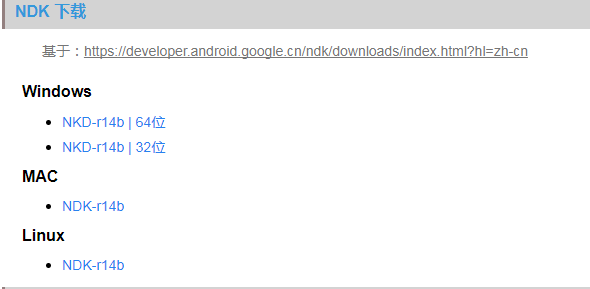
下载NDK
下载链接:https://developer.android.com/ndk/downloads/index.html
PS:需要翻墙,建议下载r9+的版本。
国内下载地址:
http://www.wanandroid.com/tools/ide#NDK
解压 NDK包【建议在未打开Android Studio的情况下】
注:解压路径不要出现空格和中文。
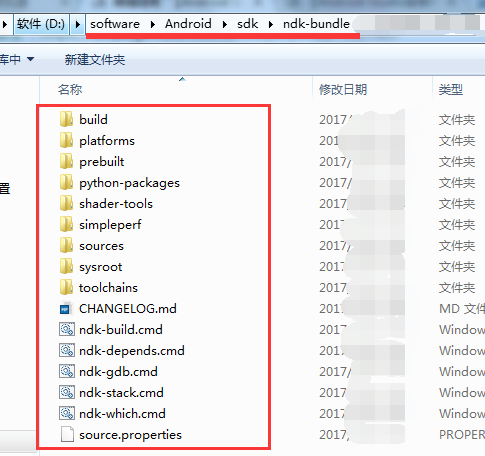
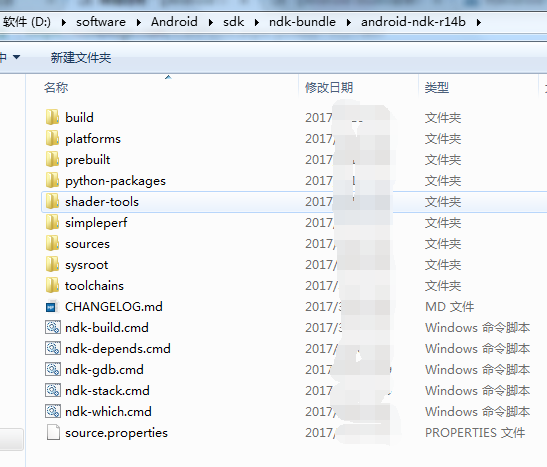
建议:将文件解压到SDK目录里,并命名为ndk-bundle。好处:启动Android Studio时,Android Studio会自动检查它并直接添加到ndk.dir中,那么在使用时,就不用配置Android Studio与NDK的关联【解压的时候需要直接解压到sdk安装目录/ndk-bundle目录中才可以实现自动关联,否则需要手动关联】
因为我个人觉得不是每一个项目都需要用到ndk,所以就采用了手动关联的方式。
自动关联:sdk安装目录/ndk-bundle
手动关联:其他目录
下载安装Cmake
我是通过新建一个项目,根据Android Studio的提示信息进行安装的。其实也可以跳过新建项目的步骤,直接安装SDK Manager中安装。具体操作步骤见下文。
新建项目
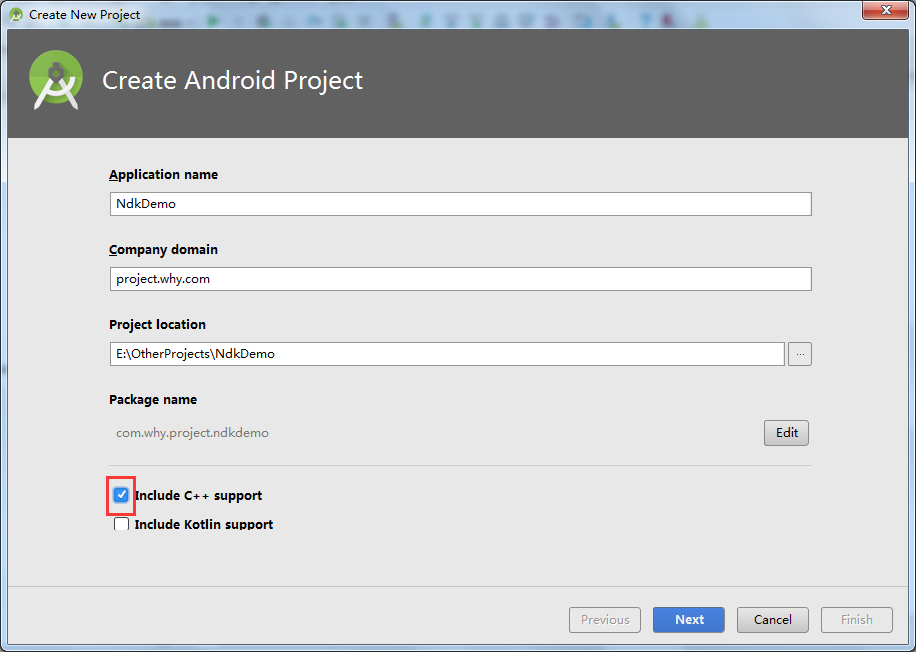
新建项目
勾选Include C++ support
Next
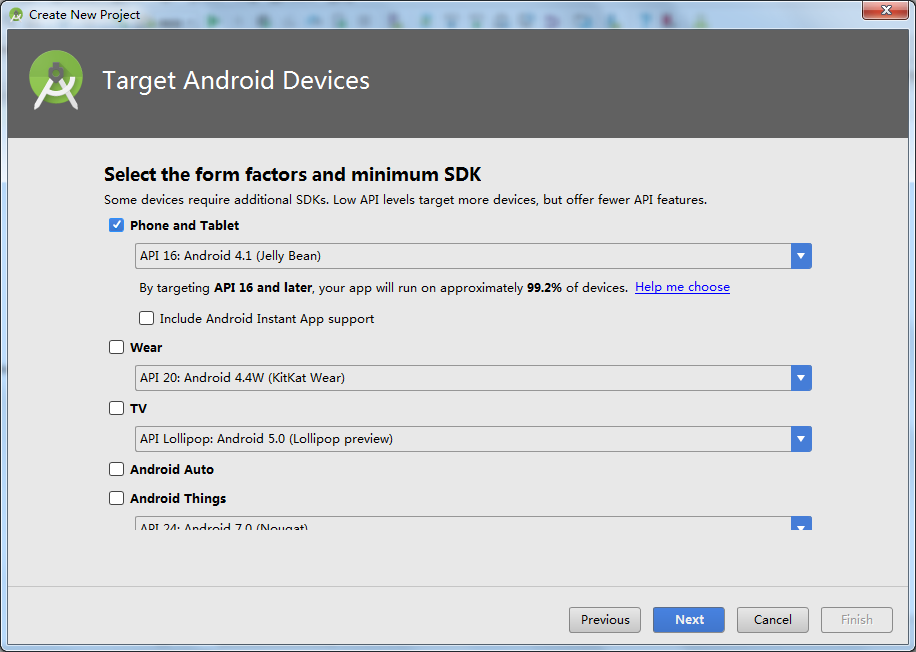
Next
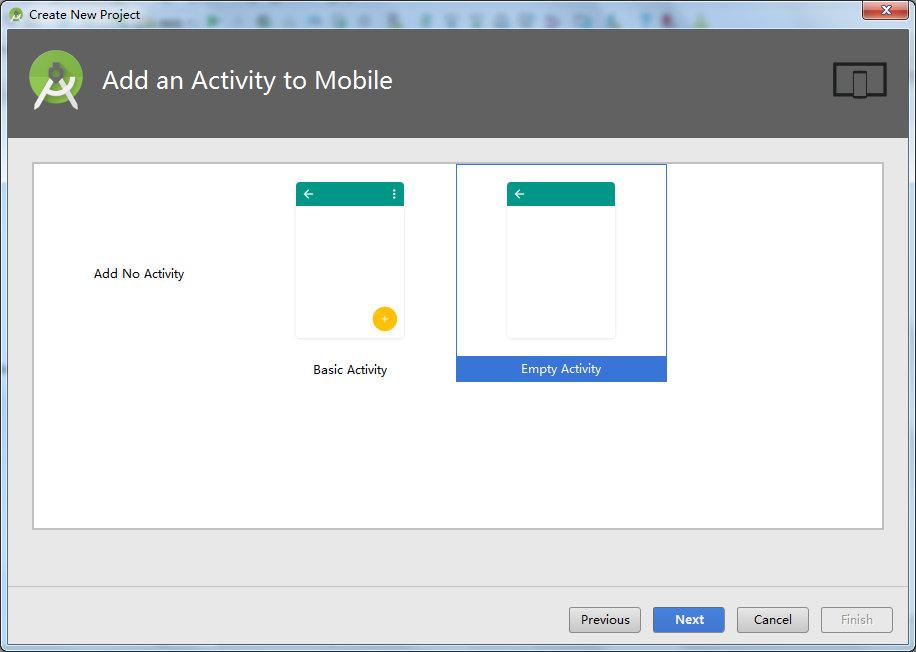
Next
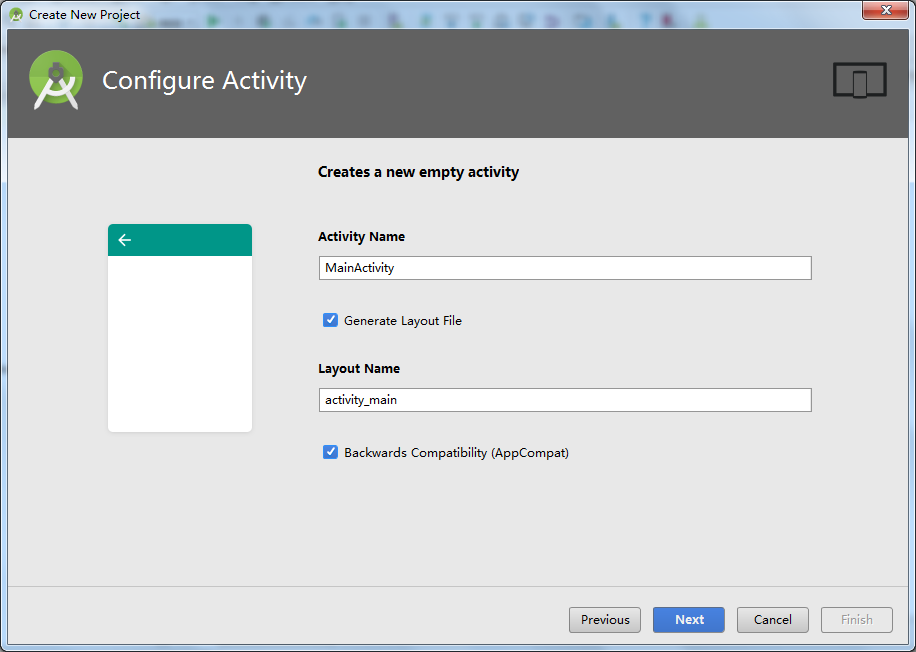
选择C++标准,一般选择默认即可
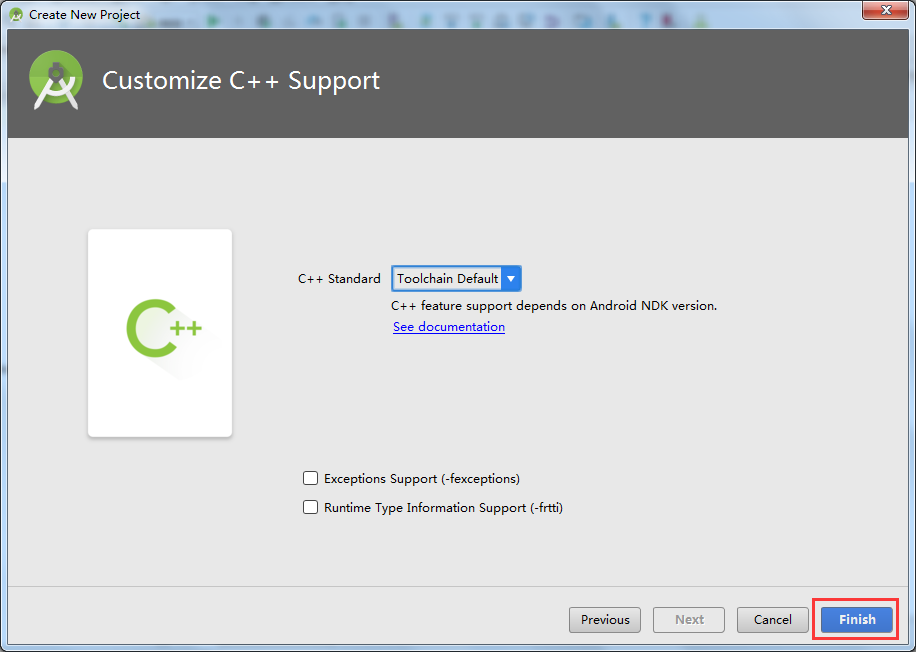
手动关联NDK
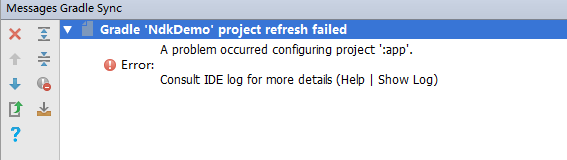
对于解压ndk未解压到自动关联的目录(sdk安装目录/ndk-bundle)的情况,新建项目后会出现下面的提示信息,解决方案就是手动关联ndk。
对于解压ndk到自动关联的目录(sdk安装目录/ndk-bundle)的情况,可以跳过。因为不会出现下面的提示信息。如果万一出现了的话,那么就手动关联ndk即可。
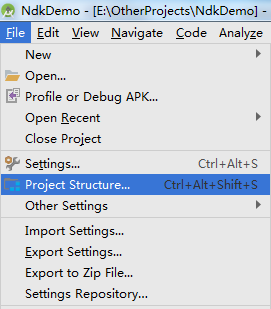
File——Project Structure...
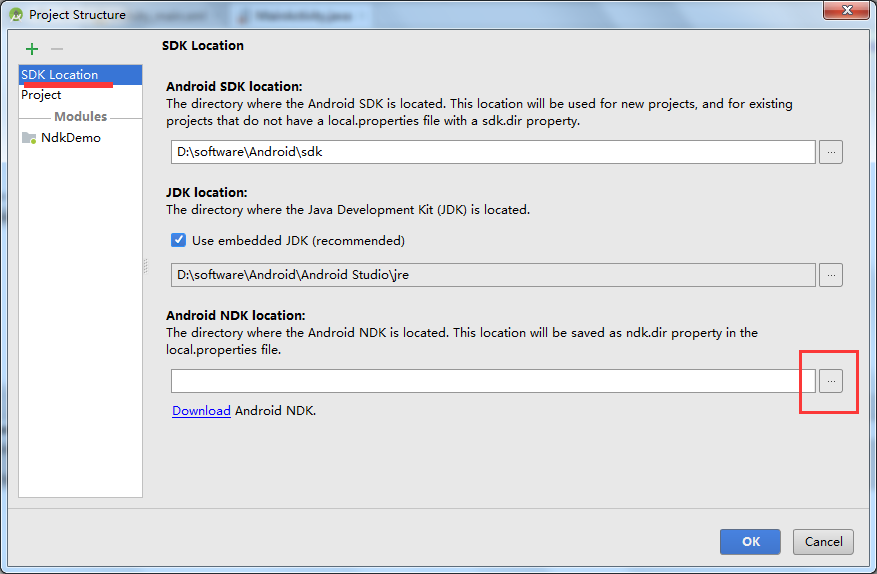
选择ndk路径
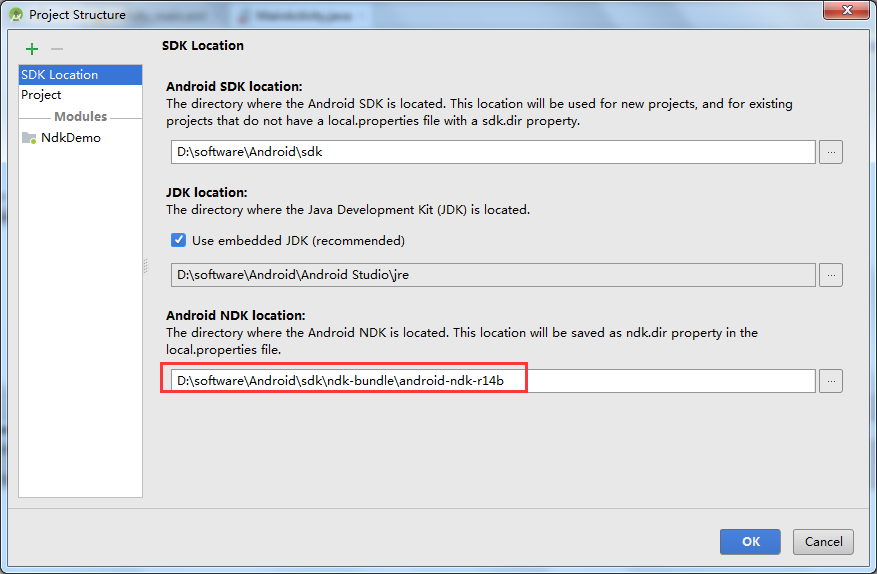
查看项目根目录的local.properties文件,会发现多了一行代码:
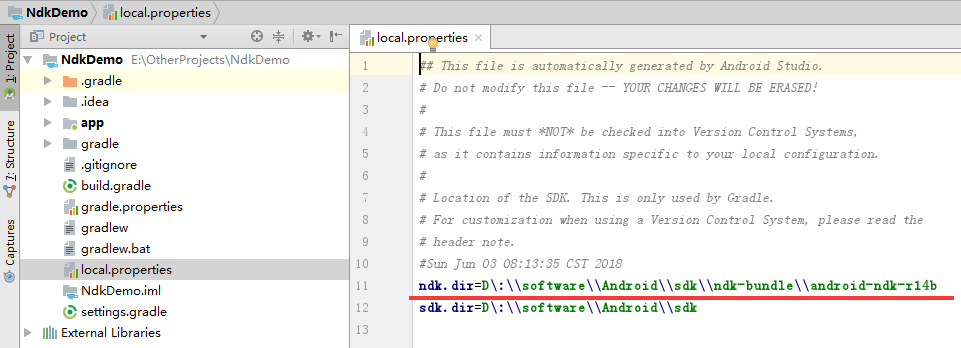
添加对旧版本的NDK支持
在工程中gradle.properties中添加以下代码:android.useDeprecatedNdk=true

下载安装Cmake
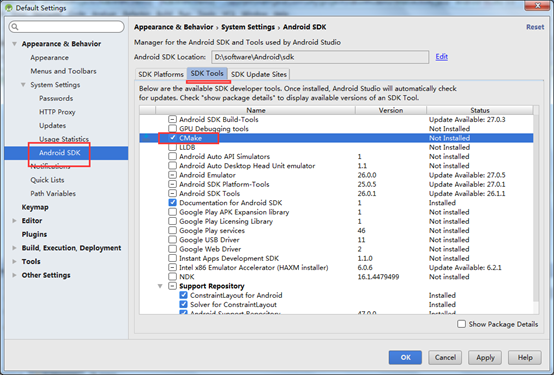
第一次运行会报错,原因是未安装Cmake。

打开SDK Manager
方式一

方式二:File——Settings...
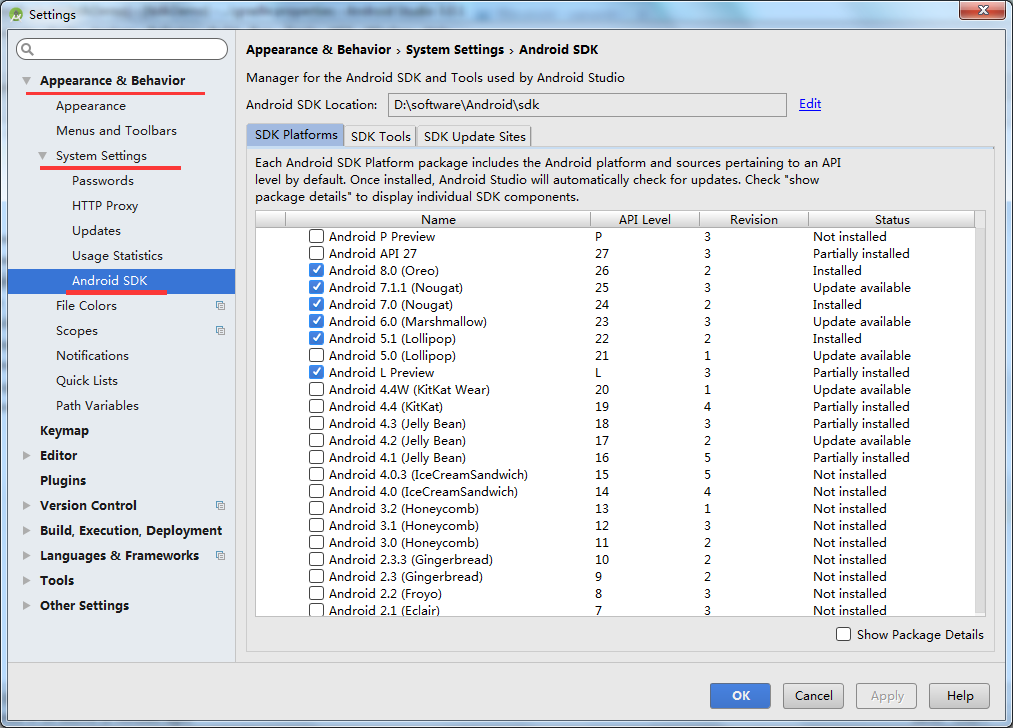
安装cmake


运行
新建的项目含有一个cpp文件,可以看下效果:


将指定的.h和.cpp文件编译成so文件
首先修改生成的so文件的名称
打开CMakeLists.txt
最开始的:
# For more information about using CMake with Android Studio, read the

# documentation: https://d.android.com/studio/projects/add-native-code.html

# Sets the minimum version of CMake required to build the native library.

cmake_minimum_required(VERSION 3.4.1)

# Creates and names a library, sets it as either STATIC

# or SHARED, and provides the relative paths to its source code.

# You can define multiple libraries, and CMake builds them for you.

# Gradle automatically packages shared libraries with your APK.

add_library( # Sets the name of the library.

             native-lib

             # Sets the library as a shared library.

             SHARED

             # Provides a relative path to your source file(s).

             src/main/cpp/native-lib.cpp )

# Searches for a specified prebuilt library and stores the path as a

# variable. Because CMake includes system libraries in the search path by

# default, you only need to specify the name of the public NDK library

# you want to add. CMake verifies that the library exists before

# completing its build.

find_library( # Sets the name of the path variable.

              log-lib

              # Specifies the name of the NDK library that

              # you want CMake to locate.

              log )

# Specifies libraries CMake should link to your target library. You

# can link multiple libraries, such as libraries you define in this

# build script, prebuilt third-party libraries, or system libraries.

target_link_libraries( # Specifies the target library.

                       native-lib

                       # Links the target library to the log library

                       # included in the NDK.

                       ${log-lib} )
修改后的:
# For more information about using CMake with Android Studio, read the

# documentation: https://d.android.com/studio/projects/add-native-code.html

# Sets the minimum version of CMake required to build the native library.

cmake_minimum_required(VERSION 3.4.1)

# Creates and names a library, sets it as either STATIC

# or SHARED, and provides the relative paths to its source code.

# You can define multiple libraries, and CMake builds them for you.

# Gradle automatically packages shared libraries with your APK.

# 编译出一个动态库 ndklib(名字随意命名),源文件只有 src/main/cpp/native-lib.cpp(如果含有多个的话,需要添加多行类似的代码)

add_library( # Sets the name of the library.

             ndklib

             # Sets the library as a shared library.

             SHARED

             # Provides a relative path to your source file(s).

             src/main/cpp/native-lib.cpp )

# Searches for a specified prebuilt library and stores the path as a

# variable. Because CMake includes system libraries in the search path by

# default, you only need to specify the name of the public NDK library

# you want to add. CMake verifies that the library exists before

# completing its build.

find_library( # Sets the name of the path variable.

              log-lib

              # Specifies the name of the NDK library that

              # you want CMake to locate.

              log )

# Specifies libraries CMake should link to your target library. You

# can link multiple libraries, such as libraries you define in this

# build script, prebuilt third-party libraries, or system libraries.

# 找到预编译库 log_lib 并link到我们的动态库 ndklib(跟上面的保持一致)中

target_link_libraries( # Specifies the target library.

                       ndklib

                       # Links the target library to the log library

                       # included in the NDK.

                       ${log-lib} )
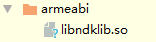
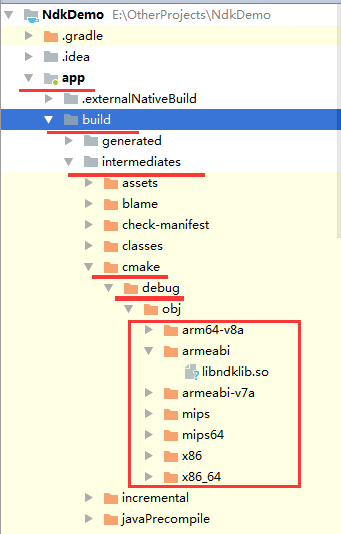
这样命名的话生成的so文件如下(前缀自动有个lib):
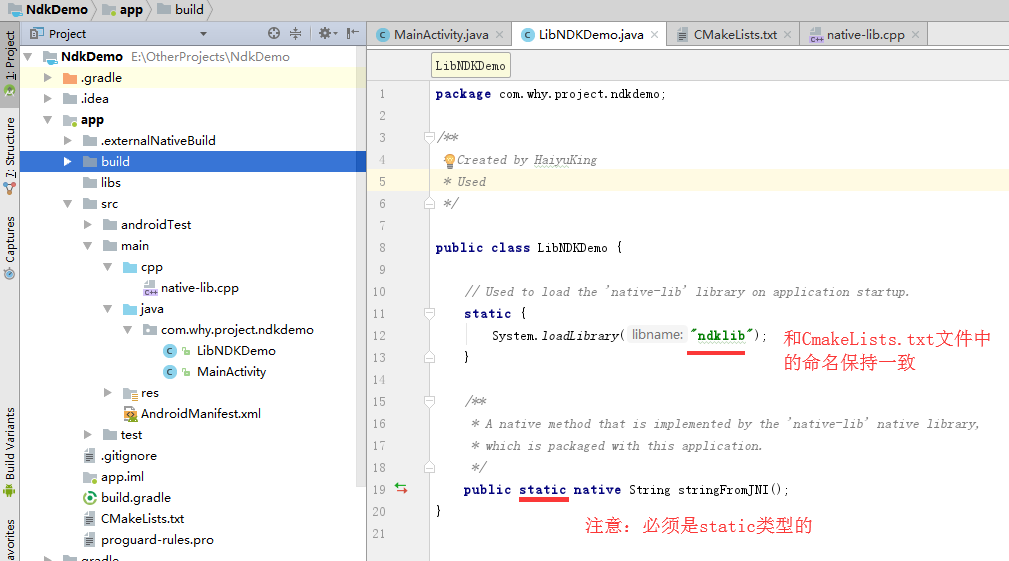
新建一个类文件LibNDKDemo.java(名字随意),并且引用我们新建的so库
添加以下代码:
    // Used to load the 'native-lib' library on application startup.

    static {

        System.loadLibrary("ndklib");

    }

    /**

     * A native method that is implemented by the 'native-lib' native library,

     * which is packaged with this application.

     */

    public static native String stringFromJNI();
一般会有红色报错,不过不用着急。
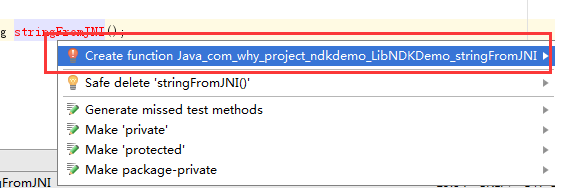
鼠标定位到stringFromJNI方法那里,然后点击Alt+Enter,选择第一个AS会自动帮我们生成实现:
自动跳转到native-lib.cpp文件
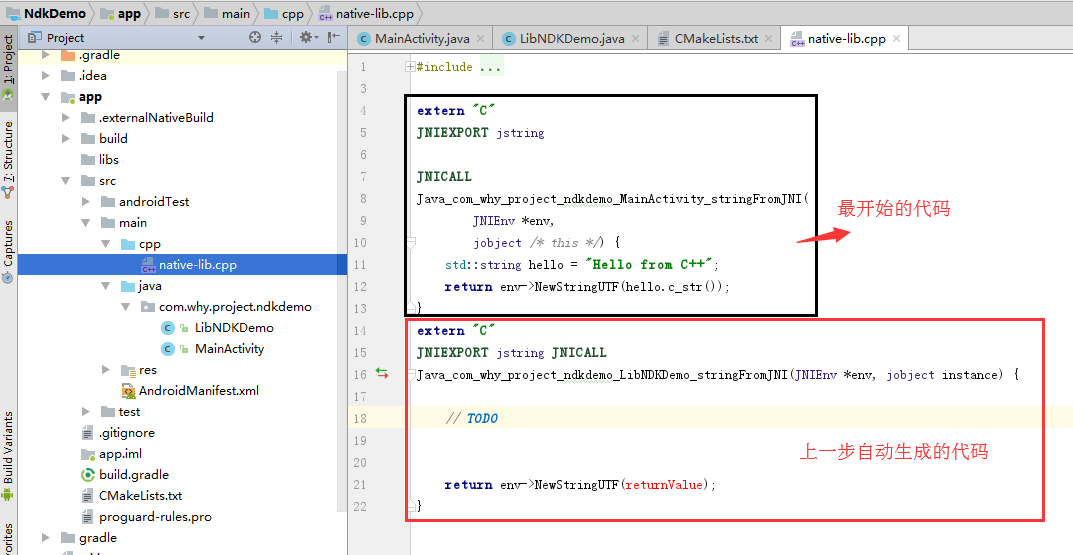
将returnValue修改成真实的数据,并删除旧数据(上方黑色边框标记的代码),修改后的代码如下:
#include <jni.h>

#include <string>

extern "C"

JNIEXPORT jstring JNICALL

Java_com_why_project_ndkdemo_LibNDKDemo_stringFromJNI(JNIEnv *env, jobject instance) {

    // TODO

    std::string hello = "Hello from C++";

    return env->NewStringUTF(hello.c_str());

}
Build——Rebuild Project
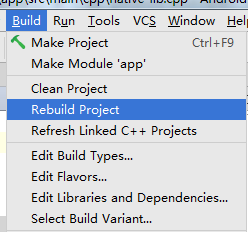
此时,生成了debug模式下的so文件。
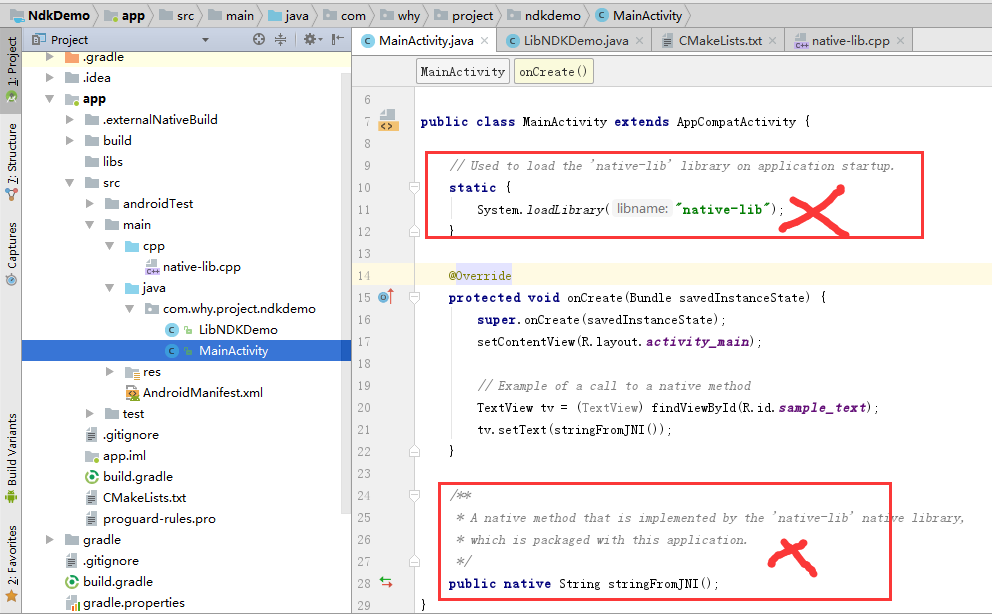
调用
将MainActivity.java下面的代码删除
修改后的代码:
package com.why.project.ndkdemo;

import android.support.v7.app.AppCompatActivity;

import android.os.Bundle;

import android.widget.TextView;

public class MainActivity extends AppCompatActivity {

    @Override

    protected void onCreate(Bundle savedInstanceState) {

        super.onCreate(savedInstanceState);

        setContentView(R.layout.activity_main);

        TextView tv = (TextView) findViewById(R.id.sample_text);

        tv.setText(LibNDKDemo.stringFromJNI());

    }

}
运行不报错,说明成功。
生成release版本的so文件
PS:(Debug版本和release版本,做个C++的都知道。debug版本是调试的使用的,里面包含很多的调试信息,文件体积也是比较大;release版本发布的时候使用的,会自动的去除掉里面的调试信息,文件体积比较小)。通过Gradle projects生成release版本:
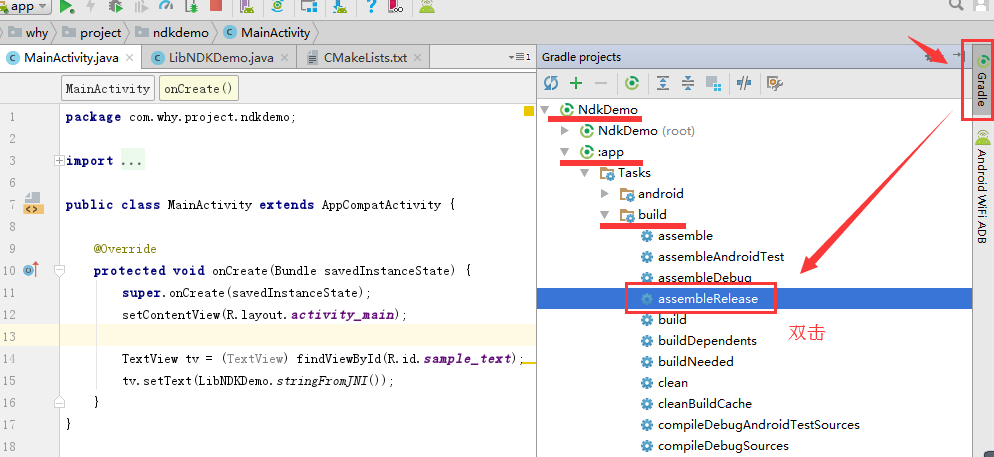

生成的release版本so文件的位置:
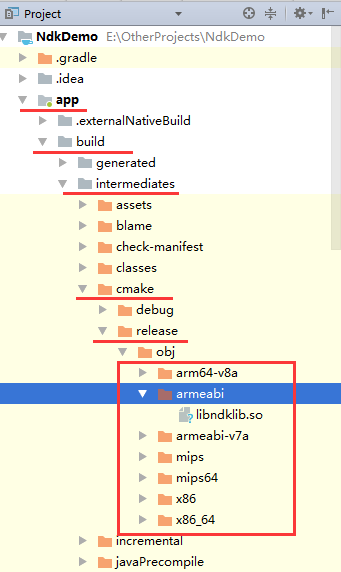
将so文件结合module生成arr文件
其实上面的so文件就可以集成到项目中使用了,不过如果想要进一步封装so文件,比如指定cpu类型的so文件,或者还有其他代码需要配合调用等。
新建module(命名随意,包名需要跟so文件中的java文件包名一致)
module的包名必须跟so文件中的java文件(比如上面步骤中的LibNDKDemo.java)包名一致。
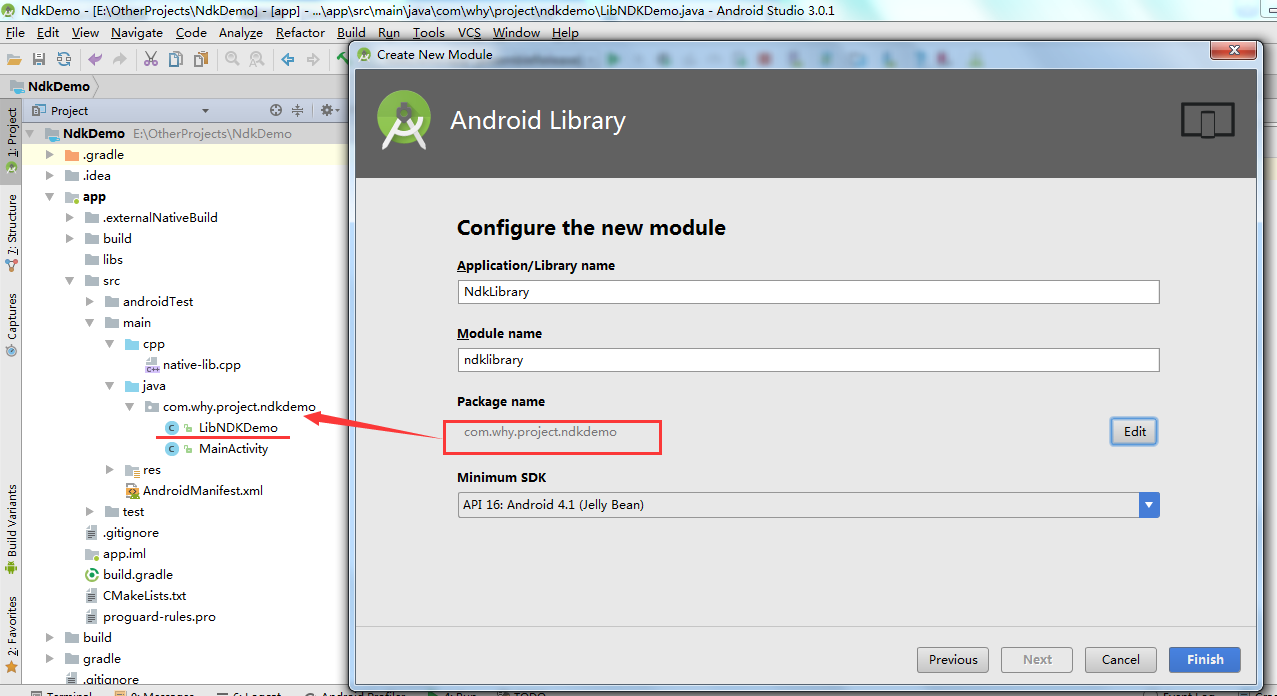
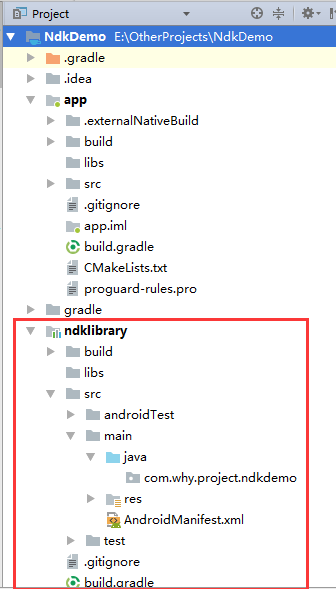
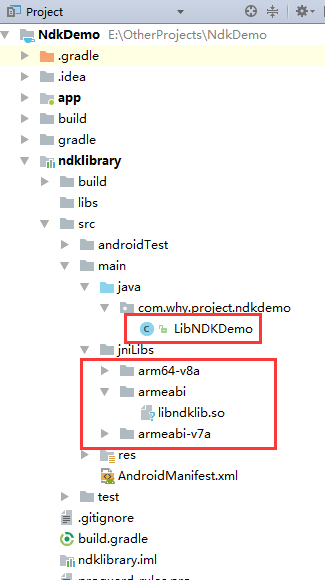
将需要用到的cpu类型的so文件(release版本)和java类文件拷贝到module中
一般不用将所有cpu类型的so文件拷贝到module中,根据实际项目情况。我这里将常用的cpu类型的so文件复制到module中。
将module生成arr文件
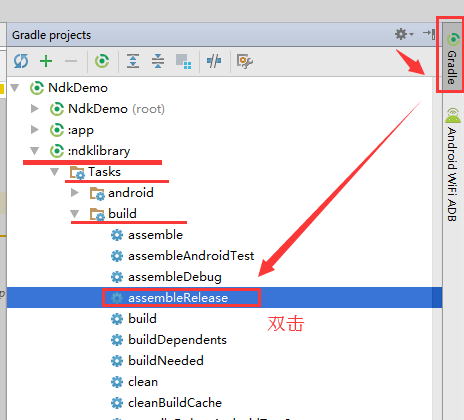
选择边上的Gradle——选择{module}目录下的 Tasks->build->assembleRelease方法
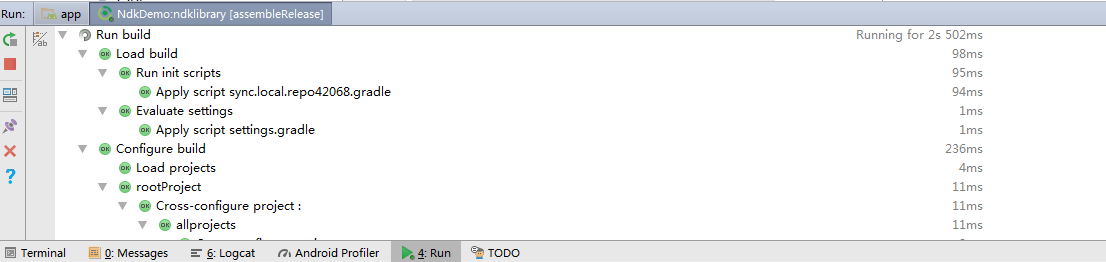
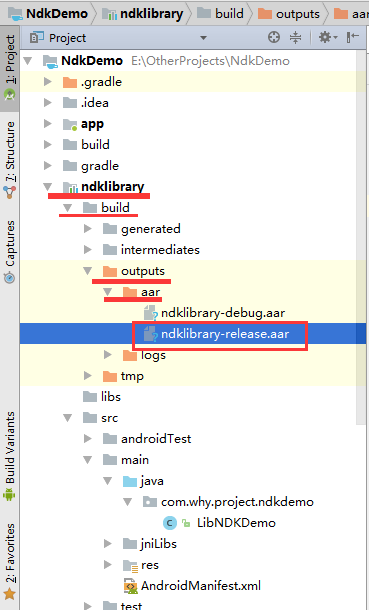
生成的arr文件位置:
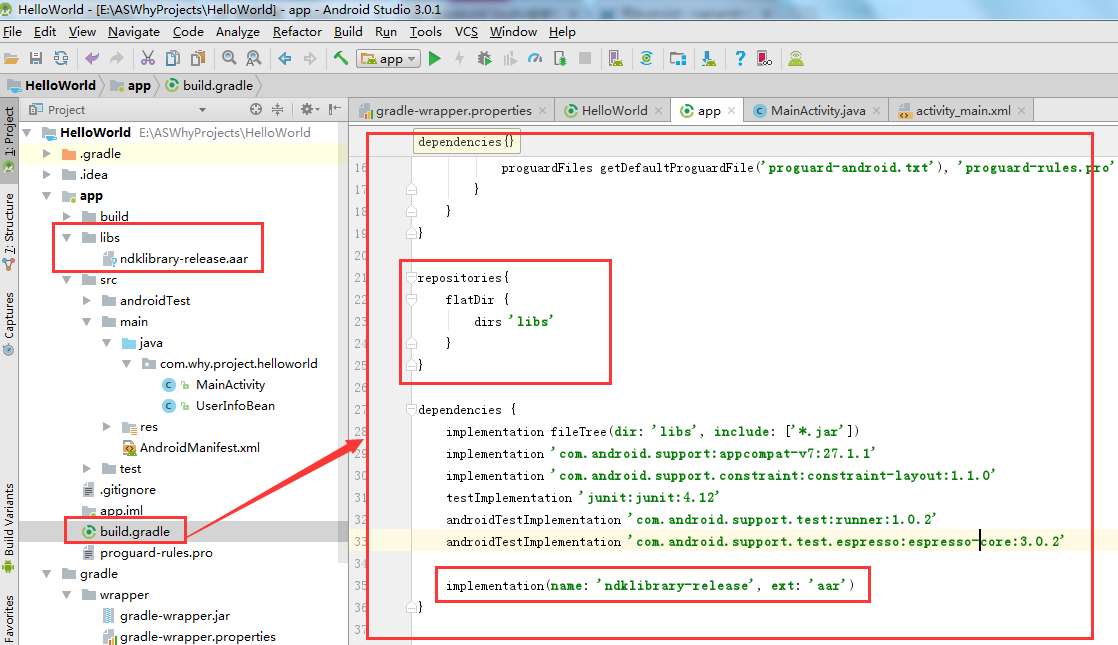
将arr文件集成到其他项目中
注意:集成到的项目的编译、目标、最低SDK版本号应该大于等于生成arr文件的module中设置的版本号。
具体步骤,参考《【Android Studio安装部署系列】十七、Android studio引用第三方库、jar、so、arr文件》
调用

运行效果:
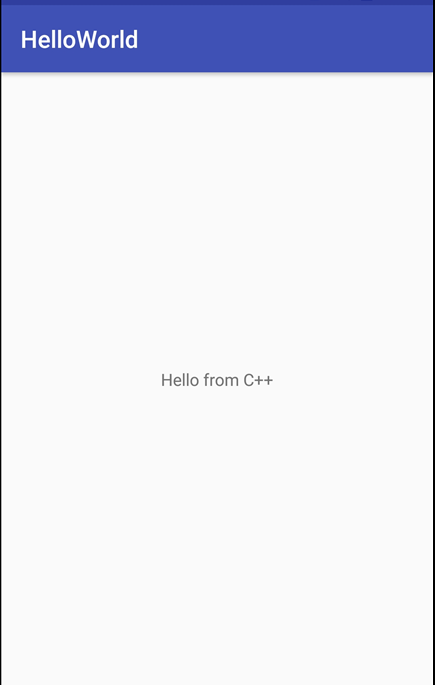
遇到的问题
如果cpp目录下含有C文件,并且别的cpp文件引用这个C文件了,那么CMakeLists.txt文件需要添加以下配置
# For more information about using CMake with Android Studio, read the

# documentation: https://d.android.com/studio/projects/add-native-code.html

# Sets the minimum version of CMake required to build the native library.

cmake_minimum_required(VERSION 3.4.1)

add_library(aes-lib STATIC src/main/cpp/aes.c)

# Creates and names a library, sets it as either STATIC

# or SHARED, and provides the relative paths to its source code.

# You can define multiple libraries, and CMake builds them for you.

# Gradle automatically packages shared libraries with your APK.

# 编译出一个动态库 urlpath,源文件有 src/main/cpp/native-lib.cpp等

add_library( # Sets the name of the library.

             urlpath

             # Sets the library as a shared library.

             SHARED

             # Provides a relative path to your source file(s).

             src/main/cpp/base64.cpp

             src/main/cpp/url_auth.cpp

             src/main/cpp/native-lib.cpp

             )

# Searches for a specified prebuilt library and stores the path as a

# variable. Because CMake includes system libraries in the search path by

# default, you only need to specify the name of the public NDK library

# you want to add. CMake verifies that the library exists before

# completing its build.

find_library( # Sets the name of the path variable.

              log-lib

              # Specifies the name of the NDK library that

              # you want CMake to locate.

              log )

# Specifies libraries CMake should link to your target library. You

# can link multiple libraries, such as libraries you define in this

# build script, prebuilt third-party libraries, or system libraries.

#找到预编译库 log_lib 并link到我们的动态库 urlauth中

target_link_libraries( # Specifies the target library.

                       urkpath

                       aes-lib

                       # Links the target library to the log library

                       # included in the NDK.

                       ${log-lib} )
否则会报错:提示没有找到C文件中的方法。
参考资料
详解Android studio ndk配置cmake开发native C
AndroidStudio报错: undefined reference to 'AndroidBitmap_getInfo'
Android Studio 下安卓 jni 开发错误 undefined reference to AndroidBitmap_getInfo
Android Studio2.2.3使用C++生成so文件
AndroidStudio官方指南:向您的项目添加 C 和 C++ 代码
Android Studio NDK编程-环境搭建及Hello!
NDK开发 从入门到放弃(七:Android Studio 2.2 CMAKE 高效NDK开发)
Android Studio NDK环境配置及JNI使用方法
android studio library生成jar包和aar的方法总结
android studio生成aar包并在其他工程引用aar包
android 底层log分析 内存及backtrace tombstone/crash
使用LeakTracer检测android NDK C/C++代码中的memory leak
【Android Studio安装部署系列】二十五、Android studio使用NDK生成so文件和arr文件的更多相关文章
- 【Android Studio安装部署系列】十五、Android studio添加Assets目录
版权声明:本文为HaiyuKing原创文章,转载请注明出处! 概述 Android Studio新建项目时是没有assets目录,需要自己手动创建. app右键——New——Folder——Asset ...
- 【Android Studio安装部署系列】十、Android studio打包发布apk安装包
版权声明:本文为HaiyuKing原创文章,转载请注明出处! 概述 使用Android studio发布apk安装包的操作步骤. 开始打包发布apk Build > Generate Signe ...
- 【Android Studio安装部署系列】十二、Android studio代码混淆
版权声明:本文为HaiyuKing原创文章,转载请注明出处! 概述 为什么需要代码混淆呢?原因很简单,你的apk很容易被反编译出来,你写的代码都会被看到,因此我们需要在编译过程中对代码进行一定程度的混 ...
- 【Android Studio安装部署系列】十九、Android studio使用SVN
版权声明:本文为HaiyuKing原创文章,转载请注明出处! 概述 在AndroidStudio中开发版本控制,除了Git就是SVN,和Eclipse不同,Android Studio没有提供单独的插 ...
- 【Android Studio安装部署系列】十六、Android studio在layout目录下新建子目录
版权声明:本文为HaiyuKing原创文章,转载请注明出处! 概述 一般用于分类显示不同模块的layout布局文件. 在res/layout文件夹下创建子目录 res/layout鼠标右键——New— ...
- 【Android Studio安装部署系列】十七、Android studio引用第三方库、jar、so、arr文件
版权声明:本文为HaiyuKing原创文章,转载请注明出处! 概述 在Android开发过程,经常需要用到第三方库以及jar.so.arr文件,那么如何引用到项目中呢?下面简单介绍下. 引用第三方库 ...
- 【Android Studio安装部署系列】四、Android SDK目录和作用分析
版权声明:本文为HaiyuKing原创文章,转载请注明出处! 概述 Android SDk Tool软件开发工具包(software development kit).被软件开发工程师用于为特定的软件 ...
- 【Android Studio安装部署系列】十八、Android studio更换APP应用图标
版权声明:本文为HaiyuKing原创文章,转载请注明出处! 概述 Android Studio新建项目后会有一个默认图标,那么如何更换图标呢? 替换图标 这个方案不建议直接在已有项目上更换图标,建议 ...
- 【Android Studio安装部署系列】十四、Android studio移除工程和删除项目
版权声明:本文为HaiyuKing原创文章,转载请注明出处! 概述 Android Studio删除工程.项目的操作步骤. 移除工程 主要用于从最近打开的项目列表中移除.硬盘中还是存在这个项目的. F ...
- 【Android Studio安装部署系列】三、Android Studio项目目录结构
版权声明:本文为HaiyuKing原创文章,转载请注明出处! 概述 简单介绍下Android studio新建项目的目录结构. 常用项目结构类型 在Android Studio中,提供了以下几种项目结 ...
随机推荐
- POJ_1269_Intersecting Lines_求直线交点
POJ_1269_Intersecting Lines_求直线交点 Description We all know that a pair of distinct points on a plane ...
- Linux vim常用命令
什么是 vim? Vim是从 vi 发展出来的一个文本编辑器.代码补完.编译及错误跳转等方便编程的功能特别丰富,在程序员中被广泛使用. 简单的来说, vi 是老式的字处理器,不过功能已经很齐全了,但是 ...
- Hibernate-ORM:05.Hibernate中的list()和iterator()
------------吾亦无他,唯手熟尔,谦卑若愚,好学若饥------------- Hibernate中查多条(全部)使用list()或iterator() 本篇介绍: 1.如何使用list() ...
- monkey-----停止正在测试的monkey
第一步:adb shell ps | grep monkey:查找到正在测试的monkey包名 第二步:kill pid:删除查找出的monkey进程 以上完美的停止monkey测试
- 领域驱动设计学习之路—DDD的原则与实践
本文是我学习Scott Millett & Nick Tune编著的<领域驱动设计模式.原理与实践>一书的学习笔记,一共会分为4个部分如下,此文为第1部分: ① 领域驱动设计的原则 ...
- 微信小程序保存图片到相册
先来看小程序中的保存图片到相册的api wx.saveImageToPhotosAlbum({ filePath : "./test.png", //这个只是测试路径,没有效果 s ...
- 你可能不知道的jvm的类加载机制
引言:在java代码中,类型的加载.连接与初始化过程都是在程序运行期间完成的. 加载:查找并加载类的二进制数据(class文件加载到内存中) 连接:a 验证:确保被加载类的正确性. b准备:为类的静态 ...
- Python中pathlib模块
Python中pathlib模块 Path.cwd():返回当前目录的路径 Path.home():返回当前用户的家目录 Path.stat():返回此路径信息 Path.touch():创建文件 P ...
- MTCNN算法与代码理解—人脸检测和人脸对齐联合学习
目录 写在前面 算法Pipeline详解 如何训练 损失函数 训练数据准备 多任务学习与在线困难样本挖掘 预测过程 参考 博客:blog.shinelee.me | 博客园 | CSDN 写在前面 主 ...
- Asp.Net Core 轻松学-多线程之Task(补充)
前言 在上一章 Asp.Net Core 轻松学-多线程之Task快速上手 文章中,介绍了使用Task的各种常用场景,但是感觉有部分内容还没有完善,在这里补充一下. 1. 任务的等待 在使用 ...