
Object Detection with 10 lines of code - Image AI
To perform object detection using ImageAI, all you need to do is
- Install Python on your computer system
- Install ImageAI and its dependencies
3. Download the Object Detection model file
4. Run the sample codes (which is as few as 10 lines)
Now let’s get started.
1) Download and install Python 3 from official Python Language website
2) Install the following dependencies via pip:
i. Tensorflow
pip install tensorflow
ii. Numpy
pip install numpy
iii. SciPy
pip install scipy
iv. OpenCV
pip install opencv-python
v. Pillow
pip install pillow
vi. Matplotlib
pip install matplotlib
vii. H5py
pip install h5py
viii. Keras
pip install keras
ix. ImageAI
pip installhttps://github.com/OlafenwaMoses/ImageAI/releases/download/2.0.1/imageai-2.0.1-py3-none-any.whl
3) Download the RetinaNet model file that will be used for object detection via this link.
Great. Now that you have installed the dependencies, you are ready to write your first object detection code. Create a Python file and give it a name (For example, FirstDetection.py), and then write the code below into it. Copy the RetinaNet model file and the image you want to detect to the folder that contains the python file.
FirstDetection.py
from imageai.Detection import ObjectDetection

import os

execution_path = os.getcwd()

detector = ObjectDetection()

detector.setModelTypeAsRetinaNet()

detector.setModelPath( os.path.join(execution_path , "resnet50_coco_best_v2.0.1.h5"))

detector.loadModel()

detections = detector.detectObjectsFromImage(input_image=os.path.join(execution_path , "image.jpg"), output_image_path=os.path.join(execution_path , "imagenew.jpg"))

for eachObject in detections:

    print(eachObject["name"] + " : " + eachObject["percentage_probability"] )
Then run the code and wait while the results prints in the console. Once the result is printed to the console, go to the folder in which your FirstDetection.py is and you will find a new image saved. Take a look at a 2 image samples below and the new images saved after detection.
Before Detection:
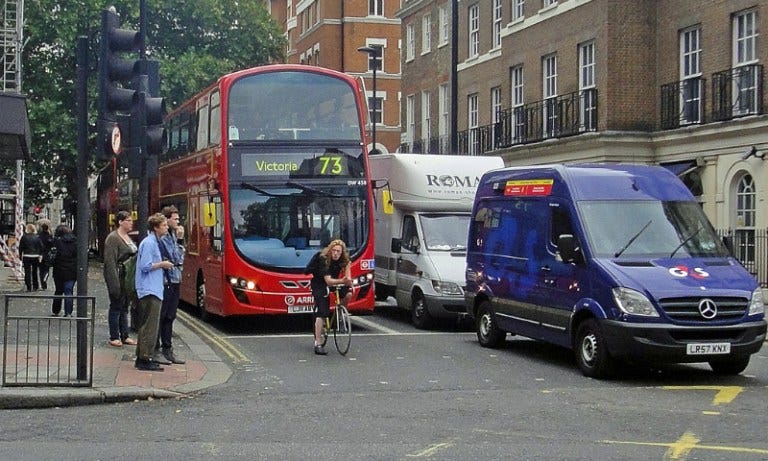
Image Credit: alzheimers.co.uk
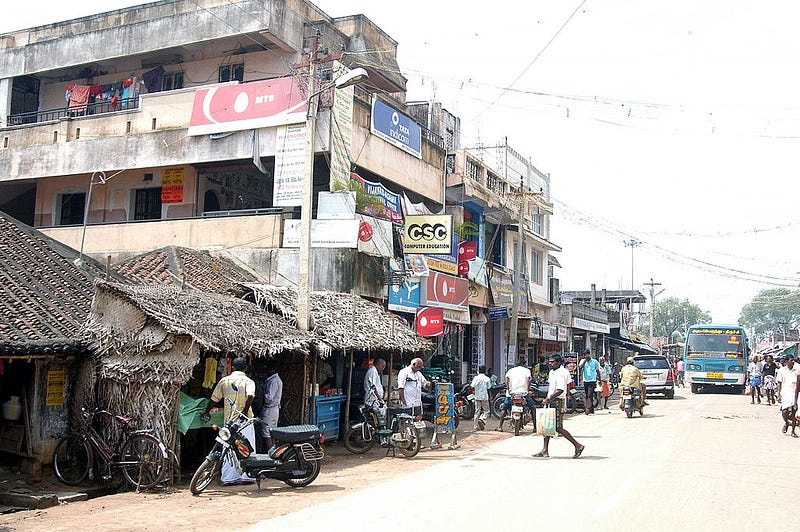
Image Credit: Wikicommons
After Detection:
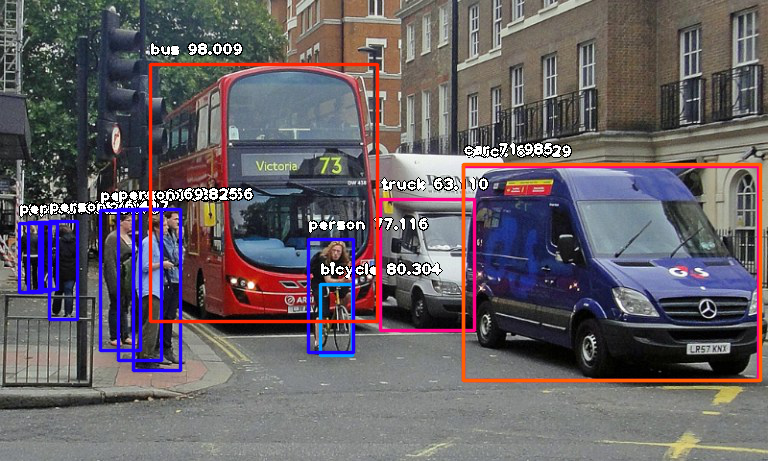
Console result for above image:
person : 55.8402955532074
person : 53.21805477142334
person : 69.25139427185059
person : 76.41745209693909
bicycle : 80.30363917350769
person : 83.58567953109741
person : 89.06581997871399
truck : 63.10953497886658
person : 69.82483863830566
person : 77.11606621742249
bus : 98.00949096679688
truck : 84.02870297431946
car : 71.98476791381836
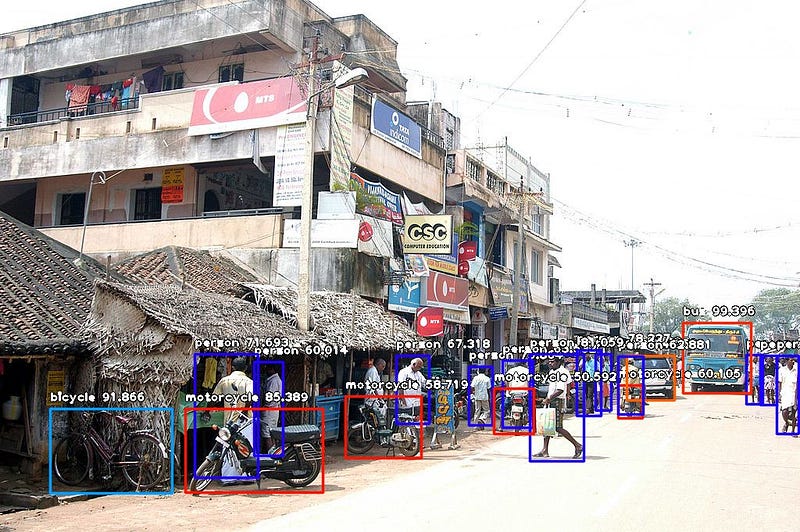
Console result for above image:
person : 71.10445499420166
person : 59.28672552108765
person : 59.61582064628601
person : 75.86382627487183
motorcycle : 60.1050078868866
bus : 99.39600229263306
car : 74.05484318733215
person : 67.31776595115662
person : 63.53200078010559
person : 78.2265305519104
person : 62.880998849868774
person : 72.93365597724915
person : 60.01397967338562
person : 81.05944991111755
motorcycle : 50.591760873794556
motorcycle : 58.719027042388916
person : 71.69321775436401
bicycle : 91.86570048332214
motorcycle : 85.38855314254761
Now let us explain how the 10-line code works.
from imageai.Detection import ObjectDetection

import os

execution_path = os.getcwd()
In the above 3 lines, we imported the ImageAI object detection class in the first line, imported the python os class in the second line and defined a variable to hold the path to the folder where our python file, RetinaNet model file and images are in the third line.
detector = ObjectDetection()

detector.setModelTypeAsRetinaNet()

detector.setModelPath( os.path.join(execution_path , "resnet50_coco_best_v2.0.1.h5"))

detector.loadModel()

detections = detector.detectObjectsFromImage(input_image=os.path.join(execution_path , "image.jpg"), output_image_path=os.path.join(execution_path , "imagenew.jpg"))
In the 5 lines of code above, we defined our object detection class in the first line, set the model type to RetinaNet in the second line, set the model path to the path of our RetinaNet model in the third line, load the model into the object detection class in the fourth line, then we called the detection function and parsed in the input image path and the output image path in the fifth line.
for eachObject in detections:

    print(eachObject["name"] + " : " + eachObject["percentage_probability"] )
In the above 2 lines of code, we iterate over all the results returned by the detector.detectObjectsFromImage function in the first line, then print out the name and percentage probability of the model on each object detected in the image in the second line.
ImageAI supports many powerful customization of the object detection process. One of it is the ability to extract the image of each object detected in the image. By simply parsing the extra parameter extract_detected_objects=True into the detectObjectsFromImagefunction as seen below, the object detection class will create a folder for the image objects, extract each image, save each to the new folder created and return an extra array that contains the path to each of the images.
detections, extracted_images = detector.detectObjectsFromImage(input_image=os.path.join(execution_path , "image.jpg"), output_image_path=os.path.join(execution_path , "imagenew.jpg"), extract_detected_objects=True)
Object Detection with 10 lines of code - Image AI的更多相关文章
- 论文阅读笔记四十六:Feature Selective Anchor-Free Module for Single-Shot Object Detection(CVPR2019)
论文原址:https://arxiv.org/abs/1903.00621 摘要 本文提出了基于无anchor机制的特征选择模块,是一个简单高效的单阶段组件,其可以结合特征金字塔嵌入到单阶段检测器中. ...
- (转)Awesome Object Detection
Awesome Object Detection 2018-08-10 09:30:40 This blog is copied from: https://github.com/amusi/awes ...
- 论文阅读笔记五十二:CornerNet-Lite: Efficient Keypoint Based Object Detection(CVPR2019)
论文原址:https://arxiv.org/pdf/1904.08900.pdf github:https://github.com/princeton-vl/CornerNet-Lite 摘要 基 ...
- 论文阅读笔记五十一:CenterNet: Keypoint Triplets for Object Detection(CVPR2019)
论文链接:https://arxiv.org/abs/1904.08189 github:https://github.com/Duankaiwen/CenterNet 摘要 目标检测中,基于关键点的 ...
- 论文阅读笔记四十八:Bounding Box Regression with Uncertainty for Accurate Object Detection(CVPR2019)
论文原址:https://arxiv.org/pdf/1809.08545.pdf github:https://github.com/yihui-he/KL-Loss 摘要 大规模的目标检测数据集在 ...
- object detection[NMS]
非极大抑制,是在对象检测中用的较为频繁的方法,当在一个对象区域,框出了很多框,那么如下图: 上图来自这里 目的就是为了在这些框中找到最适合的那个框.有以下几种方式: 1 nms 2 soft-nms ...
- 论文阅读笔记五十六:(ExtremeNet)Bottom-up Object Detection by Grouping Extreme and Center Points(CVPR2019)
论文原址:https://arxiv.org/abs/1901.08043 github: https://github.com/xingyizhou/ExtremeNet 摘要 本文利用一个关键点检 ...
- 课程四(Convolutional Neural Networks),第三 周(Object detection) —— 2.Programming assignments:Car detection with YOLOv2
Autonomous driving - Car detection Welcome to your week 3 programming assignment. You will learn abo ...
- YOLO object detection with OpenCV
Click here to download the source code to this post. In this tutorial, you’ll learn how to use the Y ...
随机推荐
- 关于HTTP中GET与POST的区别
GET和POST是HTTP请求的两种基本方法,要说它们的区别,接触过WEB开发的人都能说出一二. 看似很简单,其实是一道送命题 “标准答案”: GET在浏览器回退时是无害的,而POST会再次提交请求. ...
- 阿里巴巴TXD前端小报 - 2019年3月刊
原文:前端小报 - 201903月刊 Fundebug经授权转载,版权归原作者所有. [Alibaba-TXD 前端小报]- 热门前端技术快报,聚焦业界新视界:不知不觉 2019 年已经过去了 1/4 ...
- JQuery显示,隐藏和淡入淡出效果
为了把JQuery搞熟悉,看着菜鸟教程,一个一个例子打,边看边记,算是一晚上的一个小总结吧.加油,我很本但是我很勤奋啊.系统的了解它,就要花时间咯. <!DOCTYPE html> < ...
- 安卓手机如何快速投屏到windows(10/8.1/7)电脑上
前提: 手机和电脑连接的网络必须在同一局域网下. 优势: 手机和电脑不需要下载对应平台的应用,完全使用全系统自带功能. 附加: 以下演示是安卓手机和windows操作系统电脑,并且win10和win1 ...
- LEDAPS1.3.0版本移植到windows平台----HuSr大气校正模块
这个是2012年左右放在百度空间的,谁知百度空间关闭...转移到博客园. 最近项目用到3.1.2版本的LEDAPS,新版本的使用情况会在后续文章中慢慢丰富. HuSr是将LEDAPS项目中的TM/ET ...
- grid++报表使用时注意事项
#开始使用:Grid++Report 可以在 Visual C#.Net 与 Visual Basic.Net 下的 WinForm 项目中使用.在项目中使用 Grid++Report 之前,首先必须 ...
- Android下获取FPS的几种方法
FPS(Frames Per Second)是关乎Android用户体验最为重要的指标之一,而在VR中更是如此.为了评估VR系统.VR SDK及Unity应用的性能,通常会实时获取FPS并将其显示出来 ...
- 系统前端基本文件+ajax部分理解
静态页面: 一.static: css dist fonts images js model 二.templates: html ajax搜索操作: <html> <head> ...
- SQLServer之索引简介
索引设计基础知识 索引是与表或视图关联的磁盘上结构,可以加快从表或视图中检索行的速度. 索引包含由表或视图中的一列或多列生成的键. 这些键存储在一个结构(B 树)中,使 SQL Server 可以快速 ...
- jvisualvm 连接 jstatd 远程监控 jvm 或 Visual GC提示"不受此JVM支持“
Visual GC提示"不受此JVM支持",可以使用此方法解决. 一.添加配置文件 jstatd.all.policy [root@localhost /]# cd /usr/lo ...