
ios 开发UI篇— UIToolbar
前言
    NS_CLASS_AVAILABLE_IOS(2_0) __TVOS_PROHIBITED @interface UIToolbar : UIView <UIBarPositioning>

@available(iOS 2.0, *) public class UIToolbar : UIView, UIBarPositioning- 工具条控件 UIToolbar 用做工具条按钮项(UIBarButtonItem)的容器,可以盛放一个或者多个工具条按钮项,一般放置在界面顶部或者底部。如果要针对工具条按钮项自定义视图,可以使用 UIToolbarDelegate 设置。
    // 创建 UIToolbar 工具条,工具条上面可以放一些导航专用按钮项

    UIToolbar *toolbar = [[UIToolbar alloc] initWithFrame:CGRectMake(0, 20, self.view.bounds.size.width, 44)];

    [self.view addSubview:toolbar];

    // 创建工具条 UIBarButtonItem 按钮项

    // 创建编辑按钮

    UIBarButtonItem *editButton = [[UIBarButtonItem alloc]

                                   initWithBarButtonSystemItem:UIBarButtonSystemItemEdit

                                                        target:self

                                                        action:@selector(editClick)];

    // 创建刷新按钮

    UIBarButtonItem *refreshButton = [[UIBarButtonItem alloc]

                                       initWithBarButtonSystemItem:UIBarButtonSystemItemRefresh

                                                            target:self

                                                            action:@selector(refreshClick)];

    // 创建弹簧按钮

    UIBarButtonItem *flexibleButton = [[UIBarButtonItem alloc]

                                        initWithBarButtonSystemItem:UIBarButtonSystemItemFlexibleSpace

                                                             target:nil

                                                             action:nil];

    // 将按钮项添加到工具条,通过数组给工具条设置一些导航按钮

    toolbar.items = @[editButton, flexibleButton, refreshButton];
2、UIBarButtonItem 的创建
系统类按钮
    /*

        UIBarButtonSystemItemDone,           Done

        UIBarButtonSystemItemCancel,         Cancel

        UIBarButtonSystemItemEdit,           Edit

        UIBarButtonSystemItemSave,           Save

        UIBarButtonSystemItemUndo,           Undo

        UIBarButtonSystemItemRedo,           Redo

        UIBarButtonSystemItemAdd,            加号 图标按钮

        UIBarButtonSystemItemFlexibleSpace,  弹簧 按钮,将 button 推向两边

        UIBarButtonSystemItemFixedSpace,     弹簧 按钮,将 button 推向两边,

                                             可设间距 fixedSpaceButton.width = 50;

        UIBarButtonSystemItemCompose,        撰写 图标按钮

        UIBarButtonSystemItemReply,          答复 图标按钮

        UIBarButtonSystemItemAction,         详情 图标按钮

        UIBarButtonSystemItemOrganize,       文件夹 图标按钮

        UIBarButtonSystemItemBookmarks,      书籍 图标按钮

        UIBarButtonSystemItemSearch,         搜索 图标按钮

        UIBarButtonSystemItemRefresh,        刷新 图标按钮

        UIBarButtonSystemItemStop,           X 号 图标按钮

        UIBarButtonSystemItemCamera,         相机 图标按钮

        UIBarButtonSystemItemTrash,          删除 图标按钮

        UIBarButtonSystemItemPlay,           播放 图标按钮

        UIBarButtonSystemItemPause,          暂停 图标按钮

        UIBarButtonSystemItemRewind,         快退 图标按钮

        UIBarButtonSystemItemFastForward,    快进 图标按钮

    */

    UIBarButtonItem *done = [[UIBarButtonItem alloc] initWithBarButtonSystemItem:UIBarButtonSystemItemDone

                                                                          target:self

                                                                          action:@selector(buttonClick)];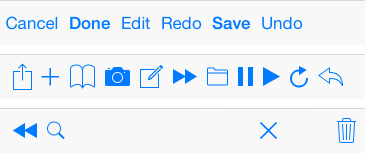

文本类按钮
    /*

        UIBarButtonItemStylePlain        默认按钮风格;按下时会闪动

        UIBarButtonItemStyleBordered     与 UIBarButtonItemStylePlain 相同,但显示的按钮有边框, NS_ENUM_DEPRECATED_IOS

        UIBarButtonItemStyleDone         显示一个蓝色按钮,提醒用户编辑完毕时应该点触(tap)该按钮。

    */

    UIBarButtonItem *titleBtn = [[UIBarButtonItem alloc] initWithTitle:@"按钮"

                                                                 style:UIBarButtonItemStylePlain

                                                                target:self

                                                                action:@selector(buttonClick)];
图片类按钮
    // 对图片进行处理,以原图的样式显示,否则显示为蓝色块

    UIImage *image1 = [[UIImage imageNamed:@"001"] imageWithRenderingMode:UIImageRenderingModeAlwaysOriginal];

    UIBarButtonItem *imageBtn1 = [[UIBarButtonItem alloc] initWithImage:image1

                                                                   style:UIBarButtonItemStylePlain

                                                                  target:self

                                                                  action:@selector(buttonClick)];

    UIImage *image2 = [[UIImage imageNamed:@"002"] imageWithRenderingMode:UIImageRenderingModeAlwaysOriginal];

    UIImage *image3 = [[UIImage imageNamed:@"004"] imageWithRenderingMode:UIImageRenderingModeAlwaysOriginal];

    UIBarButtonItem *imageBtn2 = [[UIBarButtonItem alloc] initWithImage:image2

                                                   landscapeImagePhone:image3

                                                                  style:UIBarButtonItemStyleDone

                                                                 target:self

                                                                 action:@selector(buttonClick)];
自定义视图类按钮
    UIProgressView *progress = [[UIProgressView alloc] initWithProgressViewStyle:UIProgressViewStyleBar];

    progress.frame = CGRectMake(0, 0, 80, 20);

    progress.progress = 0.5;

    progress.progressTintColor = [UIColor greenColor];

    progress.trackTintColor = [UIColor redColor];

    UIBarButtonItem *viewBtn = [[UIBarButtonItem alloc] initWithCustomView:progress];
3、navigation 中的 toolBar
navigationController 自带的 toolbar 属性是所有添加在 navigationController 上的视图所共用的,是属于 navigationController 的,不是属于每个 ViewController 的,但 toolbar 上显示的内容的是每个 ViewController 的,需要在每个 ViewController 上单独设置。
toolbar 的显示状态会被带到已经显示过的 ViewController 上,跳转到未显示过的 ViewController 时,toolbar 再次被隐藏。
Objective-C
    // 显示 toolBar,toolBar 默认是隐藏的,首先需要让它显示出来,默认在屏幕的最下方

    self.navigationController.toolbarHidden = NO;

    // 向 toolBar 添加按钮,最多只能显示 8 个,往 self.navigationController.toolbarItems 上添加时无用

    self.toolbarItems = buttonArray;
ios 开发UI篇— UIToolbar的更多相关文章
- iOS开发UI篇—Date Picker和UITool Bar控件简单介绍
iOS开发UI篇—Date Picker和UITool Bar控件简单介绍 一.Date Picker控件 1.简单介绍: Date Picker显示时间的控件 有默认宽高,不用设置数据源和代理 如何 ...
- iOS开发UI篇—CAlayer(自定义layer)
iOS开发UI篇—CAlayer(自定义layer) 一.第一种方式 1.简单说明 以前想要在view中画东西,需要自定义view,创建一个类与之关联,让这个类继承自UIView,然后重写它的Draw ...
- iOS开发UI篇—UITabBarController简单介绍
iOS开发UI篇—UITabBarController简单介绍 一.简单介绍 UITabBarController和UINavigationController类似,UITabBarControlle ...
- iOS开发UI篇—懒加载
iOS开发UI篇—懒加载 1.懒加载基本 懒加载——也称为延迟加载,即在需要的时候才加载(效率低,占用内存小).所谓懒加载,写的是其get方法. 注意:如果是懒加载的话则一定要注意先判断是否已经有了, ...
- iOS开发UI篇—CAlayer层的属性
iOS开发UI篇—CAlayer层的属性 一.position和anchorPoint 1.简单介绍 CALayer有2个非常重要的属性:position和anchorPoint @property ...
- iOS开发UI篇—CAlayer(创建图层)
iOS开发UI篇—CAlayer(创建图层) 一.添加一个图层 添加图层的步骤: 1.创建layer 2.设置layer的属性(设置了颜色,bounds才能显示出来) 3.将layer添加到界面上(控 ...
- iOS开发UI篇—CALayer简介
iOS开发UI篇—CALayer简介 一.简单介绍 在iOS中,你能看得见摸得着的东西基本上都是UIView,比如一个按钮.一个文本标签.一个文本输入框.一个图标等等,这些都是UIView. 其实 ...
- iOS开发UI篇—核心动画(UIView封装动画)
iOS开发UI篇—核心动画(UIView封装动画) 一.UIView动画(首尾) 1.简单说明 UIKit直接将动画集成到UIView类中,当内部的一些属性发生改变时,UIView将为这些改变提供动画 ...
- iOS开发UI篇—核心动画(转场动画和组动画)
转自:http://www.cnblogs.com/wendingding/p/3801454.html iOS开发UI篇—核心动画(转场动画和组动画) 一.转场动画简单介绍 CAAnimation的 ...
随机推荐
- mac上调整phpstorm和webstorm的使用内存(默认是128m-750m) 避免卡顿
For Mac Only WebStorm/phpstrom用起来一卡一卡,如今才发现是它的默认内存配置太弱.修改之: 修改phpstrom vi /Applications/PhpStorm.app ...
- websocket协议及案例
WebSocket是一种用于在服务器与客户端之间实现高效的双向通信的机制.可以解决数据实时性要求比较高的应用,比如:在线聊天,在线教育,炒股或定位等. 一:websocket产生背景: 为了解决这种实 ...
- JDBC中处理事务,小Demo
事务的四大特性(ACID): 原子性(Atomicity):事务中所有操作是不可再分割的原子单位.事务中所有操作要么全部执行成功,要么全部执行失败. 一致性(Consistency):事务执行 ...
- java中的==、equals()、hashCode()源码分析(转载)
在java编程或者面试中经常会遇到 == .equals()的比较.自己看了看源码,结合实际的编程总结一下. 1. == java中的==是比较两个对象在JVM中的地址.比较好理解.看下面的代码: ...
- Node服务端极速搭建 - nvmhome
本文意在让你掌握极速搭建Node服务端(任何Project) $ whoami name: kelvin email: kelvv@outlook.com homepage: www.kelvv.co ...
- Mybatis学习第二天——mapper的动态代理
传统的Dao层开发通过接口与实现类的方式,Mybatis中通过mapper动态代理是需要定义接口. 1.传统Dao层封装 那么可以将公共资源提取出来,剩余的封装成方法来实现.下面是UserDaoImp ...
- 我的C语言连接Mysql之路
1.安装好mysql 2.要实现C连接数据库,需要安装数据库连接器(即MySQL Connector/C) MySQL Connector/C是一个C语言的client库,这个库是为了实 ...
- Python用户交互-密码不可见
输入密码时若让用户不可见,可以使用getpass模块中的getpass方法 # 输入密码时若想要不可见,使用getpass模块中getpass方法即可 import getpass pwd=getpa ...
- IDEA创建maven项目时,maven太慢-archetypeCatalog=internal
创建项目时候加上archetypeCatalog=internal 参数, archetypeCatalog表示插件使用的archetype元数 据,不加这个参数时默认为remote,local,即中 ...
- 中间件(WAS、WMQ)运维 9个常见难点解析
本文由社区中间件达人wangxuefeng266.ayy216226分享整理,包括WAS.WMQ在安装.巡检.监控.优化过程中的常见难点. 安装 1.was 负载均衡的机制的粘连性,was负载均衡异常 ...