
Nginx配置-1
1、绑定nginx到指定cpu
[root@nginx conf.d]# vim /apps/nginx/conf/nginx.conf

worker_processes  2;

worker_cpu_affinity 00000001 00000010;  #第一个worker进程绑定0号cpu,第二个worker进程绑定1号cpu

[root@nginx conf.d]# nginx -s reload

[root@nginx conf.d]# ps axo pid,uid,psr,cmd|grep nginx

  36127     0   0 nginx: master process /apps/nginx/sbin/nginx -c /apps/nginx/conf/nginx.c

  40274  1001   0 nginx: worker process

  40275  1001   1 nginx: worker process

  40303     0   1 grep --color=auto nginx
[root@nginx conf.d]# vim /apps/nginx/conf/nginx.conf

worker_processes  2;

worker_cpu_affinity auto;    #自动绑定

[root@nginx conf.d]# nginx -s reload

[root@nginx conf.d]# ps axo pid,cmd,psr | grep nginx

  36127 nginx: master process /apps   1

  40370 nginx: worker process         0

  40371 nginx: worker process         1

  40374 grep --color=auto nginx       0
2、隐藏Nginx版本信息
[root@nginx conf]# vim nginx.conf

    server {

        listen       80;

        server_name  localhost;

        server_tokens off;

[root@nginx conf]# nginx -s reload

[root@nginx-ubuntu ~]#curl 10.0.0.8/index.php -I

HTTP/1.1 200 OK

Server: nginx
3、新建一个pc web站点
[root@nginx conf]# vim nginx.conf

include       /apps/nginx/conf/conf.d/*.conf;    #再http语句块最后加上一行

[root@nginx conf]# mkdir /apps/nginx/conf/conf.d

[root@nginx conf]# vim /apps/nginx/conf/conf.d/wang.org.conf

server {

    listen  80;

    server_name  www.wang.org;

    root /data/nginx/html/pc;

    server_tokens off;

}

[root@nginx conf]# mkdir /data/nginx/html/pc

[root@nginx conf]# echo www.wang.org > /data/nginx/html/mobile/index.html

[root@nginx conf]# nginx -s reload
4、再建立一个mobile web站点
[root@nginx conf]# vim conf.d/m.wang.org.conf

server {

    listen 80;

    server_name m.wang.org;

    root /data/nginx/html/mobile;

}

[root@nginx conf]# mkdir /data/nginx/html/mobile

[root@nginx conf]# echo m.wang.org > /data/nginx/html/mobile/index.html

[root@nginx conf]# nginx -s reload
5、在站点下建立一个目录
[root@nginx conf]# vim conf.d/wang.org.conf

server {

    listen  80;

    server_name  www.wang.org;

    root /data/nginx/html/pc/;

    location /ab {                       #新增/ab目录

      root /opt/html;                    #ab目录所在的父目录

    }

}

[root@nginx conf]# mkdir -p /opt/html/ab

[root@nginx conf]# echo opt/html/ab > /opt/html/ab/index.html

[root@nginx conf]# nginx  -s reload
6、Location重定向
[root@nginx conf.d]# vim wang.org.conf

server {

    listen  80;

    server_name  www.wang.org;

    root /data/nginx/html/pc/;

    error_page 404 @error_404;

    location @error_404 {

        default_type text/html;

        charset utf9;

        return 200 'diule';

    }

}

[root@nginx conf.d]# nginx -s reload

==========================================

[root@nginx conf.d]# vim wang.org.conf

server {

    listen  80;

    server_name  www.wang.org;

    root /data/nginx/html/pc/;

    error_page 404 =200 /index.html;         #错误页面转到主页

}

[root@nginx conf.d]# nginx -s reload
7、访问控制
[root@nginx conf.d]# vim wang.org.conf

server {

    listen  80;

    server_name  www.wang.org;

    root /data/nginx/html/pc/;

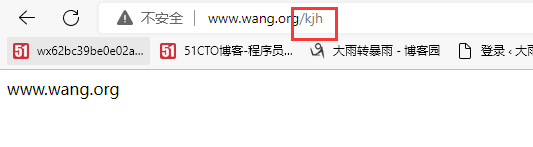
    error_page 404 =200 /index.html;

    location = /login/ {

    root /data/nginx/html/pc;

    allow 10.0.0.0/24;

    deny all;

    }

    location /about {

    alias /data/nginx/html/pc;

    index index.html;

    deny 10.0.0.1;

    allow all;

    }

}

[root@nginx conf.d]# nginx -s reload
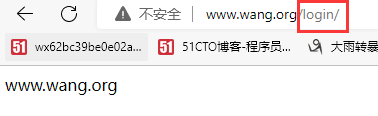
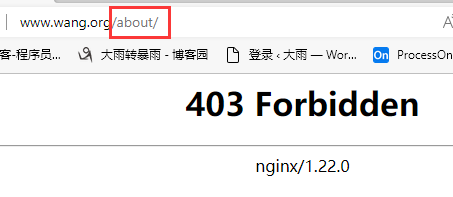
8、账号认证
[root@nginx conf.d]# yum install -y httpd-tools   #安装加密软件包

[root@nginx conf.d]# htpasswd -cb /apps/nginx/conf/.htpasswd user1 123456  #-c 创建文件 -b 非交互方式提交密码

[root@nginx conf.d]# htpasswd -b /apps/nginx/conf/.htpasswd user2 123456  #注意,第二次不要加c选项,要不然会把上次的密码文件覆盖

[root@nginx conf.d]# vim wang.org.conf

server {

    listen  80;

    server_name  www.wang.org;

    root /data/nginx/html/pc/;

    error_page 404 =200 /index.html;

    location = /login/ {

    root /data/nginx/html/pc;

    auth_basic     "please input password";             #请输入密码提示信息

    auth_basic_user_file /apps/nginx/conf/.htpasswd;	#用户名密码文件位置

    }

[root@nginx conf.d]# nginx -s reload
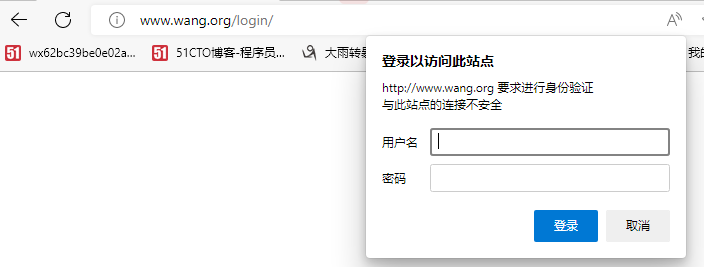
9、自定义错误页面
[root@nginx conf.d]# vim wang.org.conf

server {

    listen  80;

    server_name  www.wang.org;

    root /data/nginx/html/pc/;

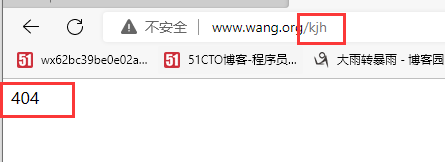
    error_page 404 500 502 503 504 /error.html;

    location = /error.html {

    root /data/nginx/html;

    }

}

[root@nginx conf.d]# echo error > /data/nginx/html/error.html

[root@nginx conf.d]# nginx -s reload

==========================================

[root@nginx conf.d]# vim wang.org.conf

server {

    listen  80;

    server_name  www.wang.org;

    root /data/nginx/html/pc/;

    error_page 500 502 503 504 /error.html;

    location = /error.html {

    root /data/nginx/html;

    }

    error_page 404 /404.html;             #404错误转到404.html

    location = /404.html {

    root /data/nginx/html;

    }

}

[root@nginx conf.d]# echo 404 > /data/nginx/html/404.html

[root@nginx conf.d]# nginx -s reload

====================================================

[root@nginx conf.d]# vim wang.org.conf

server {

    listen  80;

    server_name  www.wang.org;

    root /data/nginx/html/pc/;

    error_page 500 502 503 504 /error.html;

    location = /error.html {

    root /data/nginx/html;

    }

    error_page 404 =200 /index.html;    #404错误转到主页

}

[root@nginx conf.d]# nginx -s reload
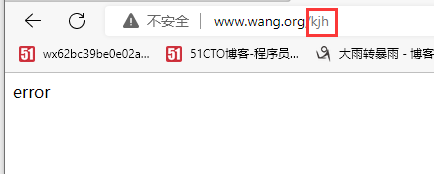
10、检测文件是否存在
[root@nginx conf.d]# vim wang.org.conf

server {

    listen  80;

    server_name  www.wang.org;

    root /data/nginx/html/pc/;

    location / {

    root /data/nginx/html/;

    index index.html;

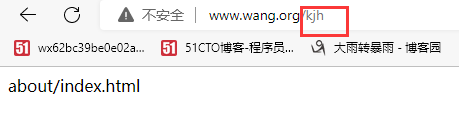
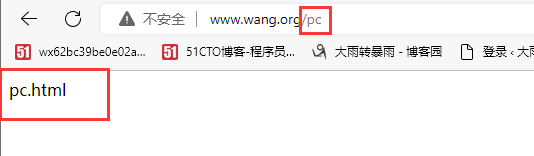
    try_files $uri $uri.html $uri/index.html /about/index.html;  # 输入的字符先匹配本身,如果不存在,在匹配本身.html,如果还不存在,在匹配本身/index.html,如果都不存在就转到about/index.html

    }

[root@nginx conf.d]# echo about/index.html > /data/nginx/html/about/index.html

[root@nginx conf.d]# nginx -s reload
11、下载服务器配置
[root@nginx conf.d]# mount /dev/sr0 /data/nginx/html/pc/rockylinux/8

[root@nginx conf.d]# vim wang.org.conf

server {

    listen  80;

    server_name  www.wang.org;

    root /data/nginx/html/pc/;

    autoindex on;       #自动文件索引

    autoindex_exact_size off;  # 文件大小,off是以K、M等单位显示

[root@nginx conf.d]# nginx -s reload

=========================================================

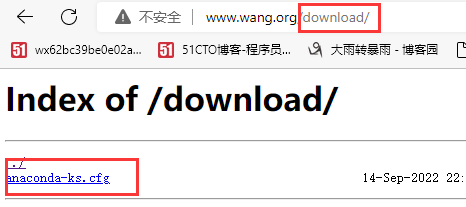
[root@nginx conf.d]# mkdir /data/nginx/html/pc/download

server {

    listen  80;

    server_name  www.wang.org;

    root /data/nginx/html/pc/;

    location /download {

    autoindex on;                   #自动索引

    autoindex_exact_size on;        #精确显示大小

    autoindex_localtime on;		    #显示本机时间

    charset utf8;                    #utf8字符集

    limit_rate 1024k;				#限速1024k

    root /data/nginx/html/pc;

    }

}

[root@nginx conf.d]# nginx -s reload

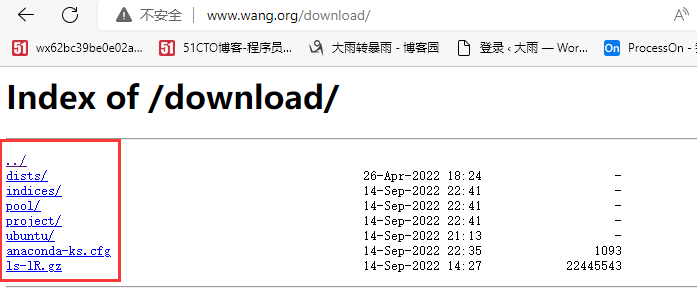
[root@nginx conf.d]# rsync -avz rsync://mirrors.tuna.tsinghua.edu.cn/ubuntu /data/nginx/html/pc/download/    #把清华源同步下载至本地/data/nginx/html/pc/download/ 下

12、限制下载速度
[root@nginx conf.d]# vim wang.org.conf

server {

    listen  80;

    server_name  www.wang.org;

    root /data/nginx/html/pc/;

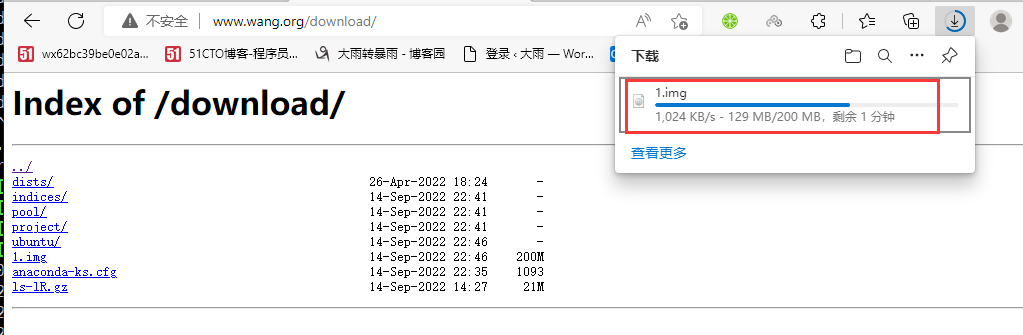
    limit_rate_after 100m;              #下载达到100MB数据后开始限速

    limit_rate 100k;                    #限速100k

    location /download {

    autoindex on;

    autoindex_exact_size off;

    autoindex_localtime on;

    charset utf8;

    limit_rate 1024k;

    root /data/nginx/html/pc;

    }

}

[root@nginx conf.d]# dd if=/dev/zero of=/data/nginx/html/pc/download/1.img bs=1M count=200

[root@nginx conf.d]# nginx -s reload
13、限制请求数
限制同一个IP的同时发起的最大请求数
[root@nginx conf.d]# vim wang.org.conf

limit_req_zone $binary_remote_addr zone=req_test:10m rate=1r/s;

server {

    listen  80;

    server_name  www.wang.org;

    limit_req zone=req_test burst=10 nodelay;    #请求超过1r/s,剩下的将被延迟处理,请求数超过burst定义的数量,则返回503

    root /data/nginx/html/pc/;

    limit_rate_after 100m;

    limit_rate 10k;

    location /download {

    autoindex on;

    autoindex_exact_size off;

    autoindex_localtime on;

    charset utf8;

    limit_rate 1024k;

    root /data/nginx/html/pc;

    }

}
14、限制并发连接数
[root@nginx conf.d]# vim wang.org.conf

limit_req_zone $binary_remote_addr zone=req_zone:10m rate=1r/s;

limit_conn_zone $binary_remote_addr zone=conn_zone:10m;

server {

    listen  80;

    server_name  www.wang.org;

    limit_req zone=req_zone burst=2 nodelay;

    limit_conn conn_zone 2;             #限制并发2个连接

    root /data/nginx/html/pc/;

    error_page 503 @error_page;

    location @error_page {

        default_type text/html;

        return 200 'plesec';

[root@nginx conf.d]# nginx -s reload
15、状态页
[root@nginx conf.d]# vim wang.org.conf

limit_req_zone $binary_remote_addr zone=req_zone:10m rate=1r/s;

limit_conn_zone $binary_remote_addr zone=conn_zone:10m;

server {

    listen  80;

    server_name  www.wang.org;

    limit_req zone=req_zone burst=2 nodelay;

    limit_conn conn_zone 2;

    root /data/nginx/html/pc/;

    error_page 503 @error_page;

    location @error_page {

        default_type text/html;

        return 200 'plesec';

    }

    location /download {

    autoindex on;

    autoindex_exact_size off;

    autoindex_localtime on;

    charset utf8;

    limit_rate_after 100m;

    limit_rate 100k;

    root /data/nginx/html/pc;

    }

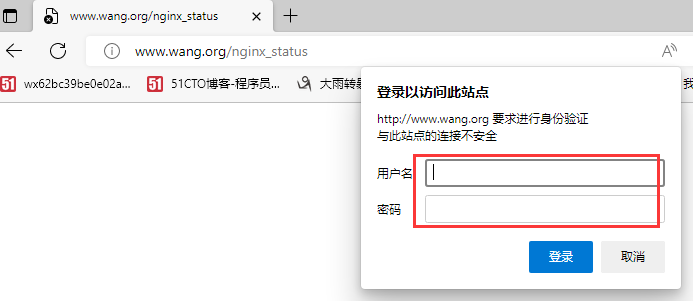
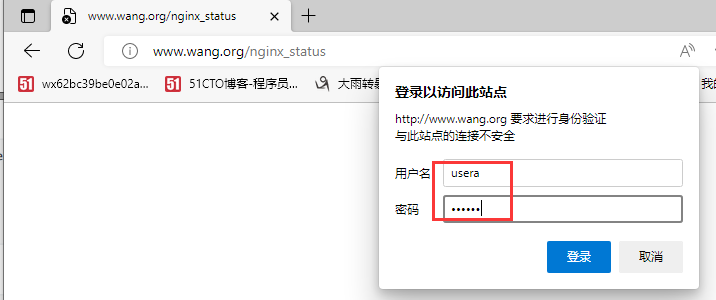
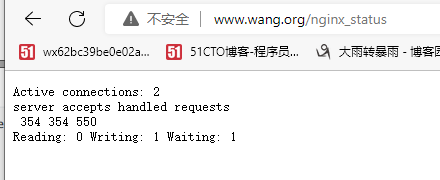
   location /nginx_status {

       stub_status;

       auth_basic    "please input password";

       auth_basic_user_file  /apps/nginx/conf/.htpasswd;

       allow 10.0.0.1;

       deny all;

       access_log off;

    }

[root@nginx conf.d]# nginx -s reload
16、nginx-module-vts 模块实现流量监控
[root@nginx nginx-1.22.0]# cd /usr/local/

[root@nginx local]# yum install -y git      #下载git工具

[root@nginx local]#  git clone https://gitee.com/mirrors/nginx-module-vts.git   #拉取模块

[root@nginx local]# cd nginx-1.22.0/

[root@nginx nginx-1.22.0]# nginx -V    #查看以前编译加载的模块

[root@nginx nginx-1.22.0]# ./configure --prefix=/apps/nginx --user=nginx --group=nginx --with-http_ssl_module --with-http_v2_module --with-http_realip_module --with-http_stub_status_module --with-http_gzip_static_module --with-pcre --with-stream --with-stream_ssl_module --with-stream_realip_module --add-module=/usr/local/nginx-module-vts     #编译的时候要把以前的模块加上,另外增加新加的模块

[root@nginx nginx-1.22.0]# cp /apps/nginx/sbin/nginx /opt   #备份以下nginx

[root@nginx nginx-1.22.0]# make && make install
17、echo 模块实现信息显示
[root@nginx local]# unzip echo-nginx-module-master.zip

[root@nginx local]# cd nginx-1.22.0/

[root@nginx nginx-1.22.0]# ./configure --prefix=/apps/nginx --user=nginx --group=nginx --with-http_ssl_module --with-http_v2_module --with-http_realip_module --with-http_stub_status_module --with-http_gzip_static_module --with-pcre --with-stream --with-stream_ssl_module --with-stream_realip_module --add-module=/usr/local/nginx-1.22.0/nginx-module-vts --add-module=/usr/local/echo-nginx-module-master

[root@nginx nginx-1.22.0]# make && make install

[root@nginx nginx-1.22.0]# vim /apps/nginx/conf/conf.d/wang.org.conf

server {

    listen  80;

    server_name  www.wang.org;

    root /data/nginx/html/pc/;

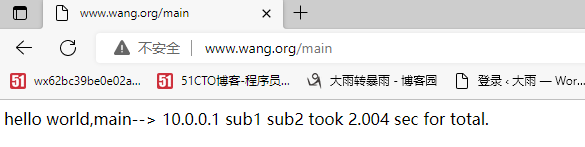
    location /main {

        index index.html;

        default_type text/html;

        echo "hello world,main-->";

        echo $remote_addr;

        echo_reset_timer;

        echo_location /sub1;

        echo_location /sub2;

        echo "took $echo_timer_elapsed sec for total.";

    }

    location /sub1 {

        echo_sleep 1;

        echo sub1;

    }

    location /sub2 {

        echo_sleep 1;

        echo sub2;

    }

[root@nginx nginx-1.22.0]# systemctl restart nginx.service
18、自定义变量
[root@nginx nginx-1.22.0]# vim /apps/nginx/conf/conf.d/wang.org.conf

server {

    listen  80;

    server_name  www.wang.org;

    root /data/nginx/html/pc/;

    location /main {

        index index.html;

        default_type text/html;

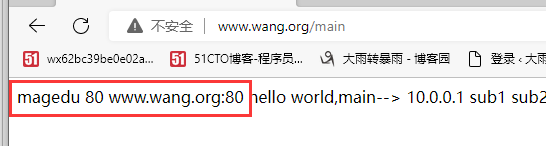
        set $name dayu;              #设置变量name 值是dayu

        echo $name;                 #输出name变量

        set $my_port $server_port;      # 设置变量my_port 值是server_port变量的值

        echo $my_port;

        echo "$server_name:$server_port";  #输出内置变量server_name和server_port

...

[root@nginx nginx-1.22.0]# nginx -s reload
19、自定义json格式日志
[root@nginx nginx-1.22.0]# vim /apps/nginx/conf/conf.d/wang.org.conf

log_format access_json '{"@timestamp":"$time_iso8601",'

    '"host":"$server_addr",'

    '"clientip":"$remote_addr",'

    '"size":$body_bytes_sent,'

    '"responsetime":$request_time,' #总的处理时间

    '"upstreamtime":"$upstream_response_time",' #后端应用服务器处理时间

    '"upstreamhost":"$upstream_addr",'

    '"http_host":"$host",'

    '"uri":"$uri",'

    '"xff":"$http_x_forwarded_for",'

    '"referer":"$http_referer",'

    '"tcp_xff":"$proxy_protocol_addr",'

    '"http_user_agent":"$http_user_agent",'

    '"status":"$status"}';

server {

    listen  80;

    server_name  www.wang.org;

    root /data/nginx/html/pc/;

    access_log /apps/nginx/logs/access_json.log access_json;     #日志位置

[root@nginx nginx-1.22.0]# nginx -s reload

20、自定义日志格式
[root@nginx nginx-1.22.0]# vim /apps/nginx/conf/conf.d/wang.org.conf

log_format access_log_format '$remote_addr - $remote_user [$time_local]

    "$request" '

    '$status $body_bytes_sent "$http_referer" '

    '"$http_user_agent" "$http_x_forwarded_for"'

    '$server_name:$server_port';

server {

    listen  80;

    server_name  www.wang.org;

    root /data/nginx/html/pc/;

    access_log /apps/nginx/logs/access.format.log access_log_format;

[root@nginx nginx-1.22.0]# nginx -s reload

21、不记录访问日志
[root@nginx nginx-1.22.0]# vim /apps/nginx/conf/conf.d/wang.org.conf

    location /favicon.ico {

        access_log off;

        return 200;

    }

    location ~* .*\.(gif|jpg|png|css|js)$ {

        access_log /dev/null;

    }

[root@nginx nginx-1.22.0]# nginx -s reload
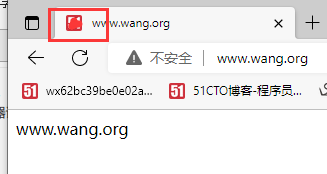
22、图标favicon.ico
[root@nginx pc]# vim /apps/nginx/conf/conf.d/wang.org.conf

server {

    listen  80;

    server_name  www.wang.org;

    root /data/nginx/html/pc/;

    location = /favicon.ico {

        root /data/nginx/html/pc;

        access_log off;

    }

[root@nginx pc]# nginx -s reload     #注意,浏览器有缓存,需要关闭浏览器重新开下
23、Nginx 压缩功能
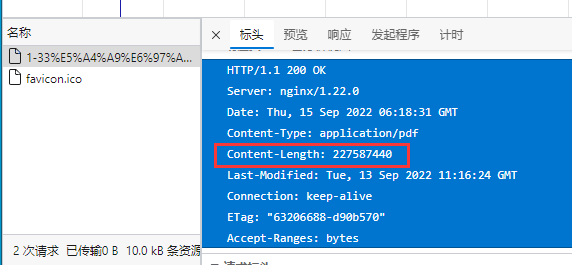
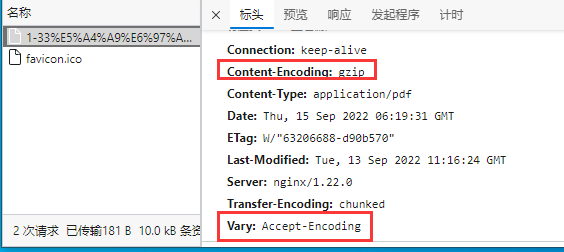
[root@nginx download]# vim /apps/nginx/conf/conf.d/wang.org.conf

server {

    listen  80;

    server_name  www.wang.org;

    root /data/nginx/html/pc/;

    location = /favicon.ico {

        root /data/nginx/html/pc;

        access_log off;

    }

    gzip on;

    gzip_comp_level 6;

    gzip_min_length 1k;

    gzip_types text/plain applicaton/javascript application/x-javascript text/css application/xml text/javascript application/x-httpd-php image/gif image/png application/pdf;

[root@nginx download]# nginx -s reload
!
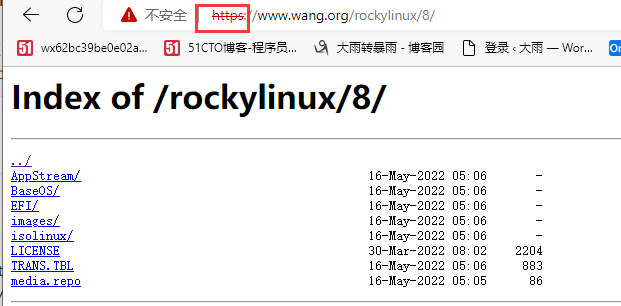
24、https 配置
[root@nginx nginx]# mkdir certs

[root@nginx nginx]# cd certs/

[root@nginx certs]# openssl req -newkey rsa:4096 -nodes -sha256 -keyout ca.key -x509 -days 2650 -out ca.crt   #自签名CA证书

[root@nginx certs]# openssl req -newkey rsa:4096 -nodes -sha256 -keyout www.wang.org.key -out www.wang.org.csr   #自制key和csr文件

[root@nginx certs]# openssl x509 -req -days 3650 -in www.wang.org.csr -CA ca.crt -CAkey ca.key -CAcreateserial -out www.wang.org.crt   #签发证书

[root@nginx certs]# openssl x509 -in www.wang.org.crt -noout -text  #验证证书内容

[root@nginx certs]# cat www.wang.org.crt ca.crt > www.wang.org.pem    #合并CA和服务器证书成一个文件,注意服务器证书在前

[root@nginx nginx]# vim conf/conf.d/wang.org.conf

server {

    listen  80;

    listen 443 ssl http2;

    ssl_certificate /apps/nginx/certs/www.wang.org.pem;

    ssl_certificate_key /apps/nginx/certs/www.wang.org.key;

    ssl_session_cache shared:sslcache:20m;

    ssl_session_timeout 10m;

    server_name  www.wang.org;

    root /data/nginx/html/pc/;

[root@nginx nginx]# nginx -s reload
25、实现多域名 https
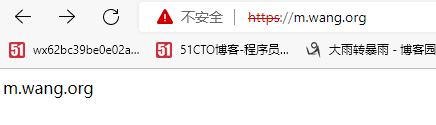
[root@nginx nginx]# vim conf/conf.d/m.wang.org.conf

server {

    listen 80;

    server_name m.wang.org;

    root /data/nginx/html/mobile;

}

server {

    listen 443 ssl http2;

    server_name m.wang.org;

    ssl_certificate /apps/nginx/certs/m.wang.org.pem;

    ssl_certificate_key /apps/nginx/certs/m.wang.org.key;

    ssl_session_cache shared:sslcache:20m;

    ssl_session_timeout 10m;

    location / {

        root /data/nginx/html/mobile;

    }

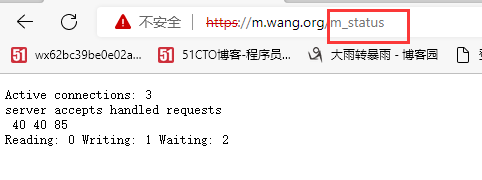
    location /m_status {

        stub_status;

    }

}

[root@nginx nginx]# nginx -s reload
26、实现 HSTS
配置rewrite实现http跳转到https
[root@nginx nginx]# vim conf/conf.d/wang.org.conf

server {

    listen  80;

    listen 443 ssl http2;

    ssl_certificate /apps/nginx/certs/www.wang.org.pem;

    ssl_certificate_key /apps/nginx/certs/www.wang.org.key;

    ssl_session_cache shared:sslcache:20m;

    ssl_session_timeout 10m;

    server_name  www.wang.org;

    add_header Strict-Transport-security "max-age=31536000; includeSubDomains" always;

    location / {

        root /data/nginx/html/pc/;

        if ( $scheme = http ) {

            rewrite ^/(.*)$ https://www.wang.org/$1 redirect;

        }

    }

}

[root@nginx nginx]# nginx -s reload

Nginx配置-1的更多相关文章
- nginx配置反向代理或跳转出现400问题处理记录
午休完上班后,同事说测试站点访问接口出现400 Bad Request Request Header Or Cookie Too Large提示,心想还好是测试服务器出现问题,影响不大,不过也赶紧上 ...
- Windos环境用Nginx配置反向代理和负载均衡
Windos环境用Nginx配置反向代理和负载均衡 引言:在前后端分离架构下,难免会遇到跨域问题.目前的解决方案大致有JSONP,反向代理,CORS这三种方式.JSONP兼容性良好,最大的缺点是只支持 ...
- Windows下Nginx配置SSL实现Https访问(包含证书生成)
Vincent.李 Windows下Nginx配置SSL实现Https访问(包含证书生成) Windows下Nginx配置SSL实现Https访问(包含证书生成) 首先要说明为什么要实现https ...
- Nginx 配置简述
不论是本地开发,还是远程到 Server 开发,还是给提供 demo 给人看效果,我们时常需要对 Nginx 做配置,Nginx 的配置项相当多,如果考虑性能配置起来会比较麻烦.不过,我们往往只是需要 ...
- Nginx配置详解
序言 Nginx是lgor Sysoev为俄罗斯访问量第二的rambler.ru站点设计开发的.从2004年发布至今,凭借开源的力量,已经接近成熟与完善. Nginx功能丰富,可作为HTTP服务器,也 ...
- Nginx配置Https
1.申请证书: https://console.qcloud.com/ssl?utm_source=yingyongbao&utm_medium=ssl&utm_campaign=qc ...
- nginx配置为windows服务中的坑
网上搜索“nginx 配置为windows服务”,很容易搜索到使用windows server warpper来配置,于是按照网上的方法我从github上的链接下载了1.17版本,前面都很顺利,很容易 ...
- 【nginx配置】nginx做非80端口转发
一个场景 最近在使用PHP重写一个使用JAVA写的项目,因为需要查看之前的项目,所以要在本地搭建一个Tomcat来跑JAVA的项目.搭建成功后,因为Tomcat监听的端口是8080,因此,访问的URL ...
- Apache、nginx配置的网站127.0.0.1可以正常访问,内外网的ip地址无法访问,谁的锅?
最近做开发,发现一个比较尴尬的问题.因为我是一个web开发者,经常要用到Apache或者nginx等服务器软件,经过我测试发现,只要我打开了adsafe,我便不能通过ip地址访问我本地的网站了,比如我 ...
- nginx配置301重定向
1. 简介 301重定向可以传递权重,相比其他重定向,只有301是最正式的,不会被搜索引擎判断为作弊 2. 栗子 savokiss.com 301到 savokiss.me 3. nginx默认配置方 ...
随机推荐
- 开源云真机平台-Sonic应用实践
前言 Sonic是一款开源.支持分布式部署.在线自动化测试的私有云真机平台.偶然接触到这个平台是源于虫师的一篇公众号文章<基于Linux 部署 Sonic>,于是结合文章内容和官网尝试搭建 ...
- 论文解读(PairNorm)《PairNorm: Tackling Oversmoothing in GNNs》
论文信息 论文标题:PairNorm: Tackling Oversmoothing in GNNs论文作者:Lingxiao Zhao, Leman Akoglu论文来源:2020,ICLR论文地址 ...
- 如何使能512个virtio_blk设备
一例virtio_blk设备中断占用分析 背景:这个是在客户的centos8.4的环境上复现的,dpu是目前很多 云服务器上的网卡标配了,在云豹的dpu产品测试中,dpu实现的virtio_blk 设 ...
- 教程 - 深度探讨在 Vue3 中引入 CesiumJS 的最佳方式
目录 1. 你应该先知道的基础知识 1.1. CesiumJS 的库构成 1.2. 选择 Vite3 和 pnpm 的理由 1.3. 使用 External 模式引入静态库 - 不打包静态库 1.4. ...
- 【碳硫磷模拟赛】消失的+和* (树形DP)
好久没做过这么恶心的DP题了 题面 题面很简单,有一个计算式,由+号.*号.括号和小于10的正整数组成,现在所有的+和*(由于属于违禁词而)都被-号给和谐掉了,现在要求所有可能的原计算式的结果之和. ...
- 【Homebrew】安装
/bin/zsh -c "$(curl -fsSL https://gitee.com/cunkai/HomebrewCN/raw/master/Homebrew.sh)" 官网安 ...
- 如何使用Postman调试HMS Core推送接口?
HMS Core推送服务支持开发者使用HTTPS协议接入Push服务端.Postman是一款接口测试工具,它可以模拟用户发起的各类HTTP请求,将请求数据发送至服务端,获取对应的响应结果.Postma ...
- PostgreSQL 欺骗优化器之扩展统计信息
一.什么是扩展统计 扩展统计对象, 追踪指定表.外部表或物化视图的数据. 目前支持的种类: 启用n-distinct统计的 ndistinct. 启用功能依赖性统计的dependencies. 启用最 ...
- C# Parallel类For循环与普通For循环耗时性能比较
1 static void Main(string[] args) 2 { 3 var dt = DateTime.Now; 4 var rand = new Random(DateTime.Now. ...
- 容器化|自建 MySQL 集群迁移到 Kubernetes
背景 如果你有自建的 MySQL 集群,并且已经感受到了云原生的春风拂面,想将数据迁移到 Kubernetes 上,那么这篇文章可以给你一些思路. 文中将自建 MySQL 集群数据,在线迁移到 Kub ...