
虚拟机中CentOS 6.5 添加扩展分区
此扩展方法要求支持LVM
1、更改虚拟机配置
虚拟机->设置->硬盘->扩展磁盘容量
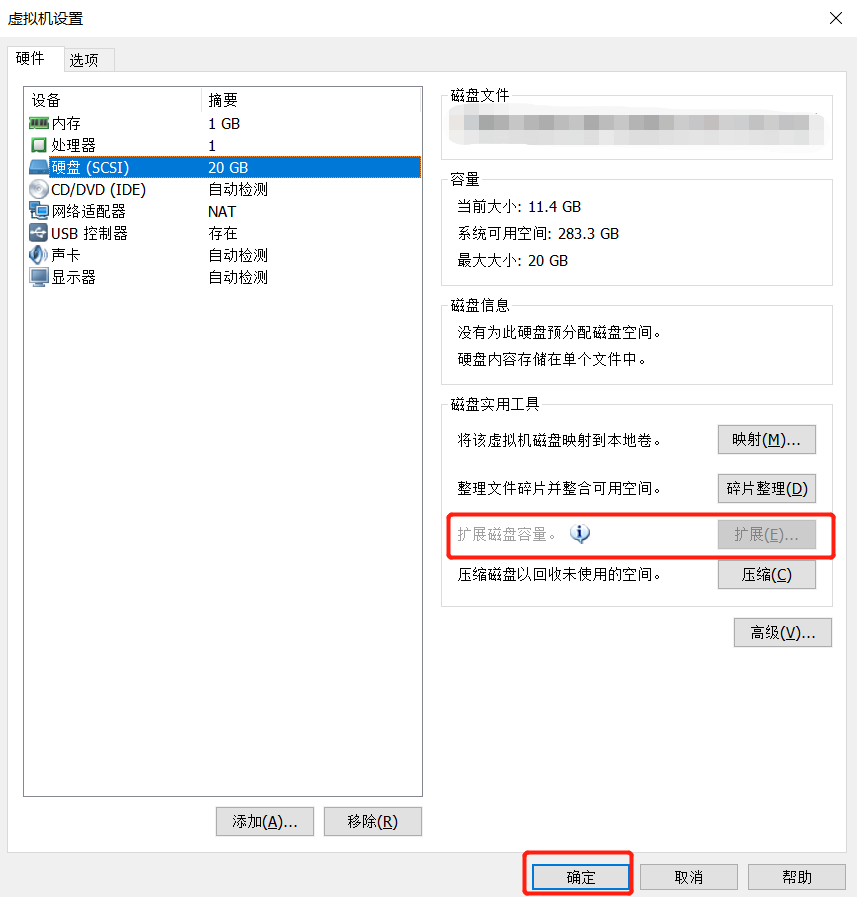
fdisk -l 查看,发现硬盘空间变大了
[root@thj Desktop]# fdisk -l

Disk /dev/sda: 42.9 GB,  bytes

 heads,  sectors/track,  cylinders

Units = cylinders of  *  =  bytes

Sector size (logical/physical):  bytes /  bytes

I/O size (minimum/optimal):  bytes /  bytes

Disk identifier: 0x000812b5

   Device Boot      Start         End      Blocks   Id  System

/dev/sda1   *                                Linux

Partition  does not end on cylinder boundary.

/dev/sda2                             8e  Linux LVM

Disk /dev/mapper/vg_thj-lv_root: 18.9 GB,  bytes

 heads,  sectors/track,  cylinders

Units = cylinders of  *  =  bytes

Sector size (logical/physical):  bytes /  bytes

I/O size (minimum/optimal):  bytes /  bytes

Disk identifier: 0x00000000

Disk /dev/mapper/vg_thj-lv_swap:  MB,  bytes

 heads,  sectors/track,  cylinders

Units = cylinders of  *  =  bytes

Sector size (logical/physical):  bytes /  bytes

I/O size (minimum/optimal):  bytes /  bytes

Disk identifier: 0x00000000
2、创建分区
[root@thj Desktop]# fdisk /dev/sda

WARNING: DOS-compatible mode is deprecated. It's strongly recommended to

         switch off the mode (command 'c') and change display units to

         sectors (command 'u').

Command (m for help): p    #查看分区表信息

Disk /dev/sda: 42.9 GB,  bytes

 heads,  sectors/track,  cylinders

Units = cylinders of  *  =  bytes

Sector size (logical/physical):  bytes /  bytes

I/O size (minimum/optimal):  bytes /  bytes

Disk identifier: 0x000812b5

   Device Boot      Start         End      Blocks   Id  System

/dev/sda1   *                                Linux

Partition  does not end on cylinder boundary.

/dev/sda2                             8e  Linux LVM

Command (m for help): n   #创建新的分区

Command action

   e   extended

   p   primary partition (-)

p        #创建为主分区

Partition number (-):

First cylinder (-, default ):

Using default value                          #默认就好

Last cylinder, +cylinders or +size{K,M,G} (-, default ):

Using default value             #默认就好

Command (m for help): p   #查看分区表

Disk /dev/sda: 42.9 GB,  bytes

 heads,  sectors/track,  cylinders

Units = cylinders of  *  =  bytes

Sector size (logical/physical):  bytes /  bytes

I/O size (minimum/optimal):  bytes /  bytes

Disk identifier: 0x000812b5

   Device Boot      Start         End      Blocks   Id  System

/dev/sda1   *                                Linux

Partition  does not end on cylinder boundary.

/dev/sda2                             8e  Linux LVM

/dev/sda3                        +    Linux

Command (m for help): w  #保存

The partition table has been altered!

Calling ioctl() to re-read partition table.

WARNING: Re-reading the partition table failed with error : Device or resource busy.

The kernel still uses the old table. The new table will be used at

the next reboot or after you run partprobe() or kpartx()

Syncing disks.
设置完后,reboot重启系统
3、格式化分区
[root@thj Desktop]# mkfs.ext3 /dev/sda3

mke2fs 1.41. (-May-)

Filesystem label=

OS type: Linux

Block size= (log=)

Fragment size= (log=)

Stride= blocks, Stripe width= blocks

 inodes,  blocks

 blocks (5.00%) reserved for the super user

First data block=

Maximum filesystem blocks=

 block groups

 blocks per group,  fragments per group

 inodes per group

Superblock backups stored on blocks:

    , , , , , , , , ,

Writing inode tables: done

Creating journal ( blocks): done

Writing superblocks and filesystem accounting information: done

This filesystem will be automatically checked every  mounts or

 days, whichever comes first.  Use tune2fs -c or -i to override.
4、加入LVM,并挂载到根目录下
- vgs 查看卷组情况
[root@thj Desktop]# vgs

  VG     #PV #LV #SN Attr   VSize  VFree

  vg_thj          wz--n- .51g                //有一个vg_thj卷组(此处系统不同会有所不同)
- 创建物理卷(LVM分区),并将物理卷加入vg_thj组里
[root@thj Desktop]# lvm

lvm> pvcreate /dev/sda3      //创建一个LVM硬分区

  Physical volume "/dev/sda3" successfully created

lvm> vgextend vg_thj /dev/sda3    //加入与根目录同一个LVM组

  Volume group "vg_thj" successfully extended
- 查看 lv path
[root@thj Desktop]# lvdisplay

  --- Logical volume ---

  LV Path                /dev/vg_thj/lv_root      //root对应的lv path

  LV Name                lv_root

  VG Name                vg_thj

  LV UUID                FMlzw9-r8dt-2Oa1-mS0W-brnn-YsDm-g3ld5S

  LV Write Access        read/write

  LV Creation host, time thj.localthj, -- :: +

  LV Status              available

  # open

  LV Size                17.57 GiB

  Current LE

  Segments

  Allocation             inherit

  Read ahead sectors     auto

  - currently set to

  Block device           :

  --- Logical volume ---

  LV Path                /dev/vg_thj/lv_swap

  LV Name                lv_swap

  VG Name                vg_thj

  LV UUID                lLgahm-QUMF-XHiN-jZJc-F5ve-YycI-FmEVdr

  LV Write Access        read/write

  LV Creation host, time thj.localthj, -- :: +

  LV Status              available

  # open

  LV Size                1.94 GiB

  Current LE

  Segments

  Allocation             inherit

  Read ahead sectors     auto

  - currently set to

  Block device           :
- 扩展 lv path
[root@thj Desktop]# lvextend -L +.99G /dev/vg_thj/lv_root

  Rounding size to boundary between physical extents: 19.99 GiB.

  Size of logical volume vg_thj/lv_root changed from 17.57 GiB ( extents) to 37.56 GiB ( extents).

  Logical volume lv_root successfully resized.
- 重置主分区大小
[root@thj Desktop]# resize2fs /dev/vg_thj/lv_root

resize2fs 1.41. (-May-)

Filesystem at /dev/vg_thj/lv_root is mounted on /; on-line resizing required

old desc_blocks = , new_desc_blocks =

Performing an on-line resize of /dev/vg_thj/lv_root to  (4k) blocks.

The filesystem on /dev/vg_thj/lv_root is now  blocks long.
有时报错:
[root@thj Desktop]# lvextend -L +19G /dev/vg_thj/lv_root

  Couldn't find device with uuid N0xspW-ZOct-v7pH-GHRN-G1Ck-0CnJ-ghqEKZ.

  Cannot change VG vg_thj while PVs are missing.

  Consider vgreduce --removemissing.

  Cannot process volume group vg_thj
参考 https://blog.51cto.com/yl497103815/1180426
- 查看扩展后的文件系统
[root@thj Desktop]# df -h

Filesystem            Size  Used Avail Use% Mounted on

/dev/mapper/vg_thj-lv_root

                       37G   12G   24G  % /

tmpfs                 491M  228K  491M   % /dev/shm

/dev/sda1             477M   36M  417M   % /boot
虚拟机中CentOS 6.5 添加扩展分区的更多相关文章
- 【liunx】使用xshell连接虚拟机上的CentOS 7,使用xhell连接本地虚拟机上的Ubuntu, 获取本地虚拟机中CentOS 7的IP地址,获取本地虚拟机中Ubuntu 的IP地址,Ubuntu开启22端口
注意,如果想用xshell去连接本地虚拟机中的linux系统,需要本地虚拟机中的系统是启动的才能连接!!!!! ============================================ ...
- 虚拟机中给linux 系统添加硬盘以后,进行分区挂载
当自己虚拟机中的linux 系统硬盘不够用的时候需要添加硬盘给系统使用,所以可以通过以下的步骤实现 1.关闭自己的客户机,然后执行以下步骤 2. 上面的步骤完成以后,重点来了,下面打开客户机,执行以下 ...
- 虚拟机中CentOS 7下PHP环境配置
为了简单起见,虚拟机网卡设置为桥接模式 1.yum install httpd php 2.yum install mariadb 3.启动mariadb systemctl start maria ...
- 虚拟机中CentOS 7 x64图形化界面的安装
VMware的初始设置如下: 图1 待虚拟机读取完iso,出现此界面 图2 我们主要是安装图形化界面的系统,所以在软件选择栏下如图选择: 图3 设置root密码,创建用户,等候安装完成: 图4 安装完 ...
- centos下使用fdisk扩展分区容量大小
硬盘空间为20G,VMware增加磁盘大小,需要再增加10G空间 扩展完后,重启系统,再次使用fdisk -l查看,会发现硬盘空间变大了: 重新创建分区,调整分区信息 本次实验主要对/dev/sda4 ...
- VMware虚拟机中CentOS 7的硬盘空间扩容
查看centos7系统挂载点信息 扩展VMWare-centos7硬盘空间 对新增加的硬盘进行分区.格式化 添加新LVM到已有的LVM组,实现扩容 1.查看centos7系统挂载点信息 df -h查看 ...
- VMware虚拟机中CentOS/redhat设置固定IP
你的笔记本中的VMware中redhat或centOS系统,如果想在上面建站,而又如果你需要在家里和公司都能访问该站(至少希望你自己的笔记本能访问),那么就需要将虚拟机IP设置为固定IP了.以下介绍两 ...
- VM虚拟机安装CentOS 7.0添加jdk环境
虚拟机注册码 5A02H-AU243-TZJ49-GTC7K-3C61N 安装centos系统,网络类型选择桥接网络安装完成后vi /etc/sysconfig/network-scripts/ifc ...
- 解决VMware虚拟机中centos 7无法上网的问题
在WMware中安装centos 7后发现无法安装软件,开始以为是镜像服务器的问题,后来通过ping之后发现根本没办法连接到网络.由于很多设置都是默认的,并且虚拟机也是NAT模式,和电脑主机共享网络, ...
随机推荐
- Kafka消费者没有收到通知的分析
今天遇到两位三方人员跟我反馈,某微服务的异步接口功能不正常了,由于该异步接口采用Kafka异步消息的方案,对方说没有收到Kafka给消费者的通知,根据此问题,联系了相关人员进行了分析: (一)明确环境 ...
- 证明task线程是来源于线程池的,线程重用
1.线程池是单例的,全局唯一的,设置线程池最大活跃线程数是5,设置后,允许同时并发的Task只有5个,我们开启100个task去做任务,从最后的输出结果看到,虽然开启了100个task,但是线程id始 ...
- 拓展lucas结论及模板
lucas及其拓展 模板题 洛谷 P4720 本文侧向结论和代码实现, 推导请转至lucas定理及其拓展的推导 https://blog.csdn.net/yuyilahanbao/article/d ...
- MySQL在Windows中设置环境变量
在桌面选择“计算机”的图标(或者是我的电脑),右键-->属性-->点击“高级系统设置” 然后选择 高级 选项点击环境变量 然后点击新建-> 变量名为MYSQL_HOME 变量值为m ...
- Jenkins+robotframework持续集成环境(一)
一.安装JDK 系统环境:CentOS Linux release 7.3.1611 x86_64 GNU/Linux Jenkins是基于Java开发的持续集成系统(CI),所以运行环境必须安装JD ...
- NIM游戏的Python实现
可执行程序下载: 链接:https://pan.baidu.com/s/1xQedrWRBsqQRZvOe91Rvng 提取码:goi9 Nim游戏是博弈论中最经典的模型(之一),它又有着十分简单的规 ...
- Java商城秒杀系统的设计与实战视频教程(SpringBoot版)
课程目标掌握如何基于Spring Boot构建秒杀系统或者高并发业务系统,以及构建系统时采用的前后端技术栈适用人群Spring Boot实战者,微服务或分布式系统架构实战者,秒杀系统和高并发实战者,中 ...
- 使用Python库paramiko登录远程设备
前言 手动下载paramiko库的安装包.在PyPi库中查找即可,但是不到是我的电脑问题还是网络问题,2.0.0以上版本我都安装不了,因此我自己是安装的paramiko 1.17.0版本,此版本经过测 ...
- java Graphics2D绘制文字 本地正常服务器乱码问题
先贴关键代码: 用Graphics2D画文字到图片,再生成图片文件,在本地运行正常,一部署到服务器就不正常,变成了正方框如下图 解决问题思路: 1.部署服务器的编码问题. 2.代码问题. 以上两点一直 ...
- 剑指offer-面试题23-链表中环的入口节点-双指针
/* 题目: 如果链表中包含环,如何找出环的入口? */ /* 思路: 双指针: 1.判断是否有环. fast指针一次2步,slow指针一次1步,当fast与slow相遇时,说明有环. 2.判断环路中 ...