
windows服务搭建(VS2019创建Windows服务不显示安装组件)
1.创建windows服务应用

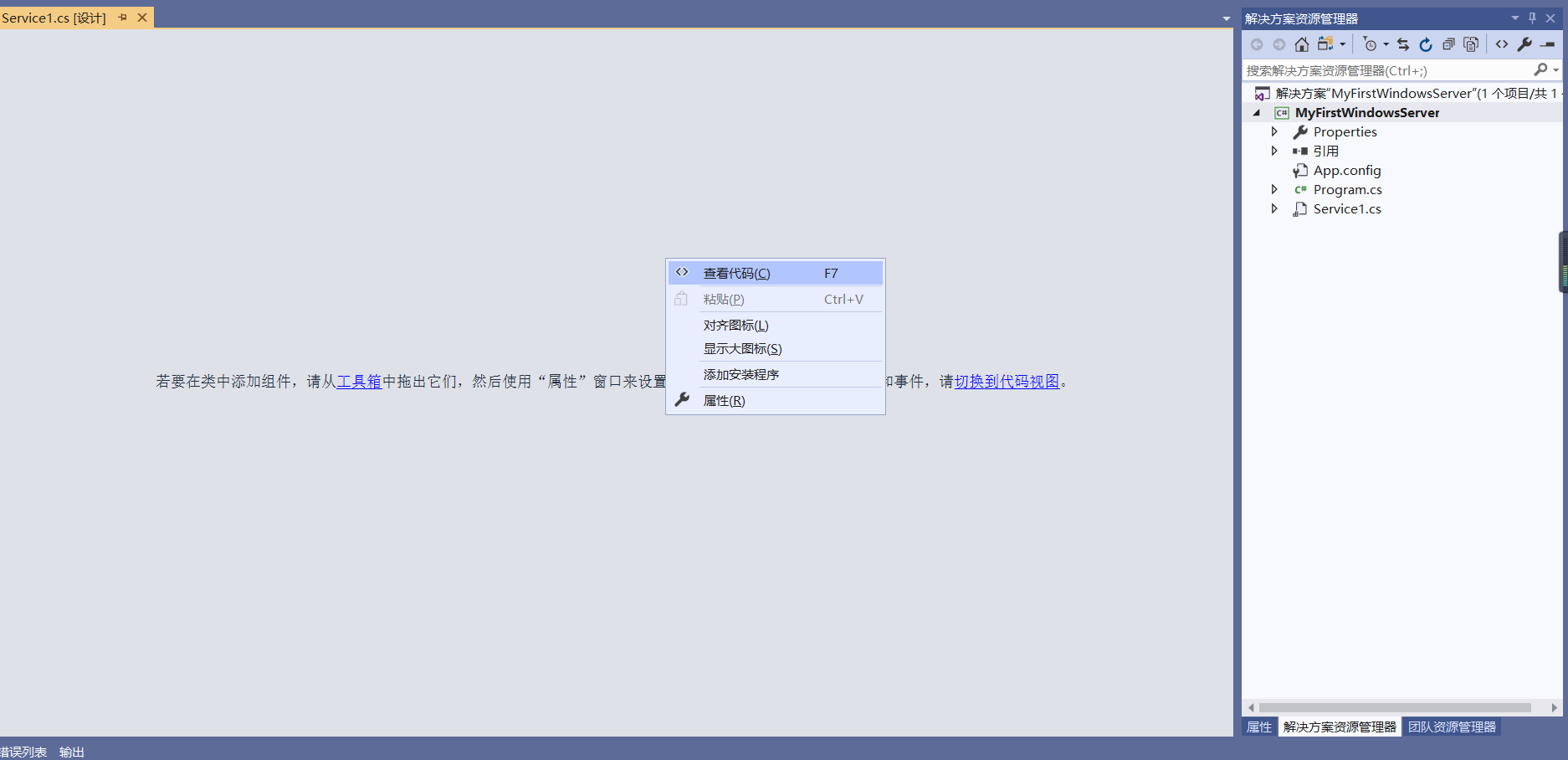
2.右键查看代码
3.写个计时器Timer using System.Timers;

如上图,按tab键快速操作 会自动创建一个委托

改为下边的方式,打印日志来记录服务运行
using System;

using System.Collections.Generic;

using System.ComponentModel;

using System.Data;

using System.Diagnostics;

using System.IO;

using System.Linq;

using System.ServiceProcess;

using System.Text;

using System.Threading.Tasks;

using System.Timers;

namespace MyFirstWindowsService

{

    public partial class Service1 : ServiceBase

    {

        public Service1()

        {

            InitializeComponent();

        }

        protected override void OnStart(string[] args)

        {

            WriteRunLog("服务开始了!!!");

            Timer timer = new Timer();

            timer.Interval = ;

            timer.Elapsed += Timer_Elapsed;

            timer.Start();

        }

        private void Timer_Elapsed(object sender, ElapsedEventArgs e)

        {

            WriteRunLog("当前时间:" + DateTime.Now.ToString("yyyy年MM月dd日 HH:mm:ss"));

        }

        protected override void OnStop()

        {

            WriteRunLog("服务结束了!!!");

        }

        /// <summary>

        /// 记录运行日志

        /// </summary>

        /// <param name="writeMsg"></param>

        public void WriteRunLog(string writeMsg)

        {

            FIle_Common file = new FIle_Common();

            file.CreateDire(@"F:\ServiceLog\");

            using (FileStream fs = new FileStream(@"F:\ServiceLog\" + DateTime.Now.ToString("yyyy-MM-dd") + ".txt", FileMode.OpenOrCreate, FileAccess.Write))

            {

                StreamWriter m_streamWriter = new StreamWriter(fs);

                m_streamWriter.BaseStream.Seek(, SeekOrigin.End);

                m_streamWriter.WriteLine("mcWindowsService:" + writeMsg + "  Time:" + DateTime.Now.ToString("yyyy-MM-dd HH:mm:ss") + "\n");

                m_streamWriter.Flush();

                m_streamWriter.Close();

                fs.Close();

            }

        }

    }

}
using System;

using System.Collections.Generic;

using System.Linq;

using System.Web;

using System.IO;

namespace MyFirstWindowsService

{

    public class FIle_Common

    {

        /// <summary>

        /// 创建文件夹

        /// </summary>

        /// <param name="sender"></param>

        /// <param name="e"></param>

        public void CreateDire(string path)

        {

            if (!Directory.Exists(path))

            {

                Directory.CreateDirectory(path);

            }

        }

        /// <summary>

        /// 删除文件夹

        /// </summary>

        /// <param name="sender"></param>

        /// <param name="e"></param>

        public void DeleteDire(string path)

        {

            if (Directory.Exists(path))

            {

                Directory.Delete(path);

            }

        }

        /// <summary>

        /// 删除文件

        /// </summary>

        /// <param name="sender"></param>

        /// <param name="e"></param>

        public void DeleteDireOne(string path)

        {

            if (File.Exists(path))

            {

                File.Delete(path);

            }

        }

    }

}
4.右键添加安装程序
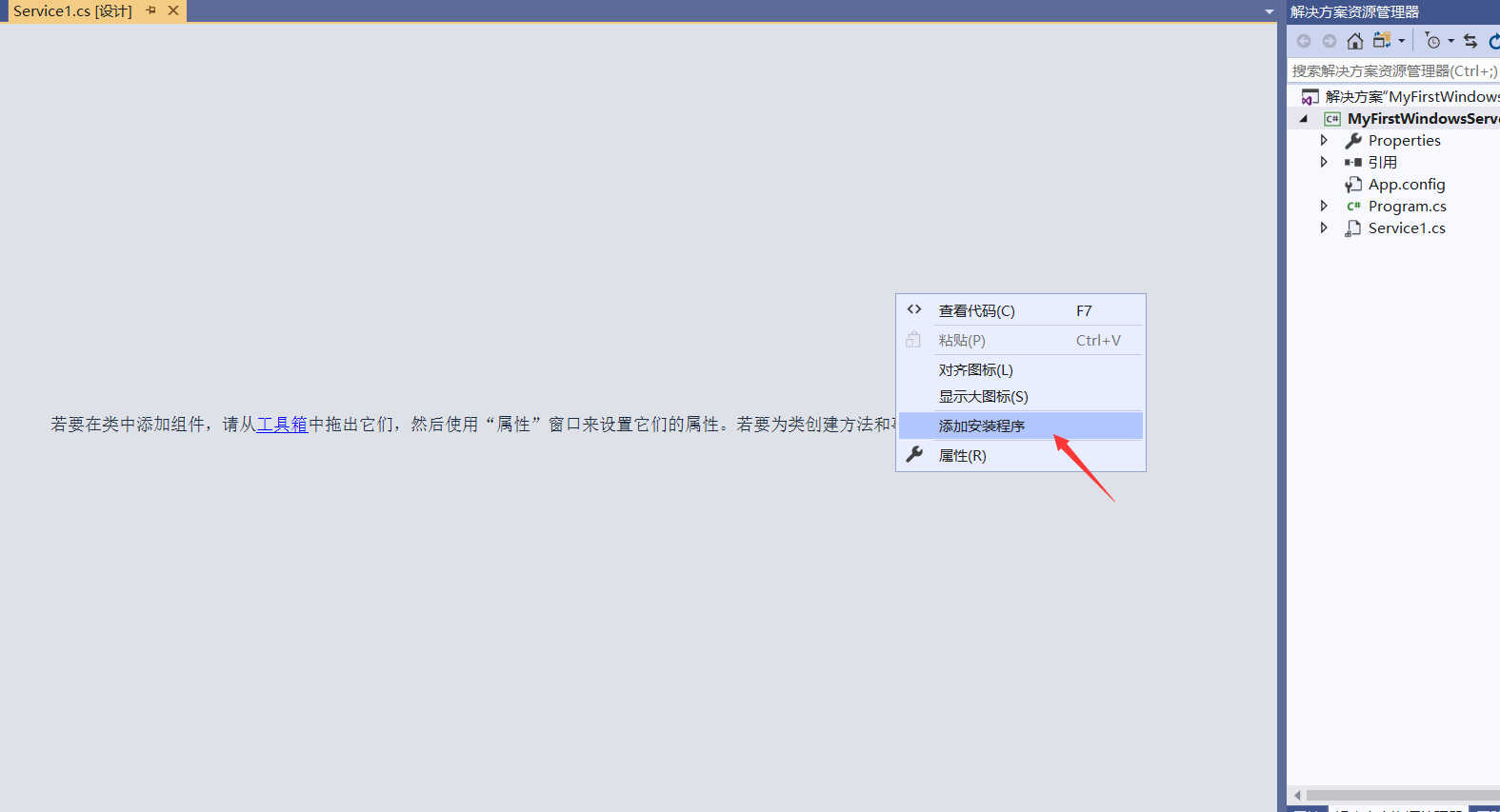
5.我用的VS2019 .net4.8 此时安装组件已经写好了,但是设计图里不显示,下边附上解决方案

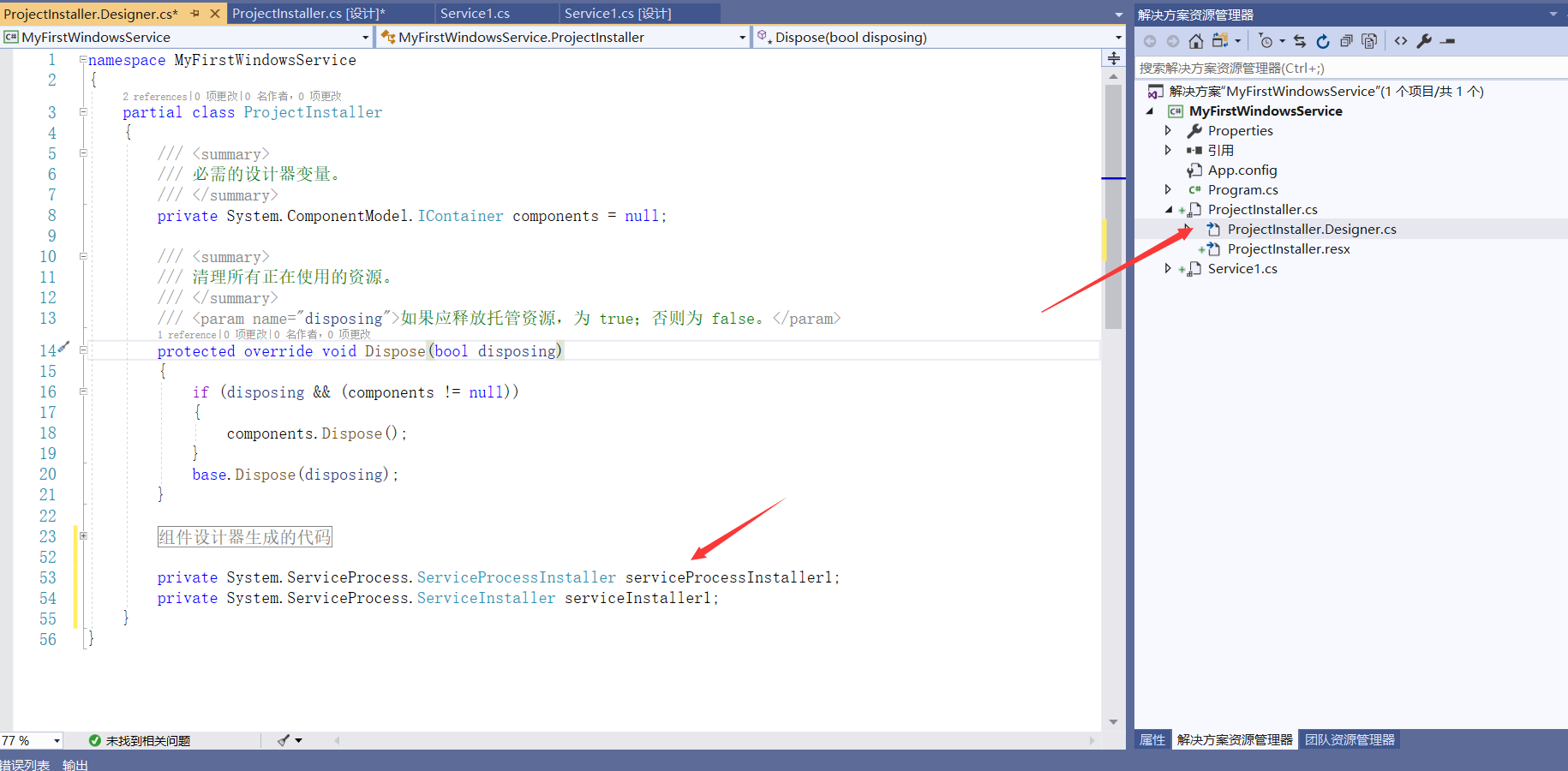
6.解决方法:在这个类上边 using System.ServiceProcess;
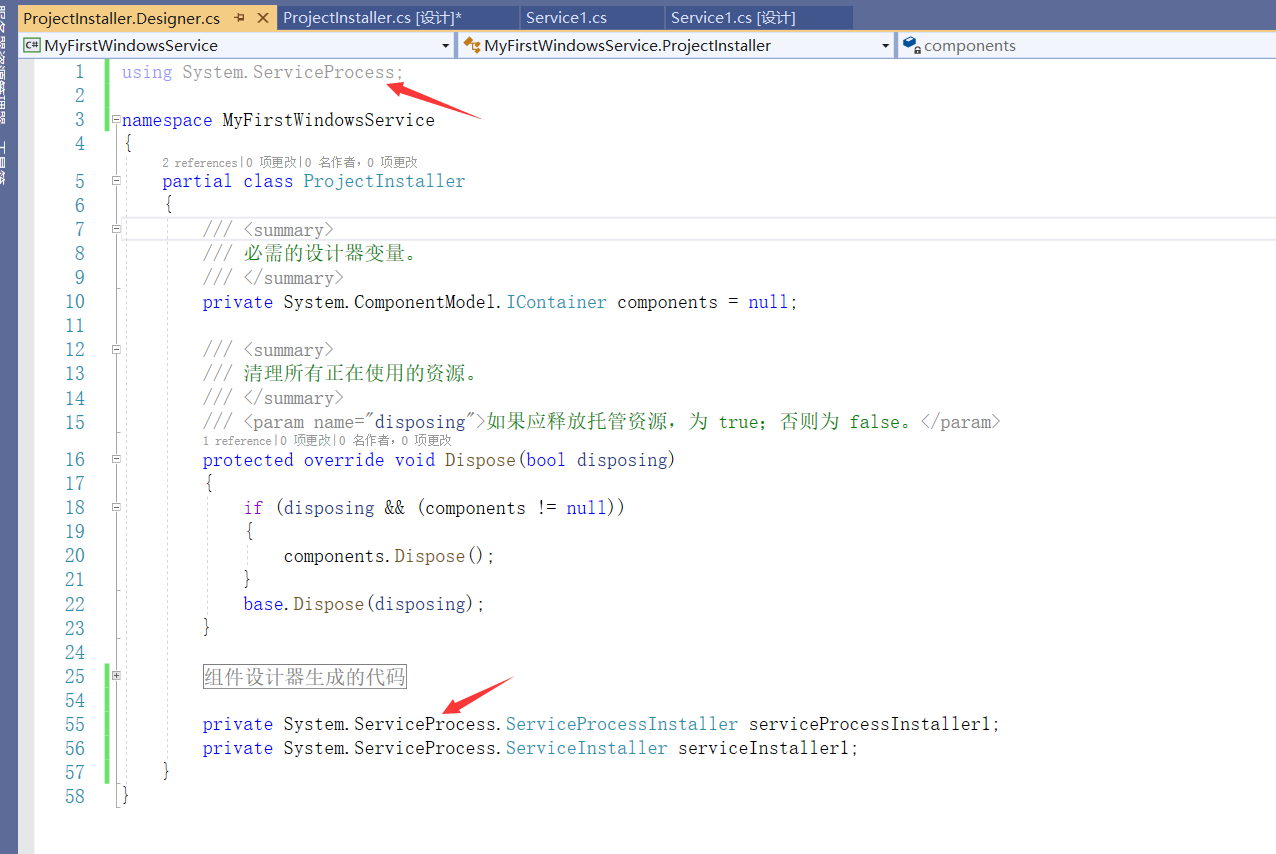
此时 两个安装组件都显示出来了
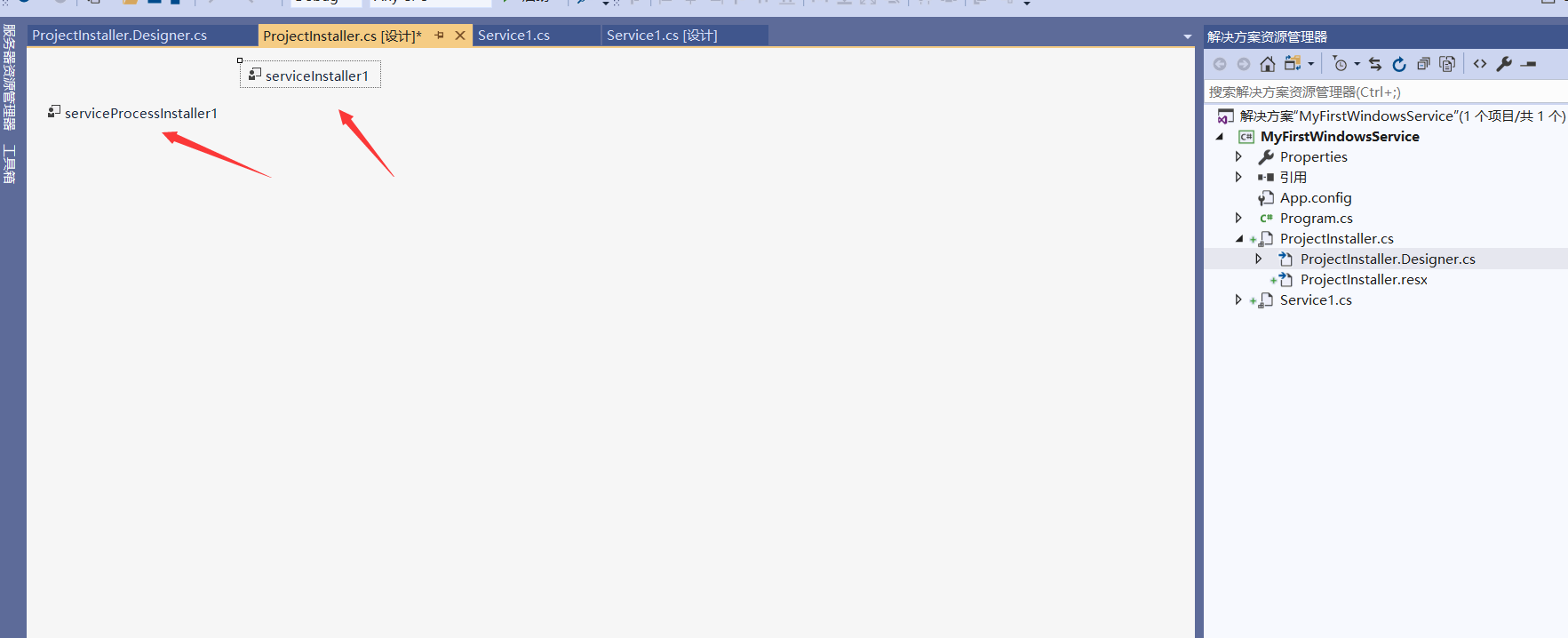
7.设置服务安装属性

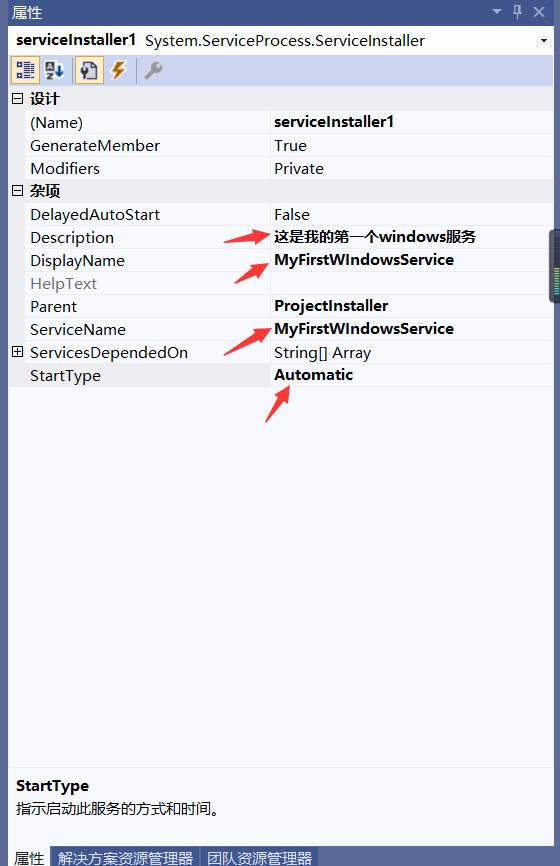
Description:对服务的说明
DisplayName:向用户标识服务的友好名称
ServiceName:表示在系统服务中的名称
StartType:启动服务的方式和时间,如果为Manual则手动启动,默认停止,如果为Automatic为自动启动
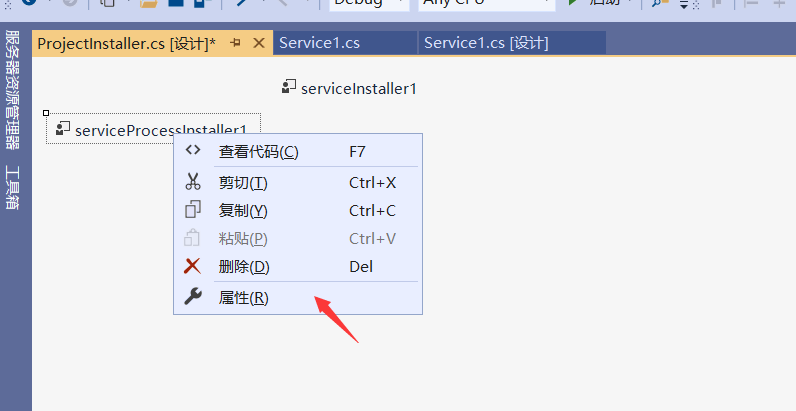
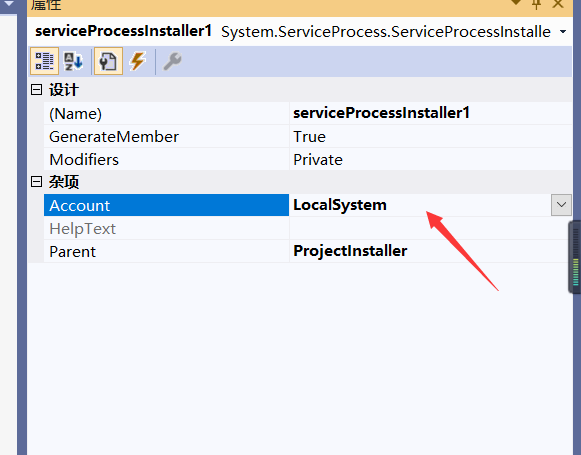
Accout:账户类型,LocalSystem本地系统服务
此时,Windows Service就编写完了
8.安装Windows Service
生成解决方案 进入\bin\Debug 下 添加两个批处理文件来安装 卸载服务
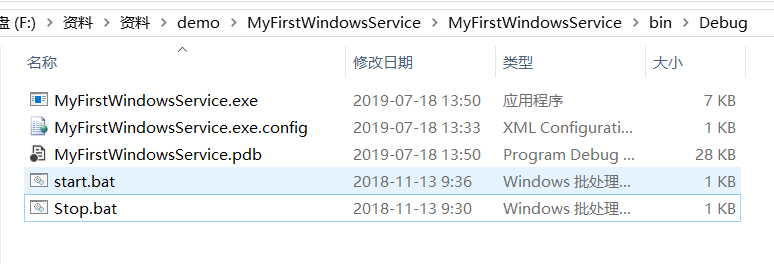
statr.bat MyFirstWindowsService.exe是\Debug下生成的.exe文件 MyFirstWindowsService是上边设置的ServiceName
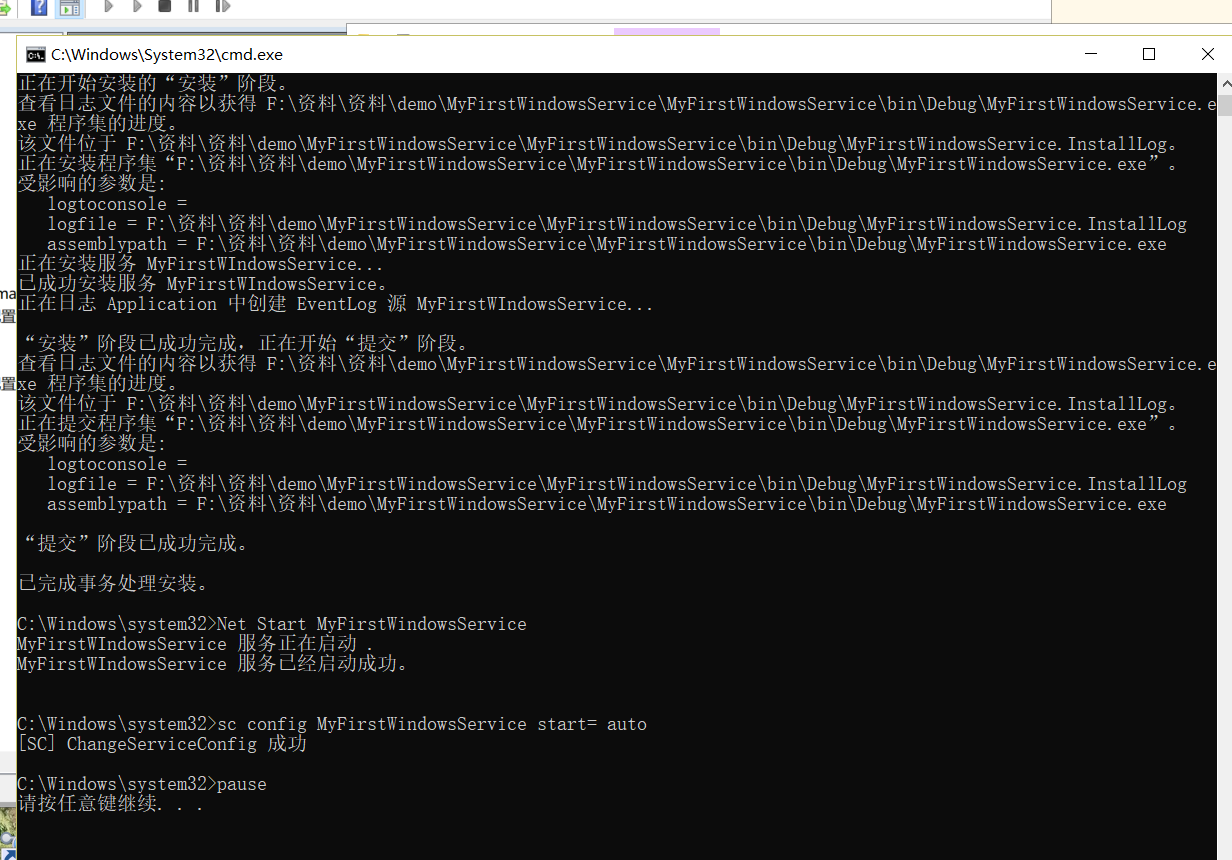
%SystemRoot%\Microsoft.NET\Framework\v4.0.30319\installutil.exe %~dp0MyFirstWindowsService.exe

Net Start MyFirstWindowsService

sc config MyFirstWindowsService start= auto

pause
stop.bat
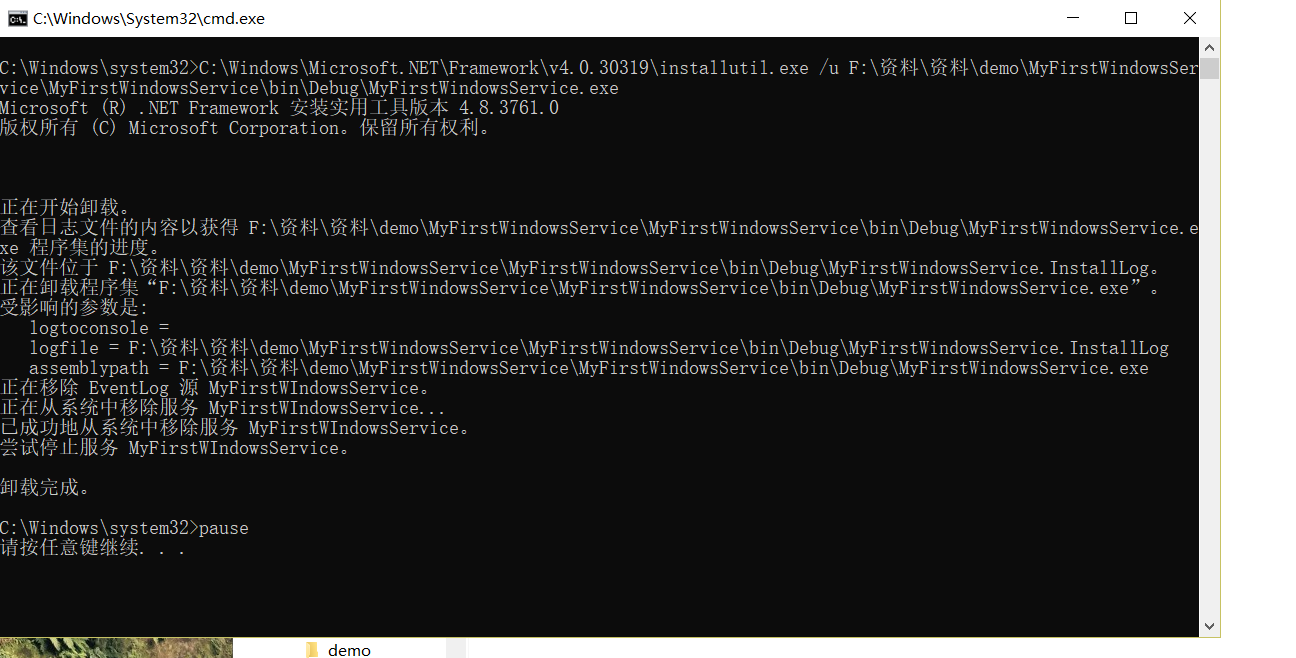
%SystemRoot%\Microsoft.NET\Framework\v4.0.30319\installutil.exe /u %~dp0MyFirstWindowsService.exe

pause
运行statr.bat
右键 我的电脑 管理
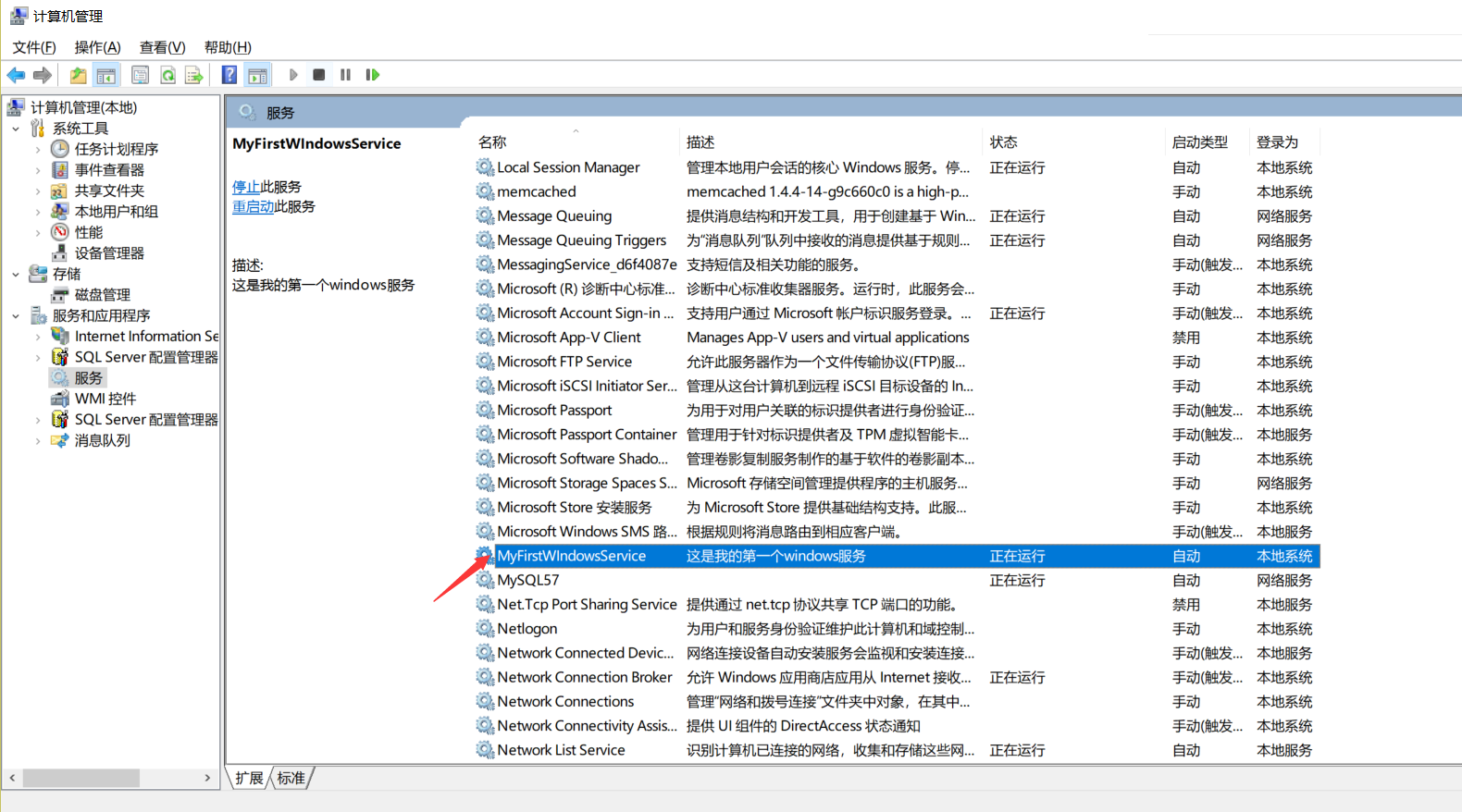

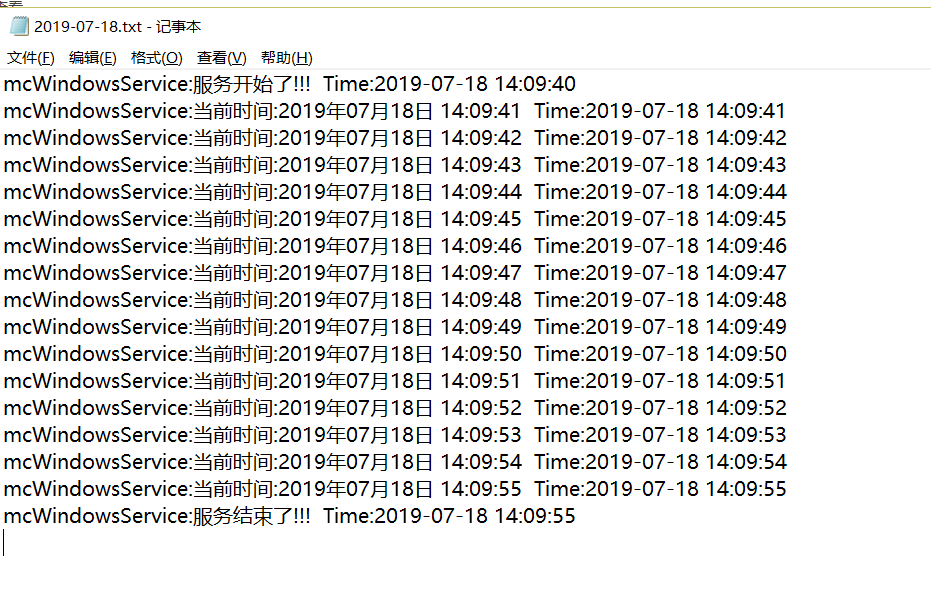
若要卸载该服务,运行stop.bat

windows服务搭建(VS2019创建Windows服务不显示安装组件)的更多相关文章
- [Solution] Microsoft Windows 服务(1) C#创建Windows服务
Microsoft Windows 服务(即,以前的 NT 服务)使您能够创建在它们自己的 Windows 会话中可长时间运行的可执行应用程序.这些服务可以在计算机启动时自动启动,可以暂停和重新启动而 ...
- 篇章一:SVN服务搭建【基于Windows server 2008R2 + Windows7】
1.软件下载 1.1 软件介绍 Subversion是优秀的版本控制工具,其具体的的优点和详细介绍,这里就不再多说. 首先来下载和搭建SVN服务器. 现在Subversion已经迁移到apache网站 ...
- windows下使用IIS创建git服务
Bonobo Git Server 下载地址: https://bonobogitserver.com/ 安装方法:https://bonobogitserver.com/install/ 配置简单, ...
- 常量,字段,构造方法 调试 ms 源代码 一个C#二维码图片识别的Demo 近期ASP.NET问题汇总及对应的解决办法 c# chart控件柱状图,改变柱子宽度 使用C#创建Windows服务 C#服务端判断客户端socket是否已断开的方法 线程 线程池 Task .NET 单元测试的利剑——模拟框架Moq
常量,字段,构造方法 常量 1.什么是常量 常量是值从不变化的符号,在编译之前值就必须确定.编译后,常量值会保存到程序集元数据中.所以,常量必须是编译器识别的基元类型的常量,如:Boolean ...
- C#创建Windows Service(Windows 服务)基础教程
Windows Service这一块并不复杂,但是注意事项太多了,网上资料也很凌乱,偶尔自己写也会丢三落四的.所以本文也就产生了,本文不会写复杂的东西,完全以基础应用的需求来写,所以不会对Window ...
- C# windows服务:创建Windows服务(Windows Services)的一般步骤
C#创建Windows服务(Windows Services) Windows服务在Visual Studio 以前的版本中叫NT服务,在VS.net启用了新的名称.用Visual C# 创建Wind ...
- C# 创建Windows Service(Windows服务)程序
本文介绍了如何用C#创建.安装.启动.监控.卸载简单的Windows Service 的内容步骤和注意事项. 一.创建一个Windows Service 1)创建Windows Service项目 2 ...
- c#创建windows服务(创建,安装,删除)
一.在vs中创建一个window服务 二.进入Service1.cs页面后 右击----创建安装程序,安装程序创建成功后---会出现ProjectInstaller.cs文件 三.进入ProjectI ...
- windows下搭建nginx-rtmp服务器
windows下搭建nginx-rtmp服务器 windows下搭建nginx-rtmp服务器 准备工作 安装MinGW 安装Mercurial 安装strawberryperl 安装nasm 下载n ...
随机推荐
- H3C 调试OSPF
- [Atom 编辑器 ] Packages
Atom包 https://atom.io/packages 常用包整理: atom-chinese-menu 中文插件 atom-ternjs 对 es5,es6的语法支持 ato ...
- 原生PHP实现Mysql数据分页功能
一. 思路整理 实现一个数据分页功能,需要有数据的总条数,每页展示的条数,和当前在第几页这三个参数 通过⌈总条数/每页展示的条数⌉可以得到总页数,比如某留言板有101条留言,每页展示10条,一那就需要 ...
- dotnet core 发布只有一个 exe 的方法
在 dotnet core 发布的时候,会使用很多文件,这样发给小伙伴使用的时候不是很清真,本文告诉大家一个非官方的方法通过 warp 将多个文件打包为一个文件 和之前相同的方式发布一个 dotnet ...
- PowerShell 使用 WMI 获取信息
在 PowerShell 可以很容易使用 WMI 拿到系统的信息,如果有关注我的网站,就会发现我写了很多通过 WMI 拿到系统的显卡,系统安装的软件等方法,本文告诉大家如果通过 PowerShell ...
- CSS3 属性学习
fill-available表示撑满可用空间(包括高度,宽度)[此处包括padding和margin会尽可能的撑满,只对于行内块(inline-block)和块元素(block)起作用,webkit内 ...
- BIO、NIO、AIO 个人总结
BIO(blocking io) BIO即为阻塞IO,在网络编程中,它会在建立连接和等待连接的对端准备数据阶段进行阻塞.因此为了支撑高并发的用户访问,一般会为每一个socket 连接分配一个线程.但使 ...
- Kafka Eagle安装详情及问题解答
1.概述 最近有很多同学给笔者留言,说在安装Kafka Eagle的时候,会遇到一些问题,请教如何解决?今天笔者就在这里总结一下安装步骤,和一些安装的注意事项,以及解决方式. 2.内容 在安装Kafk ...
- Visual Studio Team Services使用教程【4】:默认团队checkin权限修改
2017.4.23之后建议朋友看下面的帖子 TFS2017 & VSTS 实战(繁体中文视频) Visual Studio Team Services(VSTS)与敏捷开发ALM实战关键报告( ...
- 看各类框架源码淘来的一些JavaScript技巧
1. 创建定长的JavaScript数组,并赋空值: 出自VUE文档Render函数讲解 // 创建定长20的JavaScript数组,并把每个项的值设为null Array.apply(null, ...