
Apache Tomcat Eclipse Integration
An Illustrated Quick Start Guide
Apache Tomcat makes hosting your applications easy. The Eclipse IDE makes development easy. It's simple math. If you haven't integrated Tomcat into your Eclipse environment, you're losing out on some great enhancements to your development process.
Imagine being able to write a new servlet, deploy it to a Tomcat server, test it, make changes, redeploy, and restart Tomcat - all within Eclipse, all without editing a single XML file by hand. Time-saver? Sanity-preserver? All of the above? You bet. Here's an easy guide to getting Tomcat and Eclipse working together, from installing the Tomcat plug-in, to configuring your first server.
In the interest of simplicity, this tutorial assumes that you've already installed:
- a JDK of version 1.4.2 or higher
- the Tomcat version of your choice (version 5.5.x or higher is recommended)
- Eclipse 3.1 or higher, along with the EMF (Eclipse Modeling Framework), GEF (Graphical Editing Framework), and JEM (Java EMF Model) components
If you need more information on installing these items, visit the Eclipse and Apache Tomcat documentation pages. And to make your Apache Tomcat environment enterprise ready, learn more about Tcat, the leading enterprise Apache Tomcat application server.
Step One - Installing the Eclipse Web Tools Platform
Eclipse uses a set of components called the Web Tools Platform, or WTP, to integrate application servers into the Eclipse environment. Although you can download WTP as a ZIP file, it's quite easy to install from within Eclipse, and this is the method we'll use in this tutorial.
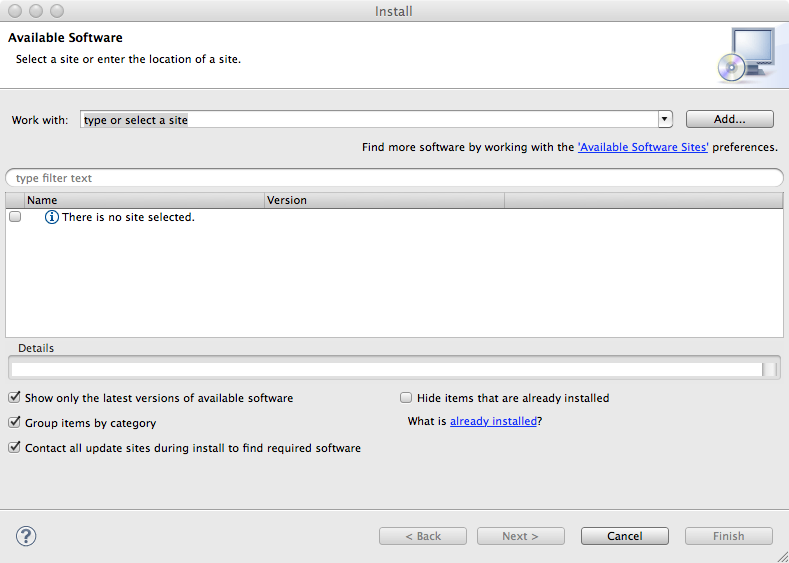
To install WTP, select the "Install New Software..." menu item from the Eclipse "Help" menu. This will call up the dialog pictured below:
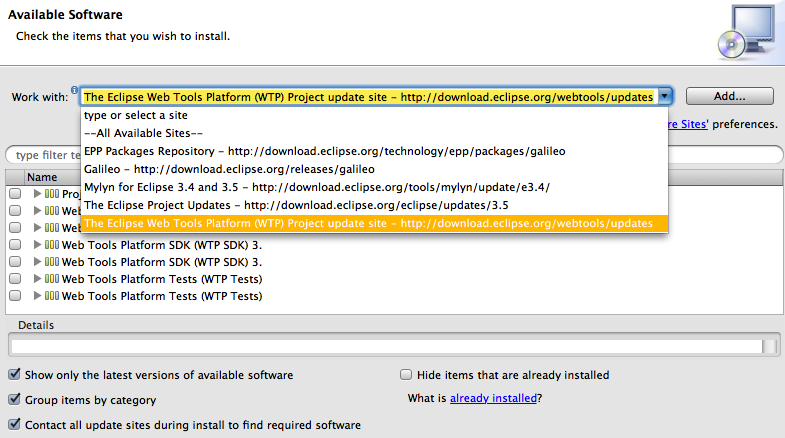
Click the "Work with:" drop down menu, and select the WTP Project site from the list:
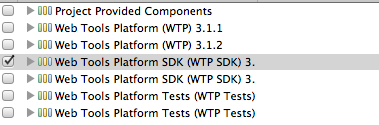
Next, select the latest version of the WTP SDK from the list of projects. In this tutorial, we'll use version 3.x:
Click "Next". Eclipse will fetch a list of components to be installed, and present them to you. You can review them if you want, but it's not necessary. Click "Next" again to reach the page "Review Licenses". Click the radio button in the lower right hand corner of the screen, indicating that you accept the licensing terms for the components that you are about to install (you only need to do this once), and the "Finish" button will become active.
Once you click the "Finish" button, Eclipse will begin downloading the components and installing them:
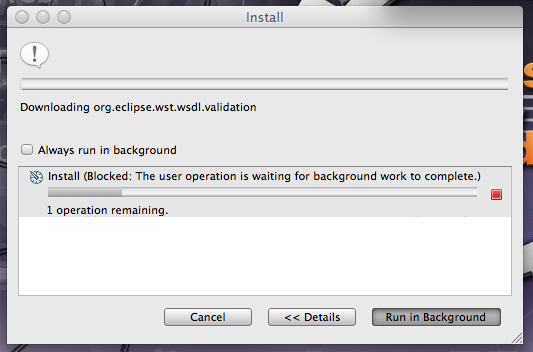
This process will take some time, so get up and go for a stroll. If you get any dialogues about installing unsigned content, don't worry - just click "OK".
At the end of the install process, Eclipse will give you the option to either restart, or apply the changes without restarting. Be safe - restart. It'll only take a few seconds, and when Eclipse starts up again, you'll be almost ready to start using Tomcat with Eclipse!
Creating Your First Tomcat-Integrated Eclipse Project
Now that you've installed the WTP, it's time to start using Tomcat with Eclipse. Start clicking "File-->New" and selecting "Dynamic Web Project" from the list of options. Eclipse will present you with this dialogue window:
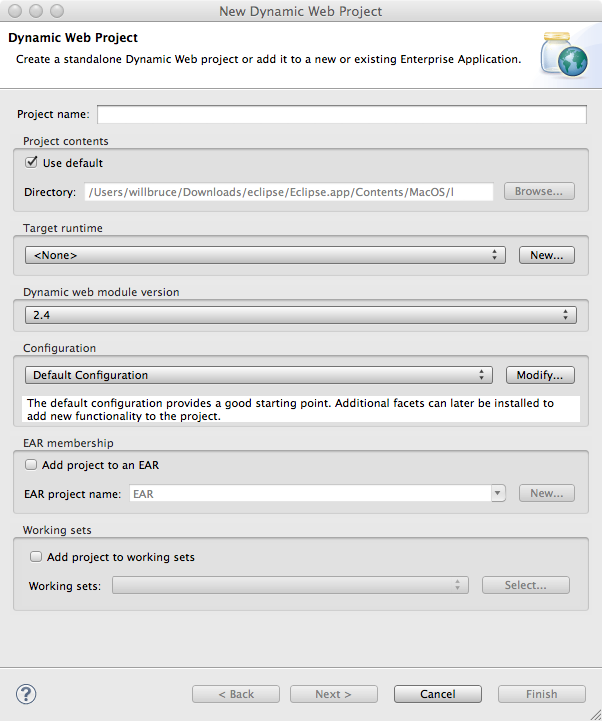
This dialogue should be familiar to you if you have used Eclipse before. What we're concerned with is the "Target runtime" box. Click "New..." to pull up the following dialogue:
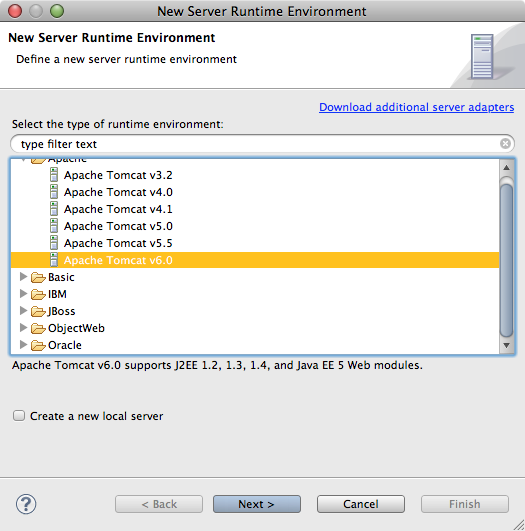
Open the Apache folder, and select the version of Tomcat you've installed on your system. For this example, we'll be using Tomcat 6. If you want to create a new local server for your project, check the box below the list of server runtimes. Click "Next", and Eclipse will ask you to locate your installation of Tomcat:
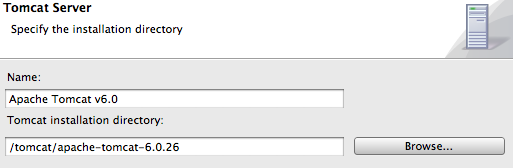
Click "Finish", configure any additional options you like on the New Dynamic Web Project dialogue screen, click "Finish" one more time, and you're done. Congratulations - you've created your first Tomcat-integrated Eclipse project.
Configuring a Tomcat Server In Eclipse
Now that you've created a Tomcat-aware project, you still need to define a Tomcat server for the project to use. You can do this in the "Server" tab, located in the lower half of Eclipse's development screen by default. Secondary click inside the tab to open the New Server dialogue:
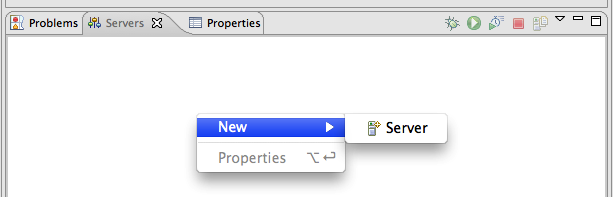
On the next screen, choose a local name for your new server, as well as a Server name, and click Finish. If you did everything correctly, a new Server will appear in the Server list. Double-clicking on the server's name will call up a window in which you can edit basic information about the server:
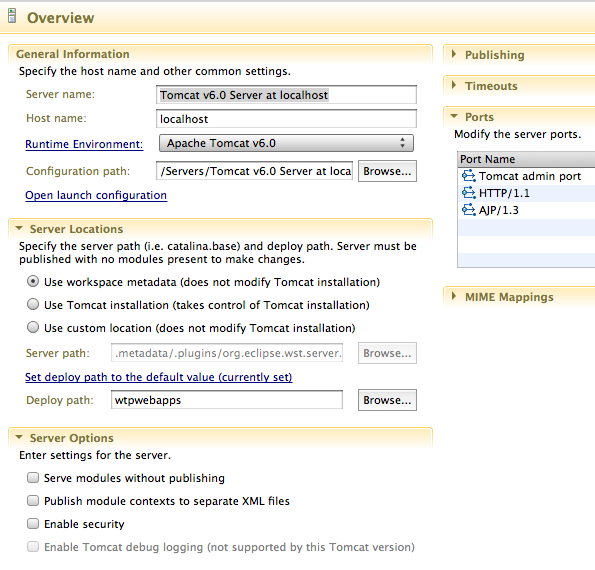
You can also edit Tomcat's Configuration files within Eclipse by selecting them from the Servers drop-down menu in Project Explorer, located on the left hand side of Eclipse's development view:
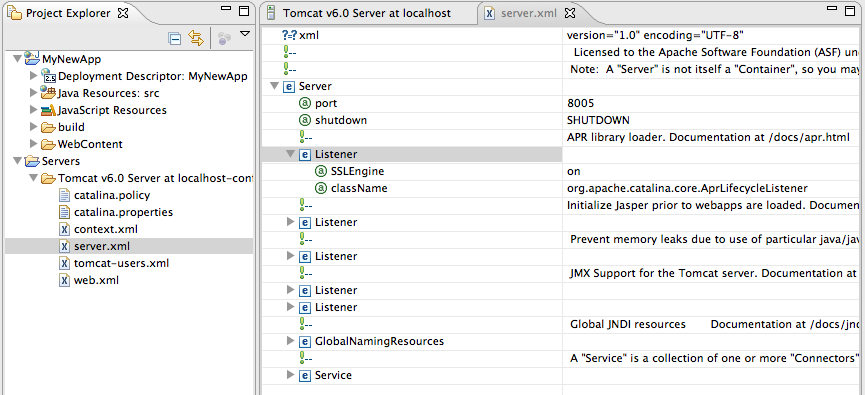
Running an Application On Your Tomcat Server
Now that you've configured a Tomcat Server for use in your Eclipse project, you can deploy whatever test application you choose to build on the server simply by starting the Server, right-clicking the application in the Project Explorer pane, and choosing Run On Server from the "Run As..." menu option:
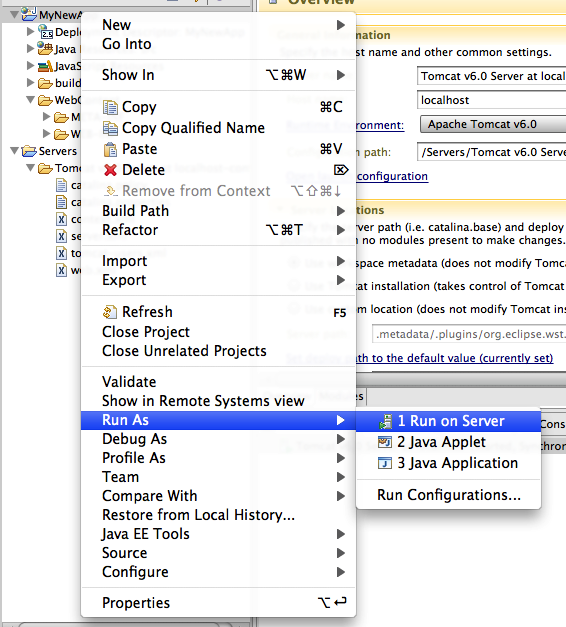
That's the basics - the rest is up to you! For more information about using Eclipse with Apache Tomcat, visit the WTP Tomcat FAQ page.
Apache Tomcat Eclipse Integration的更多相关文章
- WEB服务器搭建(Apache+Tomcat+eclipse)
1.下载xampp安装,选择Apache+MySQL+Tomcat 官方下载链接:https://www.apachefriends.org/zh_cn/download.html 2.下载安装jav ...
- 【eclipse】Target runtime Apache Tomcat v7.0 is not defined解决
在eclipse中导入项目时提示Target runtime Apache Tomcat v7.0 is not defined, 解决方法:右键项目--properties--targeted ru ...
- 发现eclipse红叉,查看markers发现Target runtime Apache Tomcat 6.0 is not defined
1.导入以前的项目(Markers中注意查看,就在console选项卡旁边),报以下错误,但不影响操作: Description Resource Path Location TypeTarget r ...
- Eclipse配置tomcat8.5.7报错:The Apache Tomcat installation at this directory is version 8.5.27. A Tomcat 8.0 installation is...
Eclipse配置tomcat8.5.7报错:The Apache Tomcat installation at this directory is version 8.5.27. A Tomcat ...
- eclipse添加web项目报错“Target runtime Apache Tomcat v7.0 is not defined.”
项目检出后,发现是Tomcat7 发布的,修改文件: 工作空间--->项目名称--->.settings--->org.eclipse.wst.common.project.face ...
- 发现eclipse红叉,查看markers发现Target runtime Apache Tomcat v8.0 is not defined
导入以前的项目(Markers中注意查看,就在console选项卡旁边),报以下错误,但不影响操作: Faceted Project Problem Target runtime Apa ...
- 如何搭建Eclipse +Apache Tomcat配置Java开发环境
Linux平台下如何搭建Eclipse +Apache Tomcat配置的Java开发环境 本文出自 "李晨光原创技术博客" 博客,请务必保留此出处http://chenguang ...
- [Tomcat源码分析] Eclipse中搭建Apache Tomcat源码调试环境
网上很多文章都推荐使用Ant下载编译,但本地实践中屡屡失败,无法下载. 后来参考 https://blog.csdn.net/xiongyouqiang/article/details/7894107 ...
- Eclipse添加tomcat出现 The Apache Tomcat installation at this directory is version 8.5.6. A Tomcat 8.0 installation is expected.
打开tomcat安装目录:apache-tomcat-8.5.6\lib 找到catalina.jar 用解压缩工具打开 org/apache/catalina/util/ServerInfo.pro ...
随机推荐
- 云笔记项目-MyBatis返回自增类型&堆栈对象补充理解
在云笔记项目中,讲到了MySql的自增,MyBatis查询到自增类型数据后可以设置返回到参数属性,其中学习了MySql的自增写法,堆栈对象等知识. MySql数据类型自增 建立一张Person表,其中 ...
- C# File API
[C# File API] 1.System.IO.File Provides static methods for the creation, copying, deletion, moving, ...
- jQuery判断鼠标滚动方向
var scrolltop = new Array(); var index = 0; scrolltop[0] = 0; $(document).scroll(function(){ index + ...
- C# 自制报表组件 EzReportBuild 2.0
组件无闪烁.画面流畅,效率一般,支持SQL和ACCESS两种.可以完成报表设计.预览.打印等功能,提供接口函数,可以将设计.预览等嵌入到自定的winform中调用,使用简单.每份报表可设置多页,每页可 ...
- FineCMS v5.4.1 后台getshell
0x01.前言 最近在学代码审计,拿finecms学习的时候偶然发现的,应该算个1day吧 0x02.正文 FineCMS v5.4.1 后台域名配置处 域名配置文件config/domain.php ...
- Python开发【第九篇】:进程、线程
什么是进程(process)? 程序并不能单独运行,只有将程序装载到内存中,系统为它分配资源才能运行,而这种执行的程序就称之为进程.程序和进程的区别就在于,程序是指令的集合,它是进程运行的静态描述文本 ...
- java_31 数据表的操作
1.主键约束 特点非空,只用于表示当前的记录. 设置主键:create table 表名(sid int primary key); 删除主键:alter table 表名 drop primary ...
- String笔记
String string = new String("Hello World!"); replace('e', '*') //替换字符串 String newStr = stri ...
- 显式Intent 和隐式 Intent 的区别
显式 Intent : 在知道目标组件名称的前提下,去调用Intent.setComponent().Intent.setClassName()或Intent.setClass()方法或者在new I ...
- 控制请求重复提交的方法总结(Token)
重复提交的定义: 重复提交指的是同一个请求(请求地址和请求参数都相同)在很短的时间内多次提交至服务器,从而对服务器造成不必要的资源浪费,甚至在代码不健壮的情况还会导致程序出错. 重复提交的原因或触发事 ...