
安卓—自定义 AlertDialog 的样式
自定义修改安卓弹出框的样式
效果图:

1.在style.xml下添加
<!-- 自定义弹出样式 -->

    <style name="MyDialogStyle" parent="Theme.AppCompat.Light.Dialog.Alert">

        <!--是否浮在窗口之上-->

        <!--<item name="android:windowIsFloating">true</item>-->

        <!--半透明-->

        <!--<item name="android:windowIsTranslucent">true</item>-->

        <!--是否显示title-->

        <item name="android:windowNoTitle">true</item>

        <!--dialog之外没有焦点的区域是否罩上黑色半透明-->

        <item name="android:background">@color/white</item>

        <item name="android:textColor">@color/gray</item>

        <item name="android:textSize">@dimen/f24</item>

        <!-- 这里是修改顶部标题背景颜色,具体颜色自己定,可以是图片 -->

        <item name="android:topDark">@color/blue_alert</item>

        <!-- 这里是修改内容区域背景颜色 -->

        <item name="android:layout_gravity">center</item>

        <item name="buttonBarButtonStyle">@color/white</item>

    </style>
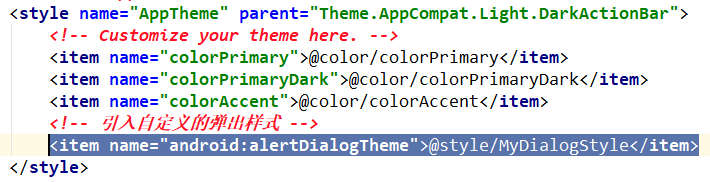
2.在主体配置里引入自定义的AlertDialog主题
3.java代码写法
/**

     * 默认的弹出窗口

     * @param view

     */

    public void alertDialog(View view) {

        AlertDialog.Builder builder = new AlertDialog.Builder(this);

        builder.setTitle("弹出窗");

        builder.setMessage("提示信息!");

        builder.setPositiveButton("确认", new DialogInterface.OnClickListener() {

            @Override

            public void onClick(DialogInterface dialogInterface, int i) {

                System.out.println("确认执行函数");

            }

        }).setNegativeButton("取消", null);

        builder.show();

    }

    /**

     * 自定义样式的弹出窗

     * @param view

     */

    public void alertDialog2(View view) {

        final AlertDialog.Builder builder = new AlertDialog.Builder(this);

        // 自定义 title样式

        TextView title = new TextView(this);

        title.setText("自定义弹出窗");

        title.setTextSize(24);

        title.setGravity(Gravity.CENTER);

        title.setPadding(0,20,0,20);

        builder.setCustomTitle(title);

        // 中间的信息以一个view的形式设置进去

        TextView msg = new TextView(this);

        msg.setText("自定义弹出提示信息");

        msg.setTextSize(24);

        msg.setGravity(Gravity.CENTER);

        msg.setPadding(20, 40, 20, 40);

        builder.setView(msg);

        builder.setPositiveButton("确认", new DialogInterface.OnClickListener() {

            @Override

            public void onClick(DialogInterface dialogInterface, int i) {

                System.out.println("确认执行函数");

            }

        }).setNegativeButton("取消", null);

        // 调用 show()方法后得到 dialog对象

        AlertDialog dialog = builder.show();

        final Button positiveButton = dialog.getButton(AlertDialog.BUTTON_POSITIVE);

        final Button negativeButton=dialog.getButton(AlertDialog.BUTTON_NEGATIVE);

        LinearLayout.LayoutParams positiveParams =(LinearLayout.LayoutParams)positiveButton.getLayoutParams();

        positiveParams.gravity = Gravity.CENTER;

        positiveParams.setMargins(10,10,10,10);

        positiveParams.width = 0;

        // 安卓下面有三个位置的按钮,默认权重为 1,设置成 500或更大才能让两个按钮看起来均分

        positiveParams.weight = 500;

        LinearLayout.LayoutParams negativeParams =(LinearLayout.LayoutParams)negativeButton.getLayoutParams();

        negativeParams.gravity = Gravity.CENTER;

        negativeParams.setMargins(10,10,10,10);

        negativeParams.width = 0;

        negativeParams.weight = 500;

        positiveButton.setLayoutParams(positiveParams);

        negativeButton.setLayoutParams(negativeParams);

        positiveButton.setBackgroundColor(Color.parseColor("#FF733E"));

        positiveButton.setTextColor(Color.parseColor("#FFFFFF"));

        negativeButton.setBackgroundColor(Color.parseColor("#DDDDDD"));

    }
安卓—自定义 AlertDialog 的样式的更多相关文章
- 安卓 自定义AlertDialog对话框(加载提示框)
AlertDialog有以下六种使用方法: 一.简单的AlertDialog(只显示一段简单的信息) 二.带按钮的AlertDialog(显示提示信息,让用户操作) 三.类似ListView的Aler ...
- 自定义AlertDialog的样式
一.在XML中定义好要显示的AlertDialog的布局 二.在代码中创建alertdialog 对象 AlertDialog dialog = new AlertDialog.Builder(thi ...
- 自定义AlertDialog(仿微信)
安卓自定义AlertDialog,原理很简单: AlertDialog dialog = new AlertDialog.Builder(MainActivity.this).create(); di ...
- AlertDialog.Builder 样式设置
AlertDialog.Builder builder = new AlertDialog.Builder(new ContextThemeWrapper(this, R.style.AlertDia ...
- jQuery Validate 表单验证插件----自定义校验结果样式
一.下载依赖包 网盘下载:https://yunpan.cn/cryvgGGAQ3DSW 访问密码 f224 二.引入依赖包 <script src="../../scripts/j ...
- Android 自定义RadioButton的样式
Android 自定义RadioButton的样式 我们知道Android控件里的button,listview可以用xml的样式自定义成自己希望的漂亮样式. 最近用到RadioButton,利用xm ...
- ActionBar官方教程(11)自定义ActionBar的样式(含重要的样式属性表及练习示例)
Styling the Action Bar If you want to implement a visual design that represents your app's brand, th ...
- 自定义input file样式
自定义input file样式:一般都是通过隐藏input,通过定义label来实现.这种做法要注意的是label的for属性要指定input对应的id; <!DOCTYPE html> ...
- WPF界面设计技巧(4)—自定义列表项样式
原文:WPF界面设计技巧(4)-自定义列表项样式 有前面修改按钮样式的基础,我们可以尝试来定制一个即好看又好用的 ListBox ,今天先来讲“好看”部分. 打开 Microsoft Visual S ...
随机推荐
- 色即是空,空即是色---java有关null的几件小事
故事背景 ---摩诃般若波罗蜜多心经: 观自在菩萨,行深般若波罗蜜多时,照见五蕴皆空,度一切苦厄.舍利子,色不异空,空不异色:色即是空,空即是色.受想行识,亦复如是.舍利子,是诸法空相,不生不灭,不垢 ...
- SpannableString与SpannableStringBuilder
一.概述 1.SpannableString.SpannableStringBuilder与String的关系 首先SpannableString.SpannableStringBuilder基本上与 ...
- Python+Tornado+Tampermonkey 获取某讯等主流视频网站的会员视频解析播放
近期,<哪吒之魔童降世>在各大视频软件可以看了,然而却是一贯的套路,非会员谢绝观看!!!只能从国内那些五花八门的视频网站上找着看了,或者通过之前本人说的 Chrome 的油猴插件,传送门 ...
- parse_args(argsparse):python和命令行之间的交互
初始化 假设我们创建一个“argp.py”的文件. import argparse # 引入模块 # 建立解析对象 parser = argparse.ArgumentParser() parser. ...
- Focus on the Good 专注于好的方面
[1] Dealing with people is like digging for gold. When you go digging for an ounce of gold, you hav ...
- Vue使用vue-recoure + http-proxy-middleware + vuex配合promise实现基本的跨域请求封装
使用vue init webpack 你的项目名称初始化一个vue的项目 安装依赖 npm install vue-resource http-proxy-middleware vuex koa 在项 ...
- Unreal Engine 4 系列教程 Part 3:材质教程
.katex { display: block; text-align: center; white-space: nowrap; } .katex-display > .katex > ...
- [Luogu3797] 妖梦斩木棒
题目背景 妖梦是住在白玉楼的半人半灵,拥有使用剑术程度的能力. 题目描述 有一天,妖梦正在练习剑术.地面上摆放了一支非常长的木棒,妖梦把它们切成了等长的n段.现在这个木棒可以看做由三种小段构成,中间的 ...
- win10系统plsql卡顿、菜单闪烁解决办法
右键快捷方式--属性--兼容性: 设置为以win7模式运行,以管理员模式运行.如图:
- libevent::实现的低级 socket
LibEvent 实现的低级 ROT13 例子 #include <cstdio> #include <netinet/in.h> #include <sys/socke ...