
Getting started: A skeleton application
Getting started: A skeleton application
In order to build our application, we will start with theZendSkeletonApplication available on github. Use Composer to create a new project from scratch:
$ composer create-project -s dev zendframework/skeleton-application path/to/installThis will install an initial set of dependencies, including:
- zend-component-installer, which helps automate injection of component configuration into your application.
- zend-mvc, the kernel for MVC applications.
The default is to provide the minimum amount of dependencies necessary to run a zend-mvc application. However, you may have additional needs that you know at the outset, and, as such, the skeleton also ships with an installer plugin that will prompt you for a number of items.
First, it will prompt:
Do you want a minimal install (no optional packages)? Y/nPrompts and default values
All prompts emitted by the installer provide the list of options available, and will specify the default option via a capital letter. Default values are used if the user presses "Enter" with no value. In the previous example, "Y" is the default.
If you answer "Y", or press enter with no selection, the installer will not raise any additional prompts, and finish installing your application. If you anser "n", it will continue prompting you:
Would you like to install the developer toolbar? y/NThe developer toolbar provides an in-browser toolbar with timing and profiling information, and can be useful when debugging an application. For the purposes of the tutorial, however, we will not be using it; hit either "Enter", or "n" followed by "Enter".
Would you like to install caching support? y/NWe will not be demonstrating caching in this tutorial, so either hit "Enter", or "n" followed by "Enter".
Would you like to install database support (installs zend-db)? y/NWe will be using zend-db extensively in this tutorial, so hit "y" followed by "Enter". You should see the following text appear:
    Will install zendframework/zend-db (^2.8.1)

    When prompted to install as a module, select application.config.php or modules.config.php
The next prompt is:
Would you like to install forms support (installs zend-form)? y/NThis tutorial also uses zend-form, so we will again select "y" to install this; doing so emits a similar message to that used for zend-db.
At this point, we can answer "n" to the remaining features:
    Would you like to install JSON de/serialization support? y/N

    Would you like to install logging support? y/N

    Would you like to install MVC-based console support? (We recommend migrating to zf-console, symfony/console, or Aura.CLI) y/N

    Would you like to install i18n support? y/N

    Would you like to install the official MVC plugins, including PRG support, identity, and flash messages? y/N

    Would you like to use the PSR-7 middleware dispatcher? y/N

    Would you like to install sessions support? y/N

    Would you like to install MVC testing support? y/N

    Would you like to install the zend-di integration for zend-servicemanager? y/N
At a certain point, you'll see the following text:
Updating root package

    Running an update to install optional packages

...

Updating application configuration...

  Please select which config file you wish to inject 'Zend\Db' into:

  [0] Do not inject

  [1] config/modules.config.php

  Make your selection (default is 0):
We want to enable the various selections we made in the application. As such, we'll choose 1, which will then give us the following prompt:
Remember this option for other packages of the same type? (y/N)In our case, we can safely say "y", which will mean we will no longer be prompted for additional packages. (The only package in the default set of prompts that you may not want to enable by default is Zend\Test.)
Once the installation is done, the skeleton installer removes itself, and the new application is ready to start!
Downloading the skeleton
Another way to install the ZendSkeletonApplication is to use github to download a compressed archive. Go to https://github.com/zendframework/ZendSkeletonApplication, click the "Clone or download" button, and select "Download ZIP". This will download a file with a name like
ZendSkeletonApplication-master.zipor similar.Unzip this file into the directory where you keep all your vhosts and rename the resultant directory to
zf2-tutorial.ZendSkeletonApplication is set up to use Composer to resolve its dependencies. Run the following from within your new zf2-tutorial folder to install them:
$ composer self-update

$ composer install
This takes a while. You should see output like the following:
Installing dependencies from lock file

- Installing zendframework/zend-component-installer (0.2.0)

...

Generating autoload files
At this point, you will be prompted to answer questions as noted above.
Alternately, if you do not have Composer installed, but do have either Vagrant or docker-compose available, you can run Composer via those:
# For Vagrant:

$ vagrant up

$ vagrant ssh -c 'composer install'

# For docker-compose:

$ docker-compose build

$ docker-compose run zf composer install
Timeouts
If you see this message:
[RuntimeException]

  The process timed out.
then your connection was too slow to download the entire package in time, and composer timed out. To avoid this, instead of running:
$ composer installrun instead:
$ COMPOSER_PROCESS_TIMEOUT=5000 composer installWindows users using WAMP
For windows users with wamp:
- Install composer for windows. Check composer is properly installed by running:
$ composer
- Install GitHub Desktop for windows. Check git is properly installed by running:
$ git
- Now install the skeleton using:
$ composer create-project -s dev zendframework/skeleton-application path/to/install
We can now move on to the web server setup.
Web Servers
In this tutorial, we will step you through four different ways to setup your web server:
- Via the PHP built-in web server.
- Via Vagrant.
- Via docker-compose.
- Using Apache.
Using the Built-in PHP web Server
You can use PHP's built-in web server when developing your application. To do this, start the server from the project's root directory:
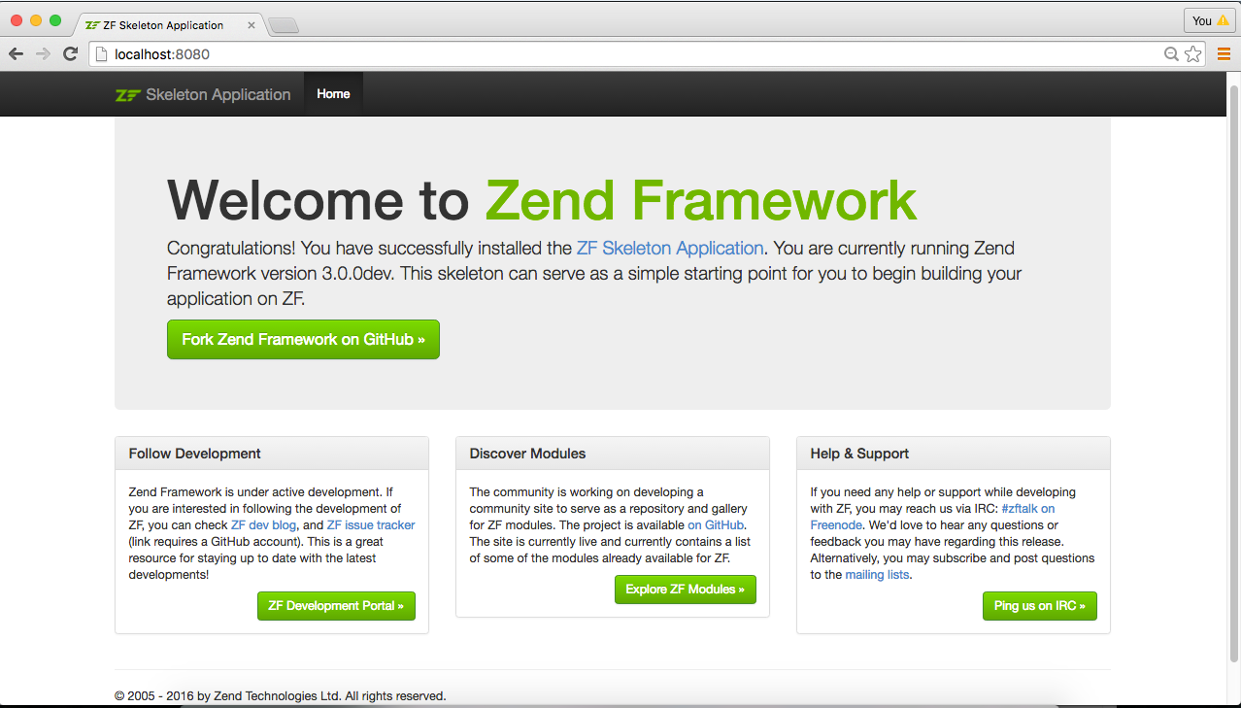
$ php -S 0.0.0.0:8080 -t public/ public/index.phpThis will make the website available on port 8080 on all network interfaces, using public/index.php to handle routing. This means the site is accessible viahttp://localhost:8080 or http://<your-local-IP>:8080.
If you’ve done it right, you should see the following.
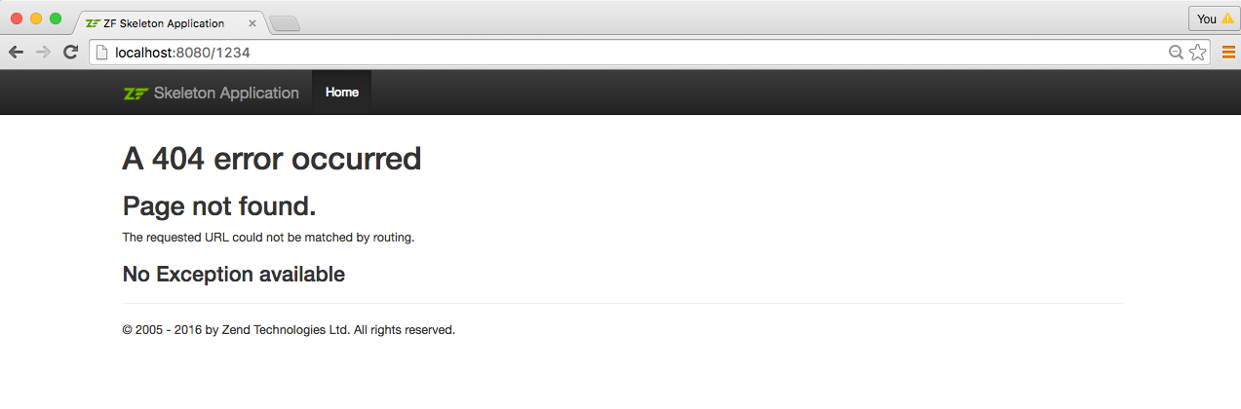
To test that your routing is working, navigate to http://localhost:8080/1234, and you should see the following 404 page:
Development only
PHP's built-in web server should be used for development only.
Using Vagrant
Vagrant provides a way to describe and provision virtual machines, and is a common way to provide a coherent and consistent development environment for development teams. The skeleton application provides a Vagrantfile based on Ubuntu 14.04, and using the ondrej/php PPA to provide PHP 7.0. Start it up using:
$ vagrant upOnce it has been built and is running, you can also run composer from the virtual machine. As an example, the following will install dependencies:
$ vagrant ssh -c 'composer install'while this will update them:
$ vagrant ssh -c 'composer update'The image uses Apache 2.4, and maps the host port 8080 to port 80 on the virtual machine.
Using docker-compose
Docker containers wrap a piece of software and everything needed to run it, guaranteeing consistent operation regardless of the host environment; it is an alternative to virtual machines, as it runs as a layer on top of the host environment.
docker-compose is a tool for automating configuration of containers and composing dependencies between them, such as volume storage, networking, etc.
The skeleton application ships with a Dockerfile and configuration for docker-compose; we recommend using docker-compose, as it provides a foundation for mapping additional containers you might need as part of your application, including a database server, cache servers, and more. To build and start the image, use:
$ docker-compose up -d --buildAfter the first build, you can truncate this to:
$ docker-compose up -dOnce built, you can also run commands on the container. The docker-compose configuration initially only defines one container, with the environment name "zf"; use that to execute commands, such as updating dependencies via composer:
$ docker-compose run zf composer updateThe configuration includes both PHP 7.0 and Apache 2.4, and maps the host port 8080 to port 80 of the container.
Using the Apache Web Server
We will not cover installing Apache, and will assume you already have it installed. We recommend installing Apache 2.4, and will only cover configuration for that version.
You now need to create an Apache virtual host for the application and edit your hosts file so that http://zf2-tutorial.localhost will serve index.php from thezf2-tutorial/public/ directory.
Setting up the virtual host is usually done within httpd.conf orextra/httpd-vhosts.conf. If you are using httpd-vhosts.conf, ensure that this file is included by your main httpd.conf file. Some Linux distributions (ex: Ubuntu) package Apache so that configuration files are stored in /etc/apache2and create one file per virtual host inside folder /etc/apache2/sites-enabled. In this case, you would place the virtual host block below into the file/etc/apache2/sites-enabled/zf2-tutorial.
Ensure that NameVirtualHost is defined and set to *:80 or similar, and then define a virtual host along these lines:
<VirtualHost *:80>

    ServerName zf2-tutorial.localhost

    DocumentRoot /path/to/zf2-tutorial/public

    SetEnv APPLICATION_ENV "development"

    <Directory /path/to/zf2-tutorial/public>

        DirectoryIndex index.php

        AllowOverride All

        Require all granted

    </Directory>

</VirtualHost>
Make sure that you update your /etc/hosts orc:\windows\system32\drivers\etc\hosts file so that zf2-tutorial.localhost is mapped to 127.0.0.1. The website can then be accessed usinghttp://zf2-tutorial.localhost.
127.0.0.1 zf2-tutorial.localhost localhostRestart Apache.
If you've done so correctly, you will get the same results as covered under the PHP built-in web server.
To test that your .htaccess file is working, navigate tohttp://zf2-tutorial.localhost/1234, and you should see the 404 page as noted earlier. If you see a standard Apache 404 error, then you need to fix your.htaccess usage before continuing.
If you're are using IIS with the URL Rewrite Module, import the following:
RewriteCond %{REQUEST_FILENAME} !-f

RewriteRule ^ index.php [NC,L]
You now have a working skeleton application and we can start adding the specifics for our application.
Error reporting
Optionally, when using Apache, you can use the APPLICATION_ENV setting in yourVirtualHost to let PHP output all its errors to the browser. This can be useful during the development of your application.
Edit zf2-tutorial/public/index.php directory and change it to the following:
<?php

use Zend\Mvc\Application;

/**

 * Display all errors when APPLICATION_ENV is development.

 */

if ($_SERVER['APPLICATION_ENV'] === 'development') {

    error_reporting(E_ALL);

    ini_set("display_errors", 1);

}

/**

 * This makes our life easier when dealing with paths. Everything is relative

 * to the application root now.

 */

chdir(dirname(__DIR__));

// Decline static file requests back to the PHP built-in webserver

if (php_sapi_name() === 'cli-server') {

    $path = realpath(__DIR__ . parse_url($_SERVER['REQUEST_URI'], PHP_URL_PATH));

    if (__FILE__ !== $path && is_file($path)) {

        return false;

    }

    unset($path);

}

// Composer autoloading

include __DIR__ . '/../vendor/autoload.php';

if (! class_exists(Application::class)) {

    throw new RuntimeException(

        "Unable to load application.\n"

        . "- Type `composer install` if you are developing locally.\n"

        . "- Type `vagrant ssh -c 'composer install'` if you are using Vagrant.\n"

        . "- Type `docker-compose run zf composer install` if you are using Docker.\n"

    );

}

// Retrieve configuration

$appConfig = require __DIR__ . '/../config/application.config.php';

if (file_exists(__DIR__ . '/../config/development.config.php')) {

    $appConfig = ArrayUtils::merge($appConfig, require __DIR__ . '/../config/development.config.php');

}

// Run the application!

Application::init($appConfig)->run();
Development mode
Before we begin, we're going to enable development mode for the application. The skeleton application provides two files that allow us to specify general development settings we want to use everywhere; these may include enabling modules for debugging, or enabling error display in our view scripts. These files are located at:
config/development.config.php.distconfig/autoload/development.local.php.dist
When we enable development mode, these files are copied to:
config/development.config.phpconfig/autoload/development.local.php
This allows them to be merged into our application. When we disable development mode, these two files that were created are then removed, leaving only the .dist versions. (The repository also contains rules to ignore the copies.)
Let's enable development mode now:
$ composer development-enableNever enable development mode in production
You should never enable development mode in production, as the typical reason to enable it is to enable debugging! As noted, the artifacts generated by enabling development mode cannot be committed to your repository, so assuming you don't run the command in production, you should be safe.
You can test the status of development mode using:
$ composer development-statusAnd you can disable it using:
$ composer development-disable
Getting started: A skeleton application的更多相关文章
- Unit Testing a zend-mvc application
Unit Testing a zend-mvc application A solid unit test suite is essential for ongoing development in ...
- 显示hello
The modern user interface is constructed from visual objects of various sorts. Depending on the oper ...
- 高性能Web框架Zend Framework
Zend Framework (ZF)是用 PHP 5.3及更高版本来开发 Web 程序和服务的开源框架.ZF用100% 面向对象编码实现. ZF的组件结构独一无二,每个组件几乎不依靠其他组件.这样的 ...
- Upgrading Applications
Upgrading Applications If you have an existing Zend Framework v2 application, and want to update it ...
- Introducing the Blog Module
Introducing the Blog Module Now that we know about the basics of the zend-mvc skeleton application, ...
- Using zend-navigation in your Album Module
Using zend-navigation in your Album Module In this tutorial we will use the zend-navigation componen ...
- Setting up a database adapter
Setting up a database adapter zend-db provides a general purpose database abstraction layer. At its ...
- Internationalization
Internationalization If you are building a site for an international audience, you will likely want ...
- Advanced Configuration Tricks
Advanced Configuration Tricks Configuration of zend-mvc applications happens in several steps: Initi ...
随机推荐
- SharePoint中的权限体系
转:http://blog.csdn.net/yl_99/article/details/7767053 1.MOSS中的权限结构 MOSS中的权限结构主要有三部分:网站权限,列表权限,个人权限. 网 ...
- [Irving]SqlServer 标量函数 详解【转】
--创建用户定义函数.这是一个已保存 Transact-SQL 或公共语言运行时 (CLR) 例程,--该例程可返回一个值.用户定义函数不能用于执行修改数据库状态的操作.--与系统函数一样,用户定义函 ...
- selenium 调用JS操作滚动条(java)来解决element not clickable的问题
今天在运行自动化用例的时候,发现总是某个元素提示not clickable.分析原因有可能是页面右下角那个大大的top图标,刚好挡住了我要点击的元素.要解决就得拉动页面,就需要操作页面上的滚动条. ...
- WebKit 内核浏览器 initKeyboardEvent 函数原型
学习JS发送自定义键盘(KeyboardEvent)事件的过程中,遇到了一个小难题:单个按键Tab可以正常发送,焦点能够转移到下一个元素,但想实现Shift+Tab,反向移动焦点时,却被DOM3的浏览 ...
- C# 检测机器是否有声卡设备
有时候我们的程序需要进行音频的播放,则我们首先需要判断机器是否有声卡能够进行音频的播放.在网上找了一下没有发现太多关于如何检机器是否有声卡的例子.我在看了一些文档后自己写了一个小测试程序,如果机器装有 ...
- 《C++ Primer Plus 第六版》读书笔记
CH1-3:处理数据 1 列表初始化 char c={31325}:不允许缩窄 char c={66}; char c={x}:不能为变量 2 强制类型转换 (typename) value type ...
- Android SDK Manager无法更新的解决办法
Fetching https://dl-ssl.google.com/android/repository/addons_list-1.xmlFailed to fetch URL https://d ...
- EXCEL 操作
1.为几万行数据加序号 先在A1,A2分别输入1,2,选中A1:A2,双击A2右下角那个小方块. 数据有多少行就会自动填充多少行(要求:B列数据连续) 2.统计一列中单元格的值等于某个值的单元格的个数 ...
- HW7.9
import java.util.Scanner; public class Solution { public static void main(String[] args) { Scanner i ...
- SRM 599 DIV 2
rating又掉了...变灰色了%>_<%.250pt很简单,一眼看上去是个背包,没有多想立马写了个01背包,后面发现其实就是个简单的排序...因为只是需要求数量而已.500pt被我写残了 ...