
Designing for iOS: Graphics & Performance
http://robots.thoughtbot.com/designing-for-ios-graphics-performance 【原文】
In the previous article, we explored
different techniques to customize the look and feel of UIButton, assigning to
each a difficulty level based on the complexity of the Objective-C code
involved in the implementation. What I intentionally left out mentioning
however, is that some of these methods come with non-trivial performance
ramifications that should be taken into consideration when choosing one over
another.
Behind The Scenes
In order to understand how performance is affected, we need to have a closer
look at the technology stack behind graphics in iOS. This block diagram
represents the different frameworks and libraries and how they relate to each
other:
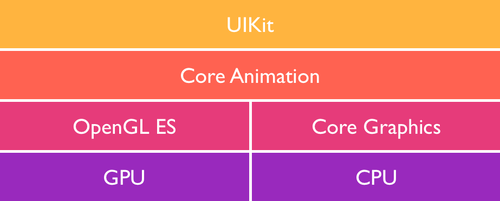
In the topmost layer, there is UIKit—a high-level Objective-C framework that
manages the graphical user interface in iOS. It is made up of a collection of
classes, each corresponding to a specific UI control such as UIButton and
UILabel. UIKit itself is built on top of Core Animation, a framework
introduced in OS X Leopard and ported to iOS to power the smooth transitions
that it later became known for.
Deeper in the stack we have OpenGL ES, an open-standard library for rendering
2D and 3D computer graphics on mobile devices. It is widely used for game
graphics and powers both Core Animation and UIKit. The last piece in the
software stack is Core Graphics—historically referred to as Quartz—which is
a CPU-based drawing engine that made its debut on OS X. These two low-level
frameworks are both written in the C programming language.
The bottom row in the diagram represents the hardware stack, composed of the
the graphics card (GPU) and the main processor (CPU).
We talk about hardware acceleration when the GPU is used for compositing and
rendering graphics, such as the case for OpenGL and the Core Animation/UIKit
implementations built on top of it. Until recently, hardware acceleration was a
major advantage that iOS held over Android; most animations in the latter felt
noticeably choppier as a result of its reliance on the CPU for drawing.
Offscreen drawing on the other hand refers to the process of generating
bitmap graphics in the background using the CPU before handing them off to the
GPU for onscreen rendering. In iOS, offscreen drawing occurs automatically in
any of the following cases:
- Core Graphics (any class prefixed with CG*)
- The
drawRect()method, even with an empty implementation. - CALayers with a
shouldRasterizeproperty set to YES. - CALayers using masks (
setMasksToBounds) and dynamic shadows (setShadow*). - Any text displayed on screen, including Core Text.
- Group opacity (
UIViewGroupOpacity).
As a general rule, offscreen drawing affects performance when animation is
involved. You can inspect which parts of the UI are being drawn offscreen using
Instruments with an iOS device:
- Plug in your development-ready iOS device using USB
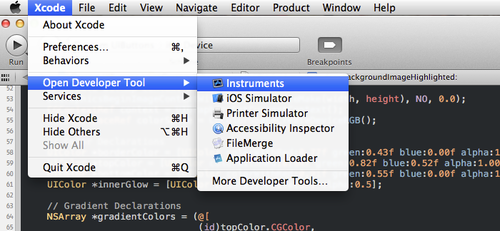
- Open Instruments using the Developer Applications menu in Xcode.
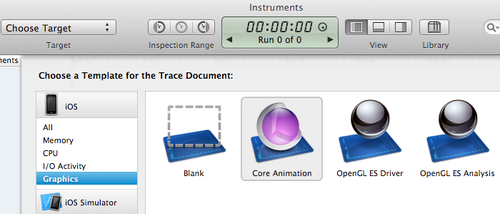
- Select the iOS > Graphics > Core Animation template
- Bring up the detail pane using the middle toggle icon
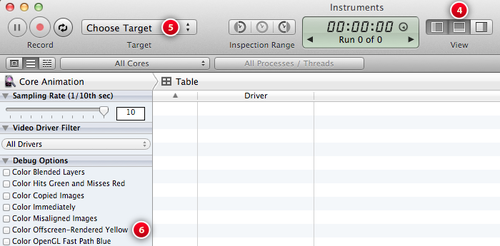
- Select your device as a target
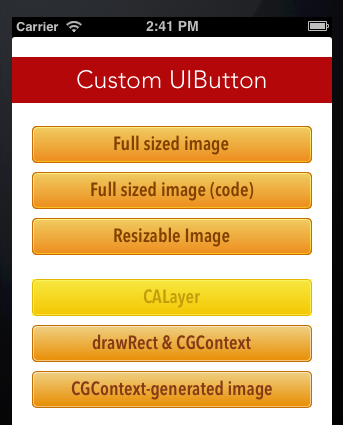
- Check the “Color Offscreen-Rendered Yellow” debug option
- On your device, anything drawn offscreen will be overlaid with a yellow tint
Update: You can also inspect offscreen rendering by checking the Debug >
Color Offscreen-Rendered option in the iOS Simulator. Unless you are doing
performance tests—which was the case here—using the simulator is the easiest
and most straightforward way to inspect offscreen rendering.
The Case of UIButton
Let’s now have a look at the performance footprint of each of the previously
introduced
approaches.
Using Pre-rendered Assets
Customizing our button with a UIImage background relies entirely on the GPU
for rendering the image assets saved on disk. The resizable background image
variant is considered the least resource-hungry approach since it results in
smaller app bundles and takes advantage of hardware acceleration when
stretching or tiling pixels.
Using CALayers
The CALayer-based method we implemented requires offscreen-drawing passes as it
uses masking to render rounded corners. We also had to explicitly disable the
animation that comes turned on by default when using Core Animation. Bottom
line, unless you need animated transitions, this technique is not adequate for
custom drawing.
Using drawRect
The drawRect method relies on Core Graphics to do the custom drawing, but its
main drawback lies in the way it handles touch events: each time the button is
pressed, setNeedsDisplay forces it to redraw; not only once, but twice for
every single tap. This is not a good use of CPU and memory, especially if there
are multiple instances of our UIButton in the interface.
A Hybrid Approach
So, does this mean that using pre-rendered assets is the only viable solution?
The short answer is no. If you still need the flexibility of drawing with code,
there are techniques to optimize your code and reduce its performance
footprint. One way is to generate a stretchable bitmap image and reuse it
across all instances.
We’ll start by creating a new subclass of UIButton following the same steps
detailed in the previous tutorial, then we’ll define our class-level static
variables:
// In CBHybrid.m

#import "CBHybrid.h"

@implementation CBHybrid

// Resizable background image for normal state

static UIImage *gBackgroundImage;

// Resizable background image for highlighted state

static UIImage *gBackgroundImageHighlighted;

// Background image border radius and height

static int borderRadius = 5;

static int height = 37;
Next we will move our drawing code from drawRect in CBBezier to a new
helper method, with a couple of changes: we will generate a resizable image
instead of a full-sized one, then we will save the output to a static variable
for later reuse:
- (UIImage *)drawBackgroundImageHighlighted:(BOOL)highlighted {

    // Drawing code goes here

}
First, we need to get the width of our resizable image. For optimal
performance, we want a 1pt stretchable area in the vertical center of the
image.
float width = 1 + (borderRadius * 2);
The height matters less in this case, as long as the button is tall enough for
the gradient to be visible. The value of 37pt was picked to match the height
of the other buttons.
Moving on, we need a bitmap context to draw into, so let’s create one:
UIGraphicsBeginImageContextWithOptions(CGSizeMake(width, height), NO, 0.0);

CGContextRef context = UIGraphicsGetCurrentContext();

CGColorSpaceRef colorSpace = CGColorSpaceCreateDeviceRGB();
Setting the second boolean argument to NO will ensure that our image context
is not opaque. The last argument is for the scale factor (screen density). When
set to 0.0 it defaults the scale factor of the device.
The next block will be exactly like our previous Core Graphics implementation
in CBBezier, save for updated values and the use of the highlighted
argument instead of the default self.highlighted property:
// Gradient Declarations

// NSArray *gradientColors = ...

// Draw rounded rectangle bezier path

UIBezierPath *roundedRectanglePath = [UIBezierPath bezierPathWithRoundedRect: CGRectMake(0, 0, width, height) cornerRadius: borderRadius];

// Use the bezier as a clipping path

[roundedRectanglePath addClip];

// Use one of the two gradients depending on the state of the button

CGGradientRef background = highlighted? highlightedGradient : gradient;

// Draw gradient within the path

CGContextDrawLinearGradient(context, background, CGPointMake(140, 0), CGPointMake(140, height-1), 0);

// Draw border

// [borderColor setStroke...

// Draw Inner Glow

// UIBezierPath *innerGlowRect...
The only step we will need to add compared to CBBezier is a method that saves
the output in a UIImage and a call to UIGraphicsEndImageContext to clean up
after us.
UIImage* backgroundImage = UIGraphicsGetImageFromCurrentImageContext();

// Cleanup

UIGraphicsEndImageContext();
Now that we have a method to generate our background images, we will have to
implement a common initializer method that will instantiate these images and
set them up as the background for our CBHybrid instance.
- (void)setupBackgrounds {

    // Generate background images if necessary

    if (!gBackgroundImage && !gBackgroundImageHighlighted) {

        gBackgroundImage = [[self drawBackgroundImageHighlighted:NO] resizableImageWithCapInsets:UIEdgeInsetsMake(borderRadius, borderRadius, borderRadius, borderRadius) resizingMode:UIImageResizingModeStretch];

        gBackgroundImageHighlighted = [[self drawBackgroundImageHighlighted:YES] resizableImageWithCapInsets:UIEdgeInsetsMake(borderRadius, borderRadius, borderRadius, borderRadius) resizingMode:UIImageResizingModeStretch];

    }

    // Set background for the button instance

    [self setBackgroundImage:gBackgroundImage forState:UIControlStateNormal];

    [self setBackgroundImage:gBackgroundImageHighlighted forState:UIControlStateHighlighted];

}
We’ll proceed by setting the button type to custom and implementing
initWithCoder (or initWithFrame if the button instance is created in code):
+ (CBHybrid *)buttonWithType:(UIButtonType)type

{

    return [super buttonWithType:UIButtonTypeCustom];

}

- (id)initWithCoder:(NSCoder *)aDecoder {

    self = [super initWithCoder:aDecoder];

    if (self) {

        [self setupBackgrounds];

    }

    return self;

}
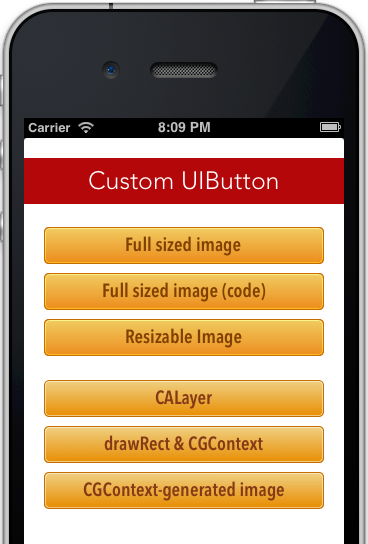
To make sure that the new subclass is working properly, duplicate one of the
buttons in Interface Builder and change its class to CBHybrid. Change the
button content to CGContext-generated image then build and run.
The full subclass code can be found
here.
Closing Words
When all is said and done, pre-rendered assets would still perform better than
any code-based solution. Then again, there is much to gain in terms of
flexibility and efficiency once Core Graphicsis tamed—that and a hybrid
approach like the one we just covered would not affect performance to any
noticeable degree on today’s hardware.
Update: Andy Matuschak, a member of the UIKit team, was kind enough to
provide more
clarifications
about offscreen rendering as well as some good insights about cache-purging in
the comments section.
Designing for iOS: Graphics & Performance的更多相关文章
- Unity3D Optimizing Graphics Performance for iOS
原地址:http://blog.sina.com.cn/s/blog_72b936d801013ptr.html icense Comparisons http://unity3d.com/unity ...
- A blog about Core Animation and other iOS graphics framework
A blog about Core Animation and other iOS graphics frameworks. https://www.calayer.com/
- Optimizing graphics performance
看U3D文档,心得:对于3D场景,使用分层次的距离裁剪,小物件分到一个层,稍远时就被裁掉,大物体分到一个层,距离很远时才裁掉,甚至不载.中物体介于二者之间. 文档如下: Good performanc ...
- [ios]离屏渲染优化
原文链接:https://mp.weixin.qq.com/s?__biz=MjM5NTIyNTUyMQ==&mid=2709544818&idx=1&sn=62d0d2e9a ...
- iOS图形处理和性能
转自陶丰平的博客 原文的题目是Designing for iOS: Graphics & Performance,晚上花了两个不到小时大致翻译了下. ---Begin--- 在之前的文章里 ...
- iOS 程序性能优化
前言 转载自:http://www.samirchen.com/ios-performance-optimization/ 程序性能优化不应该是一件放在功能完成之后的事,对性能的概念应该从我们一开始写 ...
- iOS 性能优化总结
卡顿产生的原因 在 VSync信号到来后,系统图形服务会通过 CADisplayLink等机制通知 App,App主线程开始在 CPU中计算显示内容,比如视图的创建.布局计算.图片解码.文本绘制等.随 ...
- 25条提高iOS App性能的建议和技巧
这篇文章来自iOS Tutorial Team 成员 Marcelo Fabri, 他是 Movile 的一个iOS开发者. Check out his personal website or fol ...
- 25条提高iOS app性能的方法和技巧
以下这些技巧分为三个不同那个的级别---基础,中级,高级. 基础 这些技巧你要总是想着实现在你开发的App中. 1. 用ARC去管理内存(Use ARC to Manage Memory) 2.适当的 ...
随机推荐
- iOS开发:自定义控件实现手势解锁
自定义控件 1.提供initWithFrame:及initWithCoder:方法来初始化: 2.解锁控件只负责展示.触摸.绘图等,存储轨迹.判断轨迹等操作不是解锁控件要做的.因此要定义一个代理,将轨 ...
- Java项目:学生成绩管理系统(一)
学生成绩管理系统(一) 项目名称:学生成绩管理系统 项目需求分析(Need 需求): (1)该系统的用户分为教师和学生.教师的功能有:管理某一学生或课程的信息以及成绩,包括增.删.查.报表打印等:学生 ...
- Python:循环语句
while 在某种条件下,执行某段程序 >>> w=0 >>> while w<5: ... print 'w :',w ... w=w+1 ... w : ...
- iOS -初识UIKit
UIKit框架:UI界面上每一个元素都是一个对象 一张图片是UIimageView对象 一段文字是一个UILabei对象 一个按钮是一个UIButton对象 搭建UI界面的步骤 利用类创建对象 将对象 ...
- guava学习--monitor
转载:https://my.oschina.net/realfighter/blog/349924 https://my.oschina.net/realfighter/blog/349926 M ...
- angularJs,ionic字符串操作
1.首先我们需要把一段"文本或字符串"中的我们想进行操作的"字符串","字"筛选出来,代码如下: app.filter('replaceCo ...
- 2016.9.27 --- changchun
1001 Hanzo vs. Genji 1002 Fraction 1003 Rotate String 1004 Triangle 1005 The Fastest Runner Ms. Zhan ...
- scala 的内部类
class A { class B; def foo(b:A#B){} //def foo(b:B){} 后面的a1.foo(b2) 就不能通过编译 } object Main { def main( ...
- 【Python扩展阅读【转】EasyGui 学习文档【超详细中文版】】
翻译改编自官方文档:http://easygui.sourceforge.net/tutorial/index.html 翻译改编者:小甲鱼,本文欢迎转载,转载请保证原文的完整性! 演示使用 Pyth ...
- Request和response的用法总结
Request 个我总结:只要记住 只要是有关于客户端请求的信息,都可以藉由它来取得,例如请求标头.请求方法.请求参数.使用者IP等等信息. 3.什么情况下为响应?什么情况下为请求? 简单一句话,请求 ...